


October 31, 2026
|
Lesedauer: 5 Minuten


Erhalten Sie sofortigen Zugriff auf eine TrueFoundry-Live-Umgebung. Stellen Sie Modelle bereit, leiten Sie den LLM-Verkehr weiter und erkunden Sie die gesamte Plattform — Ihre Sandbox ist in Sekundenschnelle einsatzbereit, ohne dass eine Kreditkarte erforderlich ist.



.png)
Unglaublich schnelle Methode zum Erstellen, Verfolgen und Bereitstellen Ihrer Modelle!
Der Salesforce MCP-Server macht Ihr CRM zu aufrufbaren Tools. Das Model Context Protocol ist der offene Standard, der es einem KI-Agenten ermöglicht, Tools auf einem externen System zu finden und aufzurufen; die Implementierung von Salesforce stellt darüber Standard- und benutzerdefinierte sObjects bereit.
Was ihn von den meisten Remote-MCP-Servern unterscheidet, ist der Ausführungsort: Salesforce stellt seine MCP-Server direkt aus Ihrer Organisation herausbereit, aktiviert über das verwaltete TrueFoundry Salesforce-Paket – ohne Drittanbieter-Host dazwischen und ohne die Notwendigkeit, eine OAuth-App einzurichten.
Was Sie aktivieren, bestimmt, worauf Agenten zugreifen können:
Diese beiden Optionen beziehen sich auf die einzige wichtige Entscheidung: Muss dieser Agent Datensätze ändern oder nur lesen? Der Tab Salesforce-Server unter „Setup“ listet auf, was Ihre Edition aktivieren kann. [ÜBERPRÜFEN] Ob dort weitere Varianten als diese beiden erscheinen, ist nicht dokumentiert.
Innerhalb beider Server bildet Ihr Datenmodell die Grundlage. Die Dokumentation beschreibt Tools nach Funktionen und Objekttypen, anstatt feste Funktionsnamen zu veröffentlichen. Daher ist der Tab Tools auf der Detailseite des Servers das eigentliche Inventar für Ihre Organisation.
Die nützlichen Workflow-Ketten lesen und schreiben gelegentlich:
Drei dieser vier Punkte sind reine Lesezugriffe, und genau das ist das Muster. Das meiste, was Teams von einem CRM-MCP-Server erwarten, ist das Lesen. Die Unterscheidung zwischen Lesen und Schreiben ist hier also kein abstraktes Prinzip, sondern eine konkrete Frage, die bei der Aktivierung beantwortet wird – und die meisten Agenten gehören auf die reine Leseseite.
Ein RevOps-Analyst, der Salesforce mit Claude Desktop verbindet, ist in Ordnung. Dieselbe Integration für dreißig Personen in Vertrieb, Support und Finanzen ist es nicht.
Ein Agent mit Schreibzugriff kann die Zahlen verändern, die der Vorstand sieht. Beträge von Verkaufschancen, Abschlussdaten und Phasen fließen in die Prognose ein; Kontofelder speisen das Gebiets- und ARR-Reporting. Ein Agent, der eine Phase „bereinigt“ oder ein vermeintliches Duplikat löscht, hat nicht einfach nur Daten preisgegeben – er hat das System of Record korrumpiert, auf dessen Basis die Finanzabteilung das Quartal abschließt, und überschriebene Historien lassen sich nicht einfach per Commit rückgängig machen. Prompt Injection verschärft das Problem: Eine Anweisung, die in einer Fallbeschreibung platziert wurde, erreicht einen Triage-Agenten, der über dieselben Schreibrechte verfügt wie ein Agent für Datenhygiene.
Ein Agent mit Lesezugriff kann die gesamte Pipeline in einen Modellkontext ziehen. Eine einzige umfassende Abfrage für Verkaufschancen liefert jeden offenen Deal, dessen Betrag und den zuständigen Mitarbeiter – und bei einem gemeinsam genutzten Service-Account ist diese Abfrage nicht durch die Freigaberegeln einzelner Nutzer begrenzt. Ihre Prognose wird zum Prompt.
Gemeinsam genutzte Anmeldedaten hebeln das Berechtigungsmodell von Salesforce aus. Profile, Berechtigungssätze, Feldebene-Sicherheit, Freigaberegeln – Teams investieren Jahre in deren Feinabstimmung. Wenn sich dann eine Integration mit einem einzigen Administrator-Account authentifiziert, erbt jede Anfrage Admin-Rechte und die gesamte Arbeit war umsonst.
Keine Nachvollziehbarkeit bei Änderungen. Die Feldhistorie zeigt zwar, dass ein Datensatz geändert wurde und welcher Benutzer dies getan hat – aber nicht, dass ein Mitarbeiter die Änderung aufgrund einer Aufforderung aus einem Slack-Thread vorgenommen hat.
Das alles spricht nicht gegen die Anbindung von Salesforce. Es spricht für eine vorgeschaltete Steuerungsebene – genau dafür ist ein MCP-Gateway da.
Da der Server in Ihrer Organisation läuft, hat diese Integration echte Voraussetzungen, anders als die meisten verwalteten MCPs.
Planen Sie etwa zehn Minuten ein, wobei die meiste Zeit auf die Installation und Aktivierung entfällt.
TrueFoundry stellt Salesforce als TrueFoundry Managed MCPbereit: Die Plattform verwaltet die Server-URL, die ausgehende Authentifizierung, die Scopes und die Anmeldedaten und hält diese aktuell, wenn Salesforce Änderungen vornimmt:
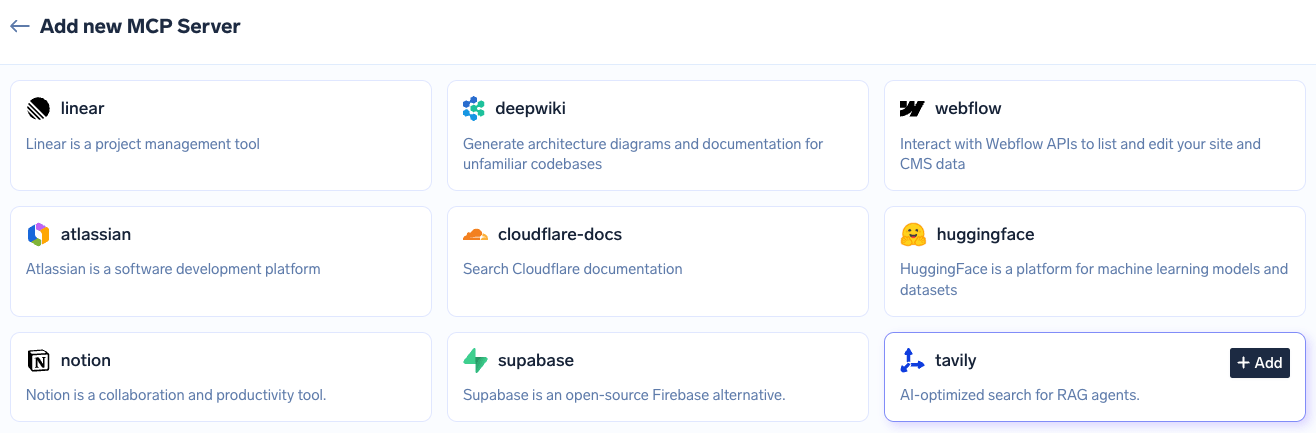
Da der Server Ihnen gehört, fügt Salesforce davor drei Schritte auf Org-Ebene hinzu.
Schritt 1 – Installieren Sie das TrueFoundry Salesforce MCP-Paket. Melden Sie sich als Administrator bei Ihrer Org an und öffnen Sie dann den Installationslink in derselben Browsersitzung:
https://login.salesforce.com/packaging/installPackage.apexp?p0=04ta7000001FUejAAG
Wählen Sie auf dem Installationsbildschirm Für alle Benutzer installieren, klicken Sie auf Installierenund warten Sie auf die Erfolgsbestätigung.
Schritt 2 – Aktivieren Sie den MCP-Dienst. Suchen Sie unter Setupim Schnellfindefeld nach Benutzeroberfläche , finden Sie MCP-Dienst aktivieren, schalten Sie ihn ein und klicken Sie auf Speichern.
Schritt 3 – Aktivieren Sie den MCP-Server. Noch in Einrichtung, suchen Sie nach MCP-Servern und öffnen Sie den Salesforce-Server -Tab. Wählen Sie den gewünschten Server aus – sobject-all für vollen Lese-/Schreibzugriff, sobject-reads für reinen Lesezugriff – und klicken Sie auf Aktivieren; dies kann bis zu zwei Minuten dauern. Lesen Sie den nächsten Abschnitt, bevor Sie Ihre Auswahl treffen.
Schritt 4 – Verbindung in TrueFoundry herstellen. Gehen Sie zu MCP-Server, suchen Sie nach Salesforce MCPund klicken Sie auf Verbinden. Sie werden zur Salesforce-Anmelde- und Zustimmungsseite weitergeleitet: Melden Sie sich an, überprüfen Sie die angeforderten Berechtigungen und klicken Sie auf Zulassen.
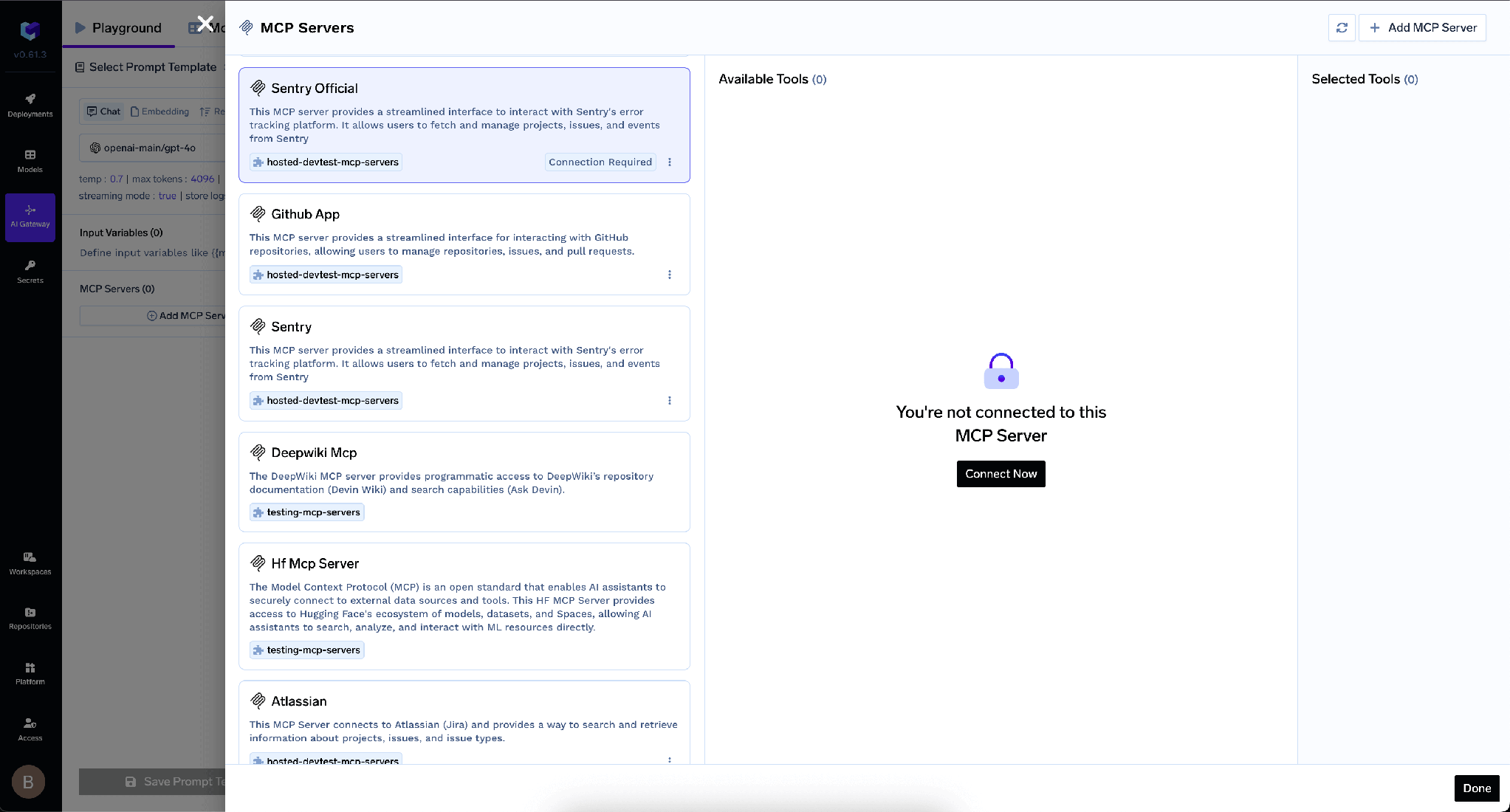
Schritt 5 — Überprüfung. Der Server sollte Verbunden anzeigen und der Tools -Tab sollte die verfügbaren Tools auflisten. Klicken Sie auf Ausprobieren bei einem beliebigen Tool oder führen Sie einen Befehl wie „list all accounts“aus, um den Roundtrip zu bestätigen.
Beachten Sie, was Sie nicht tun müssen: keine externe Client-App, keine verbundene App, keine Client-ID oder kein Secret, keine OAuth-Scopes, keine Callback-URL.
TrueFoundry trennt die eingehende Authentifizierung – wie sich ein Client gegenüber dem Gateway ausweist – von der ausgehenden, also wie sich das Gateway gegenüber Salesforce ausweist.
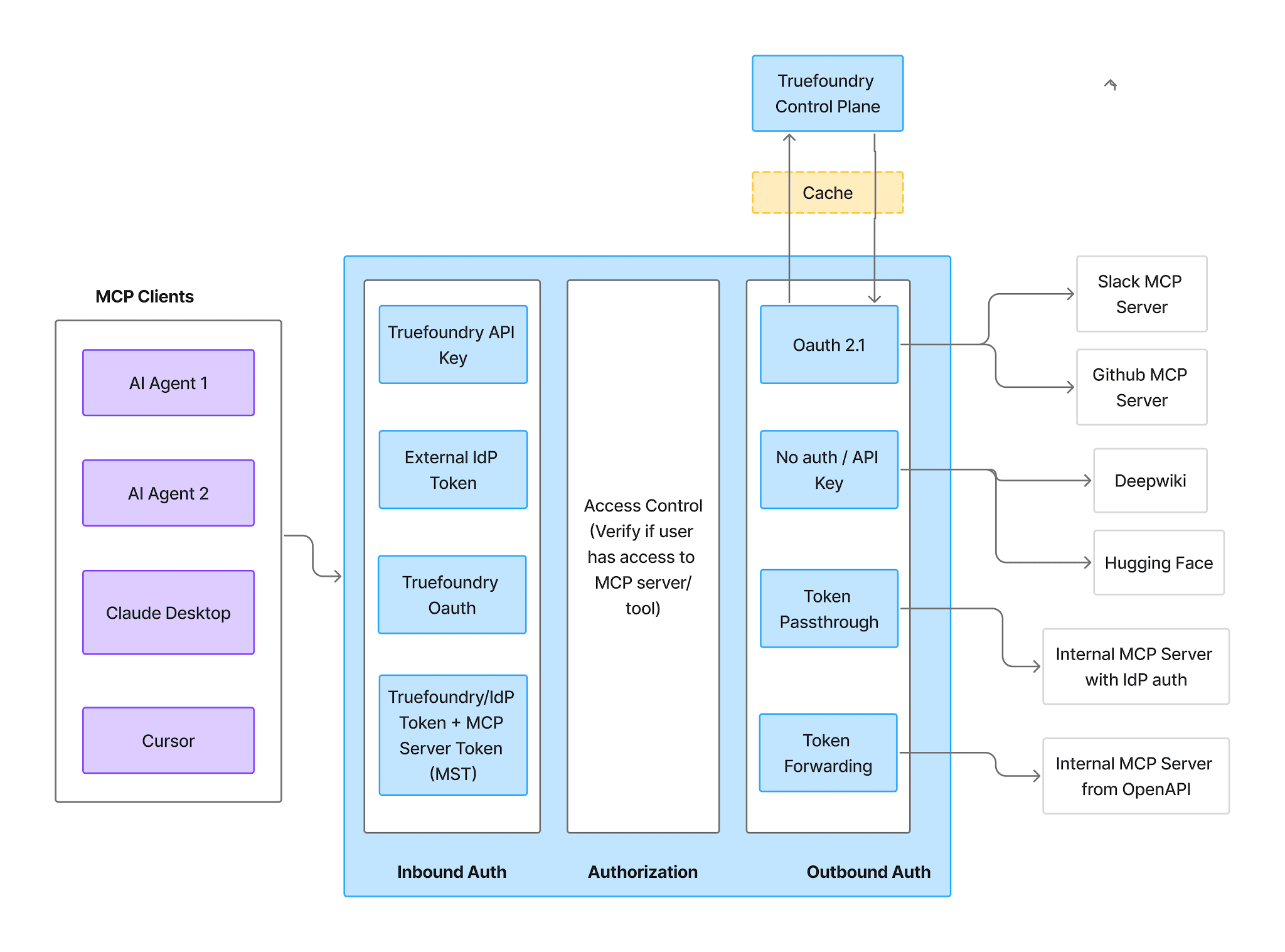
Eingehend — Clients authentifizieren sich gegenüber dem AI Gateway mit einer der folgenden Methoden:
Ein wichtiger Hinweis, der hier mehr als bei den meisten Servern gilt: Ein Virtual-Account-Token gewährt jeder Anfrage den gleichen Zugriff, weshalb es keine benutzerbezogene CRM-Sichtbarkeit unterstützen kann. Verwenden Sie für eingehende Anfragen ein PAT oder den IDE-OAuth-Flow.
Ausgehend — der OAuth2 Authorization Code -Flow. Jeder Benutzer autorisiert sein eigenes Salesforce-Konto; TrueFoundry verwaltet die Zustimmung, die Token-Speicherung und die Aktualisierung. Als verwaltetes MCP ist der Redirect-URI immer der zentral verwaltete Callback von TrueFoundry:
https://auth.truefoundry.com/mcp/oauth2/callback
Das ist es, was die Salesforce-Integration so stark macht. Da die ausgehende Identität der individuelle Benutzer ist, wird jede Aktion als dieser authentifizierte Benutzer ausgeführt und respektiert die CRUD-Berechtigungen, die Feldebene-Sicherheit und die Freigaberegeln Ihrer Organisation. Der Vertriebsmitarbeiter, dessen Profil keine Finanzdaten sehen darf? Sein Agent kann das ebenfalls nicht. Der Support-Mitarbeiter, der auf eine Region beschränkt ist? Sein Agent sieht ebenfalls nur diese eine Region.
Ihr Berechtigungsmodell wird am Gateway weder umgangen noch dupliziert oder angenähert – es ist die Durchsetzungsebene, da Salesforce jeden Aufruf als echter Benutzer bewertet. Benutzer authentifizieren sich zweimal: einmal gegenüber dem Gateway und einmal gegenüber Salesforce. Genau das ermöglicht die benutzerbezogene Zuordnung.
Die meisten MCP-Server bieten Ihnen nur einen Ort, um Funktionen einzuschränken: das Gateway. Salesforce bietet Ihnen zwei, wobei der vorgelagerte Ansatz der stärkere ist.
Die Aktivierung von sobject-reads anstelle von sobject-all bedeutet, dass die Schreib- und Lösch-Tools nicht existieren auf dem Server, mit dem Ihr Gateway kommuniziert. Nicht deaktiviert, nicht gesperrt – sie sind schlichtweg nicht vorhanden. Es gibt keinen Schalter, der später falsch konfiguriert werden könnte, keinen Mitarbeiter, der ihn zurücksetzen kann, und kein vorgelagertes Release, das stillschweigend ein Schreib-Tool hinzufügt.
Wenn Sie sobject-all bereits aktiviert haben, führt das Deaktivieren der Schreib- und Lösch-Tools auf dem Tools -Tab zum gleichen Ergebnis – es ist lediglich ein Steuerelement, das Sie beibehalten müssen.
Sobald die Verbindung hergestellt ist, listet der Tools -Tab alles auf, was der aktive Server bereitstellt.
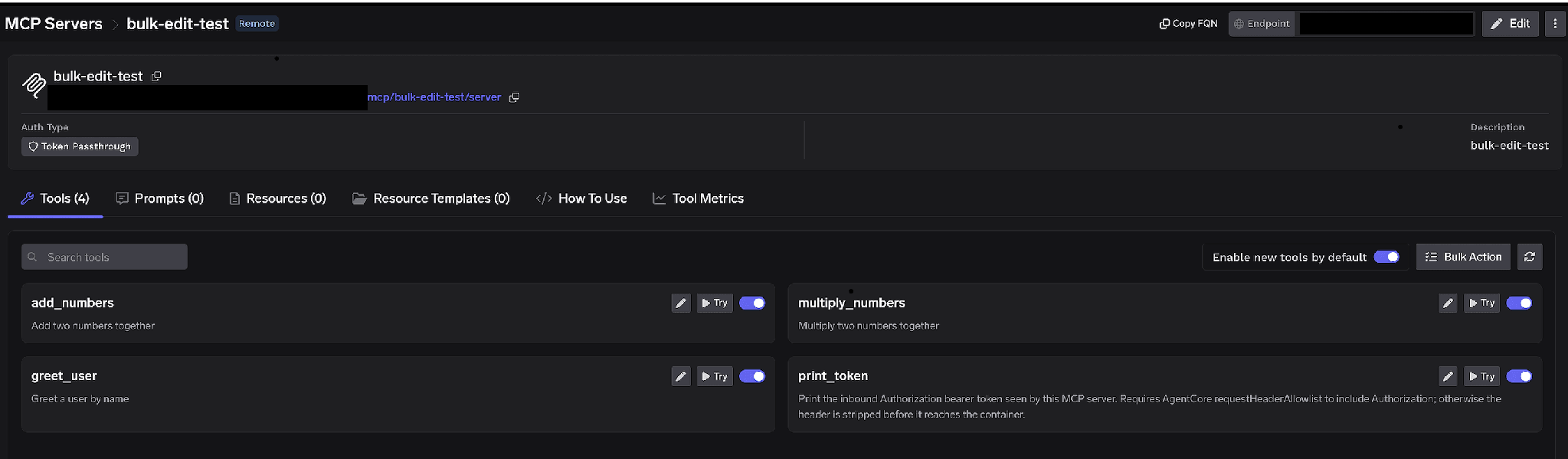
Umschalter pro Tool. Deaktivieren Sie ein Tool, wird es vollständig aus tools/list entfernt – Clients sehen es nicht und können es nicht aufrufen. Dies ist kein Filtern auf Prompt-Ebene: Ein Agent, der kein Lösch-Tool sehen kann, lässt sich nicht dazu überreden, eines aufzurufen, egal was in einer manipulierten Fallbeschreibung steht.
Neue Tools standardmäßig aktivieren. Ist dies aktiviert, erscheinen neue Upstream-Tools automatisch. Ist es deaktiviert, sind nur die von Ihnen explizit freigegebenen Tools verfügbar und alles Neue bleibt verborgen, bis Sie es genehmigen. Für ein System of Record ist „deaktiviert“ die richtige Standardeinstellung.
Massenaktion. Wandelt jede Zeile in Kontrollkästchen um, mit Alle auswählen, damit Sie eine große Auswahl auf einmal umstellen können und Speichern.
Klicken Sie auf das Stift-Symbol bei einem beliebigen Tool, um dessen Darstellung für das Modell anzupassen:
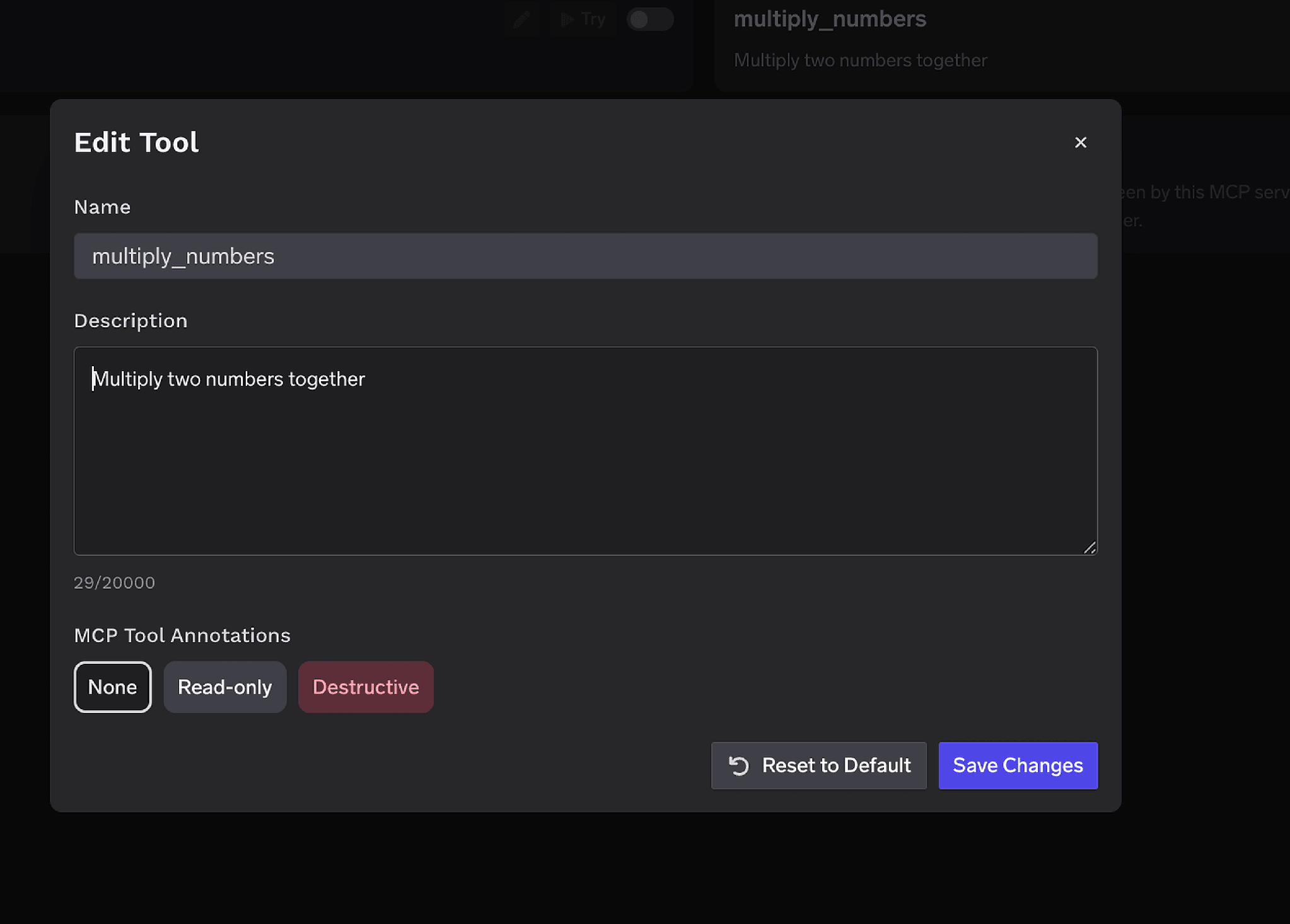
Die Beschreibung -Überschreibung (bis zu 20.000 Zeichen) steuert die Tool-Auswahl, wenn die ursprüngliche Formulierung mehrdeutig ist. MCP-Tool-Annotationen kennzeichnen ein Tool als Schreibgeschützt oder Destruktiv, wodurch readOnlyHint oder destructiveHint gesetzt werden – und die Kennzeichnung von Schreib-Tools als Destruktiv ermöglicht es den unten aufgeführten Genehmigungsrichtlinien, eine ganze Klasse von Vorgängen auf einmal zu steuern.
Die Zugriffskontrolle erfolgt für Benutzer, Teams oder virtuelle Konten auf zwei Ebenen: auf welche Server eine Identität zugreifen kann und welche Tools sie aufrufen darf.
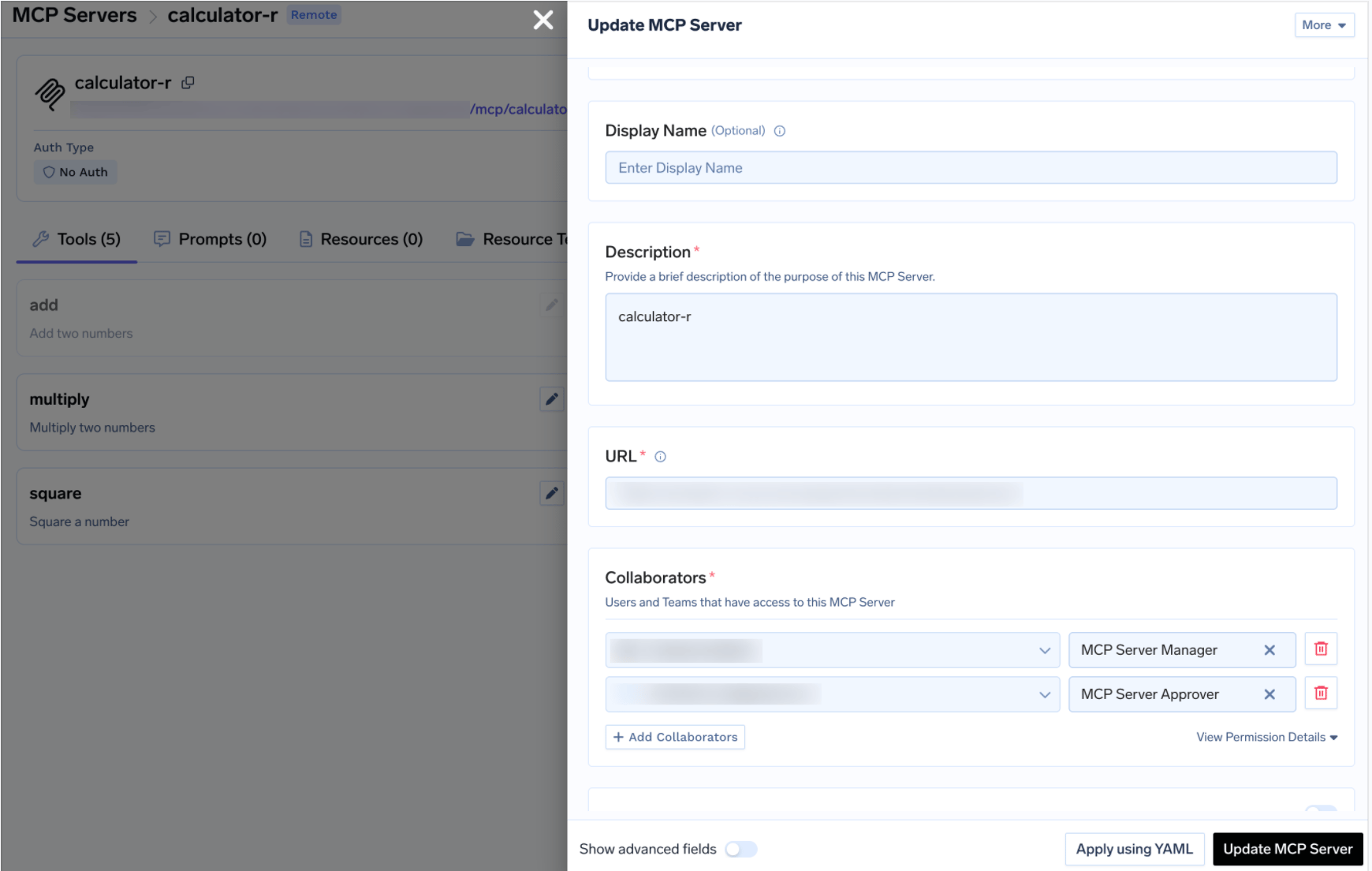
Bei einem CRM ist die natürliche Aufteilung: RevOps als Manager, Vertrieb und Support als Benutzer sowie ein Sales-Ops-Leiter als Genehmiger für den Schreibzugriff – das gleiche MCP-Zugriffskontroll- Modell wie bei jedem anderen Server im Verzeichnis.
Das Deaktivieren von Schreibzugriffen ist eine grobe Methode, die für die meisten Salesforce-Agenten zwar korrekt ist, aber manche Workflows erfordern legitime Schreibvorgänge – wie das Protokollieren von Aktivitäten, das Vorantreiben einer Phase oder das Erstellen einer Aufgabe –, bei denen Sie eine menschliche Überprüfung sicherstellen möchten.
Wenn ein geschütztes Tool aufgerufen wird, wird der Aufruf zurückgehalten statt ausgeführt, eine Freigabeanfrage wird erstellt und die Genehmigenden werden benachrichtigt. Nach der manuellen Freigabe sind die Aufrufe für ein konfigurierbares Zeitfenster zulässig, danach ist eine erneute Genehmigung erforderlich. Erstellen Sie eine Richtlinie unter AI Gateway → Policies → MCP Tool Approval (in der Konsole als Beta gekennzeichnet):
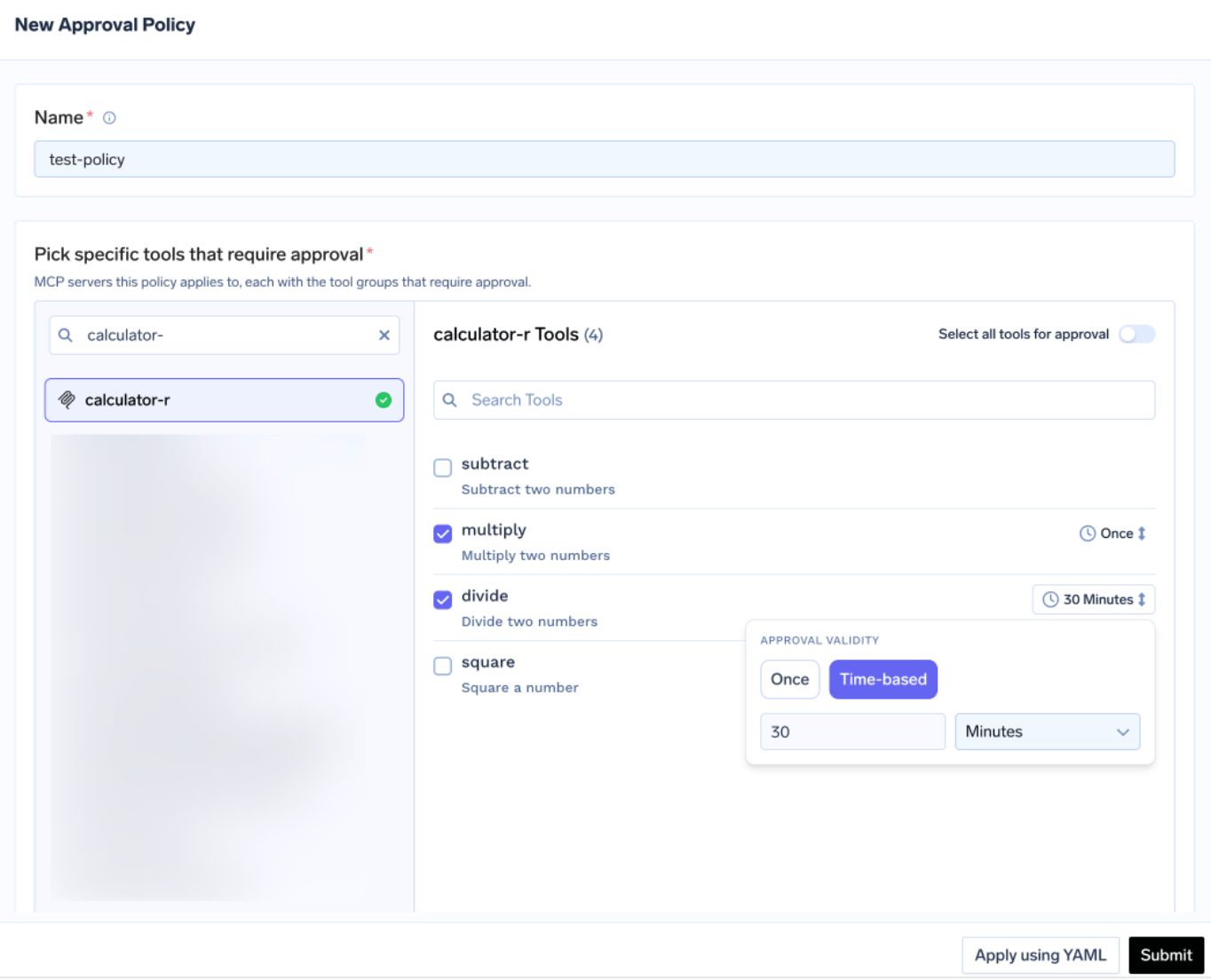
Jede Richtlinie benennt die Server, die sie schützt, und wählt einen Freigabebereich:
Hier zahlen sich die Annotationen aus: Markieren Sie Schreibvorgänge als Destructive und schützen Sie die Klasse mit approval_scope: destructive. Wenn sich Bereiche überschneiden, gilt die spezifischste Regel – benannt > destructive > alle.
Die Gültigkeit ist entweder einmalig (eine einzelne Ausführung) oder zeitbasiert, also eine Dauer in Minuten. Bei Konflikten zwischen Richtlinien gewinnt die restriktivste Einstellung: Einmalig schlägt 10 Minuten, 10 Minuten schlägt 30. Wählen Sie für alles, was Opportunity- oder Account-Datensätze betrifft, einmalig – eine 30-minütige Freigabe für ein Schreib-Tool bedeutet 30 Minuten, in denen ein Agent in einer Schleife agieren kann.
Genehmiger werden per E-Mail, Slack, PagerDuty oder MS Teams benachrichtigt und prüfen die Anfragen in der Konsole:
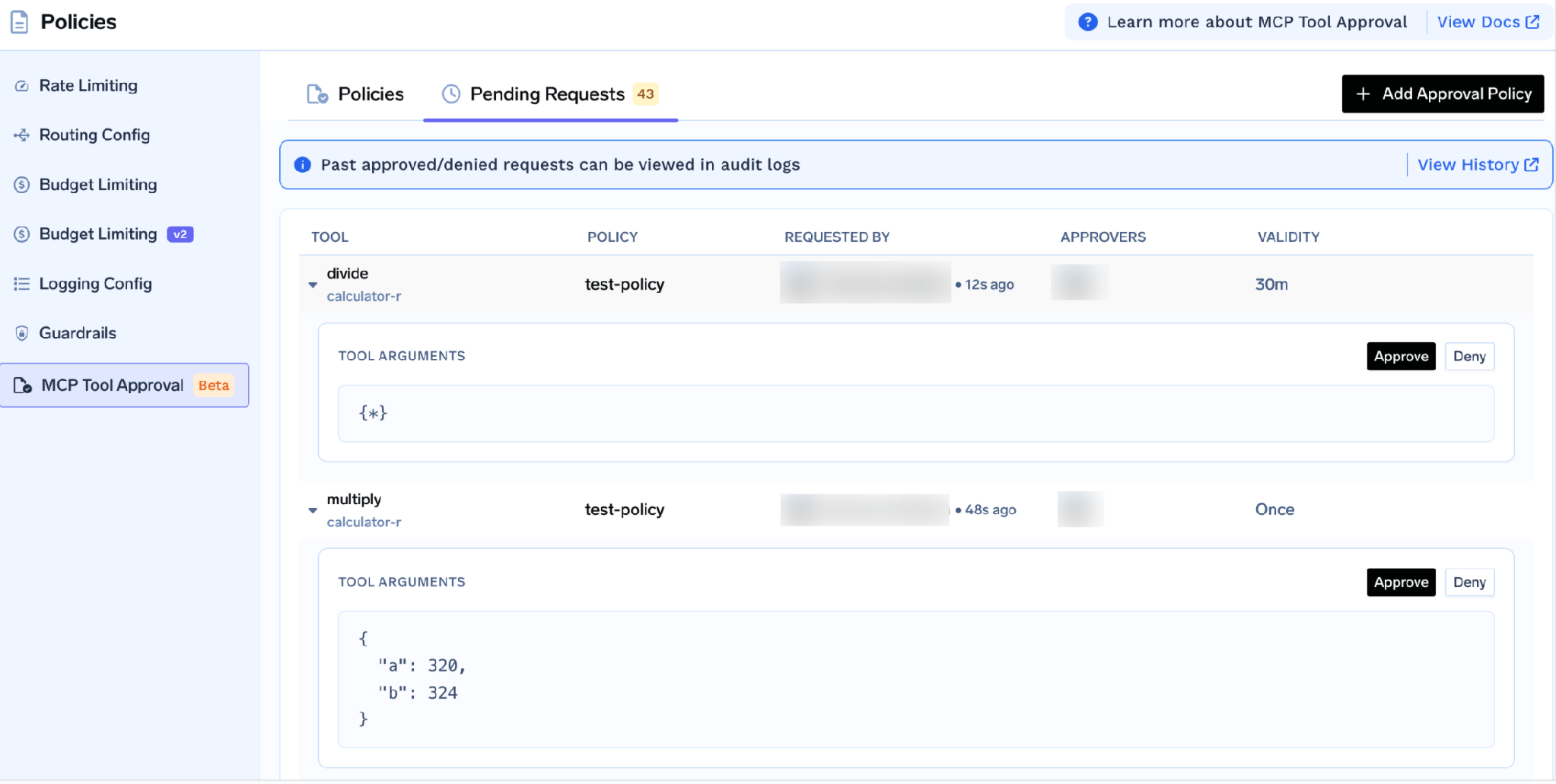
Jede Anfrage zeigt das Tool, die Richtlinie, den Anfragesteller, den Gültigkeitszeitraum und die tatsächlichen Tool-Argumente – so kann ein Genehmiger sehen, dass ein Agent eine 400.000-Dollar-Chance auf „Closed Lost“ setzen möchte, bevor er dies freigibt. Genau diese Transparenz ist der eigentliche Mehrwert der Funktion für ein CRM.
Während die Anfrage aussteht, erhält der Aufrufer ein erfolgreiches JSON-RPC-Ergebnis mit _meta.approval_status: "pending" anstelle eines Fehlers, sodass ein gut funktionierender Agent wartet und es erneut versucht. Berechtigungen sind pro Anfragesteller definiert, und eine Ablehnung blockiert niemanden dauerhaft – der nächste Aufruf löst einfach eine neue Anfrage aus.
Probieren Sie die Tools zunächst manuell aus. Klicken Sie auf der Seite mit den Serverdetails auf Ausprobieren neben einem beliebigen Tool, geben Sie die Eingabewerte ein – den Objekttyp wie „Account“ oder „Opportunity“ sowie eventuelle Abfragefilter – und klicken Sie auf Tool ausführen, um das JSON zu lesen. Ausprobieren ist für Tools deaktiviert, die Sie ausgeschaltet haben. So lassen sich triviale Fehler frühzeitig erkennen: ein Feld, das Ihr Profil nicht lesen kann, ein Objekt, das das Paket nicht bereitgestellt hat, oder ein falsch geratenes Filterformat.
Öffnen Sie den Anwendungshinweise -Tab für Ihre mandantenspezifische Gateway-URL und sofort einsatzbereite Code-Snippets.
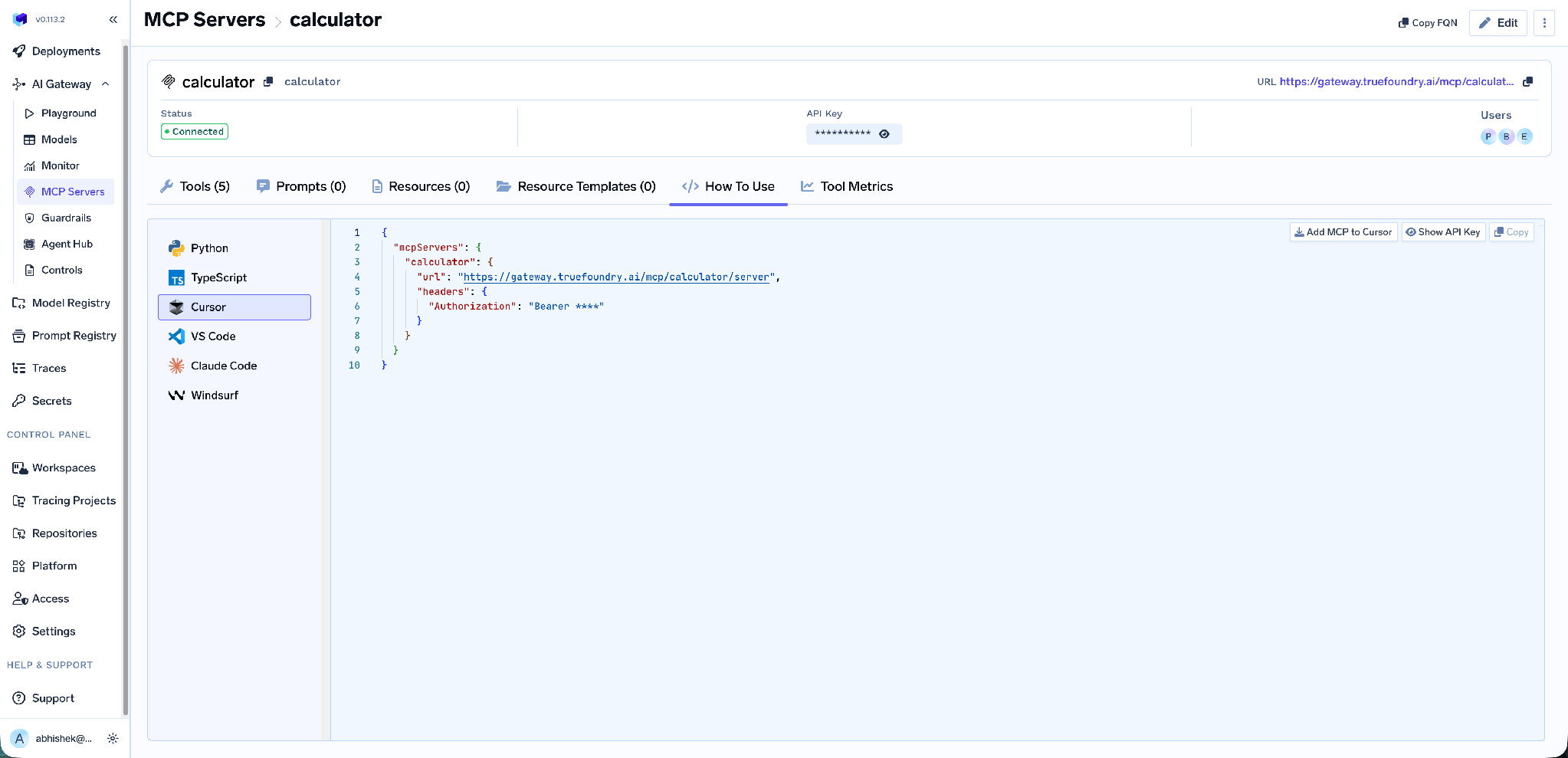
Dies umfasst Claude Code, VS Code, Claude Web, Claude Desktop, Cursor, Windsurf, Codex sowie die MCP-SDKs für Python und TypeScript; API-Schlüssel anzeigen zeigt das Token an, falls Ihr Client eines im Header benötigt. Verwenden Sie die URL aus diesem Tab, anstatt sie selbst zusammenzusetzen – sie ist mandantenspezifisch, und ein manuell erstellter Endpunkt ist die häufigste Ursache dafür, dass ein Client zwar eine Verbindung herstellt, aber keine Tools auflistet.
Tool-spezifische Metriken. Der Tool-Metriken -Tab erfasst die Anzahl der Aufrufe, die Latenz pro Tool und die Fehlerraten. Über das gesamte Gateway hinweg ergänzt MCP Metrics Anfragen pro Sekunde, Latenz bei P50/P75/P90/P99 sowie die Fehlerrate nach Fehlertyp.
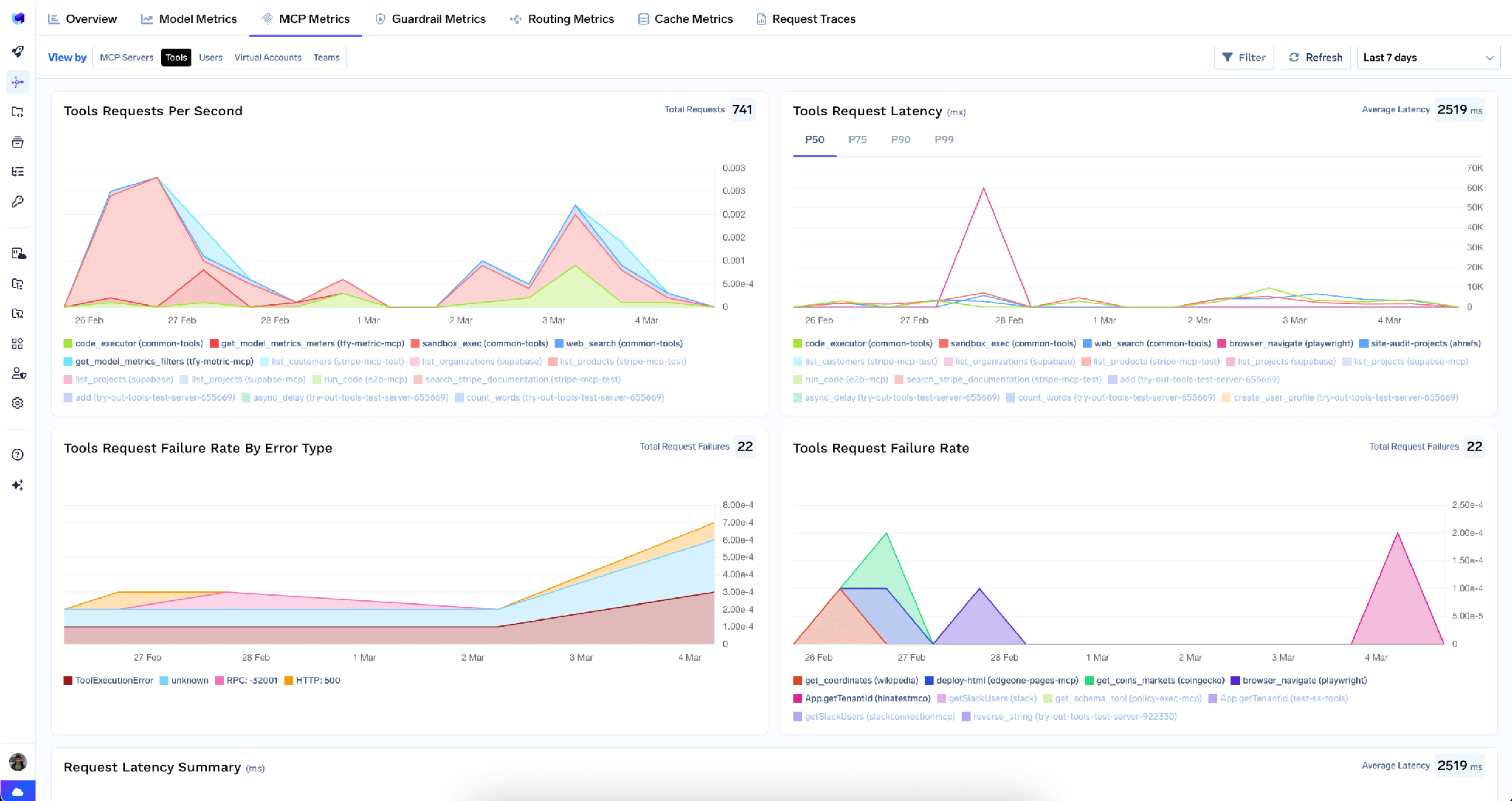
Vollständige Anfrage-Observability. Jeder Tool-Aufruf wird mit Anruferidentität, Tool-Name, Eingaben und Latenz nachverfolgt und über OpenTelemetry in Grafana, Datadog oder Prometheus exportiert – eine Attributionsschicht, die der reine Feldverlauf nicht bieten kann.
Sicherheitsvorkehrungen. Hooks greifen bei mcp_pre_tool, bevor ein Tool aufgerufen wird, wobei eine Prüfung den Aufruf direkt blockieren kann, sowie bei mcp_post_tool, bei der Antwort, bevor sie an den Agenten zurückgegeben wird. Der Post-Tool-Hook ist entscheidend für CRM-Daten – hier fangen Sie Ergebnisse ab, die mehr Datensätze oder sensiblere Felder enthalten, als ein Modell erreichen sollten.
Geringer Overhead. Das Gateway fügt etwa 3–4 ms an Latenz hinzu und bewältigt über 350 Anfragen pro Sekunde auf einer einzelnen vCPU.
Ein zentrales Verzeichnis. Sobald mehrere Server registriert sind, können Sie eine kuratierte Teilmenge ihrer Tools hinter einem einzigen Endpunkt mit einem bereitstellen Virtueller MCP-Server – ein Deal-Desk-Agent erhält also Leserechte für Tools in Salesforce, ein Slack-Tool zum Posten der Zusammenfassung und sonst nichts.
Mandantenadministratoren können über das Drei-Punkte-Menü neben alle auf dem Server gespeicherten Anmeldedaten löschen: Bearbeiten:
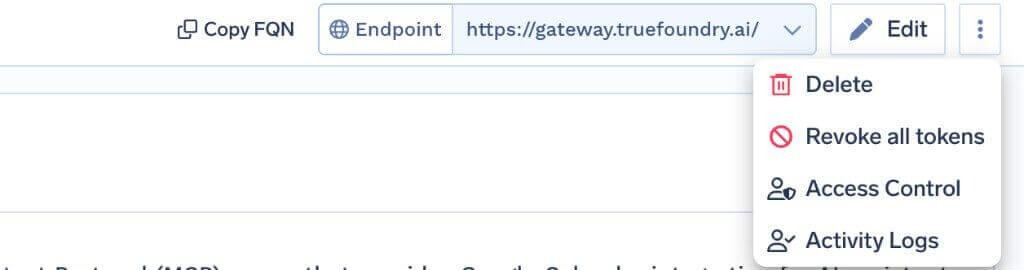
Alle Token widerrufen löscht sämtliche Authentifizierungs-Overrides und gespeicherten OAuth-Token für alle Benutzer und virtuellen Konten auf diesem Server. Dies wird mit der nächsten Anfrage wirksam und in den Aktivitätsprotokollen erfasst. Der Vorgang ist unumkehrbar und nur für Mandantenadministratoren sichtbar.
Eine wichtige Einschränkung: Token werden nur am Gateway gelöscht und nicht innerhalb von Salesforce widerrufen. Deaktivieren Sie im Falle eines Vorfalls zusätzlich den Server auf der Registerkarte Salesforce-Server – dieser Schalter entzieht die Berechtigung anstatt nur die Anmeldedaten.
„Schreibgeschützt“ ist eine Aktivierungsoption, kein einfacher Umschalter. Der sicherste schreibgeschützte Salesforce-Agent ist die Aktivierung von „sobject-reads“ in Ihrer Organisation, bei der Schreib-Tools gar nicht erst existieren. Gateway-Umschalter für „sobject-all“ sind eine gute zweite Verteidigungslinie, aber Konfigurationen können abweichen.
Die Sicherheit auf Feldebene (FLS) ist wirksamer, als Sie vielleicht denken. Da jeder Aufruf im Namen des authentifizierten Benutzers erfolgt, ist ein Tool, das bei einer Person „nicht funktioniert“ und bei einer anderen schon, in der Regel nicht defekt – es handelt sich um FLS oder eine Freigaberegel, die korrekt arbeitet.
API-Limits werden gemeinsam genutzt. Agent-Toolaufrufe beanspruchen dasselbe API-Kontingent Ihrer Organisation wie Ihre nächtlichen Jobs.
Der Salesforce-MCP-Server eignet sich außergewöhnlich gut für eine ordnungsgemäße Governance, ist aber bei Fehlern mit hohen Risiken verbunden. Er eignet sich gut, da er in Ihrer eigenen Organisation läuft und pro Benutzer autorisiert – das Berechtigungsmodell, das Ihre Administratoren bereits pflegen, wird somit zum Modell des Agenten. Er ist kostspielig, da die Objekte auf der anderen Seite die Grundlage für Ihre Prognosen und Ihren Quartalsabschluss bilden.
Die Kontrollen sind gestaffelt, und die erste ist die einfachste: Aktivieren Sie SObject-Lesevorgänge nur, wenn ein Workflow tatsächlich Schreibzugriffe benötigt. Deaktivieren Sie anschließend die Tools, die Sie nicht verwenden, und stellen Sie sicher, dass Schreibvorgänge durch einen Menschen mit Gültigkeitsprüfung bestätigt werden, und bewahren Sie das nachverfolgbare Protokoll der Aufrufe auf.
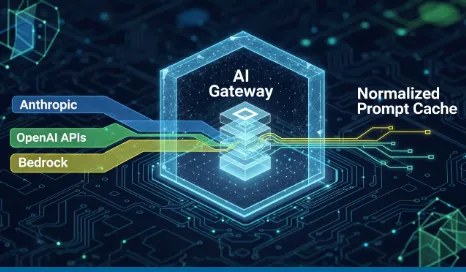
TrueFoundry AI Gateway bietet eine Latenz von ~3—4 ms, verarbeitet mehr als 350 RPS auf einer vCPU, skaliert problemlos horizontal und ist produktionsbereit, während LiteLM unter einer hohen Latenz leidet, mit moderaten RPS zu kämpfen hat, keine integrierte Skalierung hat und sich am besten für leichte Workloads oder Prototyp-Workloads eignet.


Es ist ein Server für das Model Context Protocol, der Salesforce-CRM-Daten – Accounts, Kontakte, Opportunities, Cases und benutzerdefinierte Objekte – als Tools bereitstellt, die ein KI-Agent aufrufen kann. Salesforce stellt ihn aus Ihrer eigenen Org heraus bereit: Installieren Sie das verwaltete Paket TrueFoundry Salesforce, aktivieren Sie den MCP Service in Setup und aktivieren Sie sobject-reads für schreibgeschützten Zugriff oder sobject-all für vollständigen Lese- und Schreibzugriff.
Das hängt davon ab, welchen Server Sie aktivieren. sobject-reads stellt Lese-Tools für Ihre sObjects bereit; sobject-all ergänzt Erstellen, Aktualisieren und Löschen. Die Tools sind nach Objekttyp und Abfragefiltern parametrisiert und nicht als feste Liste veröffentlicht; der Tab Tools ist daher das maßgebliche Inventar für Ihre Org – und jedes Tool dort lässt sich aktivieren, deaktivieren, neu beschreiben oder annotieren.
Er gehört zu den Integrationen, die sich leichter steuern lassen: OAuth pro Nutzer bedeutet, dass jede Aktion als der authentifizierte Nutzer läuft, mit dessen CRUD-Berechtigungen, Feldebenensicherheit und Freigaberegeln. Das Restrisiko ist der Schreibpfad – aktivieren Sie sobject-reads, wo keine Schreibvorgänge nötig sind, deaktivieren Sie Schreib-Tools, wo sie nötig sind, und stellen Sie die übrigen hinter eine menschliche Freigabe mit der Gültigkeit Once.
Ja. TrueFoundry läuft in Ihrer VPC, On-Prem, Air-Gapped oder hybrid, sodass Prompts und Antworten Ihre Domäne nie verlassen, auch wenn Sie über viele Anbieter hinweg routen.
Ja. Es umfasst ein MCP Gateway, ein Agent Gateway und eine MCP & Agents Registry mit Zugriffskontrolle auf Tool-Ebene. Agenten auf Basis von LangGraph, CrewAI, AutoGen oder einem eigenen Framework lassen sich alle zentral steuern.
Ja. Das Gateway ist OpenTelemetry-kompatibel und lässt sich in Grafana, Datadog, Prometheus oder Ihren bevorzugten Stack integrieren. Es verfolgt jede Anfrage vom Prompt bis zur Ausführung von Tools und Modellen, sodass Sie eine einheitliche Protokollierung erhalten, ohne Ihre bestehenden Systeme entfernen zu müssen.



Die neuesten Nachrichten, Artikel und Ressourcen werden in Ihren Posteingang gesendet
.webp)

.png)
.png)
.png)
.webp)
.webp)
.png)
.png)
.png)
.png)
.png)
.png)
.png)

.png)


