



November 3, 2026
|
5 min read


.png)
Blazingly fast way to build, track and deploy your models!
The HubSpot MCP server is a remote MCP server operated by HubSpot. Model Context Protocol is the open standard that lets an agent discover and call tools on an external system; HubSpot’s implementation turns CRM records into callable tools.
TrueFoundry’s docs are specific: the server “provides read access to CRM objects such as contacts, companies, deals, tickets, invoices, and quotes.” That is narrower than most people assume when they hear “CRM MCP server,” and it’s the most important fact here.
The docs describe access by object family rather than naming individual tool functions, so we’re doing the same. The authoritative list is whatever appears on your server’s Tools tab after you authorize — don’t build an agent around a tool name you read in a blog post, including this one. And being remote, there’s no container to run and no local process per laptop, which is why it sits alongside the other remote MCP servers teams are standardizing on.
The useful workflows chain reads across object families:
Each is a genuine reason to connect the server — and each means an agent reads several hundred real people’s records in one run and puts them in a model’s context window.
On the read-vs-write split. For most MCP servers this is where we’d separate harmless reads from dangerous writes. Here the documented surface is read-only, which removes a large class of risk before you configure anything: an agent cannot update a contact, change a deal stage, or trigger a marketing send. If write-capable or communication-sending tools ever appear the calculus changes sharply — an over-permissioned agent that can send email reaches real customers, and that incident cannot be recalled. Verify on the Tools tab rather than assuming. [VERIFY: whether HubSpot’s remote MCP server currently exposes any write or email-sending tools beyond the read access TrueFoundry’s docs describe.]
One person wiring HubSpot into their IDE is a personal choice. A sales org doing it is a governance question.
Personal data enters a model context, and nobody logged it. A contact record is personal data about a named human who agreed to HubSpot’s terms and your privacy policy — not to having their record read by an LLM and possibly a third-party inference provider. When an agent pulls two hundred contacts into a prompt, that is a data-processing event, and GDPR and CCPA care about what personal data you process, why, and who it was disclosed to. We are not lawyers and this is not legal advice, but the engineering consequence is unambiguous: if you cannot say which identity read which records, when, and through which model, you cannot answer the question when it’s asked. Raw MCP connections produce none of that record.
Shared credentials erase the permission model. The docs are explicit that HubSpot “determines available access from the user’s HubSpot permissions and the tools requested by the MCP server.” One shared credential collapses that: a junior rep’s agent and a VP’s agent see identical data.
Secret sprawl. This flow requires a real Client Secret. Pasted into local configs across a team, it ends up in dotfiles, shell history, and eventually a repo.
Prompt injection with a CRM payload. CRM records are full of attacker-writable text: form submissions, ticket bodies, note fields. An agent triaging tickets reads whatever was submitted, instructions included. With read-only tools the damage is exfiltration rather than mutation — steering the agent into records it wasn’t asked about and restating them where the attacker can see. That’s still a breach.
None of this argues against connecting HubSpot. It argues for a control plane in front of it, which is what an MCP gateway is.
HubSpot is not provisioned from the TrueFoundry Managed MCP catalogue. You register it as a remote server with credentials you create — one extra step on HubSpot’s side, and a different redirect URI than managed servers use. You’ll need permission to add MCP servers in TrueFoundry, a HubSpot account with Development access, and your control plane base URL.
Step 1 — Create the HubSpot MCP auth app. In HubSpot, open Development and choose MCP Auth Apps. Click Create MCP auth app, name it something recognizable such as TrueFoundry, and set the redirect URL to:
https://<tfy-control-plane-base-url>/api/svc/v1/llm-gateway/mcp-servers/oauth2/callback
Replace <tfy-control-plane-base-url> with your own control plane URL. This is the self-registered redirect URI — not https://auth.truefoundry.com/mcp/oauth2/callback, which only applies to managed-catalogue servers. Getting it wrong is the most common cause of a redirect-mismatch failure.
Step 2 — Copy the credentials. Copy the Client ID and Client Secret from the app details page.
Step 3 — Register the server. In TrueFoundry, go to MCP Gateway, click Add MCP Server, and select Connect any Remote MCP Server.
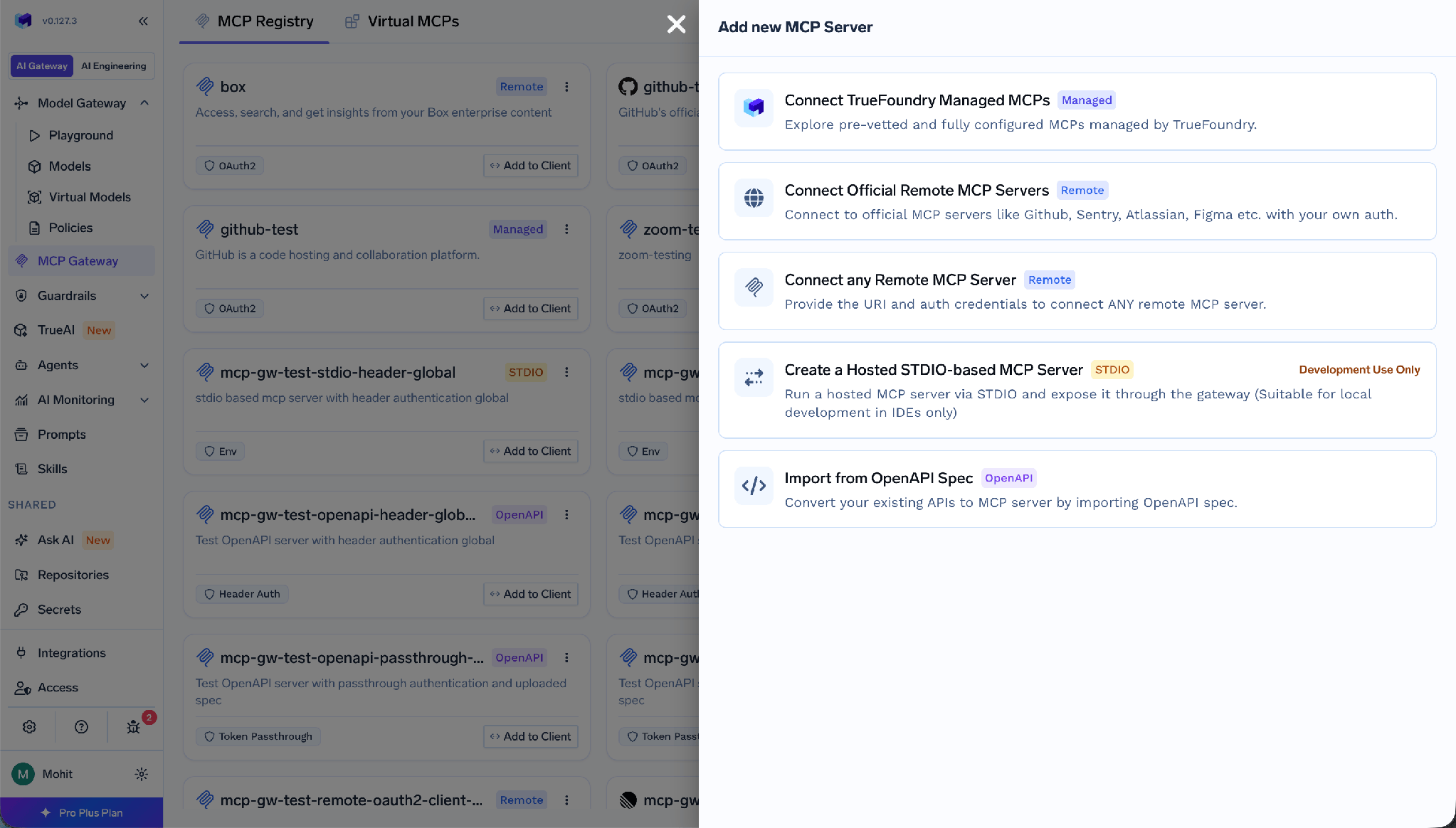
Fill in the form as follows:
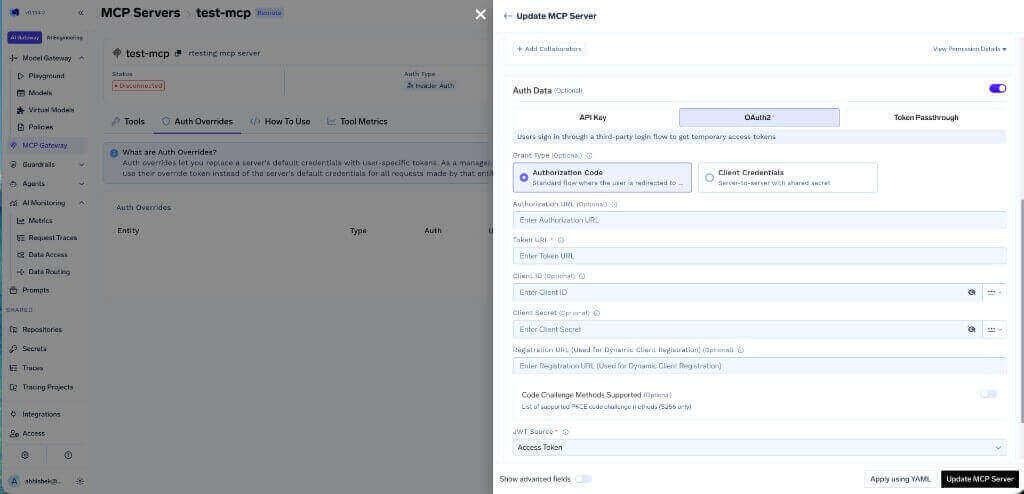
JWT Source: Access Token matters — it tells the gateway which token to use as the upstream credential, and ID Token produces failures that look like a permissions problem rather than a configuration one. Rather than pasting the Client Secret into the form, store it in the TrueFoundry secrets store and reference its FQN.
Step 4 — Add collaborators and save.
Step 5 — Each user connects their own account. Users open the server’s Tools section and click Connect Now. After OAuth succeeds, HubSpot’s tools appear and can be tried from the Agent Playground.
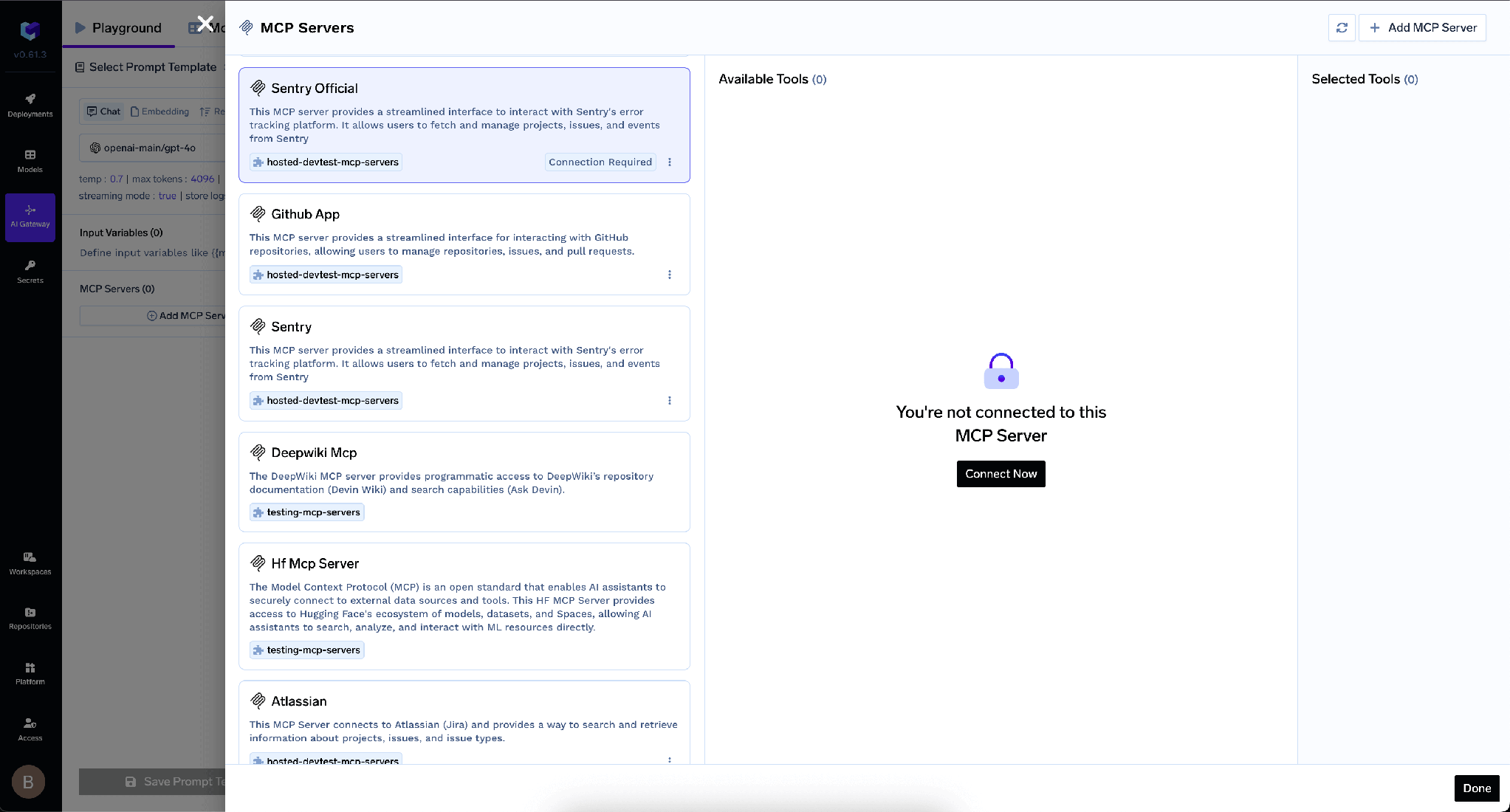
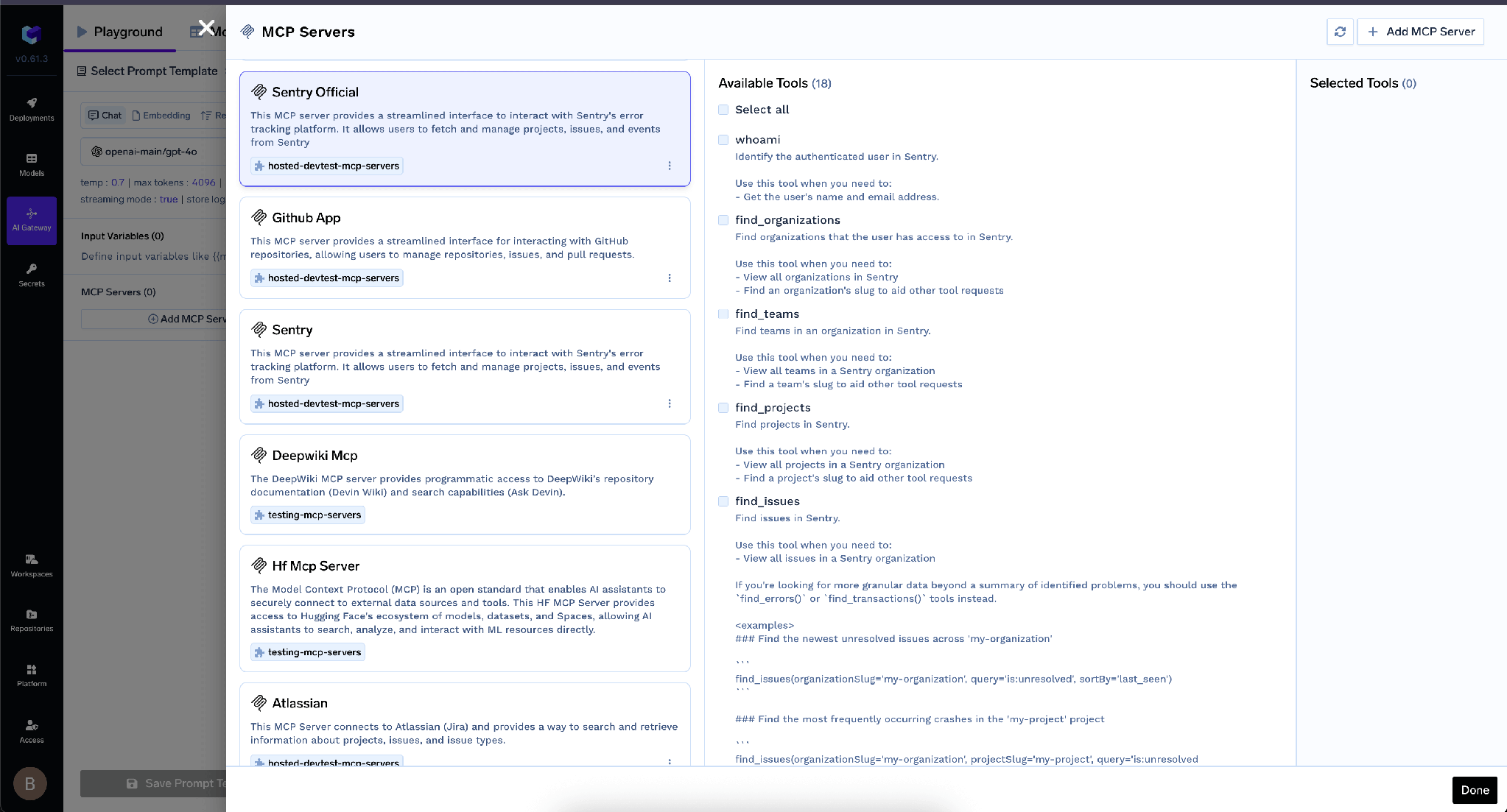
That last step does the privacy work, and it’s per person.
TrueFoundry separates inbound authentication — how a client proves itself to the gateway — from outbound, how the gateway proves itself to HubSpot. Conflating them is where most self-built setups go wrong.
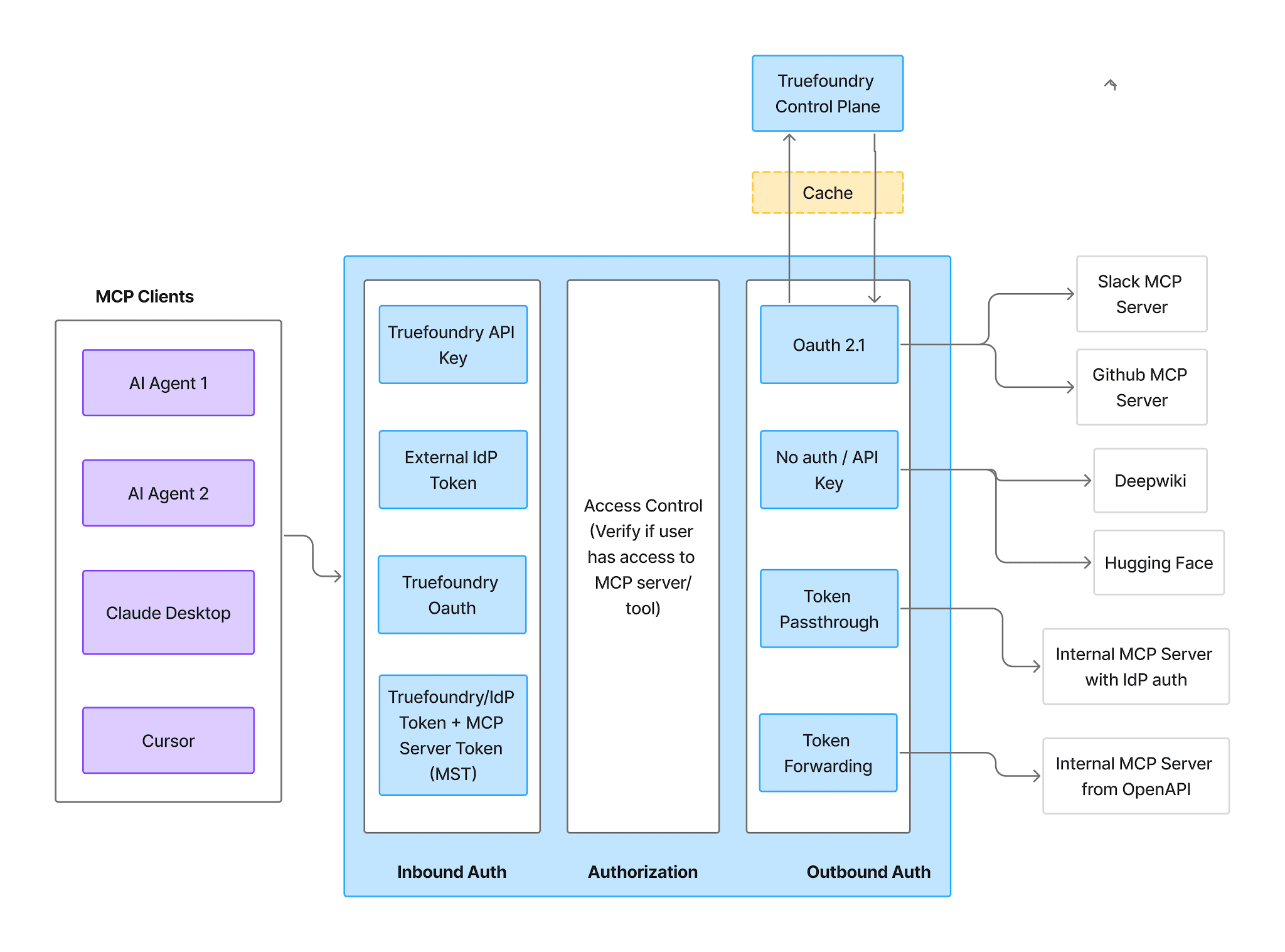
Inbound — four supported methods:
Virtual Account tokens give every request identical access, so they cannot express per-user CRM permissions — route HubSpot through one and you’ve rebuilt the shared-credential problem inside the gateway.
Outbound — OAuth2 Authorization Code against the auth app you created. Each user authorizes their own HubSpot account; TrueFoundry manages consent, storage, and refresh, injects the right user’s token on every call, and never sees a HubSpot password.
The result is the property you want from a CRM MCP server: an agent acting for a rep sees the records that rep can see. Territory restrictions, team visibility, and object-level permissions still apply, because access is decided from the user’s own permissions plus the tools the server requests. Users authenticate twice, to the gateway and to HubSpot; that’s what makes per-user attribution possible. See MCP authentication for the wider design.
Once authorized, the Tools tab lists what the server exposes — where you decide what agents may read.
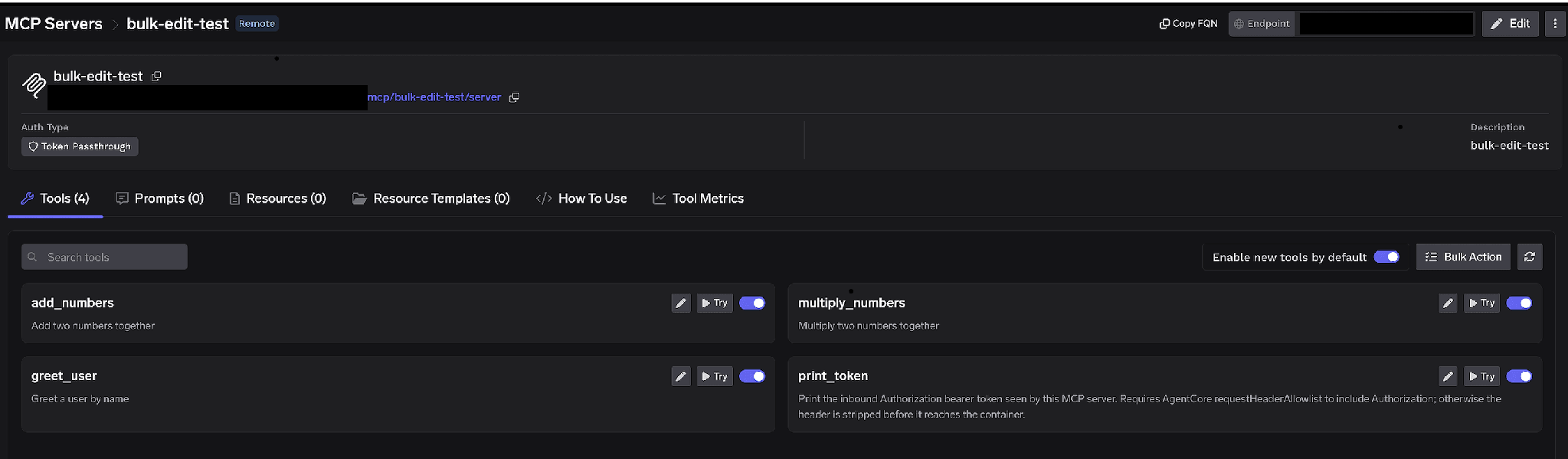
Per-tool toggles. Disable a tool and it is omitted from tools/list responses entirely — clients never see it and it cannot be invoked. The useful move here is object-family minimization: a pipeline-forecasting agent needs deals and companies and has no business reading contact records. Turn contacts off and the most sensitive family is unreachable.
Enable new tools by default. Left on, any tool HubSpot ships appears automatically and your agent’s reach over customer data grows without anyone deciding. Turned off, only tools you enabled are available — the defensible setting for a server sitting on personal data.
Bulk Action. Switches every row to checkboxes with Select all for building an allowlist in one pass.
You can also click the pencil on any tool to change how it’s presented to the model:
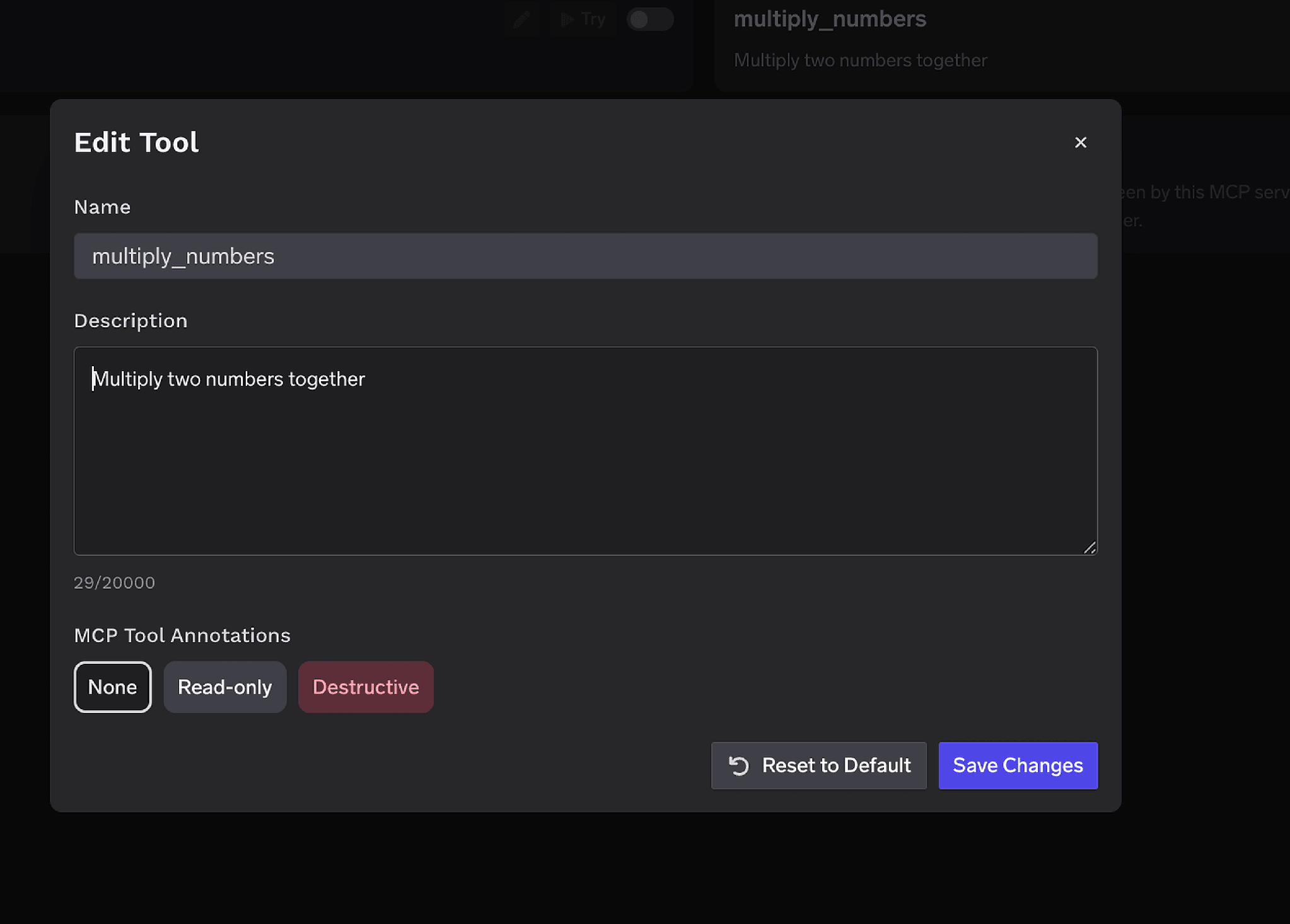
The Description override (up to 20,000 characters) steers tool selection — and for a CRM it’s where you state handling rules in the place the model actually reads, such as summarize rather than reproduce contact details. MCP Tool Annotations mark a tool Read-only or Destructive, setting readOnlyHint or destructiveHint.
Access control attaches to users, teams, or virtual accounts on two dimensions: which servers an identity reaches, and which tools within one it can invoke.
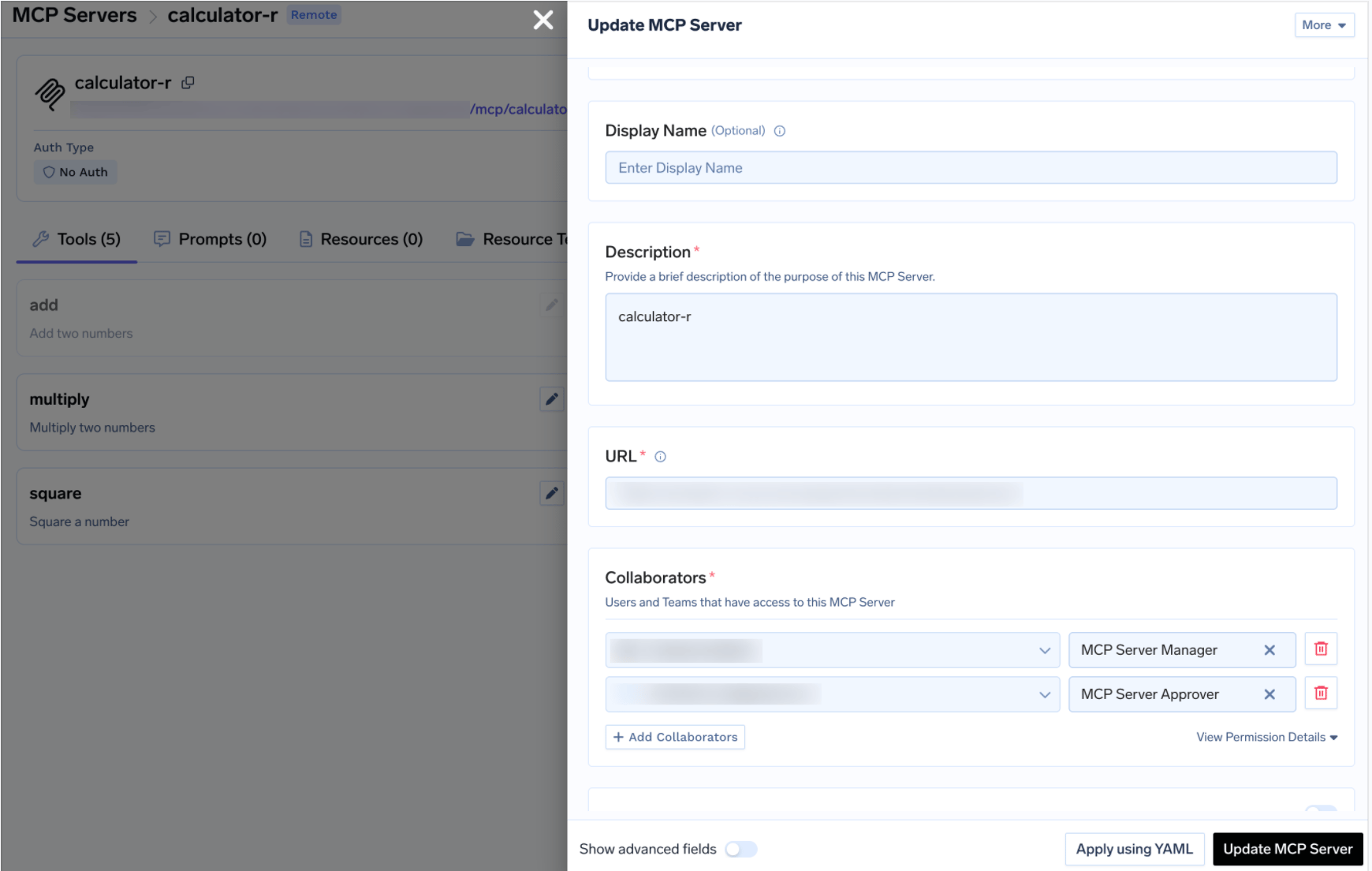
Disabling tools is the blunt instrument. Sometimes you want a capability available but not unattended — a bulk read across contact records is the canonical example. The docs name “sending external communications” and “deleting records” as the cases approval policies exist to gate.
A gated tools/call is held rather than executed, a pending request is created, and approvers are notified. Once approved, the same call from the same requester runs until the grant expires. Create a policy under AI Gateway → Policies → MCP Tool Approval (Beta):
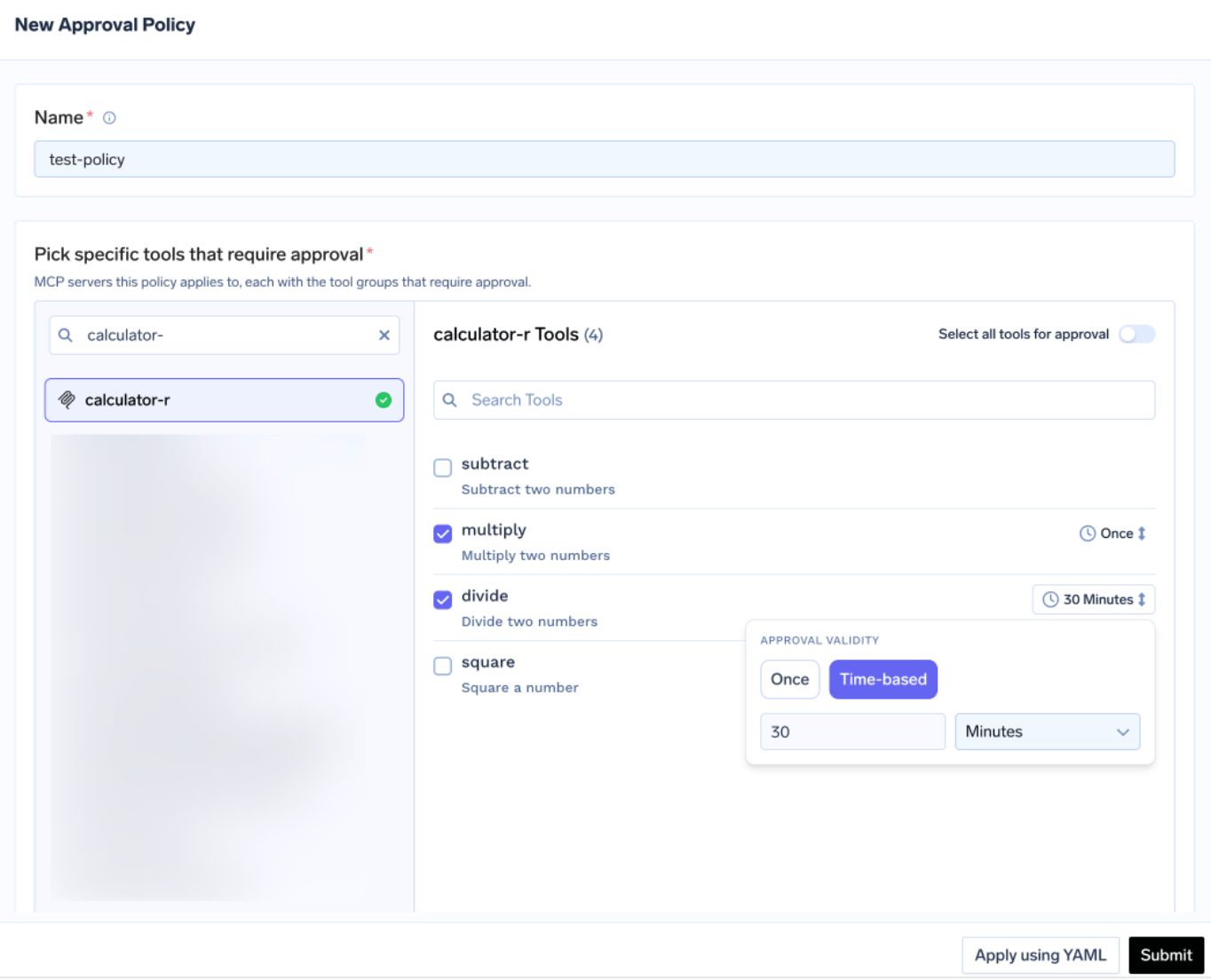
Each policy names the servers it gates and an approval scope:
When scopes overlap the most specific wins: named > destructive > all. Validity is Once or time-based in minutes; when policies conflict the most restrictive wins — Once beats 10 minutes beats 30.
Approvers are notified over Email, Slack, PagerDuty, or MS Teams, and review requests in the console:
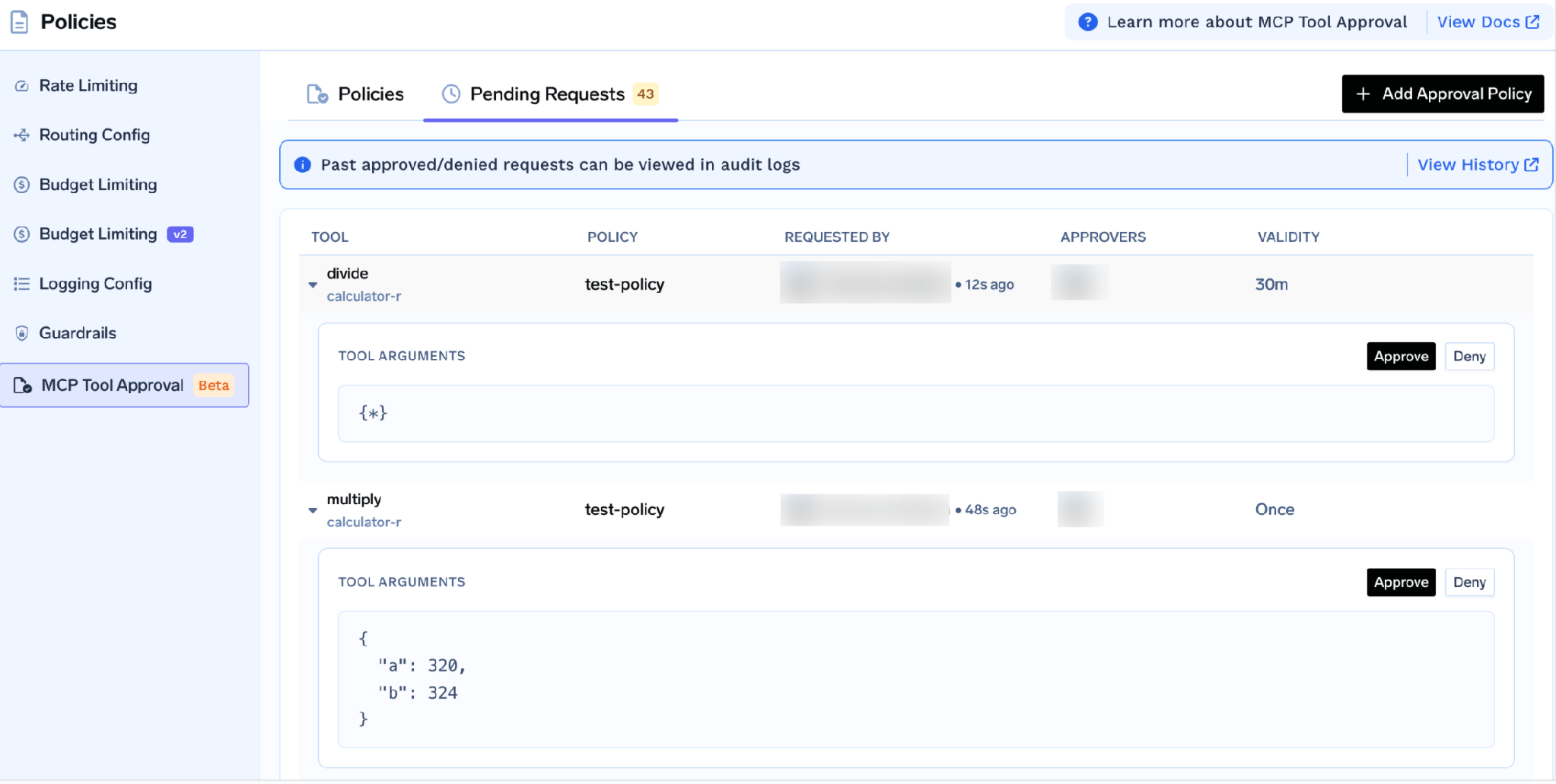
Each request shows the tool arguments, so an approver sees the actual query before waving it through. While pending, the caller receives a JSON-RPC result carrying _meta.approval_status: "pending" rather than an error, so a well-behaved agent waits and retries. Grants are scoped per requester, and a denial isn’t permanent.
Policies are created and deleted by tenant administrators only, and if a policy’s server has no Approver-role collaborators, only tenant admins can act on its requests — so on a CRM server, assign approvers deliberately.
One control is specific to this class of server: TrueFoundry’s built-in PII/PHI Detection guardrail, powered by Azure AI Language PII Detection on TrueFoundry-managed infrastructure, with no third-party keys.
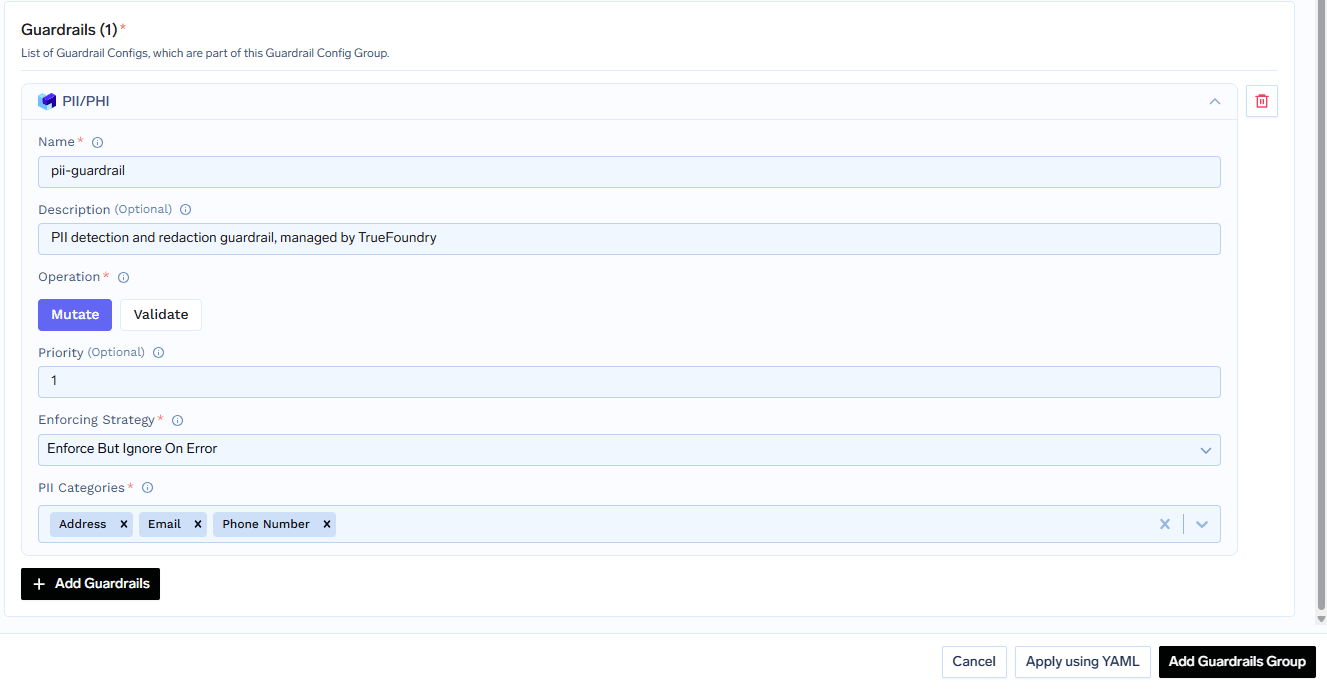
It applies to four hooks — LLM Input, LLM Output, MCP Pre Tool, and MCP Post Tool. The last matters most here: MCP Post Tool redacts detected entities in tool output, the CRM response heading back toward the model. Entities become asterisks with surrounding text preserved, so support@contoso.com reads *******************. The guardrail runs in mutate mode only and you pick the entity categories.
An agent reasoning over pipeline shape doesn’t need the emails and phone numbers attached to contact records. Redacting them post-tool means the model gets structure and not identifiers — a narrower footprint achieved in configuration rather than prompt instructions. This is a technical control, not a compliance claim; whether your use of the server meets any regulatory standard is a question for your own counsel.
Exercise the tools by hand first. Click Try next to any tool, fill in the parameters, and read the JSON response; Try is disabled for tools you’ve turned off.
Do it with an account whose permissions you know: authorize as a restricted user, run a read, and confirm you get back only what that user should see. If a restricted account returns the whole contact database, the auth chain is wrong.
Open the How To Use tab for your tenant-specific Gateway URL and client snippets.
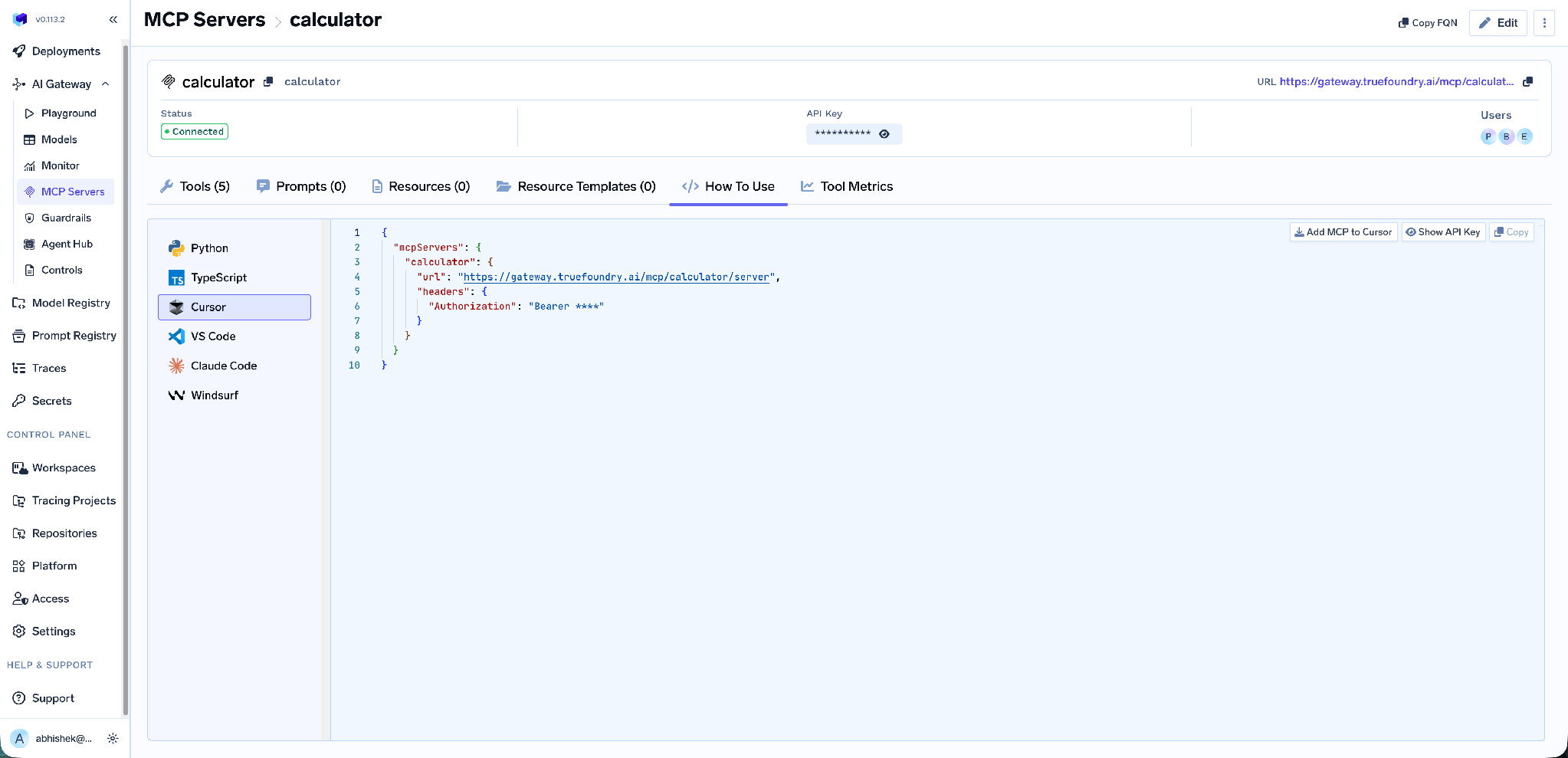
It covers Claude Code, VS Code, Claude Desktop, Cursor, Windsurf, Codex, and the Python and TypeScript MCP SDKs, and Add MCP to Cursor writes the config for you. Take the URL from this tab rather than assembling it by hand — it’s tenant-specific, and a hand-built endpoint is the usual cause of a client that connects but lists no tools.
Tool-level metrics. The MCP Metrics dashboard breaks down requests per second, latency at P50/P75/P90/P99, failure rate by error type, and a ranked request count per tool.
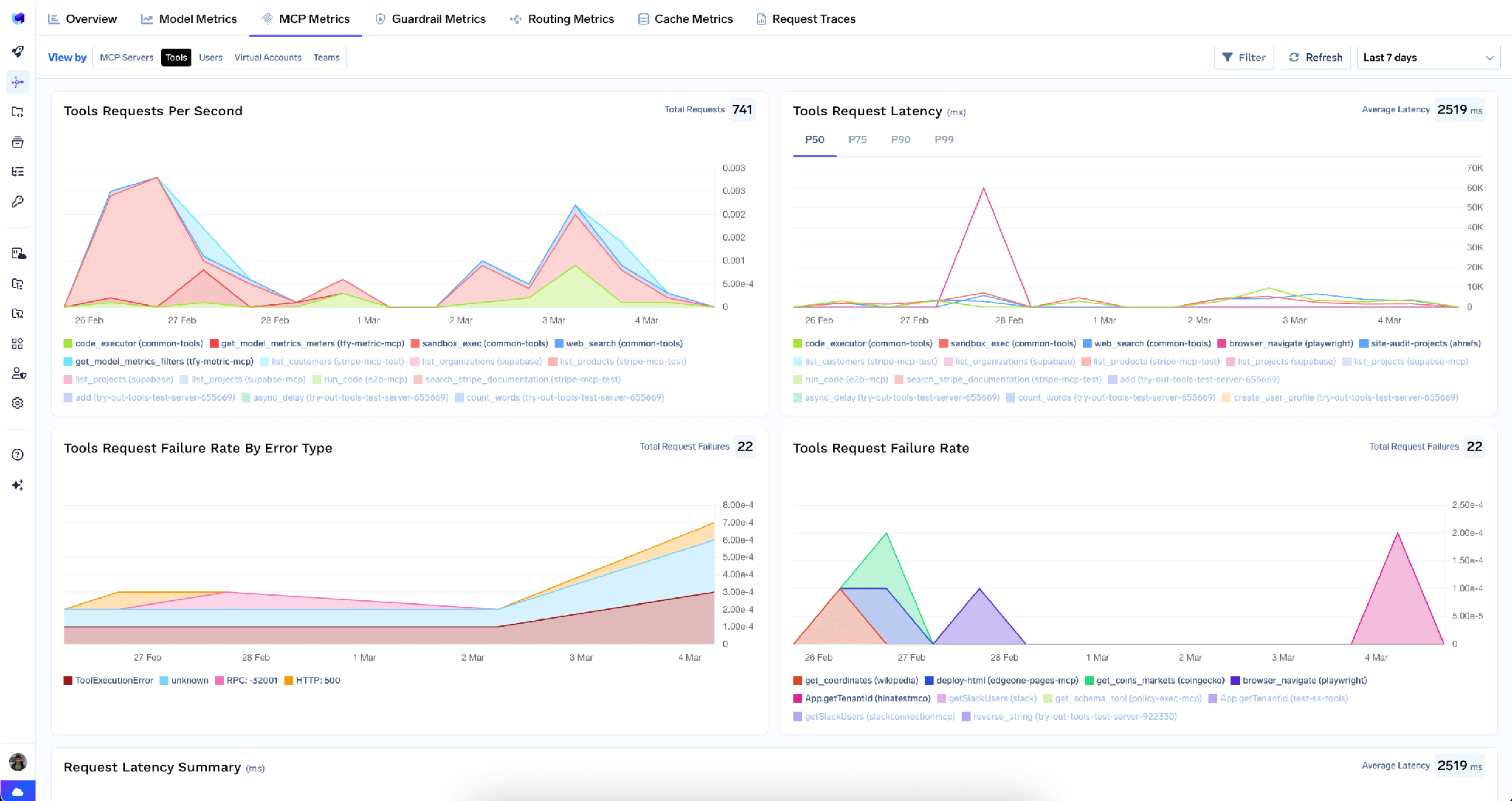
Full-request observability. Every tool call is traced with caller identity, tool name, inputs, and latency, exporting over OpenTelemetry into Grafana, Datadog, or Prometheus. This turns “an agent read some customer records” into “this identity read these records at this time through this model” — and makes an access review possible at all.
Low overhead. The gateway adds roughly 3–4 ms of latency and handles 350+ RPS on a single vCPU.
One registry. Once several servers are registered, a Virtual MCP Server bundles a curated subset of their tools behind one endpoint — so a pipeline-review agent gets specific HubSpot and Slack tools and nothing else.
Tenant admins can wipe every stored credential from the three-dot menu next to Edit:
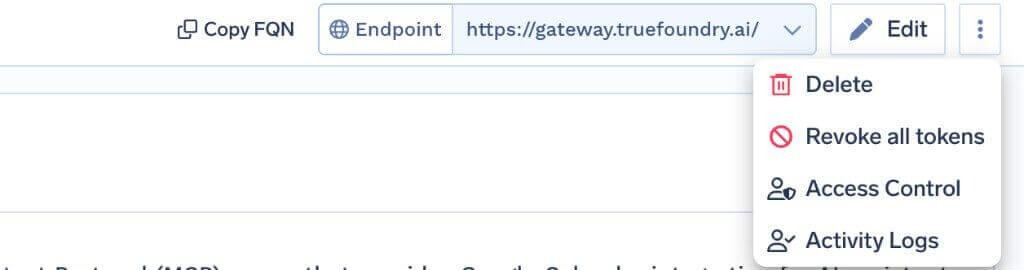
Revoke all tokens deletes every auth override and stored OAuth token for all users and virtual accounts on that server, takes effect on the next request, and is recorded in Activity Logs. It’s irreversible, and only tenant admins see it.
The limit matters: it clears tokens at the gateway only and does not revoke the grant on HubSpot’s side. In an incident, revoke the auth app’s authorization in HubSpot too and rotate the Client Secret.
It’s not a managed MCP, so don’t use the managed redirect URI. The documented flow is Connect any Remote MCP Server with your own auth app, so the redirect URL is https://<tfy-control-plane-base-url>/api/svc/v1/llm-gateway/mcp-servers/oauth2/callback. Pasting https://auth.truefoundry.com/mcp/oauth2/callback into the HubSpot app fails. [VERIFY: whether HubSpot is also provisionable from the TrueFoundry Managed MCP catalogue in your platform version — the docs page describes only the remote-server flow.]
MCP Auth Apps are their own thing. HubSpot’s Development → MCP Auth Apps section is distinct from the general app-developer surface; in a private- or public-app screen the fields won’t match.
Read-only is a property of today’s server, not a guarantee. Scope as though write tools could appear: keep Enable new tools by default off and no vendor release silently hands your agent the ability to mutate CRM records.
The HubSpot MCP server is one of the more useful integrations a revenue team can give an agent, and one of the few where the question isn’t “could this break something” but “should a model be reading this at all.” The records belong to real people, the consent they gave didn’t anticipate an LLM, and a read-only surface does nothing to reduce the disclosure question.
What makes it defensible is specific: per-user OAuth so HubSpot’s permission model stays in force, per-tool scoping so contact records are unreachable to agents that don’t need them, PII redaction so identifiers never enter model context, and a traced call log so you can answer who read what. Register it once as a remote server and you get all four.
TrueFoundry AI Gateway delivers ~3–4 ms latency, handles 350+ RPS on 1 vCPU, scales horizontally with ease, and is production-ready, while LiteLLM suffers from high latency, struggles beyond moderate RPS, lacks built-in scaling, and is best for light or prototype workloads.


It’s HubSpot’s remote Model Context Protocol server at https://mcp.hubspot.com, exposing CRM data as tools an AI agent can call. Per TrueFoundry’s docs it provides read access to CRM objects including contacts, companies, deals, tickets, invoices, and quotes, over OAuth2.
Two parts. In HubSpot, go to Development → MCP Auth Apps, create an app, set its redirect URL to https://<tfy-control-plane-base-url>/api/svc/v1/llm-gateway/mcp-servers/oauth2/callback, and copy the Client ID and Secret. In TrueFoundry, use Add MCP Server → Connect any Remote MCP Server with https://mcp.hubspot.com, OAuth2, Authorization Code, your credentials, and JWT Source Access Token.
The docs describe the surface by CRM object family — contacts, companies, deals, tickets, invoices, quotes — with read access. The exact list is whatever HubSpot returns to your server, visible on the Tools tab, where each can be enabled, disabled, re-described, or annotated.
Yes. TrueFoundry runs in your VPC, on-prem, air-gapped, or hybrid, so prompts and responses never leave your domain even as you route across many providers.
Yes. It includes an MCP Gateway, an Agent Gateway, and an MCP & Agents Registry with tool-level access control. Agents on LangGraph, CrewAI, AutoGen, or a custom framework can all be governed centrally.
Yes. The gateway is OpenTelemetry-compliant and plugs into Grafana, Datadog, Prometheus, or your preferred stack. It traces every request from prompt to tool and model execution, so you get unified logging without ripping out what you already run.



The latest news, articles, and resources sent to your inbox

.png)
.png)
.png)
.png)

.png)
.png)

.png)
.png)
.png)
.png)


