October 31, 2026
|
5 min read


.png)
Blazingly fast way to build, track and deploy your models!
The Slack MCP server is a remote Model Context Protocol server maintained by Slack, served at https://mcp.slack.com/mcp. Model Context Protocol is the open standard that lets an AI agent discover and call tools on an external system; Slack’s implementation turns a workspace’s conversation history into something an agent can query and write to. Being a remote server, there’s no container to run and no process on each laptop — you point an MCP client at a URL and authenticate.
What it can reach is determined almost entirely by the OAuth scopes you grant the Slack app:
That model is what has made remote MCP servers the default way teams connect SaaS tools to agents. One difference from most managed integrations: you create the Slack app yourself, and its scopes are the outer boundary of everything an agent can ever do — your first and cheapest control.
The useful cases chain search, history, and other servers together:
The split that matters is read versus write, and in Slack both halves are sharper than they look.
Reading isn’t benign. A workspace holds HR conversations, compensation discussions, and private DMs, with no equivalent of “public repo” for most of it — and an agent granted search:read.im can read every direct message its user can.
Writing isn’t a code change; it’s speech. A message posted with chat:write appears attributed to the authorizing user, and colleagues acting on it can’t tell an agent wrote it. That’s why Slack’s docs and TrueFoundry’s both recommend dropping chat:write for broad rollouts.
One person wiring Slack into Claude Desktop is fine. A team doing it is a different problem, and the failure modes aren’t the ones you’d expect from a developer tool.
A shared token reads the entire workspace. Get this right before anything else. Connect Slack with a single service token — a bot token, a shared app credential, a virtual account — and every agent call carries identical access, with no per-caller narrowing afterward. An intern’s agent and the CFO’s agent get the same view, and the blast radius if it leaks is the workspace’s whole conversation history. Slack access has to follow the human, which needs per-user authorization.
An agent posting as a user is indistinguishable from the user. Messages sent under a user’s OAuth grant carry that user’s name and avatar, with no “sent by an agent” marker a reader will notice. An agent that posts a wrong number, or replies in a customer channel with something unapproved, creates a problem attributable to someone who didn’t write it.
Scopes creep, and nobody trims them. The setup manifest grants every capability the server supports, including DM search and DM history. Teams paste it as-is, and an agent that needed three project channels ends up able to search every private conversation its user has.
Prompt injection arrives through the content itself. Slack is a surface where other people — including, via shared channels and Slack Connect, people outside your company — write text your agent will read. If a summarizing agent also holds chat:write and cross-channel search, the path from “someone posts a crafted message” to “agent posts private content somewhere readable” is short.
None of this is a reason to avoid Slack. It’s a reason to put a control plane in front of it — which is what an MCP gateway exists to do.
Slack registers as a remote MCP server with OAuth2. Two halves: create the Slack app, then register it on the gateway.
Step 1 — Create the Slack app. At api.slack.com/apps, choose Create New App → From an app manifest, pick the workspace, switch the editor to JSON, and paste the manifest from TrueFoundry’s setup guide. The redirect URL must be https://<tfy-control-plane-base-url>/api/svc/v1/llm-gateway/mcp-servers/oauth2/callback, with your own control plane URL substituted in.
Step 2 — Trim the scopes before creating the app. The step worth slowing down for. Drop chat:write if agents should not post; drop search:read.im and im:history if they have no business in DMs.
Step 3 — Enable MCP on the app. In the app sidebar, open Features → Agents & AI Apps and enable Model Context Protocol. Without this the server will not respond.
Step 4 — Copy the OAuth credentials from Settings → Basic Information.
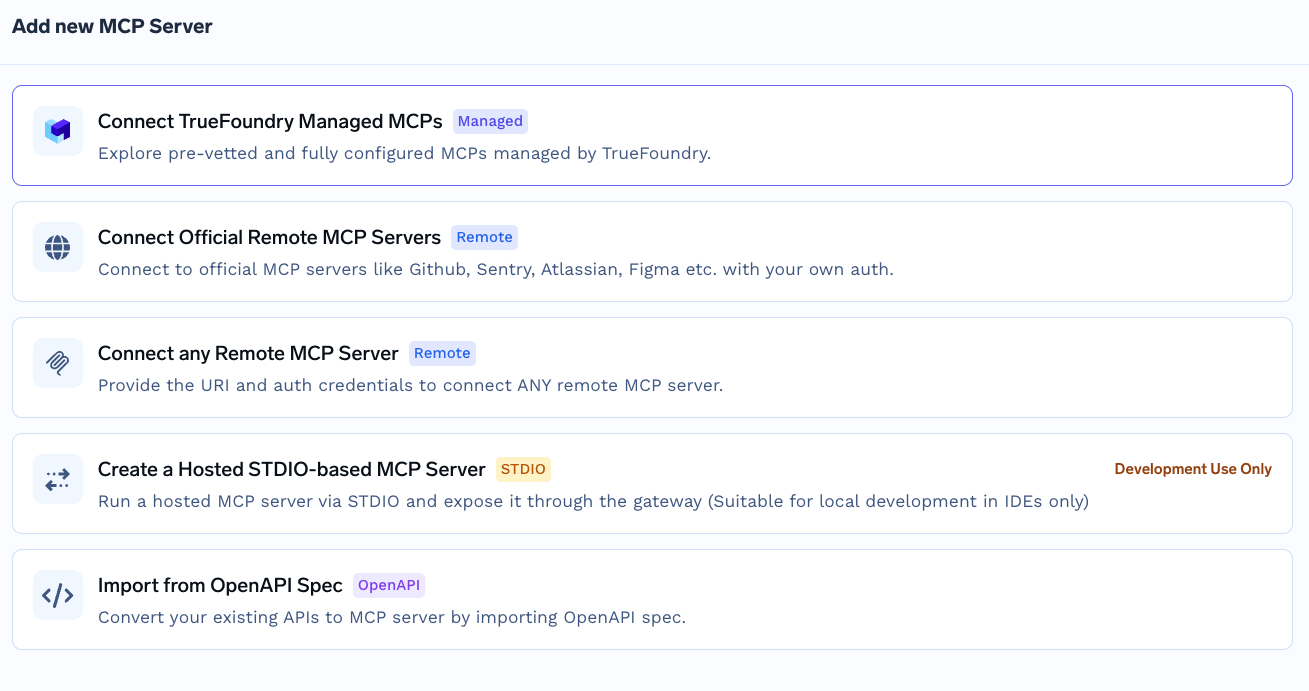
Step 5 — Add the server in TrueFoundry. Open MCP Gateway, click Add MCP Server, and select Connect any Remote MCP Server.
Step 6 — Fill in the configuration.
If your TrueFoundry version discovers OAuth metadata automatically, use the discovered values and supply only the Slack client credentials. Then add collaborators and save.
TrueFoundry separates inbound authentication — how a client proves itself to the gateway — from outbound, how the gateway proves itself to Slack. The outbound half is where the whole security story lives.
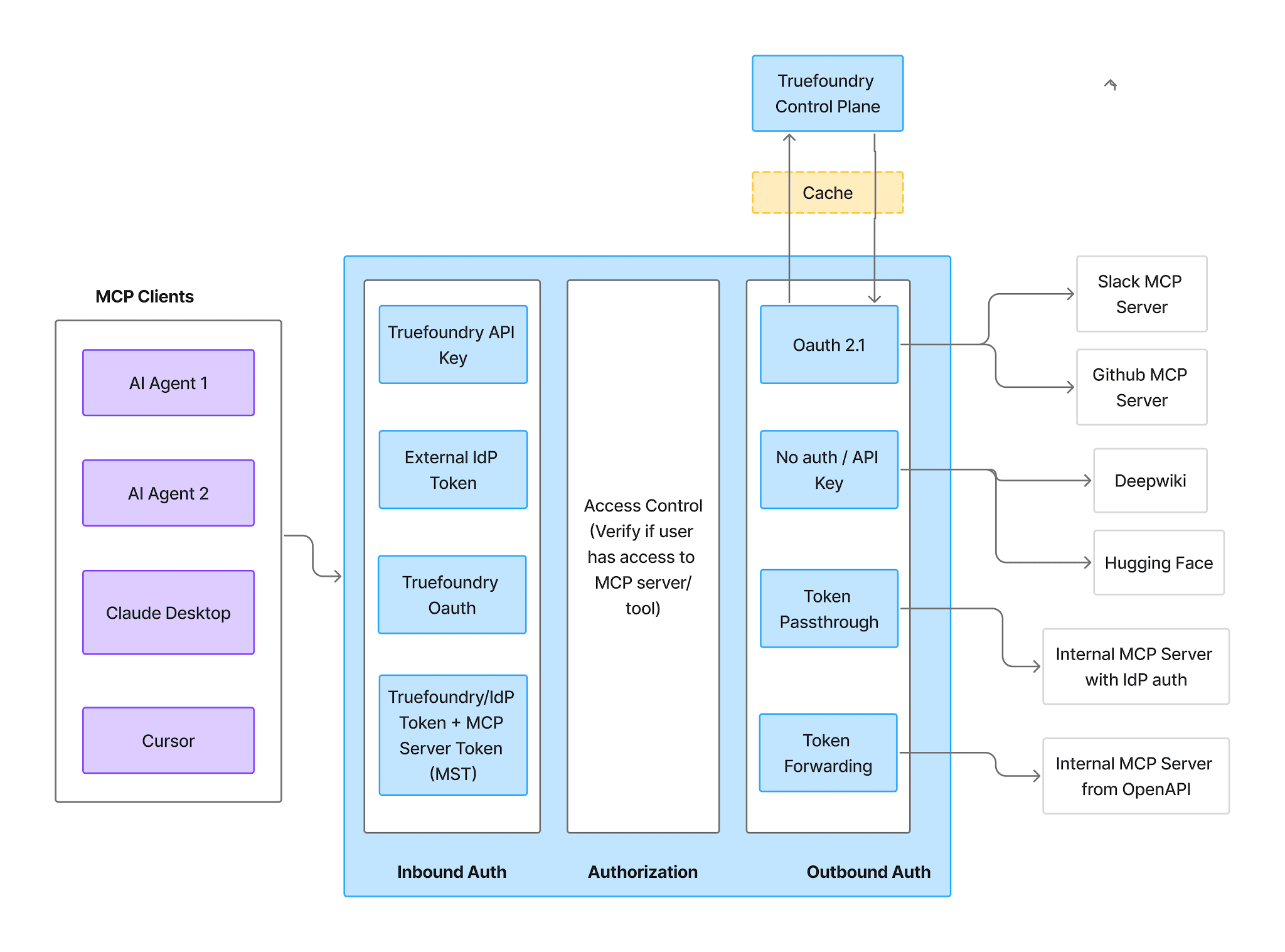
Inbound — four supported methods:
Read the Virtual Account row carefully before picking one for Slack: those tokens give every request the same access — exactly the shared-token problem above. Use a PAT or an IdP token inbound so the gateway knows which human is calling.
Outbound — for Slack this is OAuth2 Authorization Code, and it’s the reason the integration can be run safely at all. Each employee authorizes their own Slack account on first use. TrueFoundry stores that user’s OAuth refresh token, rotates it automatically, and injects it only when that user invokes a Slack tool. Each user can therefore access only their own messages and channels — an agent acting for a support engineer sees that engineer’s channels and nothing else.
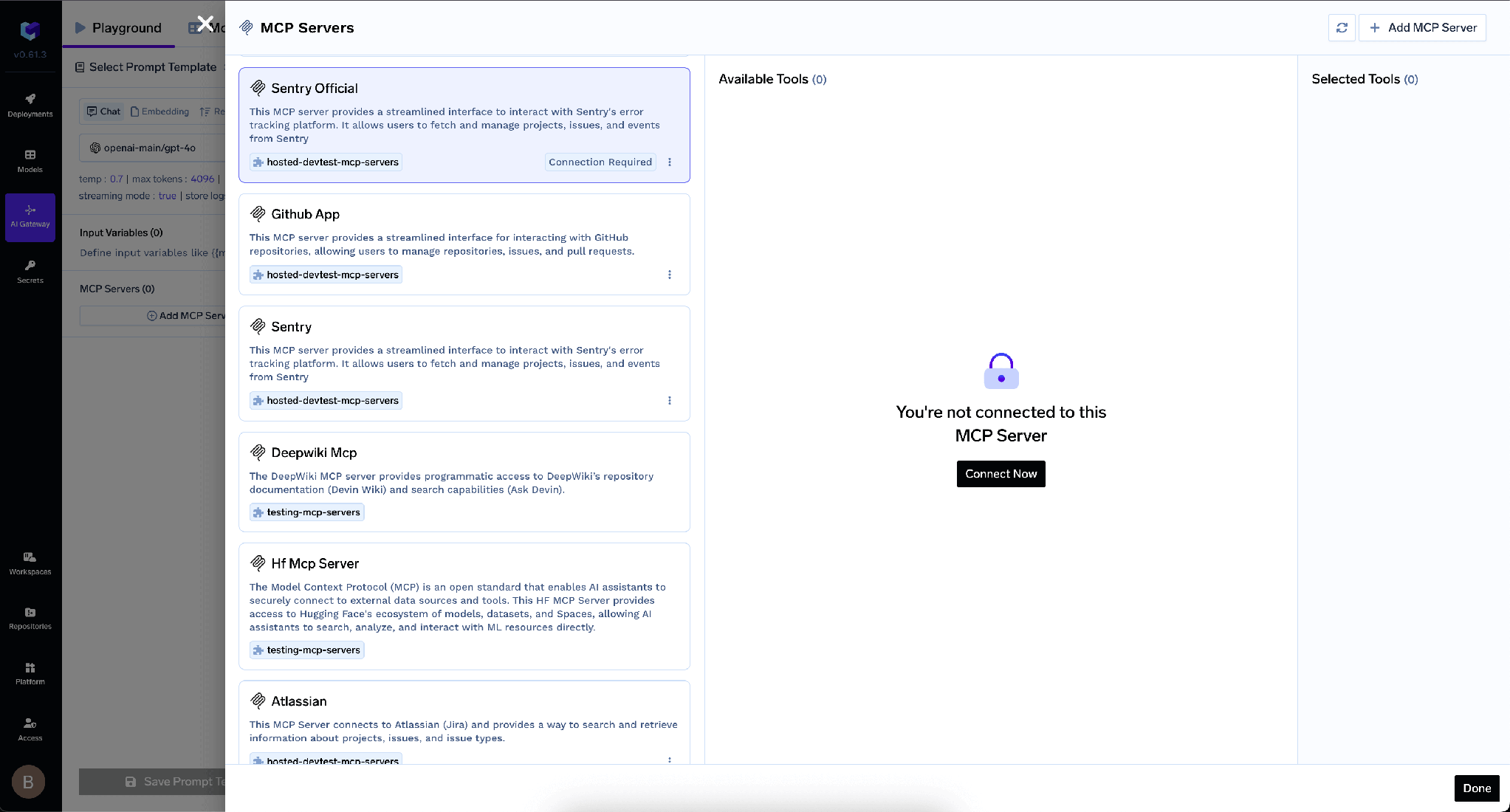
To authorize, open the server’s Tools section, click Connect Now, and approve. You’re redirected to Slack; TrueFoundry never sees your Slack password.
The practical effect is that Slack’s own permission model does the heavy lifting. Remove someone from a private channel and their agent loses it too; deactivate their account and the agent’s access dies with it — a property unavailable with any shared credential. Users authenticate twice here, once to the gateway and once to Slack, which is what makes per-user attribution possible. See MCP authentication for how these flows compose.
Scopes set the outer boundary; the Tools tab decides what’s reachable inside it. Once a user has authorized, every tool the server exposes appears there.
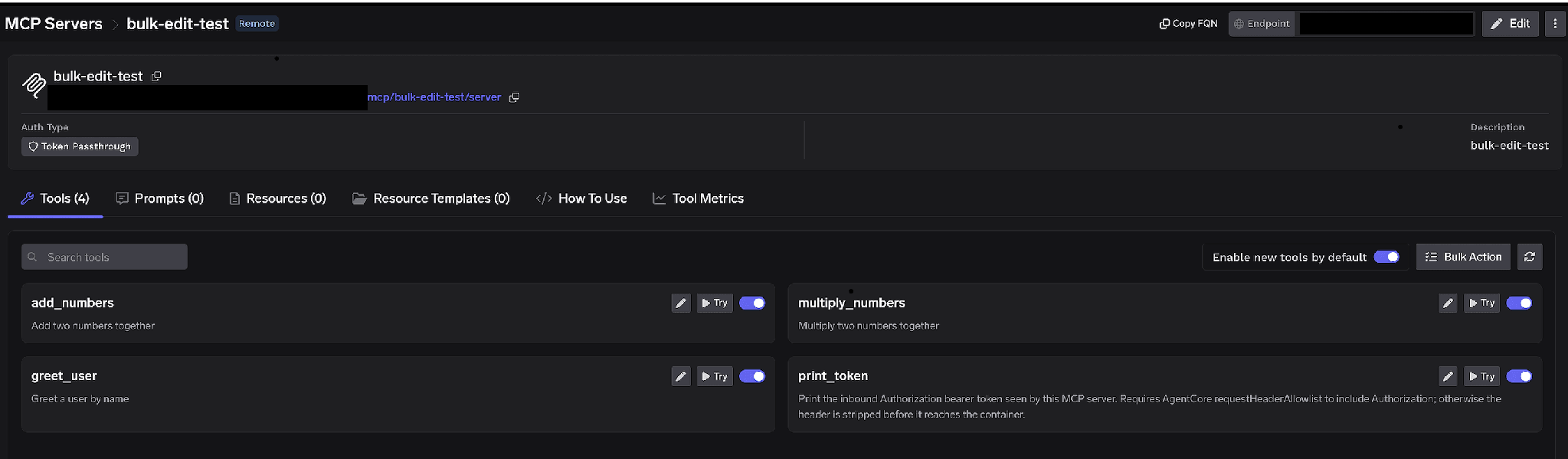
Per-tool toggles. Turn a tool off and it’s omitted from tools/list responses entirely — clients never see it and it cannot be invoked. For Slack, the highest-value use is switching off everything that writes: an agent that cannot call a message-sending tool cannot be talked into posting, whatever a crafted channel message says. Do both — drop chat:write in the manifest and disable the write tools here — so a future scope change doesn’t quietly re-enable posting.
Enable new tools by default. Left on, new upstream tools appear automatically and your agent’s capability surface grows without you doing anything. Turned off, only tools you’ve explicitly enabled are available. For a server with this much reach into private conversations, off.
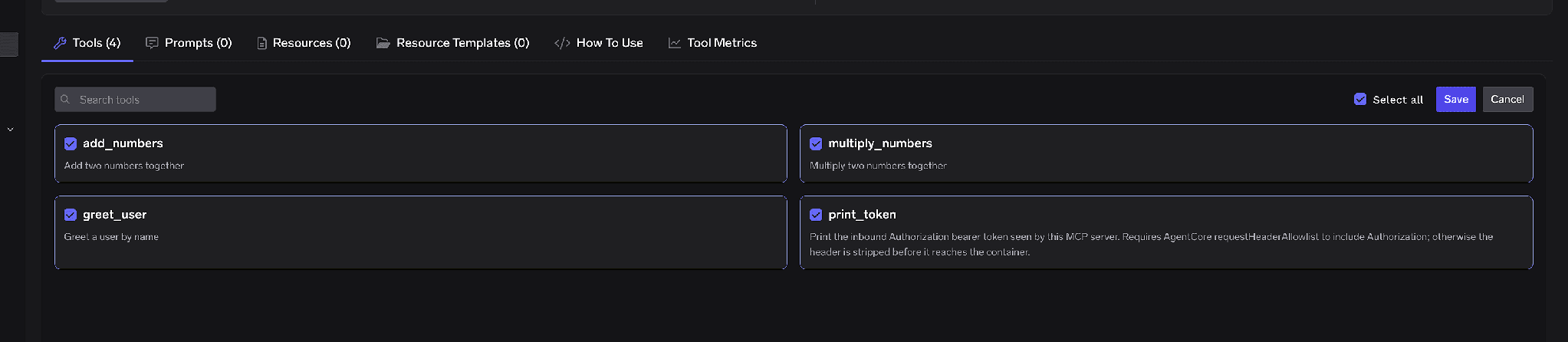
Bulk Action. Switches every row to checkboxes so you can set a curated allowlist at once.
You can also click the pencil on any tool to change how it’s presented to the model:
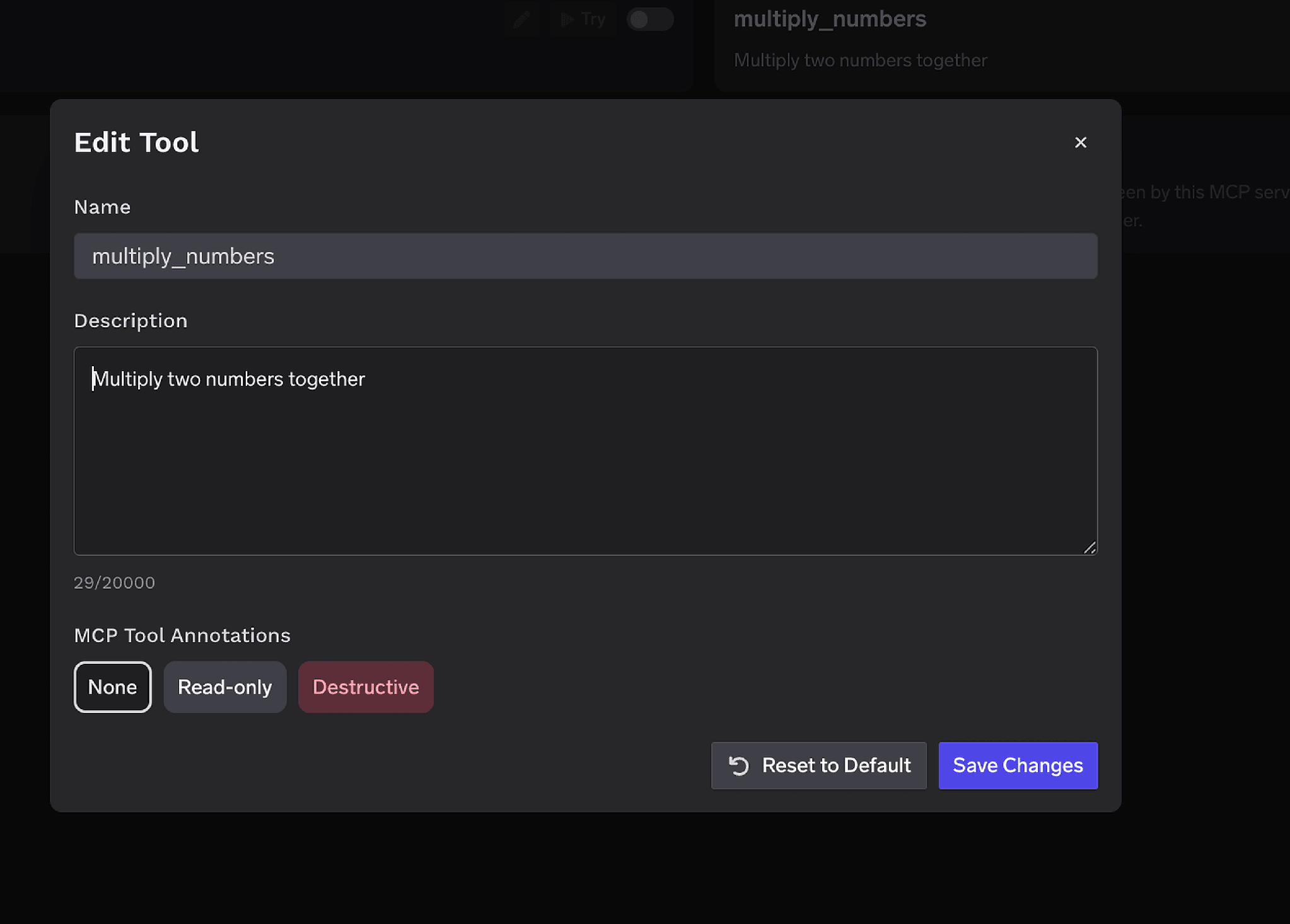
The Description override (up to 20,000 characters) steers tool selection — useful for telling the model which channels are in scope. MCP Tool Annotations mark a tool Read-only or Destructive, setting readOnlyHint or destructiveHint for clients that respect them. Mark every message-sending and canvas-writing tool Destructive; the approval policies below key off exactly that.
Access control attaches to users, teams, or virtual accounts, on two dimensions: which servers an identity can reach, and which tools within a server it can invoke.
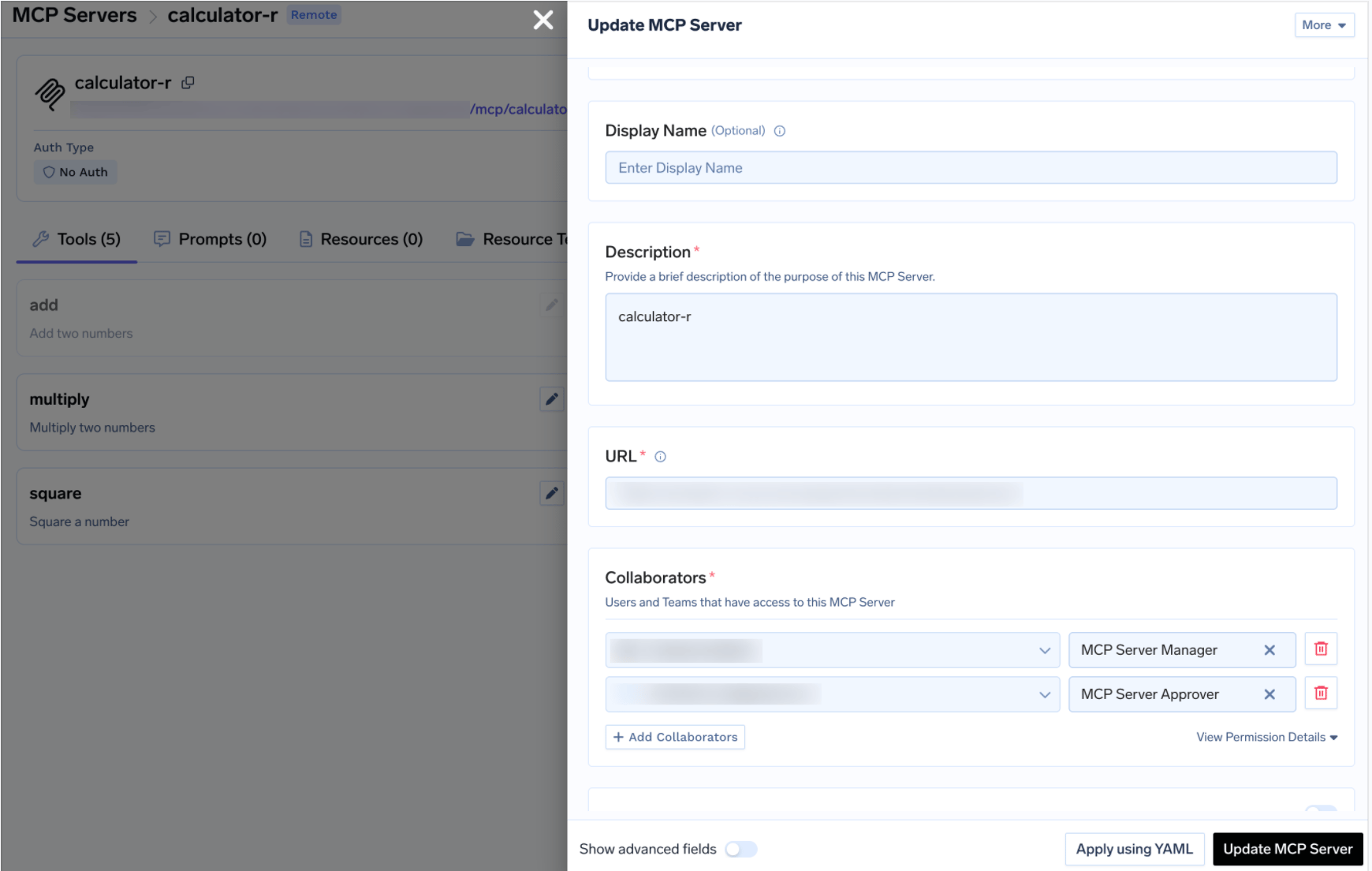
Collaborator membership is the coarse gate — it decides who can reach the server at all before OAuth narrows what they see. Same MCP access control model as every other server in your registry.
Disabling writes entirely is the blunt instrument. Sometimes you do want an agent to post — a release announcement, an on-call handoff — just not unattended. That’s what approval policies are for: a gated call is held rather than executed, an approval request is created, and approvers are notified. Once a human approves, calls succeed for a configurable window, then a fresh approval is required.
Create a policy under AI Gateway → Policies → MCP Tool Approval (currently marked Beta in the console):
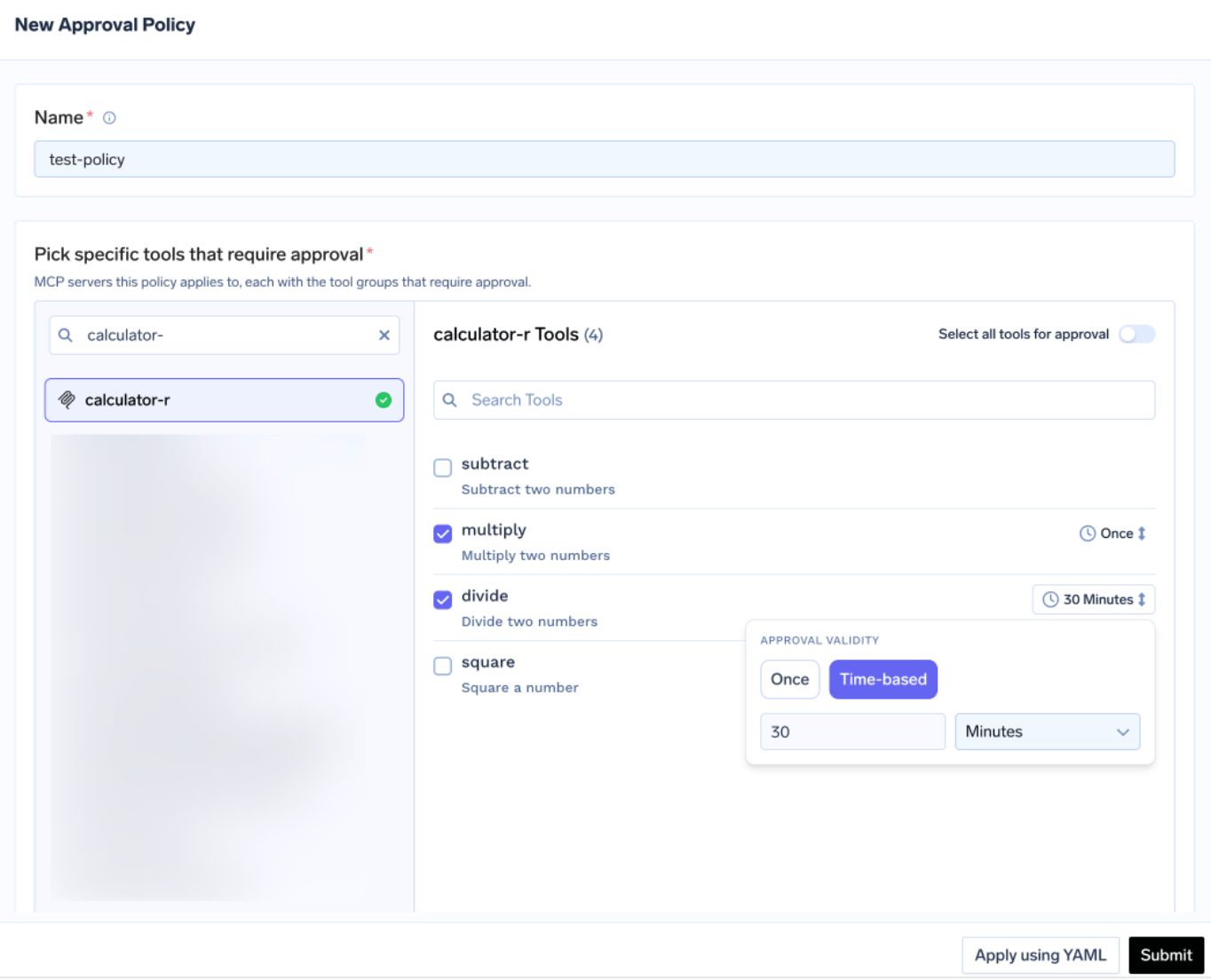
Each policy names the servers it gates and picks an approval scope:
This is where the annotations pay off: mark the posting and canvas-write tools Destructive once, gate the class with approval_scope: destructive, and you never enumerate tool names. When scopes overlap, the most specific wins: named > destructive > all.
Validity is either Once (single execution, next call needs fresh approval) or time-based (a duration in minutes). When policies conflict, the most restrictive wins — Once beats a 10-minute window beats a 30-minute window. For anything that speaks in a channel, Once is the sane setting.
Approvers are notified over Email, Slack, PagerDuty, or MS Teams, and review requests in the console:
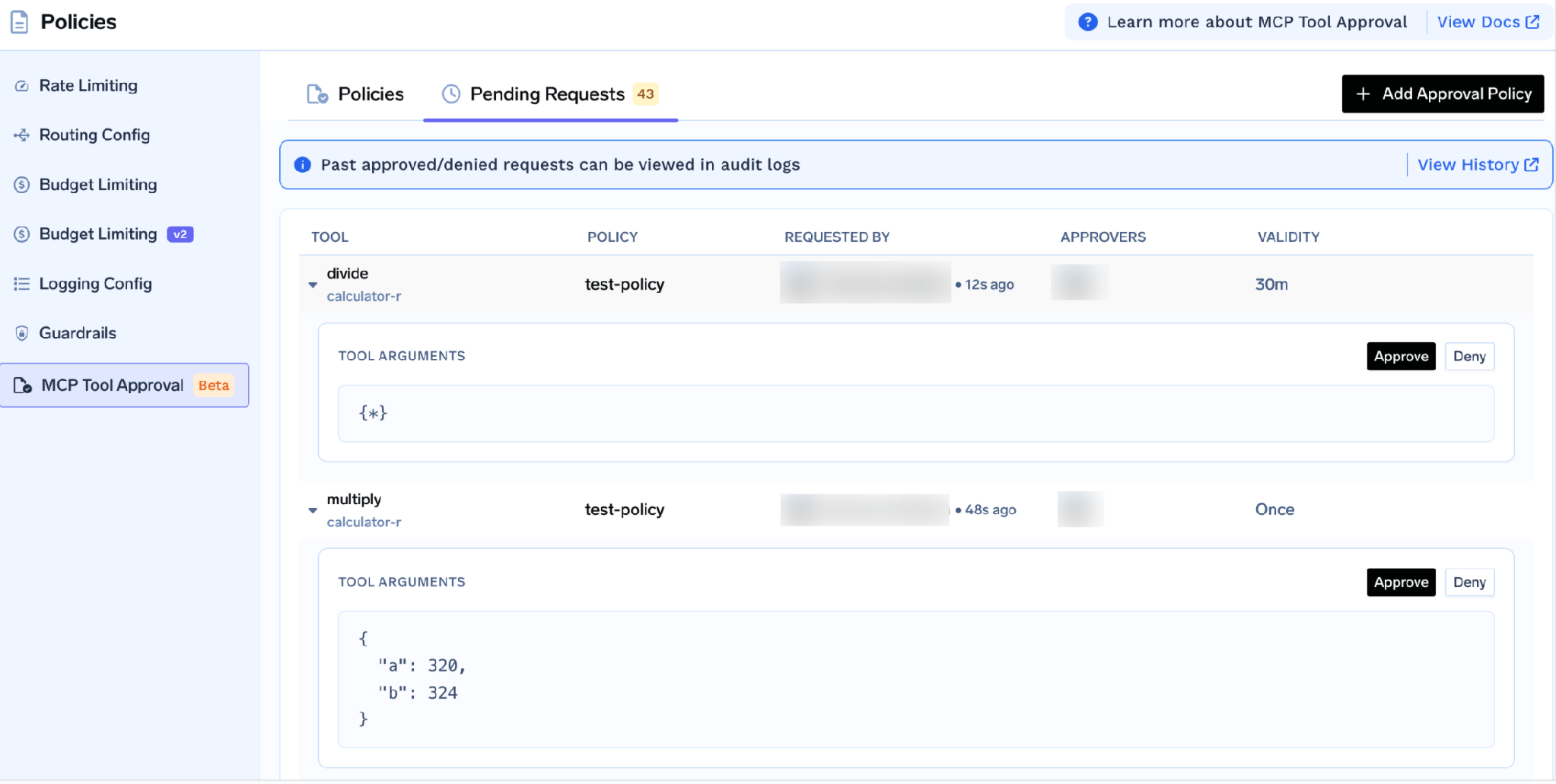
Each request shows the tool, the policy, who asked, and the actual arguments — so an approver reads the exact message text and destination channel before waving it through. That preview is the whole point on a communications server: you’re approving a specific sentence, not a category of action. While pending, the caller receives a JSON-RPC result carrying _meta.approval_status: "pending" rather than an error, so a well-behaved agent can wait and retry.
Two details worth knowing: grants are scoped per requester, so approving for one person doesn’t approve for the team; and a denial doesn’t permanently block anyone — the next call raises a fresh request. To durably block, disable the tool or remove the user.
Test by hand before pointing an agent at it. On the server detail page, click Try next to any tool, fill in the arguments, and click Execute Tool to read the raw JSON. Try is disabled for tools you’ve turned off.
Test read tools freely; only test write-capable tools if you deliberately kept chat:write, and use a private scratch channel — a test message in a live channel is still a real message. This catches the boring failures early: a scope you trimmed that you needed, or a channel the user isn’t in.
Open the How To Use tab for your tenant-specific Gateway URL and ready-to-paste snippets.
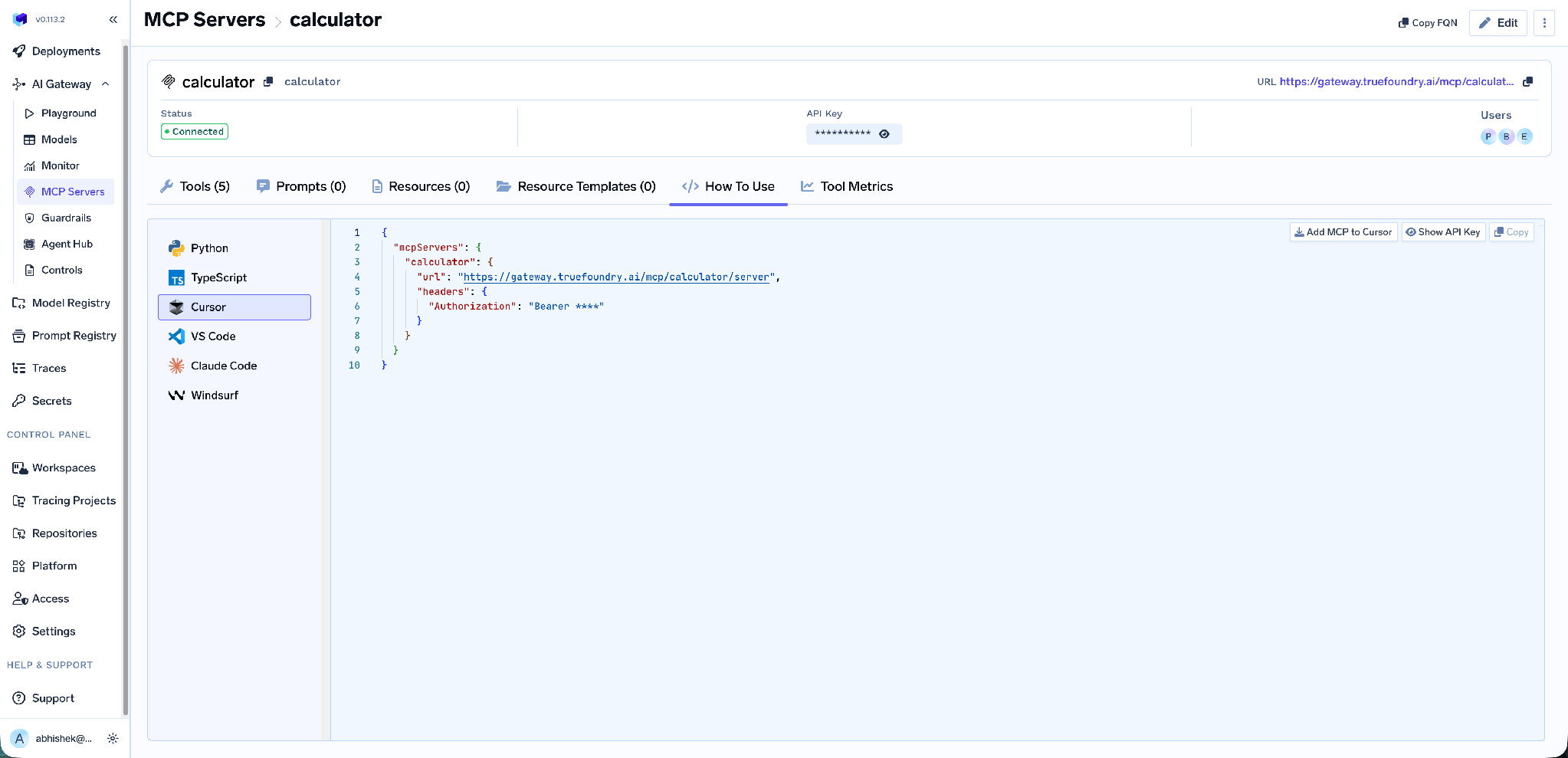
It covers Claude Code, VS Code, Claude Web, Claude Desktop, Cursor, Windsurf, Codex, and the Python and TypeScript MCP SDKs. Add MCP to Cursor writes the config for you; Show API Key reveals the token if your client needs one in a header. Take the URL from this tab rather than assembling it — it’s tenant-specific, and a hand-built endpoint is the most common cause of a client that connects but lists no tools.
Tool-level metrics. The MCP Metrics dashboard breaks down requests per second, latency at P50/P75/P90/P99, failure rate by error type, and a ranked request count per tool.
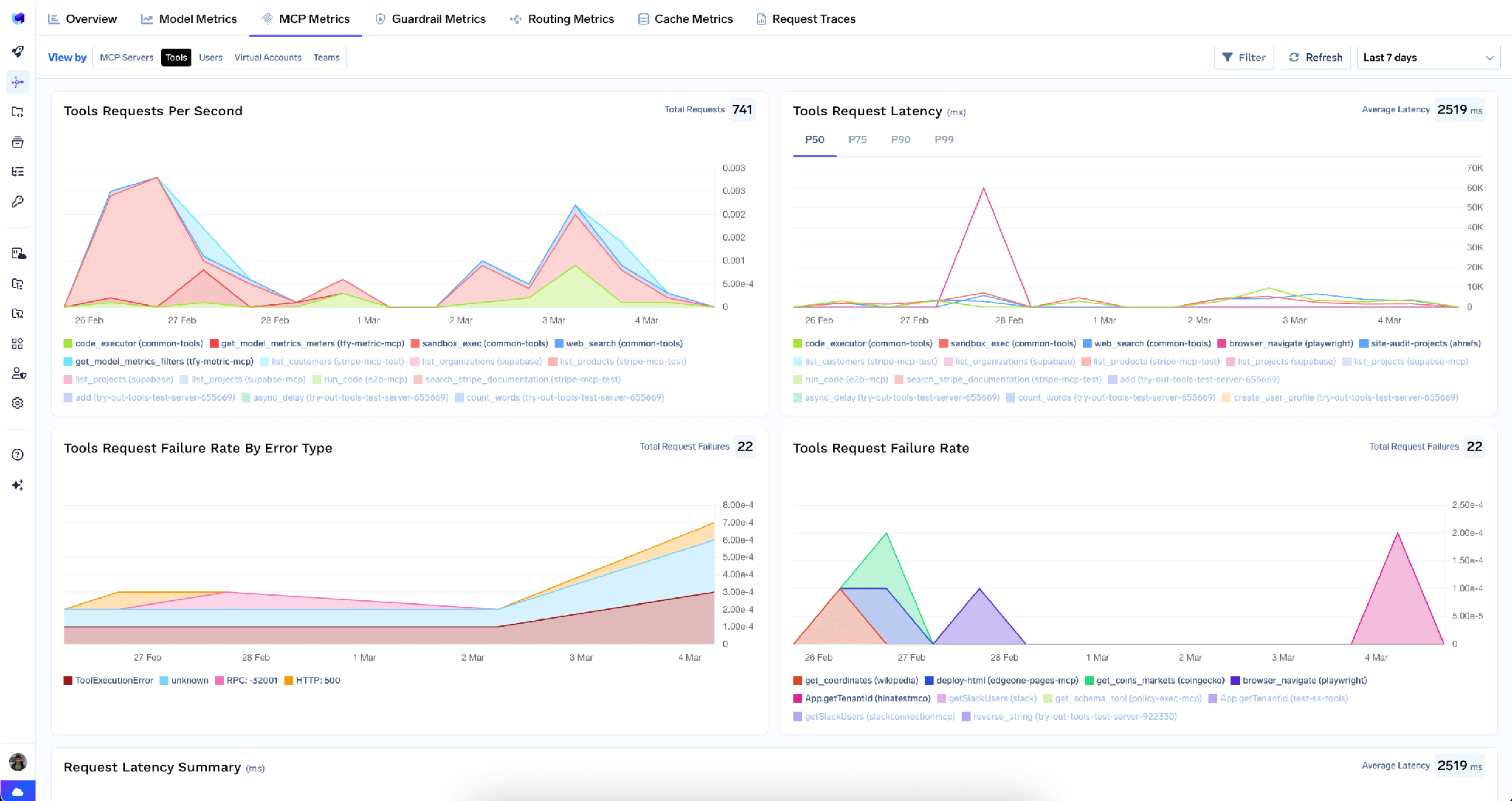
For Slack this is how you notice an agent running a workspace-wide search on every turn.
Full-request observability. Every tool call is traced with caller identity, tool name, inputs, and latency, exported over OpenTelemetry into Grafana, Datadog, or Prometheus. Caller identity is the part that matters here — when a message appears that nobody remembers approving, the trace says whose agent sent it.
Guardrails. Pre-tool and post-tool guardrails run policy on MCP tool calls — here, scanning Slack search results for secrets before they reach the model, since people paste credentials into channels constantly.
Low overhead. The gateway adds roughly 3–4 ms of latency and handles 350+ RPS on a single vCPU, so it sits in the hot path without becoming the bottleneck.
One registry. Bundle a curated subset of tools from several servers behind one endpoint with a Virtual MCP Server — so an incident-response agent gets Slack search plus your observability tools and nothing else. It’s also the cleanest way to publish write access: keep the main Slack server read-only and expose posting through a narrow virtual server.
Tenant admins can wipe every stored credential on the server from the three-dot menu next to Edit:
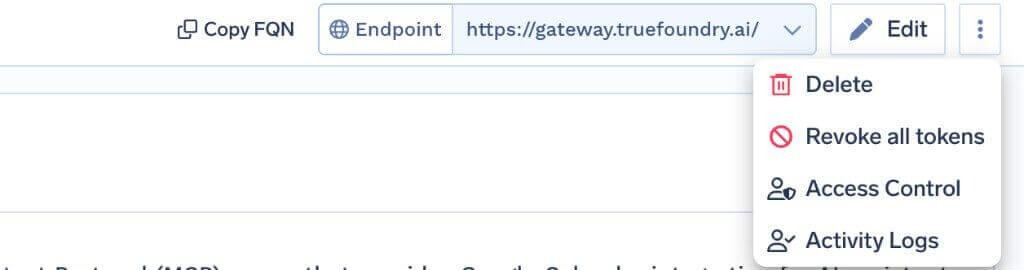
Revoke all tokens deletes every auth override and stored OAuth token for all users and virtual accounts on that server, takes effect on the next request, and is recorded in Activity Logs. It’s irreversible — everyone re-runs OAuth consent afterward.
One important limit: this deletes tokens from the gateway only and does not revoke the grant at Slack. In a real incident, also remove or reinstall the app in Slack’s workspace settings and rotate the client secret. The action is visible only to tenant admins.
Model Context Protocol is off by default on the Slack app. The most common setup failure is a correctly configured server that returns nothing, because Features → Agents & AI Apps → Model Context Protocol was never enabled. Check that first.
The manifest is a menu, not a default. Treat it as a superset to cut down — scopes you never grant cannot be misconfigured back in later.
Per-user OAuth means per-user revocation. Each person’s grant is separate. Removing someone from collaborators cuts their gateway access immediately; the Slack-side grant is a separate action.
The Slack MCP server is one of the highest-value integrations you can give an agent, because most of what a company knows lives in its conversations rather than its documents. It’s also where a careless connection does the most damage — not because a tool call can break production, but because the data is private and the write path is speech.
The controls are specific: trim the OAuth scopes, use per-user OAuth so each agent inherits exactly one human’s view of the workspace, disable the write tools at the gateway, gate anything that survives behind a human who reads the message first, and keep a traced log. Running Slack as a remote MCP server on TrueFoundry gives you all of that without building anything.
TrueFoundry AI Gateway delivers ~3–4 ms latency, handles 350+ RPS on 1 vCPU, scales horizontally with ease, and is production-ready, while LiteLLM suffers from high latency, struggles beyond moderate RPS, lacks built-in scaling, and is best for light or prototype workloads.


It’s Slack’s official remote Model Context Protocol server, hosted at https://mcp.slack.com/mcp. It exposes Slack as tools an AI agent can call — searching messages and files, reading channel and thread history, posting messages, working with canvases, and looking up users. Agents connect over a URL and authenticate with OAuth rather than running anything locally.
Search across channels, group DMs, DMs, files, and users; conversation history for channels, groups, and DMs; message sending; canvas read and write; and user profile lookup. Which are available depends on the OAuth scopes you grant the Slack app, and on TrueFoundry each tool can be individually enabled, disabled, re-described, or annotated.
Yes, with scoping — but the bar is higher than for a code-oriented server, because Slack holds private conversations. Three things do most of the work: per-user OAuth so each agent sees only its user’s channels, trimmed scopes so DM access and posting are never granted unless needed, and human approval on anything that writes.
Yes. TrueFoundry runs in your VPC, on-prem, air-gapped, or hybrid, so prompts and responses never leave your domain even as you route across many providers.
Yes. It includes an MCP Gateway, an Agent Gateway, and an MCP & Agents Registry with tool-level access control. Agents on LangGraph, CrewAI, AutoGen, or a custom framework can all be governed centrally.
Yes. The gateway is OpenTelemetry-compliant and plugs into Grafana, Datadog, Prometheus, or your preferred stack. It traces every request from prompt to tool and model execution, so you get unified logging without ripping out what you already run.



The latest news, articles, and resources sent to your inbox
.png)
.png)
.png)
.png)
.png)
.png)
.png)
.webp)
.webp)