


.png)
November 1, 2026
|
5 min read


.png)
Blazingly fast way to build, track and deploy your models!
Model Context Protocol is the open standard that lets an AI agent discover and call tools on an external system. A Zendesk MCP server applies it to Zendesk Support, turning tickets, requesters, and organization records into tools an agent calls directly instead of glue code.
One thing differs from most servers in this series: TrueFoundry’s docs do not treat Zendesk as a pre-provisioned catalogue entry. They tell you to deploy or select a Zendesk MCP server implementation, then register it as a remote OAuth2 MCP server with your own Zendesk OAuth client. You own the implementation; TrueFoundry owns the access layer.
The docs describe access to these areas:
Exact tool names depend on the implementation you deploy, so read the Tools tab after connecting rather than assuming a list.
The valuable workflows chain calls together:
Reads and writes are very different animals here. Reading a ticket for context is low-risk. Adding a comment is another category entirely, and that is the governance story for this server.
A write here reaches a customer. If a coding agent pushes a bad commit, an engineer sees it. If an agent comments on a Zendesk ticket, a paying customer gets a notification and attributes it to your company. A wrong tone, a hallucinated refund promise, or a reply on the wrong ticket is a brand incident. No internal logging reverses a message already in someone’s inbox.
Reads leak PII by default. Tickets contain names, emails, phone numbers, order references, and attachments uploaded without much thought. An agent reading one pulls all of that into a model prompt. A read-only agent is still a privacy surface.
Shared API tokens erase attribution. Wire the server up with one admin token and every action looks like the same actor. You cannot tell which team’s agent commented on which ticket, or narrow one team’s access without narrowing everyone’s.
Prompt injection arrives through the front door. Support tickets are user-submitted text from strangers — an ideal delivery channel for injected instructions. An agent triaging one reads attacker-authored content, and if it can also write, those instructions can steer it into replying to the wrong customer.
None of this argues against connecting Zendesk. It argues for an MCP gateway in front of it: a human in the write path, a redaction step in the read path.
Two halves: create an OAuth client in Zendesk, then register the server in TrueFoundry. You need Zendesk admin access and a TrueFoundry account that can add MCP servers.
Step 1 — Create a Zendesk OAuth client. In Zendesk Admin Center, open https://<subdomain>.zendesk.com/admin/apps-integrations/apis/apis/oauth_clients and add a confidential OAuth client. Set the redirect URL to:
https://<tfy-control-plane-base-url>/api/svc/v1/llm-gateway/mcp-servers/oauth2/callback
Replace <tfy-control-plane-base-url> with your control plane URL. The client’s Unique identifier is the Client ID. Copy the Secret the moment Zendesk shows it — it is displayed only once.
Step 2 — Open the picker. In TrueFoundry, go to MCP Gateway and click Add Server.
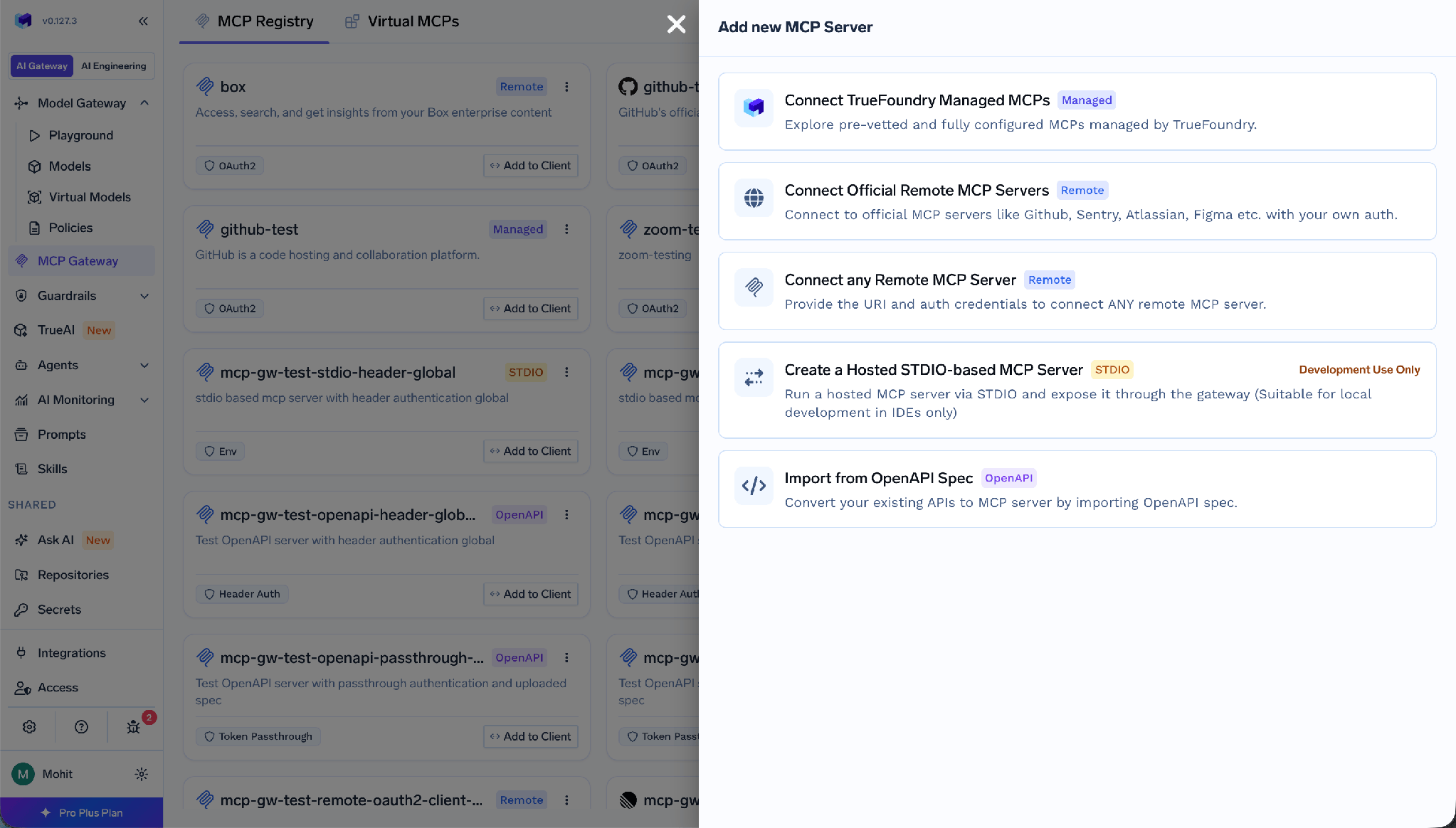
Choose Connect any Remote MCP Server and fill in the Name, Description, and URL of your implementation.
Step 3 — Configure OAuth2. Select OAuth2 as the auth type and the Authorization Code grant. Supply your Zendesk Client ID, Client Secret, and domain.
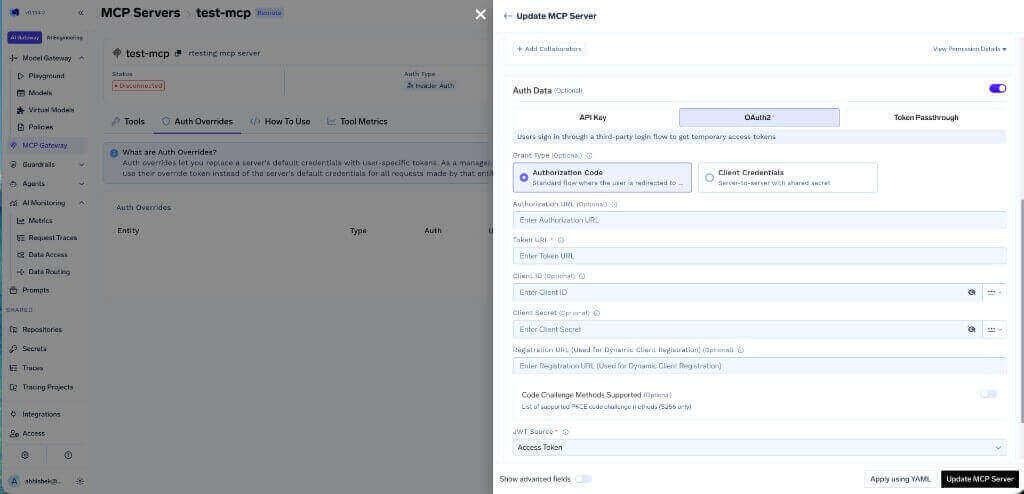
Rather than pasting the secret in plain text, store it in the TrueFoundry secrets store and reference its FQN.
Step 4 — Add collaborators and save. Decide who gets access before it goes live.
Step 5 — Connect. Each user opens the server’s Tools section and clicks Connect Now. After OAuth succeeds, Zendesk tools appear and can be tried from the Agent Playground.
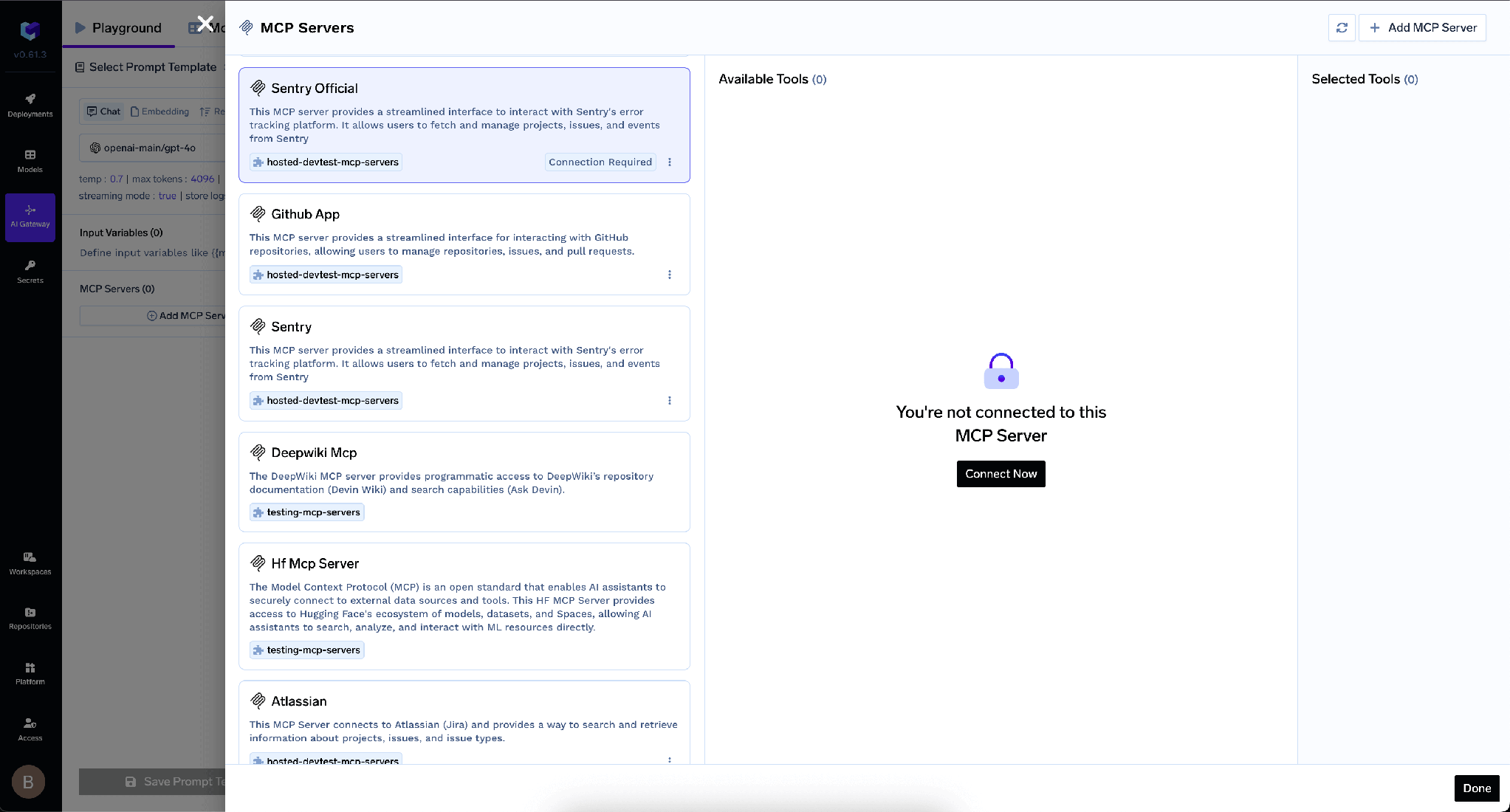
TrueFoundry separates inbound auth — how a client proves itself to the gateway — from outbound auth, how the gateway proves itself to Zendesk. The layers are independent.
Inbound has four methods:
One caveat: Virtual Account tokens give every request identical access, so they cannot express per-user Zendesk permissions. If reps have different views and you want that to hold for their agents, use a PAT or IdP token inbound.
Outbound is OAuth2 Authorization Code against the client from Step 1. Each user authorizes their own Zendesk account; TrueFoundry handles consent, storage, and refresh, injecting the right token per user on every call.
That matters more here than elsewhere. Support tooling is full of role boundaries — tiers, brands, restricted groups. Per-user OAuth means an agent acting for a Tier 1 rep sees what that rep sees, and when someone leaves Zendesk their agent’s access dies with them.
The Tools tab lists everything your implementation exposes. This is where you decide what agents may do.
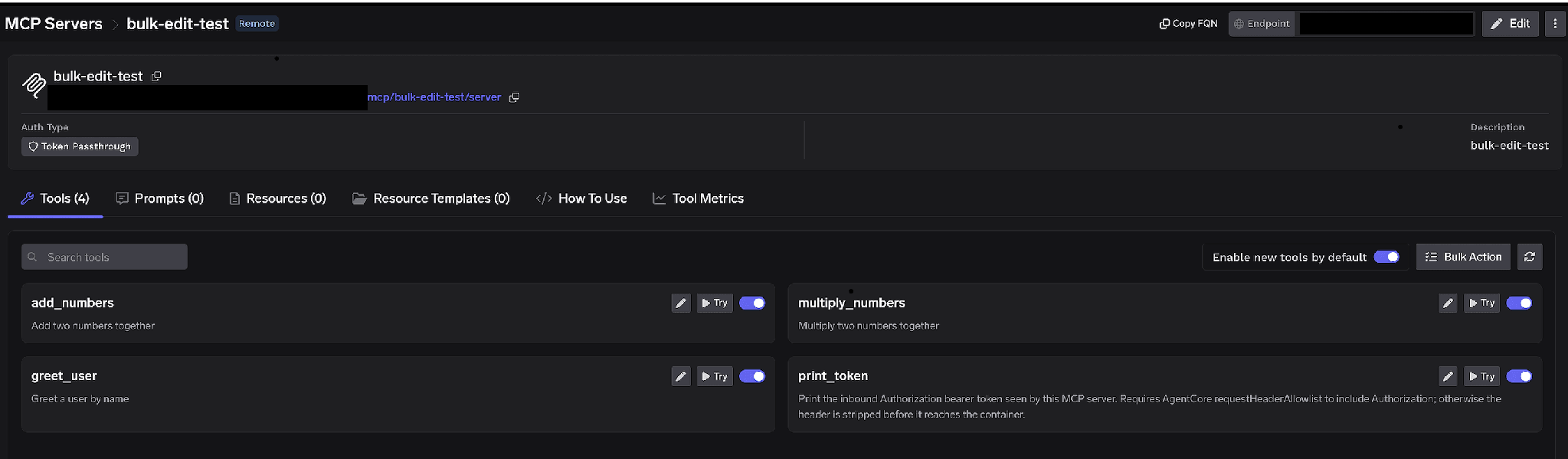
Per-tool toggles. Turn a tool off and it is omitted from tools/list entirely — clients never see it and it cannot be invoked. This is not prompt-layer filtering. For a triage agent that only needs context, disabling every write tool makes it structurally incapable of contacting a customer, whatever an injected ticket body says.
Enable new tools by default. Left on, new tools are exposed automatically. Turned off, only tools you explicitly enabled are available. For a server whose writes reach customers, off is the right default.
Bulk Action. Switches every row to checkboxes with Select all, so you can flip a long list in one pass.
Click the pencil on any tool to override how it is presented to the model:
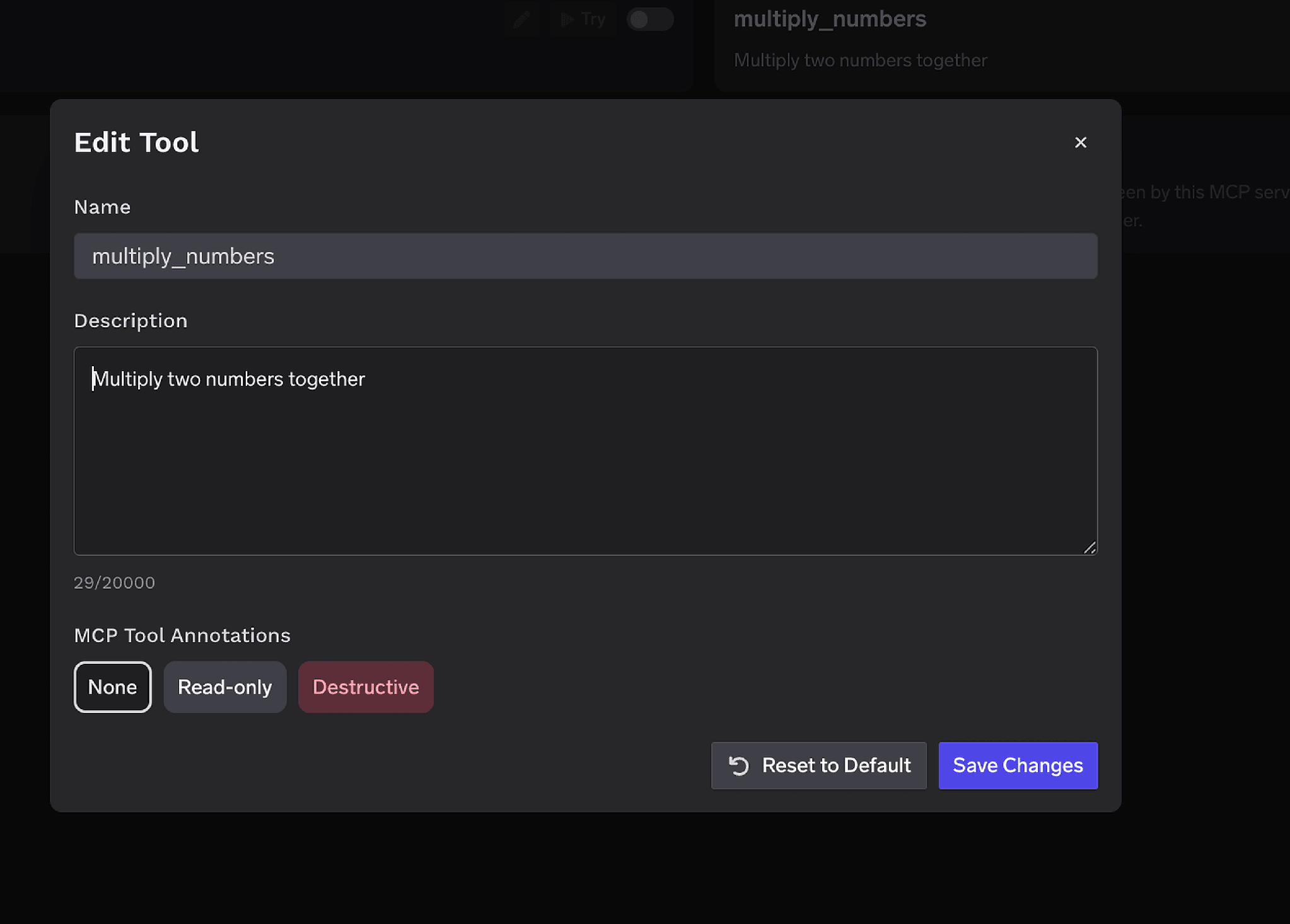
The Description override takes up to 20,000 characters and steers tool selection when an implementation’s wording is vague. MCP Tool Annotations mark a tool Read-only or Destructive, setting readOnlyHint or destructiveHint. Mark every tool that writes to a ticket as Destructive: that annotation is what lets the approval policy below gate the whole class without listing tools by name.
Access control attaches to users, teams, or virtual accounts on two dimensions: which servers an identity reaches, and which tools within a server it invokes.
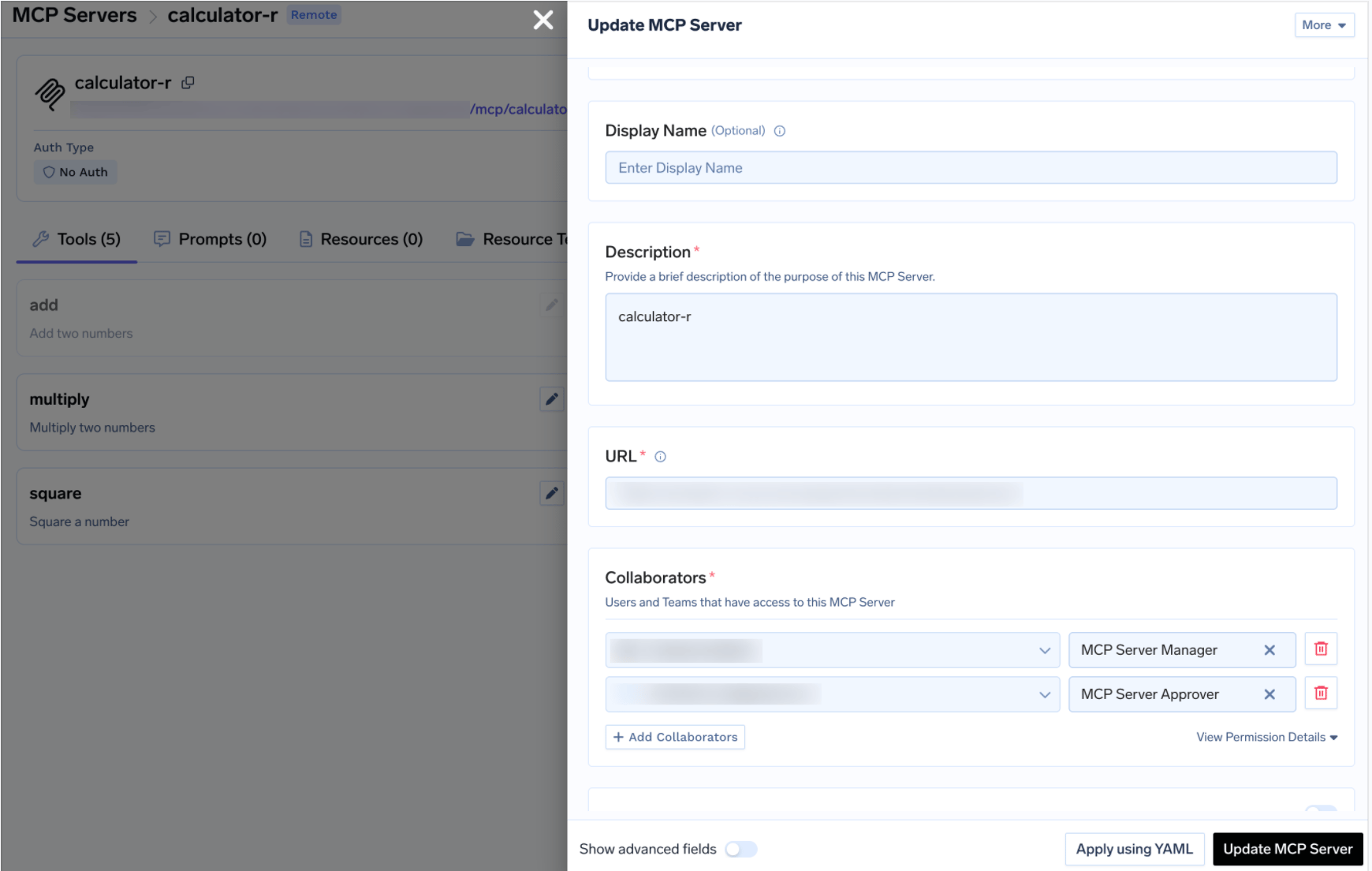
The Approver role deserves thought here. Whoever approves a customer-facing reply should be a support lead who knows your tone and policies, not the platform engineer who registered the server. Same MCP access control model as any other server, more consequential approver list.
For most servers, disabling write tools is the safe default and approval is a nice-to-have. Zendesk inverts that. Support teams want agent-drafted replies — drafting is where the time savings live. What they do not want is the agent pressing send. Approval policies give exactly that shape.
When a gated tool is called, the call is held rather than executed, a request is created, and approvers are notified. Once a human approves, the same call from the same requester succeeds until the grant expires.
Create a policy under AI Gateway → Policies → MCP Tool Approval, marked Beta in the console:
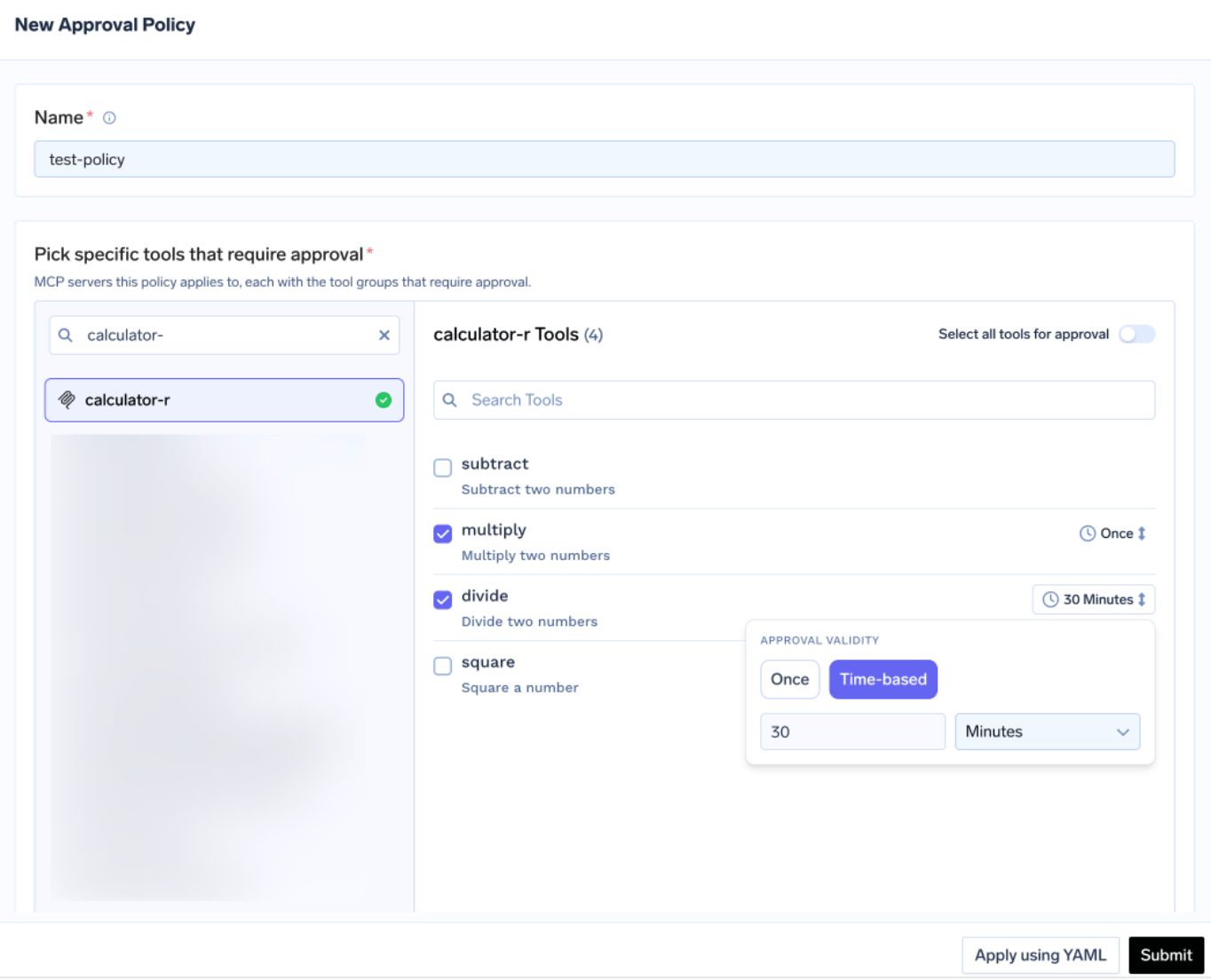
New Approval Policy form with tool selection and Once or Time-based validity options
Each policy names the servers it gates and picks an approval scope:
Here the annotations pay off. Mark ticket-write tools Destructive once, set approval_scope: destructive, and every customer-visible operation is gated without a name list. When scopes overlap, the most specific wins: named > destructive > all.
Validity is either Once — a single execution — or time-based, a duration in minutes. For customer-facing writes, Once is the honest setting: a 30-minute window means approving one reply silently approves every reply for the next half hour, which is not what a support lead thinks they agreed to. When policies conflict, the most restrictive wins: Once beats 10 minutes beats 30 minutes.
Approvers are notified over Email, Slack, PagerDuty, or MS Teams, and review in the console:
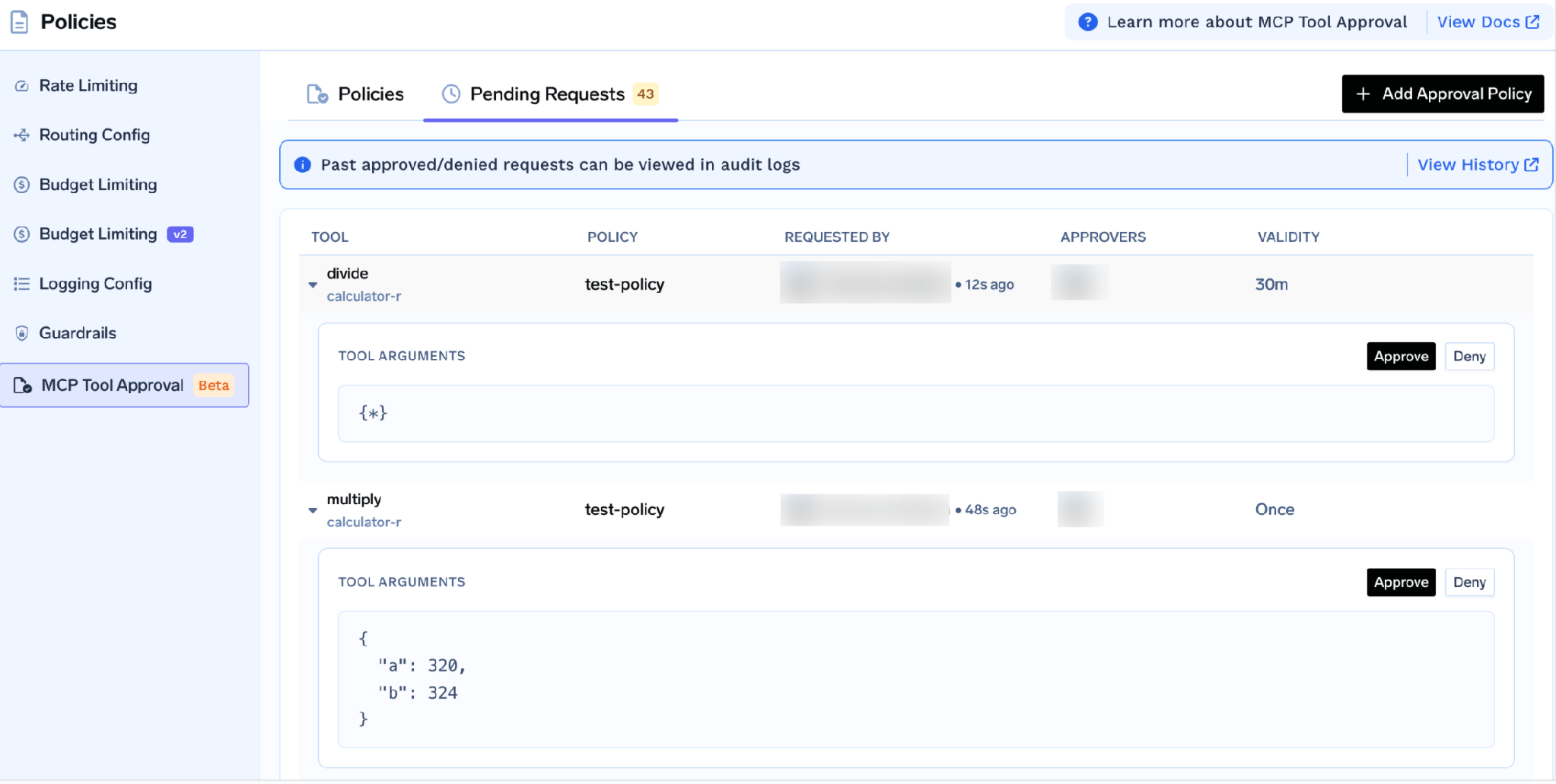
Each request shows the tool, the policy, who asked, and the actual tool arguments — so an approver reads the draft reply and the ticket ID before waving it through. That is why approval beats disabling here: the agent still does the work.
While pending, the caller gets a JSON-RPC result carrying _meta.approval_status: "pending" rather than an error, so a well-behaved agent waits and retries. Grants are per requester, so approving for one rep does not approve for the team. A denial does not permanently block anyone — the next call raises a fresh request. To durably block, disable the tool or remove the user.
Approval handles writes. Reads need something else: the risk is not a bad action but customer data flowing into a model prompt.
TrueFoundry ships a built-in PII/PHI Detection guardrail, powered by Azure AI Language PII Detection and run on TrueFoundry-managed infrastructure, so there are no third-party API keys. It applies to four hooks: LLM Input, LLM Output, MCP Pre Tool, and MCP Post Tool.
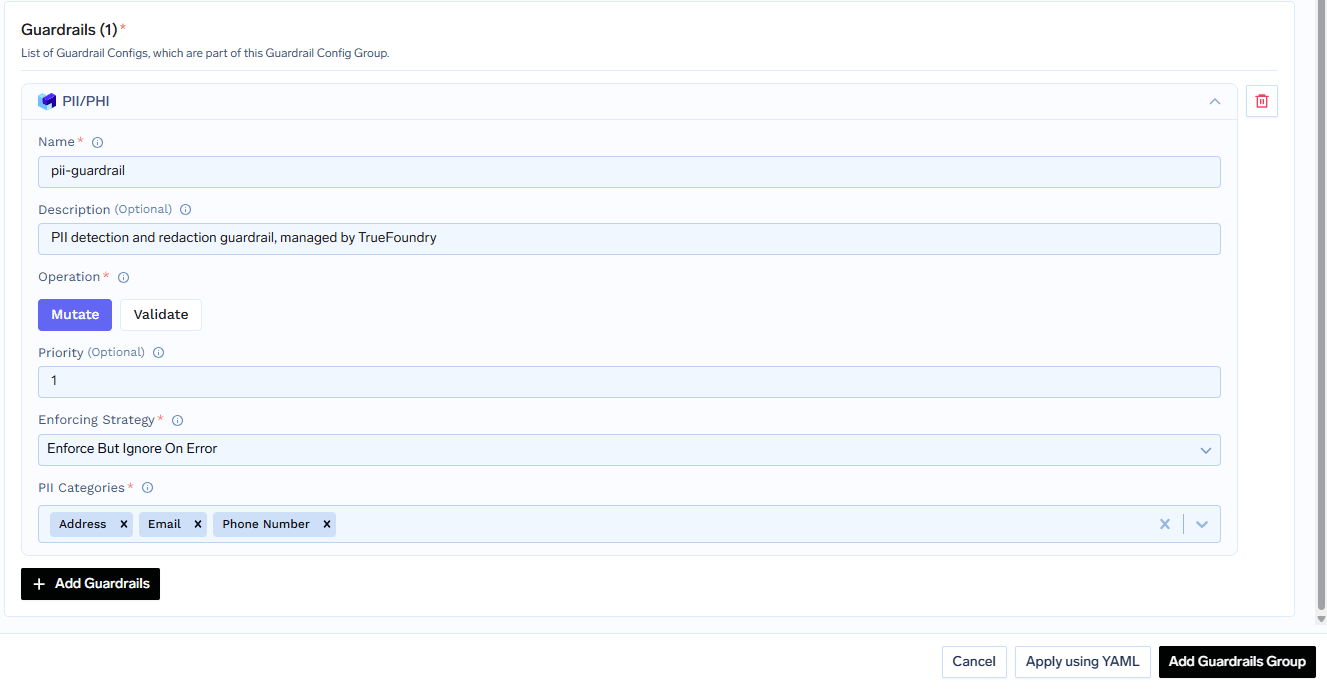
The hook that matters here is MCP Post Tool, which redacts PII from tool outputs before they reach the model. A ticket body comes back with the phone number and email replaced by asterisks and the rest intact — the agent still understands the problem without ingesting the identifiers. Configure it under Guardrails, pick entity categories (or select all, the default), and choose an enforcing strategy.
Two caveats. The guardrail only supports mutate mode: it always redacts rather than blocking the call. And detection is context-aware rather than pattern matching, so fewer false positives than a regex but not a guarantee.
Test tools by hand first. Click Try, fill in parameters, read the JSON. Try is disabled for disabled tools. Verify two things beyond connectivity: that your OAuth scopes cover the tickets you expect, and that a gated write tool returns the pending result instead of executing.
Open the How To Use tab for your tenant Gateway URL and paste-ready snippets.
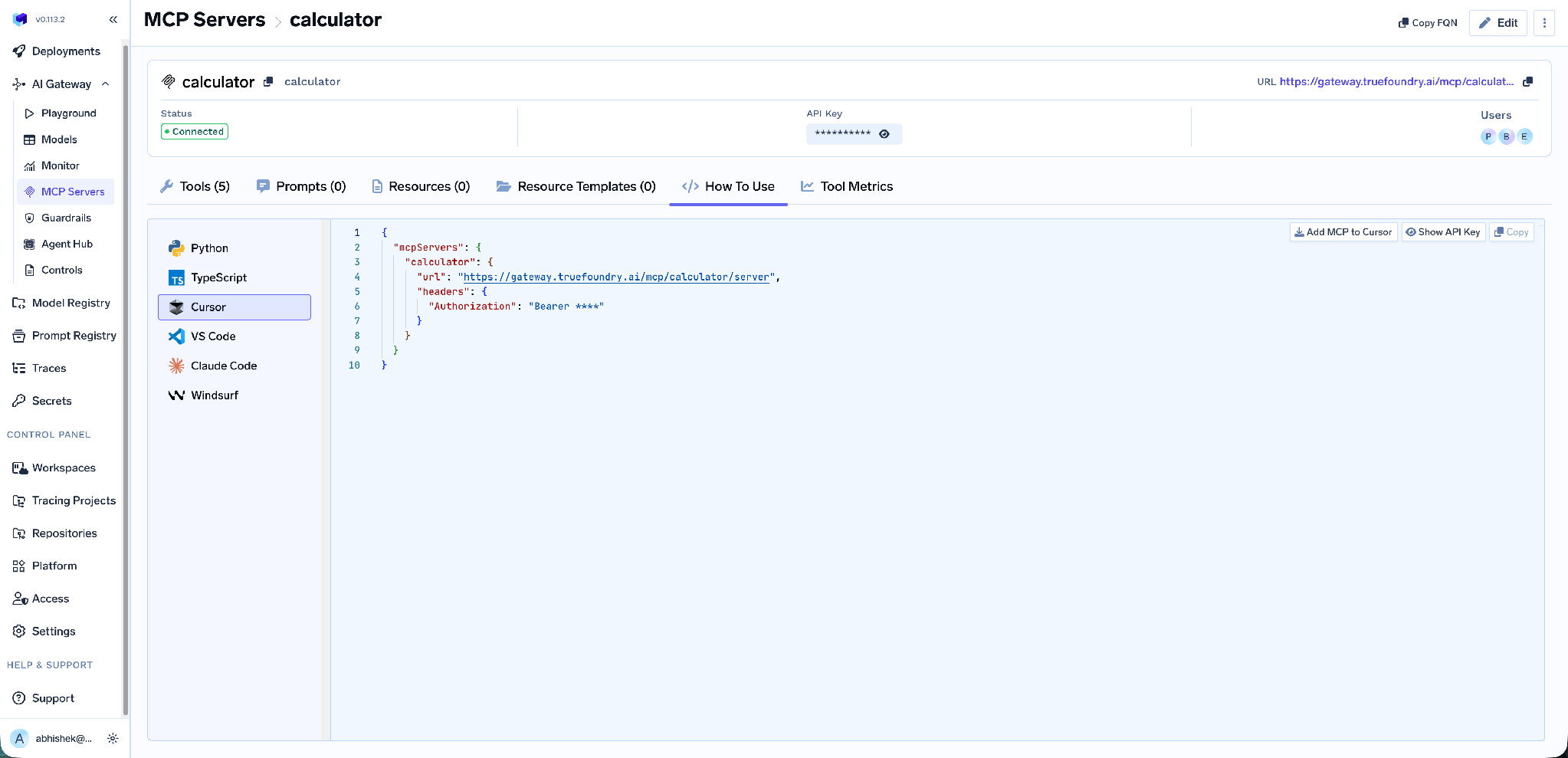
It covers Claude Code, VS Code, Claude Desktop, Cursor, Windsurf, Codex, and the Python and TypeScript MCP SDKs. Add MCP to Cursor writes the config for you; Show API Key reveals the token if your client needs one in a header. Take the URL from this tab — a hand-built endpoint is the most common cause of a client that connects but lists no tools.
Tool-level metrics. The MCP Metrics dashboard breaks down requests per second, latency at P50 through P99, failure rate by error type, and request count per tool.
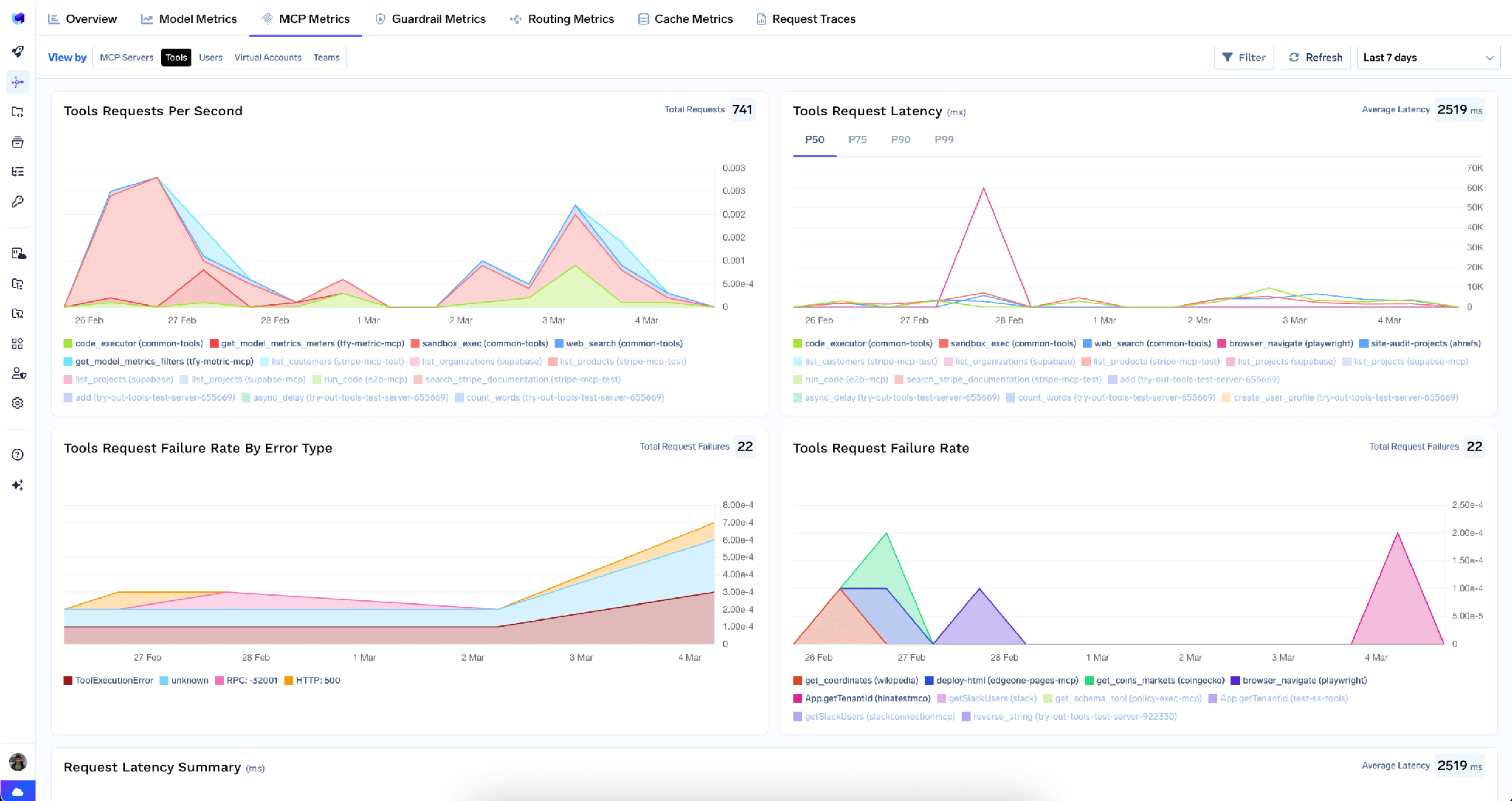
This is how you notice a triage agent reading the same organization record forty times per ticket.
Full-request observability. Every call is traced with caller identity, tool name, inputs, and latency, exported over OpenTelemetry to Grafana, Datadog, or Prometheus. Here that means a record of which human approved which customer-visible write, and with what arguments.
Guardrails. Pre-tool and post-tool hooks run policy on MCP tool calls — PII redaction being the obvious one.
Low overhead. The gateway adds roughly 3-4 ms of latency and handles 350+ RPS on a single vCPU.
One registry. A support agent rarely needs only Zendesk. Bundle a curated subset of tools from several servers behind one endpoint with a Virtual MCP Server — TrueFoundry’s Zendesk docs suggest exactly this, to hide write tools when agents should only read support context.
Tenant admins can wipe every stored credential from the three-dot menu next to Edit:
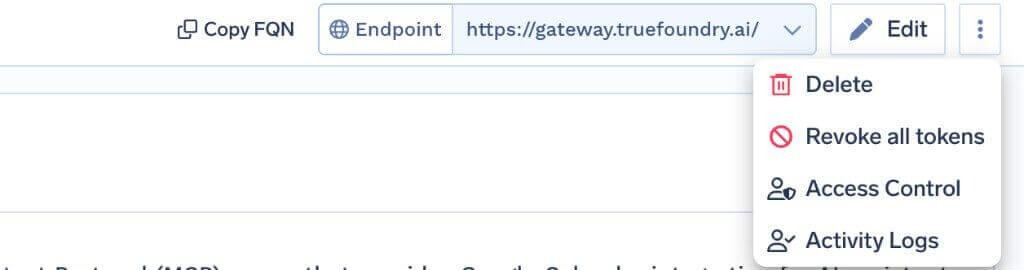
Revoke all tokens deletes every auth override and stored OAuth token for all users and virtual accounts on that server, takes effect on the next request, and is recorded in Activity Logs. It is irreversible.
One limit: this clears tokens at the gateway only, not the grant at Zendesk. In a real incident, revoke the OAuth client’s grants in Admin Center too. The action is visible only to tenant admins.
The Zendesk secret is shown once. Close that page without copying it and you are regenerating the client.
You own the implementation. Because this is a self-registered remote server rather than a catalogue entry, the tool list is whatever your chosen implementation provides. Two Zendesk MCP implementations will not expose the same tools, and upstream changes are yours to track.
Attachments are the blind spot. PII redaction operates on text passing through the guardrail. Customers attach screenshots, invoices, and logs, and an image is not text. Decide deliberately whether your agent touches attachments at all.
Most MCP servers fail quietly. Zendesk fails in front of a customer. That should reshape how you connect it: not by locking the agent out of writes, since drafted replies are the point, but by making sure no message reaches a customer without a human reading it first.
That is three settings. Per-user OAuth so every action traces to a person. Ticket-write tools annotated Destructive and gated by an approval policy with Once validity, so a support lead reviews the draft before it sends. PII/PHI Detection on the MCP Post Tool hook so the read path stops leaking identifiers into prompts.
TrueFoundry AI Gateway delivers ~3–4 ms latency, handles 350+ RPS on 1 vCPU, scales horizontally with ease, and is production-ready, while LiteLLM suffers from high latency, struggles beyond moderate RPS, lacks built-in scaling, and is best for light or prototype workloads.


A Model Context Protocol server that exposes Zendesk Support as tools an AI agent can call, covering support tickets, users, organizations, and related support data. On TrueFoundry it registers as a remote OAuth2 MCP server using a Zendesk OAuth client you create in Admin Center, so each user authorizes their own account.
Tools across support tickets, users, organizations, and related support data. Exact names depend on the implementation you deploy. Once connected, the full list appears on the Tools tab, where each can be enabled, disabled, re-described, or annotated.
Create a confidential OAuth client in Zendesk with TrueFoundry’s callback as the redirect URL and register the server through Connect any Remote MCP Server with OAuth2 Authorization Code. Then do three things: mark ticket-write tools Destructive and gate them with an approval policy set to Once, turn off Enable new tools by default, and attach PII/PHI Detection on the MCP Post Tool hook.
Yes. TrueFoundry runs in your VPC, on-prem, air-gapped, or hybrid, so prompts and responses never leave your domain even as you route across many providers.
Yes. It includes an MCP Gateway, an Agent Gateway, and an MCP & Agents Registry with tool-level access control. Agents on LangGraph, CrewAI, AutoGen, or a custom framework can all be governed centrally.
Yes. The gateway is OpenTelemetry-compliant and plugs into Grafana, Datadog, Prometheus, or your preferred stack. It traces every request from prompt to tool and model execution, so you get unified logging without ripping out what you already run.



The latest news, articles, and resources sent to your inbox
.png)
.png)
.png)
.png)
.png)
.png)
.png)
.png)
.png)
.png)
.png)
.png)


