Configure client secret based authentication for Azure OpenAI, Azure AI Foundry models, and Azure guardrails (PII, Content Safety, Prompt Shield).
This guide explains how to configure client secret based authentication using Microsoft Entra ID
for Azure OpenAI and Azure AI Foundry models in TrueFoundry’s AI Gateway. Client secret authentication
is also supported for Azure AI Foundry-based guardrails — Azure PII,
Azure Content Safety, and
Azure Prompt Shield.If you prefer certificate-based authentication instead, see
Azure Entra ID Certificate Based Authentication.
Navigate to Azure Portal > Microsoft Entra ID >
App registrations and select your application.From the Overview page, note the following values:
Application (client) ID
Directory (tenant) ID
2
Create a Client Secret
In your app registration, navigate to Certificates & secrets > Client secrets >
New client secret.Provide a Description and choose an Expires duration, then click Add.
Copy the secret Value immediately after creation — Azure only displays it once.
Store it in a secure location; you will provide it to TrueFoundry in the next section.
Client secrets tab in Certificates & secrets showing a created secret
3
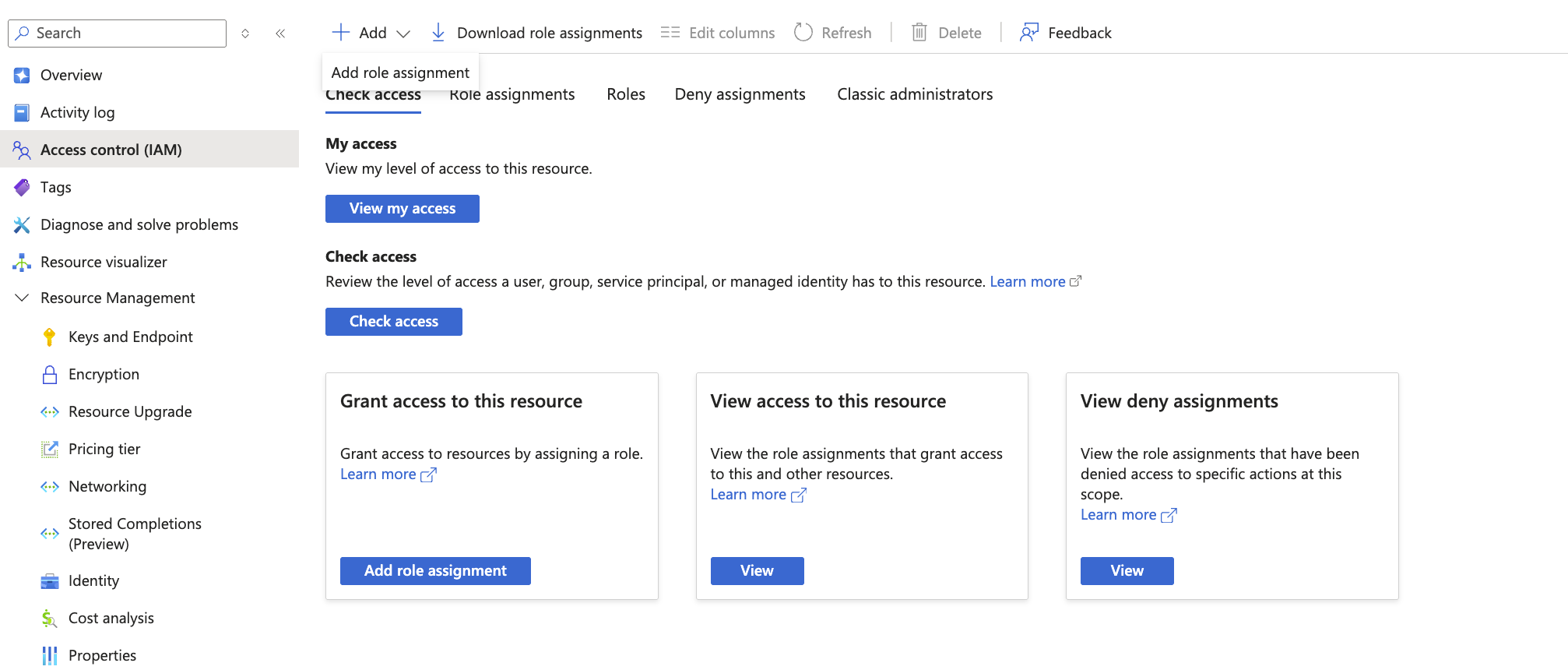
Assign RBAC Role to App Registration
Navigate to your Azure resource > Access control (IAM) > Add role assignment.
Add Model Account with Client Secret Authentication
Navigate to AI Gateway > Models and select your provider (Azure OpenAI or Azure AI Foundry).Click Add Account and select Entra client secret based auth. Fill in the following:
Field
Description
Tenant ID
Directory (tenant) ID from app registration overview
Client ID
Application (client) ID from app registration overview. You can also use a TrueFoundry Secret here.
Client Secret
The client secret Value you copied from Azure. You can also use a TrueFoundry Secret here.
For Azure AI Foundry, client secret authentication is configured at the model level,
not the account level.
Azure OpenAI account form with Entra client secret based auth selected
2
Add Models and Test
Add your models as described in the Azure OpenAI or
Azure AI Foundry documentation.Test the connection using the Playground to verify authentication works.