Add and configure Wafer serverless chat models through TrueFoundry’s AI Gateway.
Wafer is a hosted inference provider for serverless chat models. TrueFoundry connects to Wafer natively through the AI Gateway, so you can send text prompts and receive text responses with optional zero-data-retention.Wafer supports chat completions, streaming, and tool / function calling (where the model supports it) for models like GLM 5.2.
This section explains the steps to add a Wafer model account, register chat models, and configure access controls.
1
Navigate to Wafer in AI Gateway
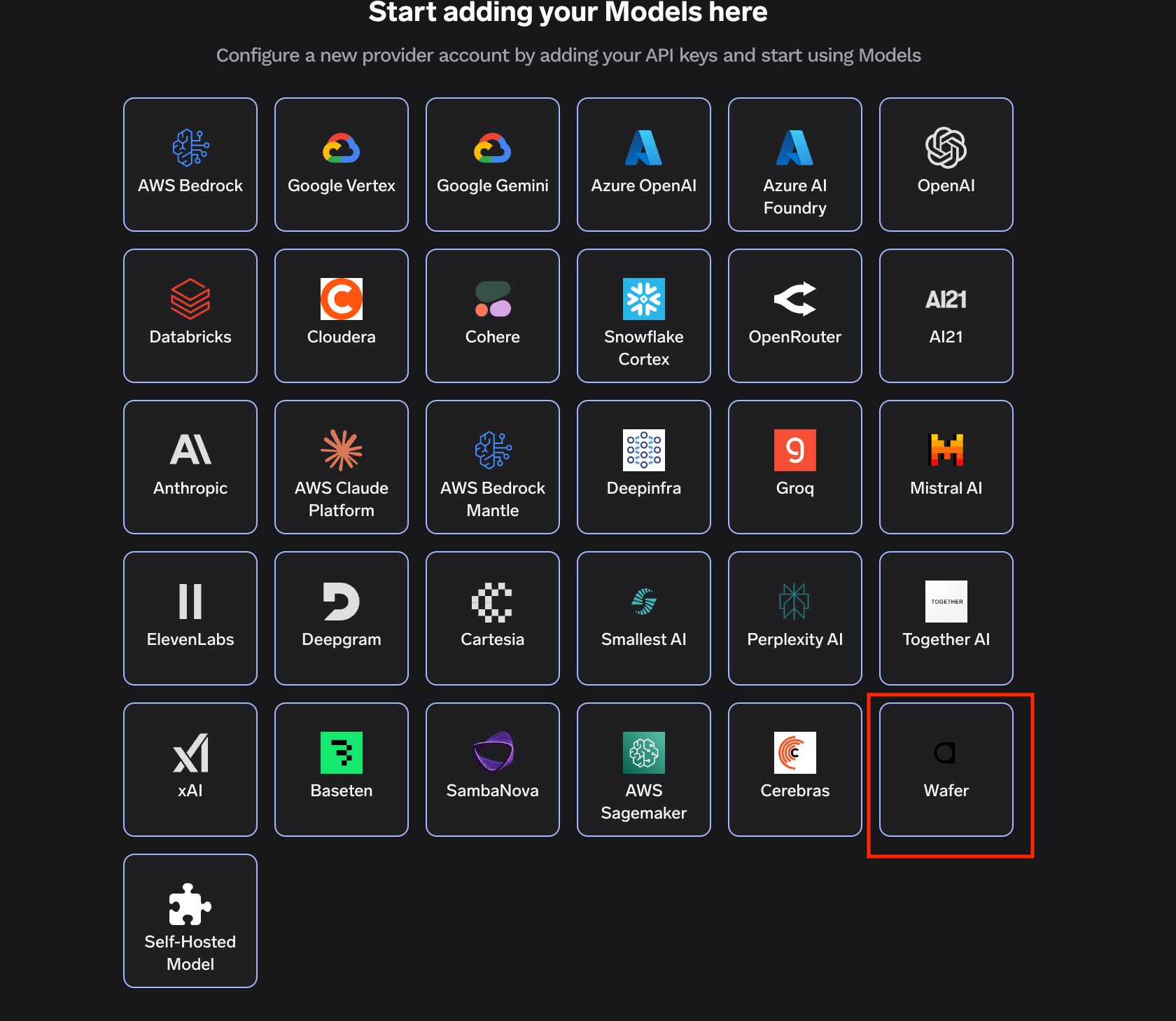
From the TrueFoundry dashboard, navigate to AI Gateway > Models and select Wafer.
Select Wafer from the provider list
2
Add Wafer account details
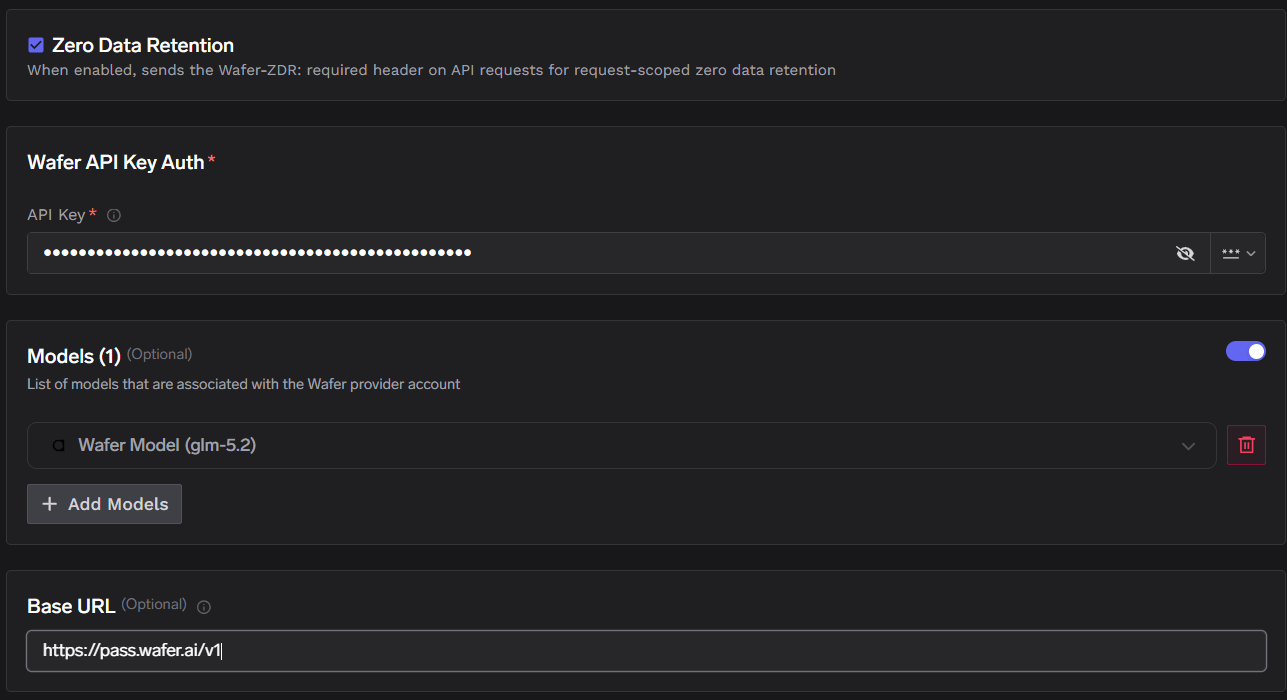
Click Add Wafer Account. Give a unique name to your Wafer account and complete the form:
Base URL (optional): defaults to https://pass.wafer.ai/v1. Change this only if Wafer directs you to a different endpoint.
Zero Data Retention: when enabled, the AI Gateway sends the Wafer-ZDR: required header on API requests for request-scoped zero data retention. This is enabled by default.
API Key: your Wafer API key for authentication.
Add collaborators to your account to grant other users or teams access. Learn more about access control here.
Wafer account configuration form
3
Register chat models
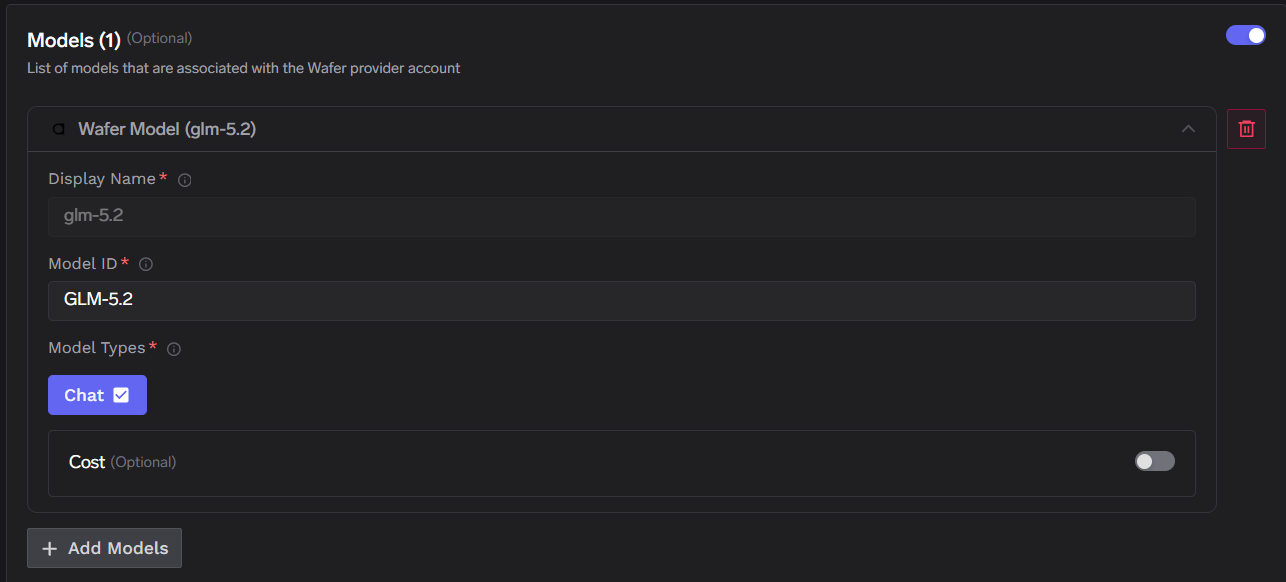
Click + Add Models to register one or more chat models under your Wafer account. For each model, set:
Display Name: the name shown in the TrueFoundry UI (for example, glm-5.2).
Model ID: the Wafer model identifier used in API calls (for example, GLM-5.2).
Model Types: select Chat.
Add a Wafer chat model
Use the exact Model ID from Wafer’s documentation or dashboard. A common model is GLM-5.2.
After adding the models, call them through the AI Gateway like any other chat model — via the Playground or by integrating with your application using the OpenAI-compatible /chat/completions API.Use the TrueFoundry model ID in the format your-wafer-account/glm-5.2. See Chat Completions - Getting Started for a full code example:
from openai import OpenAIclient = OpenAI( api_key="your_truefoundry_api_key", base_url="{GATEWAY_BASE_URL}")response = client.chat.completions.create( model="my-wafer-account/glm-5.2", # provider account / model display name messages=[{"role": "user", "content": "Hello, how are you?"}])print(response.choices[0].message.content)
Was this page helpful?
Assistant
Responses are generated using AI and may contain mistakes.