

Adding Models
This section explains the steps to add AWS Bedrock models and configure the required access controls.Navigate to AWS Bedrock Models in AI Gateway
AI Gateway > Models and select AWS Bedrock.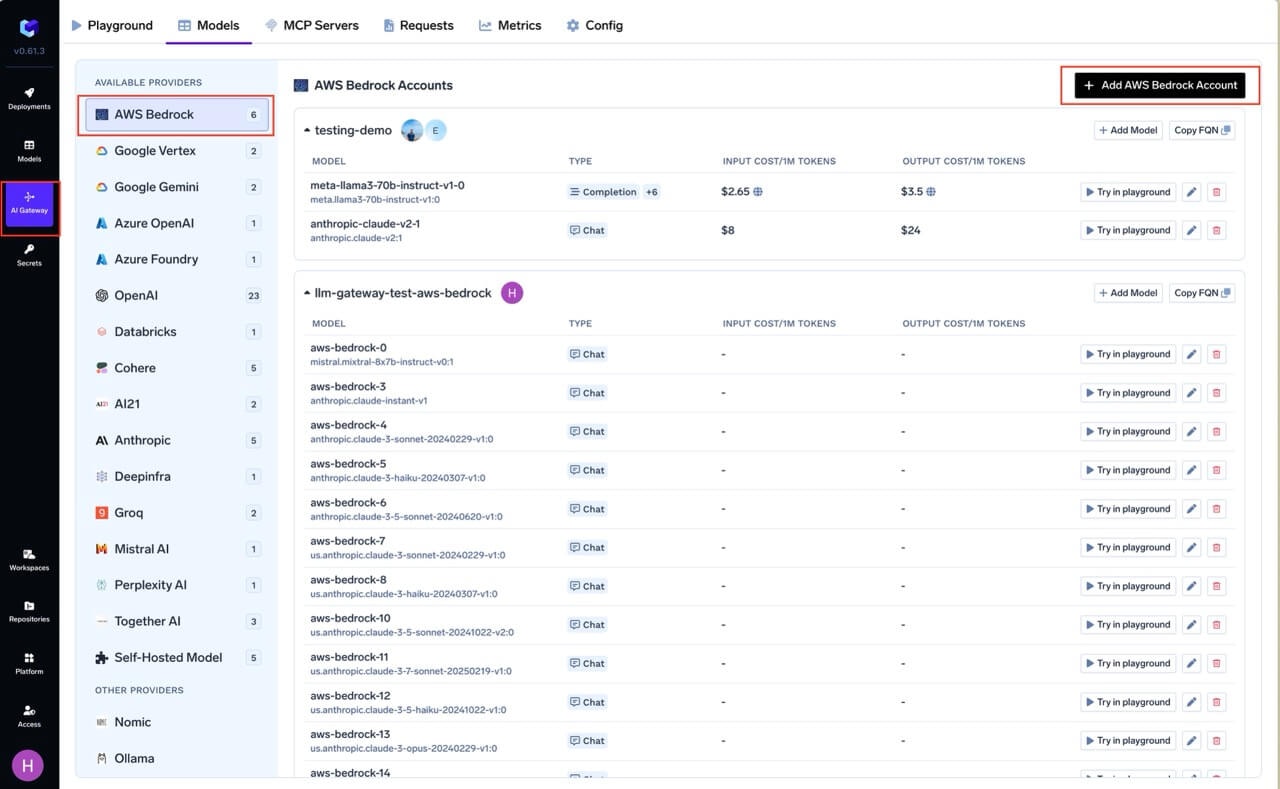
Navigate to AWS Bedrock Models
Add AWS Bedrock Account Name and Collaborators
@providername/@modelname. Add collaborators to your account. You can decide which users/teams have access to the models in the account (User Role) and who can add/edit/remove models in this account (Manager Role). You can read more about access control here.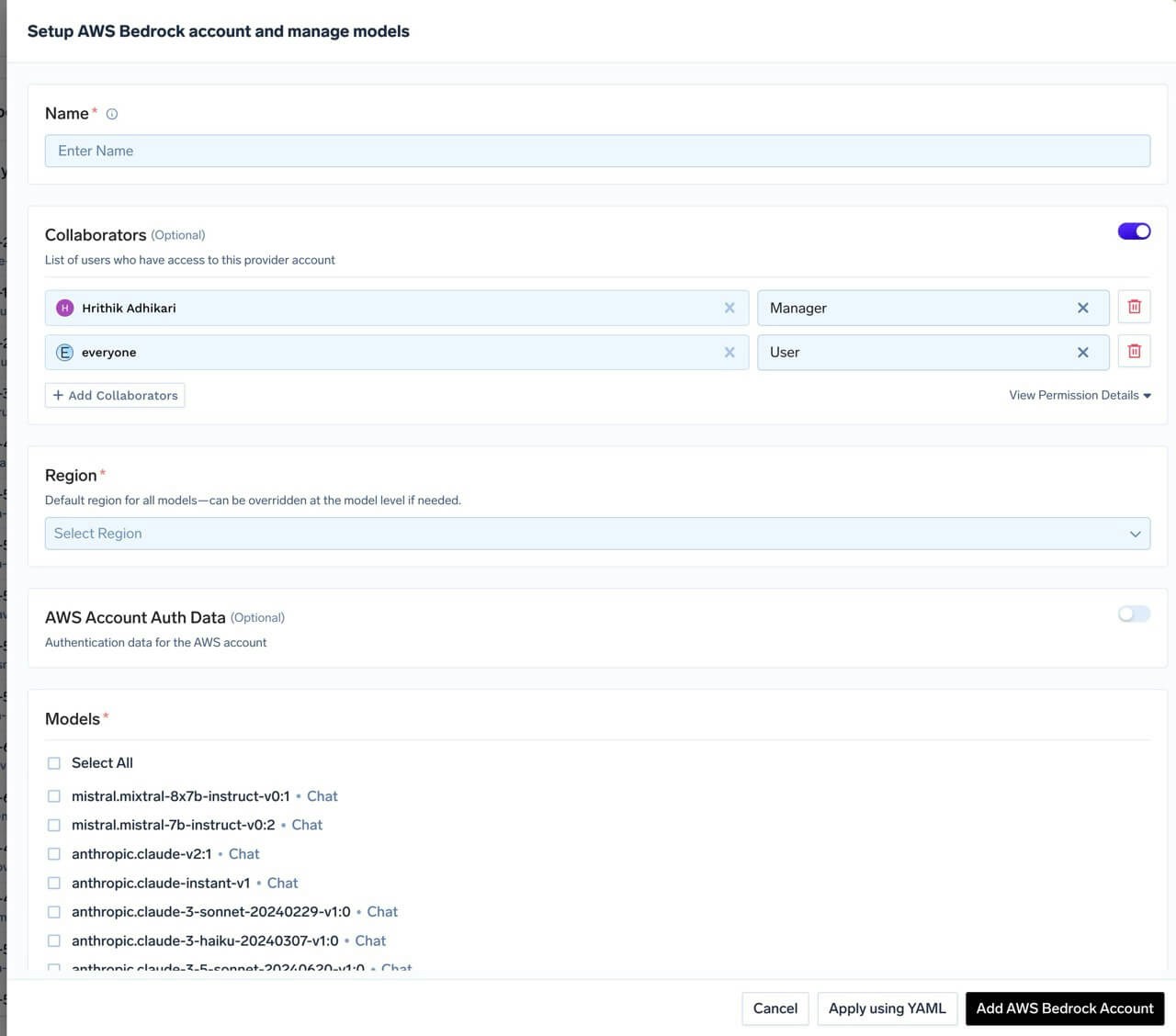
AWS Bedrock Model Account Form
Add Region and Authentication
Get AWS Authentication Details
Get AWS Authentication Details
bedrock:GetInferenceProfile is required when invoking models through an inference profile (system-defined or custom). The AI Gateway uses it to resolve the profile to its underlying foundation model.bedrock:Rerank is only required if you plan to use Bedrock reranker models through the Rerank API. AWS serves reranking from a separate endpoint (bedrock-agent-runtime) and requires both bedrock:Rerank and bedrock:InvokeModel on the reranker model — the AWS reference policy grants bedrock:Rerank with "Resource": "*". If you are not using rerank models, you can drop the RerankModels statement below.aws-marketplace:ViewSubscriptions and aws-marketplace:Subscribe, and you must have model access granted in the Bedrock console. See Permissions for reranking in Amazon Bedrock.- Create an IAM user (or choose an existing IAM user) following these steps.
- Attach the IAM policy created above to this user.
- Create an access key for this user as per this doc.
- Use this access key and secret while adding the model account to authenticate requests to the Bedrock model.
- Create an IAM role in your AWS account that has access to Bedrock. Attach the IAM policy with Bedrock permissions (shown above) to this role.
- Configure the trust policy for this role to allow the AI Gateway role to assume it. Use the appropriate role ARN based on your deployment:
- Gateway role ARN:
arn:aws:iam::416964291864:role/tfy-ctl-production-ai-gateway-deps
- Your gateway role ARN will look like:
arn:aws:iam::<your-aws-account-id>:role/<account-prefix>-truefoundry-deps
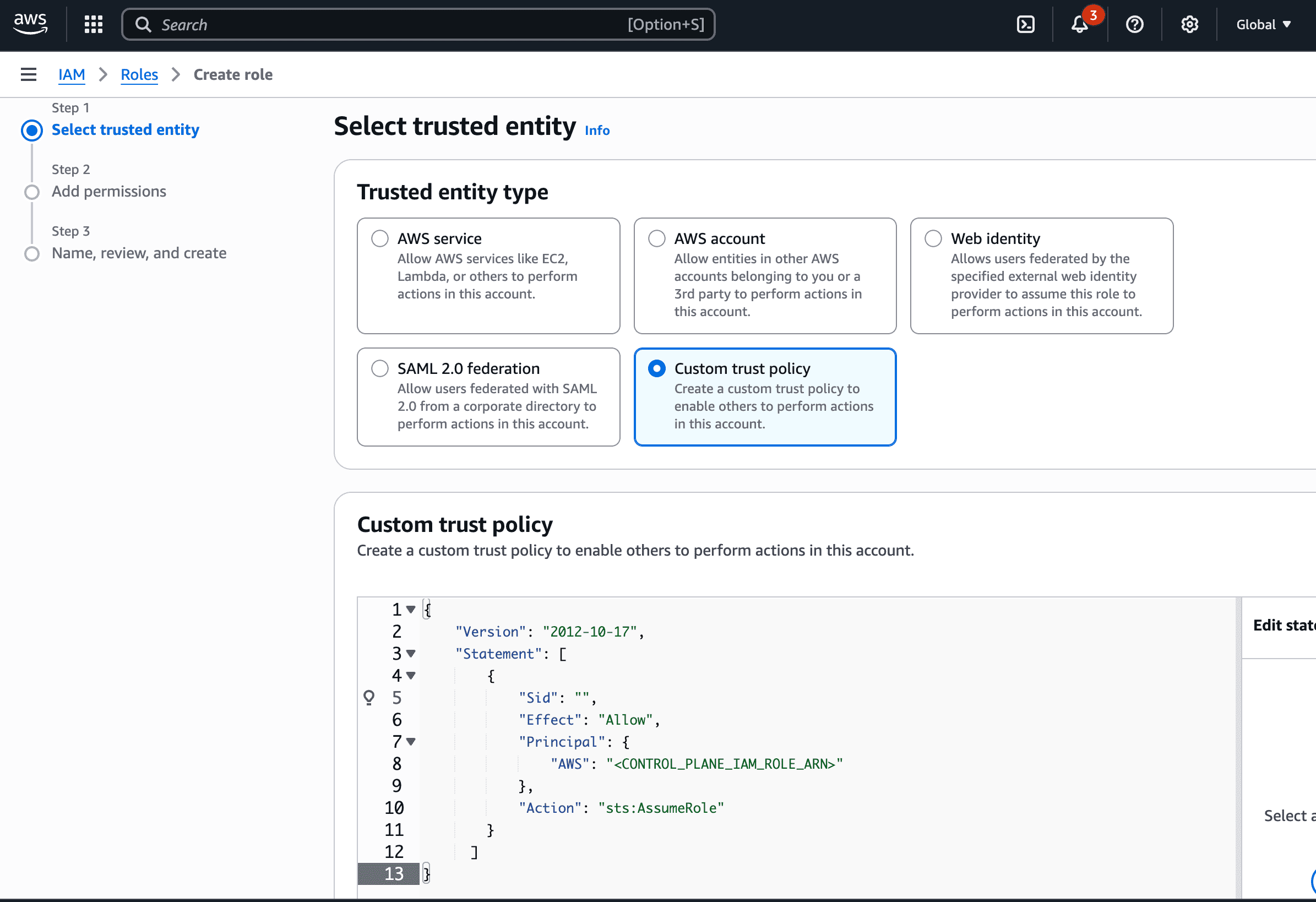
Trust Policy
- Read more about how assumed roles work here.
- Navigate to the AWS Management Console and open the Amazon Bedrock console at https://console.aws.amazon.com/bedrock.
- In the left navigation pane, select API keys.
- Choose Generate long-term API keys in the Long-term API keys tab.
- In the API key expiration section, choose a time after which the key will expire.
- Choose Generate and copy the API key value.
- Use this API key while adding the model account to authenticate requests to the Bedrock model.
Add Models
Select All to select all the models.+ Add Model at the end of list.Inference
After adding the models, you can perform inference using an OpenAI-compatible API via the Playground or integrate with your own application.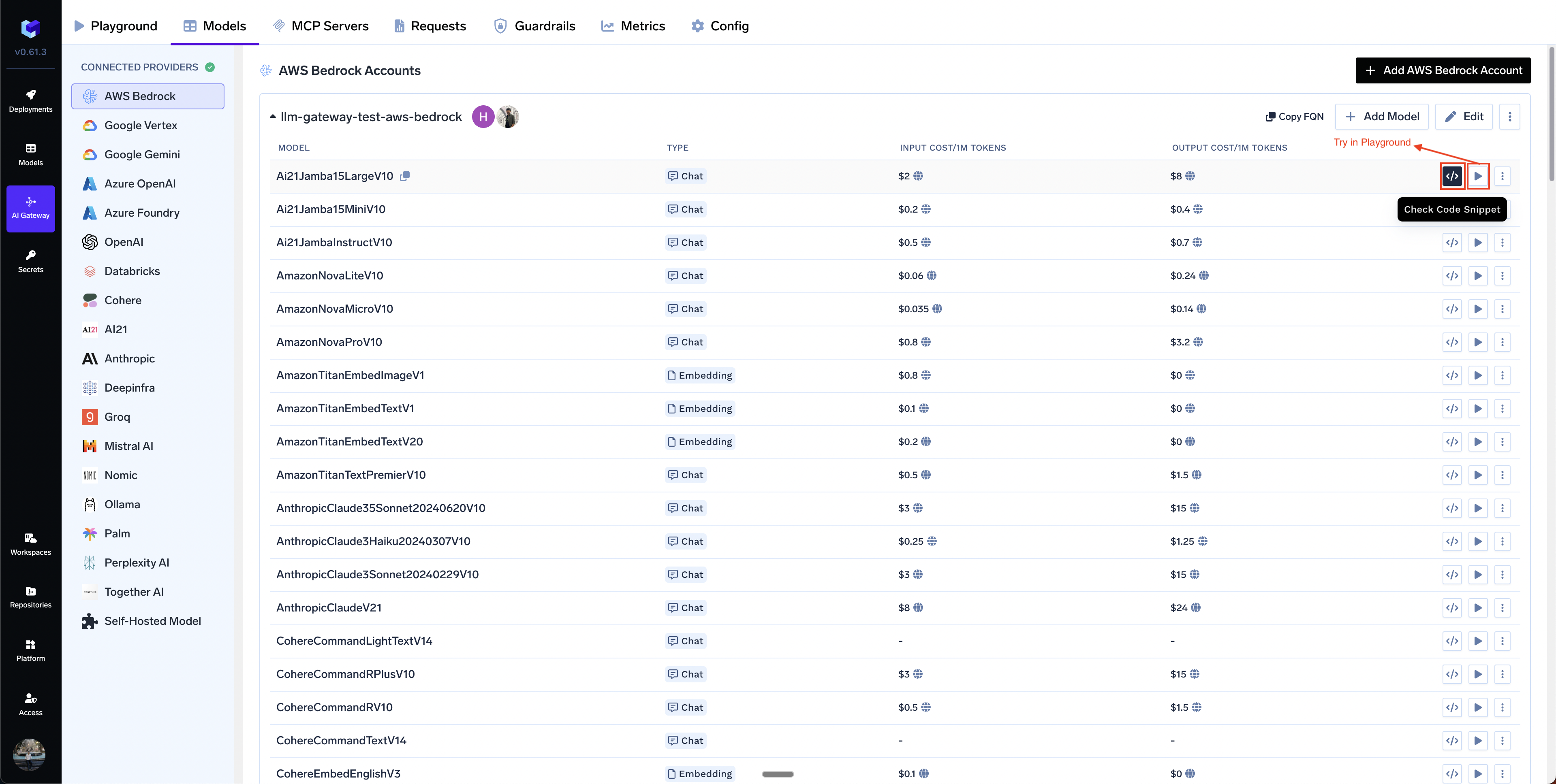
Infer Model in Playground or Get Code Snippet to integrate in your application
Supported APIs
Once your Bedrock model account is configured, the following API surfaces are available through the AI Gateway. The table below summarizes each endpoint alongside platform feature support (tracing, cost tracking).- ✅ Supported by provider and TrueFoundry
- Supported by Provider, but not by TrueFoundry
- Provider does not support this feature
Chat Completions
Chat Completions
service_tier as flex, priority, or ultrafast on the Chat Completions body. The gateway maps it to Bedrock serviceTier and bills the served type. See Service tiers.Streaming
Streaming
stream=True and iterate over delta chunks. Defensively check that chunk.choices is non-empty and delta.content is not None.Function calling / tools
Function calling / tools
tool_calls back as a tool role message, then request the final response.Vision (multimodal images)
Vision (multimodal images)
image_url content part.PDF document input
PDF document input
file content type with base64 encoding.Structured outputs (JSON schema)
Structured outputs (JSON schema)
message.content.
Works across all Bedrock model families.ge, le, minimum, maximum must be stripped from Pydantic-generated schemas.Prompt caching
Prompt caching
cache_control hints into Bedrock’s native cachePoint format.Extended thinking (reasoning)
Extended thinking (reasoning)
reasoning_effort — the AI Gateway translates it into Bedrock’s native thinking parameter at ratios (none=0%,
low=30%, medium=60%, high=90% of max_tokens). Bedrock requires a minimum budget_tokens of 1024.Native Anthropic API (InvokeModel)
Native Anthropic API (InvokeModel)
x-tfy-bedrock-anthropic-invoke: true to use Bedrock’s InvokeModel API with a native
Anthropic Messages body instead, so Anthropic-native fields are sent at the top level rather than wrapped in Converse’s additionalModelRequestFields.The header applies to chat completions on Anthropic models only and is ignored elsewhere. Requests and responses stay OpenAI-compatible either way.InvokeModel also supports Anthropic’s regex tool-search tool. The AI Gateway
translates the Anthropic tool definition and adds the beta identifiers required
by Bedrock automatically. It also preserves defer_loading on deferred tools.tfy.model.provider_request_format: invoke. Converse requests leave the attribute unset.Embeddings
Embeddings
/embeddings endpoint.
Full docs: Embed API.amazon.titan-embed-text-v1, amazon.titan-embed-text-v2:0, cohere.embed-english-v3, cohere.embed-multilingual-v3.Image Generation
Image Generation
/images/generations.
Full docs: Image Generation.amazon.nova-canvas-v1:0, amazon.titan-image-generator-v1, amazon.titan-image-generator-v2:0 + Stability AI modelsImage Edit
Image Edit
client.images.edit on Bedrock. Titan v2 supports inpaint/outpaint via its own tool-specific model IDs.Batch API
Batch API
ModelInvocationJob, and serves aggregated results via a gateway REST endpoint.
Full docs:Batch Predictions.Workflow Steps
The batch process follows these steps for all providers:- Upload: Upload JSONL file → Get file ID
- Create: Create batch job → Get batch ID
- Monitor: Check status until complete
- Fetch: Download results
Step-by-Step Examples
1. Upload Input File
1. Upload Input File
2. Create Batch Job
2. Create Batch Job
batches.create, so inject them via extra_body.3. Check Batch Status
3. Check Batch Status
batch.id URL-encoded. Decode once before subsequent retrieve() calls or the SDK double-encodes and Bedrock rejects the ARN.4. Fetch Results
4. Fetch Results
files.content(output_file_id) doesn’t work.
Use the AI Gateway’s Bedrock-specific GET /batches/{id}/output endpoint to fetch aggregated results.batch.idandoutput_file_idcome back URL-encoded; decode withunquote()before reuse.batches.createreturns a sparseBatchwithstatus=Noneand most fields empty. Callbatches.retrieve()to get real state.output_file_idis a bucket prefix, not a file. UseGET /batches/{id}/outputinstead offiles.content().
Files API
Files API
purpose="batch" and validates the file content as batch-style JSONL. Uploading plain text or a non-conforming JSONL will fail validation.FAQ:
Why is my response truncated at 4096 tokens?
Why is my response truncated at 4096 tokens?
max_tokens, the gateway sends no inferenceConfig.maxTokens to Bedrock, and Bedrock falls back to a per-model default. For Claude Opus and Sonnet that default is 4096 tokens, even though the models support far more.You can confirm this independently of TrueFoundry by calling Bedrock directly with maxTokens omitted — the response comes back with stopReason: "max_tokens" and outputTokens: 4096. The default is per-model, not a blanket Bedrock cap: Claude Haiku 4.5 runs well past 4096 on the identical call.Note that AWS documents the default as “the maximum allowed value for the model that you are using”, which does not match the observed behaviour for these models.Fix: set max_tokens explicitly on your request. The gateway passes it through unchanged, up to the model’s own output ceiling.How to override the default cost of models?
How to override the default cost of models?
Private Cost Metric option.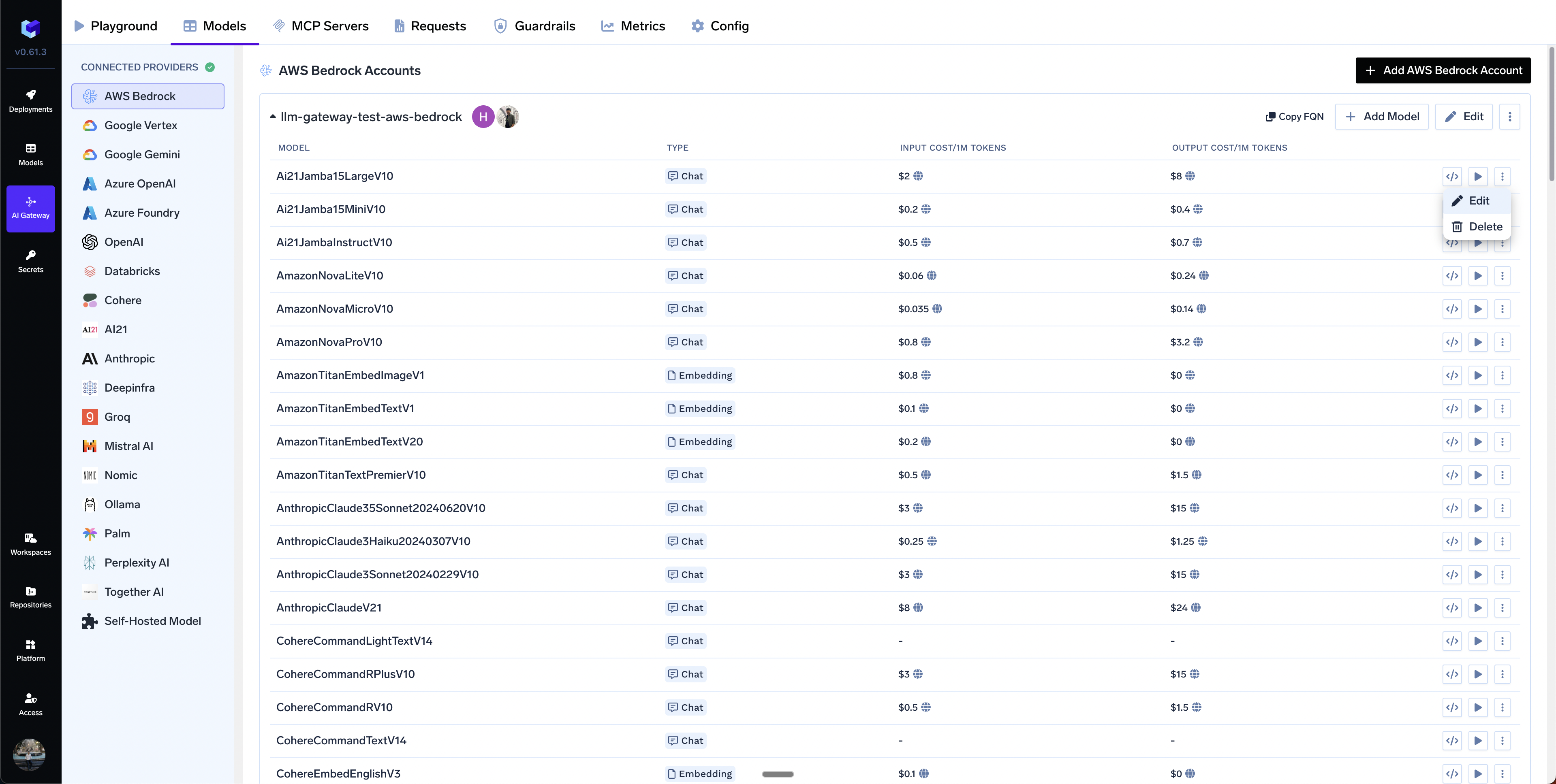
Edit Model
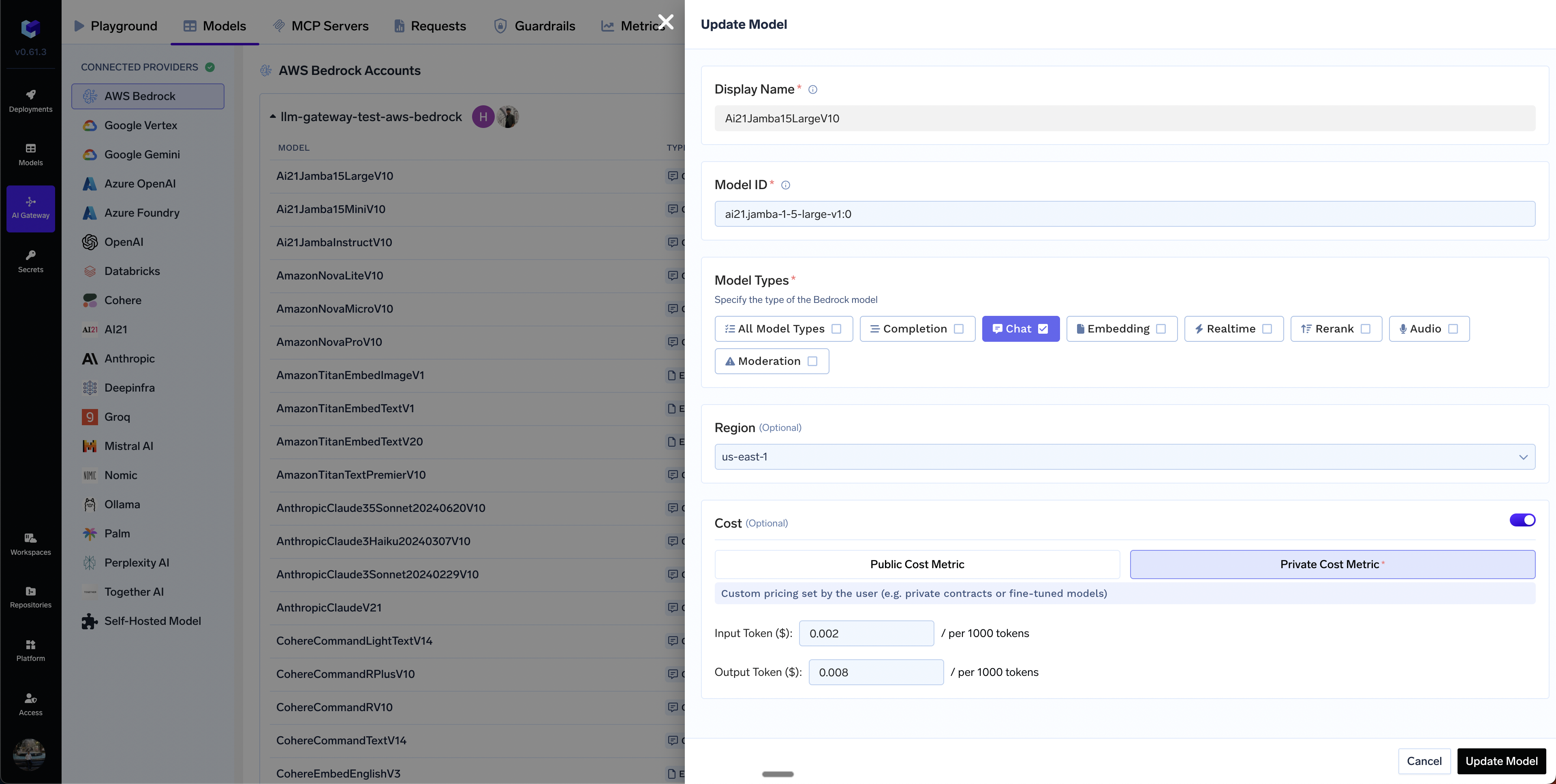
Set custom cost metric
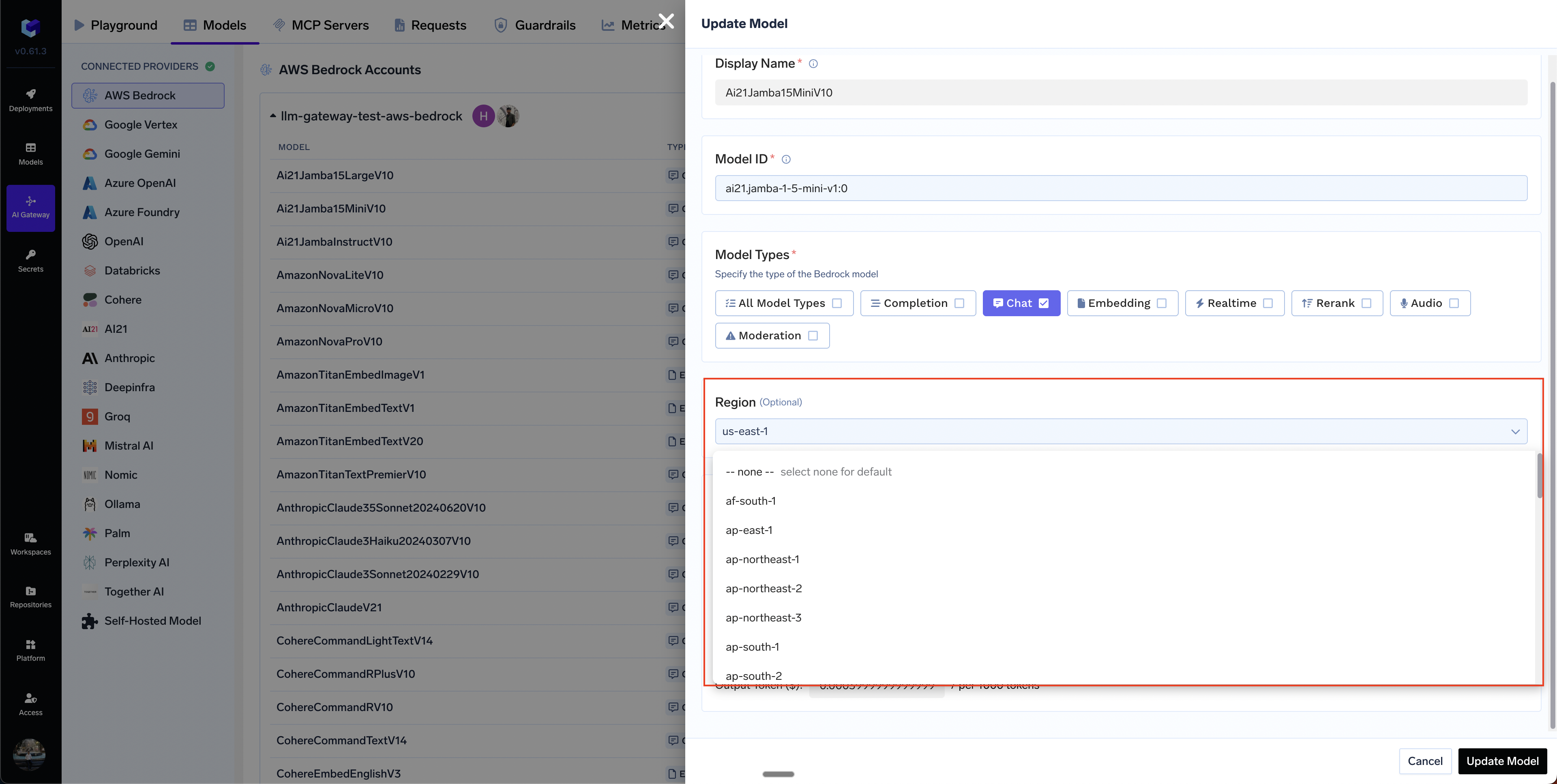
Can I add models from different regions in a single bedrock integration?
Can I add models from different regions in a single bedrock integration?
How to integrate Bedrock cross-region inference model?
How to integrate Bedrock cross-region inference model?
us.anthropic.claude-3-5-sonnet-20240620-v1:0), Bedrock routes the request to any destination region within that geography based on load and availability. AWS does not report the destination region back, so your traces will always show the source region’s endpoint URL (e.g. bedrock-runtime.us-east-1.amazonaws.com). Seeing a single regional URL in traces is expected and does not mean the request is locked to that region — the cross-region routing happens inside Bedrock after the request arrives.us., eu., apac.), not by the configured region.- Regular Model ID:
anthropic.claude-3-5-sonnet-20240620-v1:0(single region) - Inference Profile ID:
us.anthropic.claude-3-5-sonnet-20240620-v1:0(cross-region routing)
-
System-defined geographic profiles: Use geographic prefixes (
us.,eu.,apac.) followed by the model ID (e.g.,us.anthropic.claude-3-5-sonnet-20240620-v1:0). The prefix indicates routing within that geography. -
Custom inference profiles: Use full ARN format (e.g.,
arn:aws:bedrock:us-east-1:123456789012:inference-profile/my-profile)Important: Some models in AWS Bedrock are exclusively accessible through cross-region inference profiles and cannot be invoked directly using their standard foundation model IDs. For these models, you must use the inference profile ID (e.g.,us.anthropic.claude-3-7-sonnet-20250219-v1:0) instead of the regular model ID.To identify which models require inference profiles, refer to the Supported Regions and models for inference profiles, which provides a complete list of models and their inference profile availability.
us.anthropic.claude-3-5-sonnet-20240620-v1:0) instead of the regular model ID. If it’s not in the dropdown, use + Add Model and enter it manually.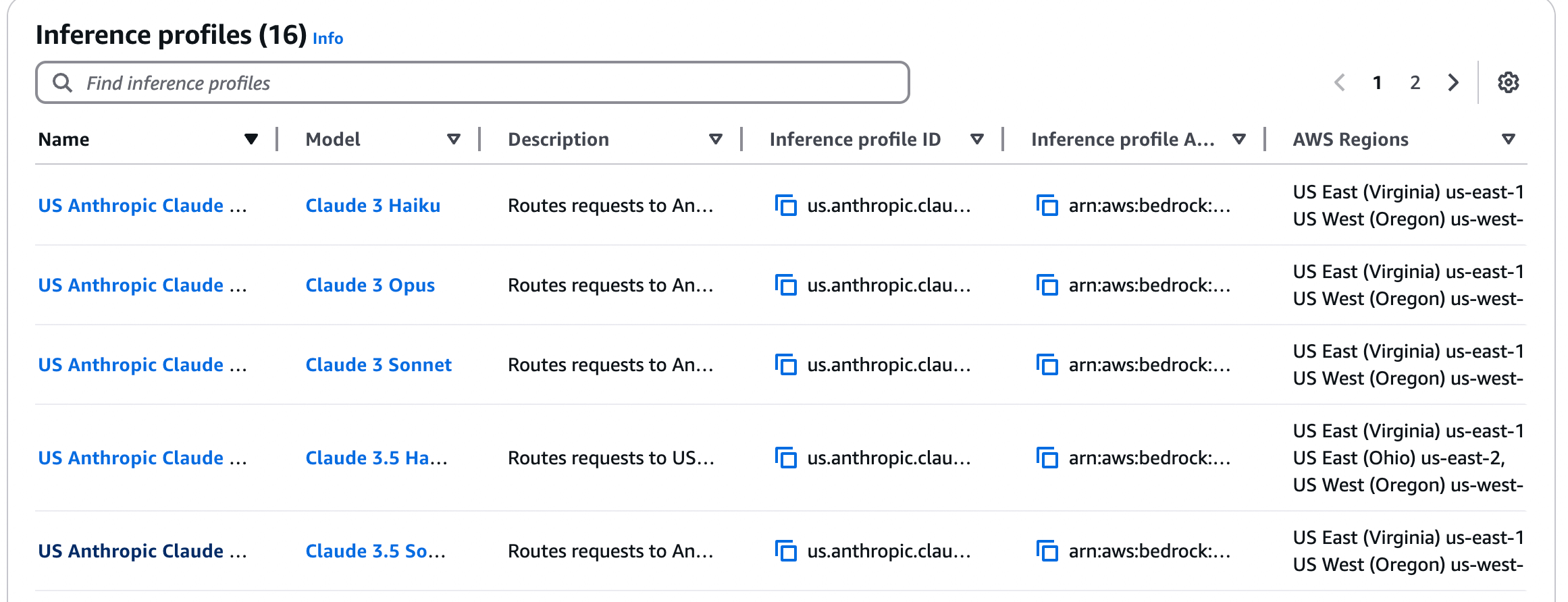
AWS Bedrock cross-region inference configuration interface
* for the region to allow access across all regions:YOUR-AWS-ACCOUNT-ID in the policy above with your actual AWS account ID. The * in the region position allows access across all regions.Request fails with 'Access Denied' error
Request fails with 'Access Denied' error
- Ensure your IAM policy grants Bedrock permissions across all regions (use
*in the region part of the ARN) - For geographic profiles, grant permissions in both source and destination regions
- Check if Service Control Policies (SCPs) are blocking access to certain regions
Requests always go to the same region
Requests always go to the same region
bedrock-runtime.us-east-1.amazonaws.com) is the source region the gateway submits to, not the destination region. Bedrock does not report the destination region back, so a single regional URL in traces is expected even when cross-region routing is active.Solution: Confirm you’re using the inference profile ID format (e.g., us.anthropic.claude-3-5-sonnet-20240620-v1:0) rather than a regular model ID. Remember that the account-level default region and the per-model region override only set the source region — they do not force the request to run in that region. If you’re using a valid inference profile, the request is being routed across regions correctly regardless of the URL in the trace.- Cross-Region inference overview - How cross-region inference works
- Geographic cross-Region inference - Geographic boundary routing and IAM policy requirements
- Using inference profiles - How to use inference profiles in API calls
- Supported models and regions - List of models that support cross-region inference