

/chat/completions (Chat) endpoint.
Adding Models
This section explains the steps to add Nebius models and configure the required access controls.Navigate to Nebius Models in AI Gateway
From the TrueFoundry dashboard, navigate to 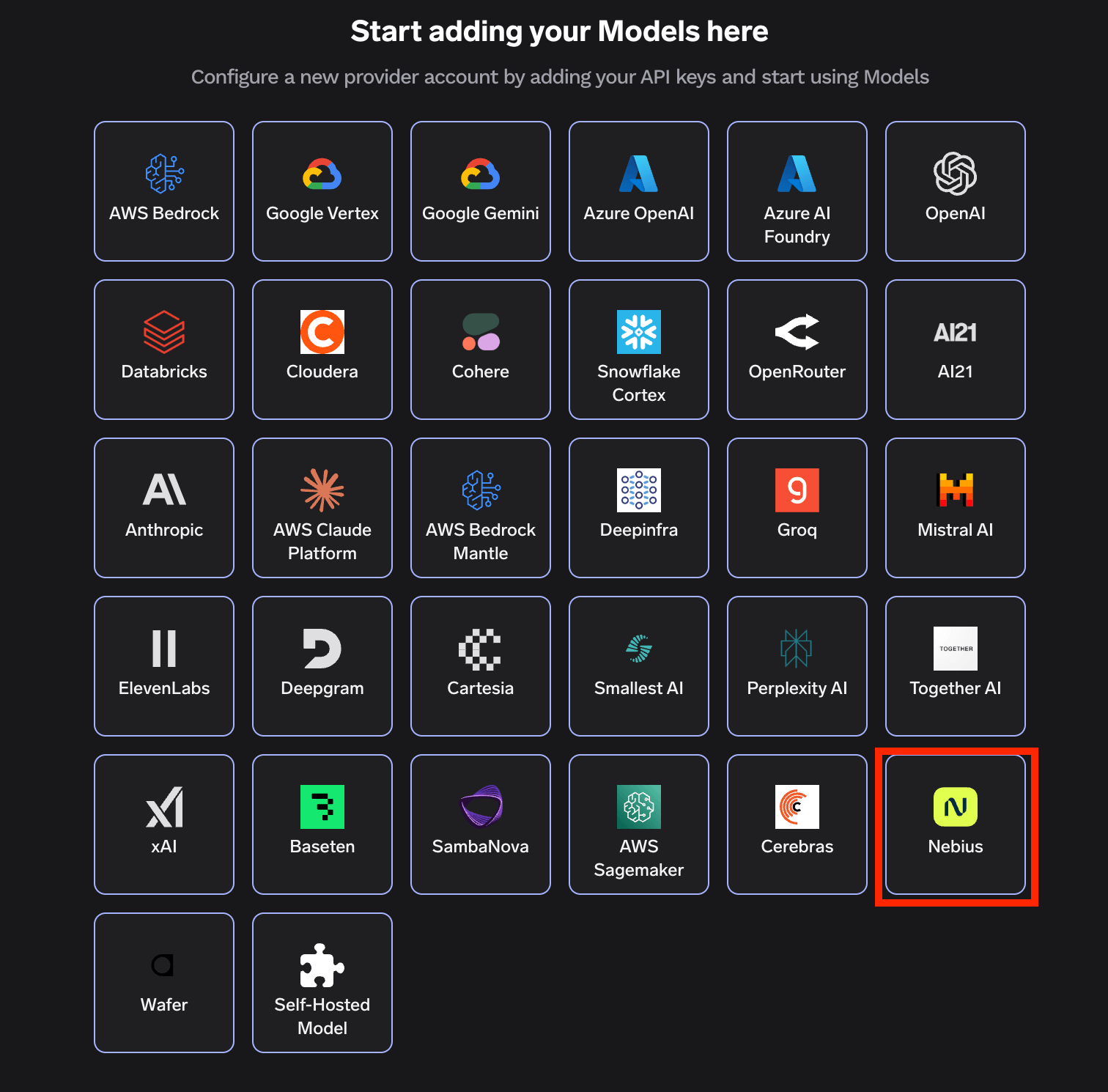
AI Gateway > Models and select Nebius.Add Nebius Account Details
Click
Add Nebius Account. Give a unique name to your Nebius account and complete the form with your Nebius authentication details (API Key). You can generate an API key from the Nebius Token Factory console.
Add collaborators to your account. You can read more about access control here.Add Models by Model ID
Click on 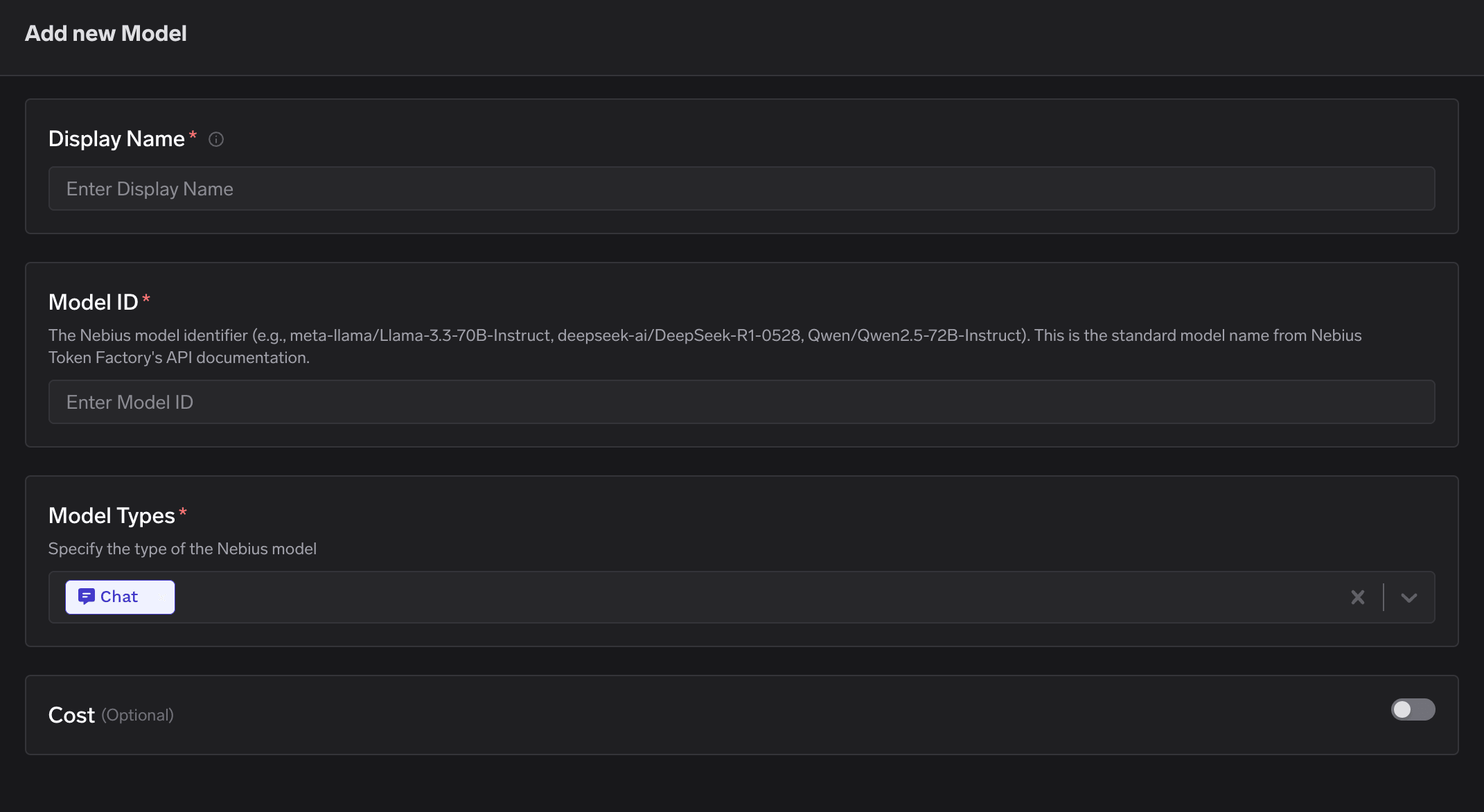
+ Add Model to open the form for adding a new model. For Nebius, you don’t select from a list. Instead, you need to get the Model ID from their models page.Provide the following:- Display Name: A friendly name used to refer to the model in TrueFoundry.
- Model ID: The standard Nebius model identifier from their API documentation (e.g.,
meta-llama/Llama-3.3-70B-Instruct,deepseek-ai/DeepSeek-R1-0528,Qwen/Qwen2.5-72B-Instruct). - Model Types: TrueFoundry supports Nebius models on the
Chatendpoint only. SelectChat.
Inference
After adding the models, you can perform inference using an OpenAI-compatible API via the Playground or by integrating with your own application.
<account-name>/<model-display-name>) as the model. The example below streams a chat completion:
Replace
nebius-rishi/meta-llama-3.1 with your own model’s fully qualified name (the account name you chose plus the model’s display name). You can copy the exact snippet for any model from the code snippet button in the Playground.