

Overview
The Overview shows total spend, request volume, success rate, requests blocked by rate or budget limits, and guardrail activity across LLM, MCP, and agent traffic. The Usage Directory below the cards lists every user, team, virtual account, and agent that sent traffic in the selected range, sorted by spend. Switch the column set to see LLM cost, LLM performance, MCP, guardrail, or agent metrics for the same rows. The LLM Cost view includes prompt-cache hit rate, cost savings from caching and auto-routing, and how many requests were rate- or budget-limited. Use it for chargebacks, to find your largest consumers, or to check one team’s usage.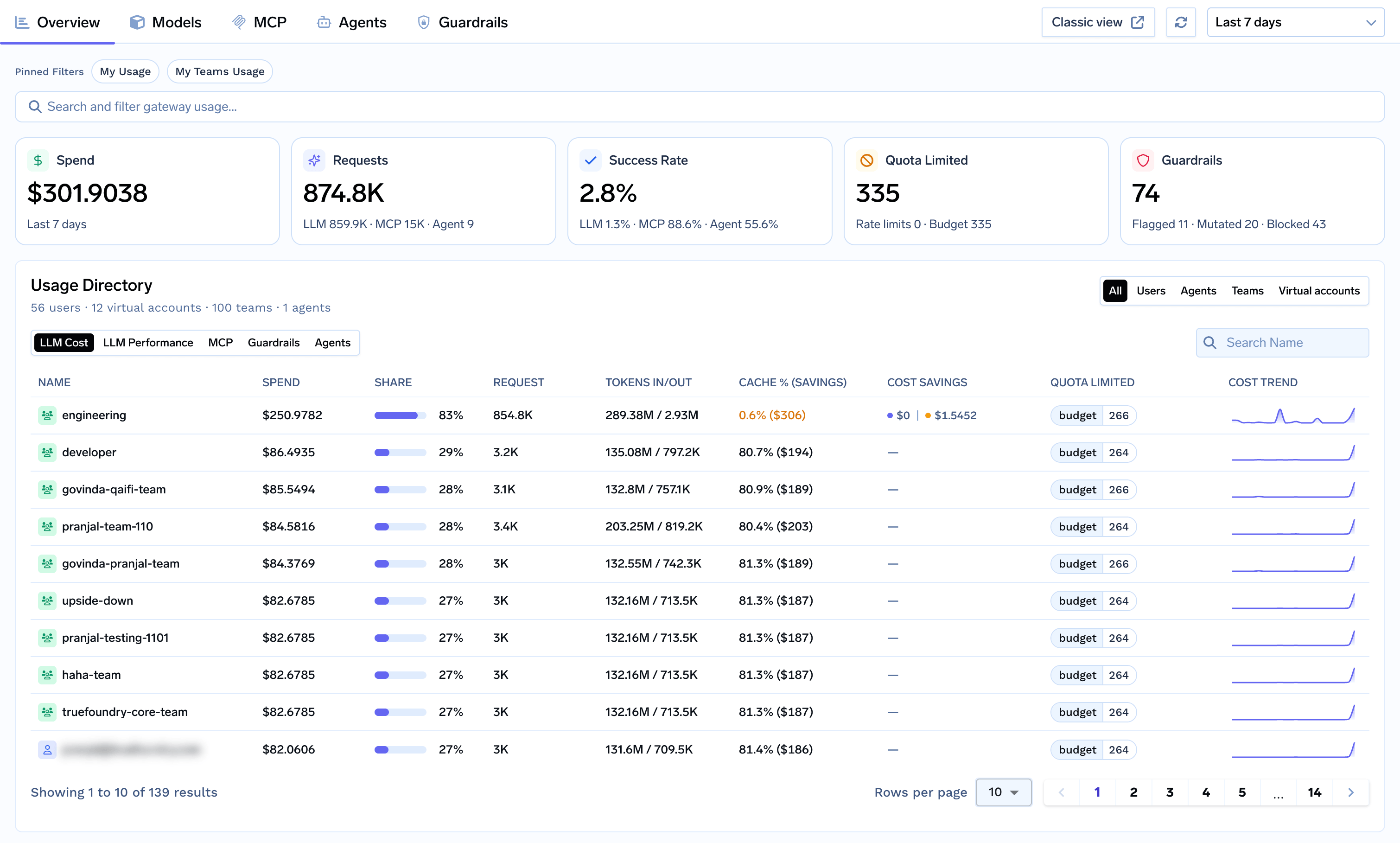
Overview with summary cards and the Usage Directory
Models
The Models tab covers LLM traffic: spend, requests, tokens (including the cached share), success rate, and latency, with P95 time to first token. The trend chart can show cost, requests, tokens, errors, error rate, or P95 latency, either per model or as a single aggregate line. Toggle between Models and Virtual Models to see usage by the provider model that served the request or by the virtual model that routed it. The models table has cost, performance, and reliability views. A cost-versus-requests chart at the bottom shows which models are both expensive and heavily used.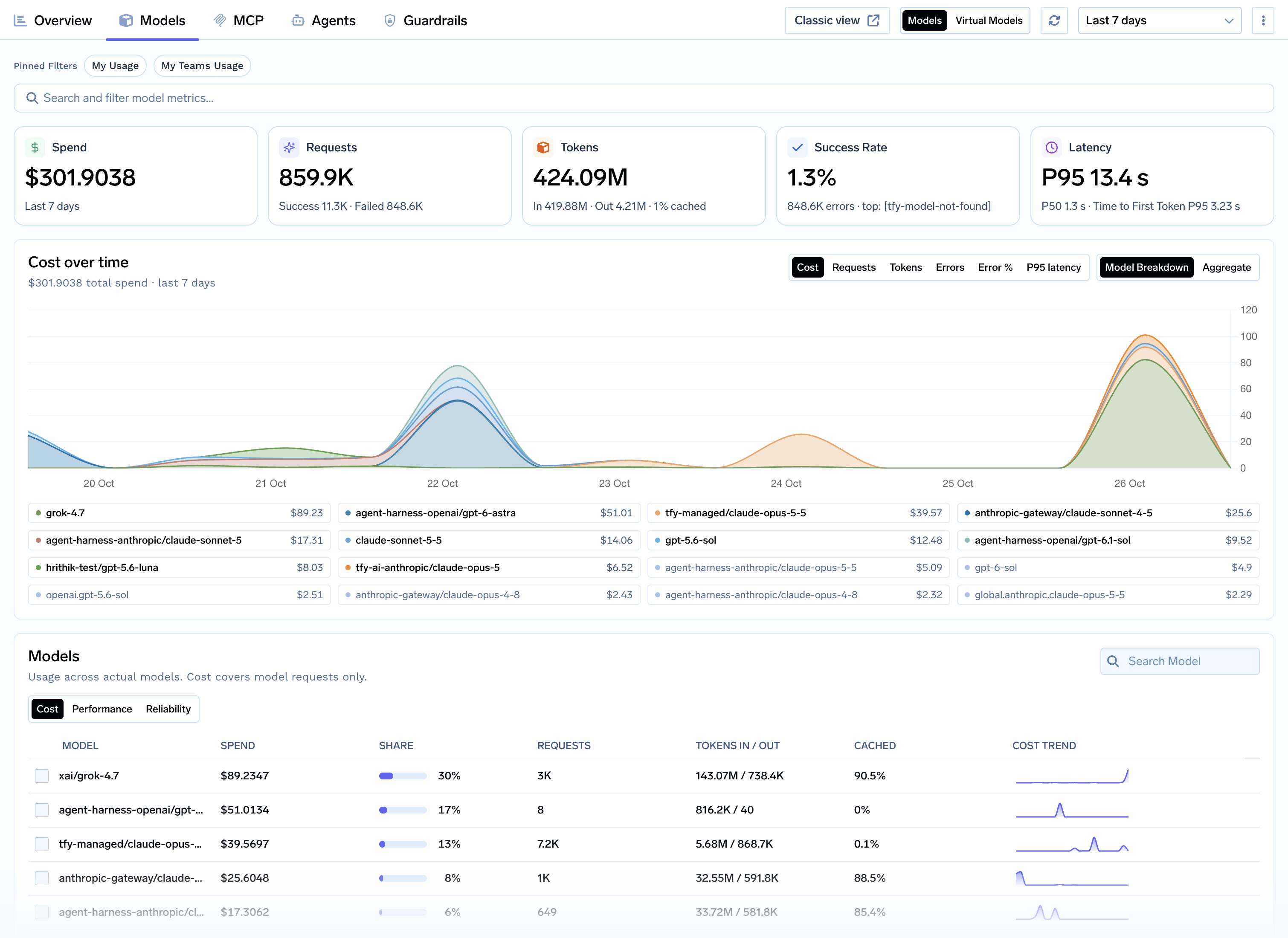
Models tab with cost over time and per-model usage
MCP
The MCP tab tracks traffic through the MCP Gateway: total MCP calls, tool calls, active servers, success rate, tool-call latency, and the number of callers. The call-volume chart can be stacked by server, tool, MCP method, or caller, or split into successes and failures. The MCP servers & tools table lists each server with its call share, error rate, and P50/P90/P99 latency. Expand a server to see its individual tools, or switch to a flat list of tools to find the slowest or least reliable ones.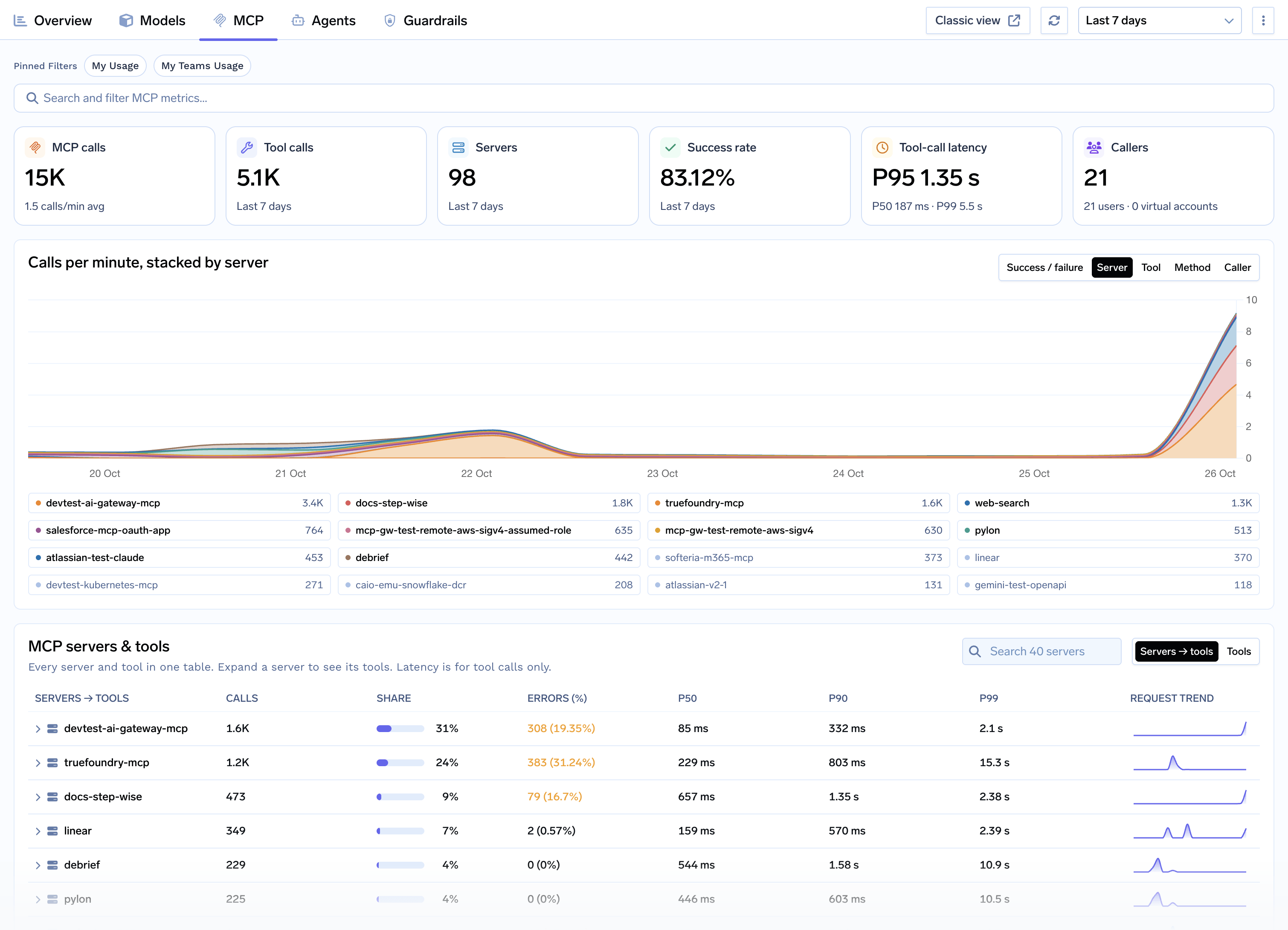
MCP tab with calls per server and the servers and tools table
Agents
The Agents tab reports agent runs, how many agents were active, success rate, and run-time percentiles. The chart shows runs, errors, or P95 latency per agent. The table lists each agent’s runs alongside the model calls, MCP calls, and subagent calls it made, so you can see what each agent depends on.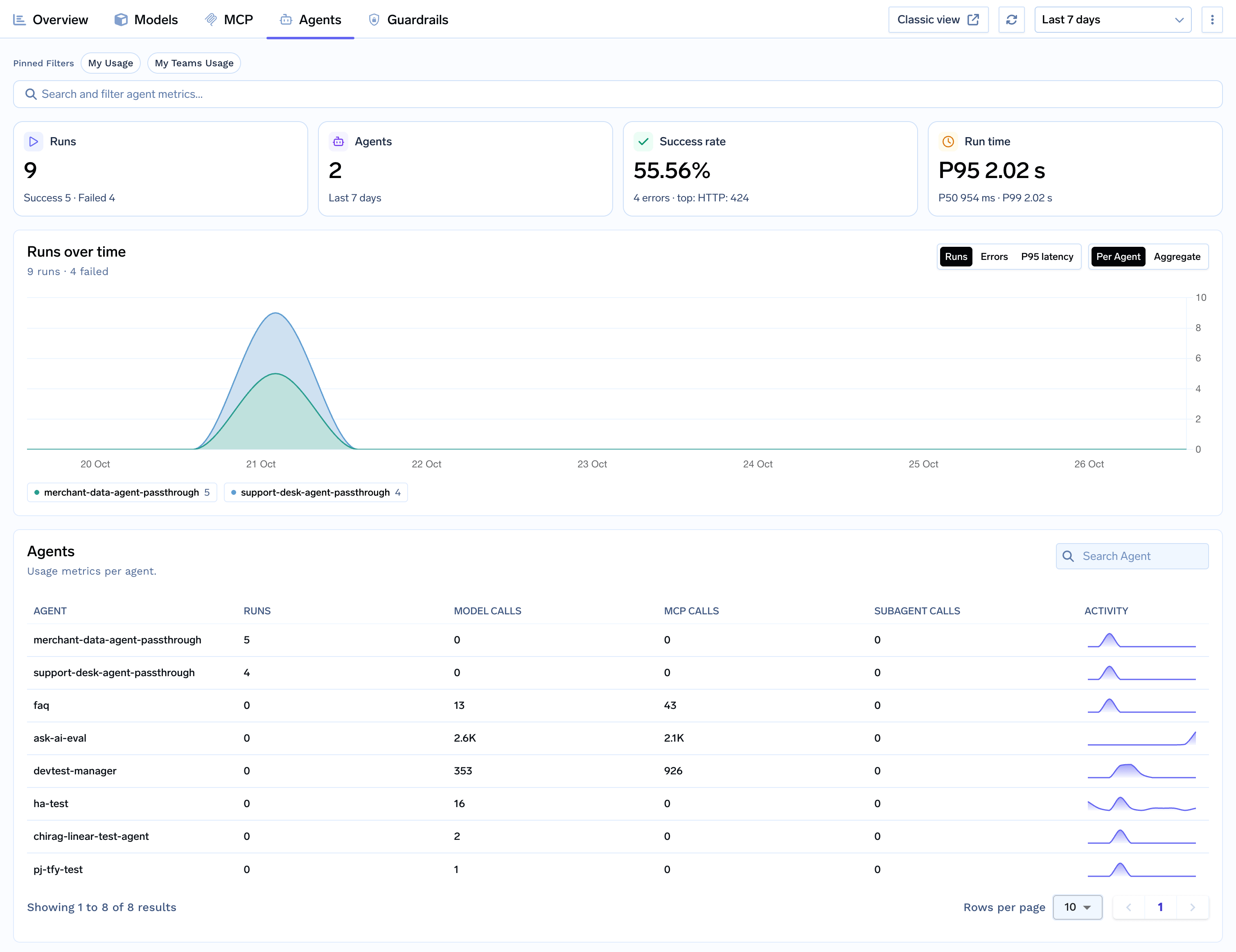
Agents tab with runs over time and per-agent activity
Guardrails
The Guardrails tab shows how many checks your guardrails ran, how many requests they flagged, mutated, or blocked, how much latency they added, and how many users and applications triggered them. The chart shows these outcomes over time, by outcome or by guardrail. The guardrails table lists each guardrail with where it runs, its check count, its flagged, mutated, blocked, and failed counts, and its latency percentiles. A second table, People & apps that trip guardrails, ranks the users and virtual accounts with the most flags or blocks and lists the guardrails they trigger most.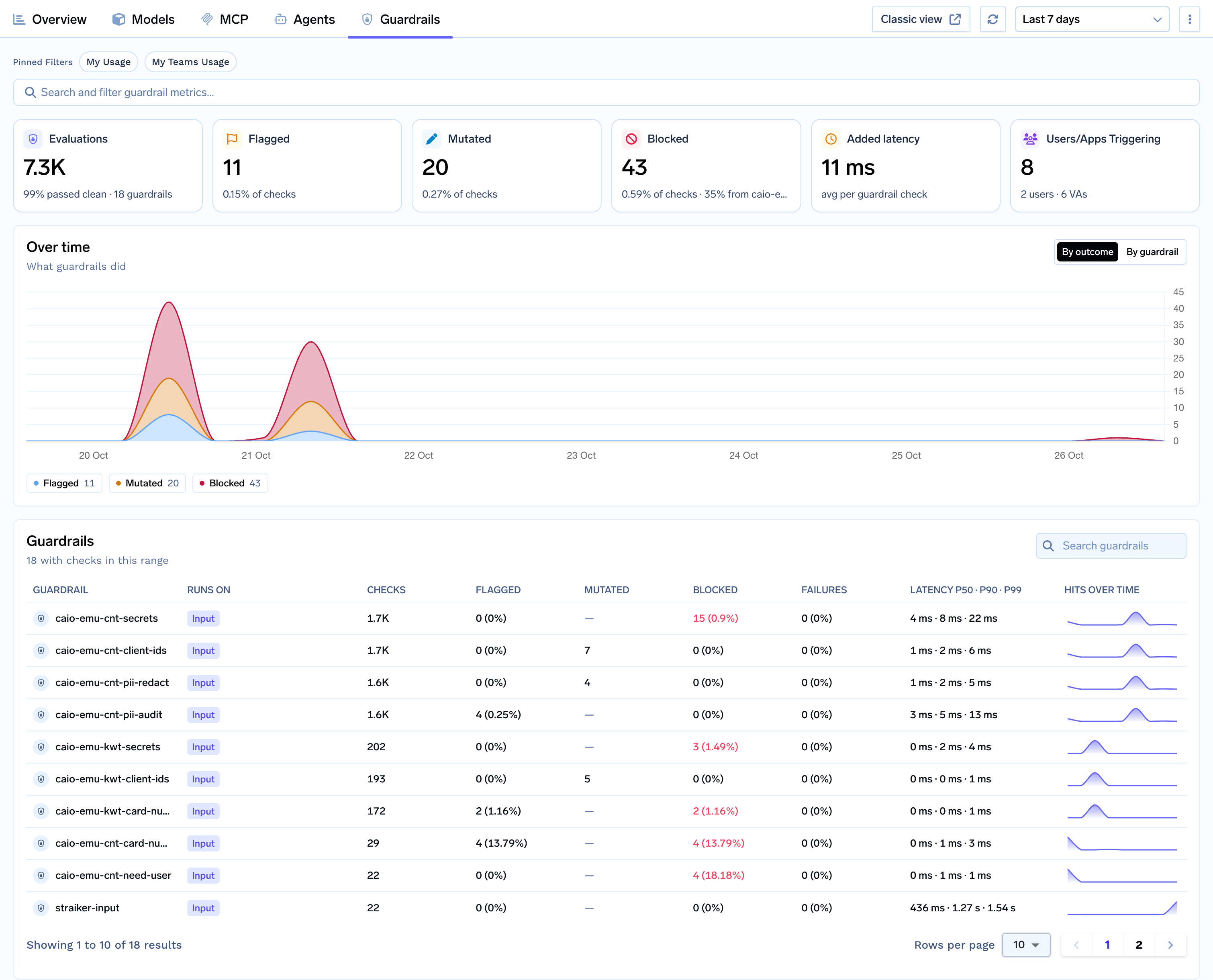
Guardrails tab with outcomes over time and per-guardrail results
Filter and drill down
The search bar at the top of each tab filters every card, chart, and table on that tab. Filter by user email, team, virtual account, conversation ID, or any custom metadata key sent with requests. You can save filters you use often and reuse recent searches.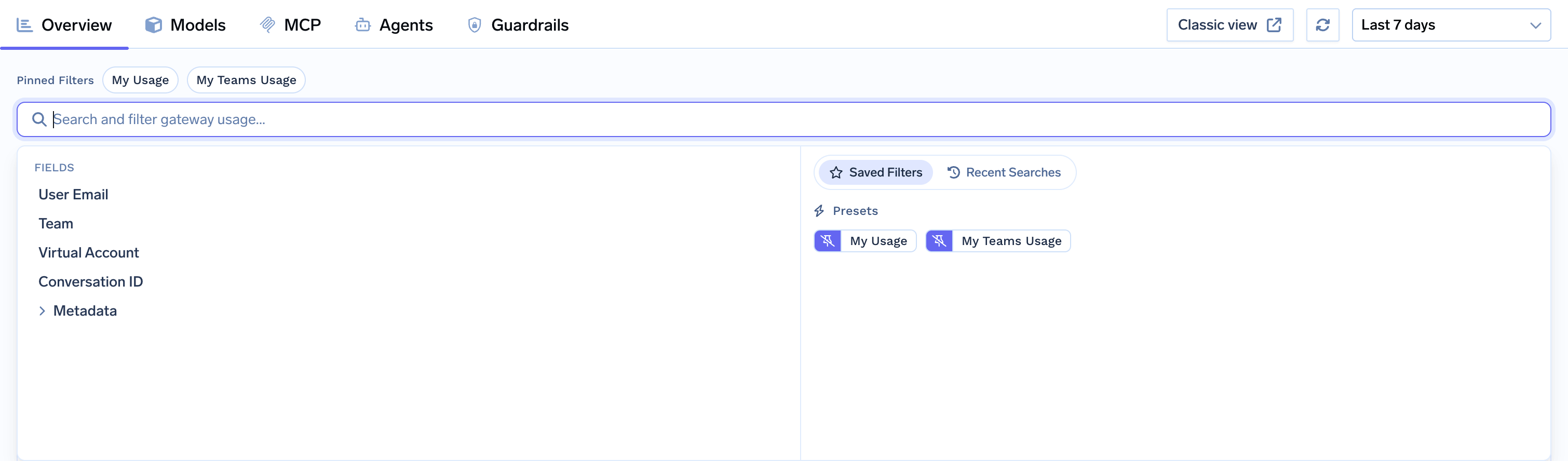
Filter by user, team, virtual account, conversation, or metadata
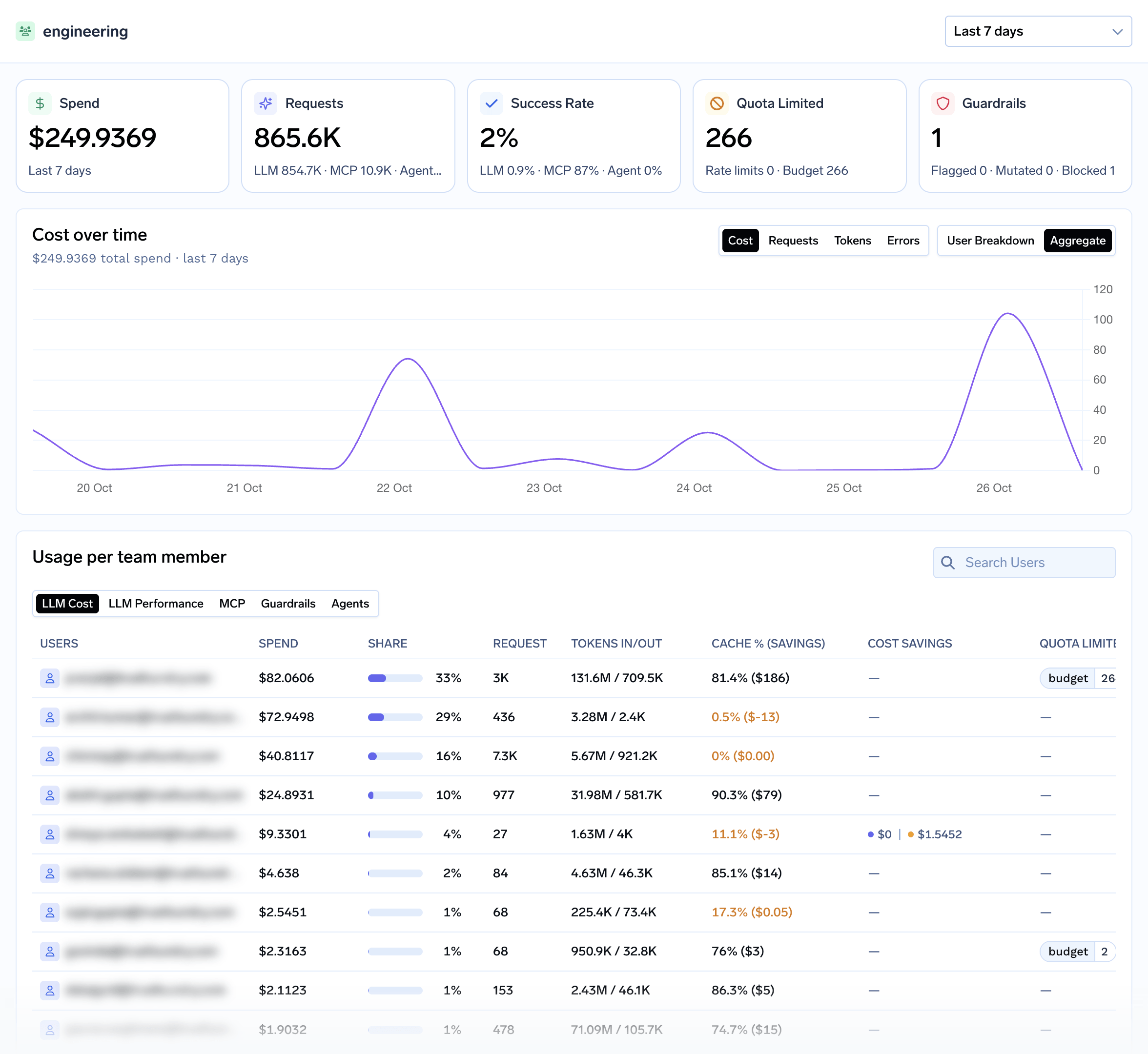
Detail view for a team, with usage per team member
Export and API access
To download aggregated metrics as CSV, choose Export Data from the ⋮ menu on supported tabs. To fetch the same data programmatically, see the API guides for model, MCP, guardrail, cache, routing, and agent metrics.Classic view at the top of the dashboard opens the earlier metrics dashboards, which still include the detailed routing (routing rules, rate limits, budget limits) and semantic cache charts.