

Adding Models
This section explains the steps to add Google Vertex AI models and configure the required access controls.Navigate to Google Vertex Models in AI Gateway
AI Gateway > Models and select Google Vertex.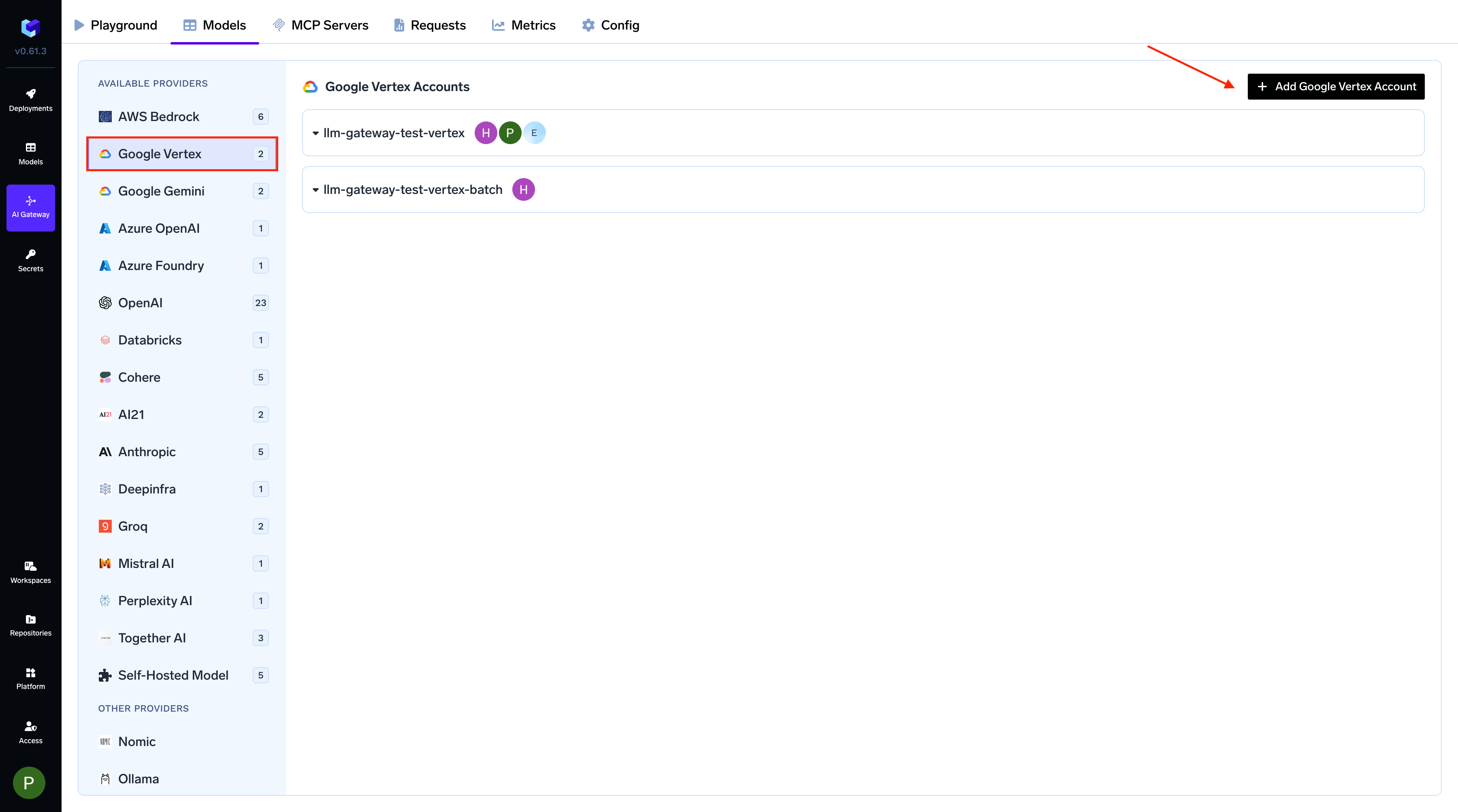
Navigate to Google Vertex Models
Add Google Vertex Account and Authentication
Get Google Vertex Authentication Details
Get Google Vertex Authentication Details
Agent Platform User role (roles/aiplatform.user, formerly Vertex AI User), which includes the aiplatform.endpoints.predict permission required by the AI Gateway.Step 1 — Create a service account and grant it Vertex AI accessNo matter which authentication method you choose below, the AI Gateway ultimately authenticates as a Google Cloud IAM service account. Create that service account once and grant it Vertex AI access. (For the reusable, provider-agnostic version of these steps — including an AWS IAM ARN variant — see Create a custom service account.)$GSA_NAME-key.json into the Service account key JSON field (or store it as a secret and reference it). See the official guide on creating and managing service account keys for rotation and lifecycle management.2. Using Workload Identity Federation (Keyless, Cross-Cloud)Workload Identity Federation (WIF) lets the AI Gateway authenticate to Google Cloud without service account keys, even when running outside of GKE — for example, on Amazon EKS, Azure AKS, or on-premises Kubernetes clusters. It works by exchanging a short-lived Kubernetes service account token for a Google Cloud access token through Google’s Security Token Service.- A Google Cloud project with Vertex AI enabled, and the service account from Step 1 (already granted
roles/aiplatform.user). - The Kubernetes service account used by the AI Gateway must have permission to issue
TokenRequestresources for itself. The TrueFoundry-provided Helm chart configures this RBAC automatically.
$GSA_EMAIL). Set the additional inputs:--issuer-uri must be the OIDC issuer URL of your Kubernetes cluster. The --attribute-condition restricts which Kubernetes service accounts can use this provider.roles/iam.workloadIdentityUser so the Kubernetes service account (via the pool) can impersonate the service account you created in Step 1:principalSet instead:"type": "external_account" describing the identity pool, audience, and STS token-exchange endpoints. It is not a private key.--credential-source-type should I use?--credential-source-type=programmatic(used above) generates a config with no credential source — the AI Gateway mints a fresh Kubernetes service account token itself via theTokenRequestAPI and supplies it during the STS exchange. This is the recommended setup for the TrueFoundry gateway and relies on theTokenRequestRBAC noted in the prerequisites (the Helm chart configures it automatically).--credential-source-file=<path> --credential-source-type=text(used in the reference Create a custom service account guide and the EKS walkthrough FAQ) instead reads a static projected token mounted in the pod (e.g./var/run/secrets/kubernetes.io/serviceaccount/token). Use this variant if your deployment mounts a projected service-account token rather than minting one on demand.
external_account config — pick the one that matches how the AI Gateway pod obtains its Kubernetes token.- Select Workload Identity Federation file as the authentication type.
- Paste the contents of the generated
credential-config.jsoninto the Key file content field, or store it as a secret and reference it.
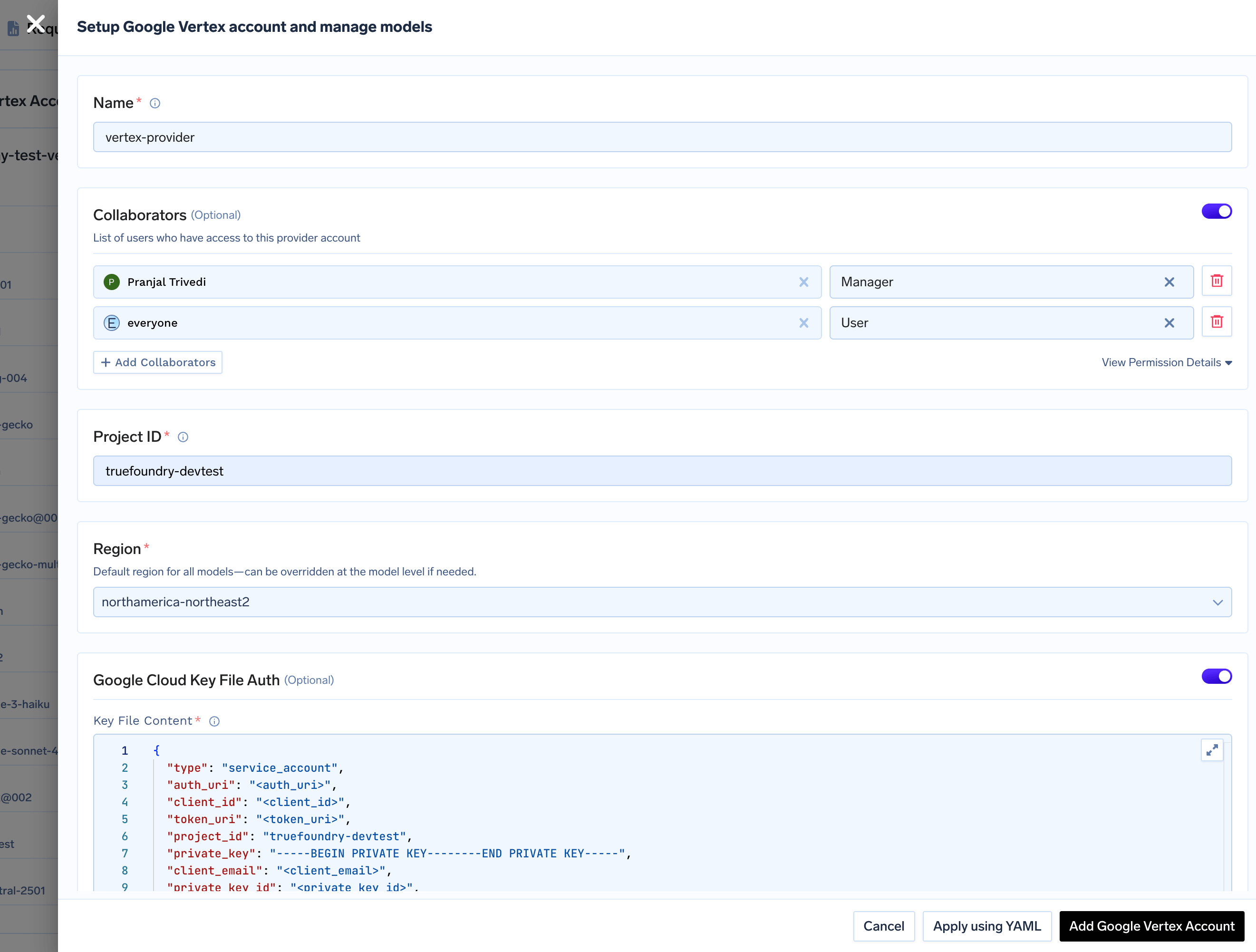
Add Vertex Model Account
Configure Project ID and Region
- You can find your Project ID in the top-right corner of your Google Cloud Console.
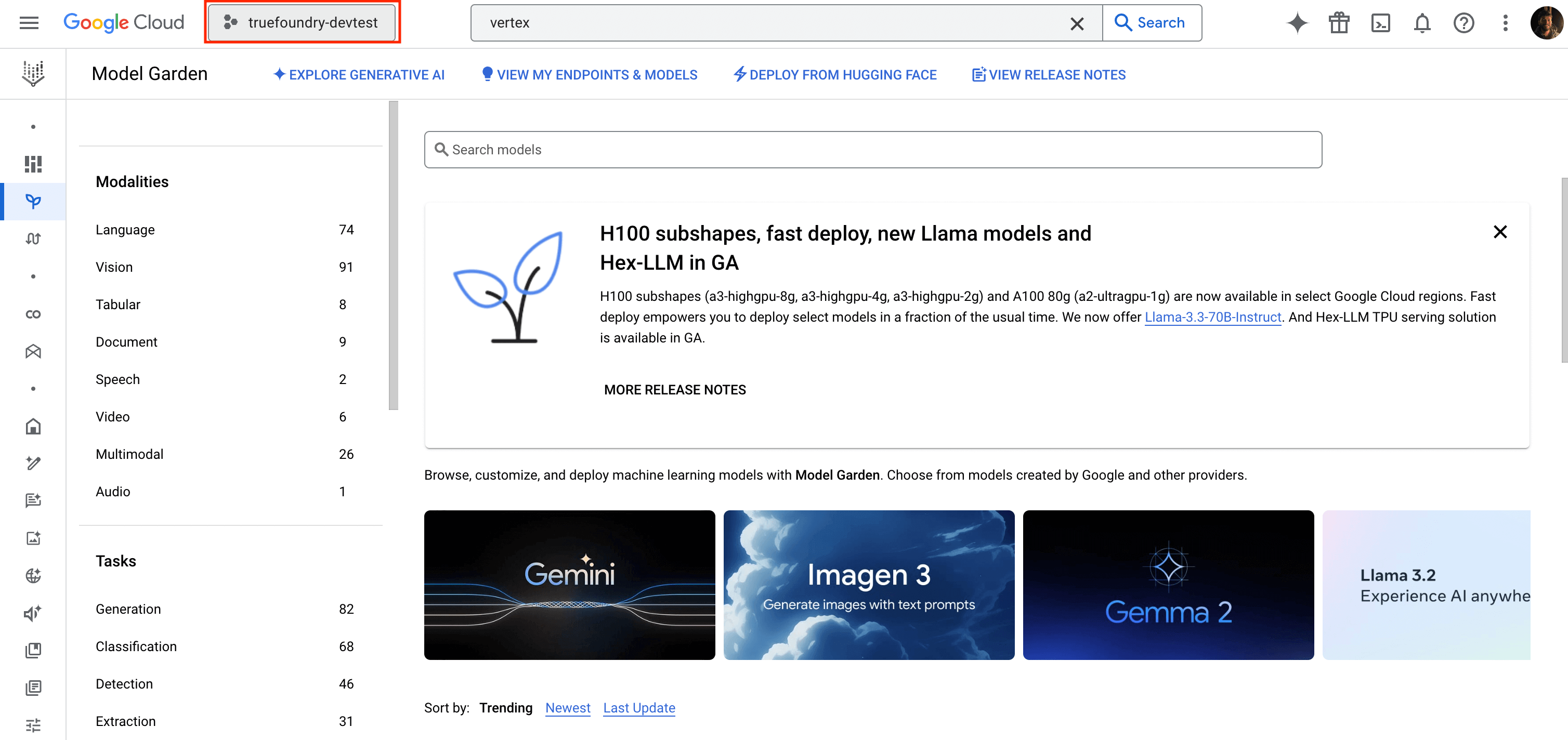
Finding your Project ID in Google Cloud Console
- Specify a default region for all models under this account. You can override this region for individual models later.
- The Base URL field is an advanced field. Use the advanced fields toggle at the bottom of the provider account form to show it.
- Set it when you want the gateway to reach Vertex AI through a custom endpoint — most commonly a Private Service Connect (PSC) endpoint for private connectivity — instead of the public
<region>-aiplatform.googleapis.comhost. - Leave it empty to use the public Vertex AI API (the default).
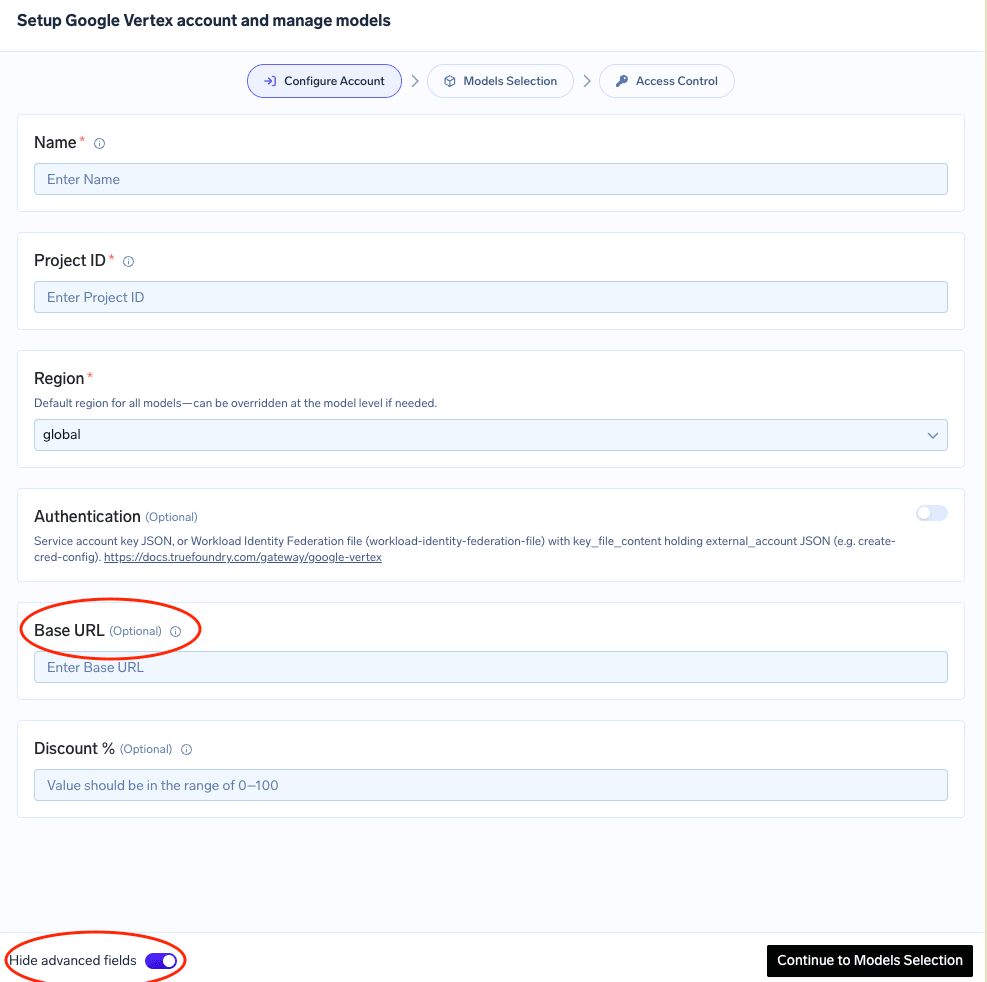
The optional Base URL field, revealed by the advanced fields toggle
https://my-psc-endpoint.internal.A Base URL replaces the Vertex AI (aiplatform) host for this provider account. It covers native Vertex inference — generateContent and streamGenerateContent, the rawPredict and streamRawPredict routes used by Anthropic and Mistral models on Vertex, OpenAI-compatible chat completions, embeddings, and image prediction — plus batch and tuning job calls and the native text-to-speech and speech-to-text proxy routes.Only the origin is swapped, so your endpoint must expose the same /v1/projects/{project}/locations/{region}/... path space as the public API.Authentication is unaffected: Vertex uses scope-based OAuth2 bearer tokens, which are not bound to a specific host, and tokens are always minted against Google’s own auth endpoints.Add Models
+ Add Model. When adding a model manually, the Model ID format depends on the provider.Adding Google (Gemini) Models
Adding Google (Gemini) Models
- Model ID Format:
google/<vertex-model-id> - Example:
google/gemini-1.5-pro
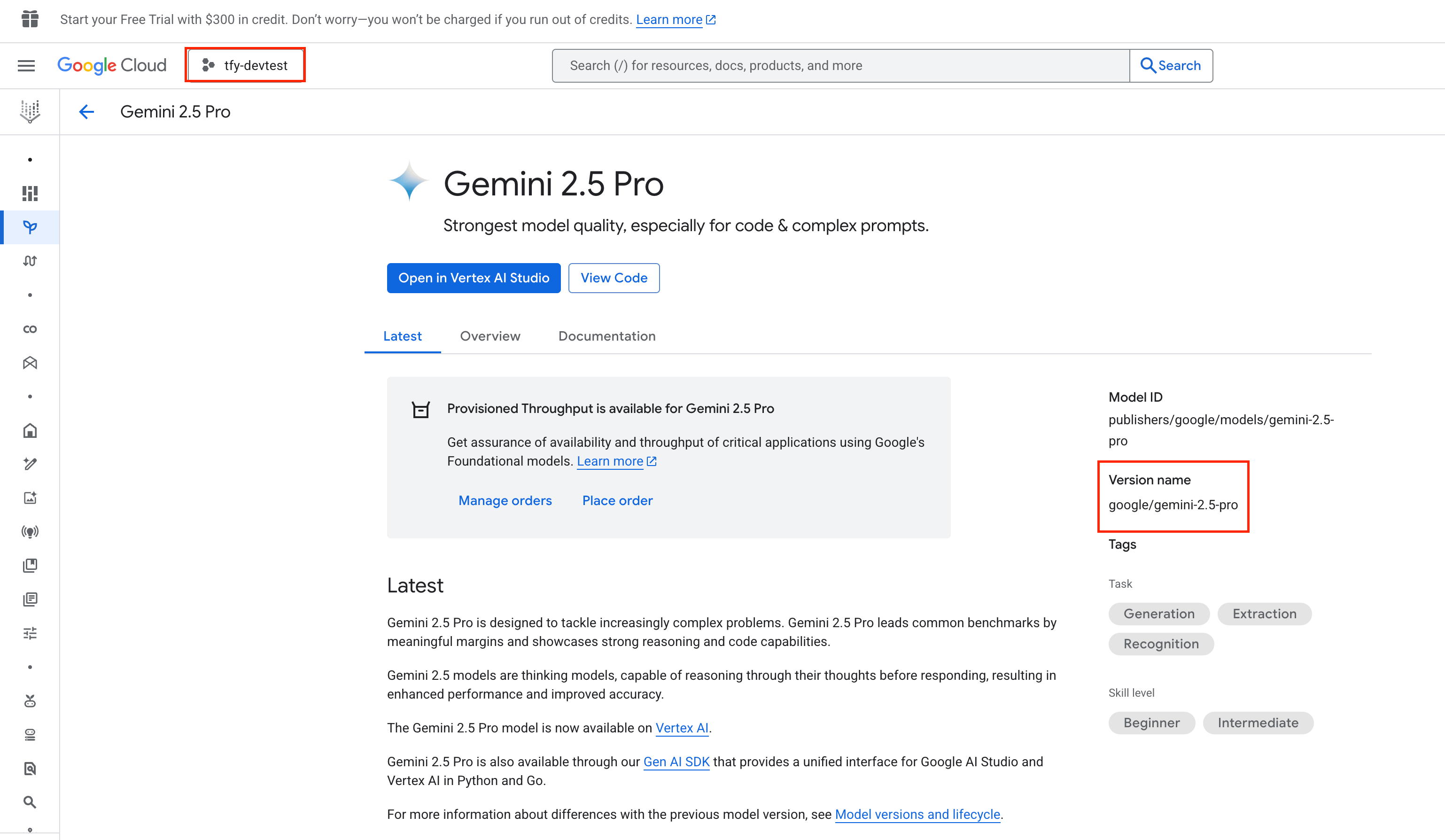
Find Gemini Model ID in Google Console
Adding Anthropic Models
Adding Anthropic Models
- Model ID Format:
anthropic/<vertex-model-id> - Example:
anthropic/claude-3-5-sonnet-v2@20241022
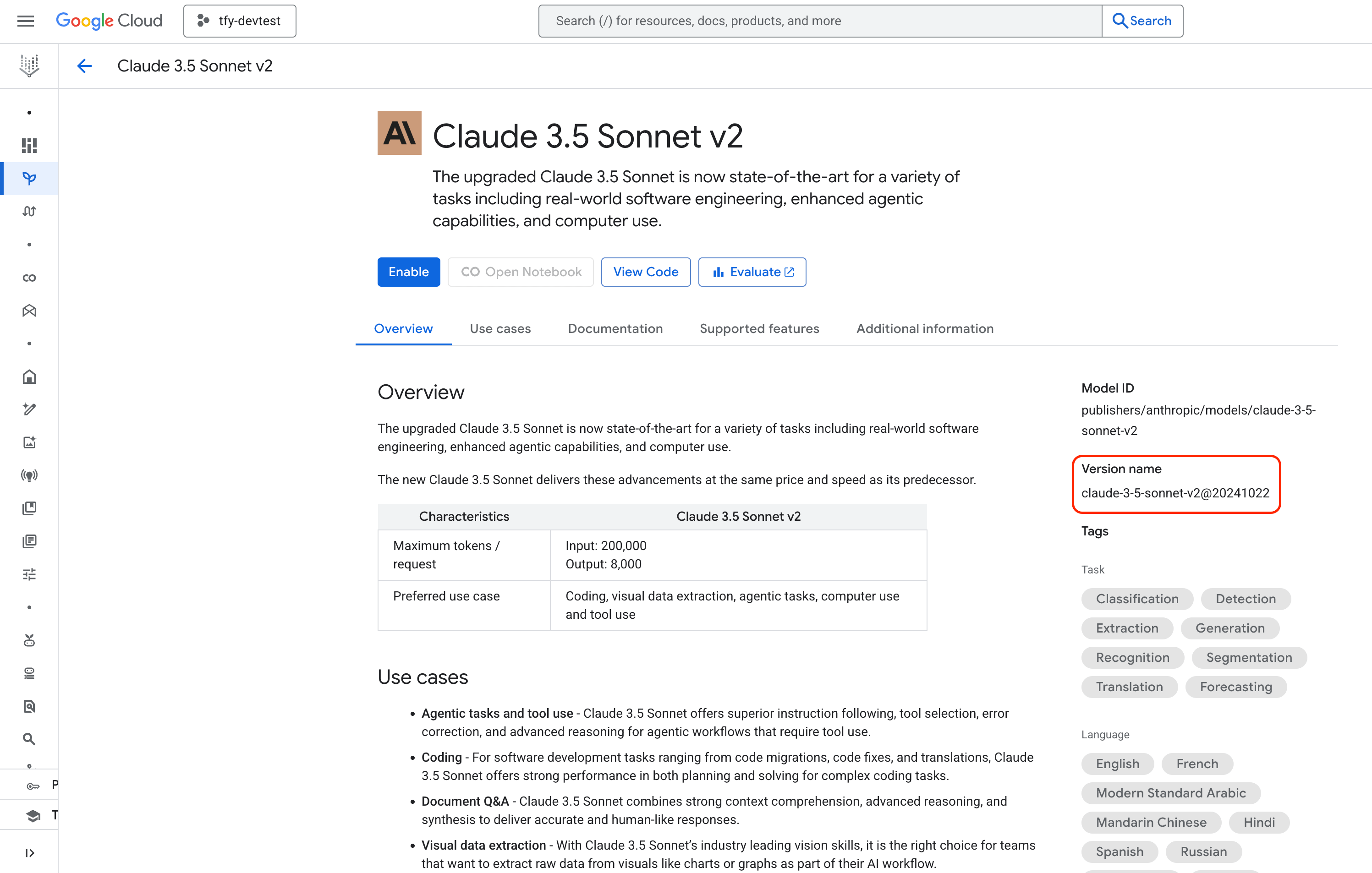
Find Anthropic Model ID in Google Console
Adding Mistral AI Models
Adding Mistral AI Models
- Model ID Format:
mistralai/<vertex-model-id> - Example:
mistralai/mistral-large-2411@001
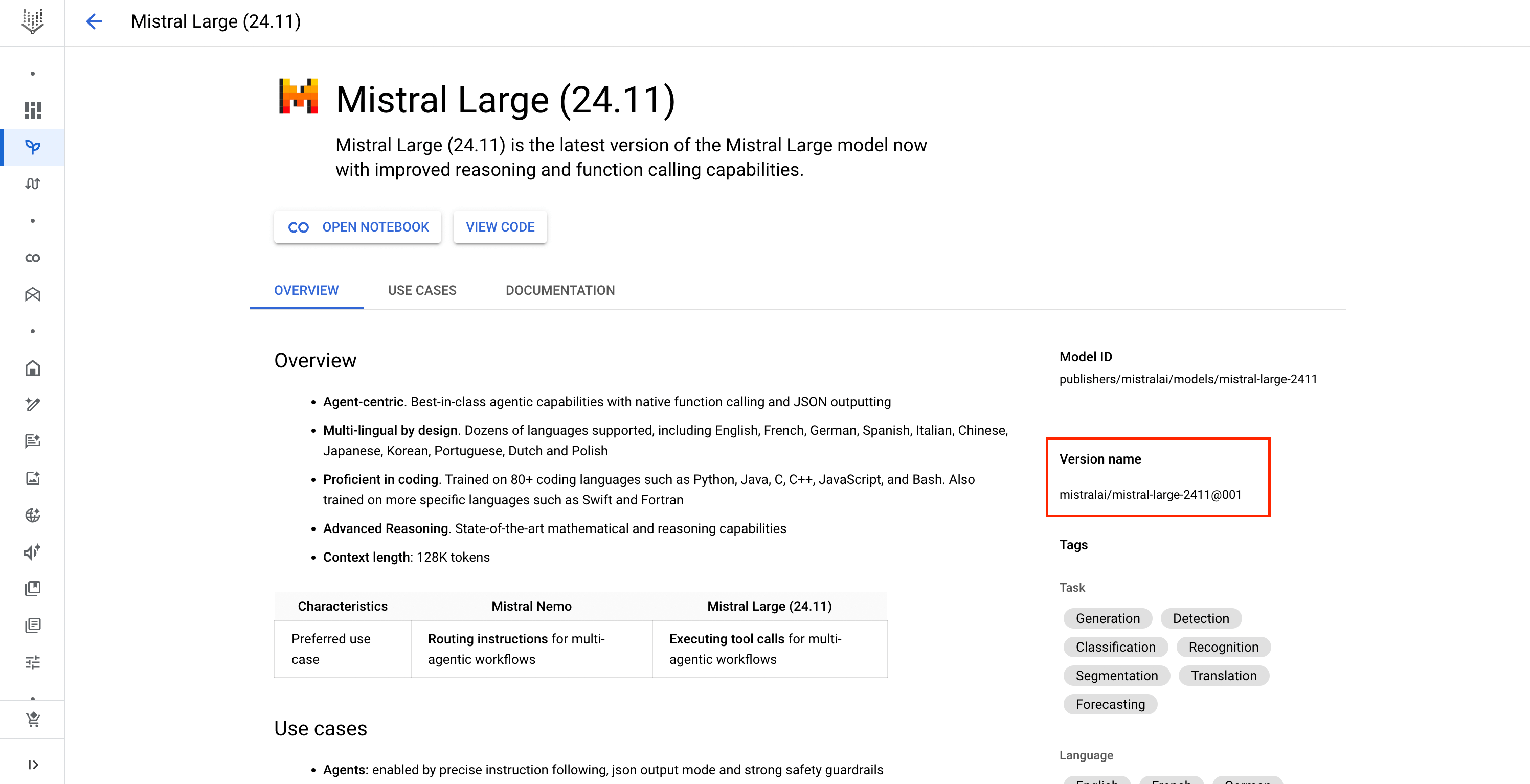
Find Mistral Model ID in Google Console
Inference
After adding the models, you can perform inference using an OpenAI-compatible API via the Playground or by integrating it with your own application.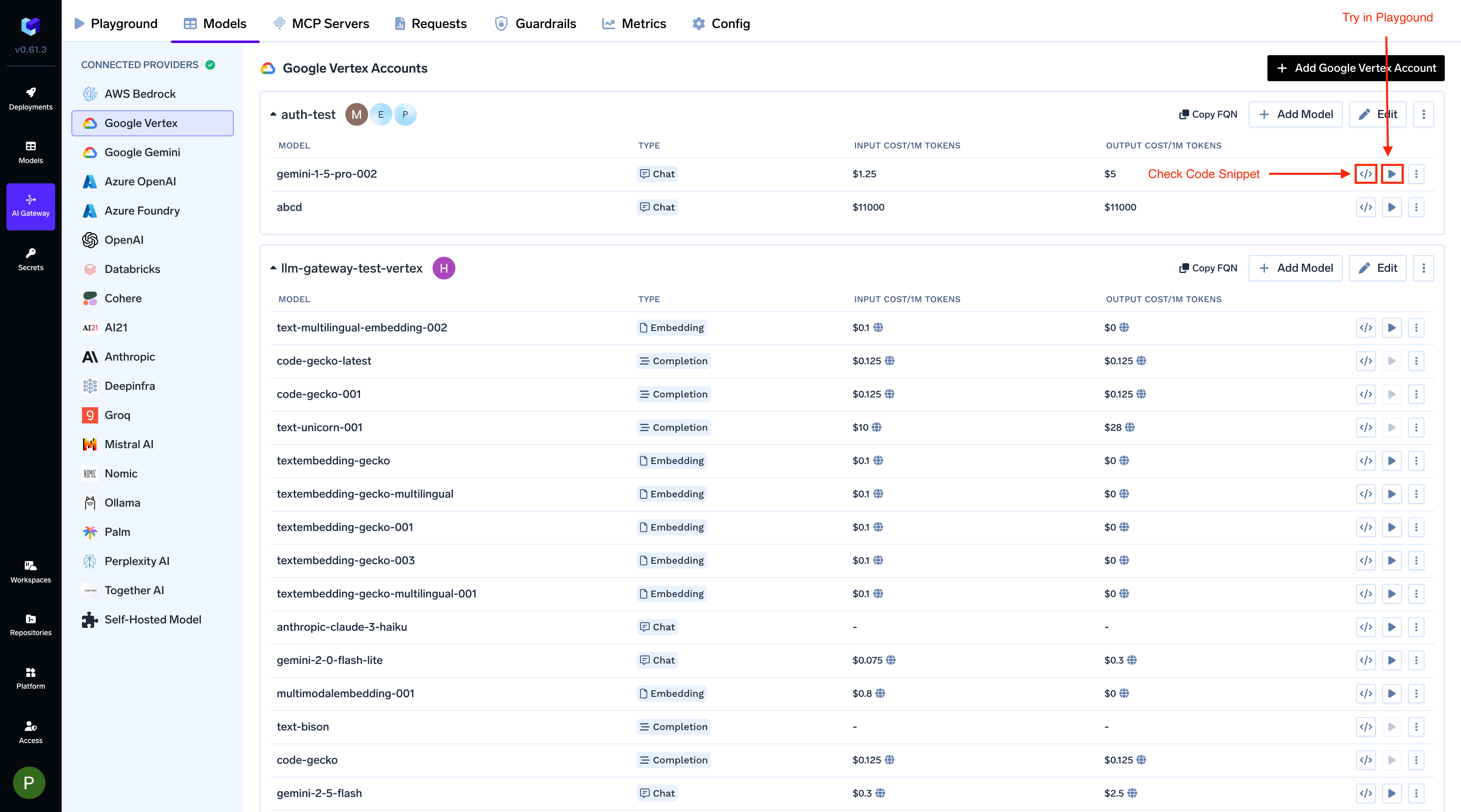
Infer Model in Playground or Get Code Snippet
Supported APIs
Once your Vertex model account is configured, the following API surfaces are available through the AI Gateway. The table below summarizes each endpoint alongside platform feature support (tracing, cost tracking).- ✅ Supported by provider and TrueFoundry
- Supported by Provider, but not by TrueFoundry
- Provider does not support this feature
Chat Completions
Chat Completions
generateContent API based on the model family.
Full provider capability matrix: Chat Completions API.X-Vertex-AI-LLM-Shared-Request-Type header and x-tfy-forward-headers. A service_tier field in the JSON body is rejected with 400. Cost follows the served trafficType; if Vertex still serves on-demand, the request is billed at base rates. See Service tiers.Streaming
Streaming
stream=True and iterate over delta chunks. Defensively check that chunk.choices is non-empty and delta.content is not None.Function calling / tools
Function calling / tools
tool_calls back as a tool role message, then request the final response.Vision (multimodal images)
Vision (multimodal images)
image_url content part. The detail parameter (low / high / auto) translates to Vertex’s native mediaResolution setting.Audio input (Gemini-specific)
Audio input (Gemini-specific)
image_url content parts with a mime_type hint. This is unique to Gemini — Bedrock and direct OpenAI chat models do not accept audio as chat input.Video input (Gemini-specific)
Video input (Gemini-specific)
image_url content parts with mime_type: video/mp4. The AI Gateway fetches the URL server-side, so you can pass any publicly reachable MP4. This is unique to Gemini.PDF document input
PDF document input
file content type with base64 encoding.Structured outputs (JSON schema)
Structured outputs (JSON schema)
response_format:- JSON object —
{"type": "json_object"}— guarantees valid JSON, no schema - JSON schema —
{"type": "json_schema", "json_schema": {...}}— enforces a schema (additionalProperties: Falseandstrict: Trueare recommended)
Extended thinking (reasoning)
Extended thinking (reasoning)
reasoning_effort (low/medium/high) — the AI Gateway translates it to Vertex’s native thinking-budget parameter.
Gemini 3+ models additionally return thinking_blocks with signatures for multi-turn continuity.Text-to-Speech
Text-to-Speech
gemini-2.5-flash-tts, gemini-2.5-flash-preview-tts, gemini-2.5-pro-preview-tts) generate audio from text. The AI Gateway exposes them via the OpenAI-compatible /audio/speech endpoint.
Full docs: Text-to-Speech.Embeddings
Embeddings
/embeddings:- Text embeddings (
text-embedding-004,text-embedding-005) — accept atask_typeparameter viaextra_bodythat tunes the vector for the downstream task (RETRIEVAL_DOCUMENT,RETRIEVAL_QUERY,SEMANTIC_SIMILARITY,CLASSIFICATION,CLUSTERING). - Multimodal embeddings (
multimodalembedding@001) — accept text, image, and/or video in the same request and return separate vectors per modality.
Multimodal embeddings (image + text)
Multimodal embeddings (image + text)
multimodalembedding@001 returns separate vectors per modality under embedding (text) and image_embedding. Useful for cross-modal retrieval — e.g. find the image whose embedding is closest to a text query.text-embedding-004, text-embedding-005, and multimodalembedding@001. Add them to your model account from the model picker.Image Generation
Image Generation
/images/generations endpoint.
Full docs: Image Generation.imagen-4.0-generate-001, imagen-3.0-generate-002, and Gemini image models such as gemini-3-pro-image-preview.Image Edit
Image Edit
imagen-3.0-capability-001 (Imagen’s edit-specific variant).Batch API
Batch API
Workflow Steps
The batch process follows these steps:- Upload: Upload JSONL file → Get file ID (a URL-encoded
gs://...URI) - Create: Create batch job → Get batch ID
- Monitor: Check status until complete
- Fetch: Download aggregated results from the AI Gateway’s
/batches/{id}/outputendpoint
Step-by-Step Examples
1. Upload Input File
1. Upload Input File
x-tfy-provider-model is the bare Vertex model id (no provider prefix).2. Create Batch Job
2. Create Batch Job
3. Check Batch Status
3. Check Batch Status
batches.retrieve() until completed. batch.id may come as URL-encoded; unquote() once before retrieve so the OpenAI SDK doesn’t double-encode the path.4. Fetch Results
4. Fetch Results
Files API
Files API
purpose="batch" for batch uploads or purpose="fine-tune" (with the x-tfy-file-purpose: fine-tune header) for tuning uploads. Plain text or non-conforming JSONL will fail validation.Fine-tuning
Fine-tuning
- Prepare JSONL training data (one example per line)
- Upload via the Files API with
purpose="fine-tune"and thex-tfy-file-purpose: fine-tuneheader - Submit a fine-tune job; poll for completion
- Use the resulting fine-tuned model id in subsequent inference calls
Choosing the Vertex API version
The AI Gateway calls Vertex on the stablev1 API by default. A few features are served by Google only on v1beta1. Send the optional x-tfy-vertex-api-version header to opt a request in:
400; the gateway never falls back silently. The header applies to Google models only. Batch, file and fine-tuning endpoints always use v1.
Long decode (Gemini 4 Argon)
Gemini 4 Argon can return up to 1,048,576 output tokens by splitting the answer into segments. Vertex marks an unfinished segment withfinishReason: CONTINUATION and a continuationToken. To receive the next segment, resend the same request with that token as continuation_token — and send the request on v1beta1: v1 returns the token but rejects it on the resend with Unknown name "continuation_token".
"continuation_token": "<continuationToken from the previous response>", until finishReason is STOP. Keep the same contents, systemInstruction and tools on every call, and append each segment’s text yourself.
/v1beta/models/... and /vertex-ai/...), where the gateway returns Vertex’s response untouched. On the OpenAI-compatible /chat/completions endpoint the header is honored, but the gateway does not run the continuation loop: you receive one segment with finish_reason: "length".FAQs
Do I need to add multiple model accounts for different regions?
Do I need to add multiple model accounts for different regions?
Gemini 4 Argon long decode fails on the second call with 'Unknown name continuation_token'. How do I fix it?
Gemini 4 Argon long decode fails on the second call with 'Unknown name continuation_token'. How do I fix it?
v1 by default. For Gemini 4 Argon long decode (up to 1,048,576 output tokens in segments), Vertex returns finishReason: CONTINUATION and a continuationToken on both v1 and v1beta1, but only v1beta1 accepts the token when you resend the request. On v1 the resend fails with 400 Unknown name "continuation_token": Cannot find field.Add the x-tfy-vertex-api-version: v1beta1 header to every request in the loop and call the native Gemini route (/v1beta/models/<vertex-account>/<model-name>:generateContent). Requests without the header stay on v1, so nothing changes for existing callers. The OpenAI-compatible /chat/completions endpoint honors the header but does not run the continuation loop. See Choosing the Vertex API version for the full example.Can the gateway reach Vertex AI through a Private Service Connect (PSC) or custom endpoint?
Can the gateway reach Vertex AI through a Private Service Connect (PSC) or custom endpoint?
https://vertex.internal.example.com). All traffic for that provider account is then routed to your endpoint instead of the public <region>-aiplatform.googleapis.com host.Authentication continues to work unchanged, because Vertex uses scope-based OAuth2 bearer tokens rather than host-bound signatures. Note that the custom endpoint must front all the Google APIs the account uses (aiplatform for inference and batch, plus texttospeech, speech, and storage if you use TTS, STT, or the Files/Batch APIs).Which authentication method should I choose?
Which authentication method should I choose?
- Service Account JSON Key — Works everywhere (any cloud, on-prem, SaaS Gateway). Simplest to set up, but requires you to manage and rotate a long-lived secret.
- Workload Identity Federation — Recommended for production. Keyless, works on any Kubernetes cluster (EKS, AKS, GKE, on-prem) and on the SaaS Gateway. Requires a one-time setup of a Workload Identity Pool in Google Cloud.
- GCP Workload Identity (GKE) — Only available when the self-hosted gateway runs inside a GKE cluster. Keyless and zero-config on the AI Gateway side, but does not work on the SaaS Gateway or outside of GKE.
What is the difference between GCP Workload Identity and Workload Identity Federation?
What is the difference between GCP Workload Identity and Workload Identity Federation?
external_account credential configuration JSON (generated via gcloud iam workload-identity-pools create-cred-config). The AI Gateway exchanges a short-lived Kubernetes service account token for a Google Cloud access token through Google’s Security Token Service.How do I set up Workload Identity Federation for an EKS cluster? (Step-by-step example)
How do I set up Workload Identity Federation for an EKS cluster? (Step-by-step example)
--issuer-uri must be the OIDC issuer URL of your EKS cluster. You can find it in the AWS EKS console or via aws eks describe-cluster. The --attribute-condition restricts which Kubernetes service accounts can use this provider.Agent Platform User role (formerly Vertex AI User, or whichever role your workload needs) to the service account:roles/iam.workloadIdentityUser role so the Kubernetes service account (via the workload identity pool) can impersonate the Google Cloud service account:principalSet:credential-configuration.json file is what you provide in TrueFoundry under Workload Identity Federation file when adding the Vertex AI model account.When should I use Gemini vs Vertex AI? What's the difference?
When should I use Gemini vs Vertex AI? What's the difference?
- More secure auth using service accounts instead of API keys
- A Model Garden that includes multiple third-party models
- Access to provisioned throughput