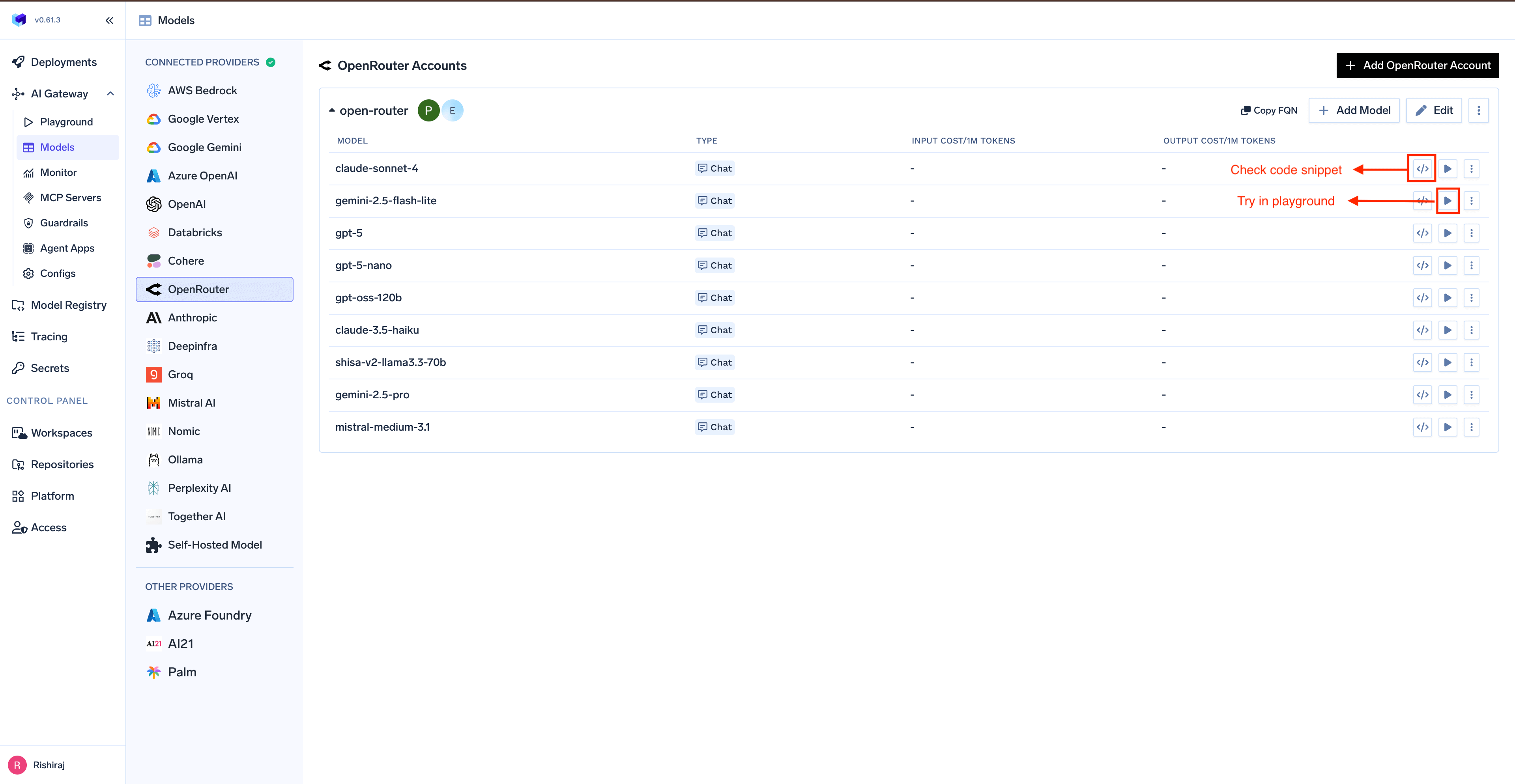
This section explains the steps to add OpenRouter models and configure the required access controls.
1
Navigate to OpenRouter Models in AI Gateway
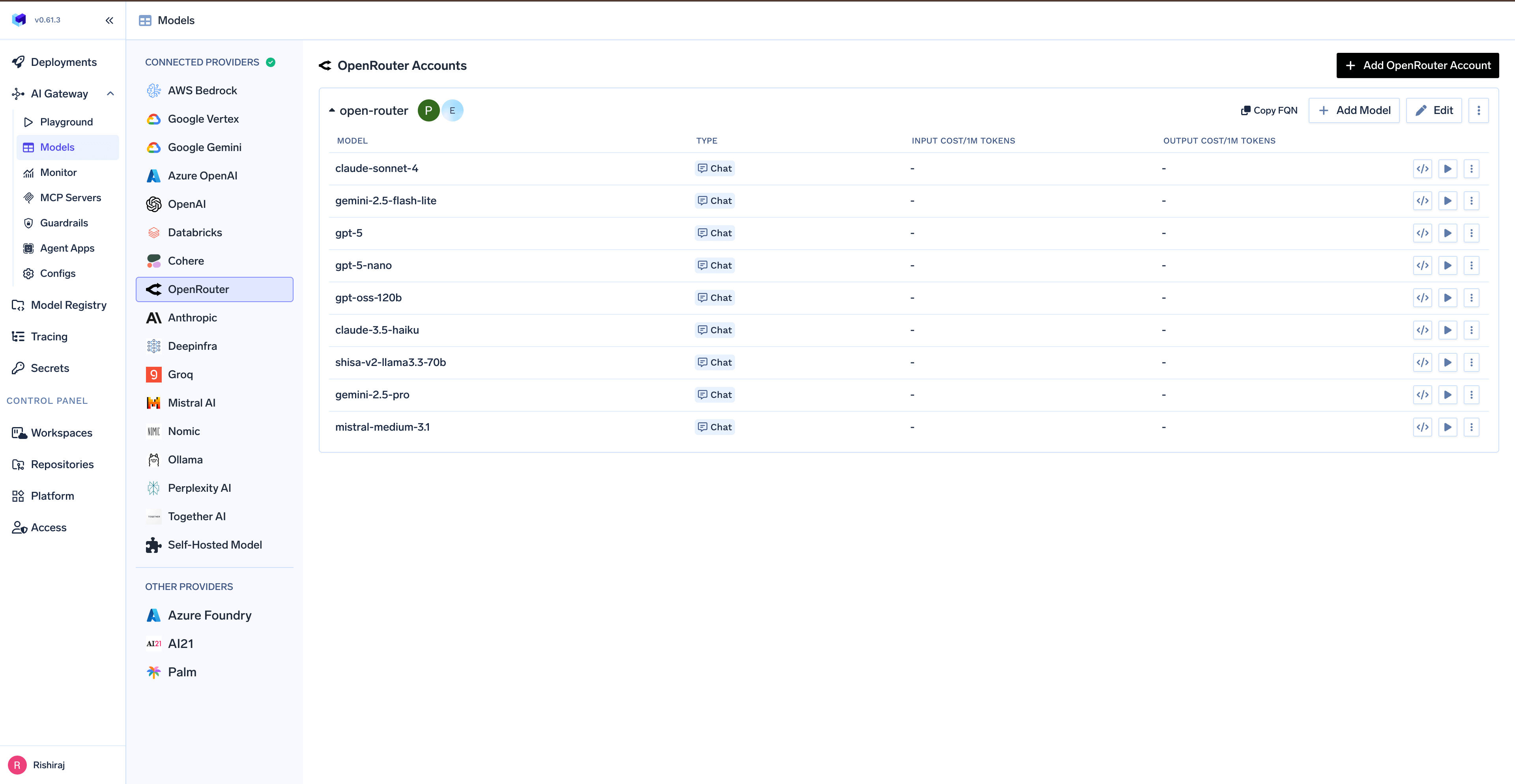
From the TrueFoundry dashboard, navigate to AI Gateway > Models and select OpenRouter.
Navigate to OpenRouter Models
2
Add OpenRouter Account Details
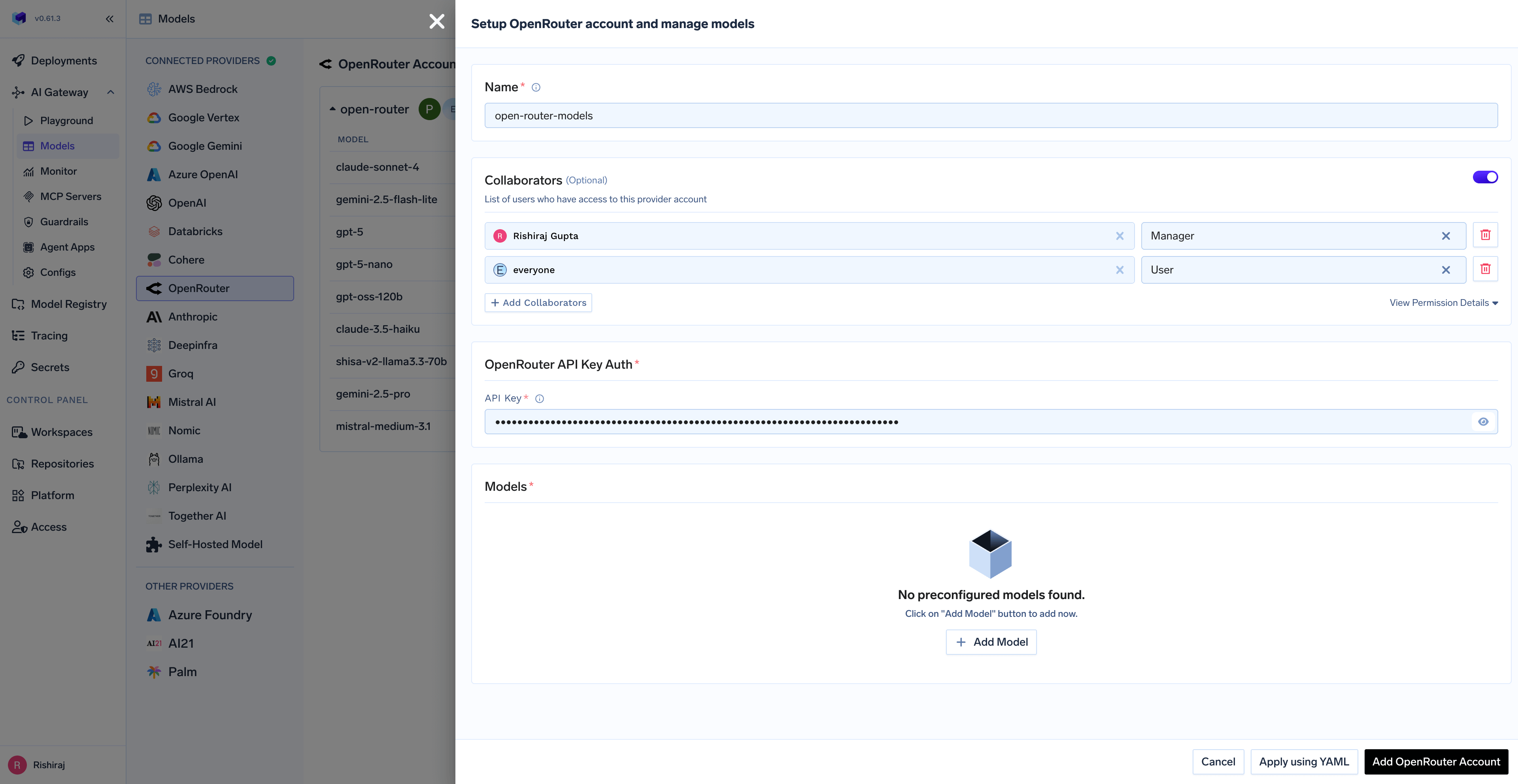
Click Add OpenRouter Account. Give a unique name to your OpenRouter account and complete the form with your OpenRouter authentication details (API Key). Add collaborators to your account, this will give access to the account to other users/teams. Learn more about access control here.
OpenRouter API Key Configuration
3
Add Models
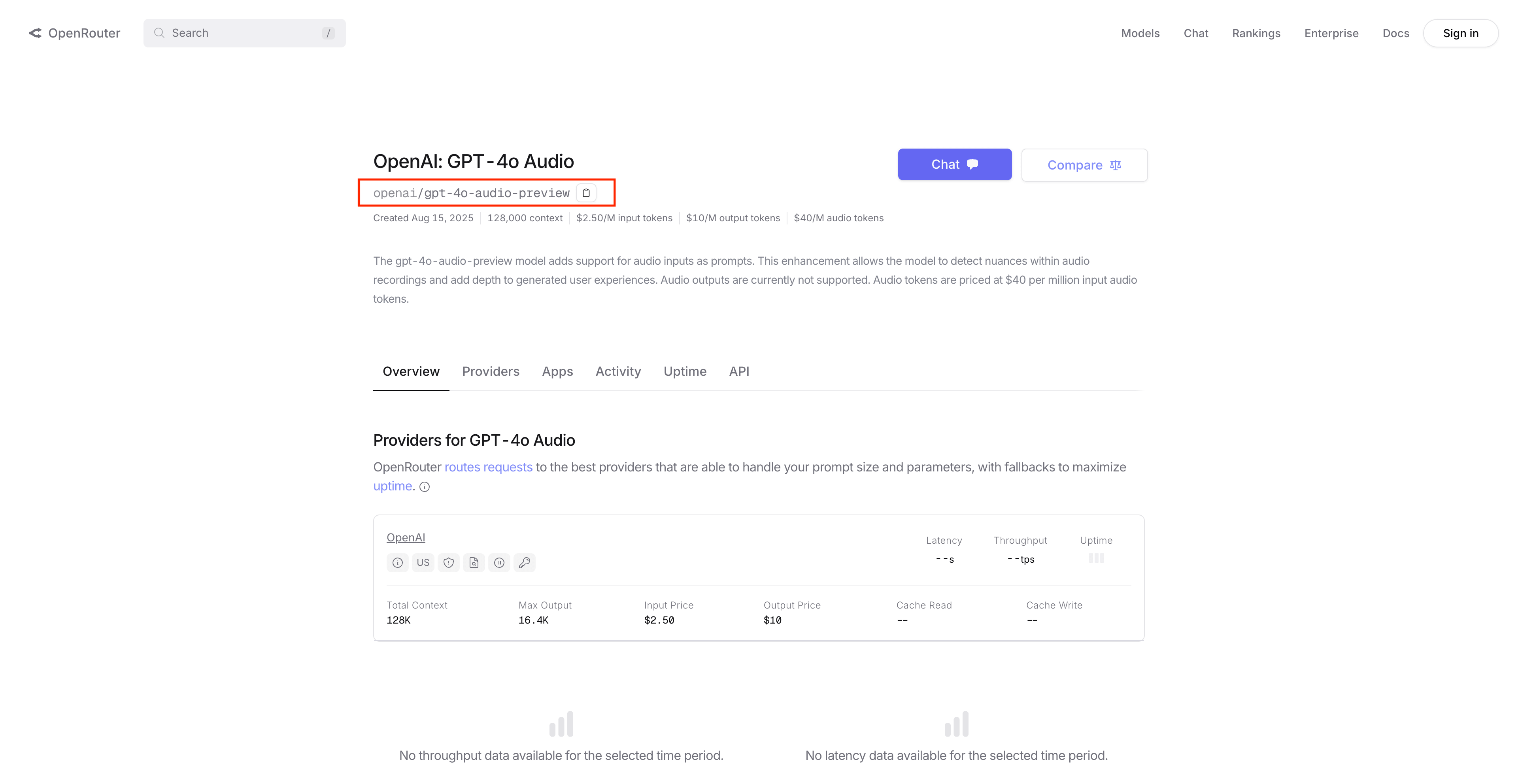
To add a model, you need to get the model ID from OpenRouter:
Copy the model ID (e.g., anthropic/claude-3-haiku, openai/gpt-4o-mini)
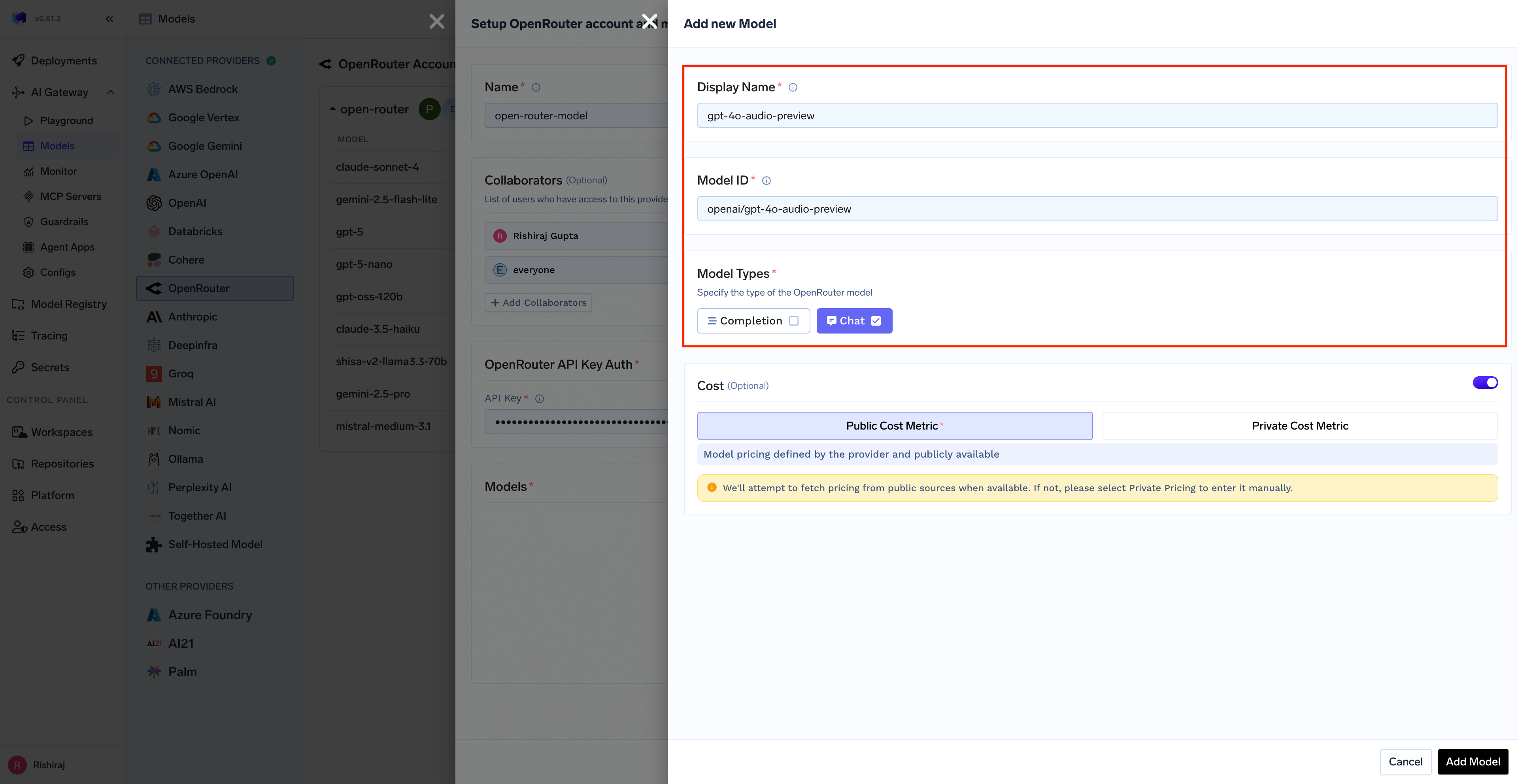
Paste the model ID in the “Add Model” form in TrueFoundry AI Gateway
OpenRouter Models Page
Adding Model in TrueFoundry
You can add any model available on OpenRouter by copying its model ID from the OpenRouter website. TrueFoundry AI Gateway supports all text and multimodal models available through OpenRouter.
The complete list of models supported by OpenRouter can be found here. Make sure to use the exact model ID as shown on OpenRouter.
For System One decision models such as TypeSafe’s Jev (typesafe/jev-1.13 or ~typesafe/jev-latest), set Model Types to Decision. These models are called through /v1/systemone, not chat completions. See Decision below.
Once your OpenRouter model account is configured, the following API surfaces are available through the AI Gateway. The table below summarizes each endpoint alongside platform feature support (tracing, cost tracking).
OpenRouter models are added by pasting a model ID rather than picking from a catalog, so TrueFoundry does not ship public pricing for them. Set the per-token Cost on the model when you add it to get cost tracking and budget enforcement.
from openai import OpenAIclient = OpenAI( api_key="your-truefoundry-api-key", base_url="{GATEWAY_BASE_URL}",)response = client.chat.completions.create( model="openrouter-main/claude-3-haiku", messages=[{"role": "user", "content": "What is TrueFoundry in one line?"}],)print(response.choices[0].message.content)
Responses API
The AI Gateway forwards /responses requests straight to OpenRouter’s OpenAI-compatible Responses endpoint — the request is not translated into a chat completion, so reasoning, tool calling, and web search behave the same as they do when you call OpenRouter directly. Full docs: Responses API.
The Responses API requires the x-tfy-provider-name header. Set it on default_headers when you construct the client — the AI Gateway uses it to route the request to the right OpenRouter model account.
Python
from openai import OpenAIclient = OpenAI( api_key="your-truefoundry-api-key", base_url="{GATEWAY_BASE_URL}", default_headers={"x-tfy-provider-name": "openrouter-main"},)response = client.responses.create( model="openrouter-main/o4-mini", input=[{"role": "user", "content": "Give me a two-word tagline."}],)print(response.output_text)
Streaming
Set stream=True and iterate over the emitted events.
Python
stream = client.responses.create( model="openrouter-main/o4-mini", input=[{"role": "user", "content": "Tell me a short story."}], stream=True,)for event in stream: if event.type == "response.output_text.delta": print(event.delta, end="", flush=True)
OpenRouter’s Responses API is stateless. OpenRouter rejects requests that set store: true or a non-null previous_response_id with a 400, and it does not expose retrieve or delete for a response id — so client.responses.retrieve() and client.responses.delete() are not available for OpenRouter models. Carry the conversation yourself by appending each turn’s output to input on the next request.This also means an OpenRouter target cannot back a stateful Responses conversation on a virtual model. Send store=False on the first turn so the AI Gateway routes those requests statelessly.
Decision (System One)
OpenRouter serves TypeSafe’s Jev System One models. Jev evaluates a piece of content against typed questions and returns calibrated answers instead of generated text. The AI Gateway forwards the request to OpenRouter’s /v1/systemone endpoint, so you use your OpenRouter API key and no separate TypeSafe account.When you add the model:
Model ID: typesafe/jev-1.13, or ~typesafe/jev-latest for the newest release. Pin a versioned ID so confidence thresholds stay stable across releases.
Model Types: Decision.
Cost: Jev bills input tokens only. Set the input cost to 0.000042 per 1,000 tokens ($0.042 per million) and the output cost to 0.
Call the model with the TrueFoundry model ID in the format your-openrouter-account/your-model-display-name. Send the content in state and named questions in questions. Set GATEWAY_BASE_URL to your gateway base URL without a trailing slash and TFY_API_KEY to your TrueFoundry API key.
import osimport requestsgateway_base_url = os.environ["GATEWAY_BASE_URL"].rstrip("/")response = requests.post( f"{gateway_base_url}/v1/systemone", headers={"Authorization": f"Bearer {os.environ['TFY_API_KEY']}"}, json={ "model": "openrouter-main/jev", # provider account / model display name "state": {"message": "My subscription was charged twice this month."}, "questions": { "billing": { "type": "noul", "instructions": "Does this message describe a billing issue?", } }, }, timeout=60,)response.raise_for_status()print(response.json()["answers"]["billing"])
curl --fail-with-body -X POST "${GATEWAY_BASE_URL}/v1/systemone" \
  -H "Authorization: Bearer ${TFY_API_KEY}" \
  -H "Content-Type: application/json" \
  -d '{
    "model": "openrouter-main/jev",
    "state": {"message": "My subscription was charged twice this month."},
    "questions": {
      "billing": {
        "type": "noul",
        "instructions": "Does this message describe a billing issue?"
      }
    }
  }'
The response contains the OpenRouter model that served the request, an answers object keyed by your question IDs, and usage with input_tokens and output_tokens. OpenRouter also returns id, provider and usage.cost. A noul answer is the probability of yes, from 0 to 1.The same model also answers POST /v1/decisions in OpenAI’s format. Full request and response schemas, plus the other decision providers: Decisions API. choice and score questions are also supported; see the TypeSafe documentation for their schemas.
Was this page helpful?
Assistant
Responses are generated using AI and may contain mistakes.