Add and configure PipeShift models in TrueFoundry’s AI Gateway using Custom Endpoints.
PipeShift provides an OpenAI-compatible chat completions API for open-source and custom models. Use Custom Endpoints in the AI Gateway to register PipeShift once, keep the PipeShift API key on the AI Gateway, and let your applications call models through a single TrueFoundry API key with access control and tracing.
Sign up at pipeshift.com if you do not already have an account.
2
Generate a PipeShift API key
In the PipeShift dashboard, create an API key for your workspace.Store the key securely. You will paste it into the AI Gateway’s Custom Headers configuration — not in client application code.
3
Get your TrueFoundry API key and gateway URL
You need a TrueFoundry API key (TFY_API_KEY) and your gateway base URL to call models through the AI Gateway. See Gateway base URL and Authentication.
Add PipeShift to the AI Gateway using Custom Endpoints.
1
Create a Custom Endpoint model account
In the TrueFoundry dashboard, go to AI Gateway → Models → Custom Endpoints and click Add Custom Endpoint.In Configure Account, set:
Name (Account Name): any unique label for this provider (for example, pipeshift) — this is your model account name and appears as the first path segment in every request URL ({providerAccountName})
Endpoint Type: None
Header Auth: keep disabled
2
Add a PipeShift endpoint
On the Endpoints step, add an integration and configure:
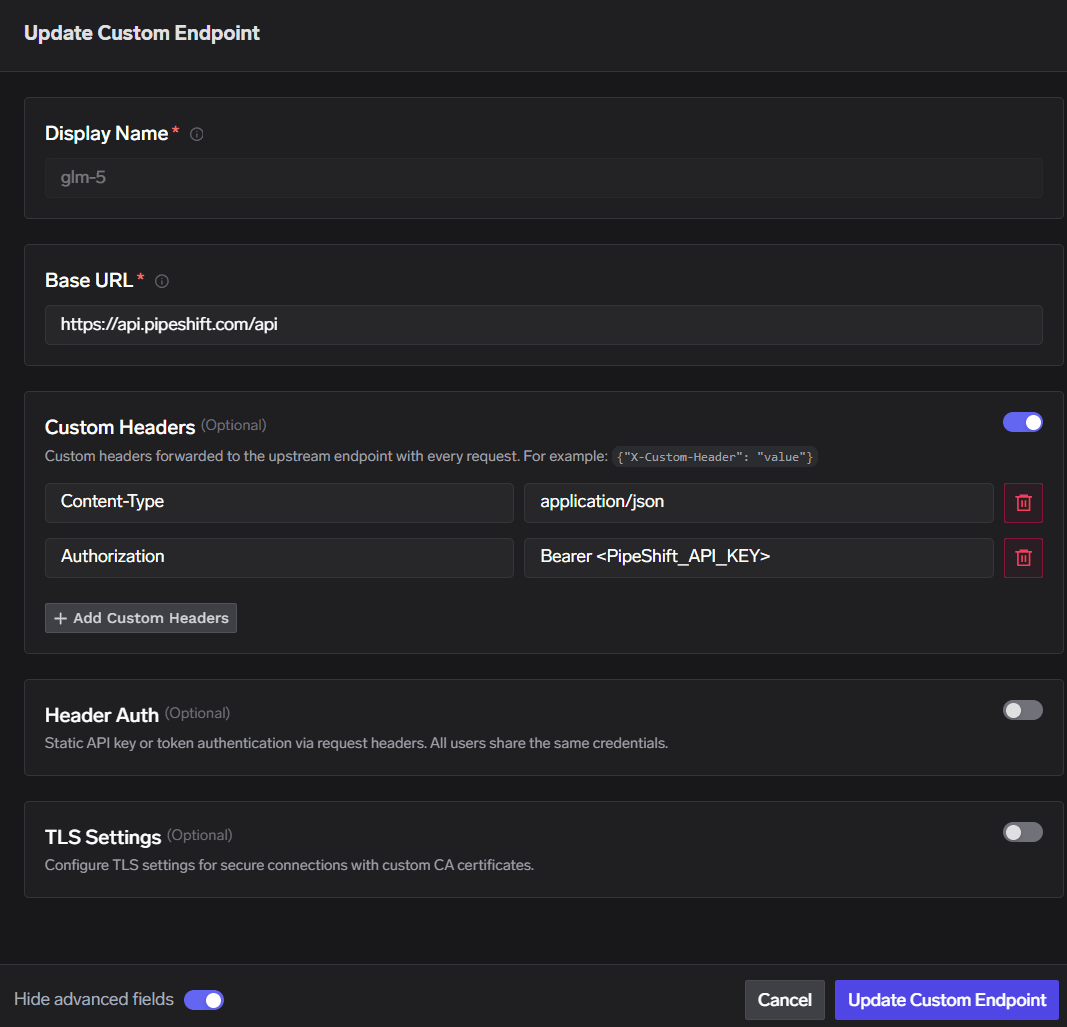
Display Name: any unique label for this endpoint (for example, model) — this is your custom endpoint display name and appears as the second path segment in every request URL ({endpointName})
Base URL: https://api.pipeshift.com/api
Enable Custom Headers and add:
Content-Type: application/json
Authorization: Bearer <PIPSHIFT_API_KEY>
Keep Header Auth and TLS Settings disabled unless your deployment requires them.
Endpoint settings — Base URL and upstream headers
The Authorization header here is sent from the AI Gateway to PipeShift. Your application should only send the TrueFoundry API key to the AI Gateway.
You can click + Add Custom Endpoint to register multiple endpoints under the same account (for example, model, vision, or fast-inference). Each gets its own Display Name in the URL, but they can all point to the same PipeShift Base URL and headers. Which PipeShift model runs is chosen in the request body model field — not by the display name.
3
Set access control and save
On the Access Control step, choose who can manage and use this model account, then Save.
Manager: users/teams who can edit or delete the custom endpoint
User: users/teams who can call the endpoint (for example, everyone)
PipeShift hosts many models available in your workspace. You do not need a separate custom endpoint per model — set the model field in the JSON request body to whichever PipeShift model ID you want to run (for example, zai-org/GLM-5).If you add multiple custom endpoints under the same account (different Display Name values), use the matching {endpointName} in the URL; each endpoint can still call any PipeShift model via the request body.
Replace pipeshift and model in the URL with your own Account Name and Display Name if you used different values during setup.
Because PipeShift is OpenAI-compatible, you can point the OpenAI SDK at the AI Gateway proxy path instead of PipeShift directly:
import osfrom openai import OpenAIGATEWAY_BASE_URL = "{GATEWAY_BASE_URL}" # e.g. https://internal.devtest.truefoundry.tech/api/llmTFY_API_KEY = os.environ.get("TFY_API_KEY", "your-tfy-api-key")PROVIDER_ACCOUNT_NAME = "pipeshift" # Account NameENDPOINT_NAME = "model" # Custom endpoint Display Nameclient = OpenAI( api_key=TFY_API_KEY, base_url=f"{GATEWAY_BASE_URL}/proxy-api/{PROVIDER_ACCOUNT_NAME}/{ENDPOINT_NAME}/v0",)response = client.chat.completions.create( model="zai-org/GLM-5", # any PipeShift model ID messages=[ {"role": "system", "content": "You are a helpful assistant."}, {"role": "user", "content": "Tell me about TrueFoundry AI Gateway"}, ], temperature=0.7, stream=False,)print(response.choices[0].message.content)
Support scope: Custom Endpoints proxy requests transparently to PipeShift. For gateway limitations on Custom Endpoints (HTTPS, streaming, and so on), see Custom Endpoints.
Was this page helpful?
Assistant
Responses are generated using AI and may contain mistakes.