
We integrate with 1000+ LLMs through the following providers. If you don’t see the provider you need, please reach out to us at [email protected] and we will be happy to add it. Below is a comprehensive list of popular LLM providers that are supported by TrueFoundry AI Gateway.
AWS Bedrock logoAWS Bedrock
Google Vertex AI logoGoogle Vertex AI
Google Gemini logoGoogle Gemini
Azure OpenAI logoAzure OpenAI
Azure AI Foundry logoAzure AI Foundry
Microsoft Foundry logoMicrosoft Foundry
OpenAI logoOpenAI
Databricks logoDatabricks
Cloudera logoCloudera
Cohere logoCohere
Snowflake Cortex logoSnowflake Cortex
OpenRouter logoOpenRouter
AI21 logoAI21
Anthropic logoAnthropic
AWS Claude Platform logoAWS Claude Platform
AWS Bedrock Mantle logoAWS Bedrock Mantle
DeepInfra logoDeepInfra
Groq logoGroq
Mistral AI logoMistral AI
ElevenLabs logoElevenLabs
Deepgram logoDeepgram
Cartesia logoCartesia
Smallest AI logoSmallest AI
Perplexity AI logoPerplexity AI
Together AI logoTogether AI
xAI logoxAI
Baseten logoBaseten
SambaNova logoSambaNova
AWS SageMaker logoAWS SageMaker
Cerebras logoCerebras
Wafer logoWafer
Fireworks AI logoFireworks AI
TypeSafe logoTypeSafe
Self Hosted Models logoSelf Hosted Models

How adding models works

Models in the AI Gateway live inside a provider account. A provider account holds the credentials for one account with a provider, such as an OpenAI API key or an AWS role, and every model you enable in it calls the provider with those credentials. You can create several accounts for the same provider, for example one per team or environment, and each model is addressed as <account-name>/<model-name>. The Models page in AI Gateway lists every model across all accounts, with its type, capabilities, context limit, cost and the last seven days of requests. Click a model to see the code to call it through the gateway, or open it in the playground.
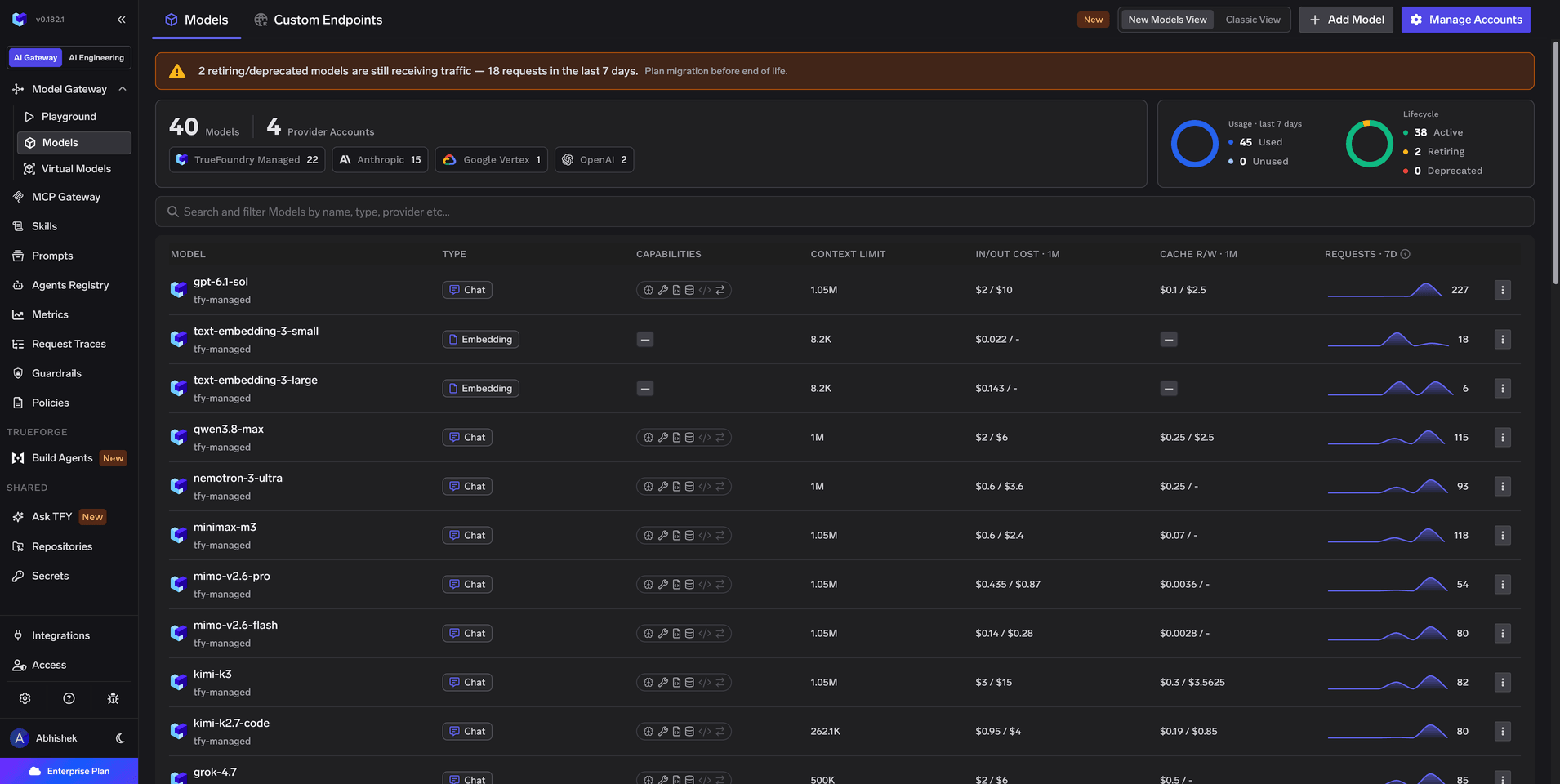
Models page with model counts, usage and lifecycle summary, and the list of models

Models page in AI Gateway

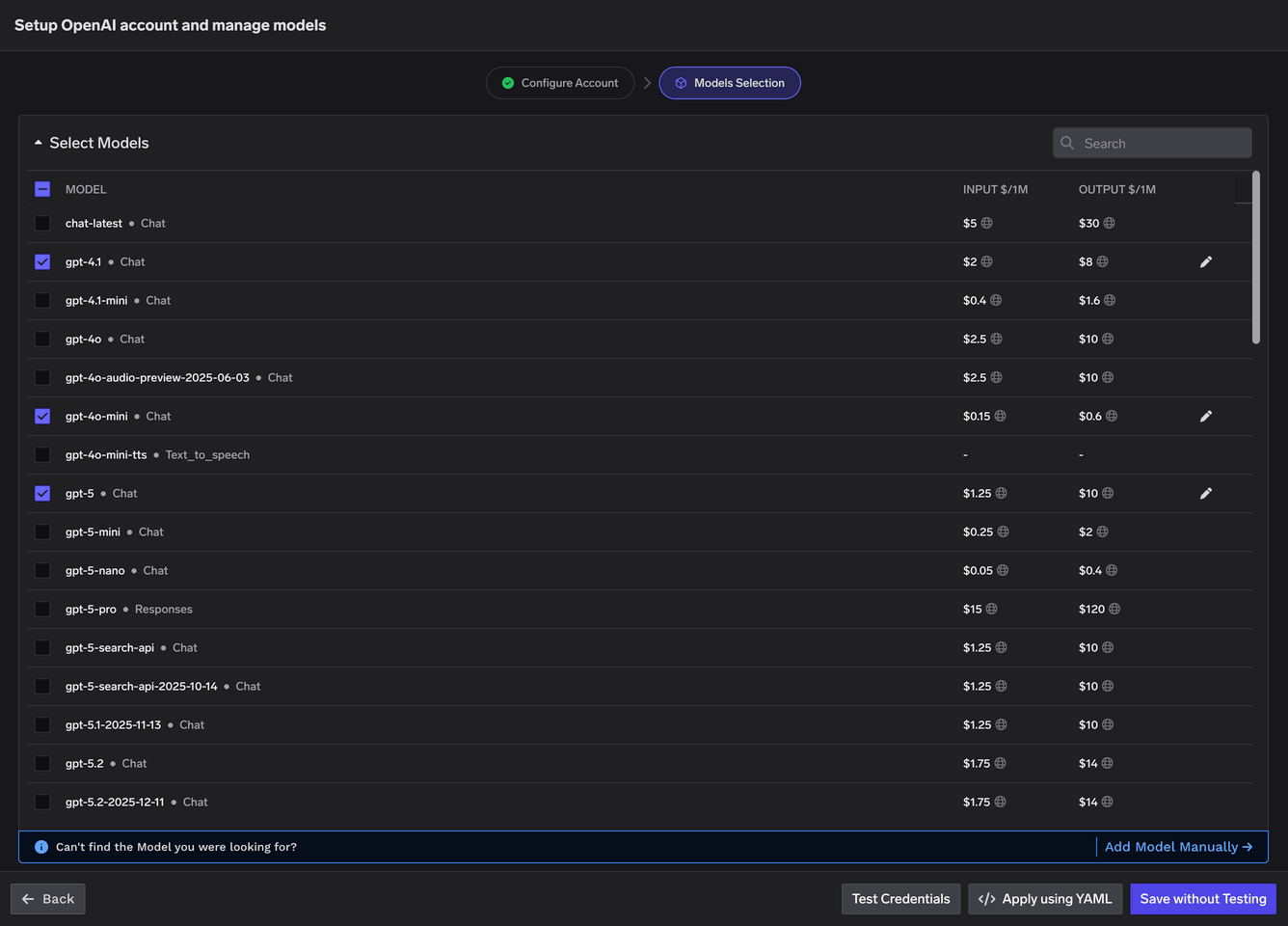
Add Model offers two paths. To New Provider Account opens the list of providers above; pick one and a two-step drawer walks you through it. In Configure Account you name the account and enter the provider’s credentials (Show advanced fields reveals options such as a custom base URL or a discount on public cost). In Models Selection you tick the models to enable, with public pricing shown for each, or use Add Model Manually for a model that isn’t listed. To Existing Provider Account skips straight to model selection for an account you already have.
Models Selection step listing models with their input and output price per million tokens

Models Selection step for a new OpenAI account

From the last step you can click Test Credentials to check the account before saving, Save without Testing, or Apply using YAML to get the full account spec and apply it with the tfy CLI. The YAML route is useful when you manage gateway configuration in Git. Manage Accounts shows every connected provider and its accounts. From an account’s card you can add models, edit the account, review activity logs and set Access Control, which decides who can use or manage the account’s models. Access is covered in Access control.
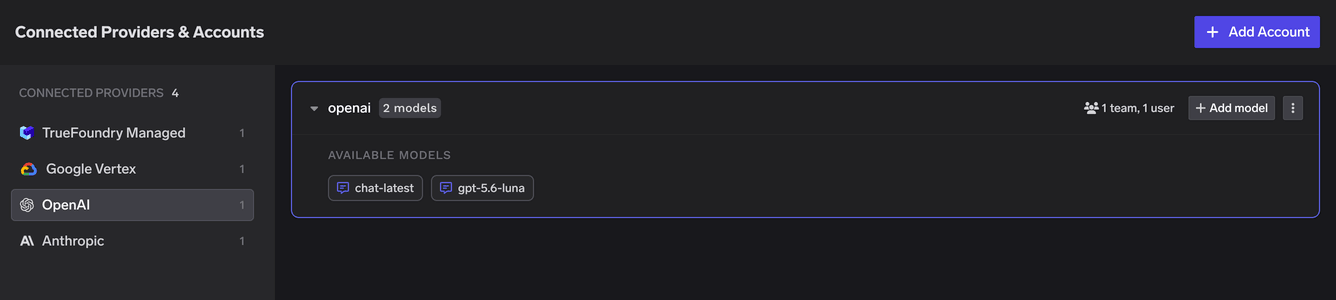
Connected Providers and Accounts drawer showing an OpenAI account with its models and access summary

Manage Accounts