Connect any HTTP service to the AI Gateway for centralized authentication, access control, and tracing.
Custom Endpoints let you register arbitrary HTTP services in the AI Gateway and route traffic through them. Unlike integrations that target a specific provider API (OpenAI, Anthropic, and so on), Custom Endpoints accept any HTTP upstream—internal REST APIs, Azure Speech Services, bespoke ML services, or third-party endpoints—while keeping a single entry point for your applications.Use Custom Endpoints when you want one TrueFoundry API key for callers, per-endpoint access control, and full tracing without distributing upstream credentials to every client. The AI Gateway acts as a transparent proxy: it forwards the HTTP method, path, query string, headers, and body to your upstream base URL without translating payloads.Upstream credentials and extra headers are configured once on the model account or integration; the AI Gateway injects them on every upstream request automatically.Multiple endpoints under the same account can also be pooled behind a single aggregated endpoint with weight or priority routing — useful for increasing aggregate concurrency past one backend’s limits, or for primary/backup failover. See Load balancing across endpoints.
Several providers that aren’t first-class integrations in the AI Gateway are connected through Custom Endpoints. Use these ready-made guides as references when wiring up your own upstream:
CoreWeave (W&B Inference)
Proxy CoreWeave models served via W&B Inference’s OpenAI-compatible API.
PipeShift
Route to PipeShift’s OpenAI-compatible chat completions API.
SiliconFlow
Route to SiliconFlow’s OpenAI-compatible chat completions API.
io.net
Call io.net Intelligence open-source models through the AI Gateway.
Resemble AI
Proxy Resemble AI text-to-speech synthesis requests.
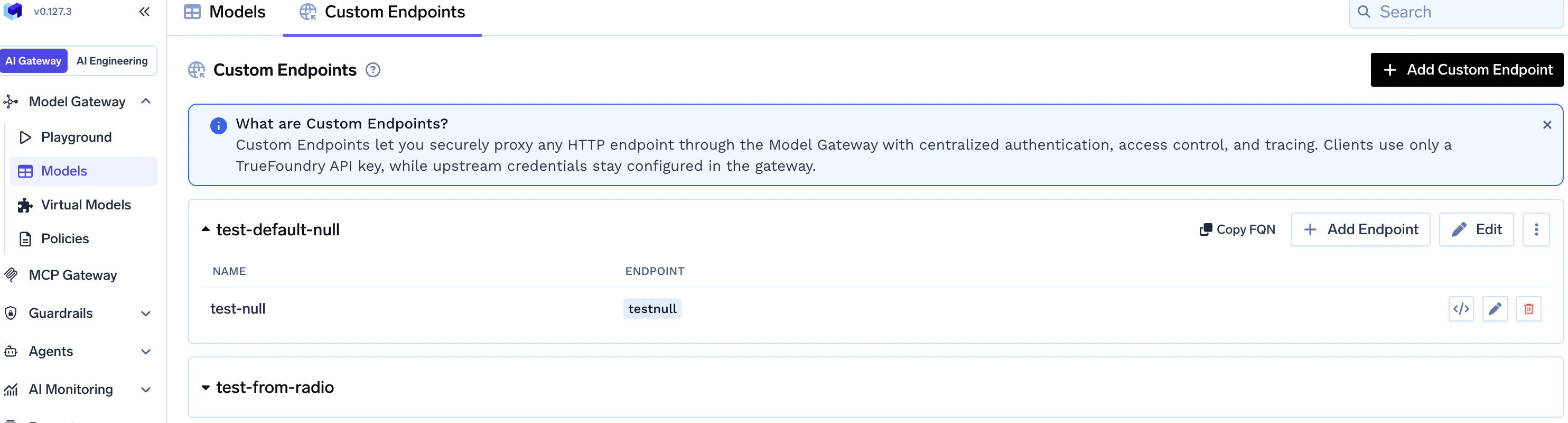
AI Gateway — Models — open the Custom Endpoints tab
1
Create a Custom Endpoint model account
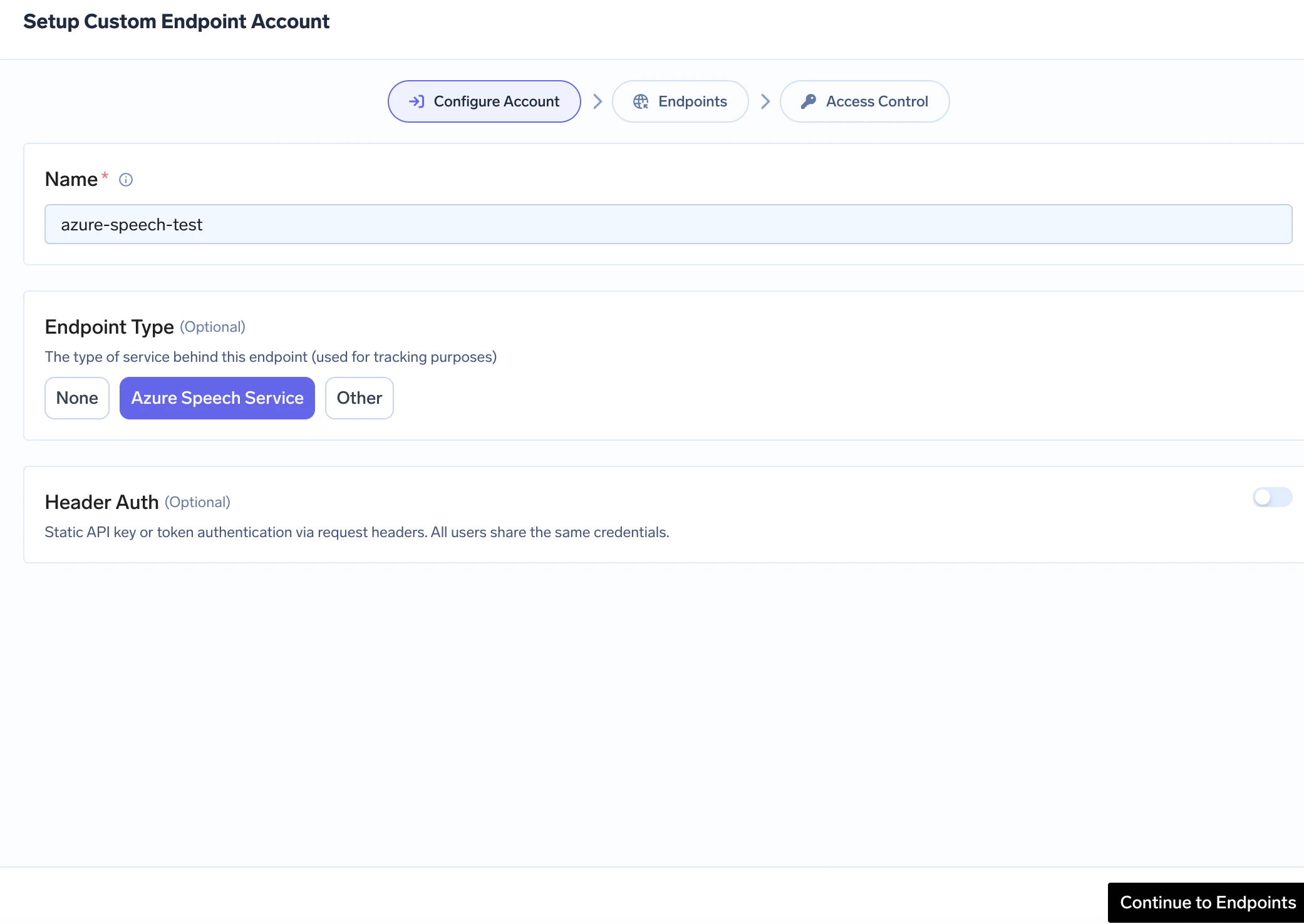
From the TrueFoundry dashboard, go to AI Gateway → Models, open the Custom Endpoints tab, and click Add Custom Endpoint.In the wizard, complete Configure Account: Name (required), optional Endpoint Type (None, Azure Speech Service, or Other), and optional Header Auth at the account level so integrations can inherit the same default upstream authentication. Use Continue to Endpoints when ready.To turn the account into a load-balanced pool, expand Advanced and set Routing Type to Weight or Priority, then enter a Slug. The slug becomes the second URL segment for the aggregated endpoint (/proxy-api/<account-name>/<slug>/<upstream-path>). Leave Routing Type as None for the standard per-endpoint flow. See Load balancing across endpoints.
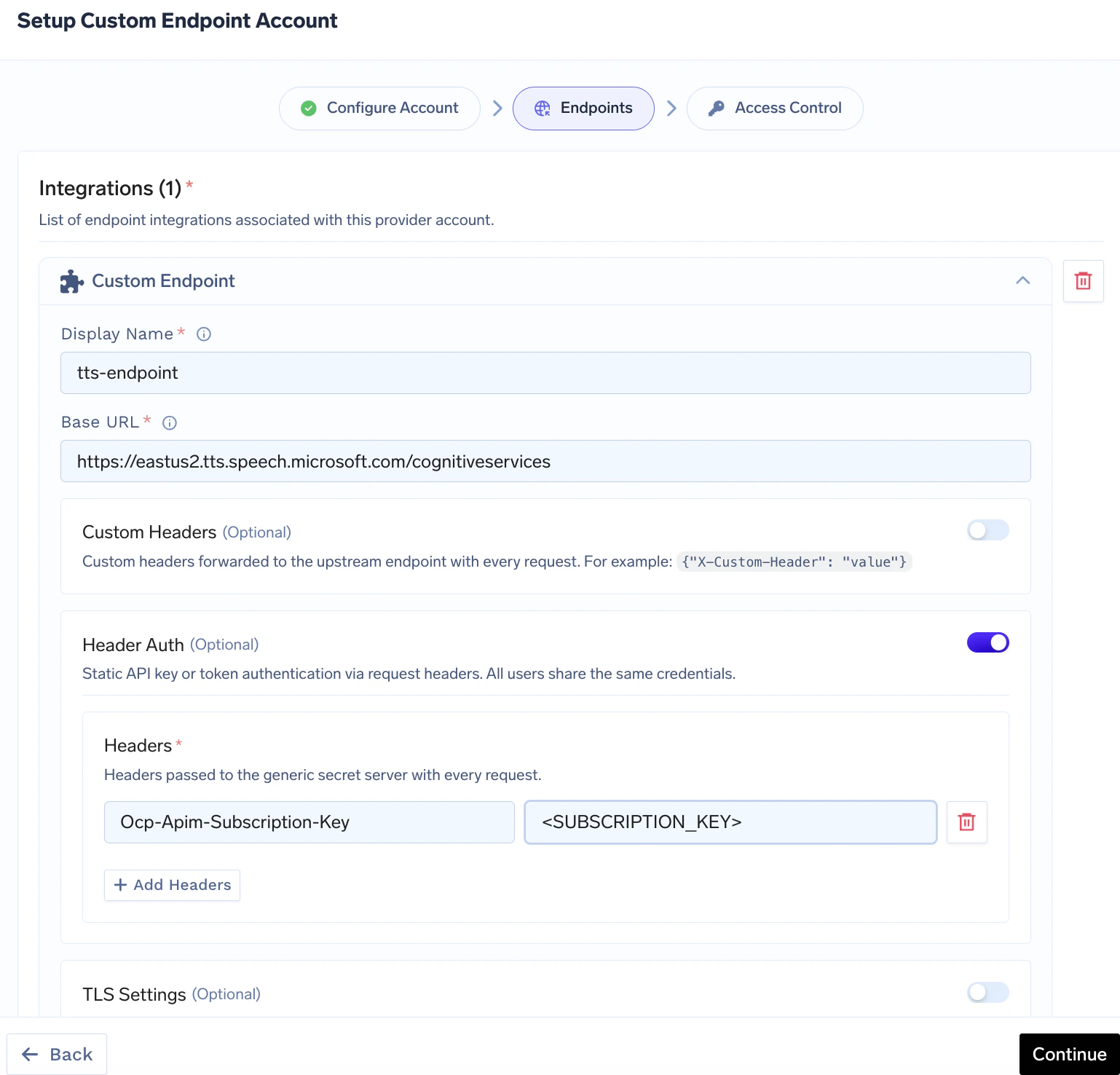
On the Endpoints wizard step, add or edit an endpoint integration (Add Endpoint from the list view works the same flow).Set Display Name and Base URL (the upstream origin — must not end with a trailing slash; see configuration reference). Optionally enable Custom Headers, Header Auth (per-endpoint upstream credentials), or TLS Settings.If the account has Routing Type set, a Load Balancing Config group appears on each endpoint with Weight (weight mode) or Priority (priority mode), plus Fallback Status Codes and Fallback Candidate. See Per-endpoint load balancing fields.
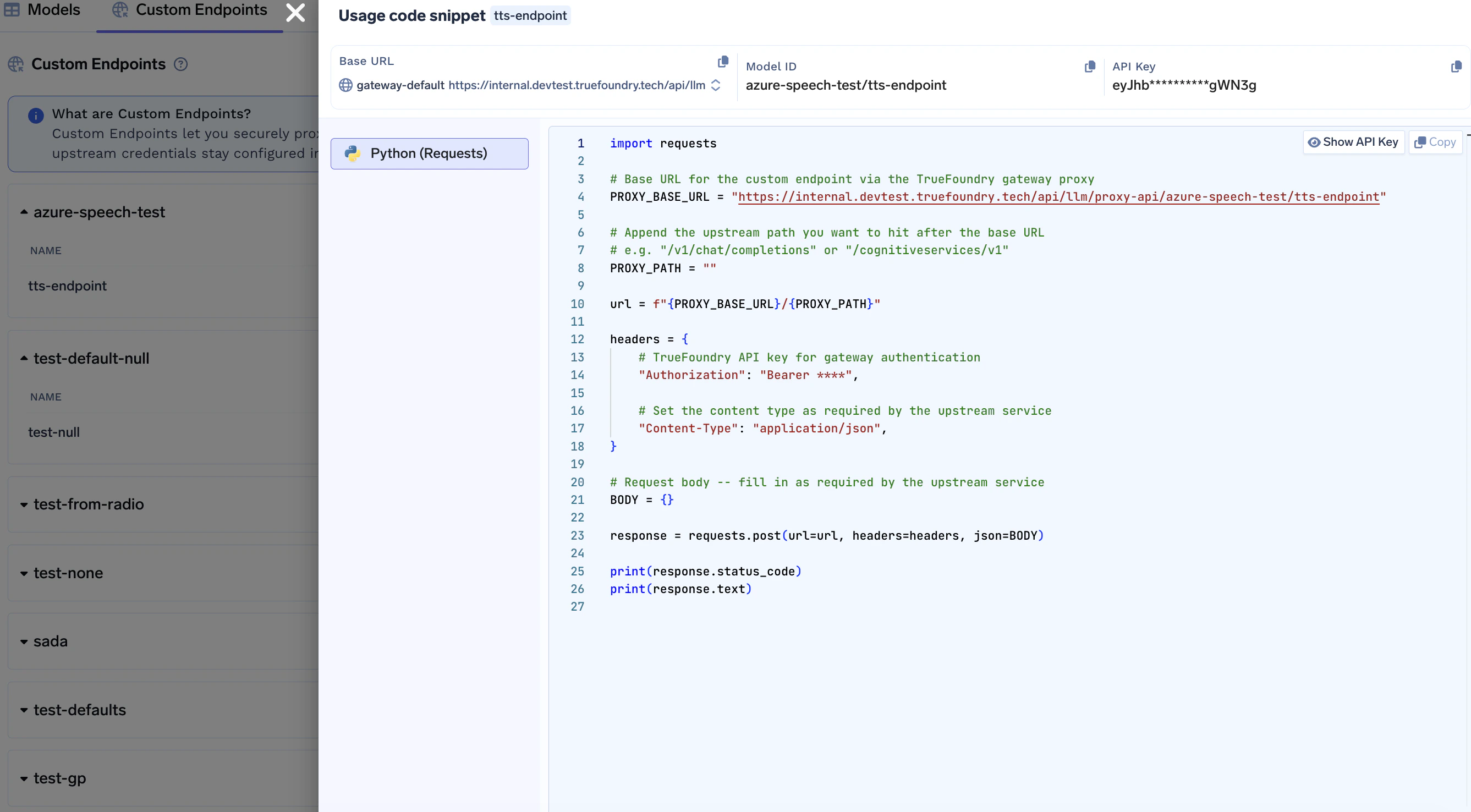
Call the AI Gateway using the pattern below. Replace GATEWAY_BASE_URL, providerAccountName, and endpointName with your values, and append any path that should be joined to the integration Base URL.
Callers only need a TrueFoundry API key for the AI Gateway. Upstream authentication is applied by the AI Gateway from your model account and integration settings—you do not pass upstream secrets from client code.
Usage code snippet — Python example with proxy-api URL
The wizard also includes an Access Control step after Endpoints (who can use this model account), consistent with other AI Gateway providers — see Gateway access control.
The same manifest fields are available through the TrueFoundry CLI (tfy apply) if you configure model accounts without the dashboard.
Name of your Custom Endpoint model account (lowercase letters, digits, hyphens; 3–32 characters)
endpointName
Integration Display Name used in the URL (letters, digits, -, _, .; no spaces; 2–62 characters; cannot start with a digit)
upstream-path
Path appended to the integration’s Base URL
query-params
Optional; passed through to the upstream as-is
Provider account and integration names must satisfy the patterns above when created. If your HTTP client requires encoding for certain characters in the path segment, URL-encode endpointName accordingly.
Gateway authentication — Same as other AI Gateway routes: send Authorization: Bearer <TrueFoundry API key> (or your deployment’s documented gateway auth).Upstream authentication — Configure Header Auth (header name/value pairs used as upstream credentials) and optional Custom Headers on the model account and/or each integration. The AI Gateway adds these to the proxied request; callers never see upstream keys.
If an integration has no Header Auth, the AI Gateway uses the model account’s Header Auth when present. Setting Header Auth on an integration replaces the account default for that endpoint only.
Upstream services that expect Bearer or HTTP Basic credentials still use Header Auth: you store the exact header name and value the upstream expects (often Authorization). Examples:Bearer token
Header
Value
Authorization
Bearer <your-upstream-access-token>
Enter the same Header name and value in the integration’s Header Auth (or account-level Header Auth).To use a TrueFoundry secret at either level, store the complete header value (for example, Bearer <token>) in the secret and enter only its tfy-secret://tenant:group:KEY reference as the Header Auth value. References resolve automatically; Bearer tfy-secret://... does not resolve.Username and password (HTTP Basic)Basic authentication sends a single Authorization header whose value is Basic followed by the Base64 encoding of username:password (UTF-8), with no newline inside that string.
Build the string username:password (colon between user and password).
Base64-encode it (standard Base64, padding as needed).
Set Header Auth to Authorization = Basic <encoded-result>.
Example (compute once, paste the header value into the AI Gateway):
import base64user = "myuser"password = "mypass"token = base64.b64encode(f"{user}:{password}".encode("utf-8")).decode("ascii")# token is e.g. "bXl1c2VyOm15cGFzcw=="print(f'Authorization: Basic {token}')
Equivalent one-liners:
# macOS / Linux — prints the Base64 segment (prefix with `Basic ` for the full header value)printf '%s' 'myuser:mypass' | base64
Paste Authorization = Basic <output-from-above> into Header Auth in the UI.API key in a custom header (e.g. Azure Speech)
Pool multiple endpoints under the same model account behind a single aggregated URL to raise aggregate concurrency or to run a primary/backup topology. Typical uses include scaling out replicas of an internal API, fanning out across multiple regional deployments of the same HTTP service, or combining several Azure Speech subscriptions to lift the per-subscription request limit.
Set routing_type (weight or priority) and a slug on the model account, and add a loadbalancing_config to each endpoint integration.
Call the pool at {GATEWAY_BASE_URL}/proxy-api/{providerAccountName}/{slug}/{upstream-path}. The slug replaces the single endpointName segment.
Per-endpoint URLs continue to work alongside the slug URL — useful for testing one upstream in isolation.
For each request, the AI Gateway picks an endpoint, proxies the call, and on a response whose status is listed in fallback_status_codes (or on a network error) retries the next eligible endpoint. Repeated failures cool an endpoint down across requests automatically.
Access is checked at the model account level in aggregated mode — per-endpoint authorized_subjects lists are not consulted.
The dashboard’s “usage code snippet” helper is only generated for individual endpoints, not for the load-balanced slug endpoint. Build the request URL yourself using the template below — gateway authentication and upstream auth injection work exactly like the per-endpoint flow.Template: {GATEWAY_BASE_URL}/proxy-api/{providerAccountName}/{slug}/{upstream-path}
{slug} is the account’s Slug (not an endpoint’s Display Name).
{upstream-path} is appended to the chosen endpoint’s base_url, identical to the per-endpoint flow.
You can copy the snippet from any individual endpoint as a starting point and replace the endpoint name segment with the slug.
The following YAML shows the complete shape of a load-balanced custom endpoint model account. The same fields are available in the dashboard form editor.
type: provider-account/custom-endpointname: my-endpoint-pool # URL segment 1; lowercase, 3-32 charsendpoint_type: other # optional: azure-speech-service | other (tracking only)routing_type: weight # weight | priority (omit for per-endpoint only)slug: pool # required when routing_type is set; URL segment 2auth_data: # optional account-level default upstream auth type: header headers: Authorization: "Bearer <UPSTREAM_TOKEN>"integrations: - type: integration/model/custom-endpoint name: endpoint-a # target id at runtime: my-endpoint-pool/endpoint-a base_url: https://a.internal.example.com/v1 # no trailing slash loadbalancing_config: weight: 60 # weight mode: 0-100; all weights must sum to 100 fallback_status_codes: ["429", "500", "502", "503"] fallback_candidate: true headers: X-Env: prod # auth_data and tls_settings can also be set per endpoint and override the account defaults - type: integration/model/custom-endpoint name: endpoint-b base_url: https://b.internal.example.com/v1 loadbalancing_config: weight: 40 fallback_candidate: true
Per-endpoint load balancing fields
Field
Type
Description
weight
int (0-100)
Traffic share, weight mode only. Weights across all endpoints must sum to 100.
priority
int (≥ 0)
Priority, priority mode only. Lower number = higher priority; 0 is highest.
fallback_status_codes
string[]
Upstream HTTP statuses that trigger a fallback to the next endpoint. Default: ["401", "403", "404", "408", "429", "500", "502", "503"].
fallback_candidate
bool
If false, the endpoint never receives fallback traffic from another endpoint — it is only used when picked as the primary. Default: true.
metadata_match
map[string]string
Optional. Restrict the endpoint to requests whose resolved metadata matches all key-value pairs. Endpoints without metadata_match always stay eligible.
Validation rules: setting routing_type requires slug and at least 2 endpoints. In weight mode, every endpoint needs a weight and the sum across endpoints must equal 100. In priority mode, every endpoint needs a priority. Without routing_type, slug and loadbalancing_config are ignored.
Distributes requests across endpoints in proportion to their weight. Best for spreading load across multiple equivalent backends to raise aggregate concurrency.
Example: pool multiple Azure Speech subscriptions for higher throughput
A single Azure Speech subscription has a fixed per-resource concurrency. Combining several subscriptions or regions behind one slug endpoint multiplies the headroom and lets the AI Gateway fail over on 429.
The pool is called at {GATEWAY_BASE_URL}/proxy-api/azure-speech-pool/tts/v1 — same SSML body and X-Microsoft-OutputFormat header as the single-endpoint example in Use cases, only the URL changes.
Routes every request to the highest-priority healthy endpoint (0 is highest) and falls back to the next on failure. Best for primary/backup topologies.
You can constrain an endpoint to only receive traffic when request metadata matches specific key-value pairs using metadata_match under its loadbalancing_config. This works the same way as on virtual model targets.The AI Gateway evaluates resolved metadata (not just raw request headers). Metadata can come from:
Request metadata header — x-tfy-metadata (JSON object with string keys and values)
Virtual account tags — when using a virtual account, its tags are included in metadata
Default gateway metadata — configured at the AI Gateway level (commonly used in self-hosted setups)
SaaS gateway location metadata — tfy_gateway_region and tfy_gateway_zone are automatically added by the SaaS gateway based on which region handled the request
For each endpoint:
If metadata_match is not set (or empty), the endpoint always stays eligible.
If metadata_match is set, all configured pairs must match exactly (AND semantics).
Filtering happens before weight/priority ordering and cooldown are computed, so only matching endpoints participate in routing for that request.
only search-shared remains eligible because search-us does not match.
For routing by SaaS gateway region using tfy_gateway_region / tfy_gateway_zone, see the virtual model example — the same pattern applies, just put metadata_match under each integration’s loadbalancing_config.
If no endpoint matches the request metadata, the AI Gateway returns 404 with an error indicating that none of the configured endpoints matched metadata_match conditions. Always include at least one endpoint without metadata_match as a catch-all, or ensure your metadata rules cover all possible values.
fallback_status_codes — Upstream statuses that cause the AI Gateway to stop on the current endpoint and try the next eligible one in the pool. Statuses outside this list propagate to the caller immediately. Default: ["401", "403", "404", "408", "429", "500", "502", "503"].
fallback_candidate — When false, the endpoint is excluded from receiving fallback traffic from other endpoints; it is only used when selected as its own primary by the routing strategy.
Network errors (timeouts, connection failures) always roll over to the next endpoint regardless of fallback_status_codes.
Automatic cooldown — Repeated failures (401, 403, 429, 5xx) within a short rolling window mark an endpoint unhealthy. Healthy endpoints are tried first; if every endpoint is in cooldown the AI Gateway still tries them as a last resort. Recovery is automatic once errors age out of the window.
Compared to Virtual Models, custom endpoints use the same weight/priority concepts and the same metadata_match routing, but in a different shape: routing is configured on the account with routing_type + slug, targets are implicit (every endpoint under the account), and each endpoint carries its own loadbalancing_config. There is no routing_config / load_balance_targets array, no latency-based routing, and no sticky_routing, sla_cutoff, retry attempts/delay, or override_params.
import requests# Integration Base URL should be like https://<region>.tts.speech.microsoft.com/cognitiveservices (no trailing slash).# Append only the REST suffix — here `v1` for SSML — so the upstream becomes …/cognitiveservices/v1url = "{GATEWAY_BASE_URL}/proxy-api/{providerAccountName}/{endpointName}/v1"headers = { "Authorization": "Bearer your-truefoundry-api-key", "Content-Type": "application/ssml+xml", "X-Microsoft-OutputFormat": "audio-16khz-128kbitrate-mono-mp3",}ssml = """<speak version='1.0' xml:lang='en-US'> <voice xml:lang='en-US' xml:gender='Female' name='en-US-JennyNeural'> Hello from the AI Gateway. </voice></speak>"""response = requests.post(url, headers=headers, data=ssml.encode("utf-8"))response.raise_for_status()# Response body is binary audio from the upstream service.open("output.mp3", "wb").write(response.content)
Unique account identifier (lowercase letters, digits, hyphens; 3–32 characters); used in the AI Gateway URL as providerAccountName
Endpoint Type
Optional: azure-speech-service or other (used for tracking / defaults in the product)
Routing Type
Optional: weight or priority. Turns the account into a load-balanced pool. Leave unset for the standard per-endpoint flow. See Load balancing across endpoints
Slug
Required when Routing Type is set. Pattern: letters, digits, -, _, .; 2–62 characters; cannot start with a digit. Becomes the second URL segment for the aggregated endpoint (/proxy-api/<account>/<slug>/<upstream-path>)
Header Auth
Optional default upstream auth: header-based credentials (type: header plus a Headers map), applied when an integration has no Header Auth of its own
Identifies the endpoint in the UI and in the URL as endpointName (pattern: letters, digits, -, _, .; no spaces; cannot start with a digit)
Base URL
HTTPS (or HTTP) origin without a trailing slash; the AI Gateway appends upstream-path from the request
Custom Headers
Optional key/value headers merged into every upstream request (often under Advanced)
Header Auth
Optional upstream credentials as header key/value pairs; when set, replaces provider-account Header Auth for this integration
TLS Settings
Optional Reject Unauthorized toggle and optional Custom CA Certificates text for upstream TLS verification
Load Balancing Config
Required on every endpoint when the parent account has Routing Type set. See Per-endpoint load balancing fields for the sub-field reference
Access Control
Optional authorized_subjects for per-subject allow lists — commonly edited via API or manifest rather than the default UI. Not consulted when calling the account’s aggregated slug URL (access is checked at the provider-account level)
All traffic through Custom Endpoints is traced with span type CustomEndpoint on the AI Gateway trace / root span. To browse requests in the dashboard, see Request Logging. For general tracing concepts (traces, spans, attributes), see the LLM tracing overview.Aggregated (load-balanced) requests carry extra attributes on the same span so you can see which pooled endpoint served each request and how often fallback occurred:
Attribute
Meaning
custom_proxy_routing_type
weight or priority
custom_proxy_slug
The account slug used in the request URL
custom_proxy_endpoint_name
The endpoint that actually served the request
custom_proxy_target_was_cooled_down
true if the request had to use an endpoint in cooldown (all targets unhealthy)
loadbalance_target_attempt_count
Number of endpoints attempted before success or final failure
loadbalance_first_target
First endpoint tried for this request
loadbalance_final_target
Endpoint that produced the final response
Was this page helpful?
Assistant
Responses are generated using AI and may contain mistakes.