October 31, 2026
|
5 min read


.png)
Blazingly fast way to build, track and deploy your models!
The Atlassian MCP server is Atlassian’s Rovo MCP server: a remote Model Context Protocol endpoint that exposes Jira, Confluence, and Compass as tools an AI agent can call. It lives at https://mcp.atlassian.com/v1/mcp and authenticates over OAuth2.
It spans three products:
The docs describe the surface in terms of searching issues, reading pages, and creating tickets rather than naming tool functions. The authoritative list is whatever appears on the Tools tab after you authorize, since the gateway reflects the live upstream list.
Because it is remote, there is nothing to run locally — no Docker container, no npx process per laptop. You point an MCP client at a URL and authenticate, which is the appeal of remote MCP servers generally.
The interesting uses chain tools across products:
The split that matters is not just read versus write — it’s public versus sensitive. Reading a Jira issue is harmless. Creating one is recoverable. Reading Confluence deserves the most thought: it’s where companies put board decks, compensation bands, postmortems naming individuals, and security architecture. A read-only agent with unrestricted Confluence access has a wider blast radius than a write-capable agent limited to one Jira project.
That asymmetry is specific to Atlassian, and it’s why “disable the write tools” is incomplete advice here.
One engineer wiring this into Cursor is fine. Thirty engineers plus a support agent and a docs agent is a different problem.
The allowlist is an org-wide decision. It is set per organization, not per team. Whoever holds org admin in admin.atlassian.com decides whether this integration exists at all. Connect tooling ad hoc and you accumulate allowed domains nobody reviews.
No audit trail of intent. Atlassian logs that an API call happened against a user’s account. It does not log that your triage agent made it while acting on a prompt from a Slack thread. When a ticket appears nobody remembers filing, there’s no chain to reconstruct.
Confluence read scope is “everything the user can see.” Per-user permissions are the right design, but most tenants have permissive Confluence space permissions by historical accident. What a user can see is usually far more than what a task needs, and the agent cannot tell the difference.
Prompt injection has somewhere to land. Jira descriptions and Confluence pages are text an agent reads and someone else may have written. An issue filed by an external reporter through a service desk portal, containing instructions, read during triage with Confluence access live in the same session — that’s a path from untrusted input to sensitive output. The failure isn’t that the agent misbehaved; it’s that its permissions were wider than its task.
None of these are reasons to avoid the server. They’re reasons to put a control plane in front of it — which is what an MCP gateway is for.
This is the step that blocks teams, so it goes first. It is an Atlassian-side prerequisite and no TrueFoundry setting substitutes for it.
You need: permission to add MCP servers in TrueFoundry, an Atlassian Cloud org with Jira, Confluence, or Compass, and organization admin access in admin.atlassian.com.
In Atlassian Admin, select your organization and open Apps → AI settings → Rovo MCP server. Under Allowed domains, add your TrueFoundry control plane domain:
https://<tfy-control-plane-base-url>/**
There is no OAuth client to create. Atlassian handles dynamic client registration for allowlisted domains. For most self-registered remote MCP servers you’d create an OAuth app in the provider’s portal, set a redirect URI, and store a client ID and secret. Here you don’t — the allowlist entry is the trust relationship.
The allowlist is your kill switch. Removing the domain revokes new OAuth connections. Stopping this integration org-wide is one change in Atlassian Admin, independent of the gateway. Few integrations give you a control that clean; write down where it lives.
One networking caveat: if Atlassian IP allowlisting is enabled, also allow traffic from the environment where TrueFoundry connects to the remote MCP server.
Step 1 — Open the picker. In TrueFoundry, open MCP Gateway, click Add MCP Server, and select Atlassian.
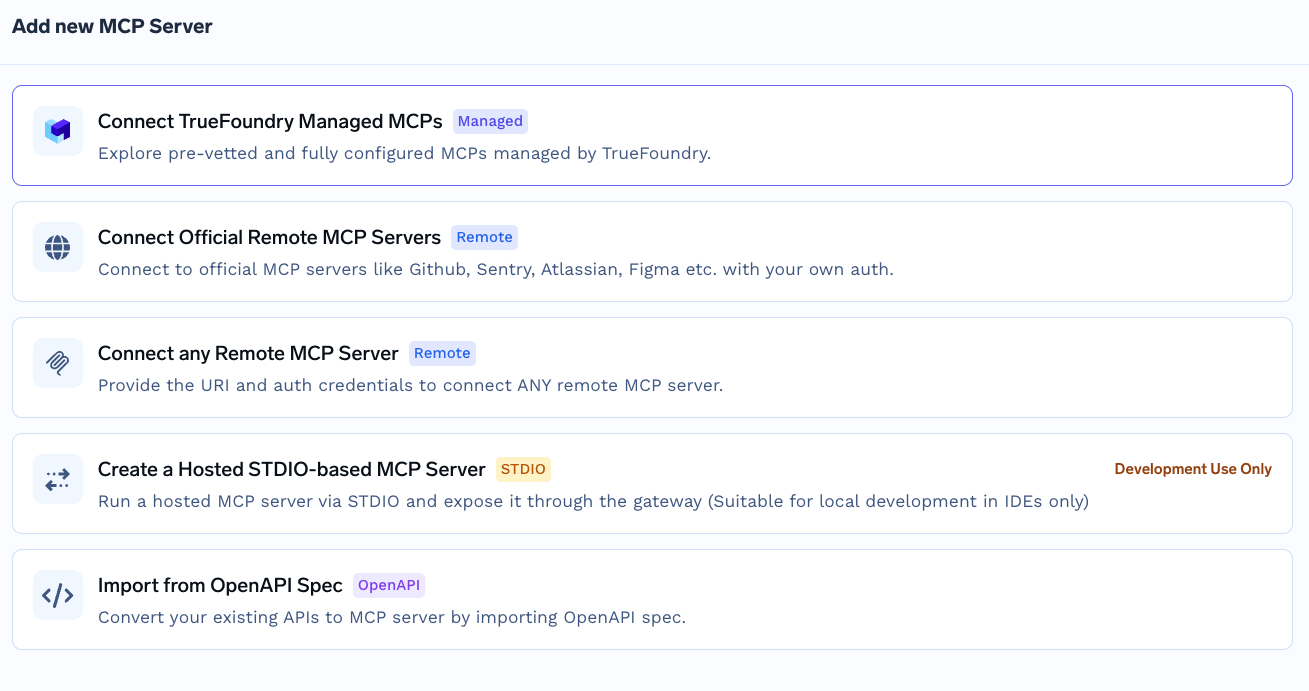
This is not the TrueFoundry Managed MCP catalogue flow, where you supply only a name and the platform owns every field. Atlassian takes explicit values, because the trust relationship came from the allowlist rather than from platform-held credentials.
Step 2 — Configure the server. Use these values:
Turn on Auth Data and select the OAuth2 tab. Because your domain is allowlisted, you do not need a client ID or secret — leave them empty.
Step 3 — Add collaborators. Add the users or teams that should use Atlassian tools. Assign MCP Server Manager to administrators and MCP Server User to consumers.
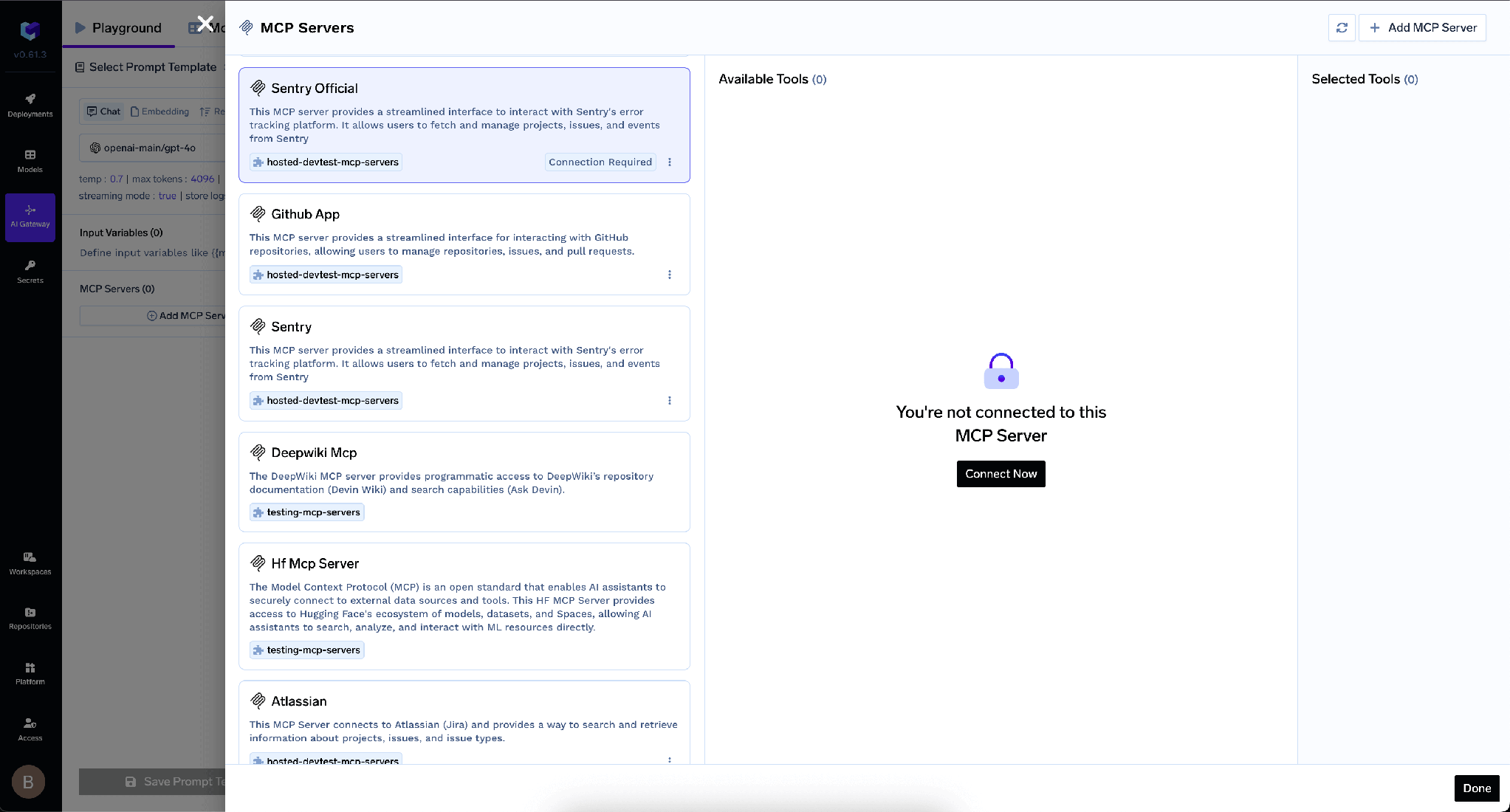
Step 4 — Save and authorize. Click Add MCP Server. Each user then opens the server’s Tools section and clicks Connect Now to complete Atlassian OAuth. Tools then appear and can be tried from the Agent Playground.
TrueFoundry separates inbound authentication — how a client proves itself to the gateway — from outbound, how the gateway proves itself to Atlassian. The layers are independent.
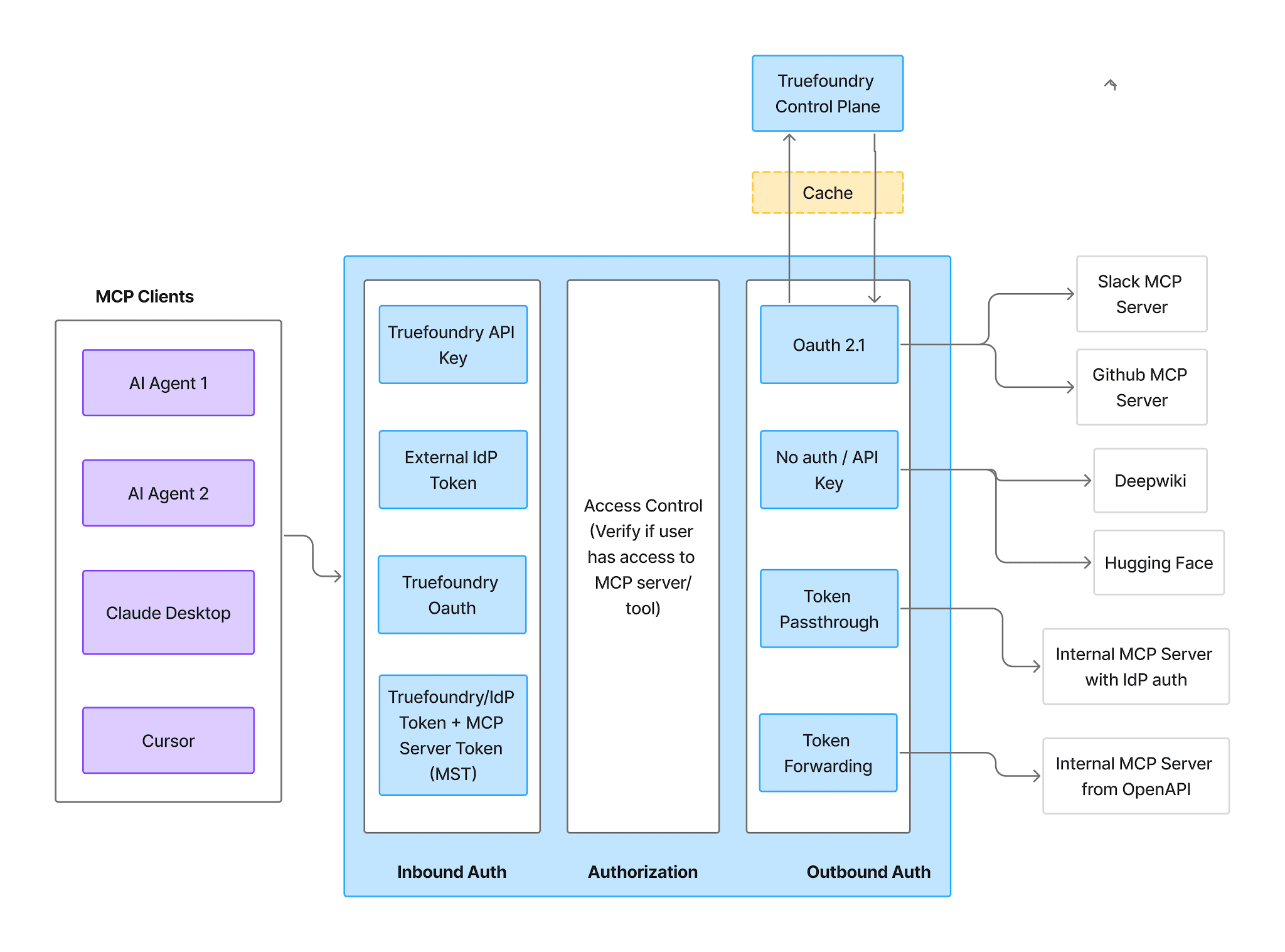
Inbound — four supported methods:
One caveat matters especially here: Virtual Account tokens give every request identical access, so they cannot express per-user Atlassian permissions — they collapse your whole permission model into whatever that one identity can reach. Use a PAT or IdP token inbound.
Outbound — for Atlassian this is OAuth2. Each user authorizes their own account through Connect Now, and TrueFoundry manages consent, token storage, and refresh, injecting tokens per user on every call. TrueFoundry never receives Atlassian credentials.
The practical effect, stated plainly in the docs: each user operates with their existing Jira, Confluence, and Compass permissions. No shared service account holds tenant-wide Confluence read access, and when someone’s Atlassian access is revoked, their agent’s reach dies with it.
Users authenticate twice — gateway, then Atlassian. That’s what makes per-user attribution possible.
The Tools tab lists everything the server exposes.
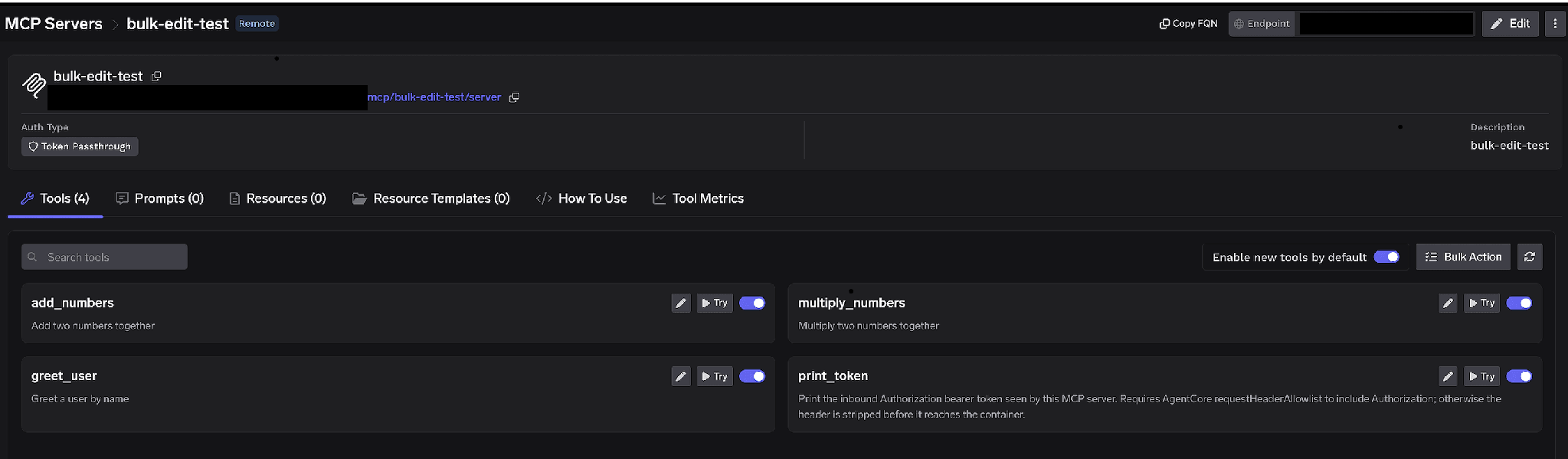
Per-tool toggles. Turn a tool off and it’s omitted from tools/list entirely — clients never see it and it cannot be invoked. This is not prompt-layer filtering. Changes save immediately with a Tool settings updated toast.
For Atlassian, the highest-value move is usually not “disable all writes.” It’s disabling the Confluence tools for agents that only work in Jira. A sprint-triage agent needs Jira search and issue reads, not the ability to search every Confluence space in the tenant — and a tool it cannot call is one no poisoned issue description can talk it into calling.
Enable new tools by default. This decides what happens when Atlassian ships a new tool. Left on, new tools appear automatically and your capability surface grows on its own. Turned off, only tools you explicitly enabled are available. For a server spanning three products with different sensitivity profiles, off is safer.
Bulk Action. Switches every row to checkboxes with Select all, for standing up a curated allowlist fast.
Click the pencil on any tool to override how it’s presented to the model:
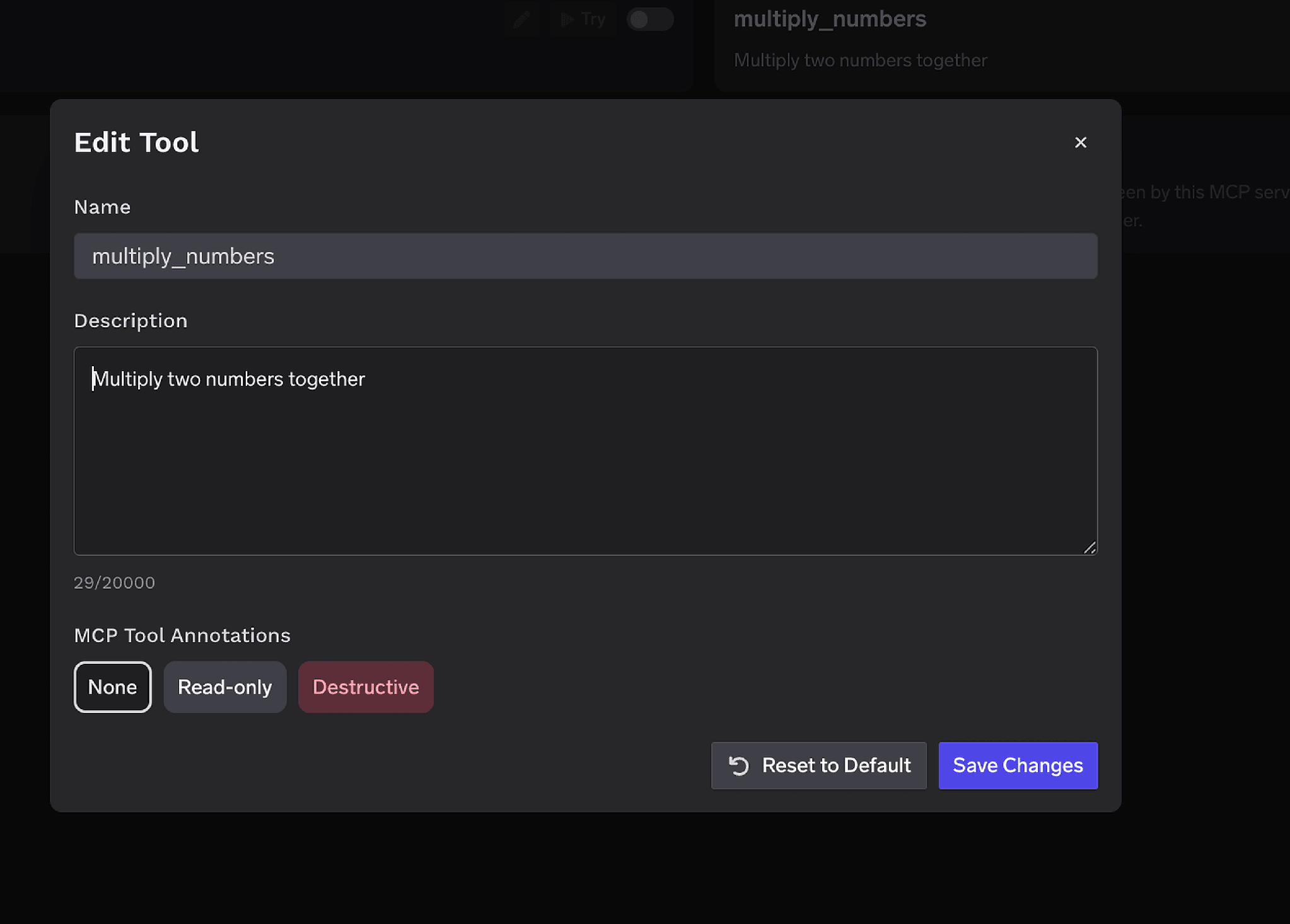
The Description override (up to 20,000 characters) steers tool selection when upstream wording is ambiguous — useful across Jira and Confluence, where “search” means two things. MCP Tool Annotations mark a tool Read-only or Destructive, setting readOnlyHint or destructiveHint. Annotating correctly is what lets the approval policies below gate a whole class of tools without naming each one.
Access control attaches to users, teams, or virtual accounts, on two dimensions: which servers an identity can reach, and which tools it can invoke.
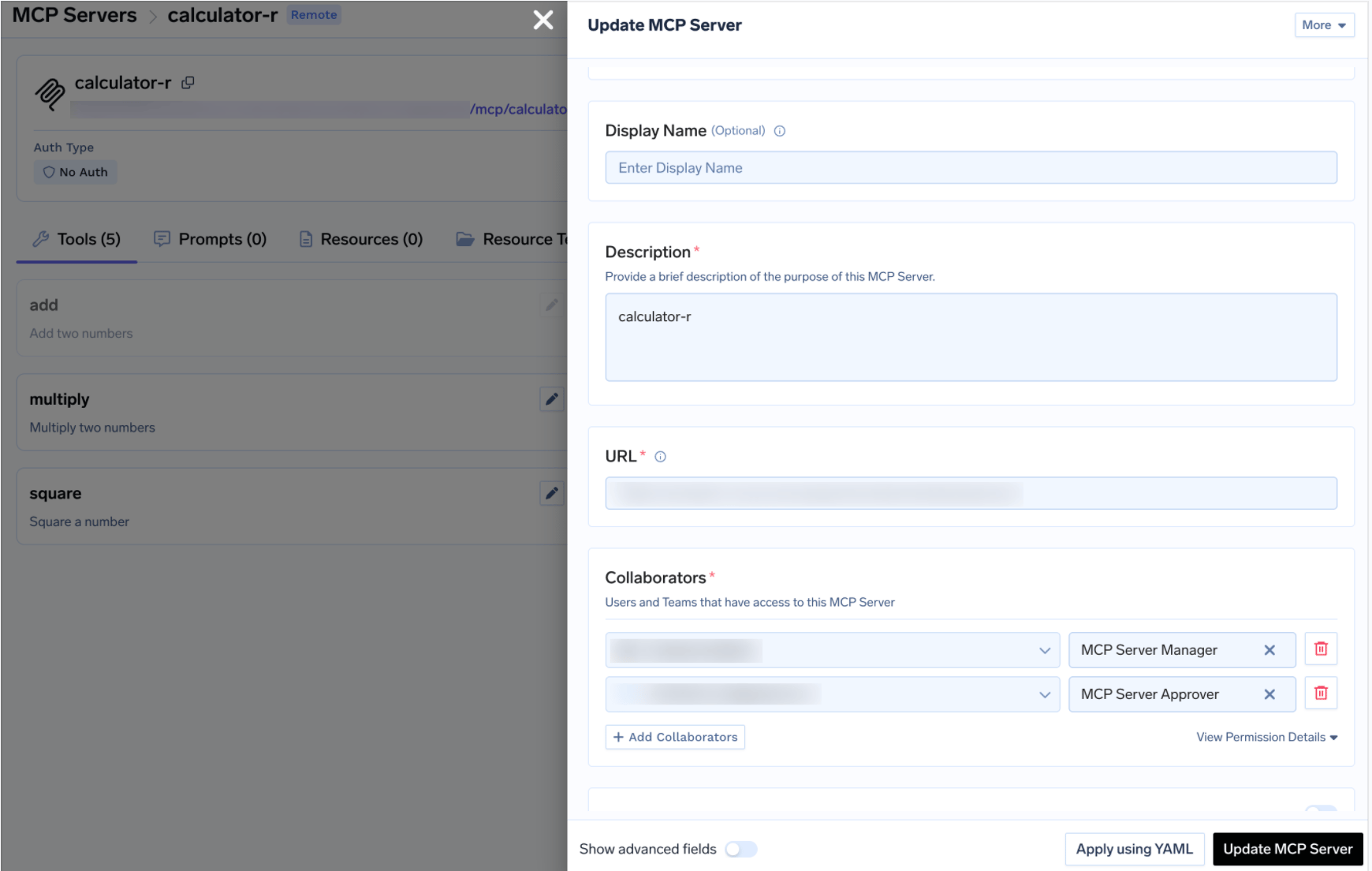
Disabling tools is blunt. Sometimes you want an agent to create a Jira ticket — just not unattended. That’s what tool approval policies are for.
When a gated tool is called, the call is held rather than executed, a request is created in pending state, and approvers are notified. Repeat calls from the same requester reuse that request. Once approved, calls succeed for a configurable window.
Create a policy under AI Gateway → Policies → MCP Tool Approval (marked Beta in the console):
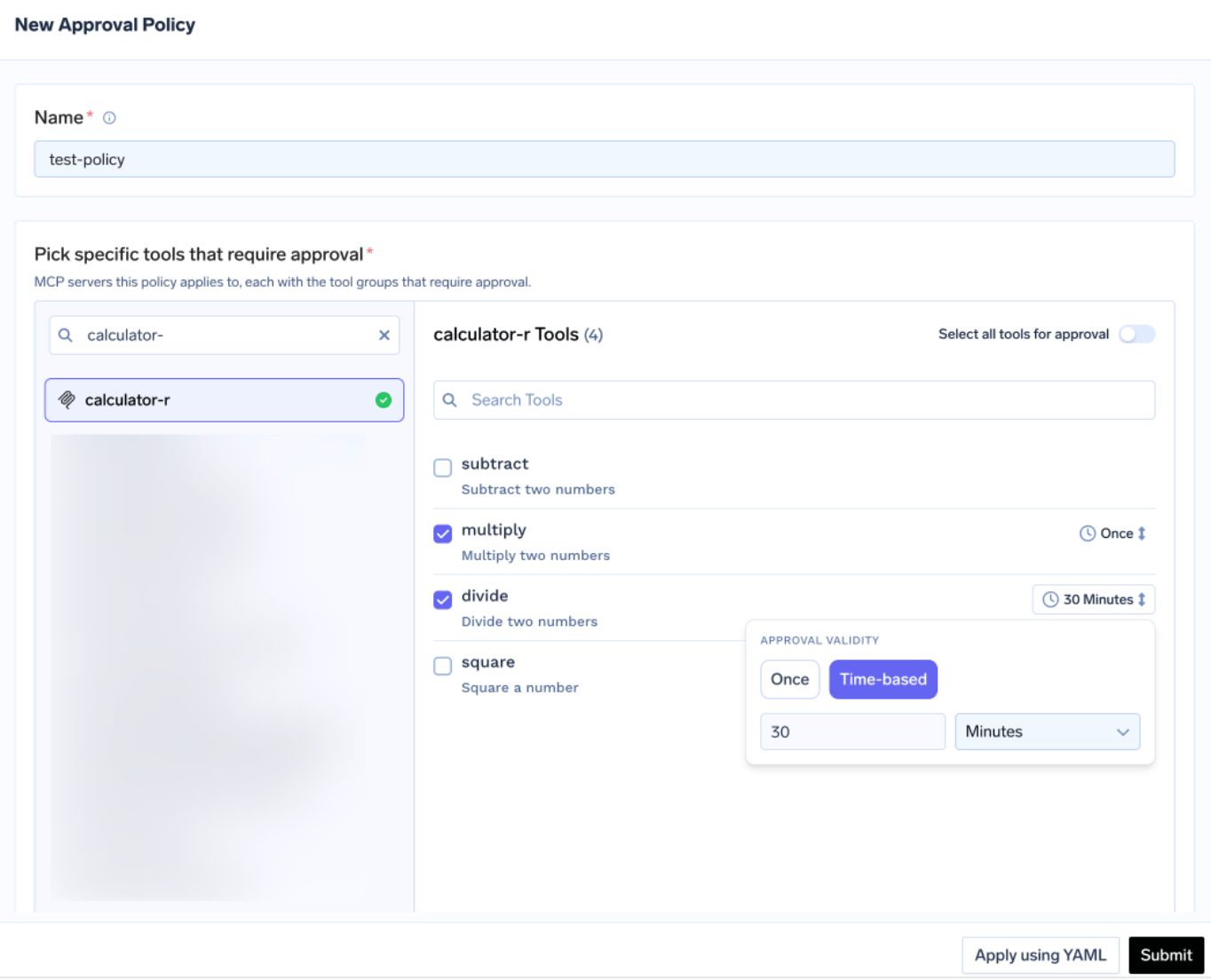
Each policy names the servers it gates and picks an approval scope:
Mark the write-capable Atlassian tools Destructive once and gate the class with approval_scope: destructive. When scopes overlap, the most specific wins: named > destructive > all.
Validity is Once (single execution) or time-based. When policies conflict, the most restrictive wins — Once beats a 10-minute window beats a 30-minute window.
Approvers are notified over Email, Slack, PagerDuty, or MS Teams and review in the console:
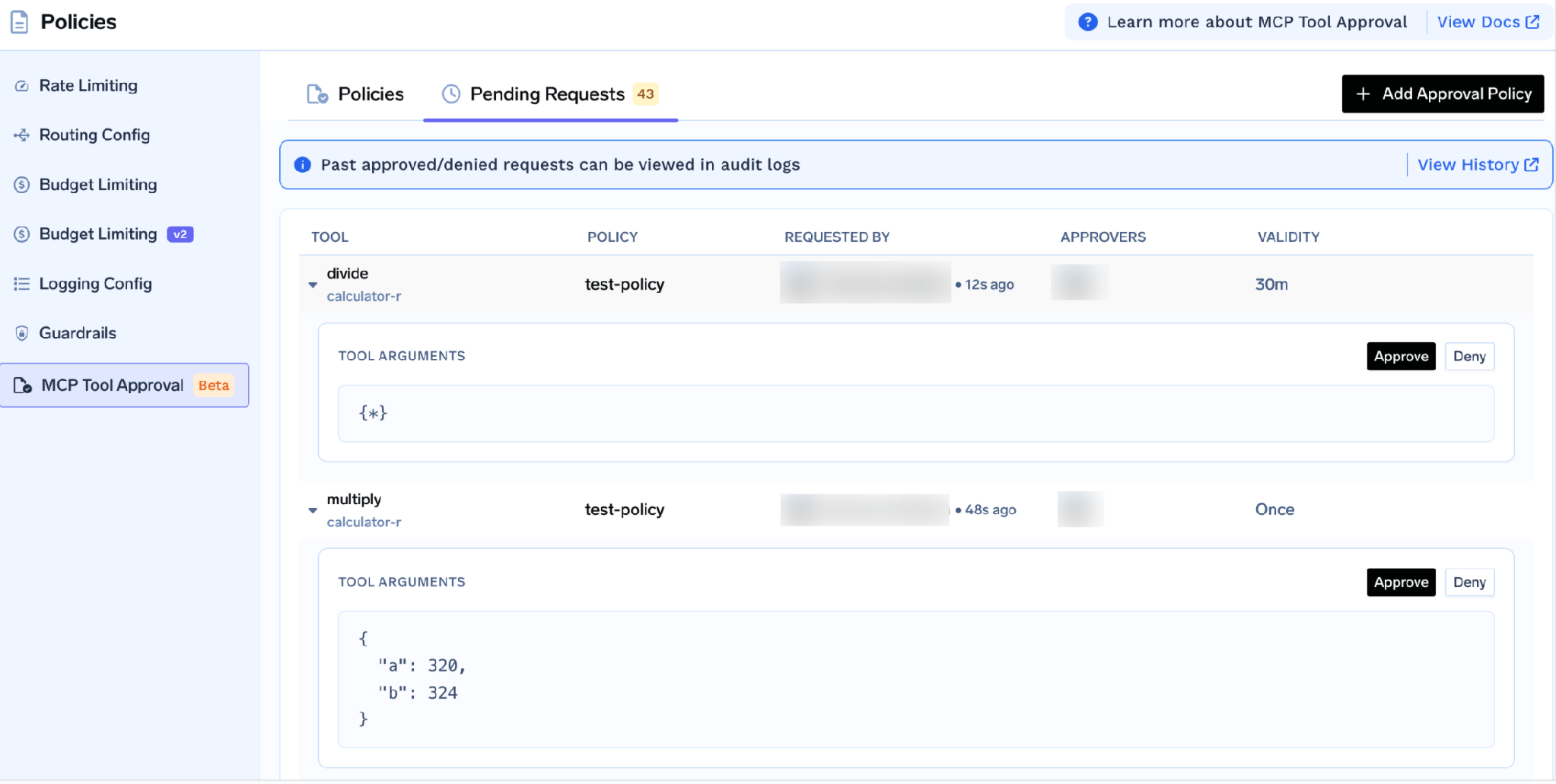
Each request shows the tool, policy, requester, approvers, validity window, and the actual tool arguments — so an approver can read the ticket body an agent is about to file before waving it through. While pending, the caller gets a JSON-RPC result carrying _meta.approval_status: "pending" rather than an error, so a well-behaved agent waits and retries instead of crashing.
Grants are scoped per requester, so approving for one engineer doesn’t approve for the team, and a denial doesn’t permanently block anyone — the next call raises a fresh request. Note the docs’ warning too: if a server named by a policy has no MCP Server Approver collaborators, only tenant admins can approve.
Before pointing an agent at it, test tools by hand. Click Try next to any tool, fill in the parameters, and read the response. Try is disabled for tools you’ve turned off. Authorized tools can also be exercised from the Agent Playground.
This catches the boring failures early — a Confluence space the user can’t see, a wrong Jira project key. It’s also where an IP-allowlisting problem shows itself: OAuth completes, tools list, every call fails.
Open the How To Use tab for your tenant-specific Gateway URL and ready-to-paste snippets.
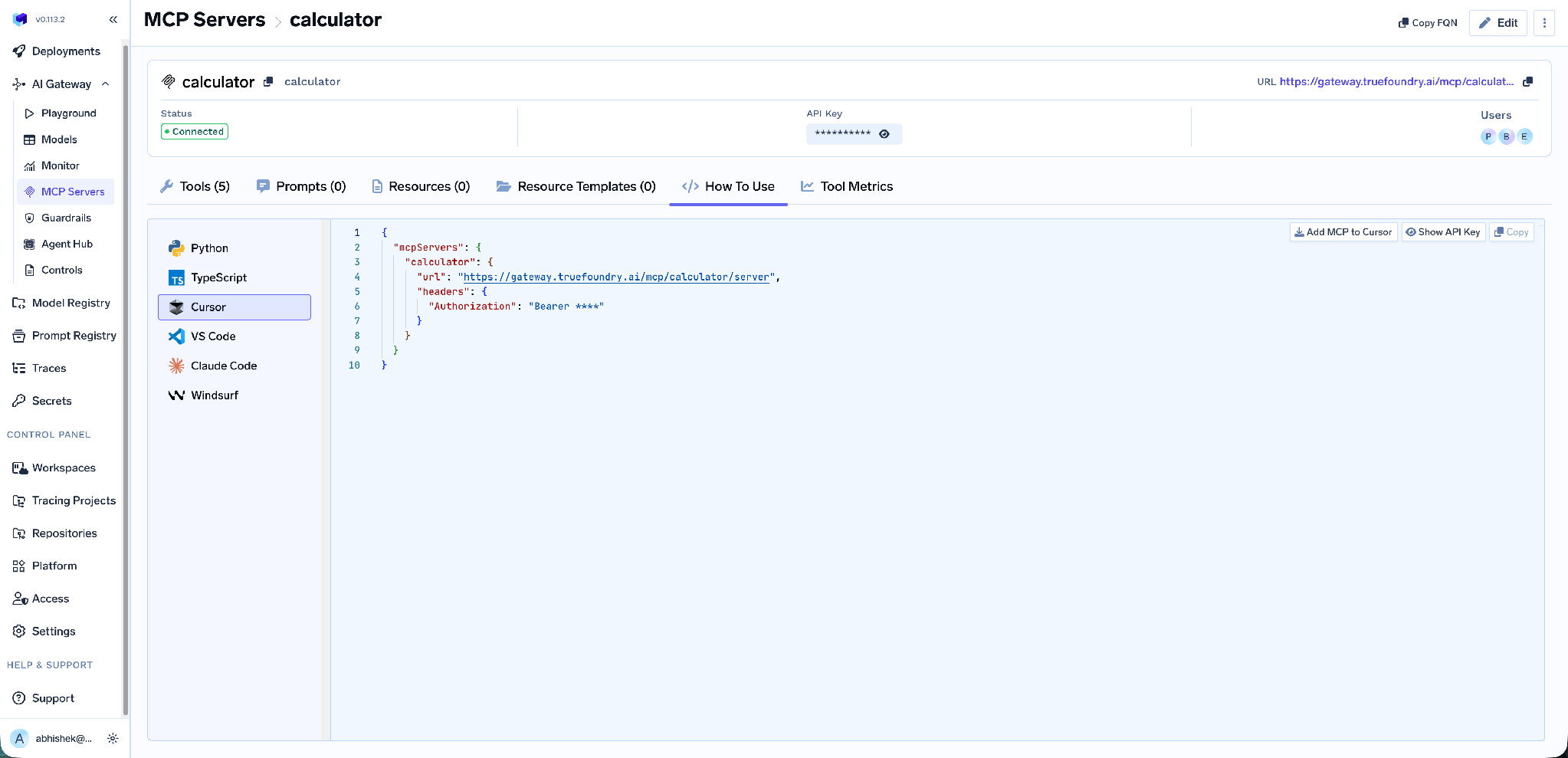
How To Use tab showing client snippets for Python, TypeScript, Cursor, VS Code, Claude Code and Windsurf, with Add MCP to Cursor and Show API Key buttons
It covers Claude Code, VS Code, Claude Desktop, Cursor, Windsurf, and the Python and TypeScript MCP SDKs. Add MCP to Cursor writes the config; Show API Key reveals the token if your client needs one in a header. If no key appears, your platform version supports the OAuth flow and Cursor handles it.
Take the URL from this tab rather than assembling it — a hand-built endpoint is the most common cause of a client that connects but lists no tools.
Tool-level metrics. The MCP Metrics dashboard breaks down requests per second, latency at P50/P75/P90/P99, failure rate by error type, and a ranked request count per tool.
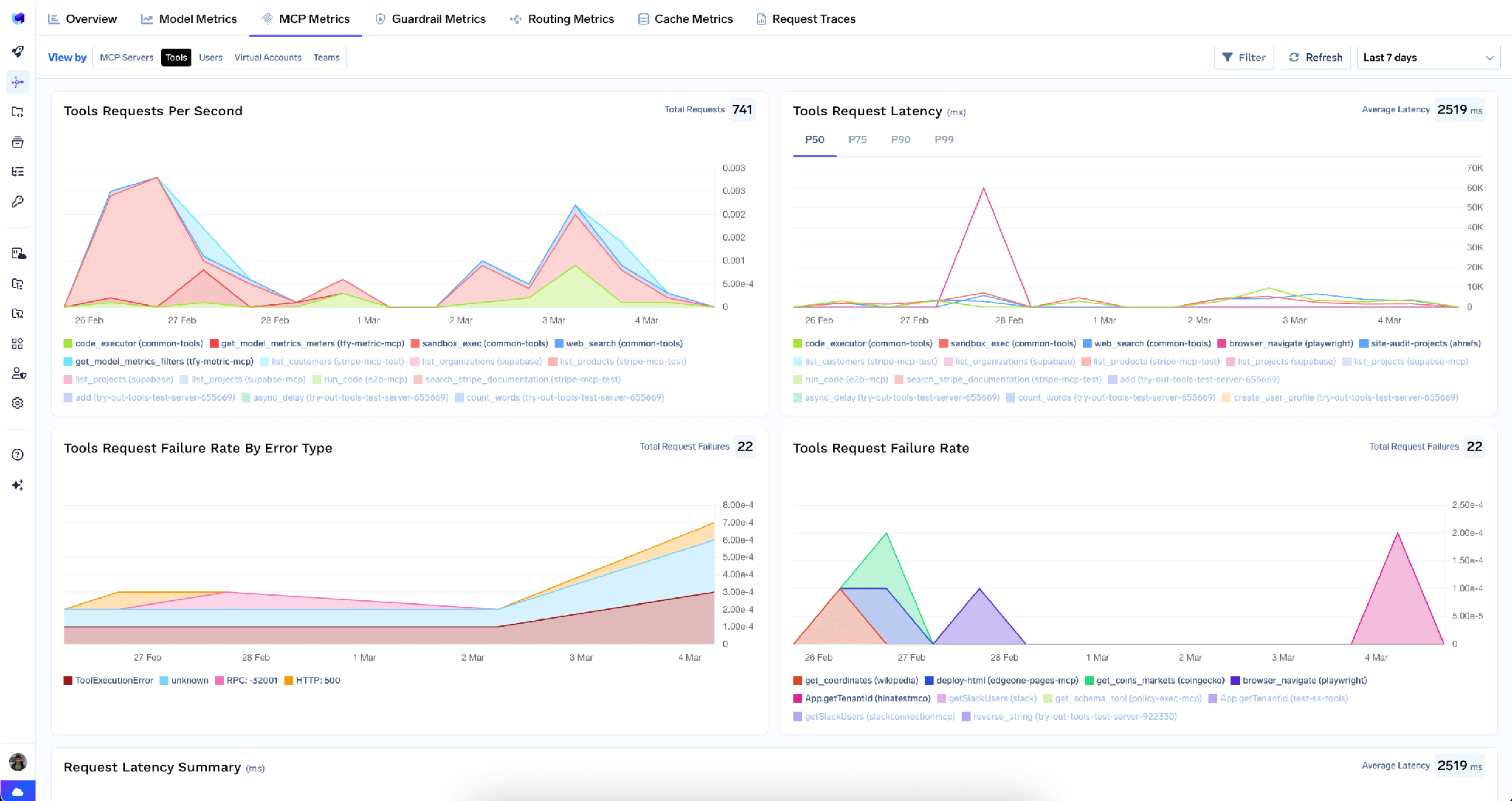
This is how you find out a triage agent runs Confluence search forty times per ticket. An MCP Method Calls Breakdown splits tools/list from tools/call.
Full-request observability. Every call is traced with caller identity, tool name, inputs, and latency, exported over OpenTelemetry into Grafana, Datadog, or Prometheus. For an integration that reads internal documents, “which user’s agent read which page, on whose prompt” is the record you want before someone asks.
Guardrails. Pre-tool and post-tool guardrails run policy on MCP tool calls — catching a credential pasted into a Confluence page before it reaches the model.
Low overhead. The gateway adds roughly 3–4 ms of latency and handles 350+ RPS on a single vCPU.
One registry. With several servers registered you can bundle a curated tool subset behind one endpoint with a Virtual MCP Server — so an incident agent gets exactly the Jira, Compass, and Slack tools it needs.
Two independent revocation paths.
At Atlassian: remove the TrueFoundry domain from Allowed domains. This revokes new OAuth connections org-wide, outside the gateway.
At the gateway: tenant admins can wipe every stored credential from the three-dot menu next to Edit.
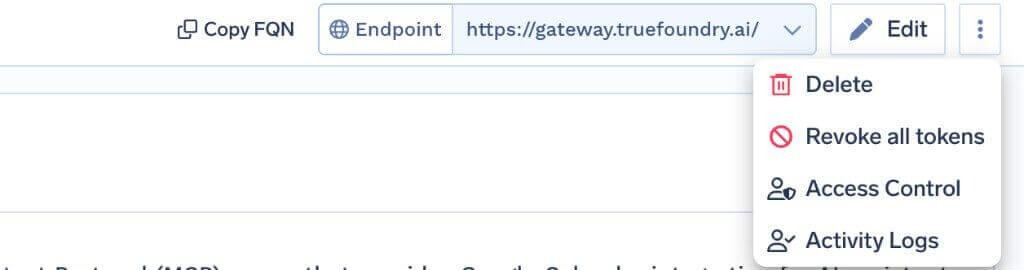
Revoke all tokens deletes every auth override and stored OAuth token for all users and virtual accounts on that server, takes effect on the next request, and is recorded in Activity Logs. It’s irreversible — everyone re-runs consent. Only tenant admins see it.
One limit: it clears tokens at the gateway only, not the grant at Atlassian. In a real incident, do both.
The allowlist blocks you before anything else does. If Connect Now fails with what looks like a generic OAuth error, check Apps → AI settings → Rovo MCP server → Allowed domains first. No gateway-side change fixes this one.
Empty OAuth client fields are correct. Because Atlassian does dynamic client registration for allowlisted domains, there’s no client ID or secret. Teams used to the standard remote-MCP flow — create an OAuth app, set the callback to https://<tfy-control-plane-base-url>/api/svc/v1/llm-gateway/mcp-servers/oauth2/callback, paste credentials — go looking for that step. There isn’t one.
IP allowlisting fails differently. If Atlassian IP allowlisting is on and TrueFoundry’s egress isn’t allowed, OAuth succeeds and tool calls fail. The symptom looks like auth; the fix is network.
The Atlassian MCP server is unusual in that its hardest dependency is administrative, not technical. You cannot connect it until an org admin allowlists your domain — and that same allowlist is the cleanest off-switch these integrations give you. Teams that treat it as a nuisance get blocked at setup; teams that treat it as a control write down who owns it and move on.
The second thing to get right is scope, and here Atlassian differs from a code host. Confluence holds the writing companies would least like paraphrased into a chat window by an agent that was only meant to file tickets. Per-user OAuth gets you the permission floor; turning off the tools an agent has no business calling gets you the ceiling.
TrueFoundry AI Gateway delivers ~3–4 ms latency, handles 350+ RPS on 1 vCPU, scales horizontally with ease, and is production-ready, while LiteLLM suffers from high latency, struggles beyond moderate RPS, lacks built-in scaling, and is best for light or prototype workloads.

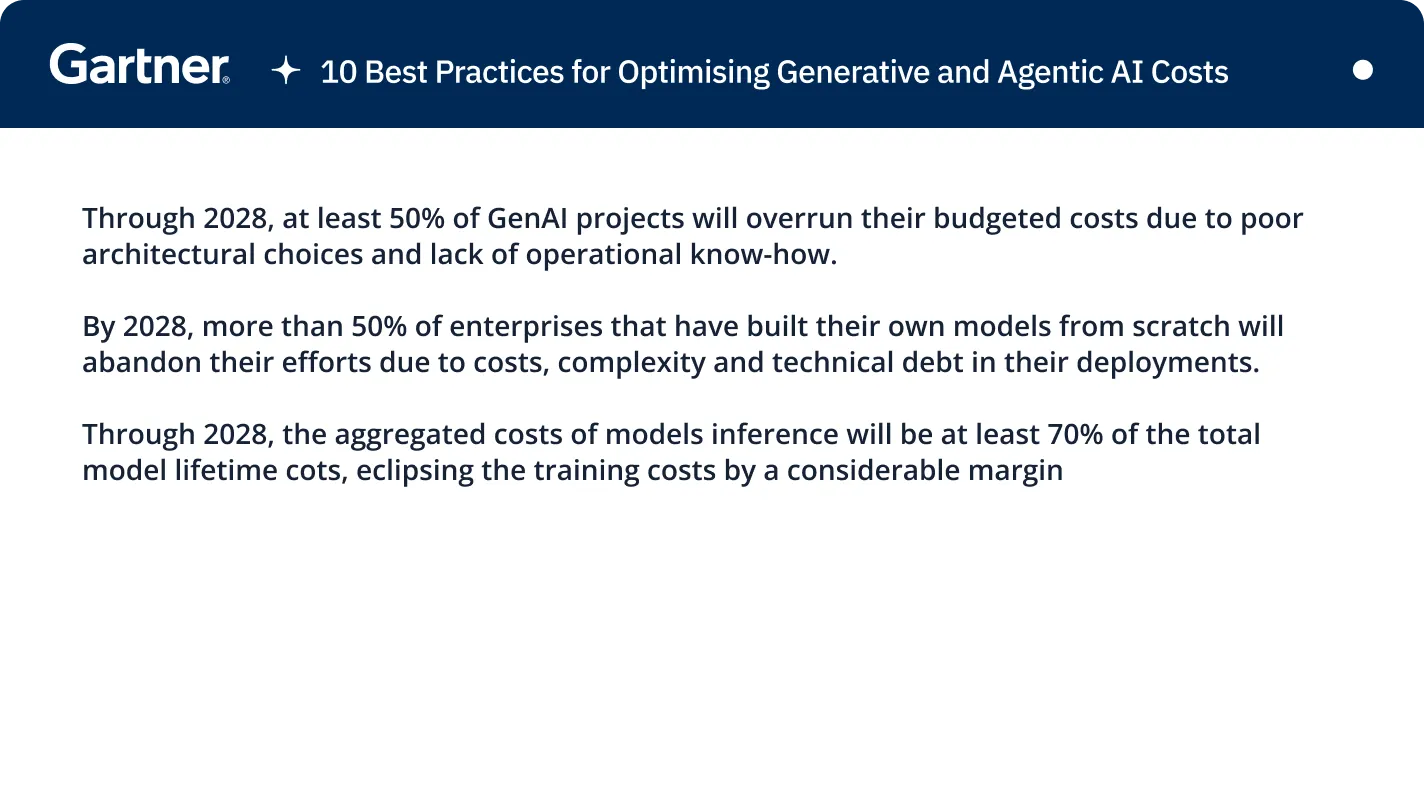

Atlassian’s Rovo MCP server — a remote Model Context Protocol server at https://mcp.atlassian.com/v1/mcp exposing Jira, Confluence, and Compass as tools an agent can call: searching issues, reading pages, creating tickets. It uses OAuth2, and an org admin must allowlist your connecting domain first.
Two phases. An org admin adds your TrueFoundry control plane domain under Apps → AI settings → Rovo MCP server → Allowed domains. Then in TrueFoundry open MCP Gateway → Add MCP Server → Atlassian, set the URL to https://mcp.atlassian.com/v1/mcp and authentication to OAuth2 (no client ID or secret), add collaborators, save, and have each user click Connect Now.
Yes. Each user operates with their existing Jira, Confluence, and Compass permissions, so an agent acting for someone sees exactly what that person can see. That’s the floor, not the ceiling — narrow further with per-tool toggles and approval policies.
Yes. TrueFoundry runs in your VPC, on-prem, air-gapped, or hybrid, so prompts and responses never leave your domain even as you route across many providers.
Yes. It includes an MCP Gateway, an Agent Gateway, and an MCP & Agents Registry with tool-level access control. Agents on LangGraph, CrewAI, AutoGen, or a custom framework can all be governed centrally.
Yes. The gateway is OpenTelemetry-compliant and plugs into Grafana, Datadog, Prometheus, or your preferred stack. It traces every request from prompt to tool and model execution, so you get unified logging without ripping out what you already run.



The latest news, articles, and resources sent to your inbox
.png)
.png)
.png)
.png)
.png)
.png)
.png)
.webp)
.webp)