What is PromptLayer?
PromptLayer is an LLM observability and prompt management platform that accepts OpenTelemetry traces over OTLP/HTTP. It ingests GenAI-standard OTLP spans and converts them into structured trace views, request logs, and analytics dashboards for monitoring and debugging LLM workflows.Key Features of PromptLayer
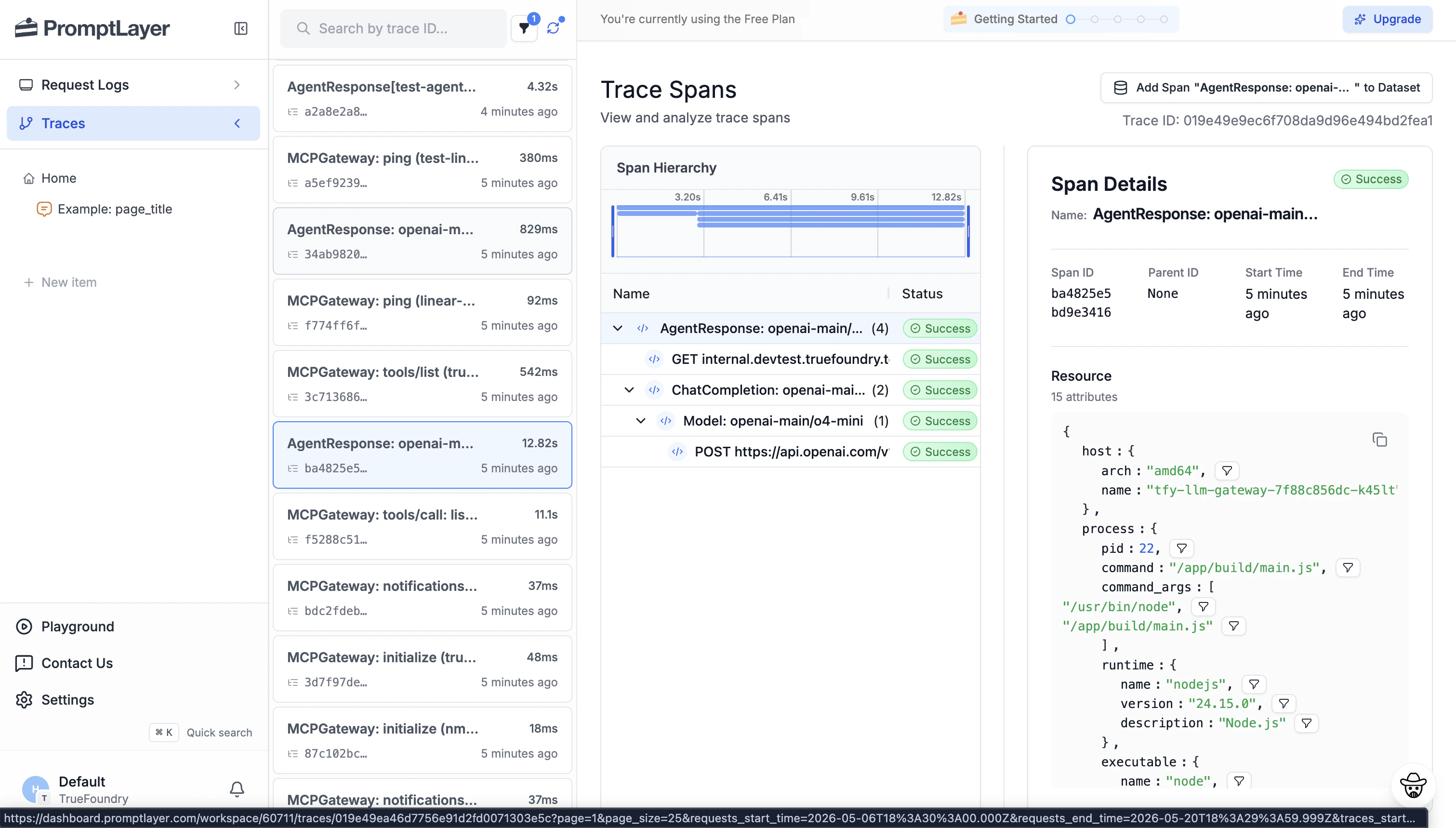
- Trace Observability: Ingests OTLP spans and renders them as LLM call traces with inputs, outputs, token usage, and model metadata — visible under the Traces section of the dashboard.
- Prompt Management: Version-controlled prompt registry that links deployed prompts to observed traces for side-by-side comparison and evaluation.
- Analytics & Evaluation: Aggregated dashboards for latency, cost, and quality across LLM providers and prompt versions.
Prerequisites
Before integrating PromptLayer with TrueFoundry, ensure you have:- TrueFoundry Account: Create a TrueFoundry account and follow the instructions in our Gateway Quick Start Guide.
- PromptLayer Account: Sign up at promptlayer.com and have access to your workspace to retrieve an API key.
Integration Steps
1
Get Your PromptLayer API Key
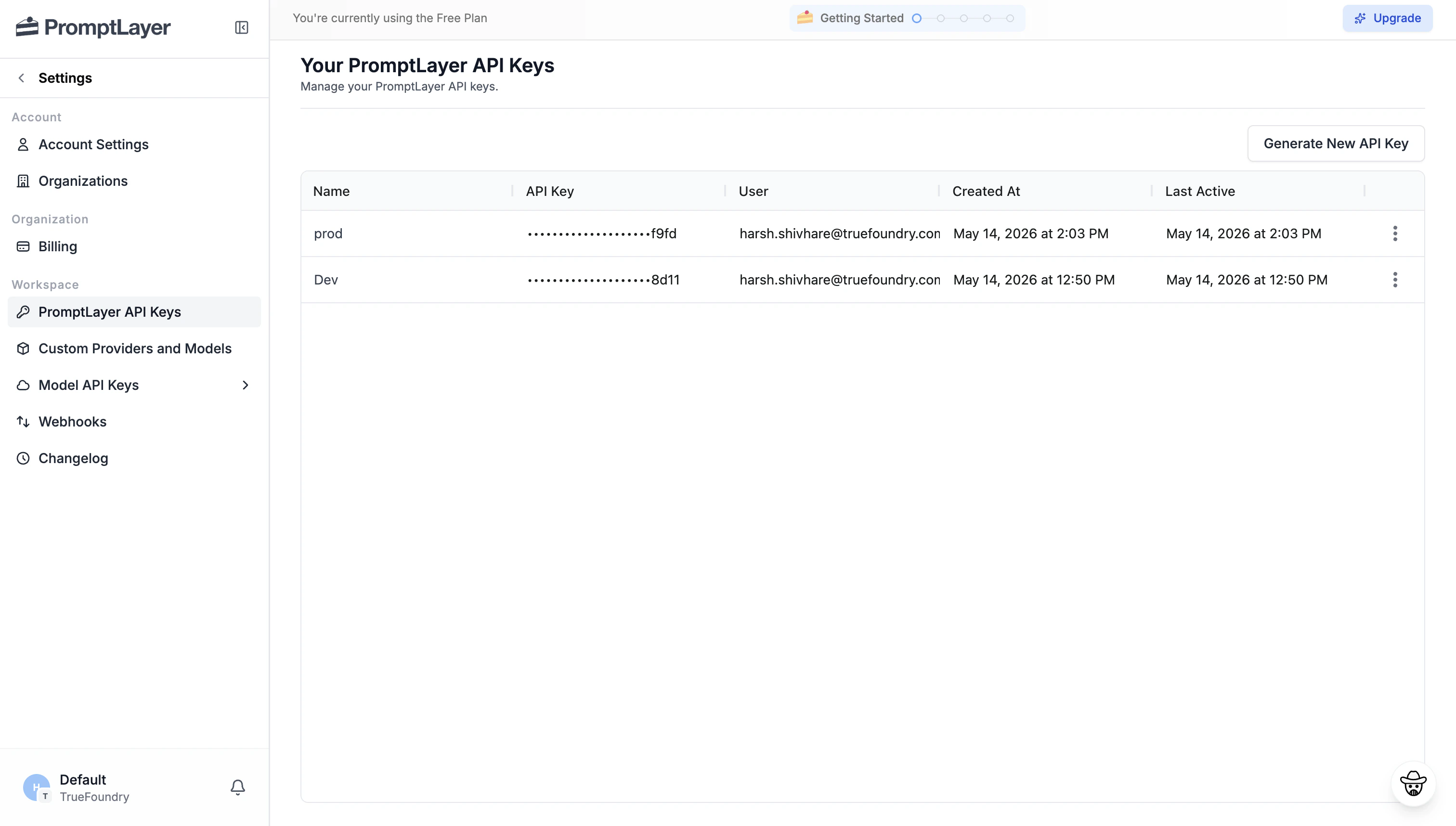
- Log into your PromptLayer workspace.
- Click Settings in the bottom-left sidebar.
- Select PromptLayer API Keys under the Workspace section.
- Click Generate New API Key and copy the key.
2
Configure OTEL Export in TrueFoundry
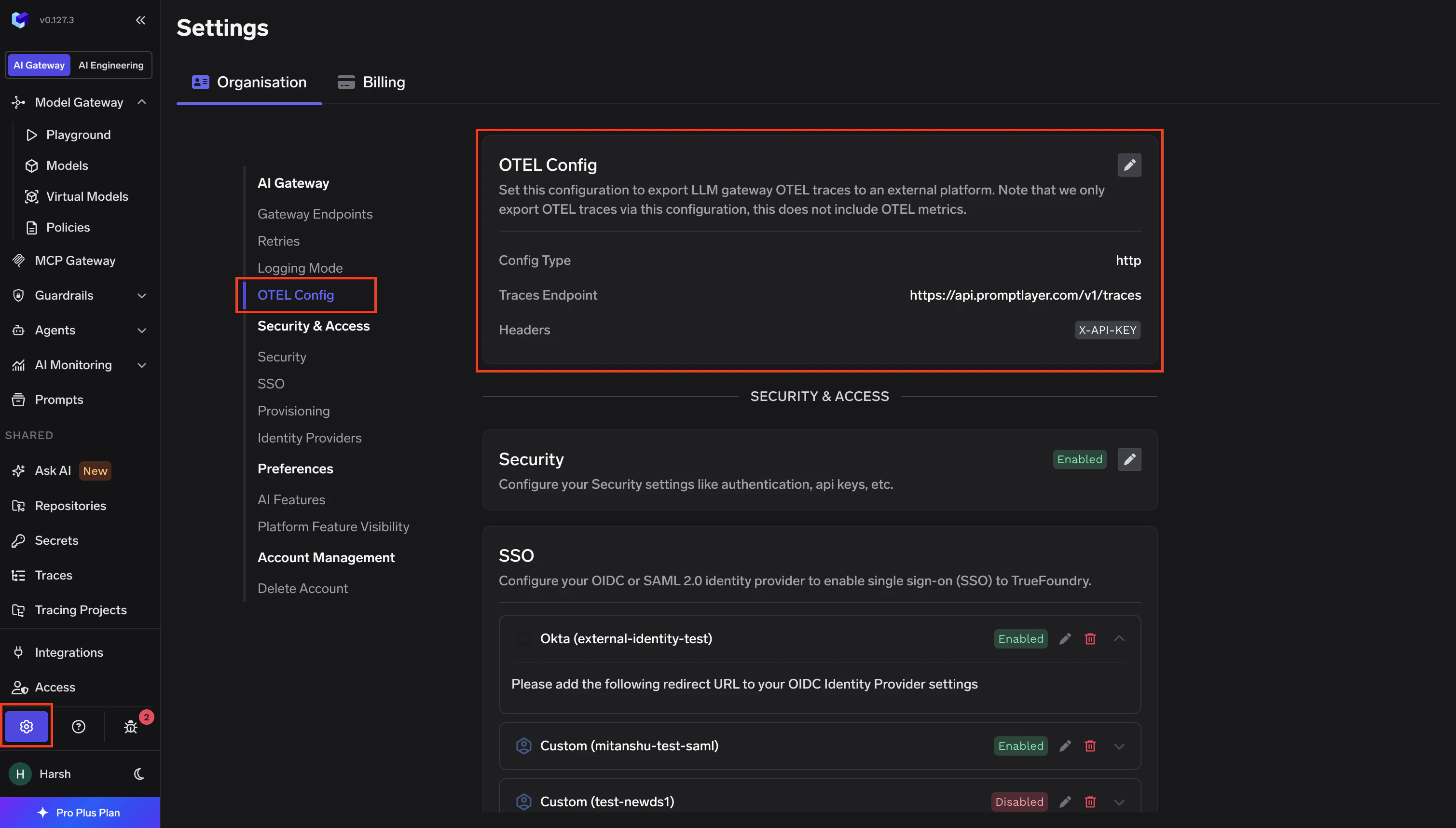
- Go to AI Gateway → Settings in the TrueFoundry dashboard.
- Scroll down to the OTEL Config section and click the edit (✏️) button.
- Enable the Otel Traces Exporter Configuration toggle and fill in:
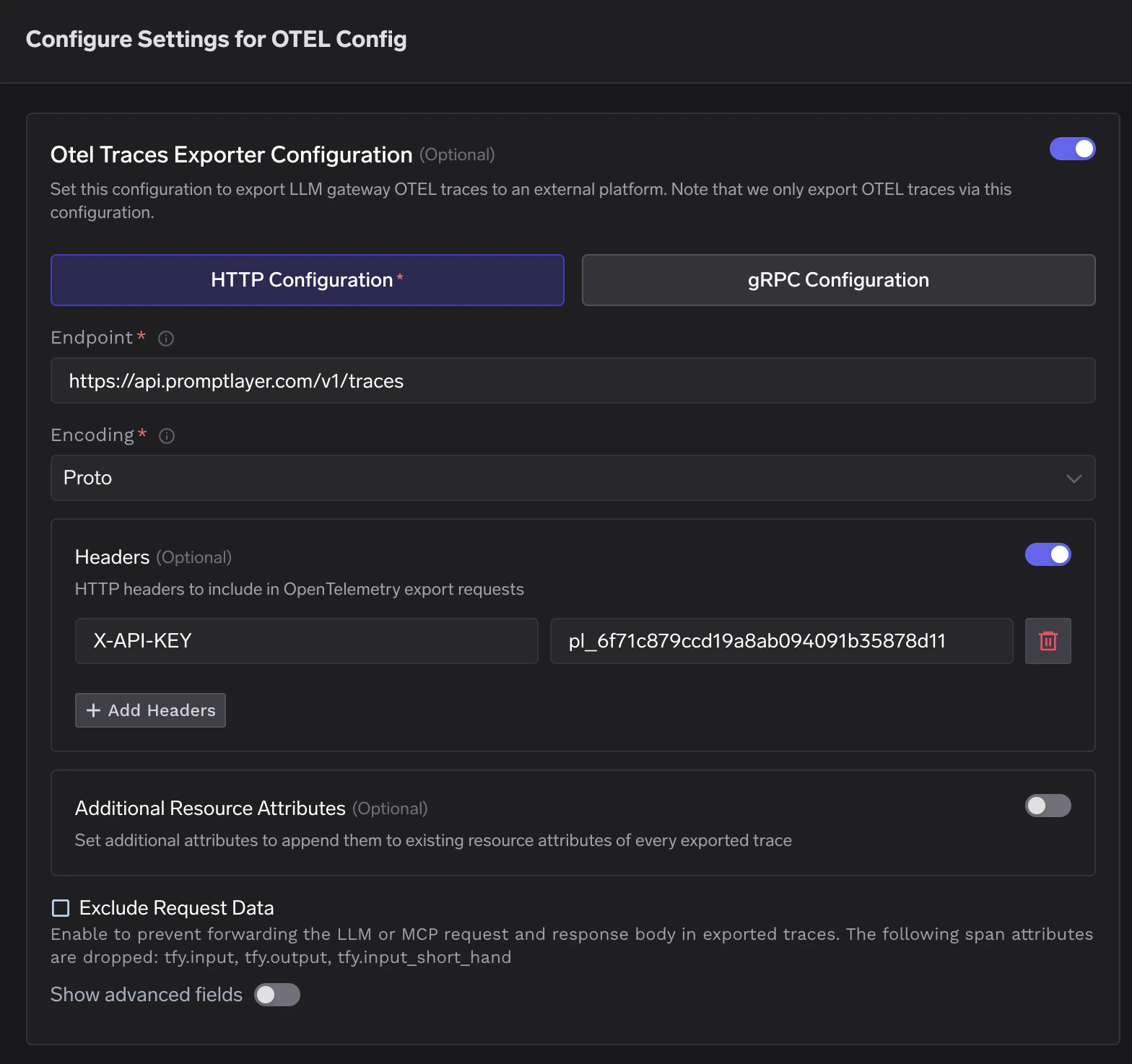
- Click Save to apply the configuration.
PromptLayer only accepts OTLP traces via its
/v1/traces endpoint. It does not expose an OTLP metrics ingestion endpoint, so the Metrics Exporter should be left disabled. Make sure the header key is entered as X-API-KEY in all caps — PromptLayer’s API enforces this exact casing.3
Verify the Integration
- Make a request through the TrueFoundry AI Gateway (via the Playground or any API call).
- Log into your PromptLayer dashboard and click Traces in the left sidebar.
- Confirm that spans from
tfy-llm-gatewayare appearing with the full span hierarchy — including model calls, MCP gateway spans, and HTTP calls.