

What is Last9?
Last9 is a modern observability platform that provides high-performance telemetry data management for logs, metrics, and traces. It offers advanced capabilities for monitoring distributed systems at scale with cost-effective data handling.Key Features of Last9
- High-Cardinality Handling: Process and analyze high-cardinality data without performance degradation or excessive costs
- Unified Telemetry: Correlate logs, metrics, and traces in a single platform for comprehensive observability
- OpenTelemetry Native: Built with native OpenTelemetry support for seamless integration with modern observability stacks
Prerequisites
Before integrating Last9 with TrueFoundry, ensure you have:- TrueFoundry Account: Create a TrueFoundry account and follow the instructions in our Gateway Quick Start Guide
- Last9 Account: Sign up for a Last9 account
Integration Guide
TrueFoundry AI Gateway supports exporting OpenTelemetry (OTEL) traces to external platforms like Last9. This allows you to leverage Last9’s powerful tracing and observability features while using TrueFoundry for unified LLM access.Step 1: Get Last9 Auth Token
- Log in to your Last9 dashboard
- Navigate to Integrations in the left sidebar
- Click Connect on the OpenTelemetry integration card
- In the integration guide panel, locate the Authentication with Authorization Header section
- Copy the Auth Header value (e.g.,
Basic dHJ1ZWZvdW5kcnk6...)
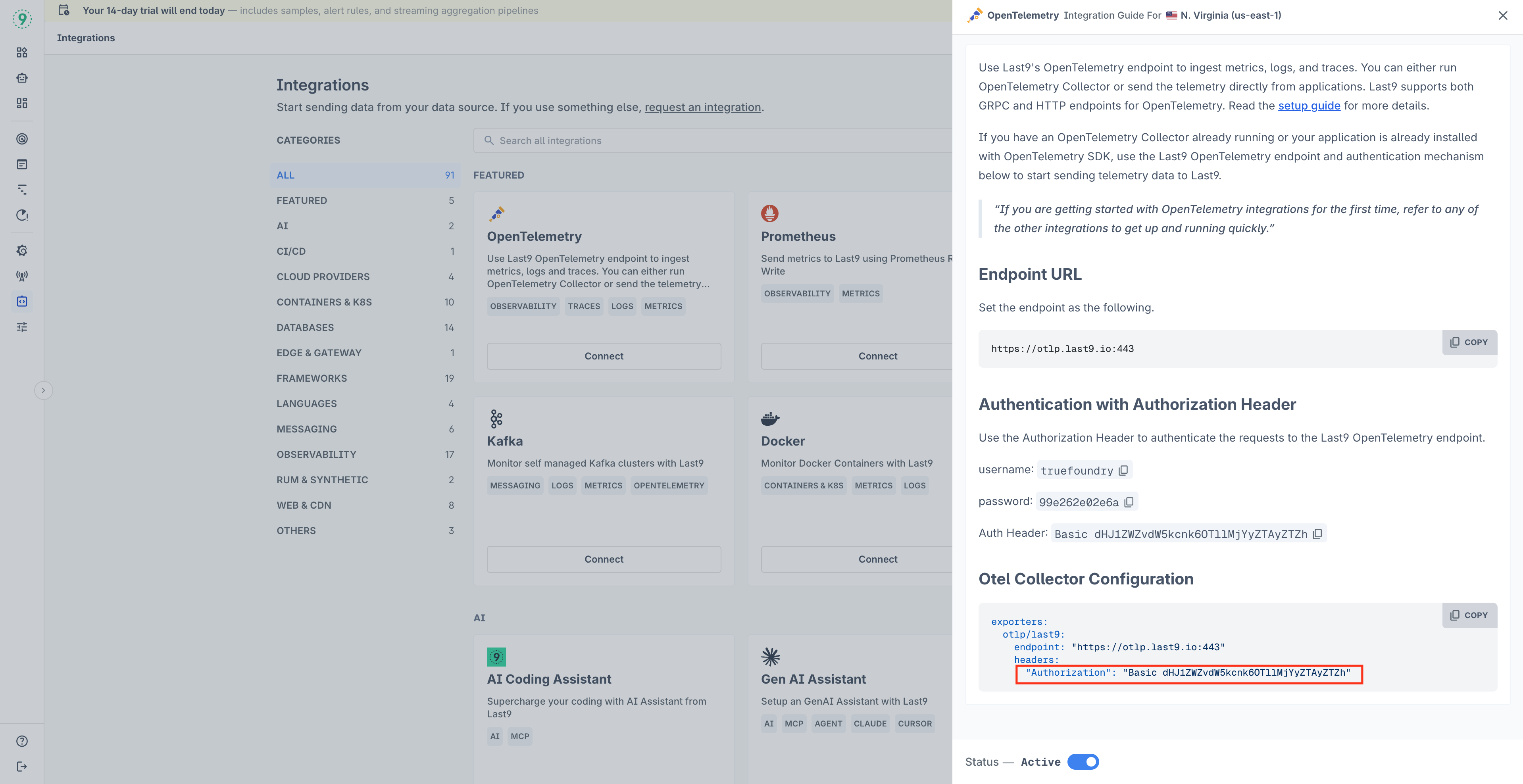
Last9 OpenTelemetry Integration page showing the Auth Header
Step 2: Configure OTEL Export in TrueFoundry
Navigate to the TrueFoundry AI Gateway OTEL configuration:- Go to AI Gateway → Controls → Settings in the TrueFoundry dashboard
- Scroll down to the OTEL Config section and click the edit button
- Enable the OTEL Traces Exporter Configuration toggle
- Select HTTP Configuration tab
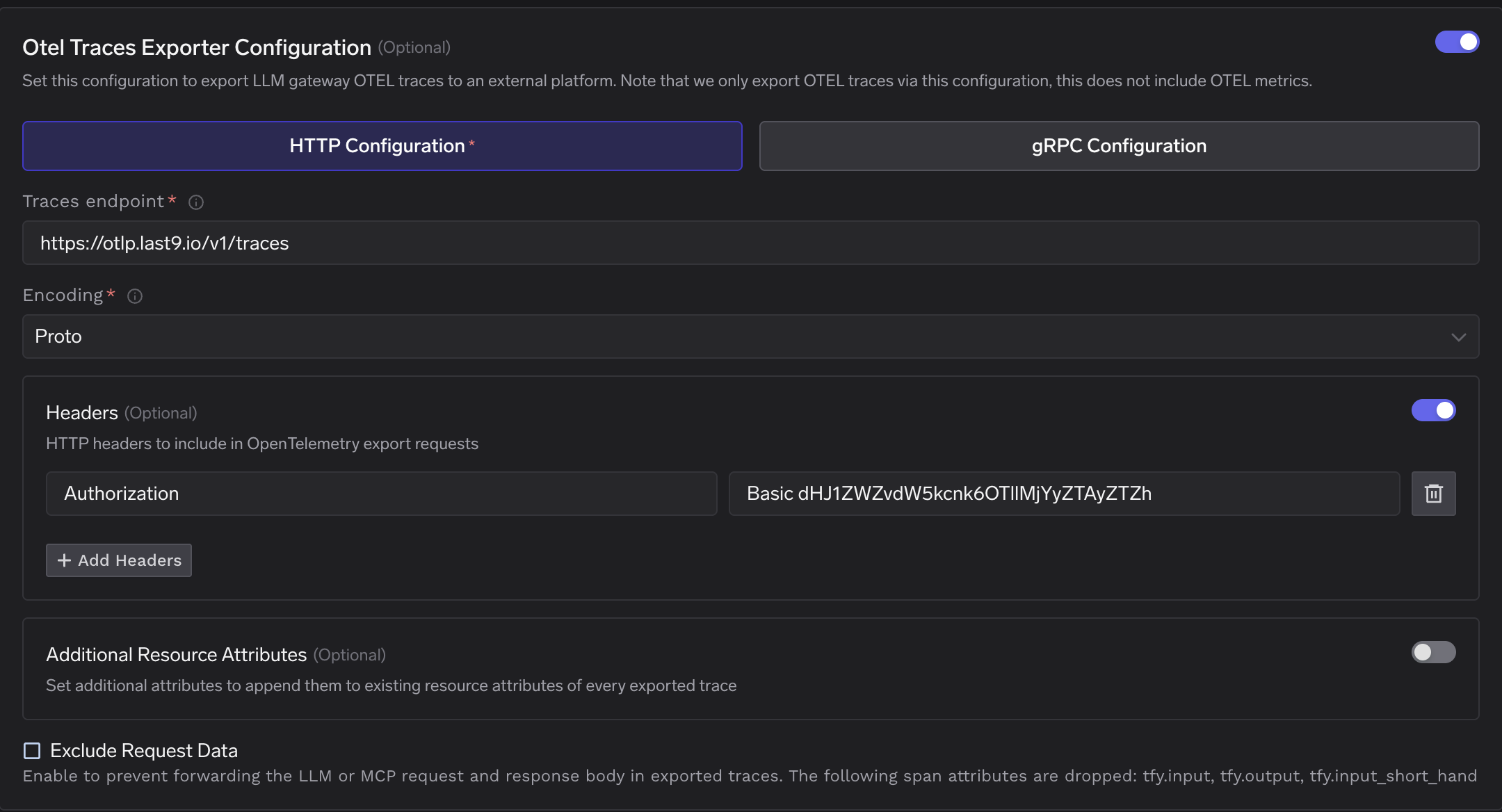
TrueFoundry OTEL Config for Last9 Integration
Step 3: Configure Last9 Endpoint
Fill in the following configuration:Step 4: Add Required Headers
Click + Add Headers and configure the following HTTP header:The Auth Header value from Last9 is already formatted correctly (e.g.,
Basic dHJ1ZWZvdW5kcnk6...). Simply copy and paste it directly.Step 5: Save Configuration
Click Save to apply the OTEL export configuration. All LLM traces from the TrueFoundry AI Gateway will now be automatically exported to Last9.Step 6: View Traces in Last9
After making LLM requests through TrueFoundry AI Gateway, log in to your Last9 dashboard to view the traces:- Navigate to the Traces section in Last9
- Filter by service name
tfy-llm-gatewayto view your LLM Gateway traces - Explore the traces including:
- Duration Heatmap: Visual representation of trace latencies over time
- Trace Details: Individual trace information with operation names, duration, and status
- Span Information: Detailed span data including HTTP calls, MCP operations, and LLM requests
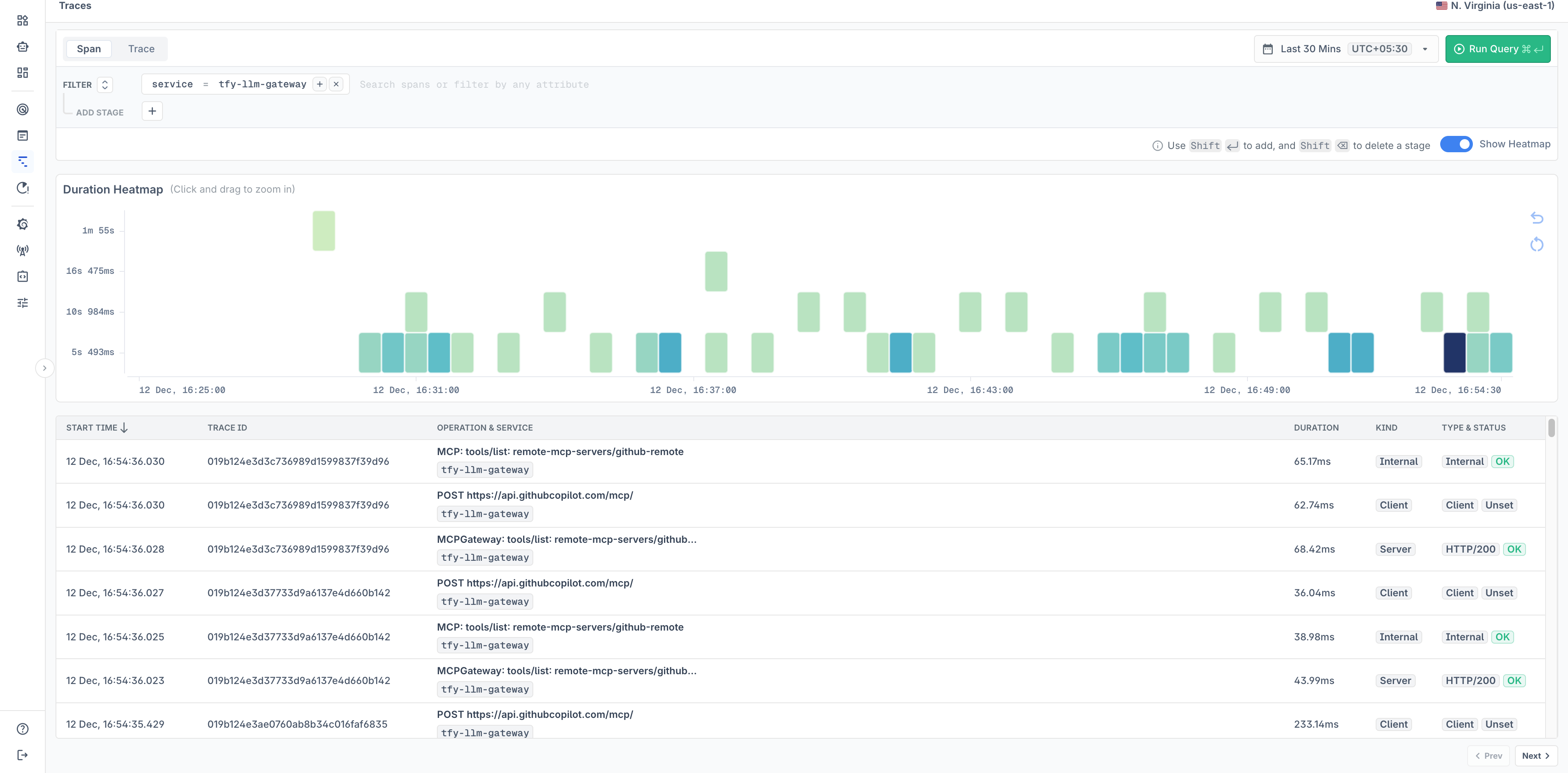
Last9 Traces Dashboard showing TrueFoundry AI Gateway traces