What is Splunk Observability Cloud?
Splunk Observability Cloud is Splunk’s SaaS platform for full-stack observability, including APM and distributed tracing. Sending gateway traces there lets you analyze latency, errors, and dependencies for LLM and tool calls alongside the rest of your stack.Key capabilities
- APM & distributed tracing: Explore end-to-end traces, service maps, and span details in Trace Analyzer
- OpenTelemetry ingestion: Ingest OTLP traces over HTTP using realm-specific ingest URLs and access tokens
Prerequisites
Before integrating Splunk Observability Cloud with TrueFoundry, ensure you have:- TrueFoundry account: Create a TrueFoundry account and follow our Gateway Quick Start Guide
- Splunk Observability Cloud org: Access to an org on Splunk Observability Cloud
- Access token: An org token (or equivalent) with permission to send trace data, used as the
X-SF-Tokenheader (created under Settings → Organization Settings → Access Tokens in the Splunk Observability UI)
The TrueFoundry OTEL Config export sends traces only for the AI
Gateway. It does not export OTEL metrics from this screen.
Realm and OTLP traces URL
Splunk routes OTLP ingestion by realm (for example us1 or eu0). Your ingest hostname must match the realm for your org. In the URL template below, replaceREALM with your Splunk realm (for example us1):
us1 realm:
Integration steps
TrueFoundry AI Gateway supports exporting OpenTelemetry traces to Splunk over OTLP/HTTP so you can monitor LLM gateway traffic in Splunk APM.1
Create an access token in Splunk Observability Cloud
- Log in to Splunk Observability Cloud.
- Open Settings (gear) → Organization Settings → Access Tokens.
- Create a token with Ingest authorization (or a role that includes trace ingest), copy it, and store it securely — you will use it as
X-SF-Tokenin TrueFoundry.
2
Configure OTEL export in TrueFoundry
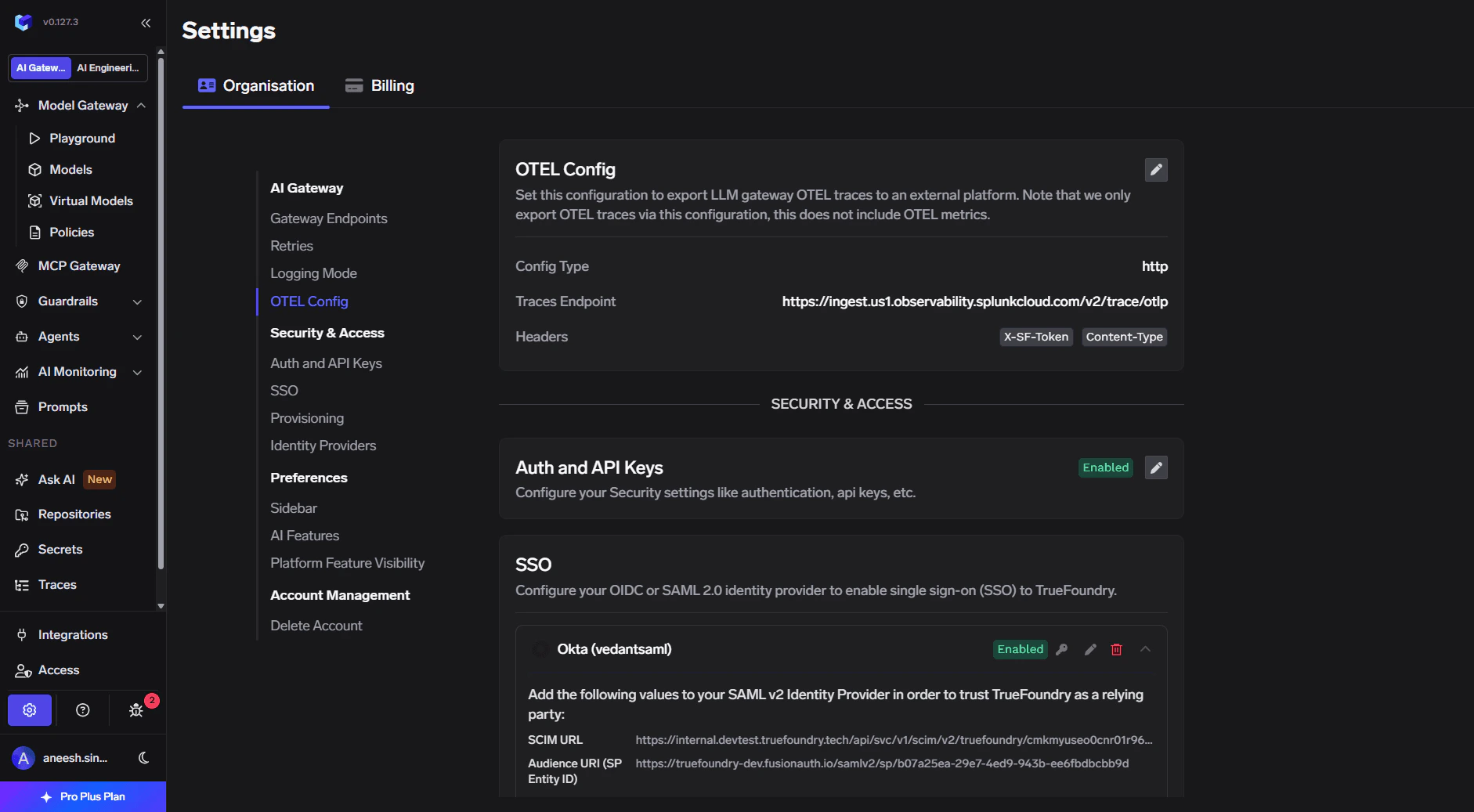
- In the TrueFoundry dashboard go to Settings → Organisation → AI Gateway → OTEL Config.
- Click the edit (pencil) control on the OTEL card.
- Enable Otel Traces Exporter Configuration.
- Select HTTP Configuration.
- Set Endpoint to your Splunk OTLP URL (see Realm and OTLP traces URL).
- Set Encoding to Proto.
3
Configure headers and save
Enable Headers and add: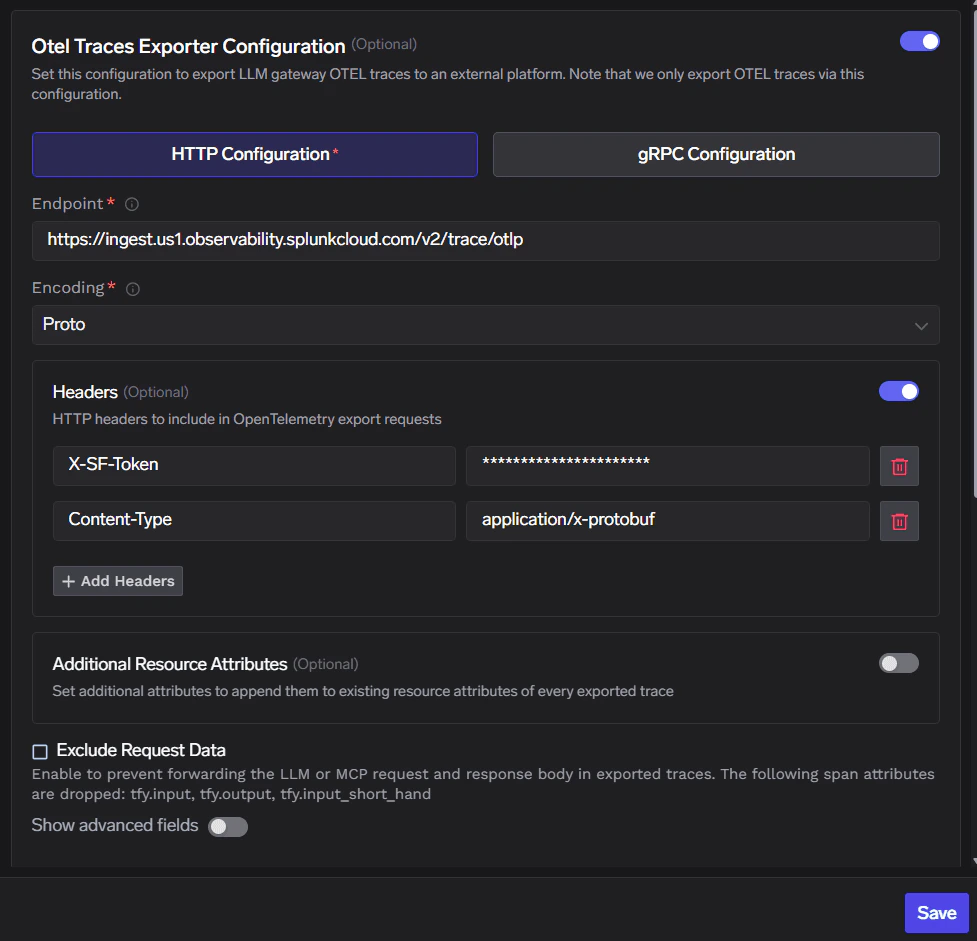
Click Save to apply the configuration.
4
Verify the integration
- Send a few requests through the TrueFoundry AI Gateway.
- In TrueFoundry, open Monitor to confirm gateway traffic is flowing.
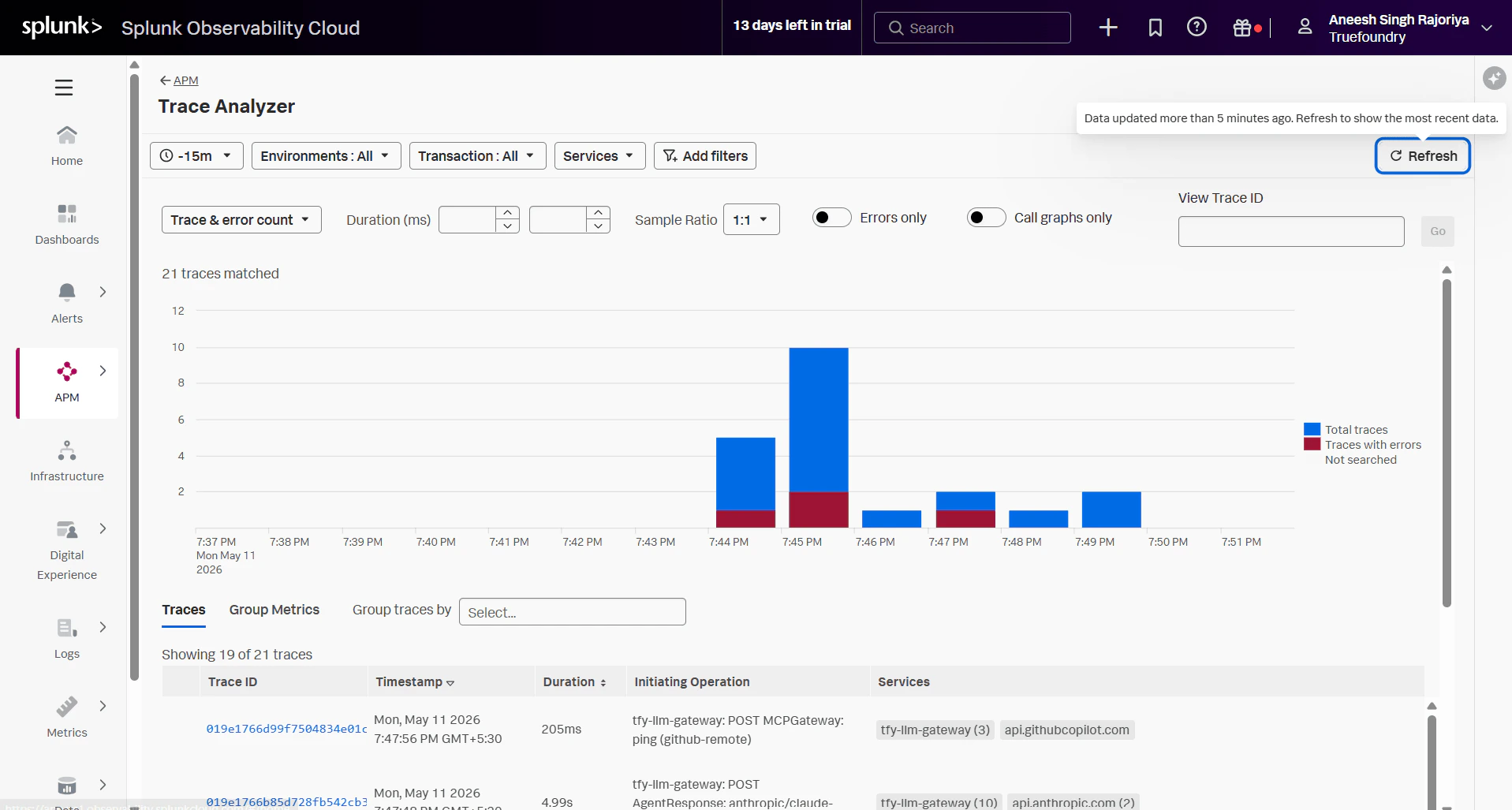
- In Splunk Observability Cloud, go to APM → Trace Analyzer (or your trace explorer) and filter to a recent time range. You should see traces involving
tfy-llm-gatewayand related downstream spans.