

What is Dash0?
Dash0 is a cloud-native observability platform built on OpenTelemetry that accepts traces, metrics, and logs via standard OTLP endpoints. It provides distributed tracing, metrics dashboards, log management, and alerting in a unified interface. Dash0 is designed to be OpenTelemetry-native — it accepts data directly from any OTLP-compatible source without requiring proprietary SDKs or agents.Key Features of Dash0
- OpenTelemetry Native: Accepts traces, metrics, and logs directly via OTLP/HTTP and OTLP/gRPC with no proprietary instrumentation required.
- Distributed Tracing: Visualize end-to-end request flows across services with full span detail and trace timelines.
- Datasets: Route telemetry to named datasets for logical separation of environments, teams, or signal types.
- Alerting: Set threshold-based alerts on trace latency, error rates, and custom metrics.
Prerequisites
Before integrating Dash0 with TrueFoundry, ensure you have:- TrueFoundry Account: Create a TrueFoundry account and follow the instructions in our Gateway Quick Start Guide.
- Dash0 Account: Sign up at app.dash0.com. A free trial is available.
- Dash0 Auth Token: Create an auth token with Ingest permissions from Organization Settings → Auth Tokens.
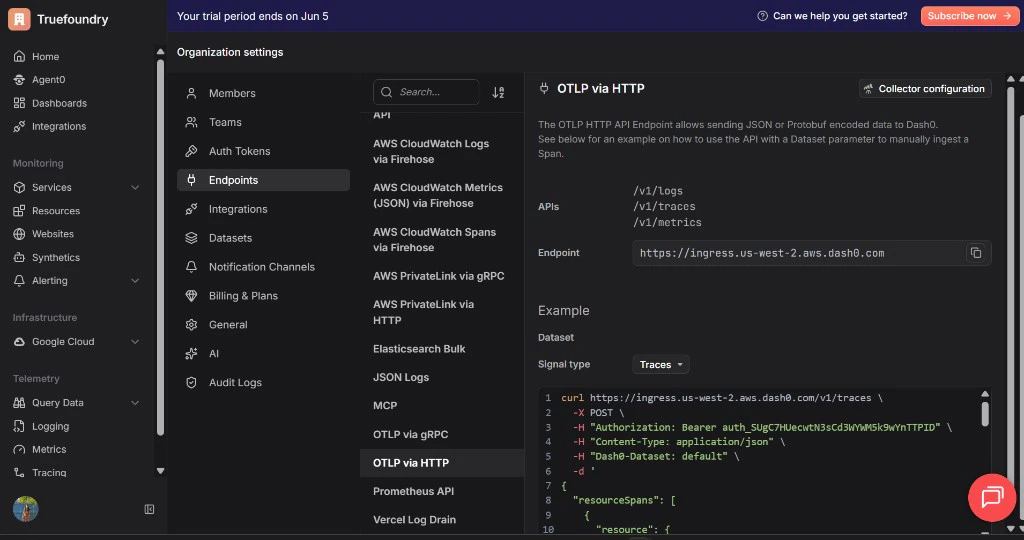
- Dash0 OTLP Endpoint: Find your region-specific endpoint from Organization Settings → Endpoints → OTLP via HTTP.
Understanding the Dash0 Endpoint
Dash0 uses a region-specific ingestion endpoint in the format:/v1/traces to the base URL.
Examples:
- US West 2:
https://ingress.us-west-2.aws.dash0.com/v1/traces - EU West 1:
https://ingress.eu-west-1.aws.dash0.com/v1/traces
Integration Steps
1
Get Your Dash0 Endpoint and Auth Token
- Log in to app.dash0.com.
- Go to Organization Settings → Endpoints → OTLP via HTTP and copy the base endpoint URL.
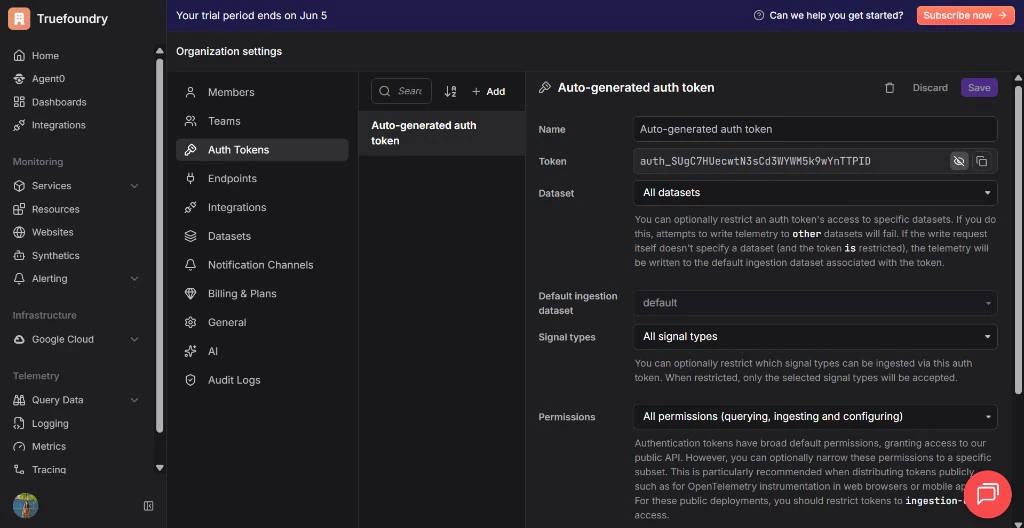
- Go to Organization Settings → Auth Tokens.
- Click Add to create a new token, give it a name (for example
tfy-gateway), set Signal types to All signal types, and set Permissions to Ingesting. - Copy the token value immediately — Dash0 will not show it again.
2
Configure OTEL Export in TrueFoundry
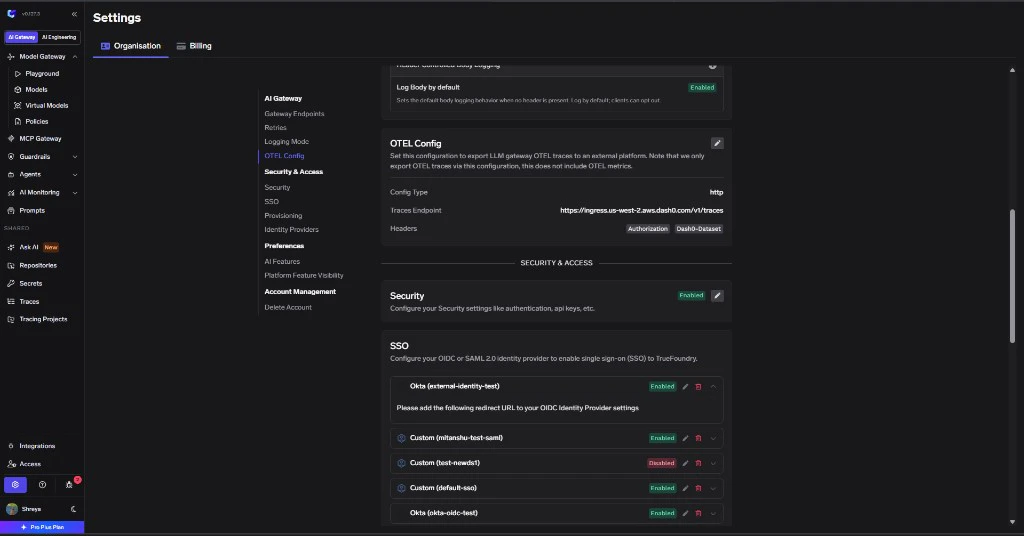
- Go to AI Gateway → Controls → Settings in the TrueFoundry dashboard.
- Scroll down to the OTEL Config section and click the edit (✏️) button.
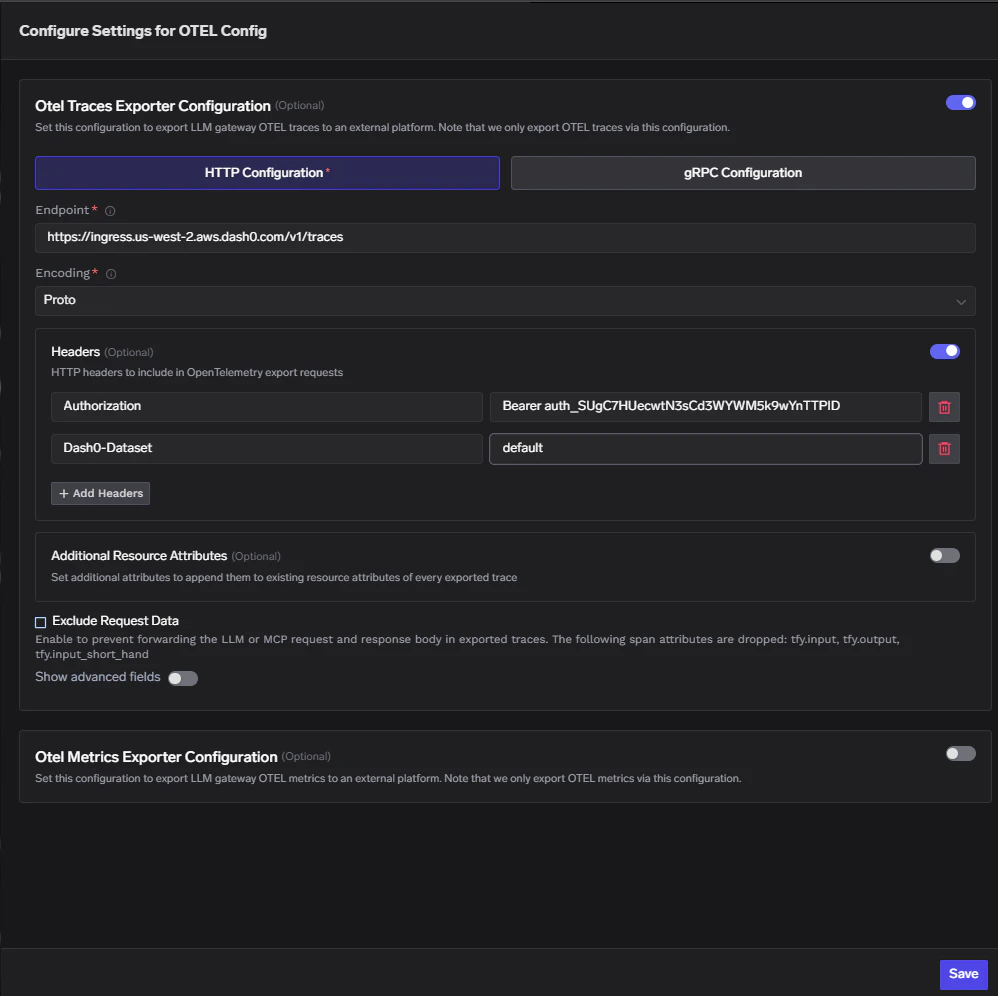
- Enable the Otel Traces Exporter Configuration toggle and fill in:
| Field | Value |
|---|---|
| Toggle | Enabled |
| Protocol | HTTP Configuration |
| Endpoint | https://ingress.<your-region>.aws.dash0.com/v1/traces |
| Encoding | Proto |
| Header Key 1 | Authorization |
| Header Value 1 | Bearer <your-dash0-auth-token> |
| Header Key 2 | Dash0-Dataset |
| Header Value 2 | default |
- Enable the Otel Metrics Exporter Configuration toggle and fill in:
| Field | Value |
|---|---|
| Toggle | Enabled |
| Protocol | HTTP Configuration |
| Endpoint | https://ingress.<your-region>.aws.dash0.com/v1/metrics |
| Encoding | Proto |
| Header Key 1 | Authorization |
| Header Value 1 | Bearer <your-dash0-auth-token> |
| Header Key 2 | Dash0-Dataset |
| Header Value 2 | default |
- Click Save to apply the configuration.
Replace
<your-region> with your actual Dash0 region (for example us-west-2 or eu-west-1). Both the traces and metrics exporters require two headers: the Authorization header with your Bearer token and the Dash0-Dataset header to route data to the correct dataset. Using default routes to your organization’s default dataset.3
Verify the Integration
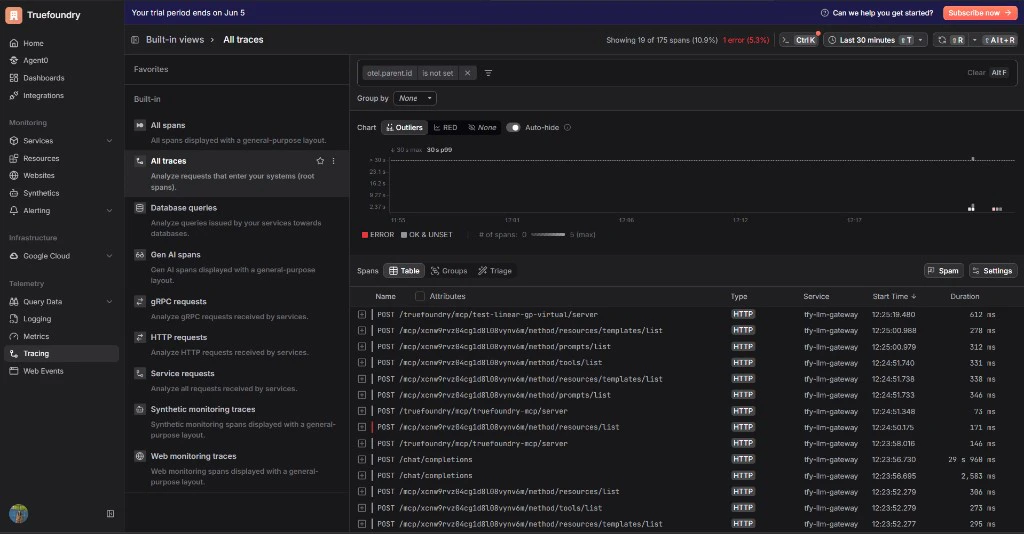
- Make a request through the TrueFoundry AI Gateway (for example from the Playground).
- Log into app.dash0.com and click Tracing in the left sidebar.
- Click All Traces and confirm traces from
tfy-llm-gatewayare appearing.
- To verify metrics, click Metrics in the left sidebar and query for
tfy_prefixed metric names.
Configuration Reference
| Configuration | Value |
|---|---|
| Traces Endpoint | https://ingress.<your-region>.aws.dash0.com/v1/traces |
| Metrics Endpoint | https://ingress.<your-region>.aws.dash0.com/v1/metrics |
| Protocol | HTTP |
| Encoding | Proto |
| Auth Header Key | Authorization |
| Auth Header Value | Bearer <your-dash0-auth-token> |
| Dataset Header Key | Dash0-Dataset |
| Dataset Header Value | default (or your dataset name) |