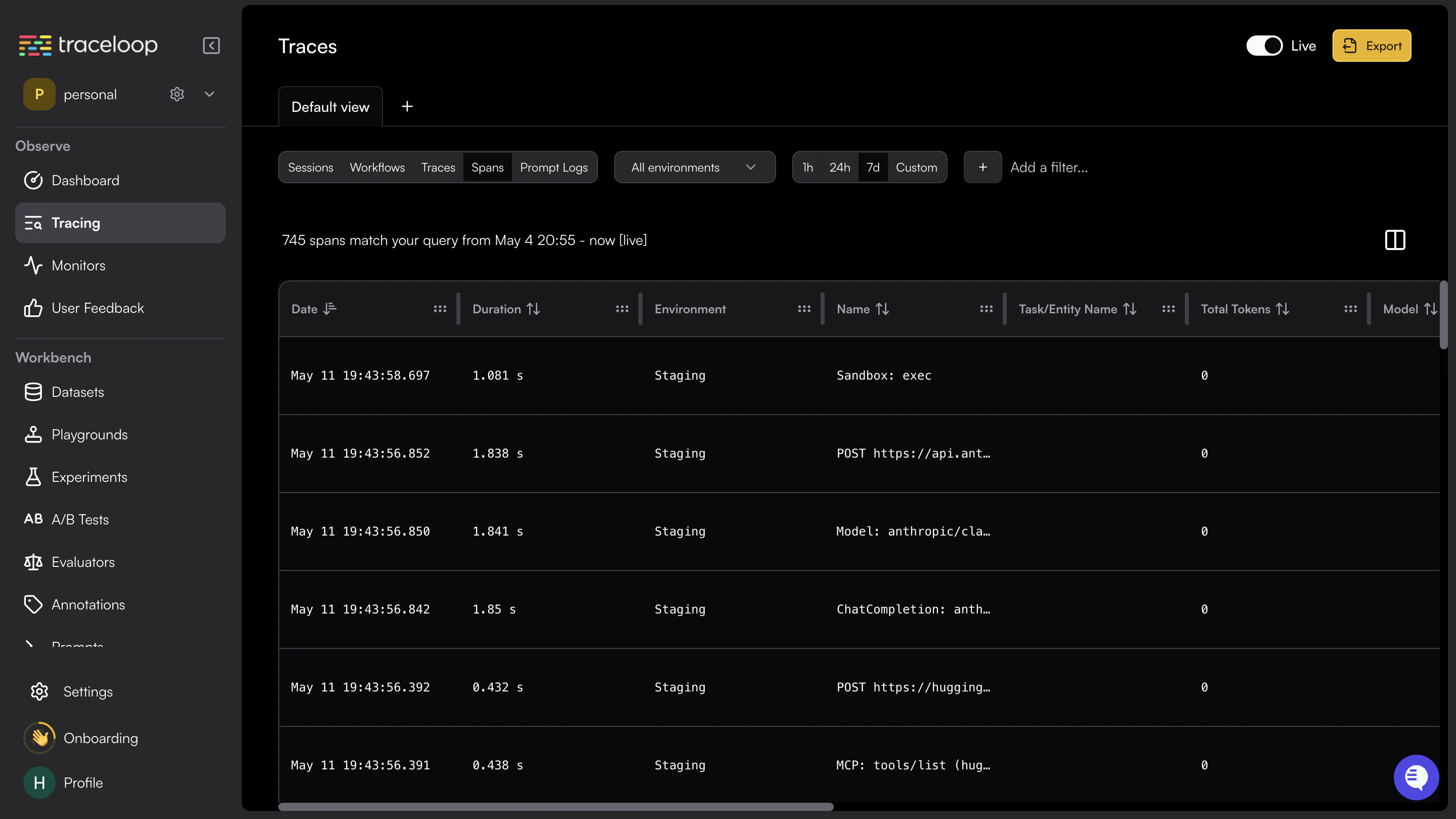
Traceloop ingests traces only via OTLP. LLM metrics such as token usage, latency, and cost are derived from trace span attributes and surfaced in the Traceloop dashboard — they do not require a separate metrics exporter. Keep the Otel Metrics Exporter disabled when using Traceloop.
What is Traceloop?
Traceloop is an LLM observability platform built on OpenLLMetry, its open-source OpenTelemetry-based instrumentation layer. It ingests OTLP traces from LLM applications and provides dashboards for monitoring prompt performance, token usage, latency, and model behaviour across environments. Traceloop also supports prompt versioning, regression testing, and environment-based API key management.Key Features of Traceloop
- LLM Trace Observability: Captures full request and response traces across OpenAI, Anthropic, and other LLM providers with standard
gen_aisemantic conventions. - Multi-Environment API Keys: Supports separate API keys for Development, Staging, and Production environments to keep telemetry streams isolated.
- OpenTelemetry Collector Support: Accepts traces forwarded from any OTLP/HTTP-compatible collector, making it easy to fan out from existing OTel pipelines.
Prerequisites
Before integrating Traceloop with TrueFoundry, ensure you have:- TrueFoundry Account: Create a TrueFoundry account and follow the instructions in our Gateway Quick Start Guide.
- Traceloop Account: Sign up at traceloop.com and have access to the Traceloop dashboard to generate an API key.
Integration Steps
1
Generate a Traceloop API Key
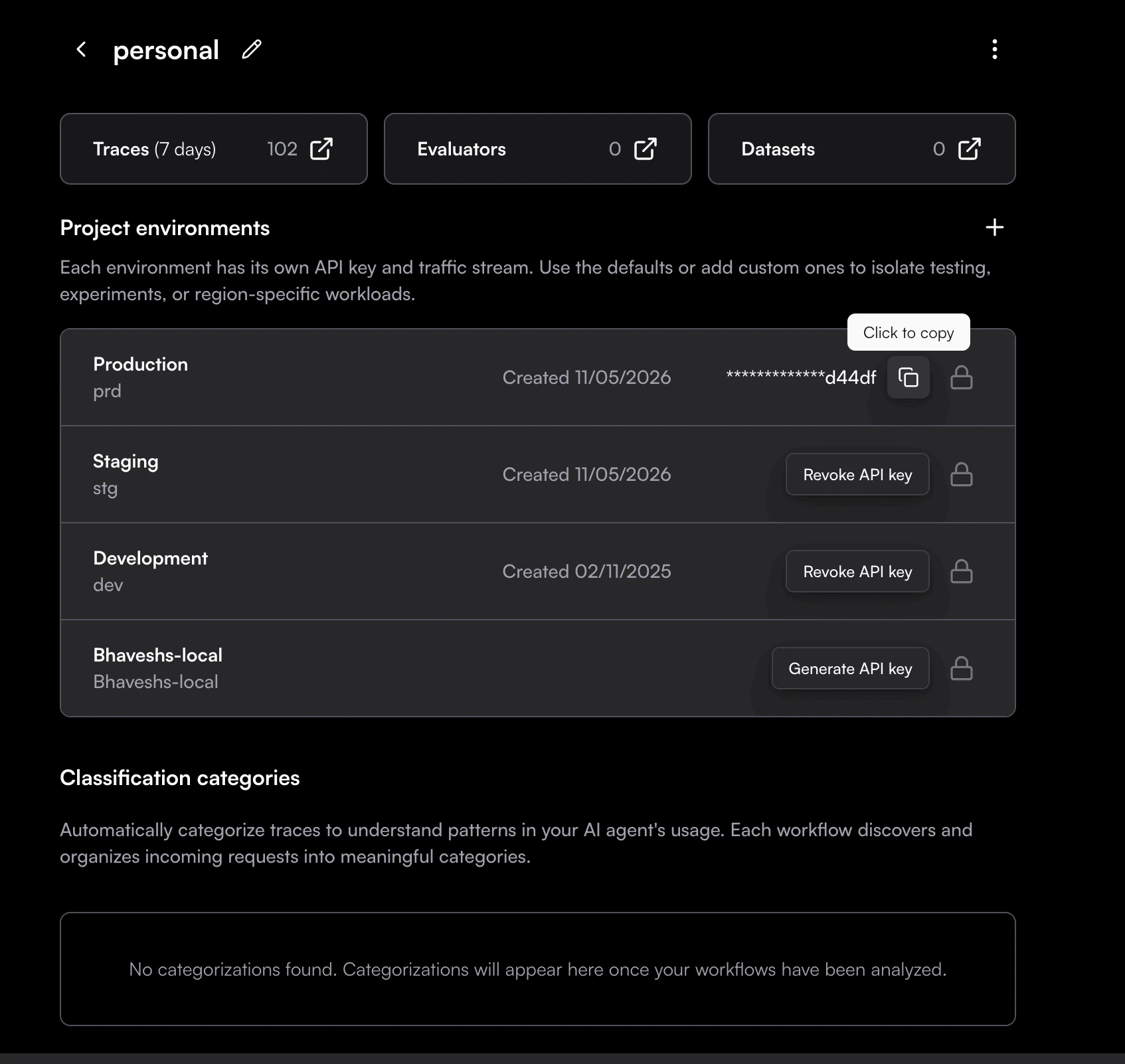
- Log in to your Traceloop dashboard.
- In the left-hand navigation, click Environments.
- Select the environment you want to send data to (Development, Staging, or Production).
- Click Generate API Key.
- Click Copy Key immediately — API keys are only shown once and are not stored by Traceloop.
2
Configure OTEL Export in TrueFoundry
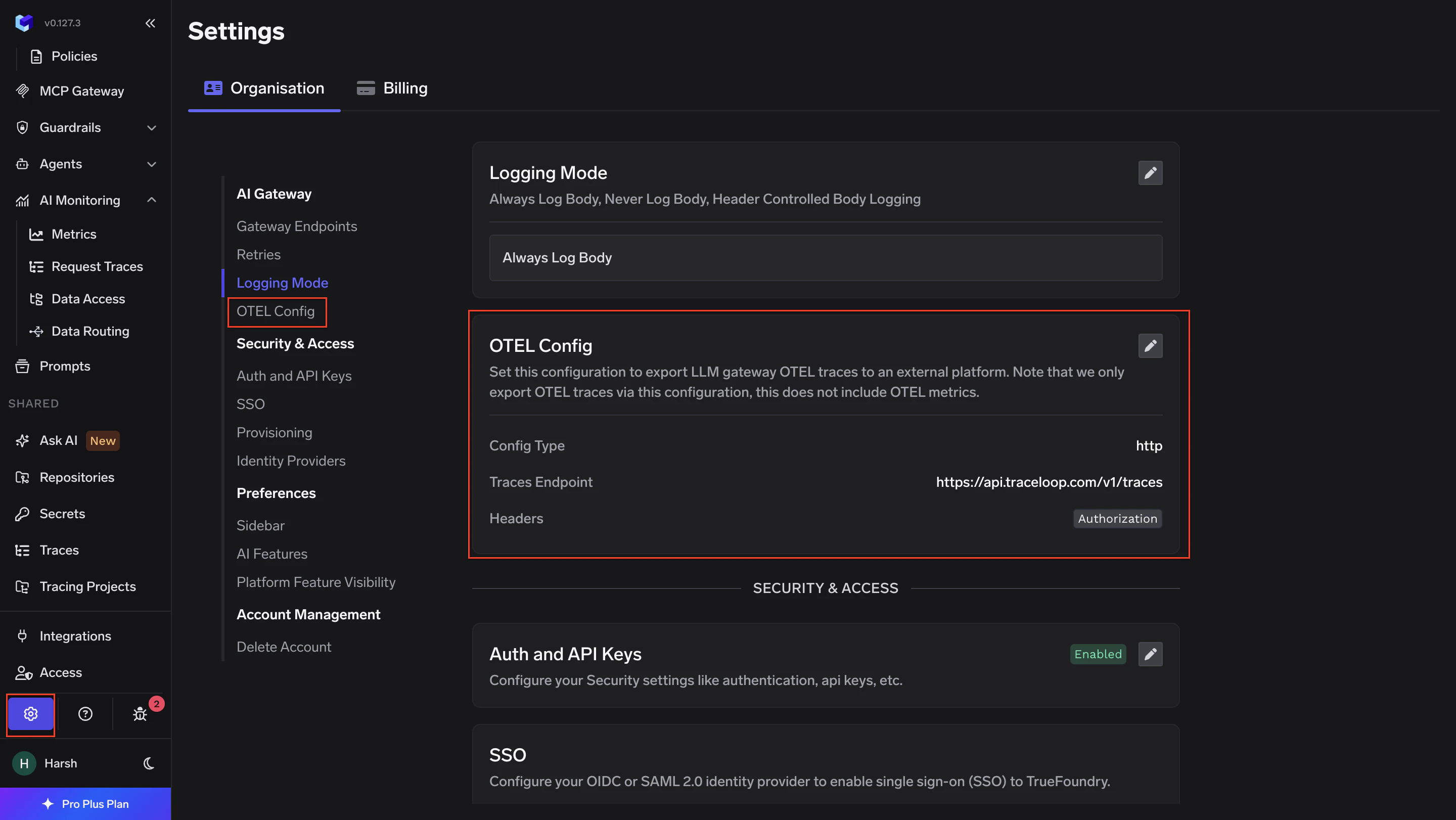
- Go to AI Gateway → Controls → Settings in the TrueFoundry dashboard.
- Scroll down to the OTEL Config section and click the edit (✏️) button.
- Enable the Otel Traces Exporter Configuration toggle and fill in:
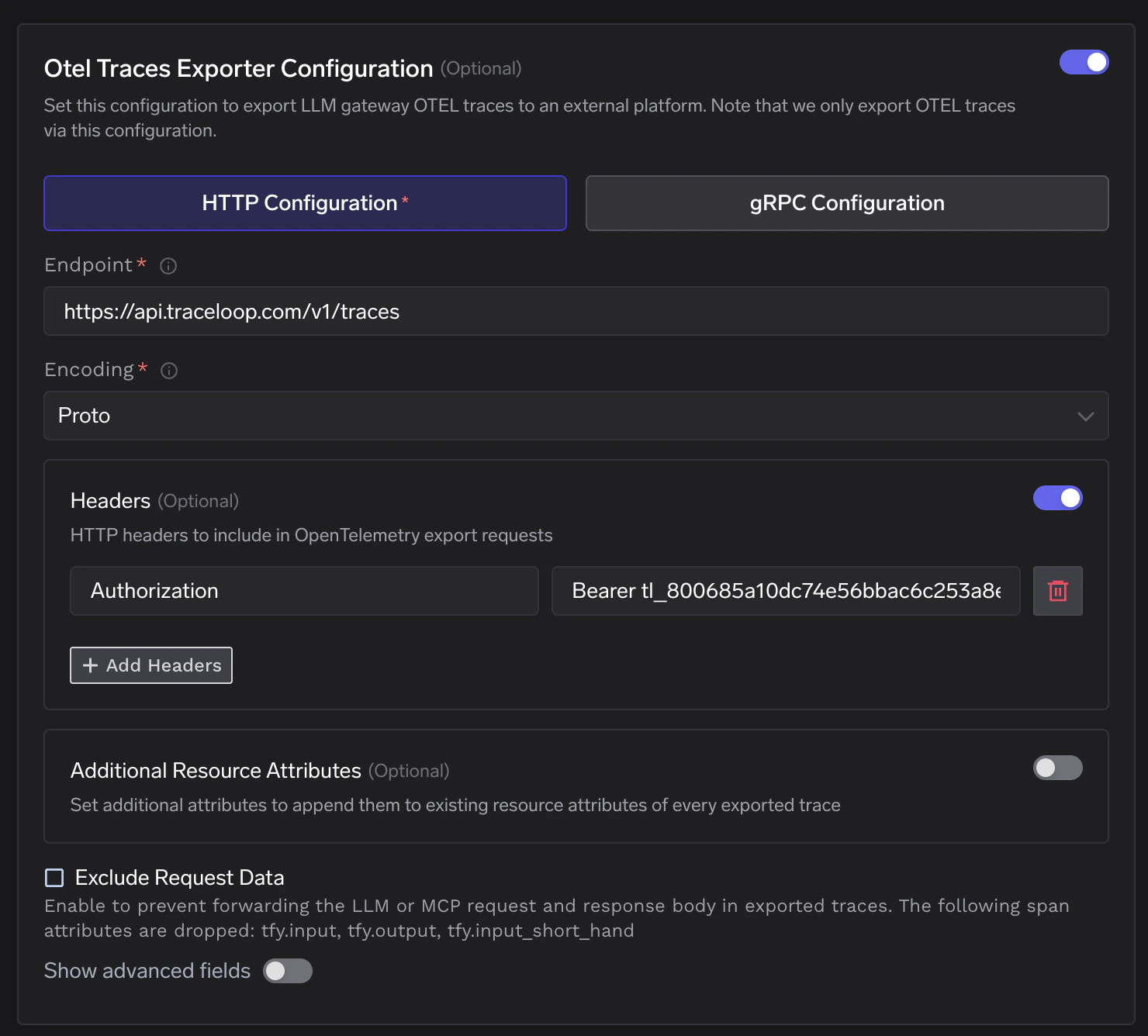
- Click Save to apply the configuration.
3
Verify the Integration
- Make a request through the TrueFoundry AI Gateway.
- Log in to your Traceloop dashboard and navigate to the Traces section.
- Confirm that traces with the service name
tfy-llm-gatewayare appearing.