

What is Arize?
Arize is an AI observability and evaluation platform that helps teams trace, monitor, and improve AI applications in production. It provides comprehensive tools for development, evaluation, and observability across LLM and agent workflows.Key Features of Arize
- Open Standard Tracing: Trace agents and frameworks with speed and flexibility — powered by OpenTelemetry
- LLM Evaluation: Evaluate prompts and agent actions at scale with LLM-as-a-Judge and human annotation workflows
- Real-time Monitoring: Monitor AI in production with dashboards, alerting, and anomaly detection
Prerequisites
Before integrating Arize with TrueFoundry, ensure you have:- TrueFoundry Account: Create a TrueFoundry account and follow the instructions in our Gateway Quick Start Guide
- Arize Account: Sign up for an Arize account
- Arize API Key and Space ID: Obtain your API key and Space ID from the Arize platform
Integration Guide
TrueFoundry AI Gateway supports exporting OpenTelemetry (OTEL) traces to external platforms like Arize. This allows you to leverage Arize’s tracing, evaluation, and monitoring features while using TrueFoundry for unified LLM access.Step 1: Get Your Arize API Key and Space ID
- Log in to your Arize dashboard
- Navigate to Settings → Service Keys -> New API Key
- While creating API Key make sure to select Space Role as Member (
Memberrole will have write access) - Copy your API Key (e.g.,
ak-5849b020-6ee5-4294-...) - Copy your Space ID (e.g.,
U3BhY2U6MzM5NjU6c1htag==)
Step 2: Configure OTEL Export in TrueFoundry
Navigate to the TrueFoundry AI Gateway OTEL configuration:- Go to AI Gateway → Controls → Settings in the TrueFoundry dashboard
- Scroll down to the OTEL Config section
- Click the edit button to configure the OTEL exporter
Step 3: Configure Arize Endpoint
Enable the OTEL Traces Exporter and fill in the following configuration:Step 4: Add Required Headers
Click + Add Headers and configure the following gRPC metadata headers:Step 5: (Optional) Add Resource Attributes
You can add Additional Resource Attributes to enrich your exported traces with custom metadata. A common attribute to set ismodel_id, which helps identify and filter traces by model in the Arize dashboard.
Click + Add Additional Resource Attributes to add more attributes as needed.
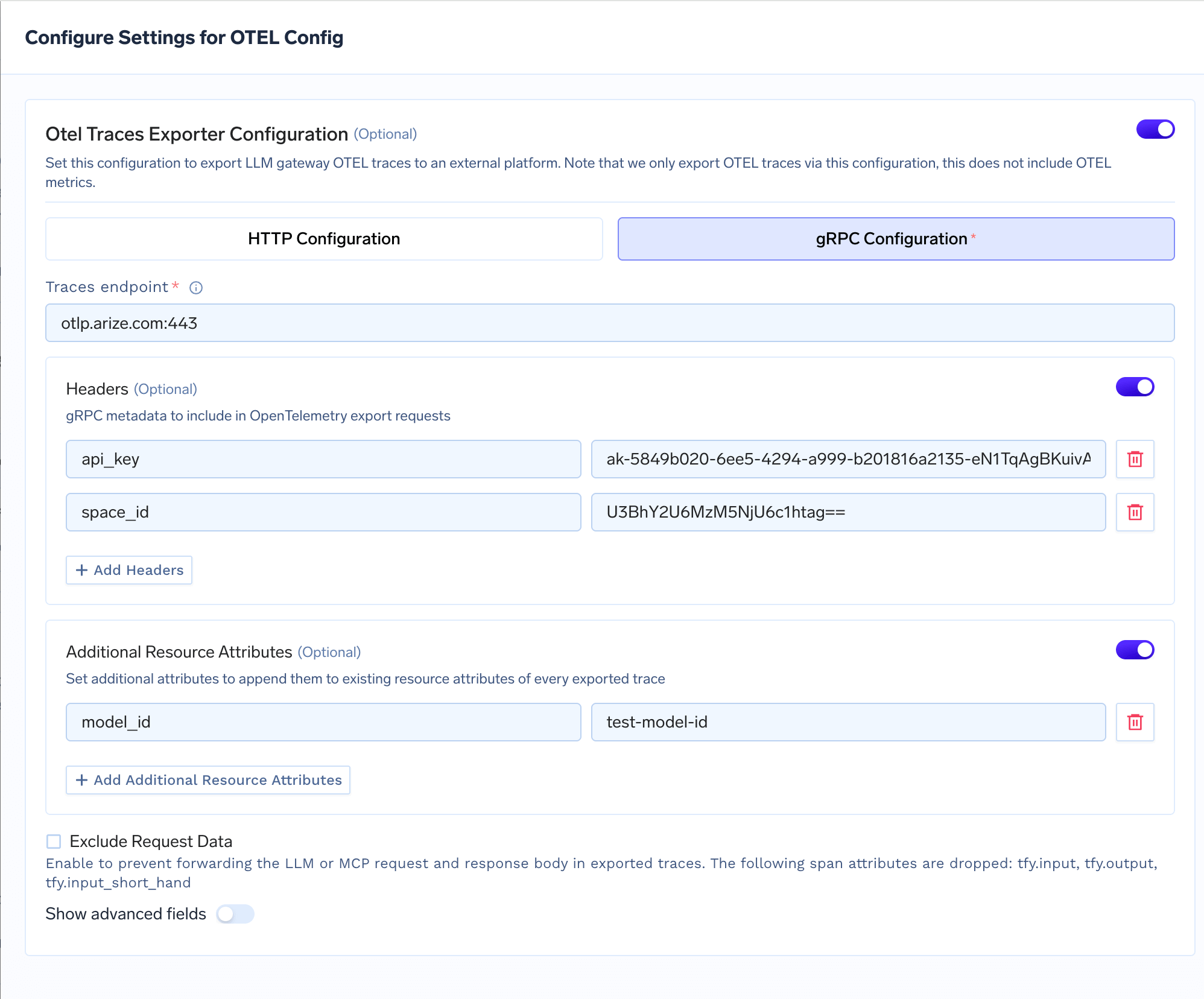
TrueFoundry OTEL Config for Arize Integration using gRPC
Step 6: Save Configuration
Click Save to apply the OTEL export configuration. All LLM traces from the TrueFoundry AI Gateway will now be automatically exported to Arize.Step 7: View Traces in Arize
After making LLM requests through TrueFoundry AI Gateway, log in to your Arize dashboard to view the traces:- Navigate to Traces in the Arize dashboard
- Look for traces from the
tfy-llm-gatewayservice - Explore the traces including:
- Trace Visualization: End-to-end trace waterfall with span details
- LLM Span Details: Token usage, latency, input/output content, and model metadata
- Performance Metrics: Latency distribution, error rates, and throughput analysis
Configuration Options
Exclude Request Data
Enable the Exclude Request Data checkbox to prevent forwarding LLM or MCP request and response bodies in exported traces. When enabled, the following span attributes are dropped:tfy.input, tfy.output, tfy.input_short_hand. This is useful when you need to comply with data privacy requirements and avoid sending sensitive prompt or response content to external platforms.