What is ClickStack?
ClickStack is an open-source observability platform on ClickHouse for logs, metrics, and traces. Its HyperDX-based UI supports Lucene search, SQL queries, and distributed trace exploration for LLM and MCP workloads.Key capabilities
- Distributed tracing: Filter and inspect spans by service, attributes, and status in the ClickStack UI
- OpenTelemetry ingestion: Receive OTLP traces over HTTP or gRPC via the ClickStack OTEL Collector
Prerequisites
- TrueFoundry account: Register and complete the Gateway Quick Start Guide
- ClickStack or ClickHouse Cloud: Sign in to ClickStack or ClickHouse Cloud and note your ClickHouse endpoint, user, and password
- Hosted OTEL collector: A reachable ClickStack OTEL Collector deployment exposing the OTLP HTTP traces endpoint
Architecture overview
ClickStack requires a ClickStack OTEL Collector that receives OTLP from TrueFoundry, writes traces to ClickHouse, and serves them in the UI:Integration steps
1
Get ClickHouse credentials
From ClickStack or ClickHouse Cloud, collect
CLICKHOUSE_ENDPOINT (for example https://<clickhouse-endpoint>:8443), CLICKHOUSE_USER (commonly default), and CLICKHOUSE_PASSWORD for the collector.2
Deploy the ClickStack OTEL Collector
Image: Expose port Replace
clickhouse/clickstack-otel-collector:latest4318 (or TLS at a reverse proxy) and use this Traces Endpoint in TrueFoundry:<domain> with your collector’s public hostname.3
Test the collector endpoint
Confirm the endpoint is reachable:
4
Configure OTEL export in TrueFoundry
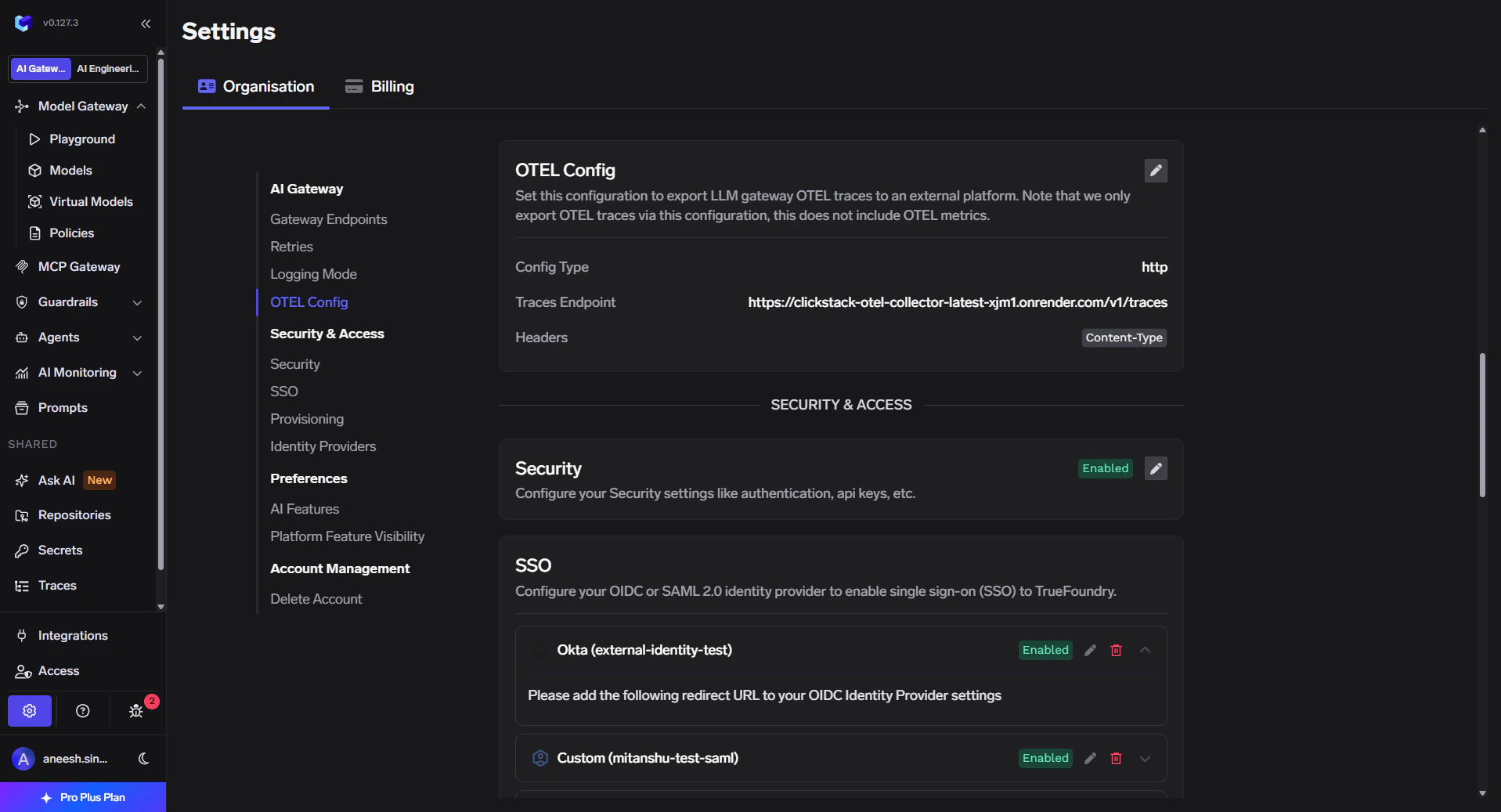
- In the TrueFoundry dashboard go to Settings → Organisation → AI Gateway → OTEL Config.
- Click the edit (pencil) control on the OTEL card.
- Enable Otel Traces Exporter Configuration.
- Select HTTP Configuration.
- Set Endpoint to
https://<domain>/v1/traces. - Set Encoding to Json.
5
Configure headers and save
In the exporter form, enable Headers and add: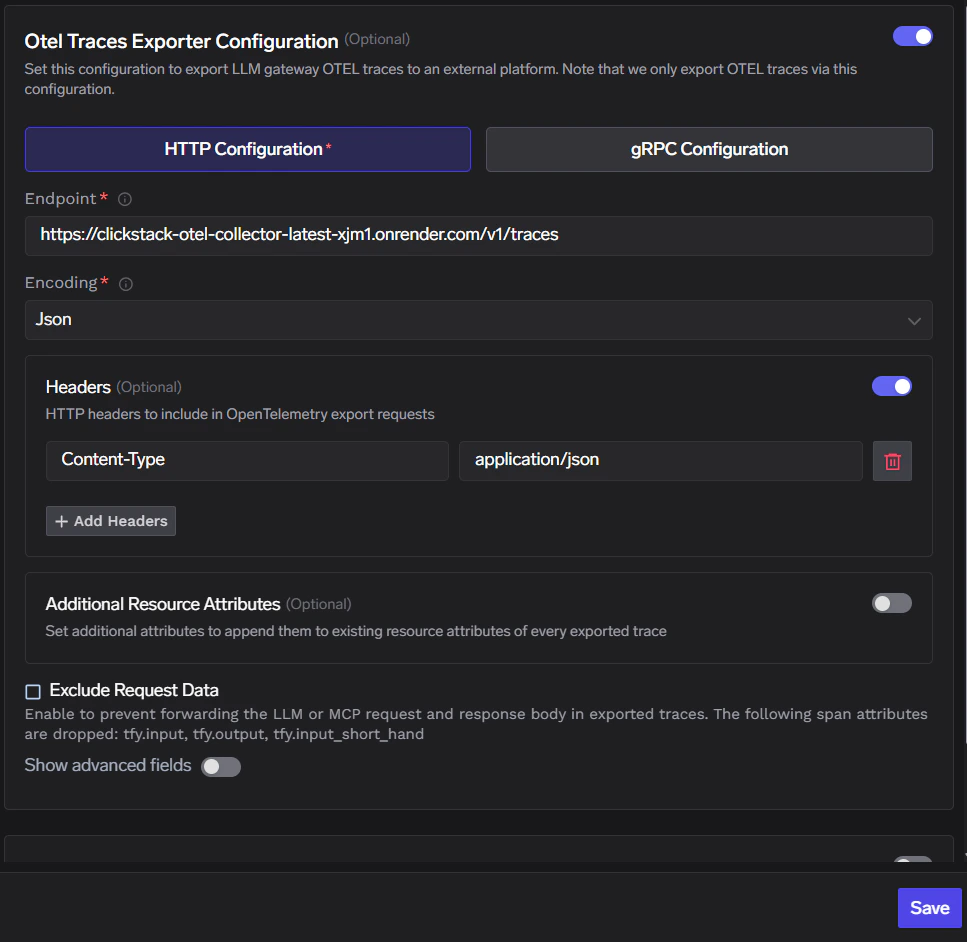
Click Save to apply the configuration.
6
Verify the integration
- Send requests through the TrueFoundry AI Gateway.
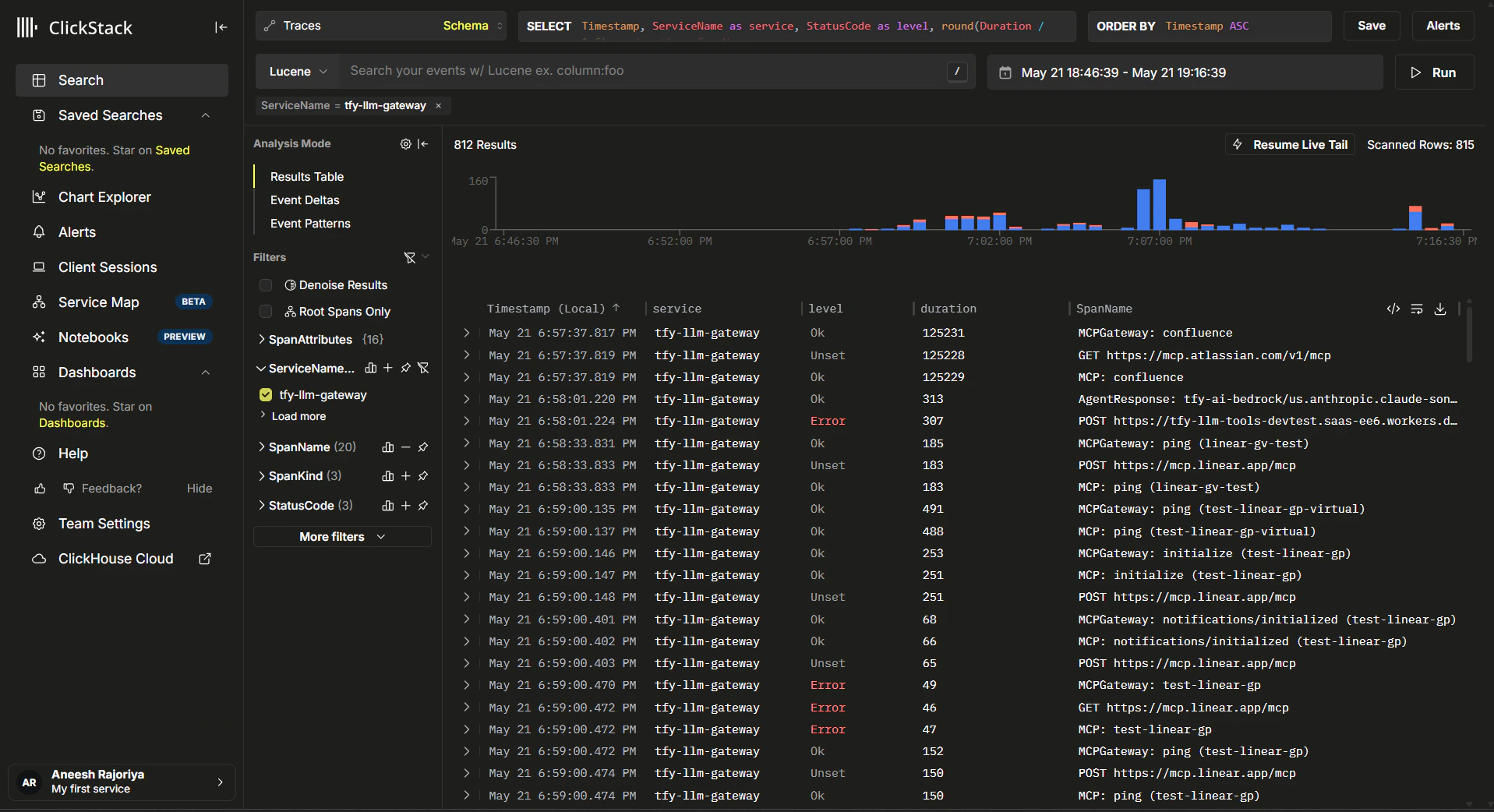
- In ClickStack, open Search → Traces, set a recent time range, and filter ServiceName =
tfy-llm-gateway.