What is HoneyHive?
HoneyHive is an AI observability and evaluation platform for LLM applications and agents. It is OpenTelemetry-native and ingests OTLP traces so you can monitor completions, debug agent workflows, and run experiments on production traffic.Key capabilities
- AI observability & agent tracing: End-to-end traces for LLM calls, tools, and agent steps with inputs, outputs, and latency
- OpenTelemetry ingestion: Accepts OTLP/HTTP traces with Bearer token authentication
- Evaluation & datasets: Run experiments and evaluations on logged sessions alongside live traces
Prerequisites
Before integrating HoneyHive with TrueFoundry, ensure you have:- TrueFoundry account: Create a TrueFoundry account and follow our Gateway Quick Start Guide
- HoneyHive account: Sign up at HoneyHive and access your project dashboard
- HoneyHive API key: Create a project API key (covered below) — it is scoped to your HoneyHive project and region
Provider host and OTLP traces URL
HoneyHive routes OTLP ingestion through your deployment’s API host. Replace<provider-host> with the hostname shown in your HoneyHive dashboard or API settings (for example a US production host):
Integration steps
TrueFoundry AI Gateway supports exporting OpenTelemetry traces to HoneyHive over OTLP/HTTP so you can monitor LLM gateway traffic in HoneyHive.1
Create a HoneyHive API key
- Log in to your HoneyHive dashboard.
- Open Settings → Project → API Keys.
- Click Create API Key, copy the key from the modal, and store it securely — it is only shown once.
2
Configure OTEL export in TrueFoundry
- Go to AI Gateway → Controls → Settings in the TrueFoundry dashboard.
- Scroll to OTEL Config and click the edit (pencil) control.
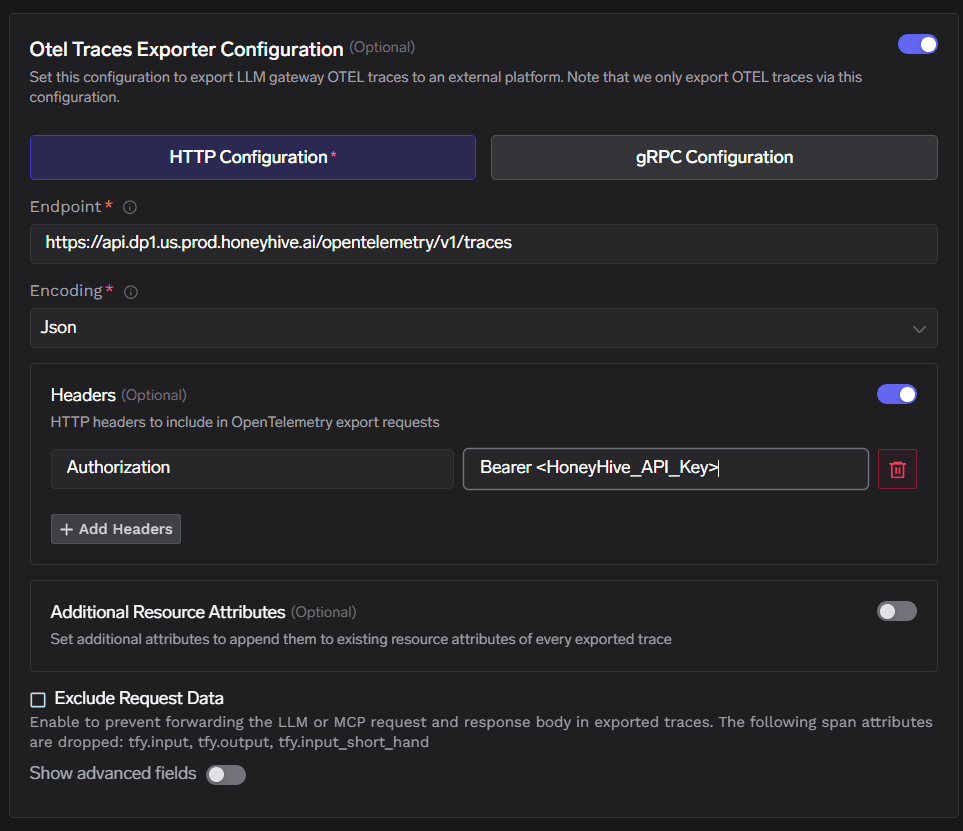
- Enable Otel Traces Exporter Configuration.
- Select HTTP Configuration.
- Set Endpoint to your HoneyHive OTLP URL (see Provider host and OTLP traces URL).
- Set Encoding to Json.
3
Configure headers and save
Enable Headers and add:
Replace
<HoneyHive_API_Key> with the key from Step 1. Click Save to apply the configuration.4
Verify the integration
- Send a few requests through the TrueFoundry AI Gateway.
- In TrueFoundry, open Monitor to confirm gateway traffic is flowing.
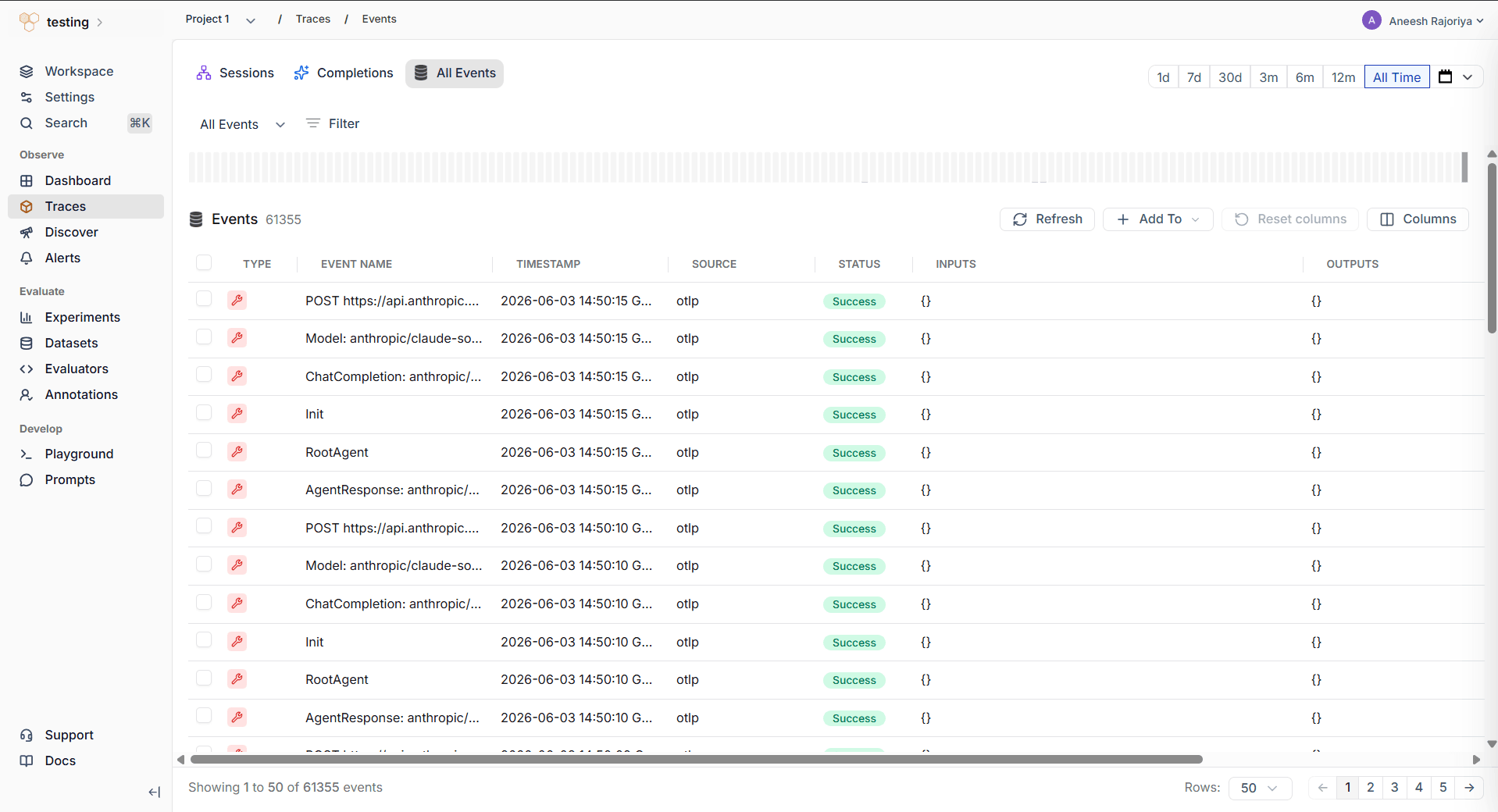
- In HoneyHive, go to Observe → Traces and open your project’s Events view.
- Confirm new events appear with SOURCE set to
otlp, including LLM completions and gateway-related spans.