What is Confident AI?
Confident AI is an AI observability and evaluation platform for LLM applications. Its Observatory ingests OTLP traces so you can monitor completions, debug agent workflows, run online evaluations, and analyze latency and cost alongside production traffic.Key capabilities
- LLM tracing & observability: End-to-end traces for LLM calls, tools, and agent steps with inputs, outputs, and latency
- OpenTelemetry ingestion: Accepts OTLP/HTTP traces with API key authentication via the
x-confident-api-keyheader - Online evaluation: Run DeepEval metrics on traces and spans as they are ingested
Prerequisites
Before integrating Confident AI with TrueFoundry, ensure you have:- TrueFoundry account: Create a TrueFoundry account and follow our Gateway Quick Start Guide
- Confident AI account: Sign up at Confident AI and access your project dashboard
- Confident AI API key: Create an API key from your Confident AI project settings — it is used to authenticate OTLP trace export
The TrueFoundry OTEL Config export sends traces only for the AI
Gateway. It does not export OTEL metrics from this screen.
OTLP traces endpoint
Confident AI exposes a dedicated OTLP/HTTP traces endpoint. Use the URL for your region:Integration steps
TrueFoundry AI Gateway supports exporting OpenTelemetry traces to Confident AI over OTLP/HTTP so you can monitor LLM gateway traffic in the Confident AI Observatory.1
Create a Confident AI API key
- Log in to your Confident AI dashboard.
- Open your project and go to Settings → API Keys (or the API key section in your project settings).
- Create a new API key, copy it, and store it securely — you will use it in the
x-confident-api-keyheader.
2
Configure OTEL export in TrueFoundry
- Go to AI Gateway → Controls → Settings in the TrueFoundry dashboard.
- Scroll to OTEL Config and click the edit (pencil) control.
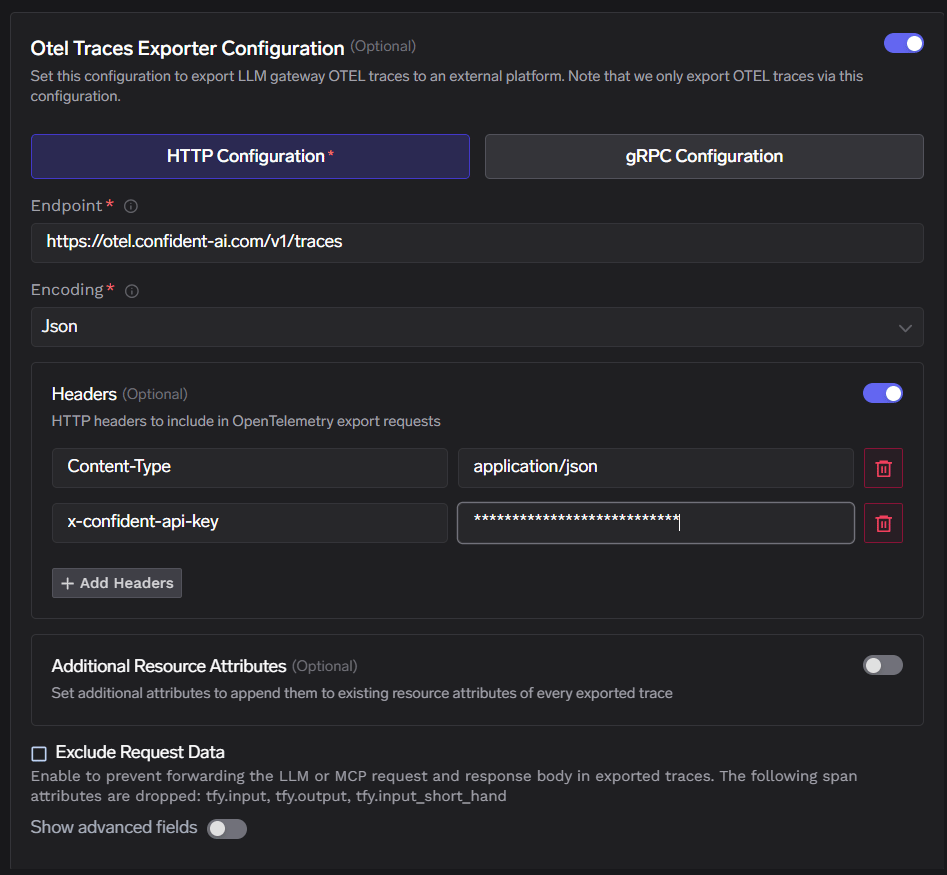
- Enable Otel Traces Exporter Configuration.
- Select HTTP Configuration.
- Set Endpoint to
https://otel.confident-ai.com/v1/traces(or the EU endpoint if your project is in the EU region). - Set Encoding to Json.
3
Configure headers and save
Enable Headers and add:
Replace
<Confident_AI_API_Key> with the key from Step 1. Click Save to apply the configuration.4
Verify the integration
- Send a few requests through the TrueFoundry AI Gateway.
- In TrueFoundry, open Monitor to confirm gateway traffic is flowing.
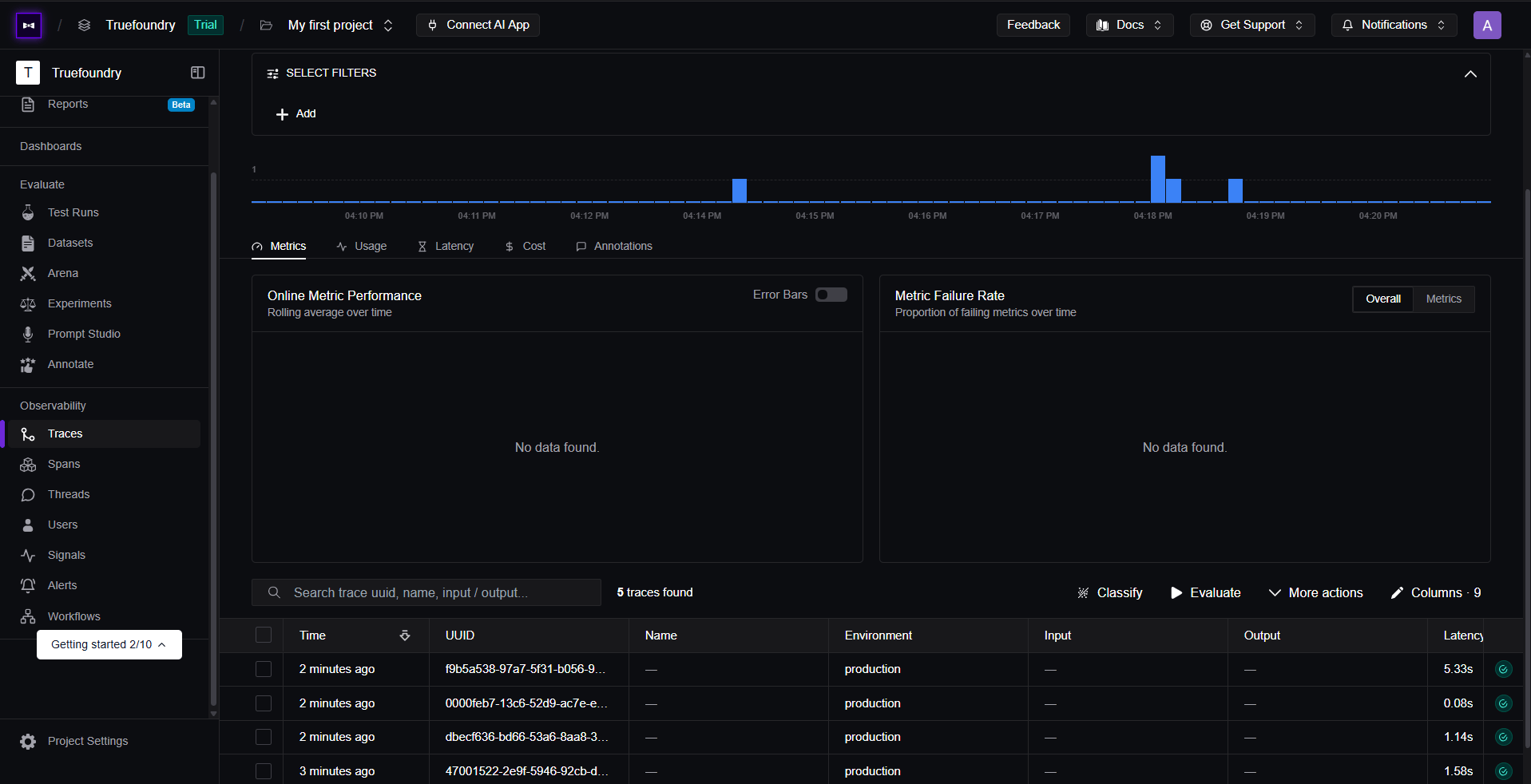
- In Confident AI, go to Observability → Traces.
- Confirm new traces appear with latency, environment, and status details for your gateway requests.