

What is Elastic Cloud?
Elastic Cloud is a fully managed cloud service that provides the Elastic Stack (Elasticsearch, Kibana, and more) for search, observability, and security solutions. It offers powerful capabilities for analyzing logs, metrics, and traces at scale.Key Features of Elastic Cloud
- Full-Stack Observability: Unified visibility into logs, metrics, traces, and APM data in a single platform
- OpenTelemetry Native: Native OTLP endpoint support with Elastic Cloud Managed OTLP Endpoint for seamless OpenTelemetry data ingestion
- AI-Powered Analysis: Leverage machine learning and AI capabilities for anomaly detection and intelligent insights
Prerequisites
Before integrating Elastic Cloud with TrueFoundry, ensure you have:- TrueFoundry Account: Create a TrueFoundry account and follow the instructions in our Gateway Quick Start Guide
- Elastic Cloud Account: Sign up for an Elastic Cloud account
- Elastic Cloud Deployment: Create an Elastic Cloud Hosted deployment (version 9.2 or later) or Serverless Observability project
- Elastic API Key: Generate an API key from your Elastic Cloud deployment
Integration Guide
TrueFoundry AI Gateway supports exporting OpenTelemetry (OTEL) traces to external platforms like Elastic Cloud. This allows you to leverage Elastic’s powerful observability features while using TrueFoundry for unified LLM access.Step 1: Get Your Elastic Cloud Endpoint and API Key
- Log in to your Elastic Cloud console
- Open your deployment or Serverless project
- Navigate to Add data → Applications → OpenTelemetry
- Copy the endpoint URL (e.g.,
https://<your-motlp-endpoint>) - Copy the API key value from the authentication headers section
The Elastic Cloud Managed OTLP Endpoint requires Elastic Cloud Hosted deployment version 9.2 or later. For Serverless projects, the endpoint is available by default.
Step 2: Configure OTEL Export in TrueFoundry
Navigate to the TrueFoundry AI Gateway OTEL configuration:- Go to AI Gateway → Controls → Settings in the TrueFoundry dashboard
- Scroll down to the OTEL Config section
- Click the edit button to configure the OTEL exporter
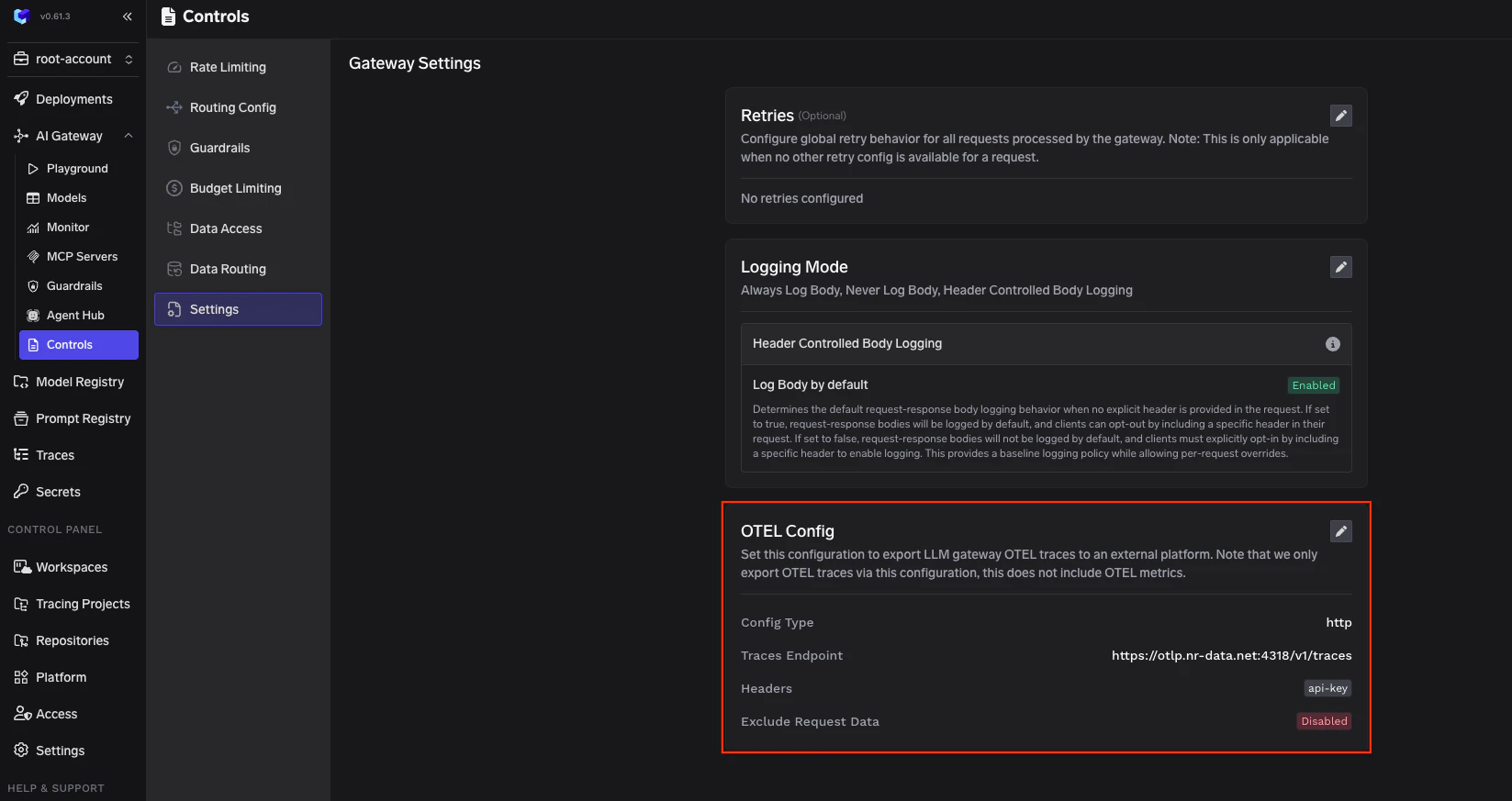
TrueFoundry AI Gateway Settings - OTEL Config
Step 3: Configure Elastic Cloud Endpoint
Enable the OTEL Traces Exporter and fill in the following configuration:Replace
<your-motlp-endpoint> with the actual endpoint URL copied from your Elastic Cloud deployment. The endpoint is unique to each deployment or Serverless project.Step 4: Add Required Headers
Click + Add Headers and configure the following HTTP header:Step 5: Save Configuration
Click Save to apply the OTEL export configuration. All LLM traces from the TrueFoundry AI Gateway will now be automatically exported to Elastic Cloud.Step 6: View Traces in Elastic Cloud
After making LLM requests through TrueFoundry AI Gateway, log in to your Elastic Cloud deployment to view the traces:- Navigate to Observability → APM → Services in Kibana
- Look for the
tfy-llm-gatewayservice to view your LLM Gateway traces - Explore the traces including:
- Distributed Tracing: End-to-end trace visualization with the Traces UI
- Service Map: Visual representation of service dependencies
- Transaction Details: Individual request information with timing and metadata
Configuration Options
Supported Encoding Formats
Elastic Cloud Managed OTLP Endpoint supports both JSON and Protobuf encoding:Additional Resource Attributes
You can optionally configure Additional Resource Attributes to append custom attributes to every exported trace. This is useful for adding environment-specific metadata or organizational tags that help with filtering and grouping in Elastic.Troubleshooting
API Key Prefix Not Found
If you see an error like"Unauthenticated desc = ApiKey prefix not found", ensure your Authorization header is formatted correctly as ApiKey <your-api-key> with the ApiKey prefix.