

What is Lunary?
Lunary is an open source observability platform for LLM applications. It helps teams capture traces, inspect prompts and responses, monitor agent behavior, and track costs across production GenAI workloads.Key Features of Lunary
- Agent and LLM tracing: End-to-end visibility into chains, agents, tool calls, and model responses
- OpenTelemetry ingestion: Accepts OTLP/HTTP traces so you can send spans from gateways, SDKs, and custom instrumentation
- Session-level monitoring: Track conversations, users, and performance across chatbot and RAG workflows
- Evaluation and analytics: Analyze runs, categorize outputs, and iterate on prompts with measurable feedback loops
TrueFoundry exports OTEL traces only through this configuration. OTEL metrics are not included. Leave the Otel Metrics Exporter Configuration toggle disabled unless you configure a separate metrics destination.
Prerequisites
Before integrating Lunary with TrueFoundry, ensure you have:- TrueFoundry Account: Create a TrueFoundry account and follow the instructions in our Gateway Quick Start Guide
- Lunary Account: Sign up at lunary.ai
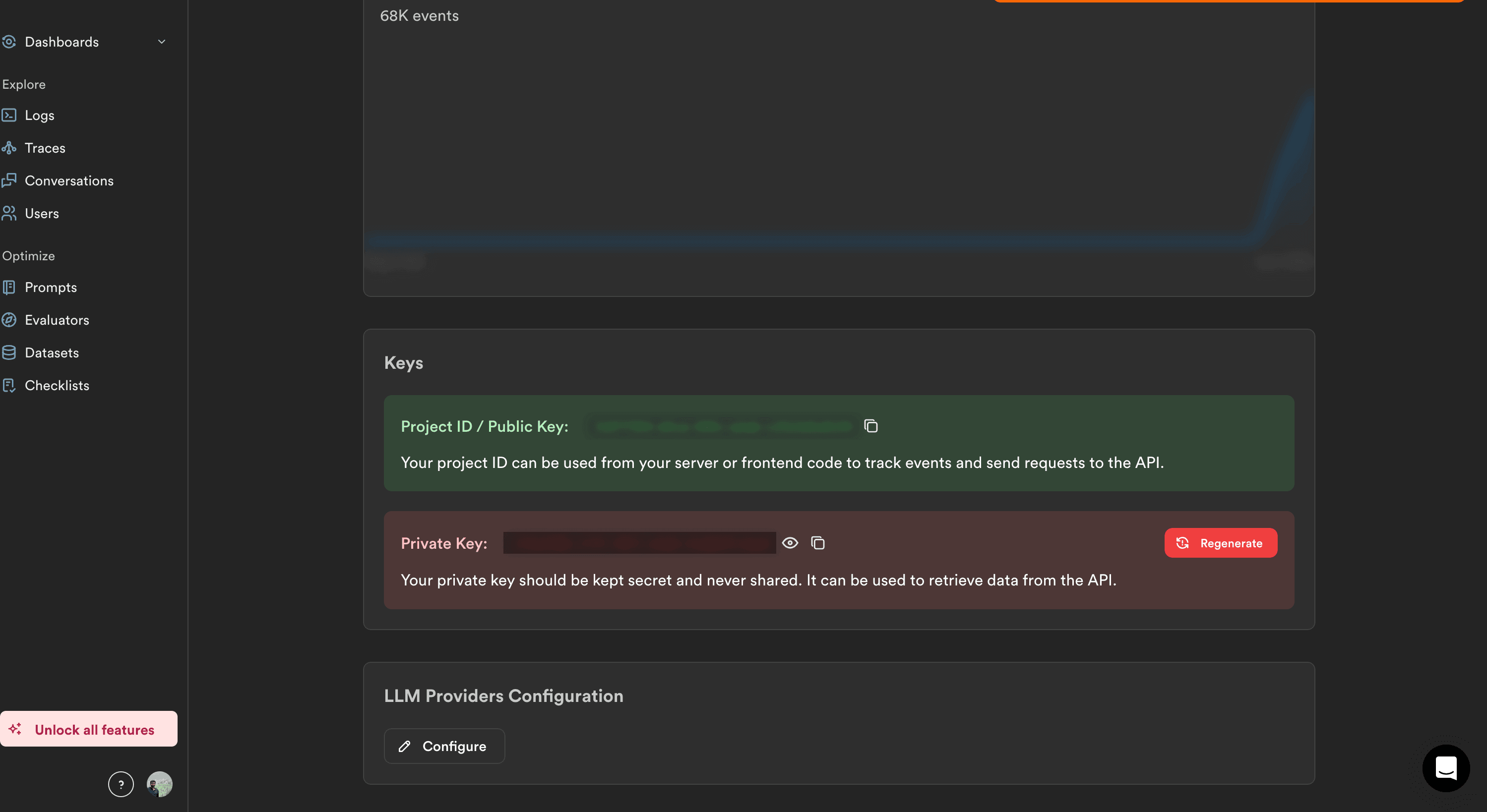
- Lunary project public key: Copy the Project ID / Public Key from your Lunary project settings
Integration Steps
TrueFoundry AI Gateway can export OpenTelemetry traces to Lunary over HTTP so you can analyze gateway traffic alongside the rest of your stack.1
Get your Lunary public key
- Log into the Lunary dashboard.
- Open your project and go to Settings → API Keys (or the project keys section).
- Copy the Project ID / Public Key. Store it securely — treat it like a credential used for trace ingestion.
2
Configure OTEL export in TrueFoundry
- In the TrueFoundry dashboard, go to Settings → Organisation → OTEL Config (under AI Gateway).
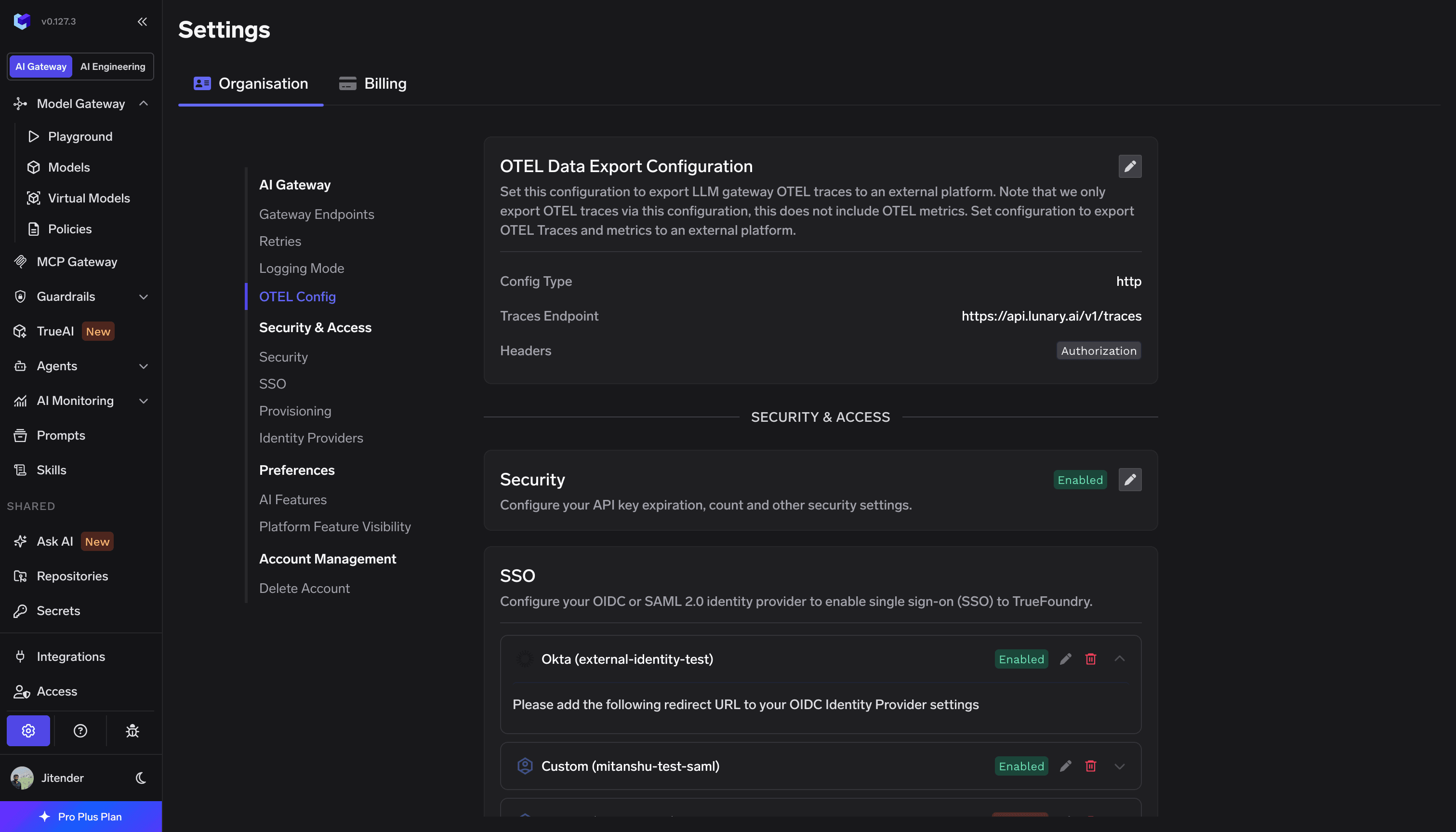
- Click edit on the OTEL Config section to open the exporter form (if it is not already open).
- Enable the OTEL Traces Exporter Configuration toggle.
- Select HTTP Configuration.
- Enter the Lunary traces endpoint:
https://api.lunary.ai/v1/traces - Set Encoding to
Proto.
3
Configure headers
Enable Headers and add Lunary authentication: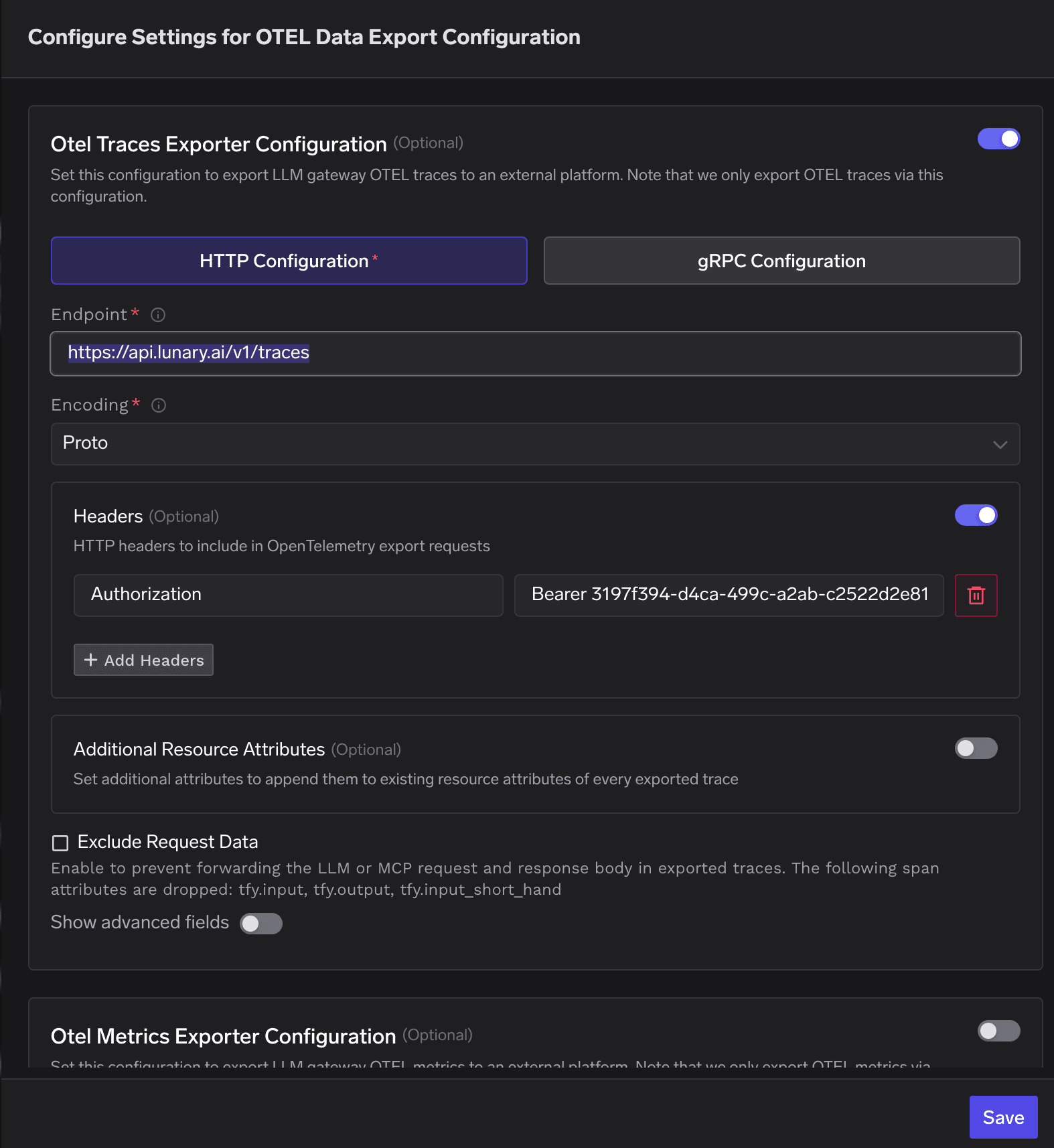
Replace
<LUNARY_PUBLIC_KEY> with the public key from the first step.4
Verify the integration
- Send a few requests through the TrueFoundry AI Gateway (via the Playground or any API call).
- In TrueFoundry, open Monitor and confirm traces are being generated for those requests.
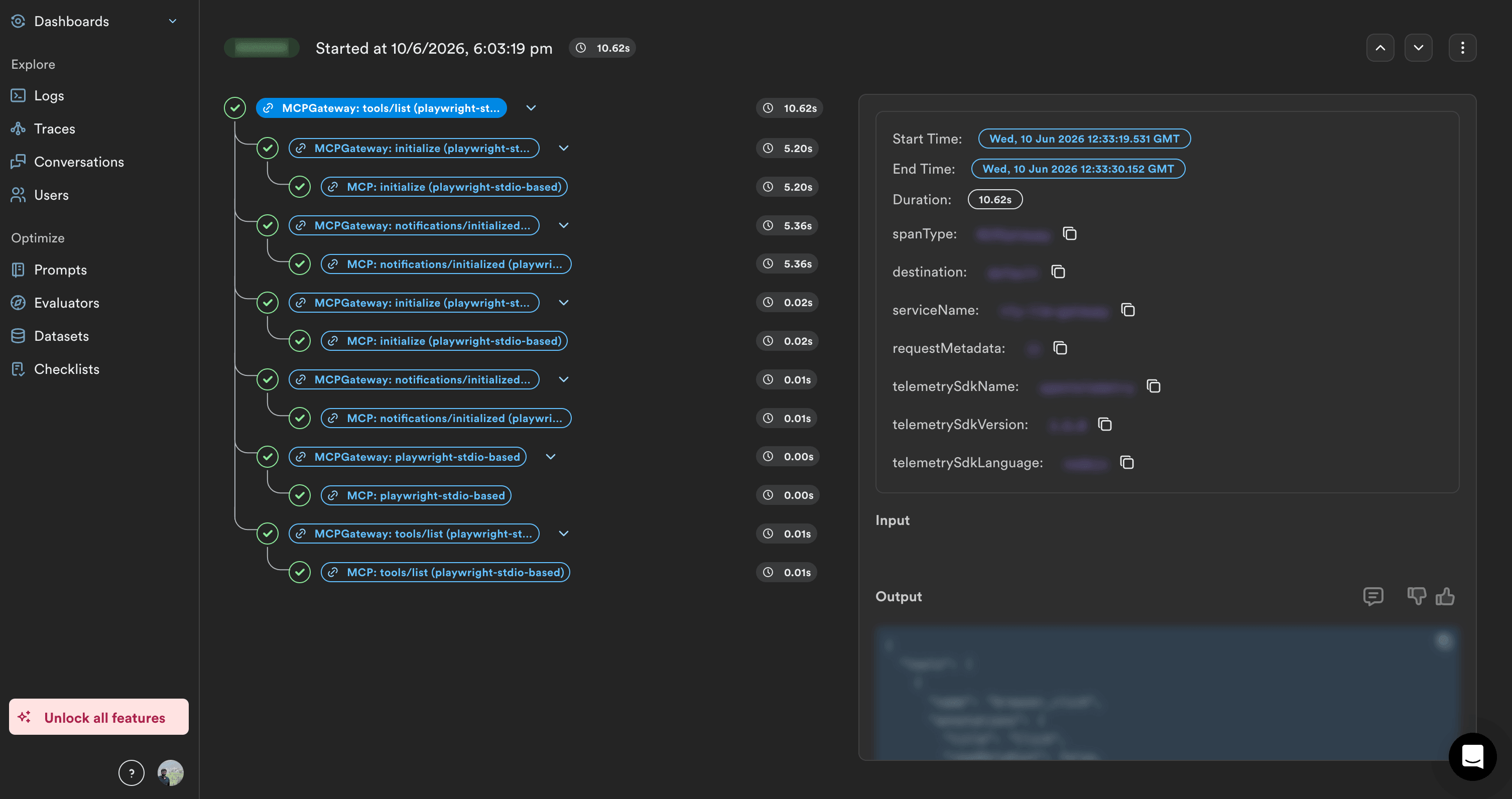
- In Lunary, open Explore → Traces and confirm new spans appear with the expected hierarchy, token usage, and latency details.
Configuration summary
The table above matches HTTP OTLP fields in TrueFoundry. For SDK-based instrumentation, self-hosted Lunary, or additional OpenTelemetry setup options, see Lunary’s documentation.