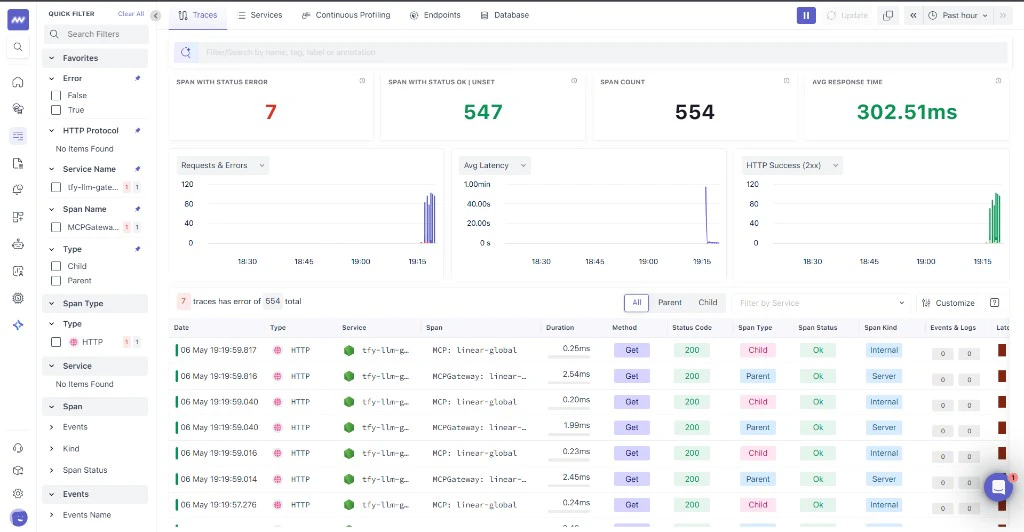
What is Middleware?
Middleware provides observability and monitoring for cloud-native workloads. Connecting the TrueFoundry AI Gateway lets you ingest LLM and gateway spans into your Middleware environment for analysis alongside the rest of your stack.Key Features of Middleware
- Unified observability: Consolidate traces, logs, and infrastructure signals in one place
- OpenTelemetry ingestion: Receive OTLP spans from gateways and SDKs compatible with OTLP HTTP
- Operational visibility: Correlate latency, errors, and usage patterns across services and AI workloads
Prerequisites
Before integrating Middleware with TrueFoundry, ensure you have:- TrueFoundry Account: Create a TrueFoundry account and follow the instructions in our Gateway Quick Start Guide
- Middleware access: Log in to Middleware with your work email (the account your organization uses for Middleware).
- Middleware API key: Obtain the API key Middleware issued for OTLP trace ingestion (typically from Middleware project or organization settings — use the credential they designate for traces).
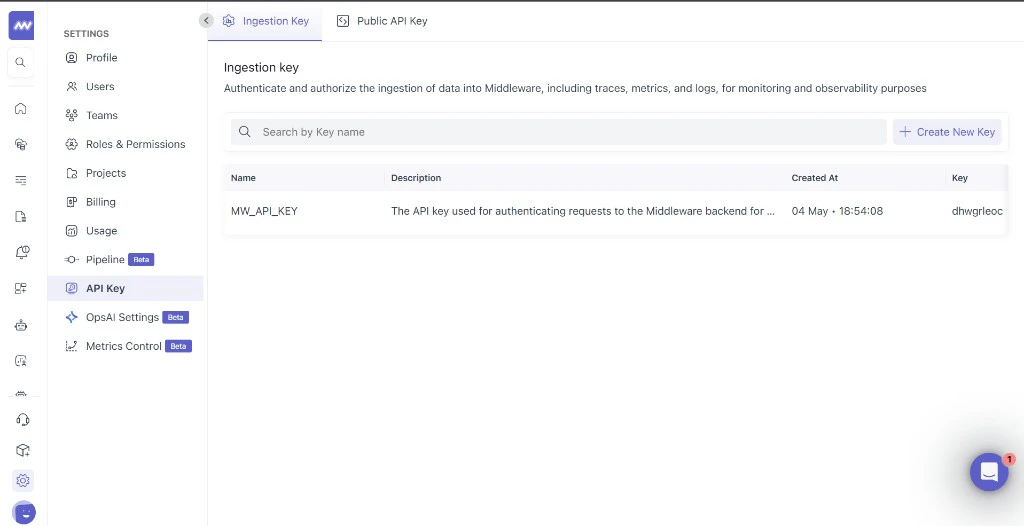
Integration Steps
TrueFoundry AI Gateway supports exporting OpenTelemetry traces to Middleware using your tenant OTLP ingest URL.1
Collect your Middleware API key
- Log in to Middleware with your work email and open your API key or organization settings (your admin may point you to the credential used for trace ingestion).
- Copy the secret and store it in a credential manager until you paste it into TrueFoundry gateway settings — you typically cannot retrieve the full secret again once generated.
2
Configure OTEL Export in TrueFoundry
- In the TrueFoundry dashboard, go to AI Engineering → Settings → OTEL Config (under Organisation, in the AI Gateway section).
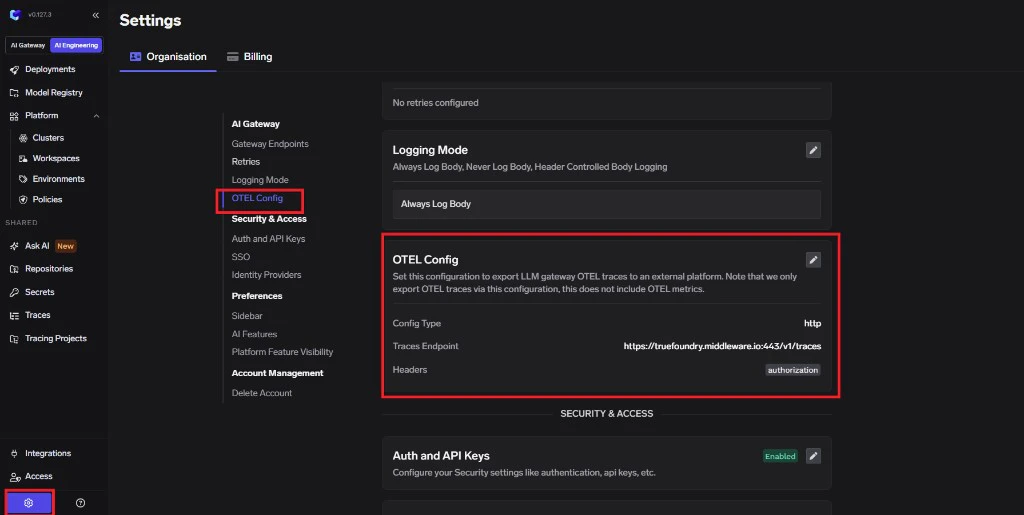
- Click edit on the OTEL Config section to open the exporter form (if it is not already open).
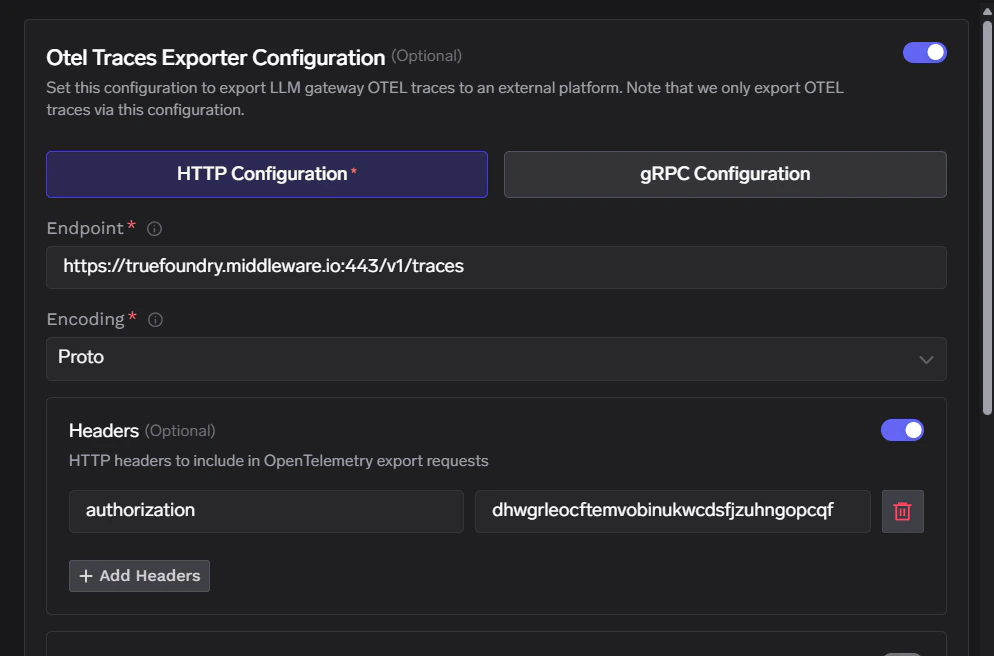
- Enable the OTEL Traces Exporter Configuration toggle.
- Select HTTP Configuration.
- Enter the Middleware traces endpoint:
https://<your-domain>.middleware.io:443/v1/traces - Set Encoding to
Proto.
3
Configure Headers
Middleware expects authentication through the
Authorization header only. Paste the raw API key as the header value (do not add a Bearer prefix unless Middleware explicitly instructed you otherwise).Click Save to apply your configuration.
4
Verify the Integration
- Make some requests through the TrueFoundry AI Gateway.
- Navigate to the Monitor section in TrueFoundry to verify traces are being generated.
- Open Middleware and drill into traces for your project or environment to confirm spans sourced from TrueFoundry are appearing.