


October 16, 2026
|
5 min read


Published: October 16, 2026
Blazingly fast way to build, track and deploy your models!
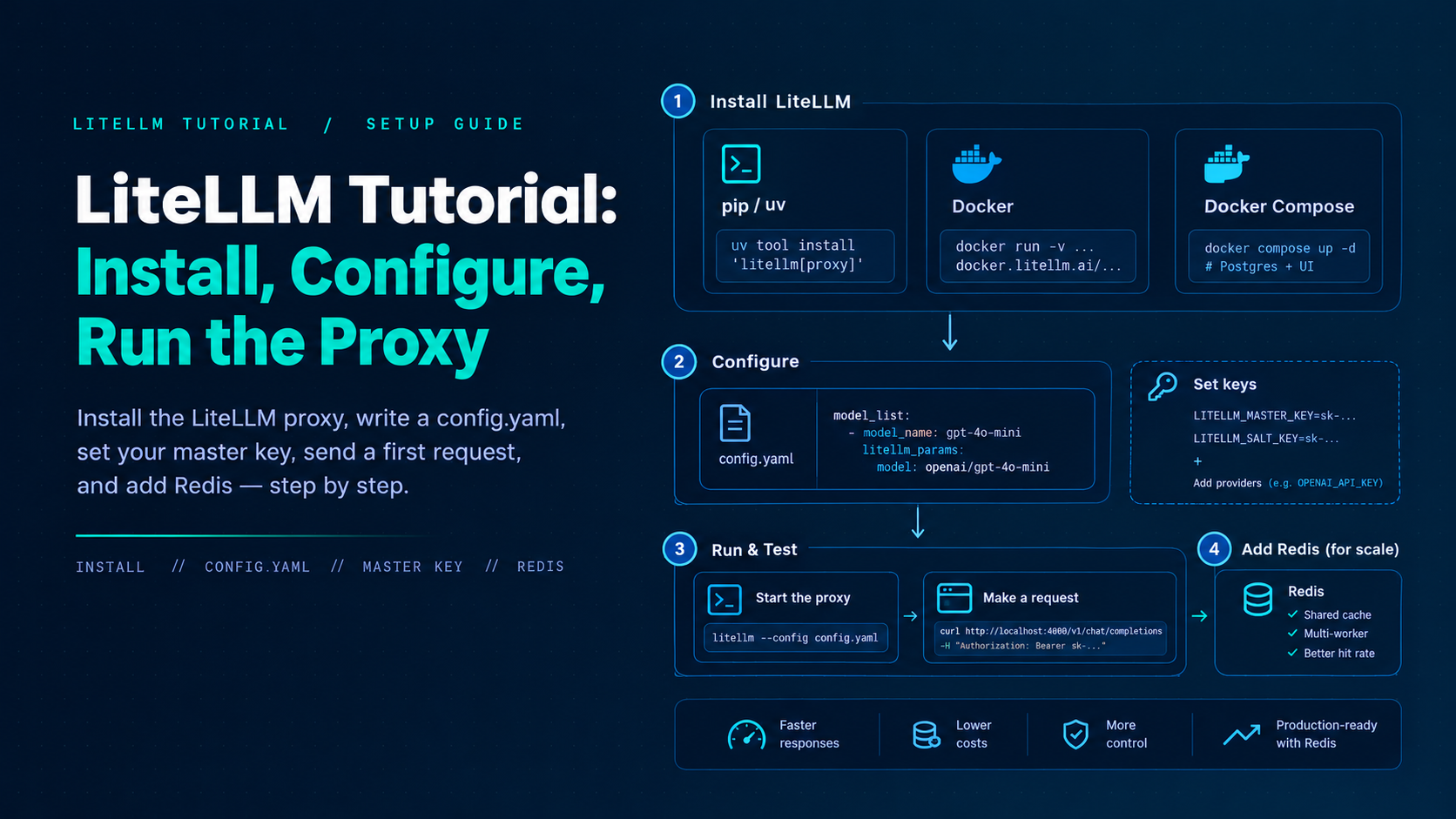
This LiteLLM tutorial walks platform engineers through installing the proxy, writing a minimal config.yaml, setting the master key, sending a first OpenAI-SDK request, adding models, enabling Redis for multi-worker setups, and avoiding the misconfigs that show up in the first week of production. Commands follow the official LiteLLM quickstarts. Pin versions when you promote beyond a laptop—LiteLLM ships minors roughly weekly. New to the pattern itself? Start with what an LLM gateway is and why platform teams put one in front of model providers.
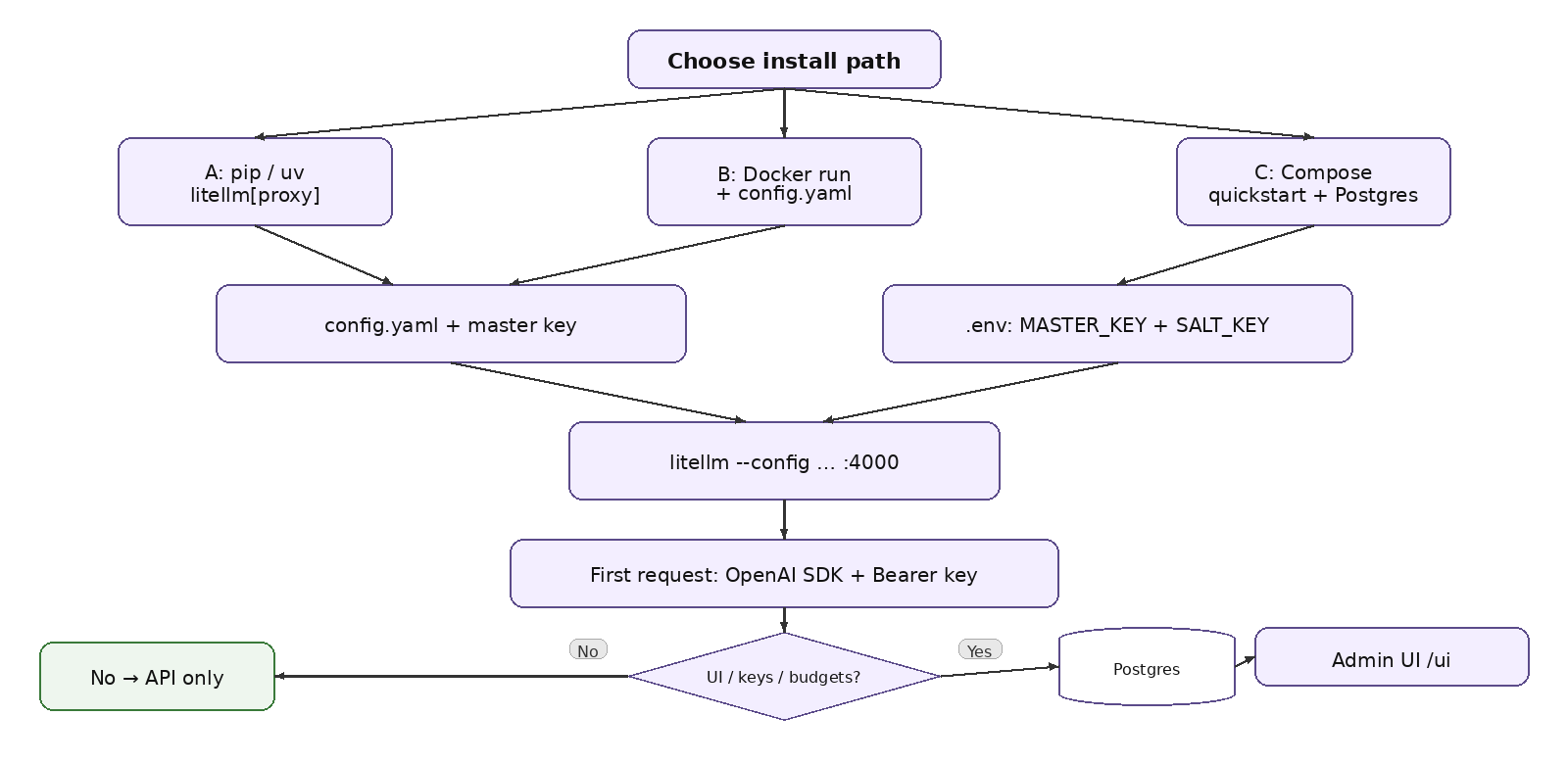
(gateway on your machine)Official gateway quickstart installs the proxy extras with uv:
uv tool install 'litellm[proxy]'
Equivalently:
python -m venv .venv && source .venv/bin/activate && pip install 'litellm[proxy]'Export at least one provider key (for example OPENAI_API_KEY), create config.yaml (next section), then start with:
litellm --config config.yamlThe proxy listens on 0.0.0.0:4000 by default. This path is ideal for local iteration; for shared environments prefer containers with pinned tags.
If you only need the OpenAI-compatible API—no Admin UI model management, virtual keys, or spend tracking—run the published image with a mounted config. Official example shape:
docker run \
  -v $(pwd)/litellm_config.yaml:/app/config.yaml \
  -e OPENAI_API_KEY=<your-openai-key> \
  -e LITELLM_MASTER_KEY=sk-<long-random-key> \
  -p 4000:4000 \
  docker.litellm.ai/berriai/litellm:<pin-a-tag> \
  --config /app/config.yaml
Requests authenticate with the master key. Prefer a pinned tag (production docs show ghcr.io/berriai/litellm:main-stable or explicit v1.x.x tags)—avoid :latest for anything shared. Remember the documented caveat: without a database, budget settings such as litellm_settings.max_budget do not enforce a hard spend cap the way teams expect, and virtual keys are not available.
For the full control-plane experience, official Docker quickstart:
curl -sSLO https://github.com/BerriAI/litellm/raw/main/docker/docker-compose.quickstart.yml
printf 'LITELLM_MASTER_KEY=sk-%s\nLITELLM_SALT_KEY=sk-%s\n' "$(openssl rand -hex 32)" "$(openssl rand -hex 32)" > .env
docker compose -f docker-compose.quickstart.yml up -d
That brings up the gateway on port 4000 and Postgres for models, keys, and spend logs. Compose refuses to start without master and salt keys. Keep .env durable: regenerating LITELLM_SALT_KEY makes credentials already stored in the database unreadable until you re-enter them. Edit the compose file to pin a release tag before any shared use.
A minimal model_list entry maps a public model_name (what clients request) to litellm_params (provider route + secrets). Example pattern from docs:
model_list:
  - model_name: gpt-4o-mini
    litellm_params:
      model: openai/gpt-4o-mini
      api_key: os.environ/OPENAI_API_KEY
general_settings:
  master_key: os.environ/LITELLM_MASTER_KEY
  database_url: postgresql://user:pass@db:5432/litellm
Other top-level blocks: router_settings (routing_strategy, Redis for shared router state), litellm_settings (request_timeout, cache, drop_params, json_logs, set_verbose), and environment_variables. Prefer os.environ/... references over pasting secrets into YAML. For multiple deployments of the same model_name, the router load-balances; set rpm/tpm on deployments if you want the proxy to respect provider rate envelopes. For the broader routing picture—strategies, fallbacks, and cooldowns—see our guide to LLM load balancing.
Set the master key:
export LITELLM_MASTER_KEY="sk-<long-random-value>"
Production best practices require the sk- prefix. The master key authenticates admin API calls and is the default Admin UI password. Anyone holding it has full admin access—treat it like a root password, store it in your secret manager, and rotate with the official master-key rotation flow.
If you use a database, also set LITELLM_SALT_KEY before adding models in the UI. It encrypts stored provider credentials (NaCl SecretBox derived from the salt, per security FAQ). There is no casual in-place rotation: changing it later makes stored keys unreadable. If no salt key is set, the master key falls back as the encryption key, which couples master-key rotation to credential re-encryption. Set a permanent salt key early.
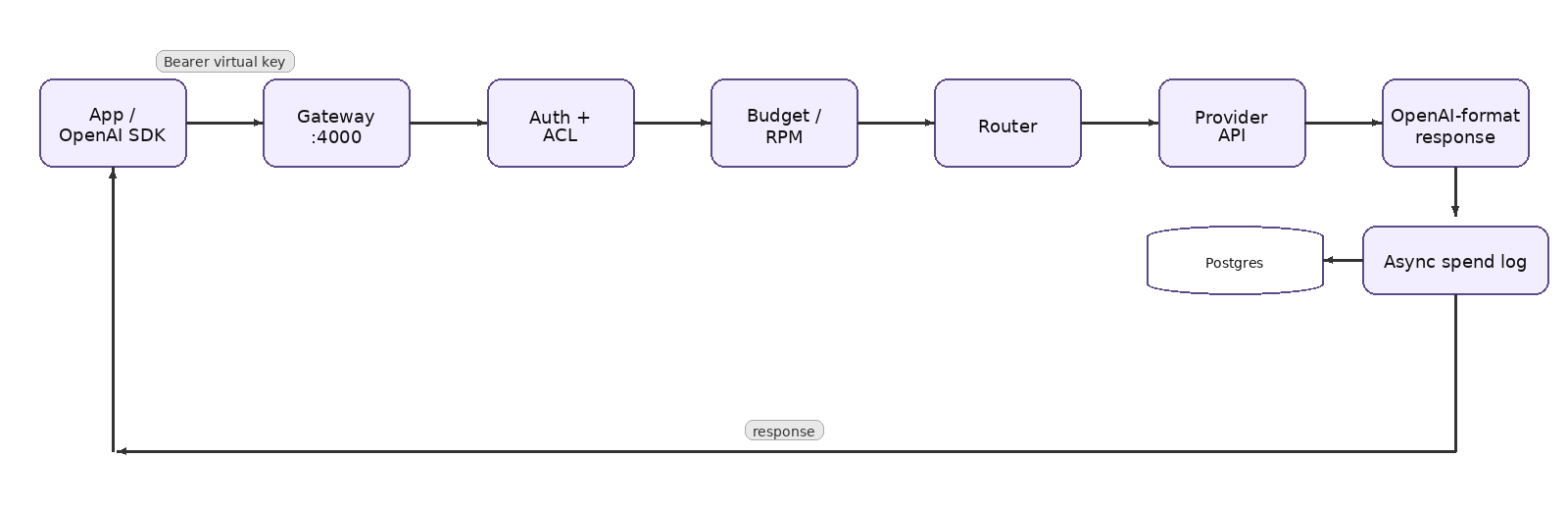
curl example (official quickstart shape):
curl http://localhost:4000/v1/chat/completions \
  -H 'Authorization: Bearer sk-<your-virtual-or-master-key>' \
  -H 'Content-Type: application/json' \
  -d '{"model": "gpt-4o-mini", "messages": [{"role": "user", "content": "Say hello in five words."}]}'
Python OpenAI SDK:
from openai import OpenAI
client = OpenAI(base_url="http://localhost:4000", api_key="sk-<your-virtual-key>")
response = client.chat.completions.create(
    model="gpt-4o-mini",
    messages=[{"role": "user", "content": "Say hello in five words."}],
)
print(response.choices[0].message.content)
On a config-only Docker run without virtual keys, the master key is the Bearer credential. On the Compose/UI path, create a virtual key and use that in apps—do not spray the master key into every microservice. JS/TS clients use baseURL + apiKey the same way.
Open http://localhost:4000/ui. Username is admin; password is your LITELLM_MASTER_KEY value from .env (per Docker quickstart). Failed UI sign-ins are rate-limited by source address; set general_settings.trusted_proxy_ranges to your load-balancer CIDRs (or [] if clients connect directly) so the proxy knows the real client IP. Left unset, docs say the proxy warns at startup and only a weaker per-username limit applies.
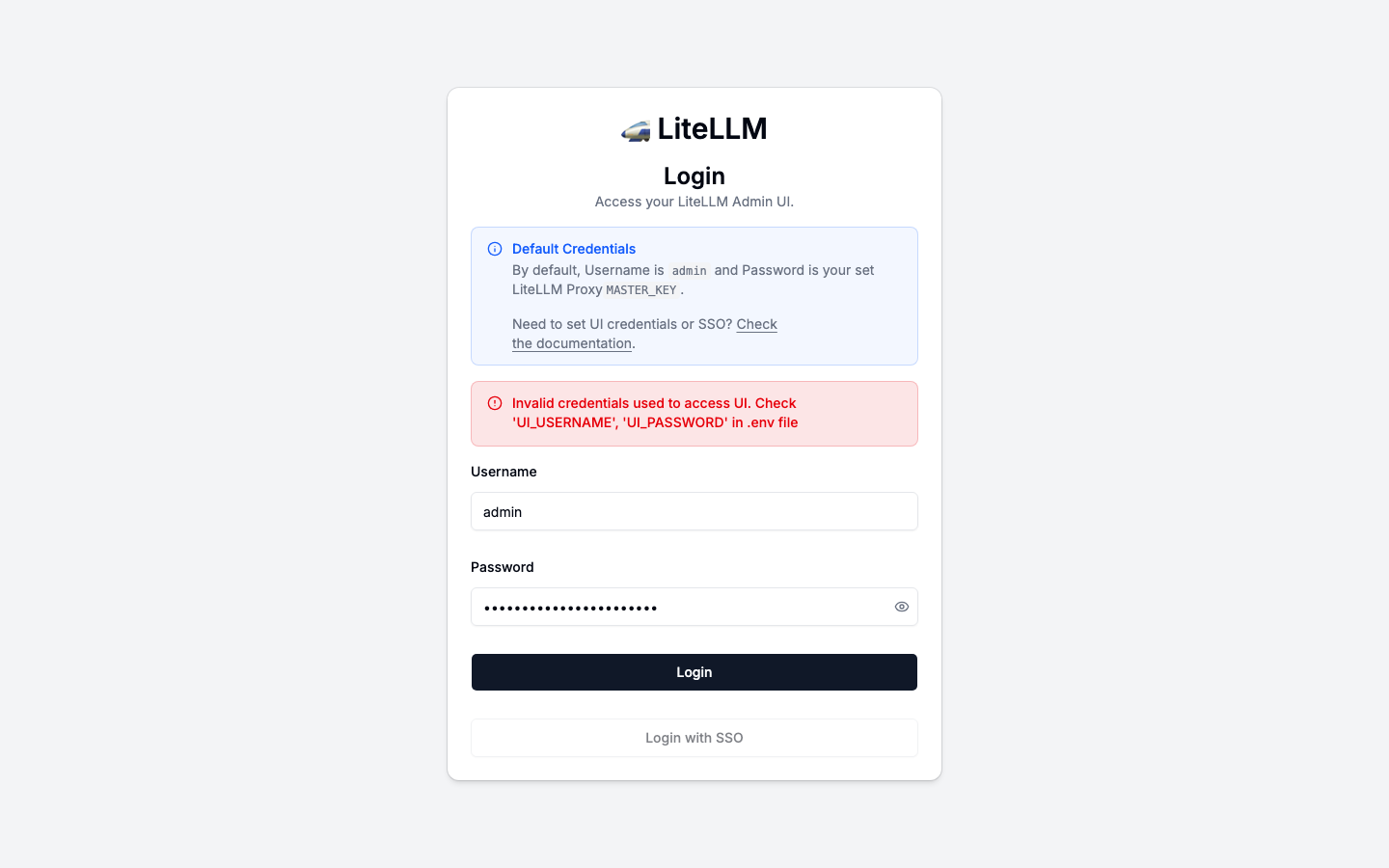
Enterprise deployments should move UI login to SSO (Okta, Azure AD, Google Workspace, OIDC/SAML) rather than sharing the master key as a human password. Keep the master key in a secrets manager for break-glass admin API use. SSO is documented as free for up to five users; beyond that an enterprise license is required.
UI path (DB-backed): Models + Endpoints → Add Model → pick provider, paste or reference os.environ/PROVIDER_KEY, Test Connect, Add Model. Prefer env-mounted provider keys when your security model requires keys outside the UI database.
Then Virtual Keys → Create New Key → copy once. Attach budgets, RPM/TPM, and model allowlists as needed. YAML path: append model_list entries and restart (or rely on GitOps). If store_model_in_db is true, UI-added models overlay via DB polling (default ~30s, tunable via proxy_config_reload_interval_seconds). Avoid duplicate model_name entries across YAML and DB that create surprising extra deployments.
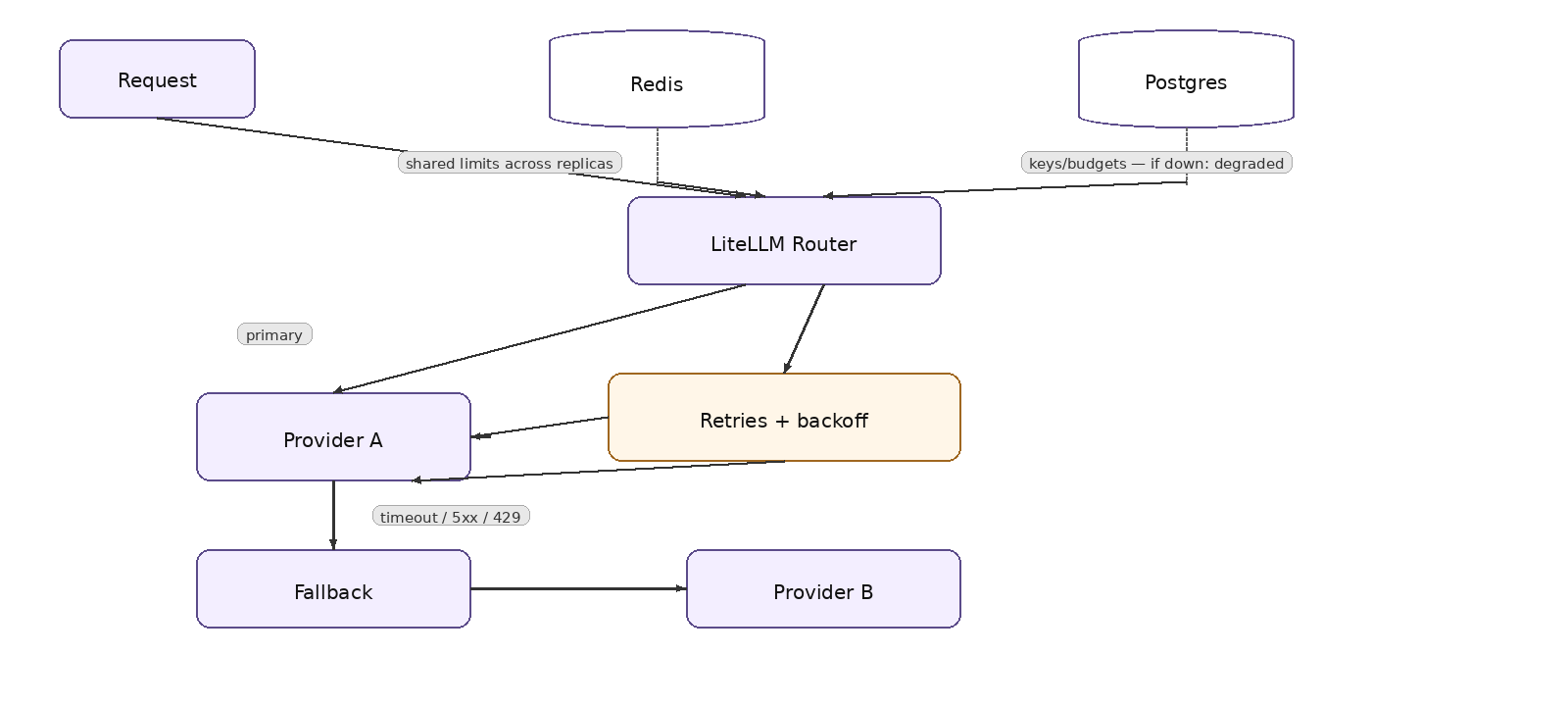
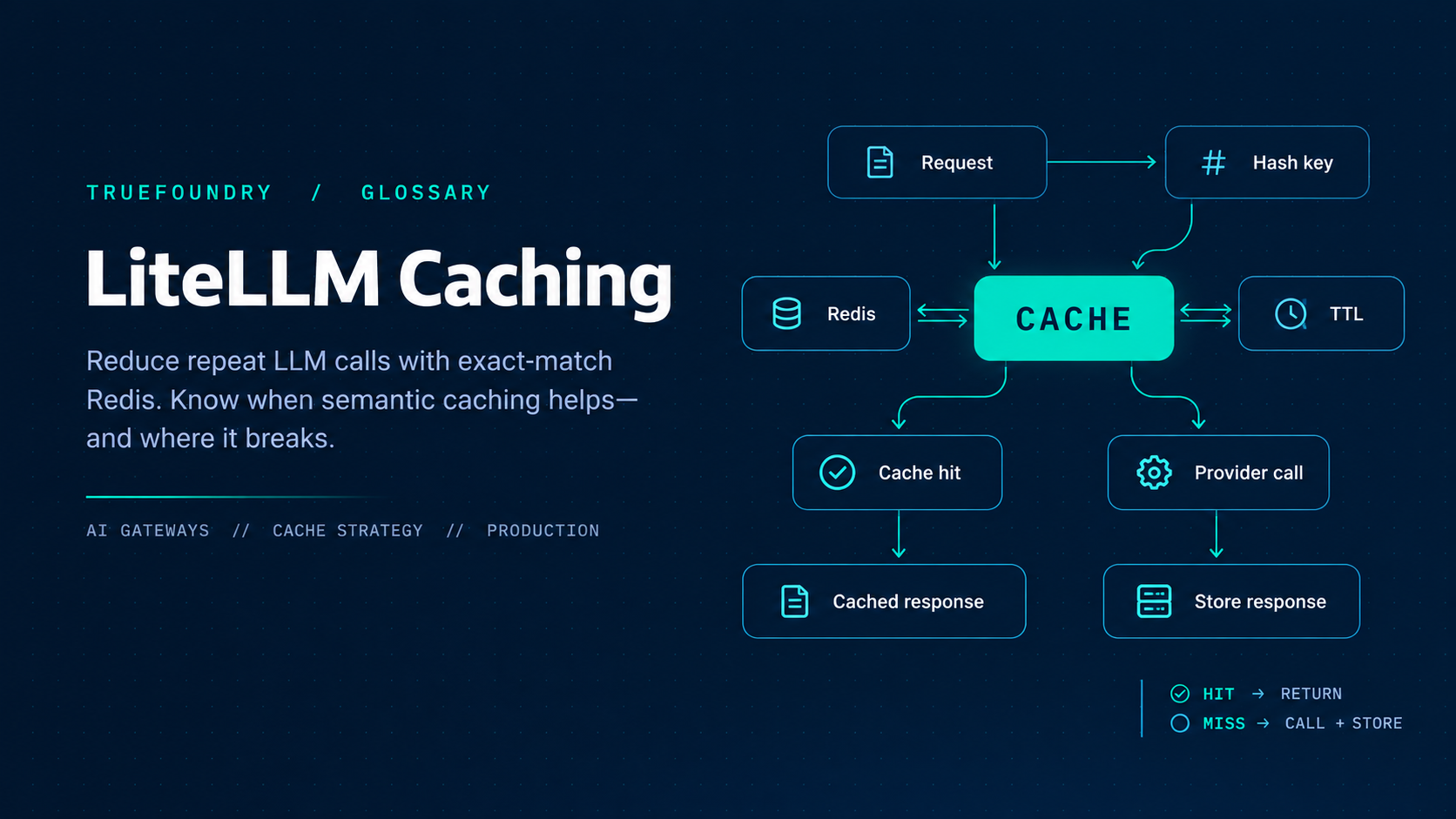
Single worker on a laptop can skip Redis. The moment you set --num_workers > 1 or run two pods, configure Redis for both router_settings and litellm_settings.cache_params. Setting REDIS_HOST in the environment alone is not enough—the config must point the proxy at Redis. Official “What Needs Redis”: without it, a 100 RPM limit across four workers effectively allows ~400, revoked keys can linger on other workers, and response cache hits stay local.
Example shape from production docs:
router_settings:
  routing_strategy: simple-shuffle
  redis_host: os.environ/REDIS_HOST
  redis_port: os.environ/REDIS_PORT
  redis_password: os.environ/REDIS_PASSWORD
litellm_settings:
  cache: True
  cache_params:
    type: redis
    host: os.environ/REDIS_HOST
    port: os.environ/REDIS_PORT
    password: os.environ/REDIS_PASSWORD
On Kubernetes, production tips favor one Uvicorn worker per pod (~1 vCPU / 4Gi floor per worker) and horizontal scale. Use LITELLM_JOB_ROLE=serving on traffic pods and a single worker role replica for single-owner background jobs (budget resets, spend cleanup) when you run many replicas. Keep the default simple-shuffle routing strategy for high traffic; usage-based routing adds Redis lookups on the request path.
Point every internal service at the gateway base_url; issue per-team or per-app virtual keys with model allowlists and budgets; keep provider keys only on the gateway; monitor spend in the UI or via logging callbacks; alert on hanging requests and budget crossings (Slack alerting is documented under general_settings.alerting). Treat config and secrets as production config management—not a notebook side project.
When you outgrow Compose, move to Helm (monolithic litellm-helm) or the componentized chart / Terraform modules (gateway + backend + UI) in official deployment docs. Pin versions, run migrations via the documented job/hook, and keep a staging proxy on the same minor line you will promote. LiteLLM supports the four most recent stable minor lines (policy effective 2026-06-29)—plan upgrades before your line ages out.
After install: (1) curl /health/readiness on :4000, (2) chat completion with master or virtual key, (3) log into /ui if DB-backed, (4) create a second virtual key with a tiny max_budget and confirm over-budget behavior, (5) if multi-replica, curl /cache/ping and confirm Redis, (6) revoke a key and confirm other replicas reject it within your auth cache TTL. That sequence catches most “it started but governance is fake” failures.
You now have a working LiteLLM proxy: installed, configured through config.yaml, secured with a master and salt key, and reachable from any OpenAI SDK client. Before production, add Postgres for keys and spend, Redis for shared state, pinned image tags, and the hardening knobs above—then run the verification sequence on every upgrade.
If you would rather not operate that stack yourself, see how TrueFoundry’s AI Gateway handles routing, keys, and observability →
TrueFoundry AI Gateway delivers ~3–4 ms latency, handles 350+ RPS on 1 vCPU, scales horizontally with ease, and is production-ready, while LiteLLM suffers from high latency, struggles beyond moderate RPS, lacks built-in scaling, and is best for light or prototype workloads.


Install the proxy extras with uv tool install 'litellm[proxy]' (or pip install 'litellm[proxy]' in a virtualenv), write a config.yaml with a model_list, and start it with litellm --config config.yaml. The proxy listens on port 4000 by default. If you need the Admin UI, virtual keys, and spend tracking, use the Docker Compose quickstart, which adds Postgres.
Set the client’s base_url to the proxy (for example http://localhost:4000 or your ingress) and pass a LiteLLM virtual key as api_key. The model field is the public model_name from config.yaml, and responses come back in OpenAI format. On a config-only run without a database, the master key is the Bearer credential, but apps should get virtual keys in any shared setup.
Without shared Redis, each worker or replica keeps its own rate-limit counters, router state, and cache. A 100 RPM limit across four workers then effectively allows about 400, revoked keys can linger on other workers, and cache hits stay local. Configure Redis in both router_settings and litellm_settings.cache_params—setting REDIS_HOST in the environment alone is not enough.
1,000+ LLMs through a single OpenAI-compatible API. Switching models means changing the model name in the request — same URL, same credentials — which is what makes swapping in a new provider a configuration change rather than an integration project.
Yes. The gateway is OpenTelemetry-compliant and plugs into Grafana, Datadog, Prometheus, or your preferred stack. Every request is traced from prompt to model execution, so metrics such as latency, cost, and errors land next to your existing dashboards.



The latest news, articles, and resources sent to your inbox
.webp)
.png)
.png)
.png)
.png)
.png)

.png)
.png)
.png)


