

Run setup
With OpenCode installed, install the setup tool, then run:Choose models
Select the models OpenCode should offer, then choose the default for new sessions. Use the model IDs recommended by your administrator.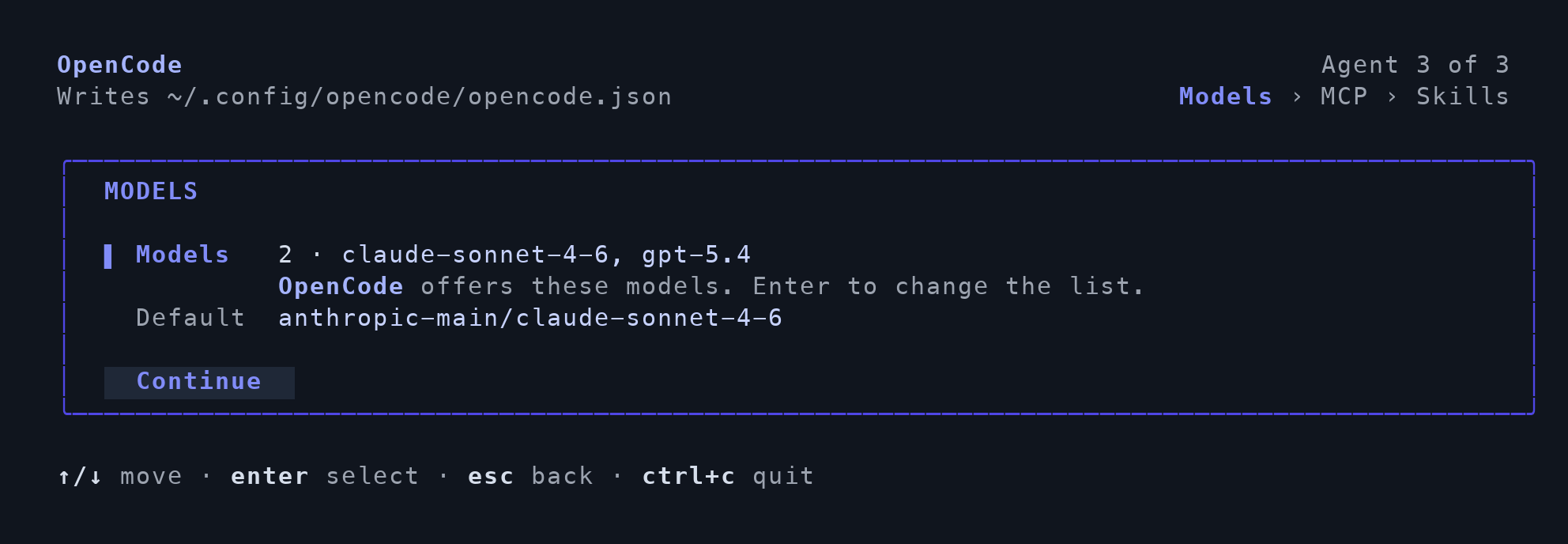
Example available models and default model.
Open OpenCode
Open a new terminal and launch OpenCode normally. If you use the desktop app, launch it from the new terminal so it receives the updated shell environment. Follow any remaining actions in the completion summary.Optional: authorize MCP servers
For servers requiring sign-in, run:<server-name> with the configured server’s name.
Verify the connection
Select your configured model in a new conversation and ask:Reply exactly TFY-CHAT-OK. Do not use tools. Confirm that a response arrives without an authentication or model error. Then verify the request in the gateway.
For manual configuration and advanced options, see the OpenCode integration guide.