

What is OpenCode?
OpenCode is an open-source AI coding agent available as a terminal-based interface, desktop app, or IDE extension. It uses the AI SDK and Models.dev to support 75+ LLM providers, and can also run local models. With TrueFoundry AI Gateway integration, you can route all OpenCode LLM requests through TrueFoundry’s Gateway for centralized access control, cost tracking, rate limiting, guardrails, and observability.Key Features of OpenCode
- AI-Powered Coding Agent: A full-featured coding agent that can read, write, and edit files, run shell commands, and navigate complex codebases directly from your terminal or desktop
- Multiple Agent Modes: Built-in Build and Plan agents with the ability to create custom agents for specialized tasks like code review, documentation, or security auditing
- 75+ Provider Support: Connect to any LLM provider through a unified interface, including custom OpenAI-compatible endpoints like the TrueFoundry AI Gateway
Prerequisites
Before integrating OpenCode with TrueFoundry, ensure you have:- TrueFoundry Account: Create a TrueFoundry account and follow the instructions in our Gateway Quick Start Guide
- OpenCode Installation: Install OpenCode by following the official documentation
Integration Guide
This guide uses the OpenCode Desktop app for illustration, but the same configuration applies to the terminal-based (TUI) and IDE extension versions.Step 1: Open Provider Settings
- Open the OpenCode Desktop app.
- Navigate to Providers in the left sidebar.
- Click + Connect next to Custom provider.
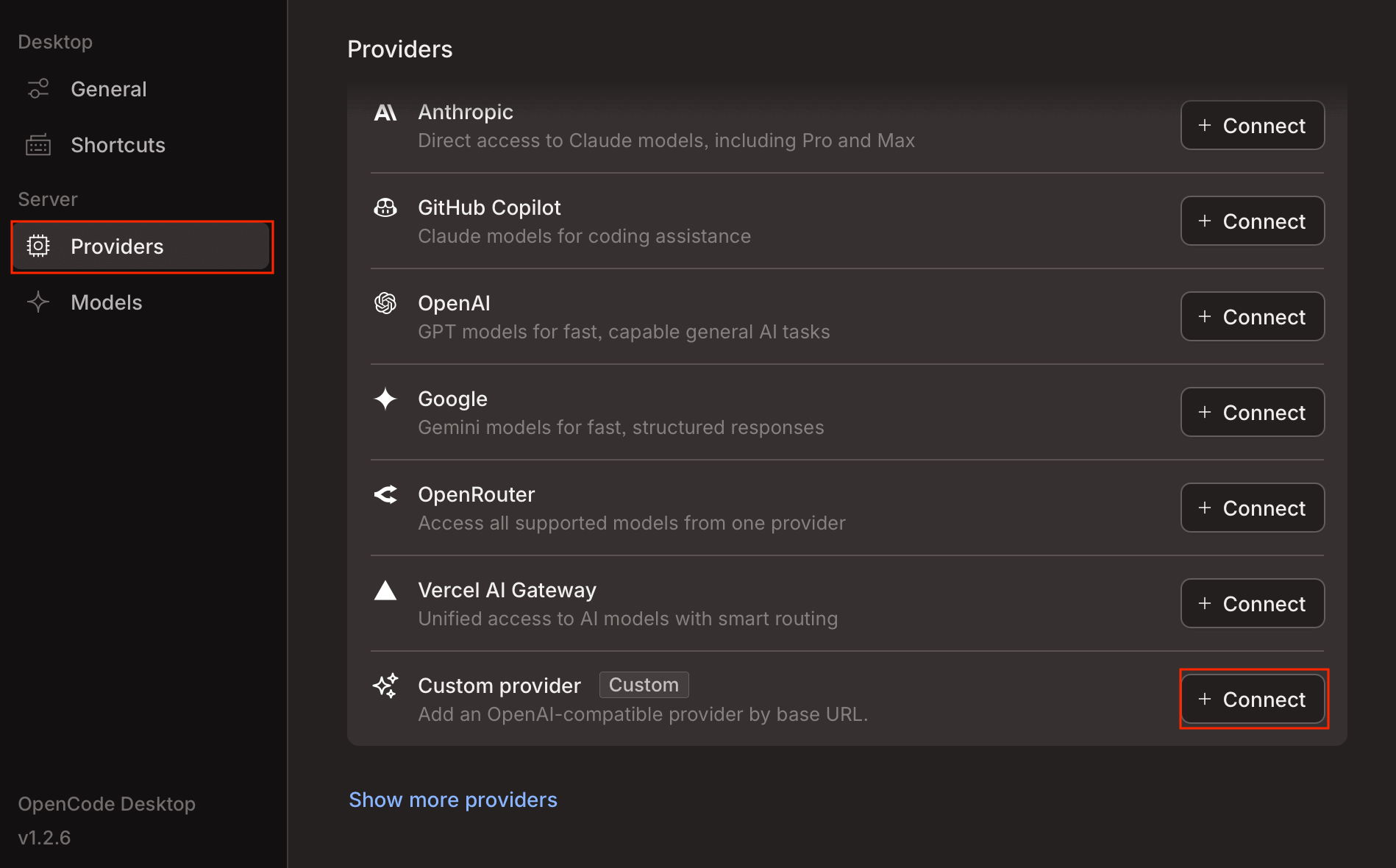
OpenCode Providers page showing Custom provider option
Step 2: Configure TrueFoundry as a Custom Provider
Fill in the following details in the Custom provider form:- Provider ID:
tfy-gateway(or any identifier using lowercase letters, numbers, hyphens, or underscores) - Display name:
truefoundry - Base URL: Your TrueFoundry AI Gateway URL (e.g.,
{GATEWAY_BASE_URL}). You can get this from the unified code snippet in the TrueFoundry AI Gateway Playground. - API key: Your TrueFoundry API key
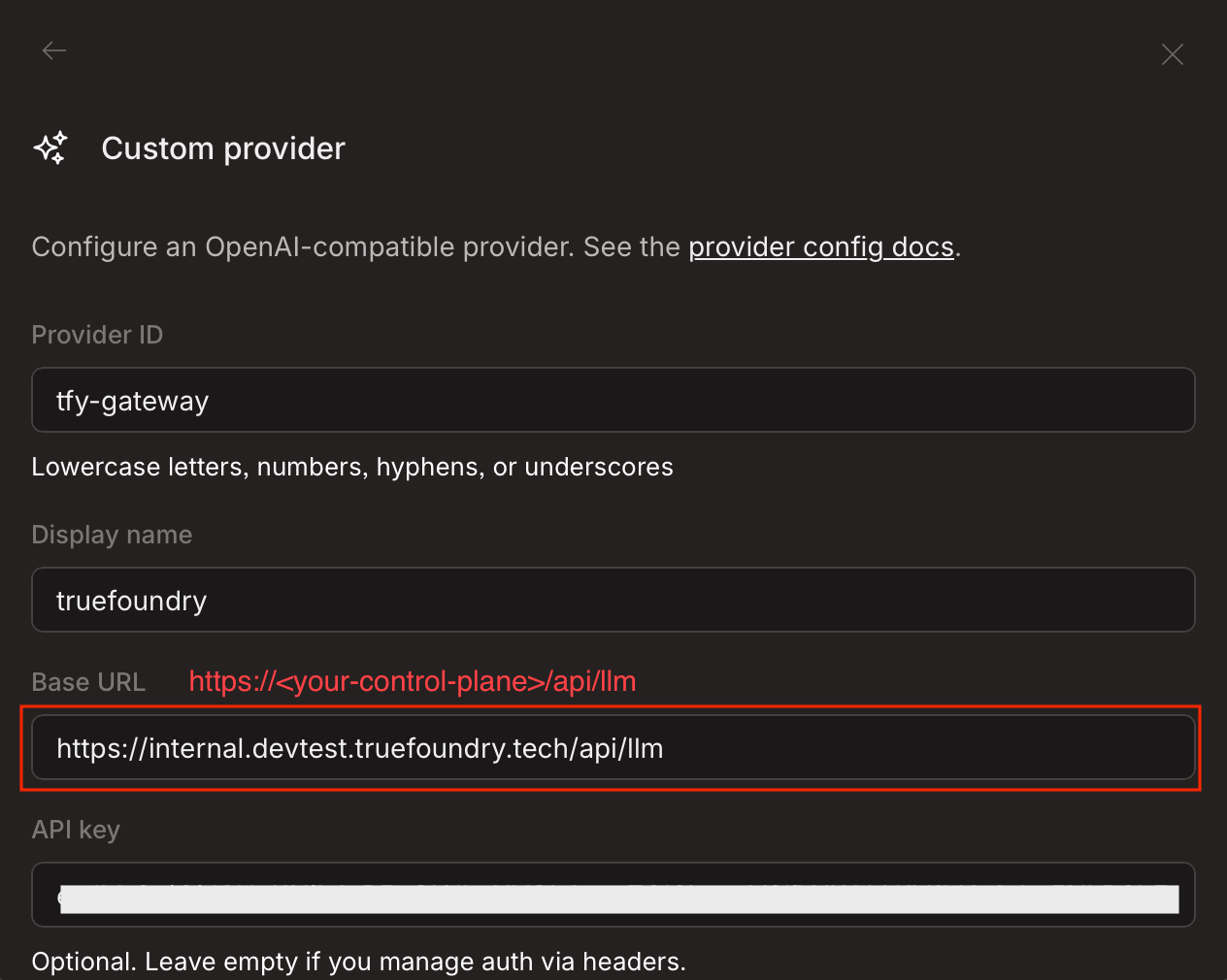
Custom provider form with TrueFoundry configuration
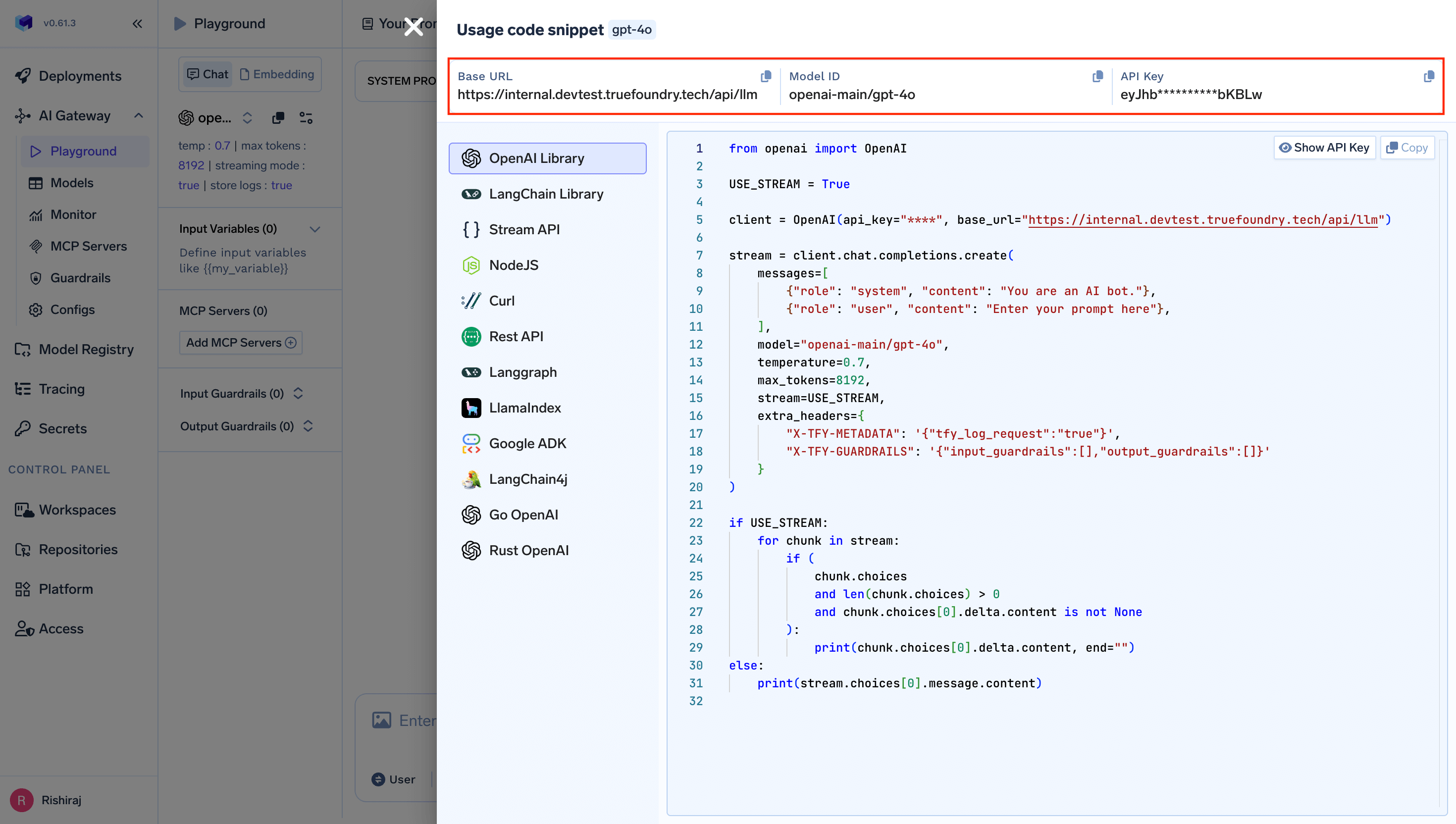
Get Base URL and API key from the unified code snippet
Step 3: Add Models
Scroll down in the Custom provider form to add models:- In the Models section, enter the model ID from TrueFoundry (e.g.,
openai-main/gpt-5-codex) in the first field and a display name (e.g.,tfy-gpt-5-codex) in the second field. - Click + Add model to add more models as needed.
- Optionally, add custom Headers for tracking. For example, set
applicationtoopencodeto tag all requests from OpenCode in TrueFoundry’s observability dashboard. - Click Submit to save the configuration.
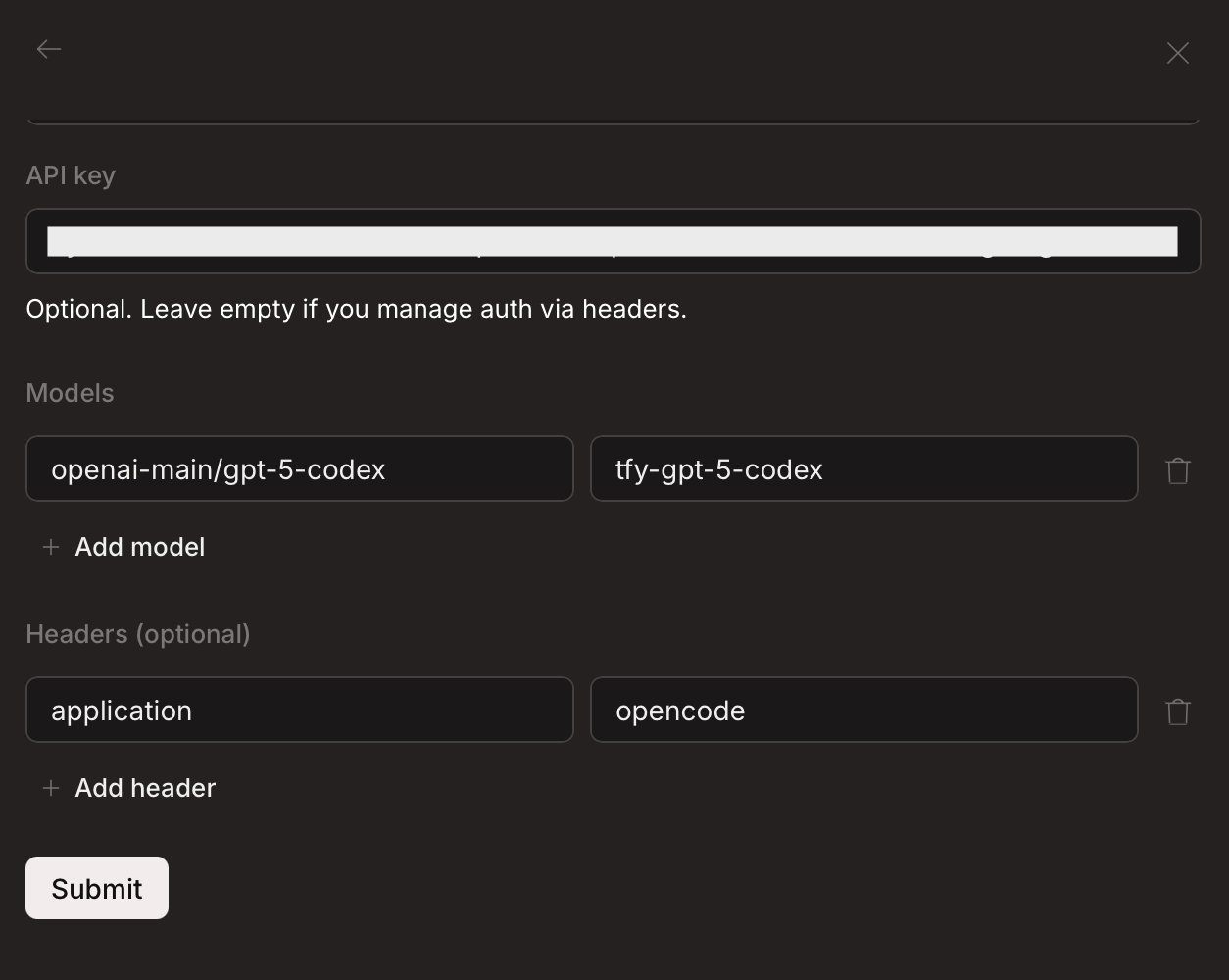
Adding models and custom headers in the Custom provider form
Minimum 128K context window requiredOpenCode includes a detailed system prompt with tool definitions, agent instructions, and project context that consumes a significant number of input tokens on every request.
- Models with smaller context windows (e.g., 8K or 32K) will fail with
prompt is too longerrors - The system prompt combined with conversation history and tool call results quickly exceeds smaller limits
- Refer to the OpenCode recommended models for models that are known to work well
Step 4: Select a TrueFoundry Model and Start Coding
- In the OpenCode chat interface, click the model selector at the bottom of the screen.
- You will see your configured TrueFoundry models listed under the truefoundry provider.
- Select the model you want to use and start coding.
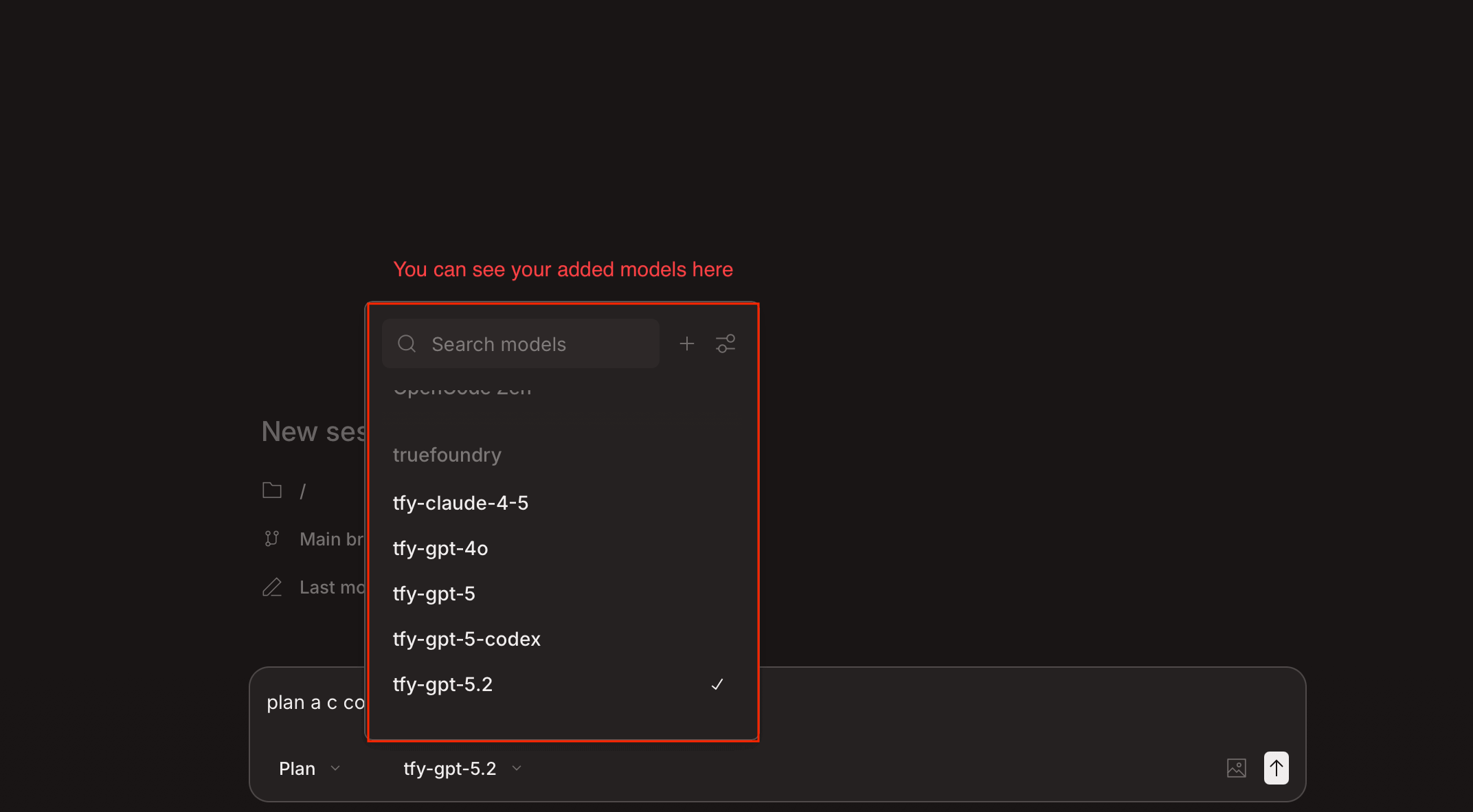
TrueFoundry models available in OpenCode model selector
Alternative: Configuration via JSON
If you prefer configuring OpenCode through its JSON config file (useful for TUI or team-wide settings), add the following to youropencode.json:
Observability and Governance
Monitor your OpenCode usage through TrueFoundry’s observability dashboard. With theapplication: opencode header configured, you can filter and analyze:
- Performance Metrics: Track request latency, time to first token, and inter-token latency
- Cost and Token Usage: Monitor input/output tokens and associated costs per model
- Usage Patterns: Understand usage across models, users, and teams
- Rate Limiting and Virtual Models: Set up rate limiting and configure Virtual Models for intelligent routing and fallback across your models