

Run setup
With VS Code installed, install the setup tool, then run: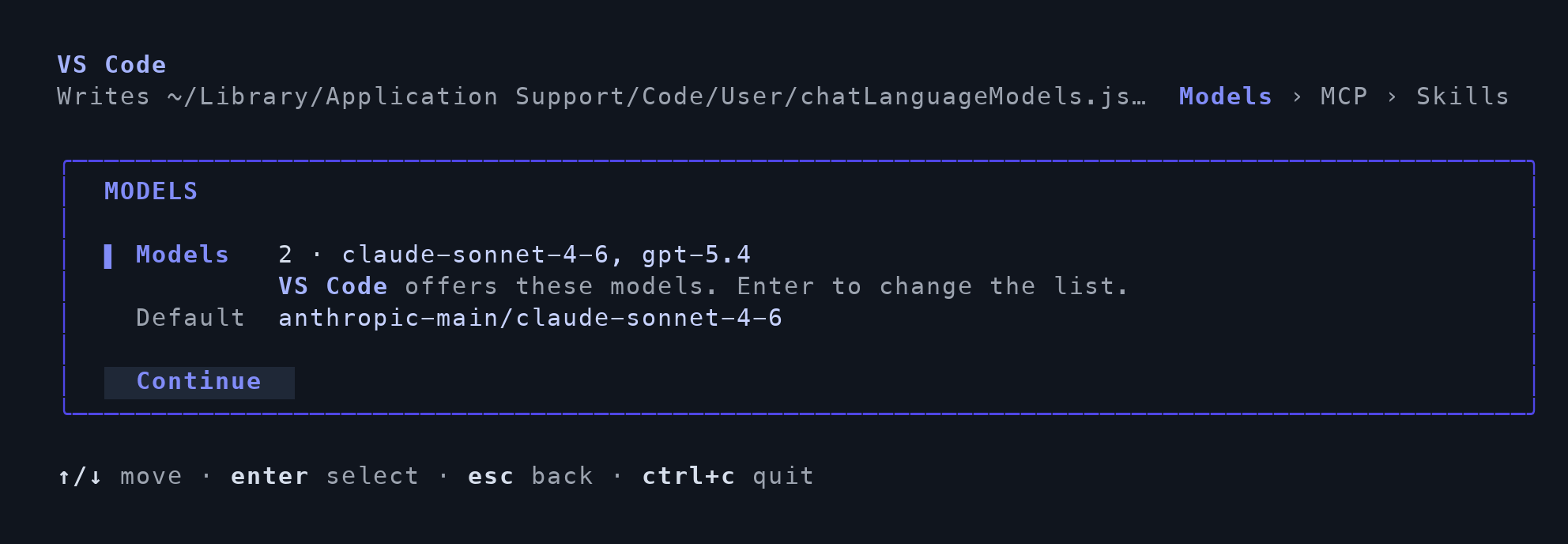
Example model settings for VS Code; use your organization's model IDs.
Finish in VS Code
- Open or restart VS Code. Open the Command Palette and run Chat: Manage Language Models.
- If a configured model needs an API key, run
tfy-local-ai-setup tokenin your terminal. Paste the result through the model row’s Update API Key action. - Open a new chat and select your gateway model.
Optional: authorize MCP servers
Complete sign-in for selected MCP servers inside VS Code. See Connect MCP from your IDE.Verify the connection
Select your configured model in a new conversation and ask:Reply exactly TFY-CHAT-OK. Do not use tools. Confirm that a response arrives without an authentication or model error. Then verify the request in the gateway.
For manual configuration and advanced options, see the VS Code integration guide.