

- The MCP server validates Entra JWTs.
- You need delegated user identity on the outbound call (
oid/preferred_usernamepreserved). - You do not want interactive Authorization Code consent in the Gateway for every user (contrast with Microsoft Entra OAuth MCP Server).
Architecture
Values you need
Guide to setting up Microsoft Entra OBO with TrueFoundry
1
Create the downstream MCP app registration
This app is the protected MCP resource that TrueFoundry OBO exchanges into. Your MCP server validates tokens whose
aud is this app’s client ID. It is not the OBO client and not a public login app.Downstream Entra setup for OBO
Downstream Entra setup for OBO
Create the app registration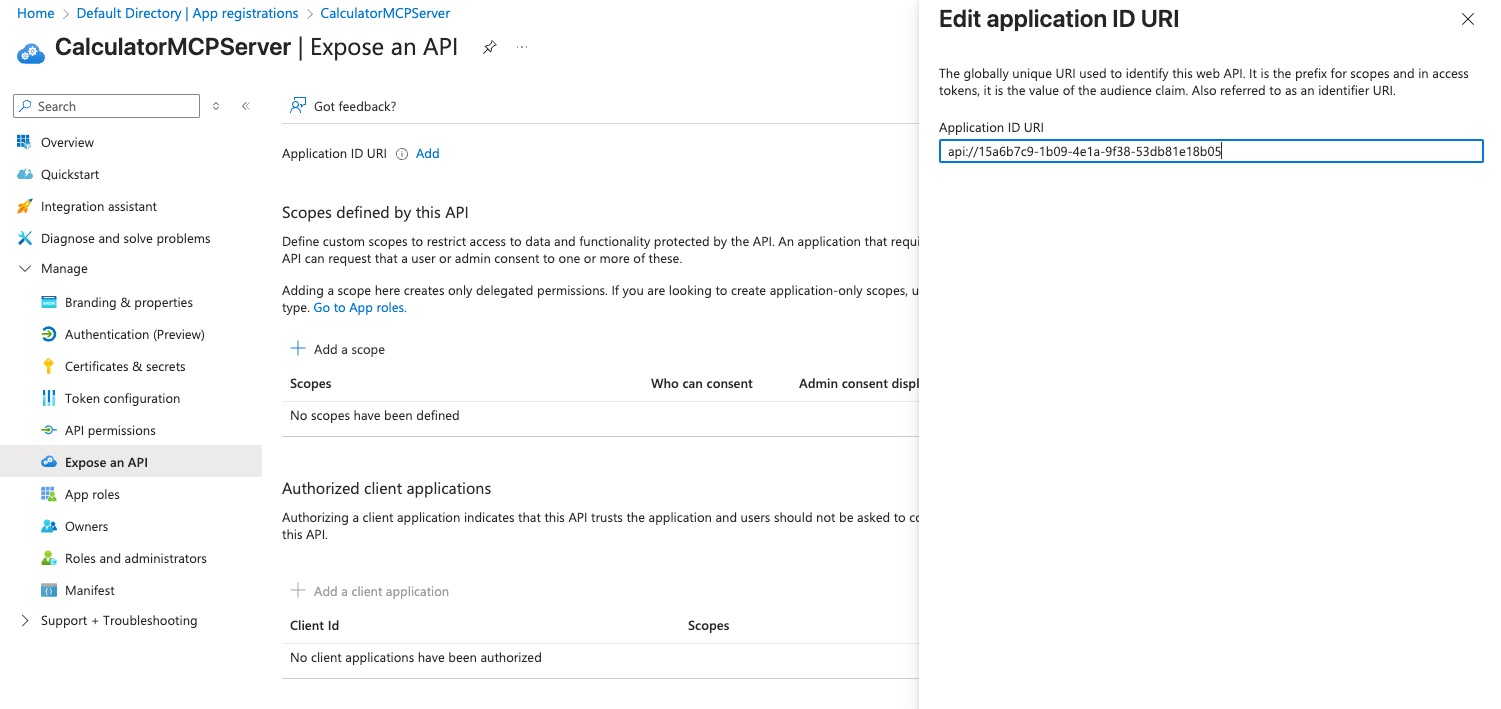
- Entra admin center → App registrations → New registration.
- Configure:
- Name: e.g.
mcp-azure - Supported account types: Choose based on your needs
- Redirect URI: leave empty (not required for an OBO resource)
- Name: e.g.
- Click Register.
- Copy Application (client) ID (
<<mcp_client_id>>) and Directory (tenant) ID (<<tenant_id>>).
- Open the downstream app → Expose an API.
- Application ID URI → Add →
api://<<mcp_client_id>>→ Save.
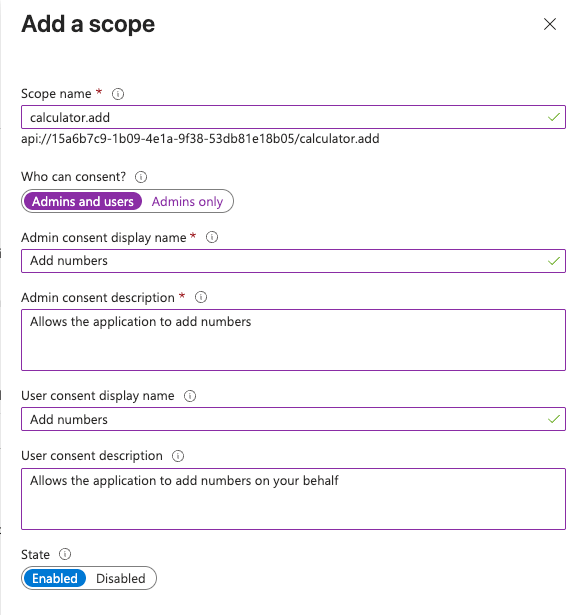
- Click Add a scope:
- Scope name:
access_as_user - Who can consent: Admins and users
- Admin / user consent display name and description: e.g.
Access azure-mcp - State: Enabled
- Scope name:
- Click Add scope.
2
Create the TrueFoundry inbound app registration
The TrueFoundry inbound app is both the app users authenticate to (incoming token audience) and the confidential client that performs OBO to downstream.
TrueFoundry inbound → downstream OBO
TrueFoundry inbound → downstream OBO
Create the TrueFoundry inbound app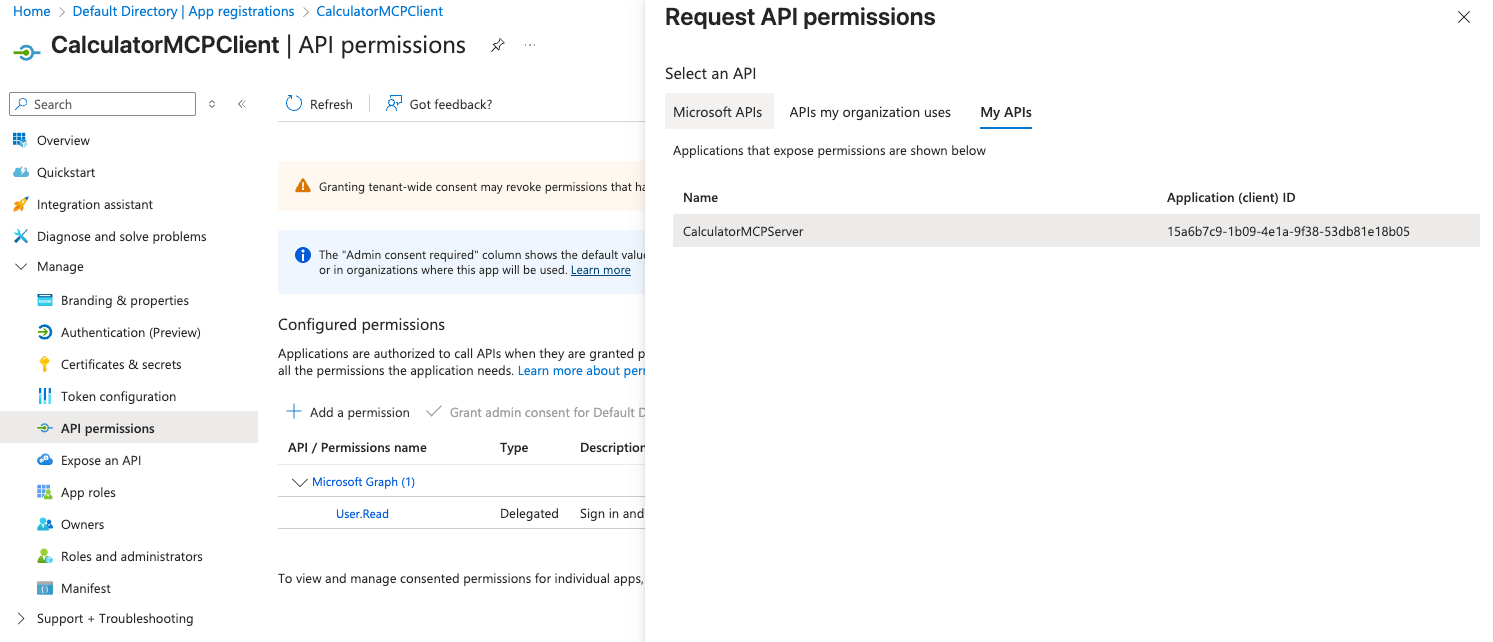
- Entra admin center → App registrations → New registration.
- Configure:
- Name: e.g.
azure-truefoundry - Supported account types: Choose based on your needs
- Redirect URI (optional): platform Web,
https://jwt.ms(useful for admin consent)
- Name: e.g.
- Click Register.
- Copy Application (client) ID (
<<truefoundry_client_id>>).
- Open the created app → Expose an API.
- Application ID URI →
api://<<truefoundry_client_id>>→ Save. - Add a scope:
- Scope Name:
access_as_user - Who can consent: Admins and users
- Admin / user consent display name and description: e.g.
Access azure-truefoundry - State: Enabled
- Scope Name:
- Click Add scope.
- TrueFoundry inbound app → Authentication.
- Add a platform → Mobile and desktop applications.
- Enable
https://login.microsoftonline.com/common/oauth2/nativeclient-> Click on Configure - Navigate to Settings → Enable Allow public client flows
- Click Save.
- TrueFoundry inbound app → API permissions → Add a permission.
- My APIs → select the downstream app (
mcp-azure). - Delegated permissions →
access_as_user→ Add permissions. - (Recommended) Also, add this app’s own delegated
access_as_user(Add a permissions → My APIs → TrueFoundry inbound), so device-code / silent login against TrueFoundry inbound is consented. - Grant admin consent for your tenant.
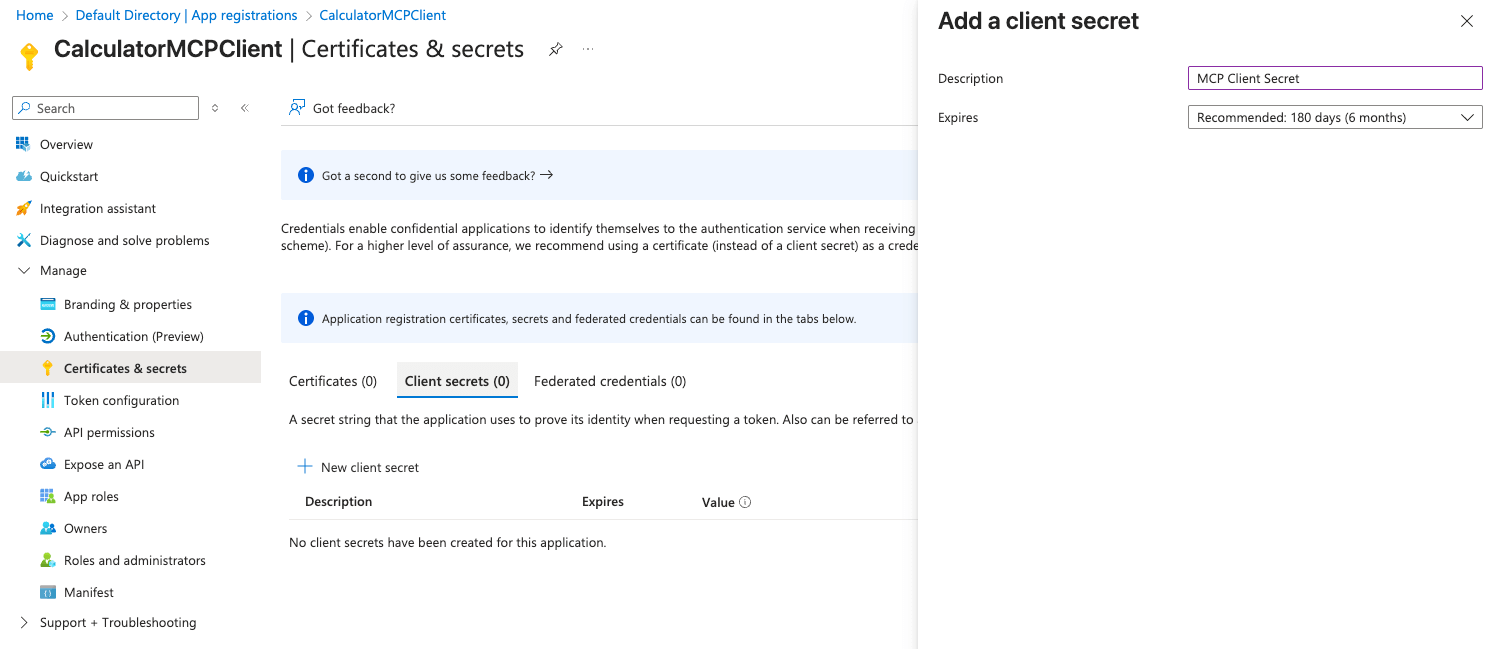
- Certificates & secrets → Client secrets → New client secret → Add.
- Copy the Value immediately (
<<truefoundry_client_secret>>).
- Generate a key pair (for example
certificate.crtandprivate-key.pem). - In the TrueFoundry inbound app, go to Certificates & secrets → Certificates → Upload certificate and upload
certificate.crt. - Copy the Thumbprint.
- Keep
private-key.pemsecret. Provide TrueFoundry with client ID, private key, and thumbprint when you register the MCP server.
3
Configure JWT validation on the MCP server
Your MCP server must validate Entra JWTs for the outbound audience:
- Issuer:
https://login.microsoftonline.com/<<tenant_id>>/v2.0 - JWKS URI:
https://login.microsoftonline.com/<<tenant_id>>/discovery/v2.0/keys - Audience:
<<mcp_client_id>>(the outbound token audience - not the TrueFoundry inbound client ID) - Discovery URL (if your runtime uses OpenID discovery):
https://login.microsoftonline.com/<<tenant_id>>/v2.0/.well-known/openid-configuration
4
Add an Identity Provider in TrueFoundry
TrueFoundry must validate the TrueFoundry inbound token and map it to a virtual account.
- Go to Settings → Security & Access → Identity Providers (or Settings with section
identity-providers). - Add a provider (UI or Apply using YAML).
See Identity Providers for field reference.
5
Create a Virtual Account and map the TrueFoundry inbound client
- Go to Access → Virtual Accounts.
- Create a virtual account and grant MCP access. Example YAML:
value must equal the JWT claim configured as name claim (azp). When azp is the TrueFoundry inbound client ID, map that client ID here.Tighten resource_fqn to a specific MCP server FQN in production instead of *.See Manage Virtual Accounts.6
Register the MCP server with OAuth2 jwt-bearer (OBO)
- Go to AI Gateway → MCP Servers → add / edit a Remote MCP server.
- Set the URL to your MCP endpoint.
- Configure Auth Data → OAuth2 with provider Microsoft Entra and grant type JWT Bearer / On-Behalf-Of (
jwt_bearer). Use a client secret or a certificate, matching how you configured the TrueFoundry inbound app above.
- Client secret
- Certificate
client_secret as a TrueFoundry Secret FQN when possible instead of a raw value.token_url, and forwards the outbound access token to the MCP URL.7
Obtain a TrueFoundry inbound token and call the Gateway
Generate a user access token whose audience is the TrueFoundry inbound app (not the MCP API app).Call the MCP Gateway with that token:Adjust the MCP path to match your tenant’s MCP Gateway URL format.
Inbound vs outbound token claims
Typical claim differences after a successful Gateway OBO exchange:
If the MCP server rejects the call, confirm its configured audience is the outbound
aud (<<mcp_client_id>>), not the TrueFoundry inbound client ID.
FAQ
Why map azp to a virtual account and oid as slug?
Why map azp to a virtual account and oid as slug?
In Entra access tokens,
azp is the authorized party - the client application that obtained the token. TrueFoundry’s Identity Provider name_claim: azp maps that value to a virtual account. The virtual account’s mapping value must equal the azp you see on inbound tokens (often <<truefoundry_client_id>> when users sign in through the TrueFoundry inbound app; it can be another client ID if a different app acquires tokens for the TrueFoundry inbound API).slug_claim: oid uses the Entra user object ID so traces, metrics, and per-user controls can still distinguish people who share the same virtual account. See Resolve to a virtual account (Name Claim + optional User Slug Claim).Can I use client credentials as the TrueFoundry inbound token?
Can I use client credentials as the TrueFoundry inbound token?
No. Microsoft Entra OBO only accepts a user assertion (On-Behalf-Of flow). An app-only / client-credentials token cannot be the inbound subject for the exchange.Sign the user in (device code, native client, SPA, etc.) so the token’s
aud matches the TrueFoundry Identity Provider audience (<<truefoundry_client_id>> in this guide).OBO exchange fails with consent or AADSTS errors
OBO exchange fails with consent or AADSTS errors
Check the following:
- Admin consent - TrueFoundry inbound has delegated
access_as_useron the downstream app, and consent is granted for the tenant. - Inbound
aud- the Bearer token sent to TrueFoundry matches an Identity Provider audience (<<truefoundry_client_id>>). - MCP scopes -
auth_data.scopesis the downstream scope (e.g.api://<<mcp_client_id>>/access_as_user), not only the TrueFoundry inbound scope. - Client credentials -
client_id/client_secret(or certificate) on the MCP server are for the TrueFoundry inbound app and are valid. - User assertion - the inbound token is a user token, not client credentials.
aud / azp / scp against the claim table above.