

This guide covers registering an existing AgentCore runtime that uses IAM inbound auth. Choose one credential type: AWS Access Key or AWS Assumed Role.
Guide to registering an AgentCore MCP server
1
Open your AgentCore runtime in AWS
- Sign in to the AWS Console in the region where your runtime lives (for example US East (N. Virginia) /
us-east-1). - Open Amazon Bedrock → AgentCore → Build → Runtime.
- In Runtime resources, click the runtime you want to connect (for example an IAM-backed MCP runtime such as
tfy_mcp_iamortfy_test_mcp_server). Status should be Ready.

Use Build → Runtime, not Discover → Registry. The MCP invoke URL is built from the Runtime ARN (
…:runtime/…), not a registry ARN.2
Copy the Runtime ARN and build the MCP URL
- On the runtime detail page, copy the Runtime ARN.
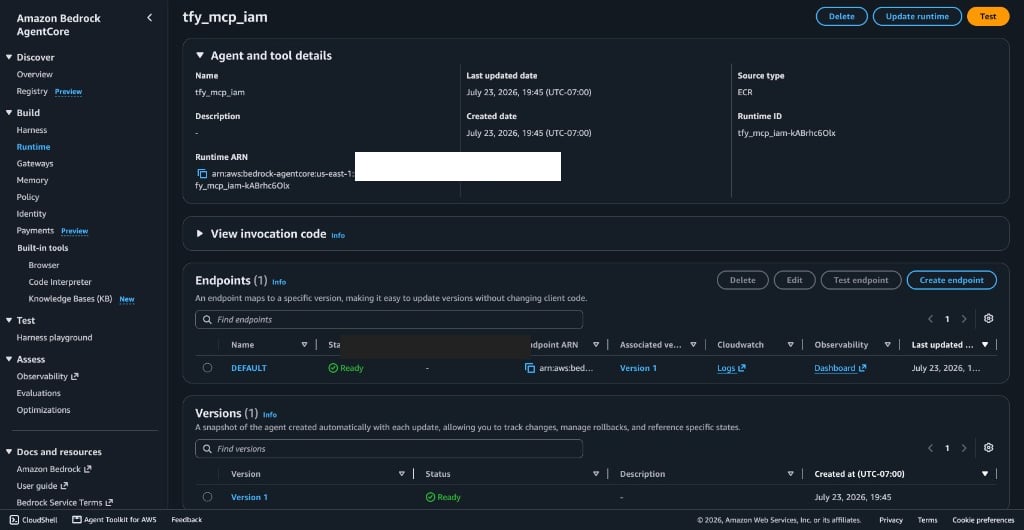
- Build the MCP URL with this template:
: → %3A, / → %2F). TrueFoundry’s gateway signs the URL as stored — it does not encode the ARN for you.Encode it in a shell:3
Configure AWS credentials
Pick one credential type. Access keys are long-lived IAM user keys stored on the MCP server. Assumed role uses STS (Recommended): the AI Gateway assumes your IAM role and signs with temporary credentials.
- AWS Assumed Role (Recommended)
- AWS Access Key
Do not create customer access keys. The gateway assumes your IAM role and signs with temporary STS credentials.On-premExample trust policy (SaaS):
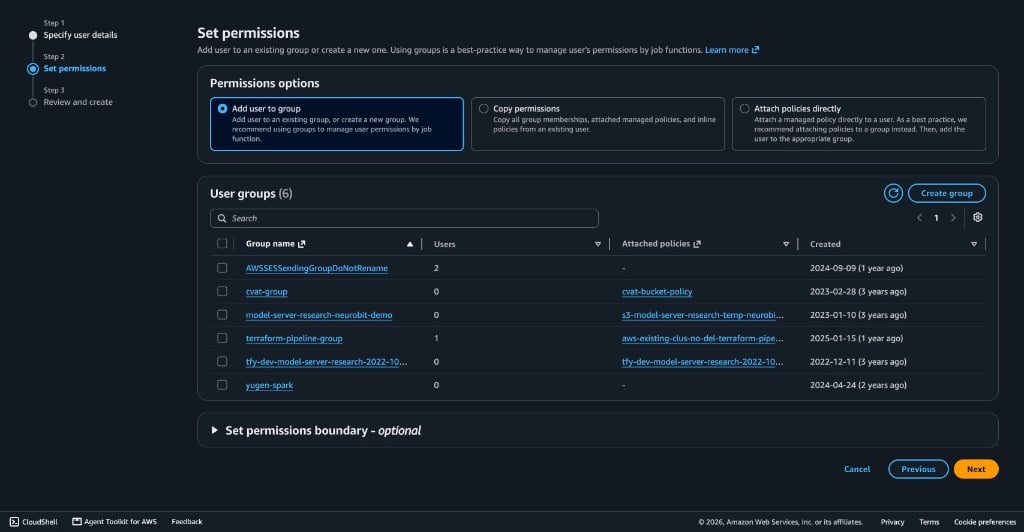
- In AWS Console, open IAM → Roles → Create role.
- Attach a policy that allows invoke on your runtime ARN (same
bedrock-agentcore:InvokeAgentRuntimestatement as the access-key path). - Set the role trust policy so the TrueFoundry AI Gateway role can call
sts:AssumeRole. Use the gateway role ARN for your deployment:
- Copy the role ARN (for example
arn:aws:iam::123456789012:role/AgentCoreRole). - Optionally store the ARN as a TrueFoundry secret and use the
tfy-secret://FQN in the form.
4
Register the remote MCP server in TrueFoundry
- Go to MCP Gateway → Add Server → Connect any Remote MCP Server.
- Set URL to the encoded AgentCore MCP URL from earlier.
- Add Collaborators as needed.
- Under Auth Data, select AWS SigV4.
- Set AWS Region to the same region as the runtime (for example
us-east-1). - Set Credential Type to the option you configured above and fill in:
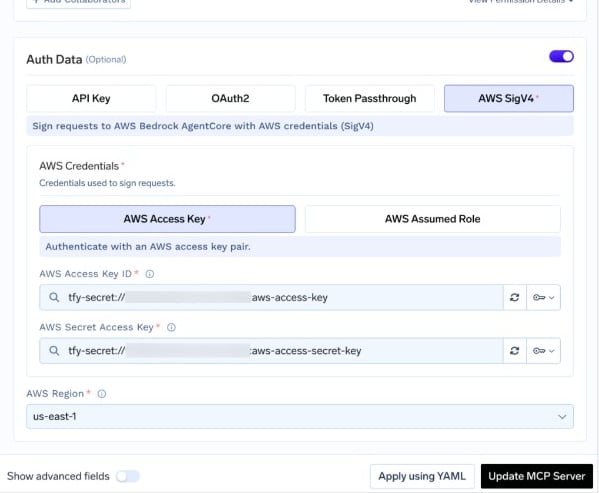
- AWS Assumed Role (Recommended)
- AWS Access Key
Do not enter access keys when assumed role is selected.
- Click Add MCP Server (or Update).
5
Optional: apply via manifest / API