


September 19, 2026
|
5 min read


Published: April 22, 2026

Blazingly fast way to build, track and deploy your models!
Cursor AI code editor is designed to make developers more productive by deeply integrating AI into the coding workflow. It can understand your codebase, suggest changes, and help you iterate faster.
But modern software development doesn’t happen in isolation.
Developers constantly interact with systems beyond the editor—databases, APIs, repositories, and internal tools. Without access to these systems, even the most capable AI assistant is limited to code-level tasks.
This is where MCP (Model Context Protocol) servers come in.
MCP provides a standardized way to connect Cursor to external tools and services, allowing it to move beyond code suggestions and participate in real development workflows.
With MCP servers configured, Cursor can:
In other words, it evolves from a coding assistant into a workflow-aware AI agent.
However, setting up MCP servers in Cursor is not always straightforward, especially for developers encountering MCP for the first time.
This guide provides a step-by-step approach to configuring MCP servers in Cursor AI, helping you go from initial setup to a working, production-ready integration.
Before configuring MCP servers in Cursor AI code editor, it’s important to ensure a few prerequisites are in place.
Having these ready will make the setup process smoother and help avoid common issues later.
Make sure Cursor is installed and functioning correctly on your system.
At a minimum, you should be able to:
If Cursor isn’t fully set up, complete that first before moving to MCP configuration.
Cursor does not provide MCP servers by default—you need to configure and connect one.
Depending on your use case, this can be:
Examples include:
Start with one server that aligns with your immediate workflow, and expand later.
Most MCP servers require authentication before they can be used.
This may include:
Make sure:
Misconfigured or missing credentials are one of the most common causes of setup failures.
Before configuring MCP servers, it’s important to understand what you want Cursor to do.
For example:
Avoid adding multiple servers without a clear purpose. Start with a focused use case and expand as needed.
It’s best to configure and test MCP servers in a development or staging environment before using them in production.
This helps you:
Once everything is working as expected, you can extend the setup to production environments.
Before jumping into configuration, it’s useful to understand how MCP fits into Cursor AI code editor at a high level.
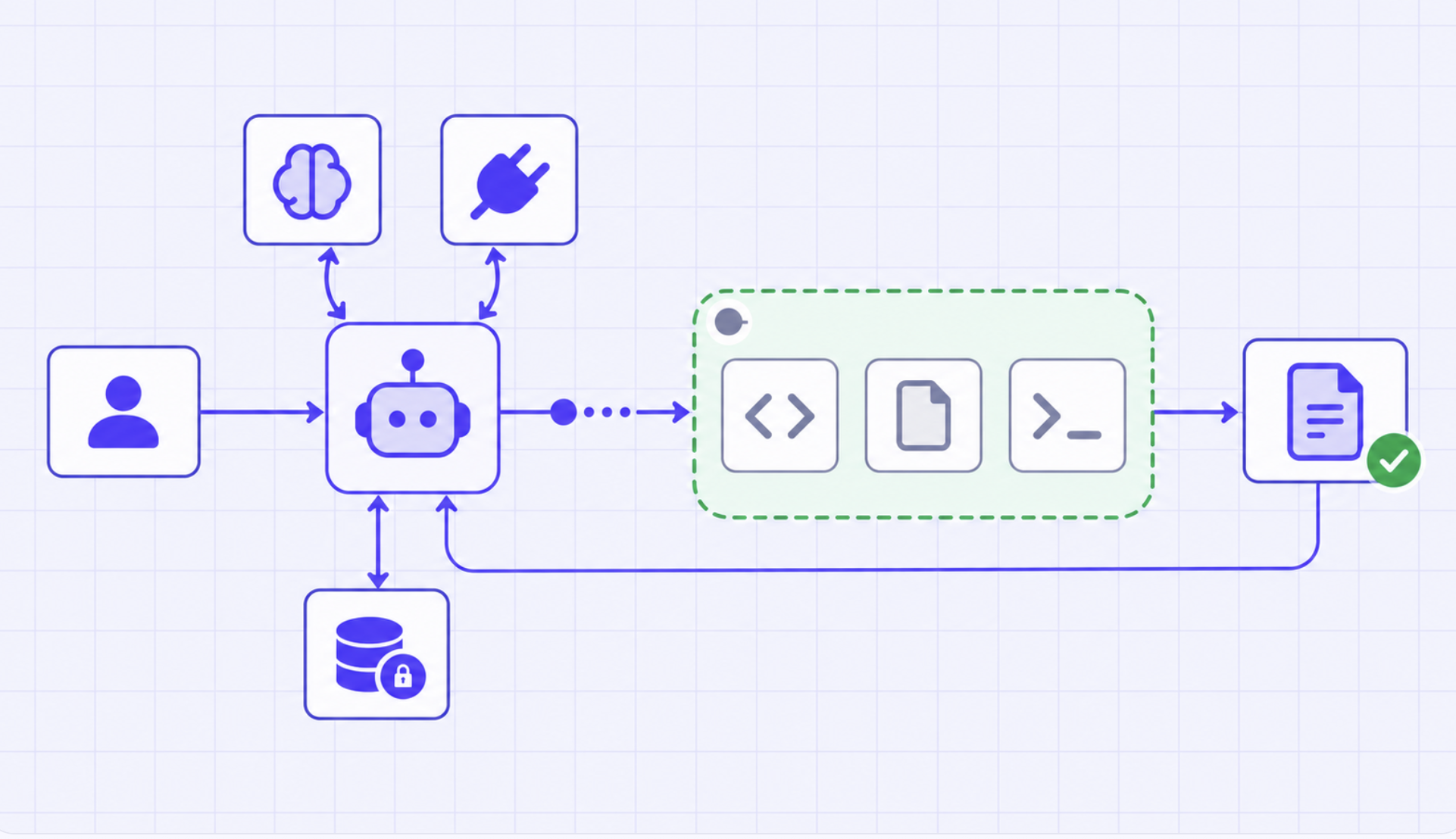
MCP acts as a bridge between Cursor and external systems.
For example:
This architecture allows Cursor to:
Cursor handles reasoning, MCP servers handle execution.
Let’s walk through the process of setting up an MCP server in Cursor.
Before configuring Cursor, your MCP server needs to be running and accessible.
Depending on the server, this may involve:
For example, a local MCP server might be started using a command like:
npm install
npm start
Or via Docker:
docker run <mcp-server-image>Once running, make sure:
In Cursor:
You’ll need to provide a configuration that tells Cursor how to connect to the MCP server.
This typically includes:
Here’s a simple example of an MCP server configuration:
{
  "mcpServers": [
    {
      "name": "github",
      "type": "http",
      "url": "http://localhost:3000",
      "auth": {
        "type": "bearer",
        "token": "YOUR_API_TOKEN"
      }
    }
  ]
}
Key fields explained:
name → Identifier for the servertype → Connection type (HTTP, local, etc.)url → Endpoint where the server is runningauth → Authentication configurationIf your MCP server requires authentication, ensure:
Depending on the setup, authentication can be:
Once configured, test the setup directly in Cursor.
Try a simple prompt like:
If everything is working:
If not, check:
Even with the correct setup, MCP configuration can fail due to small issues.
Here are the most common ones:
Problem: Cursor cannot reach the MCP server
Fix:
Problem: Invalid or missing credentials
Fix:
Problem: MCP server responds, but actions fail
Fix:
Problem: Cursor does not recognize the MCP server
Fix:
Once you’ve set up MCP servers in Cursor AI code editor, the next step is ensuring your setup is secure, reliable, and scalable.
Avoid giving MCP servers broad permissions by default.
Instead:
This reduces risk, especially when working with:
Always configure and test MCP servers in development or staging environments before production.
This helps you:
Once stable, replicate the setup in production with stricter controls.
Even with MCP configured, it’s important to maintain control over execution.
Best practices include:
This is especially important for workflows involving:
Visibility into MCP usage is critical.
Track:
This helps with:
As you add more MCP servers, complexity increases.
To manage this:
This becomes especially important for teams working across multiple services.
While MCP servers are easy to set up for individual use, running them in production introduces additional challenges.
As workflows grow, teams often integrate multiple MCP servers:
Managing these individually can quickly become complex.
You need a way to:
In production, MCP servers interact with critical systems.
Without proper controls, this can lead to:
Teams need:
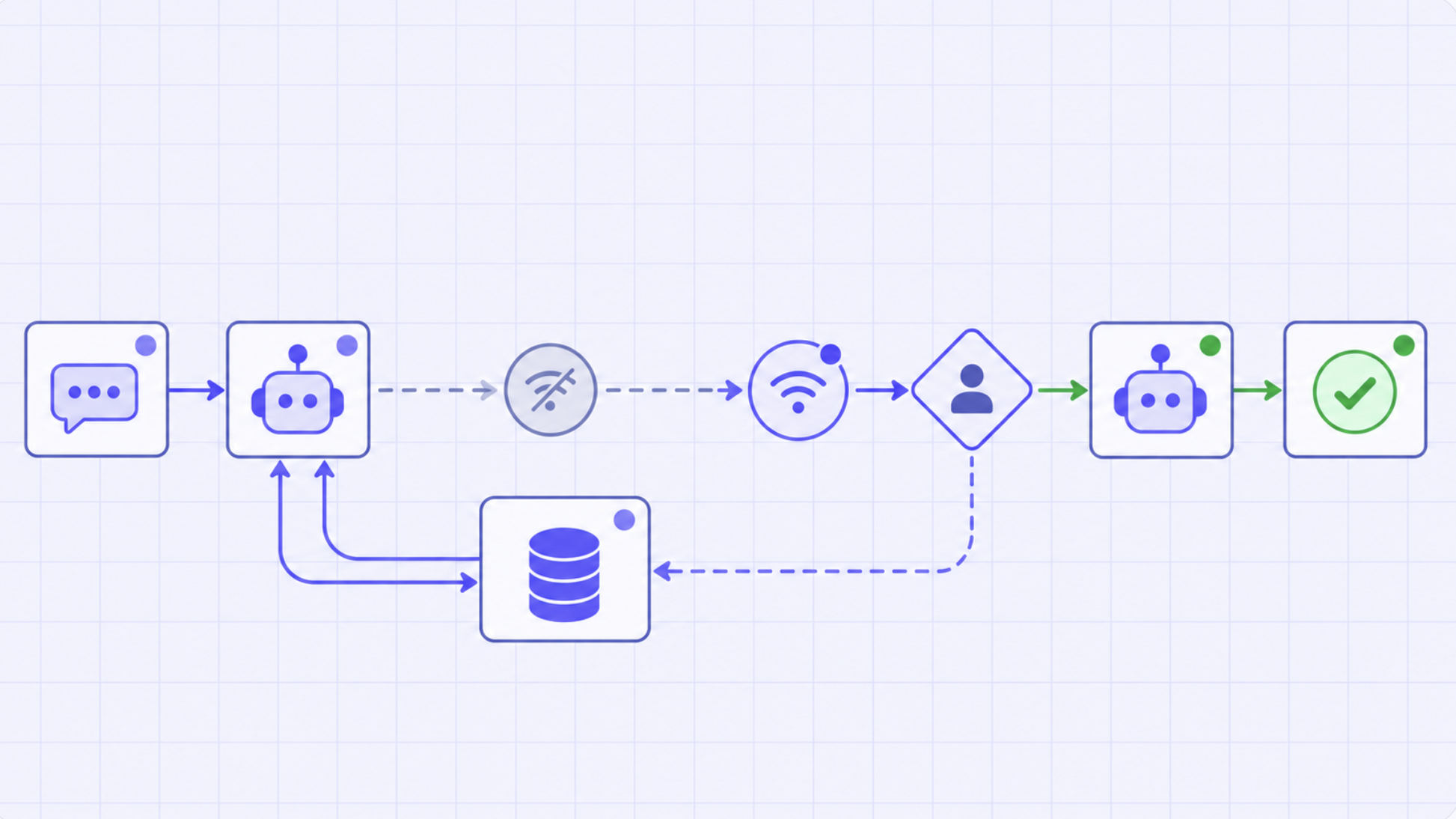
When Cursor interacts with multiple systems via MCP, debugging becomes harder.
You need to understand:
Without observability, troubleshooting becomes time-consuming and unreliable.
MCP workflows depend on underlying models.
At scale, teams must handle:
This requires centralized control over how models are used.
While Cursor AI code editor enables powerful MCP-based workflows, it doesn’t solve the challenges of running those workflows reliably in production.
Setting up a single MCP server locally is straightforward. But as teams begin to scale usage, the complexity grows quickly:
At this point, MCP is no longer just a configuration problem, it becomes an infrastructure problem.
This is where platforms like TrueFoundry play a critical role.
In early setups, teams often rely on:
While this works for experimentation, it doesn’t scale. As adoption increases, teams need a standardized way to:
TrueFoundry provides this missing layer by turning MCP integrations into production-grade infrastructure.
MCP servers connect AI agents to critical systems, but those connections need to be tightly controlled.
With TrueFoundry, teams can:
This ensures that agents interact with systems safely and predictably.
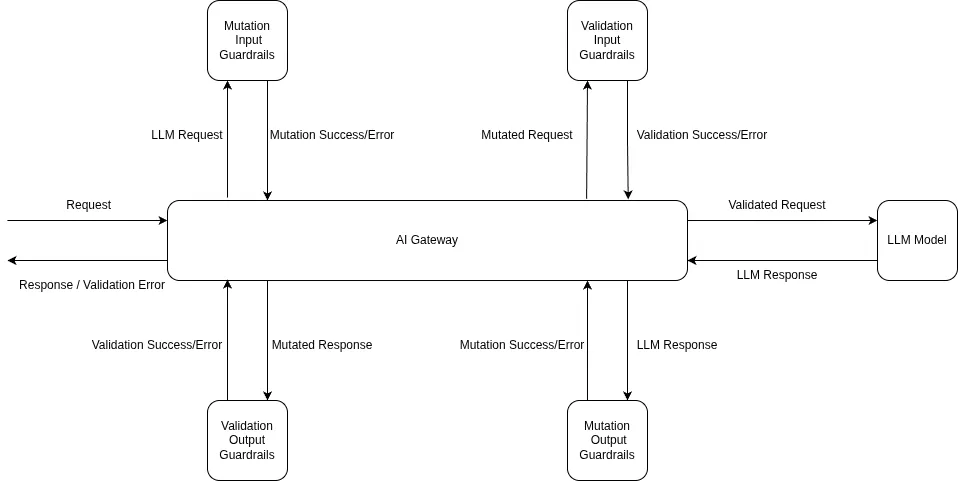
As AI agents gain the ability to execute actions, defining boundaries becomes essential.
TrueFoundry allows teams to:
This prevents scenarios where agents:
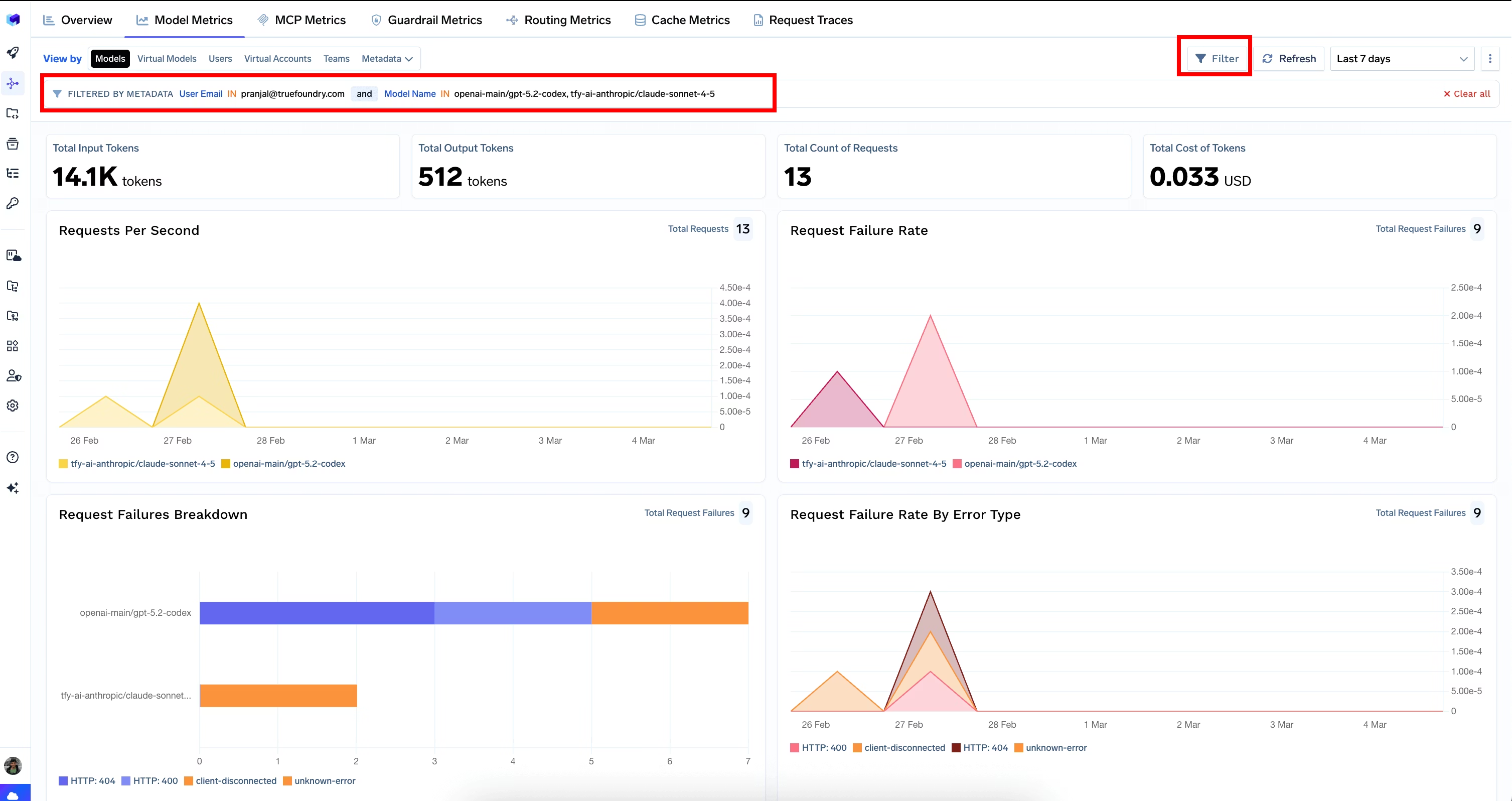
When something goes wrong in an MCP workflow, debugging can be difficult without visibility.
Teams need to answer:
TrueFoundry provides:
This makes AI-driven workflows auditable and debuggable, just like traditional systems.
MCP workflows depend on underlying models, and as usage grows, so do costs and performance considerations.
TrueFoundry enables:
This ensures teams can scale without losing control over cost and performance.
Without an infrastructure layer, teams often end up with:
By introducing a platform like TrueFoundry, organizations can:
Configuring MCP servers in Cursor AI code editor is what transforms it from a powerful coding assistant into a system that can participate in real-world development workflows. By connecting Cursor to repositories, databases, APIs, and internal tools, you enable it to move beyond code suggestions and start executing meaningful tasks across your stack.
However, as these integrations grow, the challenge shifts from setup to management. What starts as a simple configuration quickly becomes a question of security, reliability, and scalability, especially when multiple systems, environments, and teams are involved.
This is where infrastructure becomes critical. Platforms like TrueFoundry help teams move beyond ad-hoc setups by providing a standardized way to manage MCP integrations, enforce guardrails, monitor agent behavior, and control model usage at scale.
As AI-driven development continues to evolve, success won’t just depend on how well you configure MCP servers but on how effectively you can operate, govern, and scale these workflows in production.
TrueFoundry AI Gateway delivers ~3–4 ms latency, handles 350+ RPS on 1 vCPU, scales horizontally with ease, and is production-ready, while LiteLLM suffers from high latency, struggles beyond moderate RPS, lacks built-in scaling, and is best for light or prototype workloads.


MCP server integration in Cursor AI is the capability that allows Cursor's AI to connect with external tools and data sources through the Model Context Protocol. When an MCP server is configured in Cursor, the editor's AI can invoke tools from that server — such as running database queries, fetching file contents, or calling external APIs — as part of its responses and autonomous actions.
MCP servers extend Cursor AI's capabilities beyond static code analysis and text completion. With MCP servers, Cursor can interact with live systems — querying databases for schema information, reading from the file system for up-to-date context, or calling external APIs to retrieve real-world data. This makes Cursor's AI significantly more useful for full-stack development tasks that require awareness of external systems.
Multiple MCP servers can be added to Cursor by editing the `mcp.json` configuration file located in Cursor's settings directory. Each server is defined as a separate entry in the `mcpServers` object, with its own command, arguments, and environment variable settings. Cursor loads all configured servers on startup and makes their tools available to the AI simultaneously.
Configuring an MCP server in Cursor AI involves opening the Cursor settings, navigating to the MCP configuration section, and adding the server's startup command and arguments in the required JSON format. For example, a Filesystem MCP server is configured by specifying the `npx @modelcontextprotocol/server-filesystem` command along with the allowed directory paths as arguments. After saving, Cursor connects to the server automatically.



The latest news, articles, and resources sent to your inbox
.png)
.png)

.png)
.png)
.png)
.png)
.png)
.png)
.png)
.png)
.png)


