

Using Browserbase through the MCP Gateway
The TrueFoundry MCP Gateway centralizes access to Browserbase - agents connect through one endpoint instead of maintaining separate server configurations per client. When you use Browserbase MCP server through the AI Gateway, TrueFoundry provides:- Authentication - Clients authenticate inbound to the AI Gateway with a Personal Access Token, Virtual Account, or IDE OAuth flow. For outbound access, your Browserbase API key and project ID are configured once on the server and injected on outbound calls.
- Tool-level access control - You can selectively enable or disable individual Browserbase tools from the TrueFoundry UI.
- Access control - Collaborators and role-based policies define who can use the server and which tools they can invoke. Enable or disable individual Browserbase tools from the server detail page.
- Observability - Tool calls are traced with caller identity, tool name, inputs, and latency. Monitor server- and tool-level usage in MCP Metrics and export traces to your observability stack via OpenTelemetry.
- Guardrails - Apply pre-tool and post-tool guardrails on MCP tool calls.
Prerequisites
- A TrueFoundry account with permission to add MCP servers.
- A Browserbase account.
- A Browserbase API key and project ID.
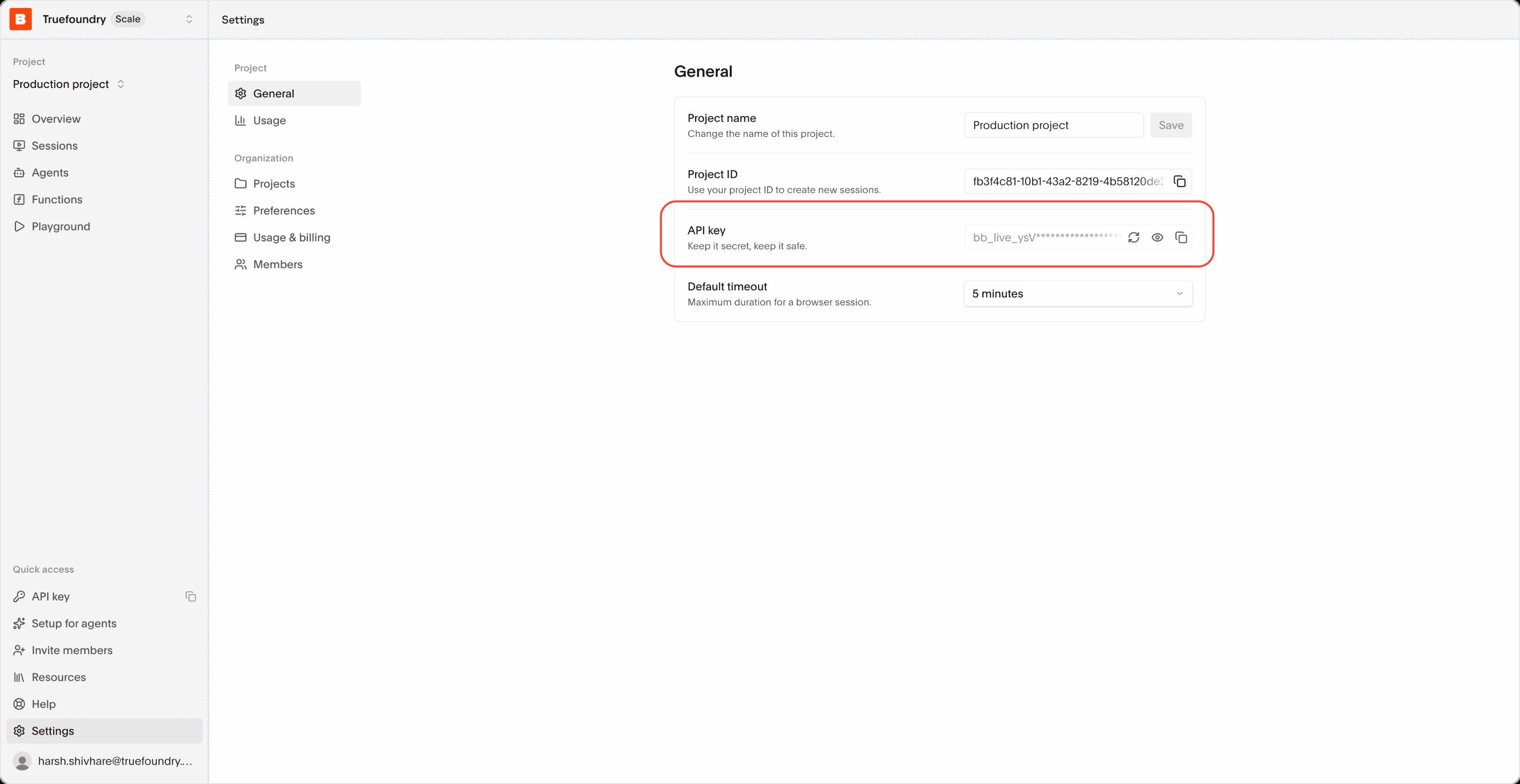
Adding Browserbase MCP server to TrueFoundry
1
Open the MCP Server catalog
Navigate to MCP Servers in the TrueFoundry sidebar and click Add new MCP Server. On the next screen, select Connect Official Remote MCP Servers - this lists official, vetted remote MCP servers that you connect with your own auth.
2
Add Browserbase
Find browserbase in the catalogue and click + Add. TrueFoundry opens the Browserbase MCP server detail page with the server URL pre-filled.
3
Configure the server
TrueFoundry pre-fills the server details for Browserbase. Add your Browserbase API key and project ID to the URL:
Add Collaborators - the users and teams that can use or manage this server - and assign each an MCP Server Manager or MCP Server User role. Because the credentials travel in the URL, leave Auth Data toggled off. Click Update MCP Server to save.
4
Verify tools
After saving, the Tools tab lists Browserbase’s available tools (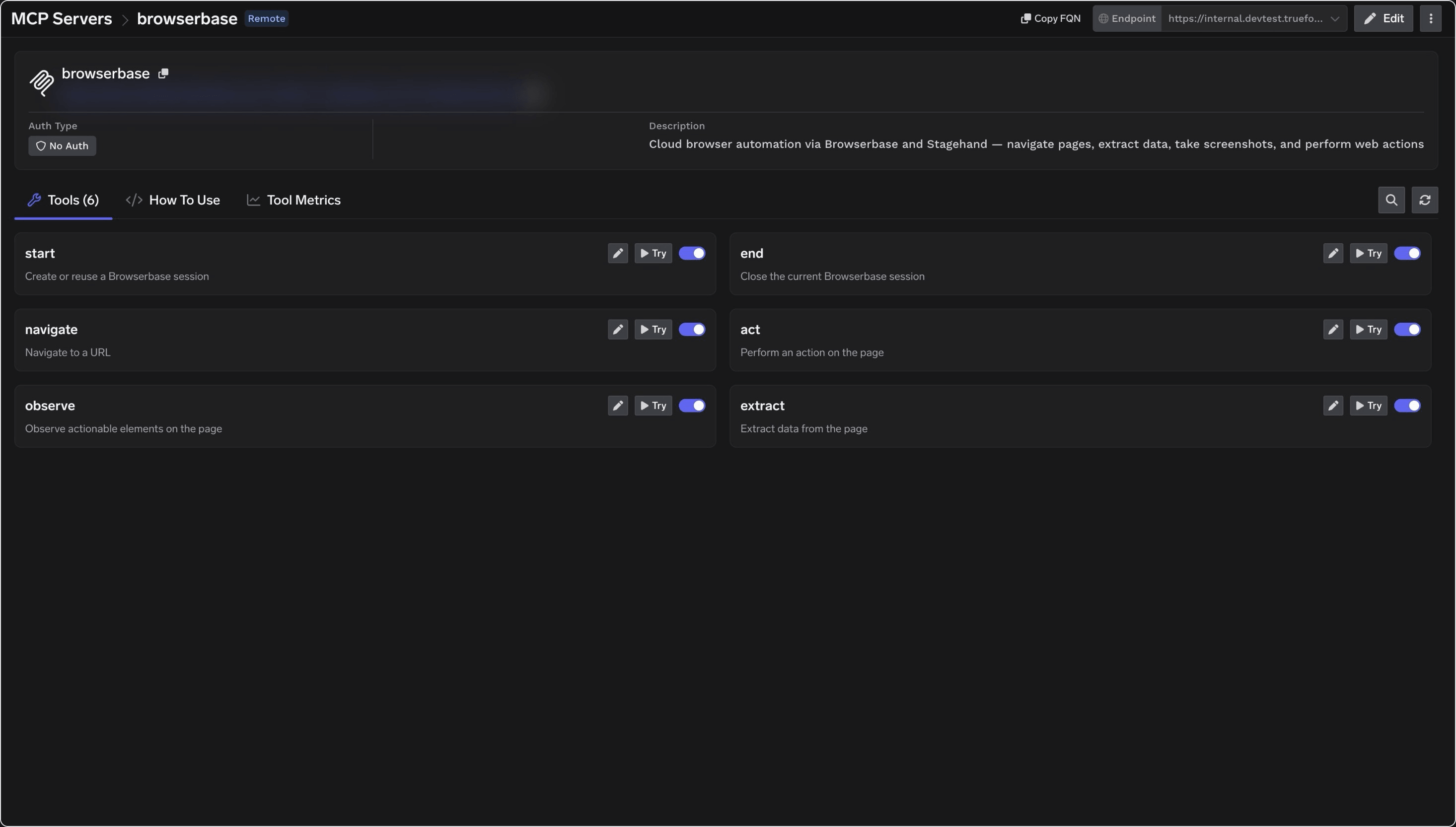
start, end, navigate, act, observe, and extract). Click Try on any tool to test it and inspect the JSON output before using it in an agent.Configuring the server URL
Browserbase reads the project from thebrowserbaseProjectId query parameter and authenticates with your API key. The simplest option for the TrueFoundry catalog is to pass both in the URL:
Browserbase also accepts the API key as an HTTP header,
Authorization: Bearer YOUR_BROWSERBASE_API_KEY or x-bb-api-key: YOUR_BROWSERBASE_API_KEY. The browserbaseApiKey query parameter shown above is Browserbase’s fallback for clients that can’t send custom headers. Keep the project ID (browserbaseProjectId) in the URL either way.Connecting to an MCP Client
Open the How To Use tab on the Browserbase server detail page for your tenant-specific Gateway URL and ready-to-paste client snippets - don’t build the endpoint manually. The tab includes snippets for Claude Code, VS Code, Claude Web, Claude Desktop, Cursor, Windsurf, Codex, and the Python and TypeScript MCP SDKs. Use Show API Key if your client requires a Gateway token in a header.Using the Tool Playground
Before deploying an agent, you can test any Browserbase MCP server tool directly in TrueFoundry:1
Open a tool
On the Browserbase MCP server detail page, click Try next to any tool - for example
start.2
Fill in the inputs
Provide the tool’s inputs. A quick end-to-end check: run
start, then navigate to a URL, then extract to confirm the session drives a real cloud browser.3
Execute and inspect
Click Execute Tool and inspect the JSON output in the right panel.
Tool Metrics
The Tool Metrics tab on the Browserbase server detail page tracks how agents use each tool:- Invocation count - which tools are called most often
- Latency - how long each tool takes to respond
- Error rates - which tools are failing in production
Disabling Individual Tools
On the Tools tab, toggle off any Browserbase tools your agents don’t need:- Disabled tools are hidden from MCP clients and cannot be invoked.
- Enabled tools remain available to agents as usual.
act for read-only research agents that should only navigate, observe, and extract.