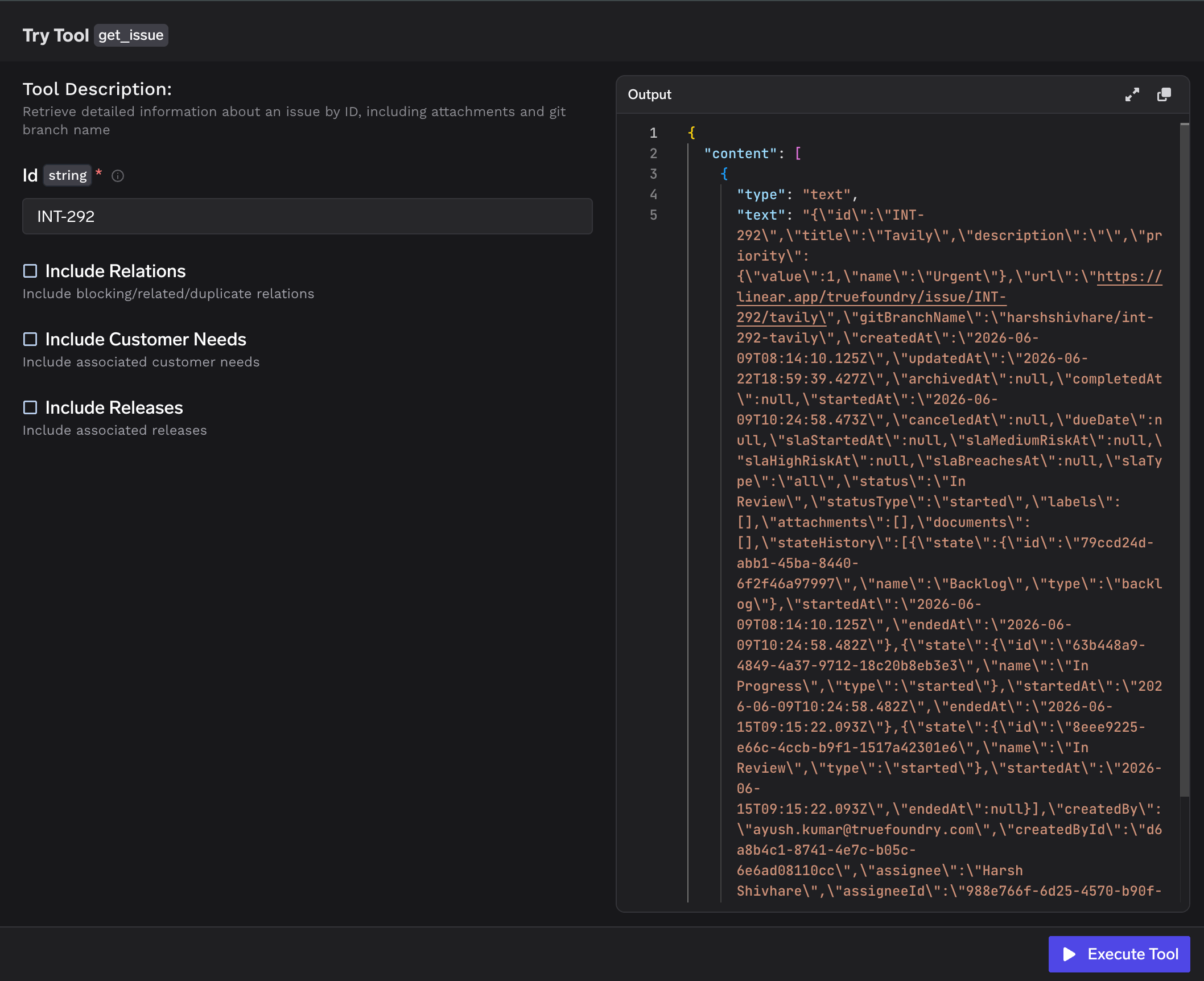
How TrueFoundry Manages the MCP Server
TrueFoundry’s MCP Gateway acts as a reverse proxy between your agents and MCP servers like Linear. When you add Linear as a managed MCP, TrueFoundry handles:- Authentication — Agents authenticate once to the TrueFoundry MCP Gateway. The AI Gateway handles outbound auth to Linear. Authorization happens directly between your account and your Linear workspace through the OAuth2 flow; TrueFoundry does not receive your Linear credentials.
- Tool-level access control — You can selectively enable or disable individual Linear tools per team from the TrueFoundry UI.
- Audit trail — Every tool invocation is traced with the calling user, tool name, input payload, and latency. Traces export via OpenTelemetry to your observability stack.
- Guardrails — TrueFoundry’s guardrail hooks apply at
mcp_pre_tool(before a tool is invoked) andmcp_post_tool(after the tool returns), letting you enforce content policies on Linear requests and results in real time.
Adding Linear to TrueFoundry
1
Open the MCP Server catalog
Navigate to MCP Servers in the TrueFoundry sidebar and click Add new MCP Server. On the next screen, select Connect TrueFoundry Managed MCPs — this opens the catalog of pre-vetted, fully configured MCP servers managed by TrueFoundry.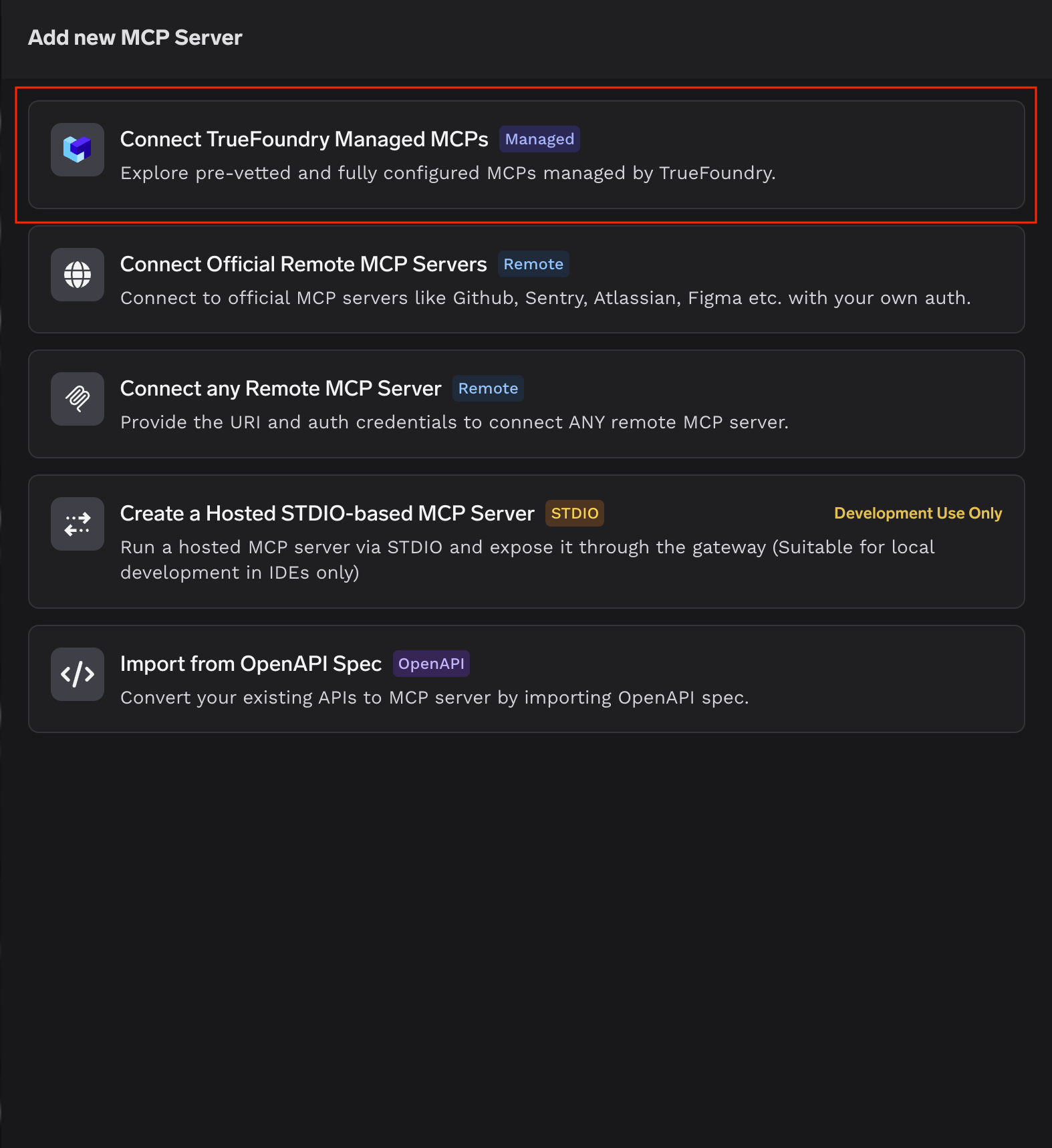
2
Add Linear
Find linear in the catalog (described as “Linear is a project management tool”) and click + Add. TrueFoundry registers the server and takes you to the Linear MCP server detail page.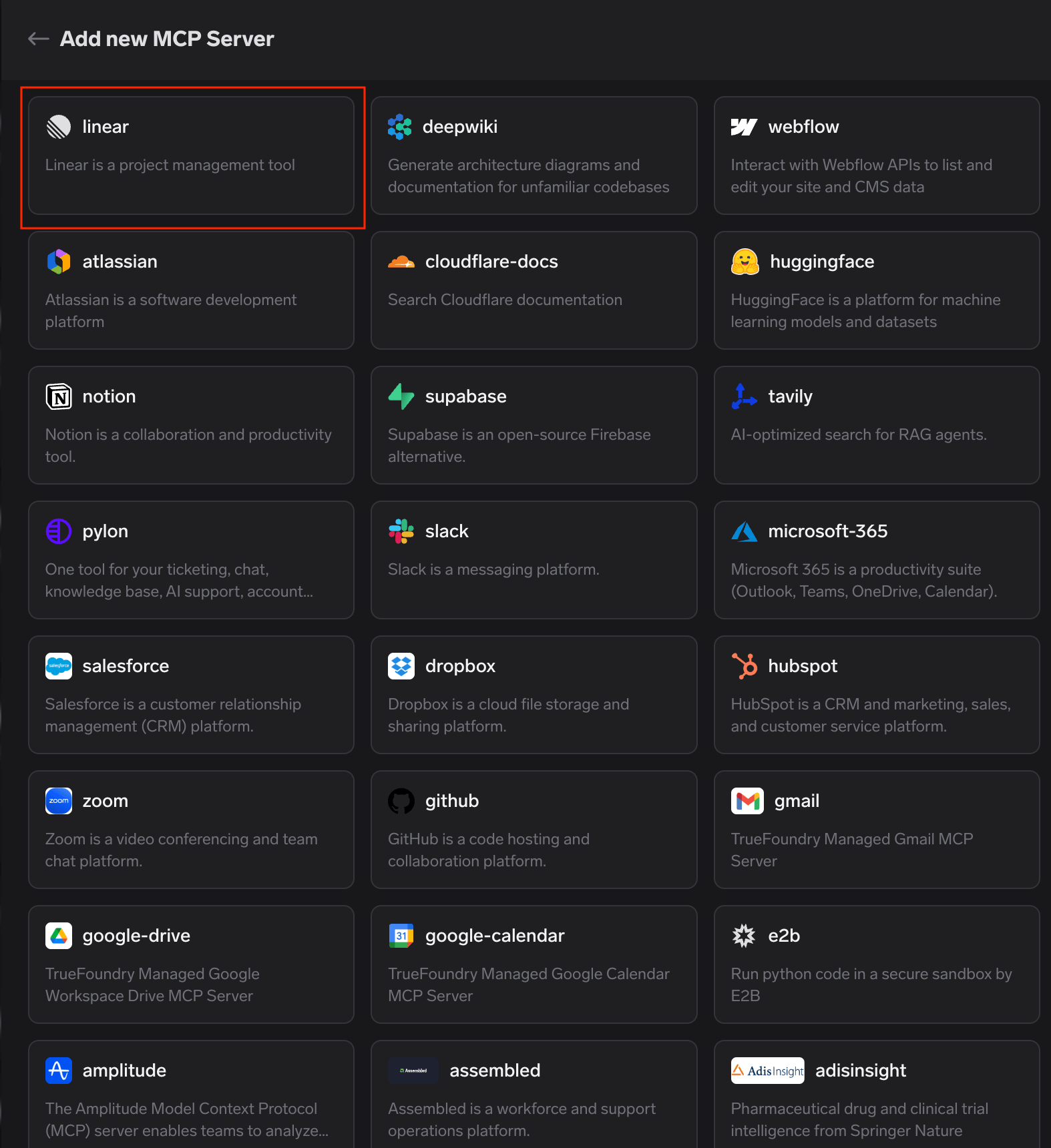
3
Authenticate
The Tools tab shows that you’re not connected yet. Click Connect Now. An authorization popup appears showing the MCP client name, the TrueFoundry website, and the redirect URI (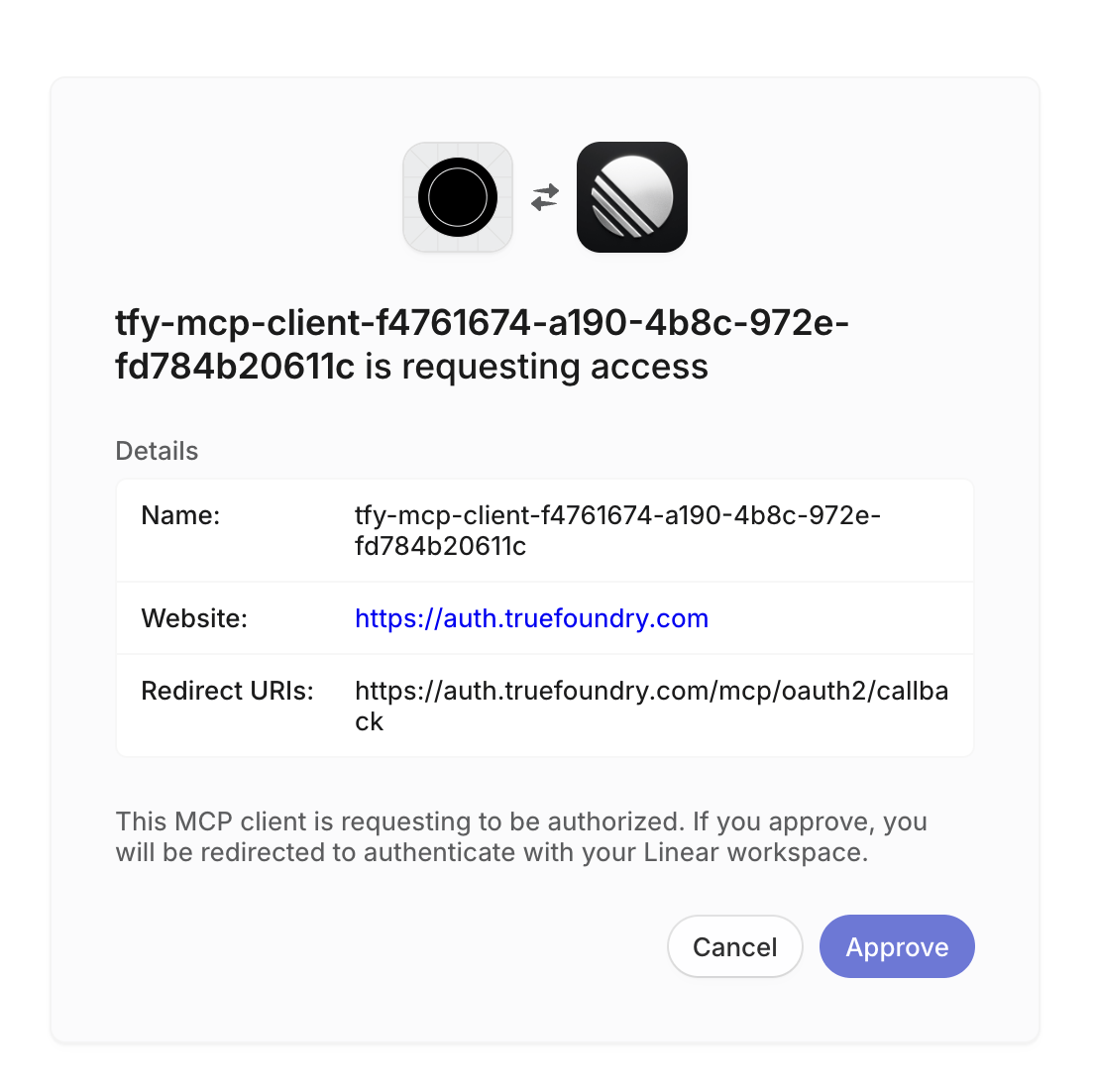
https://auth.truefoundry.com/mcp/oauth2/callback). Review the details and click Approve — you’ll then be redirected to authenticate with your Linear workspace and grant access.TrueFoundry does not receive your Linear credentials — the authorization is between your account and Linear directly.
4
Verify tools
After approving, the Tools tab populates with Linear’s available tools — working with issues, comments, attachments, cycles, documents, and more. Each tool shows its description and a Try button so you can test it before wiring it into an agent. Tools are labeled Read-only or Destructive so you can see at a glance which ones modify data.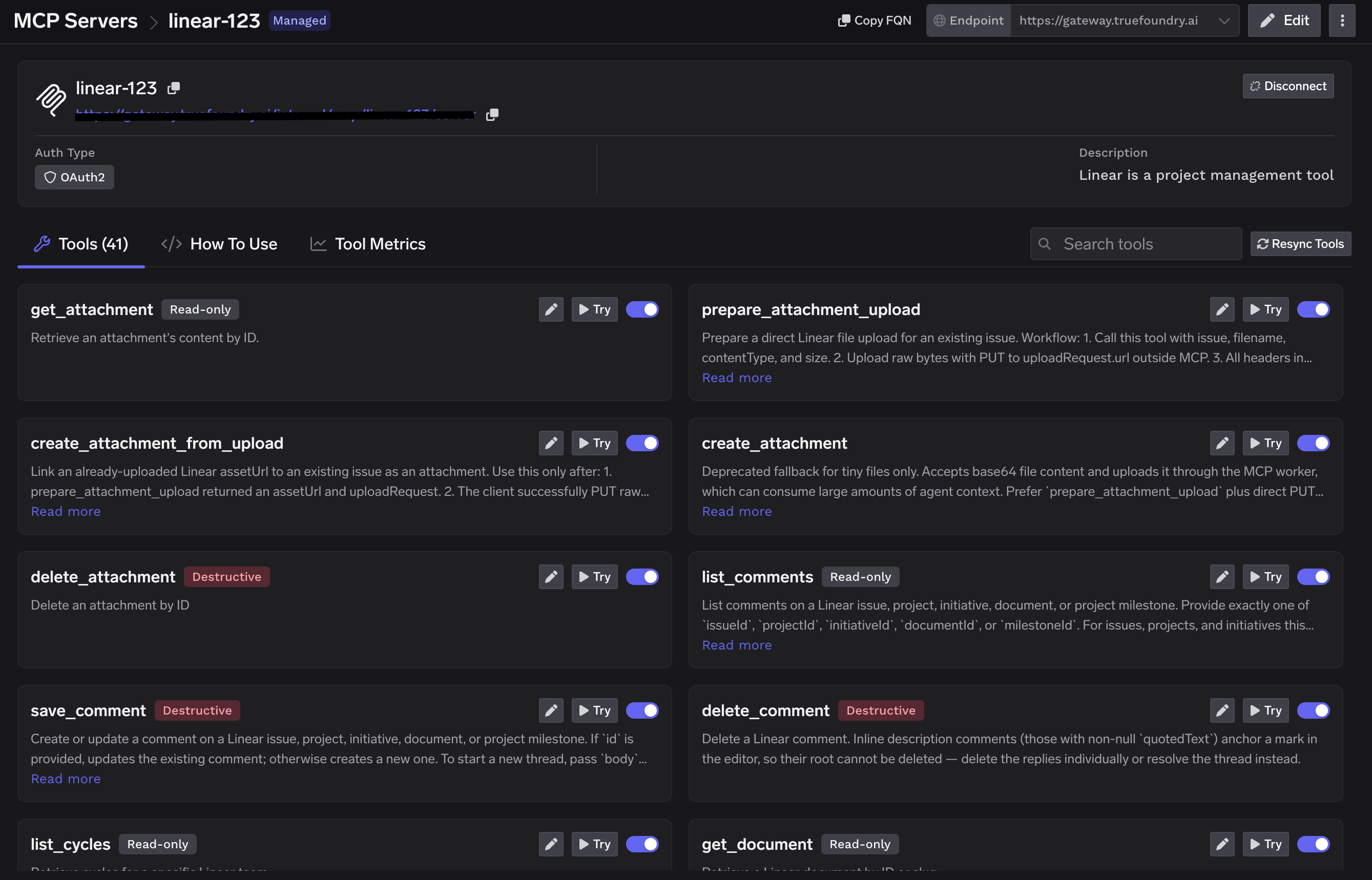
Connecting to an MCP Client
TrueFoundry exposes the Linear MCP server over HTTP transport. The endpoint is specific to your TrueFoundry tenant, so don’t construct it by hand — copy the exact URL and ready-to-paste connection commands from the How To Use tab on the Linear server detail page. The How To Use tab generates connection instructions for every major client, including Cursor, VS Code, Claude Code, Claude Web, Claude Desktop, Windsurf, Codex, and the Python and TypeScript MCP SDKs. Pick your client, copy the snippet, and paste it in. Click Show API Key on that tab to retrieve the API key if your client requires it as a header.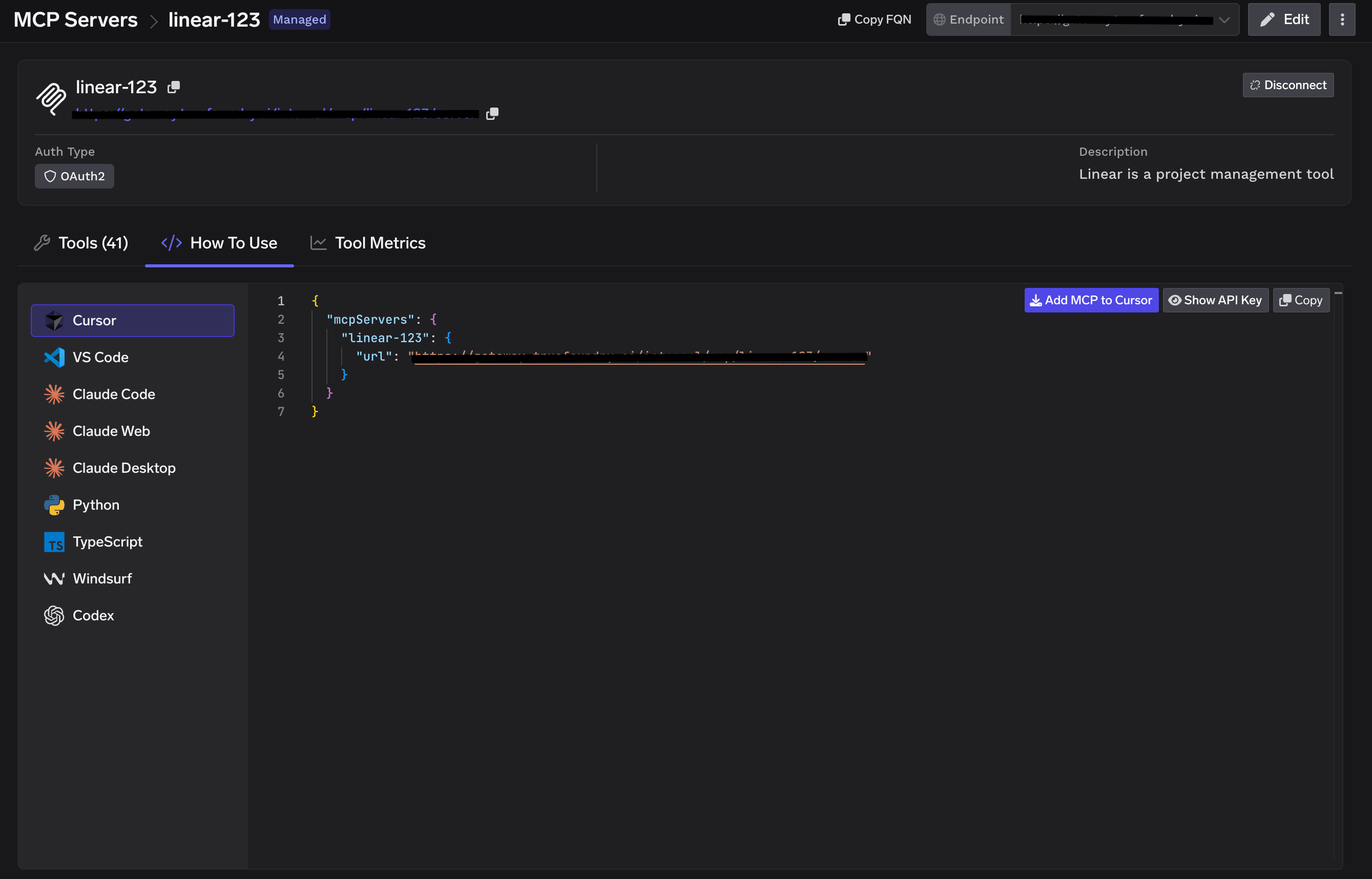
Using the Tool Playground
Before deploying an agent, you can test any Linear tool directly in TrueFoundry:1
Open a tool
On the Linear MCP server detail page, click Try next to any tool — for example
get_issue.2
Fill in the inputs
Provide the tool’s inputs. For
get_issue, enter the issue Id and optionally toggle Include Relations, Include Customer Needs, or Include Releases.3
Execute and inspect
Click Execute Tool and inspect the JSON output in the right panel.