

TrueFoundry hosts its own Microsoft 365 MCP server that acts as a stateless proxy between the TrueFoundry MCP Gateway and the Microsoft Graph API. Unlike Slack or GitHub, Microsoft does not provide a single public MCP endpoint. TrueFoundry deploys and maintains this server on your behalf.
Using Microsoft 365 through the MCP Gateway
The TrueFoundry MCP Gateway centralizes access to Microsoft 365 - agents connect through one endpoint instead of maintaining separate server configurations per client. As a TrueFoundry Managed MCP, Microsoft 365’s URL, outbound auth, scopes, and credentials are owned and kept current by the platform. When you use Microsoft 365 MCP server through the Gateway, TrueFoundry provides:- Authentication - Clients authenticate inbound to the AI Gateway with a Personal Access Token, Virtual Account, or IDE OAuth flow. For outbound access, the AI Gateway runs the OAuth2 Authorization Code flow so each user authorizes their own account; tokens are stored, refreshed and injected per user on tool calls.
- Tool-level access control - You can selectively enable or disable individual Tavily tools from the TrueFoundry UI.
- Access control — Collaborators and role-based policies define who can use the server and which tools they can invoke. Enable or disable individual tools from the server detail page.
- Observability — Tool calls are traced with caller identity, tool name, inputs, and latency. Monitor server- and tool-level usage in MCP Metrics and export traces to your observability stack via OpenTelemetry.
- Guardrails — Apply pre-tool and post-tool guardrails on MCP tool calls.
Prerequisites
- A TrueFoundry account with permission to add MCP servers.
- A Microsoft account, either a work or school (organization) account or a personal account (
@outlook.com,@hotmail.com,@live.com). See Account type support below for the differences. - For organization accounts, a Microsoft Entra ID Global Administrator to grant one-time tenant-wide admin consent, if your tenant restricts third-party apps. You do not need to register your own Azure app; TrueFoundry’s managed multi-tenant app is used.
Account type support
The available tools depend on the type of Microsoft account you connect:Adding Microsoft 365 MCP server to TrueFoundry
1
Open the MCP Server catalog
Navigate to MCP Servers in the TrueFoundry sidebar and click Add new MCP Server. On the next screen, select Connect TrueFoundry Managed MCPs - this opens the catalog of pre-vetted, fully configured MCP servers managed by TrueFoundry.
2
Add Microsoft 365
Find microsoft-365 in the catalogue and click + Add. TrueFoundry provisions the server with no additional configuration and opens the Microsoft 365 MCP server detail page.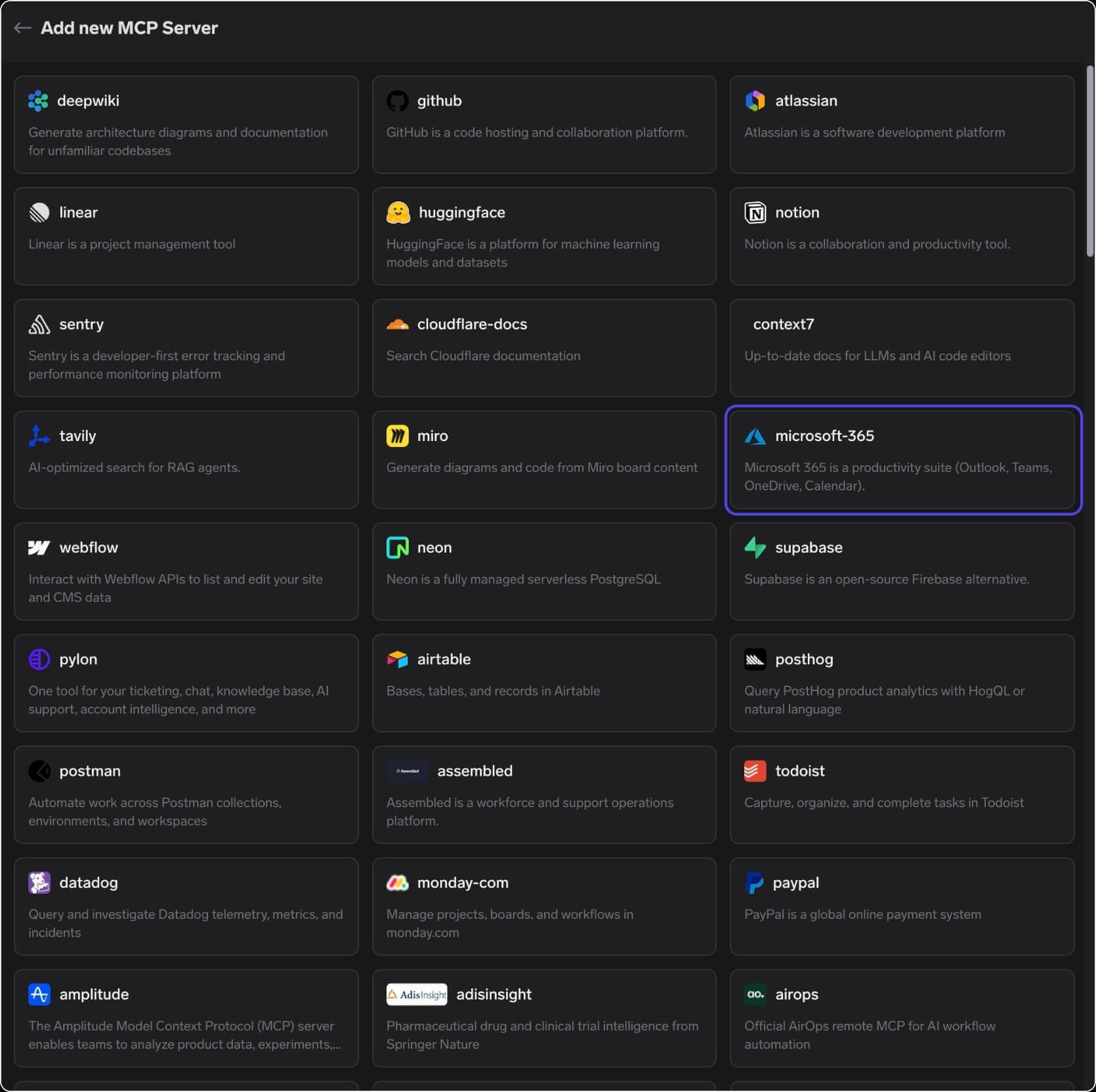
3
Authenticate
On the server’s Tools tab, click Connect Now. A “Connect via TrueFoundry AI Gateway” popup appears showing the MCP Gateway URL and redirect URL. Sign in with your Microsoft 365 work or school account and approve the requested permissions to complete the OAuth 2.0 flow.
If your tenant requires admin consent, a Microsoft Entra Global Administrator must approve the app once for the tenant. After that, individual users can connect with their own accounts. The authorization is between your account and Microsoft directly.
4
Verify tools
After connecting, the Tools tab lists Microsoft 365’s available tools (Outlook email, Calendar, OneDrive, SharePoint, Teams, and more). Click Try on any tool to test it and inspect the JSON output before using it in an agent.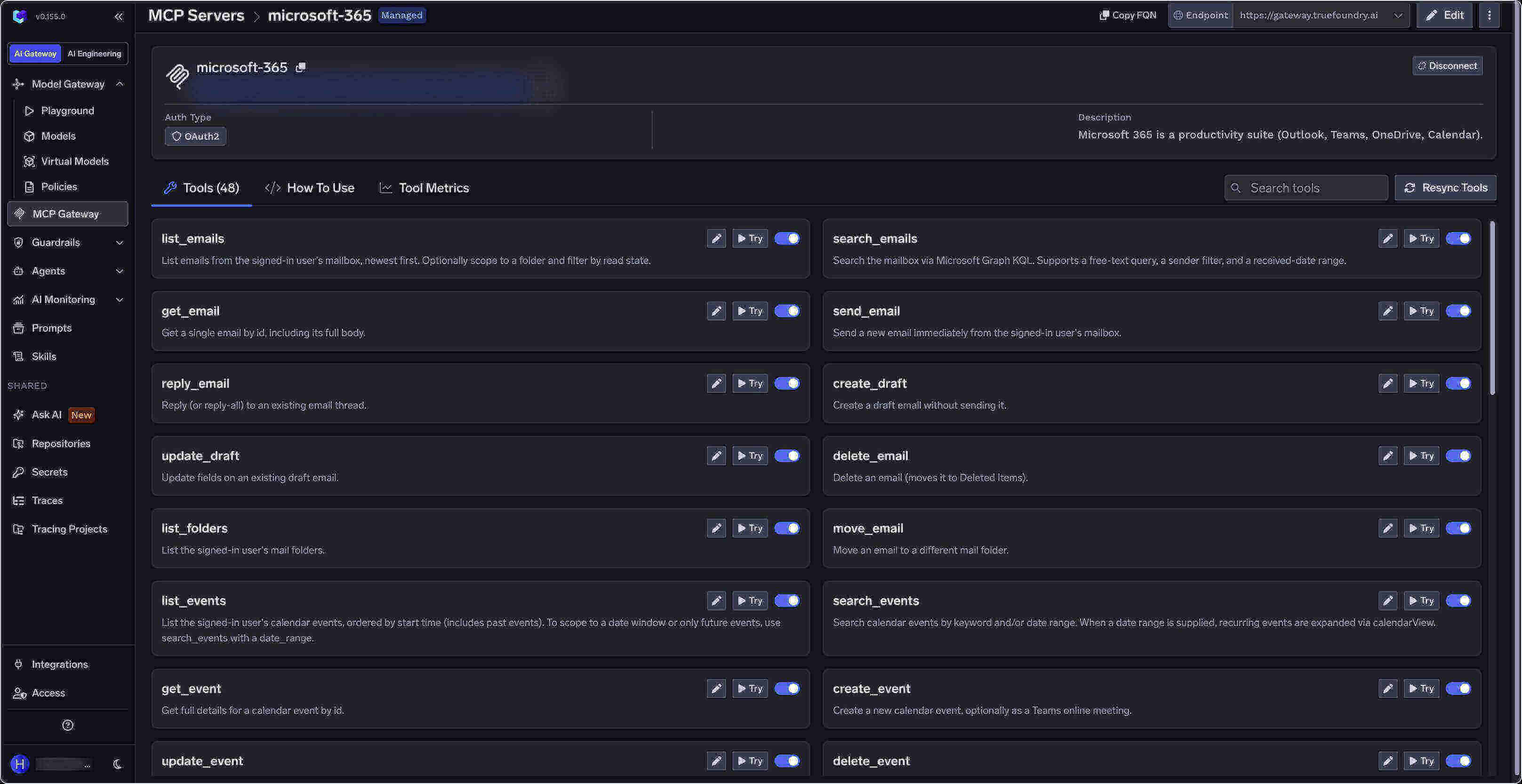
Connecting to an MCP Client
Open the How To Use tab on the Microsoft 365 server detail page for your tenant-specific Gateway URL and ready-to-paste client snippets - don’t build the endpoint manually. The tab includes snippets for Claude Code, VS Code, Claude Web, Claude Desktop, Cursor, Windsurf, Codex, and the Python and TypeScript MCP SDKs. Use Show API Key if your client requires a Gateway token in a header.Using the Tool Playground
Before deploying an agent, you can test any Microsoft 365 MCP server tool directly in TrueFoundry:1
Open a tool
On the Microsoft 365 MCP server detail page, click Try next to any tool - for example
list_calendar_events.2
Fill in the inputs
For
list_calendar_events, provide a date or time range. For a mail search tool, provide a query or folder.3
Execute and inspect
Click Execute Tool and inspect the JSON output in the right panel.
microsoft-365 under MCP Servers (choosing All tools or a subset), and send a prompt like “Summarize my unread emails from this week and list my meetings for tomorrow.” The agent calls the relevant Outlook and Calendar tools on your behalf.
Tool Metrics
The Tool Metrics tab on the Microsoft 365 server detail page tracks how agents use each tool:- Invocation count - which tools are called most often
- Latency - how long each tool takes to respond
- Error rates - which tools are failing in production
Disabling Individual Tools
On the Tools tab, toggle off any Microsoft 365 tools your agents don’t need:- Disabled tools are hidden from MCP clients and cannot be invoked.
- Enabled tools remain available to agents as usual.
send_email or delete_email to keep an agent read-only.