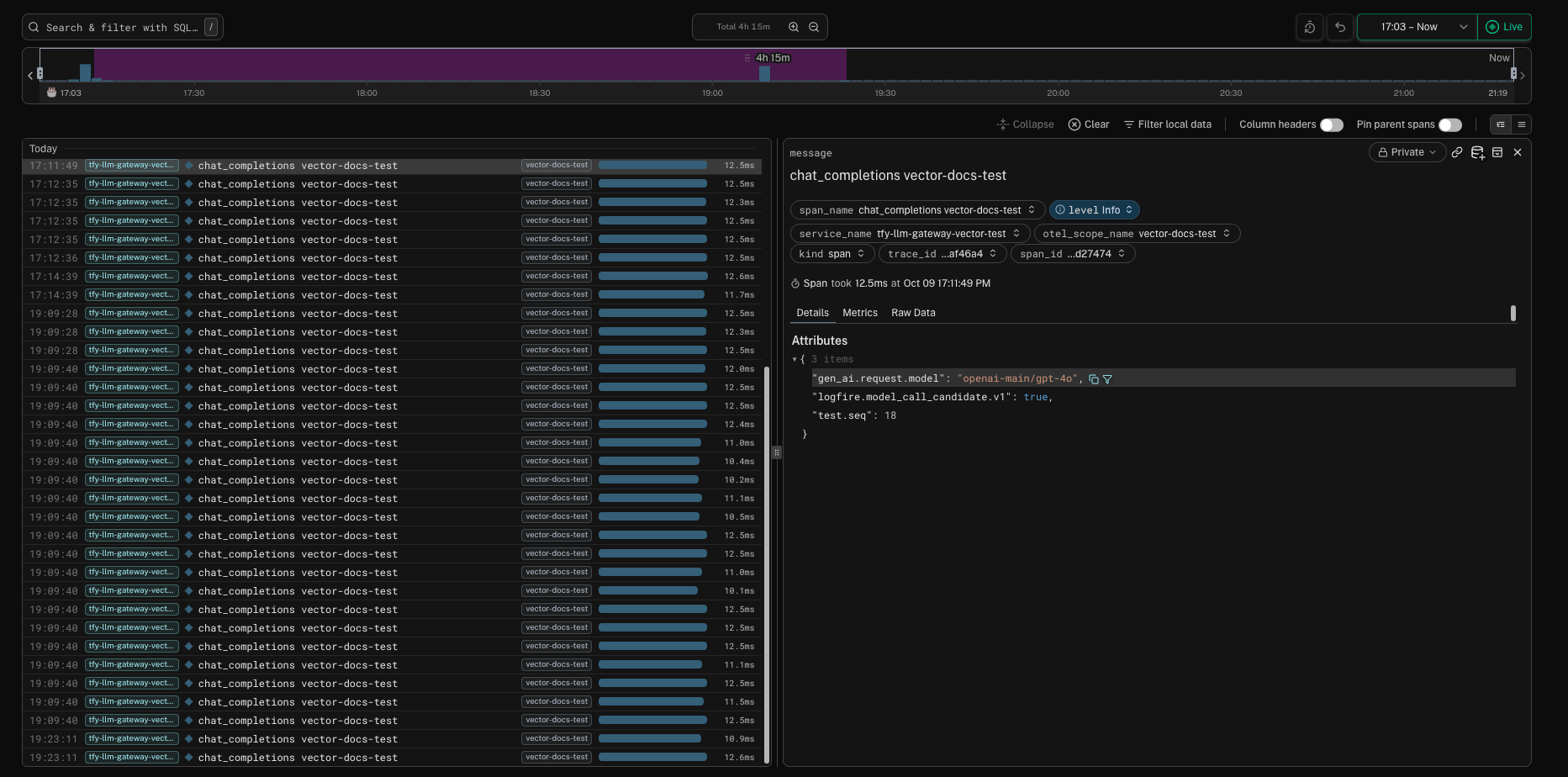
Export AI Gateway traces through Vector on your gateway plane: disk-buffered delivery to the control plane and optional sinks to other OTLP collectors.
The tfy-llm-gateway Helm chart ships an optional Vector aggregator that sits between the gateway and the control plane. The gateway sends traces to Vector inside the cluster. Vector writes them to a disk buffer on a PersistentVolume and forwards them to the control plane, retrying until delivery succeeds. You can also add extra sinks so the same traces go to collectors such as Pydantic Logfire or your own OpenTelemetry Collector.
Vector is disabled by default. On-prem customers can enable it by adding the values below to their gateway plane values file.
Deploys Vector as a StatefulSet named tfy-vector (3 replicas by default), each replica with its own PersistentVolumeClaim for the disk buffer.
Renders the Vector configuration into the tfy-llm-gateway-vector-config ConfigMap. It defines an otel_in OTLP source (gRPC 4317, HTTP 4318) and a tfy_otel_traces sink that forwards to <global.controlPlaneURL>/api/otel/v1/traces.
Points the gateway at Vector by setting TFY_OTEL_EXPORTER_OTLP_TRACES_ENDPOINT to http://tfy-vector.<namespace>.svc.cluster.local:4318/v1/traces (https:// when vector.mtls.enabled is true). If you already set env.TFY_OTEL_EXPORTER_OTLP_TRACES_ENDPOINT yourself, the chart leaves it unchanged.
Authenticates to the control plane with TFY_API_KEY from the truefoundry-creds secret that you created during gateway plane installation.
Only traces go through Vector. Gateway metrics are not affected.
global.controlPlaneURL is set in your values file. The chart fails to render without it when Vector is enabled.
The truefoundry-creds secret with the TFY_API_KEY key exists in the gateway namespace.
A StorageClass that can provision ReadWriteOnce volumes. With the defaults, Vector requests 3 PVCs of 22Gi each.
The gateway and Vector run in the release namespace. Vector cannot be combined with a global.namespaceOverride that differs from the release namespace.
Nodes can pull tfy.jfrog.io/tfy-mirror/timberio/vector using the truefoundry-image-pull-secret image pull secret (override with vector.image.pullSecrets if needed).
The value should be http://tfy-vector.truefoundry.svc.cluster.local:4318/v1/traces.Send a request through the gateway and check the Vector logs. A successful delivery to the control plane logs HTTP response. status=200 for the tfy_otel_traces sink:
If you might add extra sinks with disk buffers later, include them in vector.persistence.size from the start. Changing the size on an existing install takes manual steps outside Helm. See Resize the buffer disk.
Helm replaces lists as a whole instead of merging them. When you override any of these list values, copy the chart defaults into your override and add your entries:
vector.env, vector.args, vector.existingConfigMaps, vector.extraVolumes, and vector.extraVolumeMounts. Run helm show values oci://tfy.jfrog.io/tfy-helm/tfy-llm-gateway --version <CHART_VERSION> to see the defaults for your chart version.
Besides the control plane, Vector can send the same traces to any OTLP-compatible backend, such as Pydantic Logfire, Grafana, Datadog, Honeycomb, or your own OpenTelemetry Collector. These exports go directly from your gateway plane to the destination and do not pass through the TrueFoundry control plane.
TrueFoundry stores and shows only the traces that the tfy_otel_traces sink delivers to the control plane. Data that you send to other collectors is not queryable from the TrueFoundry platform. You will have to query it in the destination tool instead.
If you want the control plane to forward traces to an external platform, use the dashboard instead: see Export OpenTelemetry Data. The Vector approach on this page keeps exported data inside your network path and does not depend on the control plane being reachable.
Each entry under vector.extraSinks is one Vector sink. The key is the sink ID and the value is the sink configuration. The chart merges these entries into the Vector configuration next to tfy_otel_traces, so you can add as many collectors as you need.
Sink IDs must be unique. tfy_otel_traces and prom_exporter are reserved for the sinks the chart renders, and the chart fails to render if you reuse them.
Every entry needs a type. For OTLP backends, use type: opentelemetry with protocol.type: http and the destination’s /v1/traces endpoint. Vector’s OpenTelemetry sink does not send OTLP over gRPC.
If an entry does not set inputs or buffer, the chart fills them from vector.extraSinkDefaults: inputs: [otel_in.traces] (the gateway traces) and an in-memory buffer of 10,000 events that drops new spans when full. This keeps a slow or unreachable collector from stalling delivery to the control plane and to your other collectors. See Sink options to change it.
Vector reloads its configuration in place about every 30 seconds, so adding, changing, or removing an entry does not restart the pods.
Do not write tokens or API keys into your values file. Store them in a Kubernetes Secret and reference them from the sink.Other values in TrueFoundry charts reference secrets as ${k8s-secret/<secret>/<key>}. That syntax does not work inside a Vector sink, because Vector reads its configuration directly and does not interpolate environment variables. Vector sinks use Vector’s SECRET[...] references instead. The chart uses the same mechanism for its own control plane token.The chart sets up everything except the Secret itself:
You create a Kubernetes Secret named tfy-vector-extra-sink-credentials in the gateway namespace, with one key per credential.
The chart mounts that Secret into every Vector pod at /etc/vector-extra-sink-credentials, where each key becomes a file. The mount is optional, so Vector starts normally before the Secret exists.
The chart declares a Vector secret backend named extra_sink_credentials that reads that directory.
In a sink, you write SECRET[extra_sink_credentials.<KEY>]. Vector replaces it with the value of that key when it loads the configuration. The value never appears in your values file, the Helm release, or the ConfigMap.
Secret key
Reference in a sink
LOGFIRE_TOKEN
SECRET[extra_sink_credentials.LOGFIRE_TOKEN]
HONEYCOMB_API_KEY
SECRET[extra_sink_credentials.HONEYCOMB_API_KEY]
A reference can be part of a longer string, for example "Bearer SECRET[extra_sink_credentials.GRAFANA_TOKEN]".
Do not commit this file with real values. If you manage secrets with a tool such as External Secrets Operator or Sealed Secrets, have it produce a Secret with this name and these keys.
Rotate a credential
Update the key in the Secret, then restart Vector:
Vector reads secret values only when it loads its configuration. Kubernetes refreshes the mounted file after you update the Secret, but Vector keeps using the old value until the pods restart or the configuration changes.
Use an existing Secret with a different name
The Vector subchart cannot template volume names, so point the extra-sink-credentials volume at your Secret in vector.extraVolumes. Helm replaces this list as a whole, so keep the other default volumes:
References stay the same: SECRET[extra_sink_credentials.<KEY>], where <KEY> is a key in your Secret.
What happens when a key is missing
Vector rejects a configuration that references a key that is not in the Secret, and logs Error while retrieving secret from backend "extra_sink_credentials". A pod that is starting fails to start. A running pod keeps its previous configuration until you add the key or fix the reference.
Create the write token in your Logfire project settings. See Create write tokens. Use the endpoint for your Logfire region, https://logfire-us.pydantic.dev or https://logfire-eu.pydantic.dev. A token from one region is rejected by the other.
To send gateway traces only to your own collectors, set vector.forward.enabled: false. The chart then leaves out the tfy_otel_traces sink. At least one entry in vector.extraSinks is required, and the chart fails to render without one.
With vector.forward.enabled: false, the control plane receives no traces from this gateway. Request Traces, the model metrics built from traces, and the OTEL traces export configured in the dashboard stay empty for it. Gateway metrics do not go through Vector and are not affected.
Only tfy_otel_traces uses the disk buffer by default. If none of your sinks uses a disk buffer, you can set vector.persistence.enabled: false to skip creating the PersistentVolumeClaims.
Every sink reads the same traces from the otel_in source and keeps its own copy of each span.
Each sink has its own buffer, retries, and connection settings. A collector that is slow, unreachable, or rejecting requests fills only its own buffer. The control plane sink and your other collectors keep delivering.
Disk buffers are separate but share one volume. Vector keeps each disk buffer in its own directory under vector.dataDir, named after the sink ID, with its own max_size. All of them live on the same PersistentVolume, so vector.persistence.size must hold the sum of every disk buffer plus some headroom.
Buffers are per replica. With 3 replicas, each sink has 3 independent buffers, and the gateway’s spans are spread across the replicas.
Sinks do not slow down the gateway. Vector responds to the gateway’s OTLP request without waiting for the sinks to deliver, so an unreachable collector does not add latency to trace export.
These parts are shared by all sinks and cannot be set per sink:
Input. Every sink receives every gateway trace. The chart does not support Vector transforms, so you cannot filter or sample spans for one sink only.
Vector deployment. The OTLP receiver (ports, mTLS, maximum request size), replicas, resources, scheduling, the PersistentVolume, and the Vector version.
Backpressure. When a sink with when_full: block has a full buffer, Vector stops reading from the source and every sink stalls. Extra sinks use drop_newest by default for this reason.
For an opentelemetry sink, set inputs, buffer, healthcheck, and proxy at the top level. Everything else goes under protocol (URI, headers, retries, batching, TLS, and so on).This example gives Logfire a 2 GiB disk buffer and a retry limit:
truefoundry-values.yaml
vector:
  extraSinks:
    logfire:
      type: opentelemetry
      buffer:
        type: disk
        max_size: 2147483648 # 2 GiB; must fit in vector.persistence.size with the other disk buffers
        when_full: drop_newest
      protocol:
        type: http
        uri: https://logfire-us.pydantic.dev/v1/traces
        method: post
        compression: gzip
        encoding:
          codec: otlp
        request:
          timeout_secs: 30
          retry_attempts: 10
          headers:
            Authorization: "SECRET[extra_sink_credentials.LOGFIRE_TOKEN]"
A buffer set on a sink replaces the default buffer as a whole. To make a sink survive restarts and longer collector outages, give it a disk buffer. The disk buffer shares the PersistentVolume with the control plane buffer, so make room for it in one of these ways:
On a new install, increase vector.persistence.size by the same amount.
On an existing install, either lower vector.buffer.maxSizeBytes by the same amount, or grow the volumes as described in Resize the buffer disk.
truefoundry-values.yaml
vector:
  extraSinks:
    otel_collector:
      type: opentelemetry
      buffer:
        type: disk
        max_size: 5368709120 # 5 GiB; must fit in vector.persistence.size with the other disk buffers
        when_full: drop_newest
      protocol:
        type: http
        uri: http://otel-collector.observability.svc.cluster.local:4318/v1/traces
        method: post
        encoding:
          codec: otlp
To change the default for every extra sink, set vector.extraSinkDefaults.buffer. Avoid when_full: block on extra sinks: when that buffer fills up, Vector stops reading from the shared source, which also stalls the control plane sink. See Vector buffering model for details.
Headers for other collectors
Most OTLP backends authenticate with a header. Add one key per credential to the tfy-vector-extra-sink-credentials Secret and reference it from request.headers:
Header names and value formats come from the destination’s OTLP/HTTP documentation.
Collectors with a private certificate authority
Vector trusts the system CA bundle plus global.customCA when it is enabled. For a collector that uses a private CA that is not in that bundle, set TLS options on the sink, for example tls.ca_file, and mount the CA file with vector.extraVolumes. See the tls options in the OpenTelemetry sink reference.
You cannot change vector.persistence.size on an existing install with helm upgrade alone:
Vector’s PersistentVolumeClaims come from the StatefulSet’s volumeClaimTemplates. Kubernetes does not allow that field to change on an existing StatefulSet, so the upgrade fails.
Reinstalling does not help either. The claims (data-tfy-vector-0, data-tfy-vector-1, and so on) are kept when the StatefulSet or the release is deleted, and a new StatefulSet reuses them at their old size.
You often do not need a bigger disk to add a collector:
Keep the default memory buffer for the new sink. It uses no disk, and you lose only the spans it holds when a pod restarts.
Split the existing disk. For example, lower vector.buffer.maxSizeBytes from 20 GiB to 14 GiB and give the new sink a 6 GiB disk buffer, all within the default 22Gi volume.
To grow the volumes, resize the claims directly and then let Helm recreate the StatefulSet. Kubernetes can only grow volumes, not shrink them. The example below grows each replica’s volume from 22Gi to 44Gi.
Your Vector PVCs must use a StorageClass with allowVolumeExpansion: true. Without that, Kubernetes rejects the resize. Check with kubectl get storageclass <STORAGE_CLASS> -o jsonpath='{.allowVolumeExpansion}' — it must print true. If it does not, ask your cluster administrator to enable volume expansion, or use one of the options above that need no resize.
1
Check that the StorageClass allows expansion
kubectl get pvc data-tfy-vector-0 -n truefoundry -o jsonpath='{.spec.storageClassName}'kubectl get storageclass <STORAGE_CLASS> -o jsonpath='{.allowVolumeExpansion}'
The second command must print true.
2
Grow each claim
Patch every replica’s claim. Vector keeps running while the storage driver grows the volume:
for i in 0 1 2; do kubectl patch pvc data-tfy-vector-$i -n truefoundry \ -p '{"spec":{"resources":{"requests":{"storage":"44Gi"}}}}'done
Wait until every claim shows the new capacity:
kubectl get pvc -n truefoundry | grep data-tfy-vector
If vector.replicas is not 3, adjust the loop to match.
--cascade=orphan deletes only the StatefulSet object. The Vector pods and their buffers keep running.
4
Upgrade the release with the new sizes
Set the new volume size, and then the buffer sizes that use the extra space:
truefoundry-values.yaml
vector:
  persistence:
    size: 44Gi
  extraSinks:
    logfire:
      buffer:
        type: disk
        max_size: 21474836480 # 20 GiB, next to the 20 GiB control plane buffer
        when_full: drop_newest
      # ... rest of the sink
Helm creates the StatefulSet again with the new size, and it takes over the running pods and the resized claims.
Grow the volumes before you raise any buffer sizes. If the buffers add up to more than the volume holds, a long outage can fill the disk before Vector reaches the buffer limits.
Vector exposes its internal metrics in Prometheus format on port 9598 at /metrics. With the Prometheus Operator installed, the chart’s PodMonitor scrapes them automatically. Useful series:
Check whether the PVCs (data-tfy-vector-0, data-tfy-vector-1, and so on) are bound with kubectl get pvc -n truefoundry | grep data-tfy-vector. If they are Pending, set vector.persistence.storageClassName to a StorageClass that exists in the cluster.If the PVCs are bound, check node taints and selectors. Vector uses vector.tolerations, vector.nodeSelector, and vector.affinity, and falls back to the matching global.* values when they are empty.
The control plane sink logs status=401 or status=403
The TFY_API_KEY in the truefoundry-creds secret is missing, wrong, or expired. These responses are not retried, and the affected spans are dropped. Update the secret with a valid gateway token. Vector reads the secret from a mounted volume, so restart the pods after updating it: kubectl rollout restart statefulset tfy-vector -n truefoundry.
An extra sink logs status=401
Check the credential reference first. A header written as ${ENV_VAR} or ${k8s-secret/...} is sent as that literal text, because Vector does not interpolate either form. Replace it with SECRET[extra_sink_credentials.<KEY>] as described in Store collector credentials.If the reference is correct, the credential itself is wrong or expired, or it belongs to a different region or account than the endpoint. Update the key in the tfy-vector-extra-sink-credentials Secret and restart Vector.
Vector fails to start with a secret error
Vector refuses to load the configuration when a SECRET[...] reference does not match a key in the Secret, and logs Configuration error. error=Error while retrieving secret from backend "extra_sink_credentials". Check that the tfy-vector-extra-sink-credentials Secret exists in the gateway namespace and that the key name matches exactly (it is case-sensitive). If you override vector.extraVolumes, check that it still contains the extra-sink-credentials volume.
The chart fails to render with a Vector error
The chart validates Vector settings and fails with a message that names the problem:
global.controlPlaneURL is required when vector.enabled is true: set global.controlPlaneURL.
vector.mtls.enabled requires global.mTLS.enabled: enable global.mTLS or turn off vector.mtls.
vector extraVolumes truefoundry-mtls secretName ... or custom-ca configMap.name ...: the names in your vector.extraVolumes override do not match global.mTLS or global.customCA. Use the names from the error message.
vector.extraSinks.<id> collides with a sink the chart renders: rename the sink. tfy_otel_traces and prom_exporter are reserved.
vector.extraSinks.<id> must be a Vector sink config with a type: add a type to that entry.
vector.forward.enabled is false and vector.extraSinks is empty: add a sink or set vector.forward.enabled: true.