

Rate Limiting V2 runs alongside Rate Limiting V1. V1 is still supported and needs no migration. New rate limits should use V2, which adds multi-window limits,
NOT IN exclusions, per-entity overrides, audit mode, and MCP tool-call limits. See Relationship to rate limiting V1 for how the two interact.Rate limiting families
V2 splits rate limiting into two families. Each is a separate named configuration with its own limit units and its own filters.Rate limits control throughput, not spend. To cap cost in dollars, use Budget Limiting instead. A model rate limit and an MCP rate limit are allowed to share the same name, because each family counts usage separately.
How rate limiting works?
Rate limiting consists of a set of independent named limits. Each one defines which traffic it applies to, and how much of it is allowed. During evaluation:- Every matching limit is checked. The AI Gateway finds all rate limits whose filters match the incoming request.
- All matching limits must allow the request. If any matching limit is breached and is in enforcement mode, the request is blocked.
- Usage is counted against every matching limit. When a request matches several rate limits, usage increments on each of them.
Think of matching rate limits as an AND across limits: a request proceeds only when every limit it touches has room. This differs from V1, where only the first matching rule was enforced.
Enforcement is eventually consistent. The AI Gateway does not hold usage counters itself: it reports usage and reads back the blocked state. A burst of concurrent in-flight requests can therefore overshoot a limit slightly before blocking begins. Raising a limit clears an active block immediately, without waiting for the next reconciliation.
Setting up a rate limit
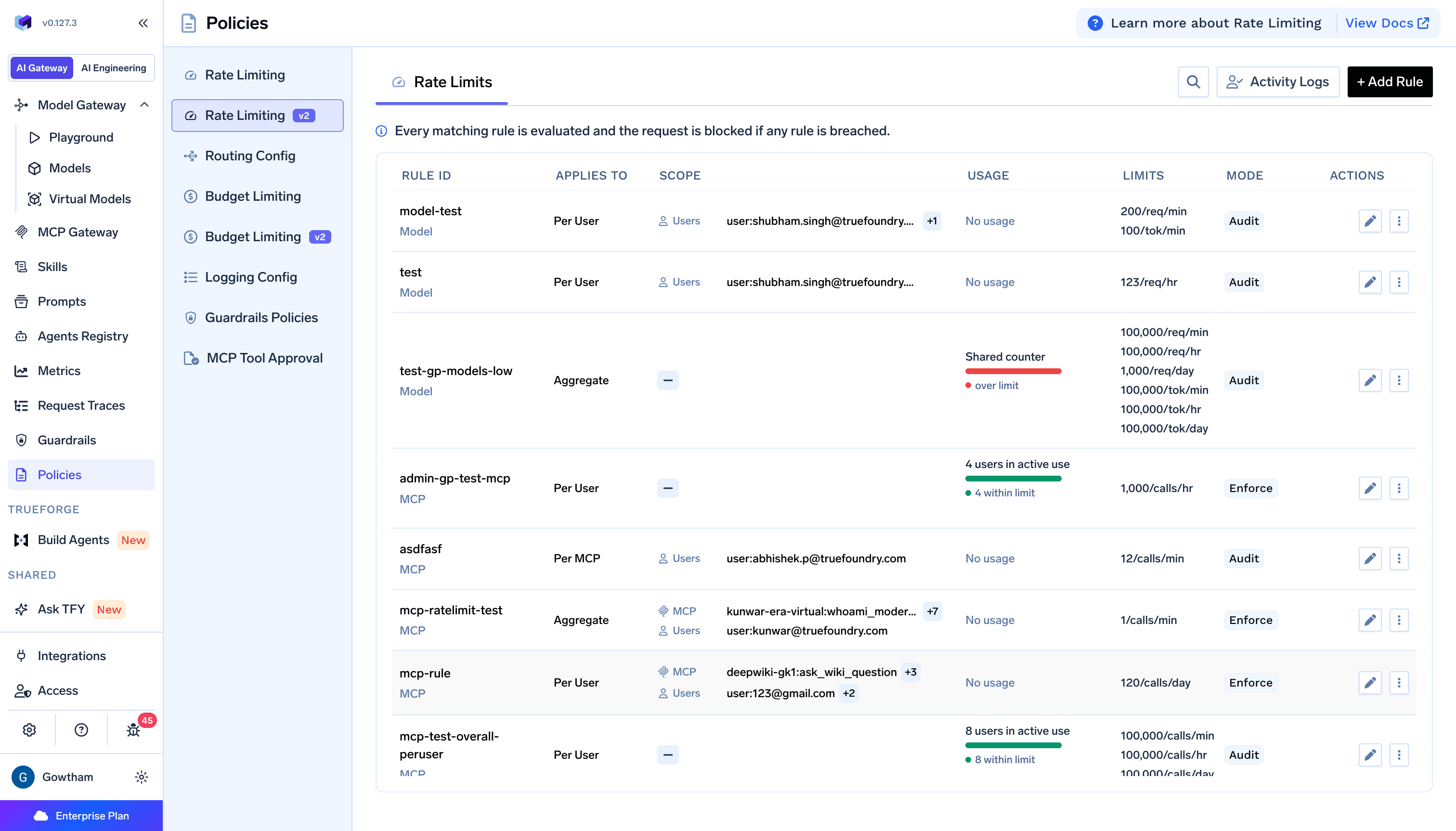
To create a rate limit, go to AI Gateway → Policies → Rate Limiting v2, and click on + Add Rule. The form has two steps: Select type and Configure. In Select type, choose what you are rate limiting and give the rule a name: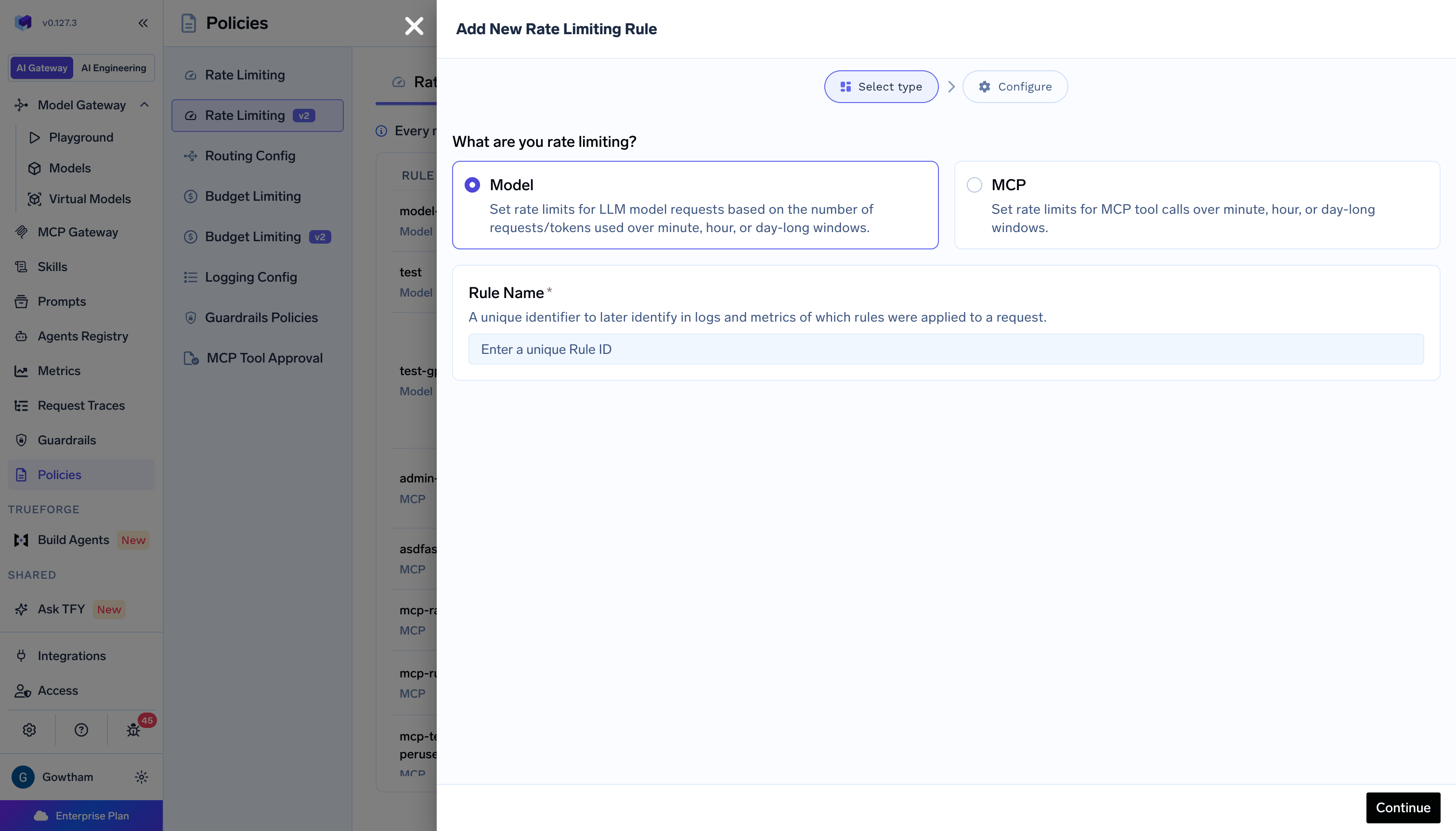
Scope filters
Scope defines which traffic the rate limit applies to. Use + Add Filters to add filters, each with anIN or NOT IN operator. Filters use AND logic, so a request must match every filter you add.
The form offers three filters for model rate limits:
Two further filters exist in the configuration but are not in the form:
provider_accounts matches a provider account name such as openai-main, and subjects.agents matches agent callers. Set either through Apply as YAML. See the YAML configuration reference.IN match on any one of them satisfies the scope. A NOT IN match always wins: a caller excluded by one subject filter is not rescued by matching another.
* works as a wildcard in both operators. in: ["*"] matches any caller of that kind, and not_in: ["*"] excludes all of them.
If you add no filters, the rate limit matches every request in the tenant. This is useful for a tenant-wide default limit.
Rate limits
Under Add Rate Limit, set a Limit amount and pick its period. Use + Add Period to add more. Every limit you set is enforced at the same time, so a request is blocked if any period on that rule is breached. Model rate limits support these periods: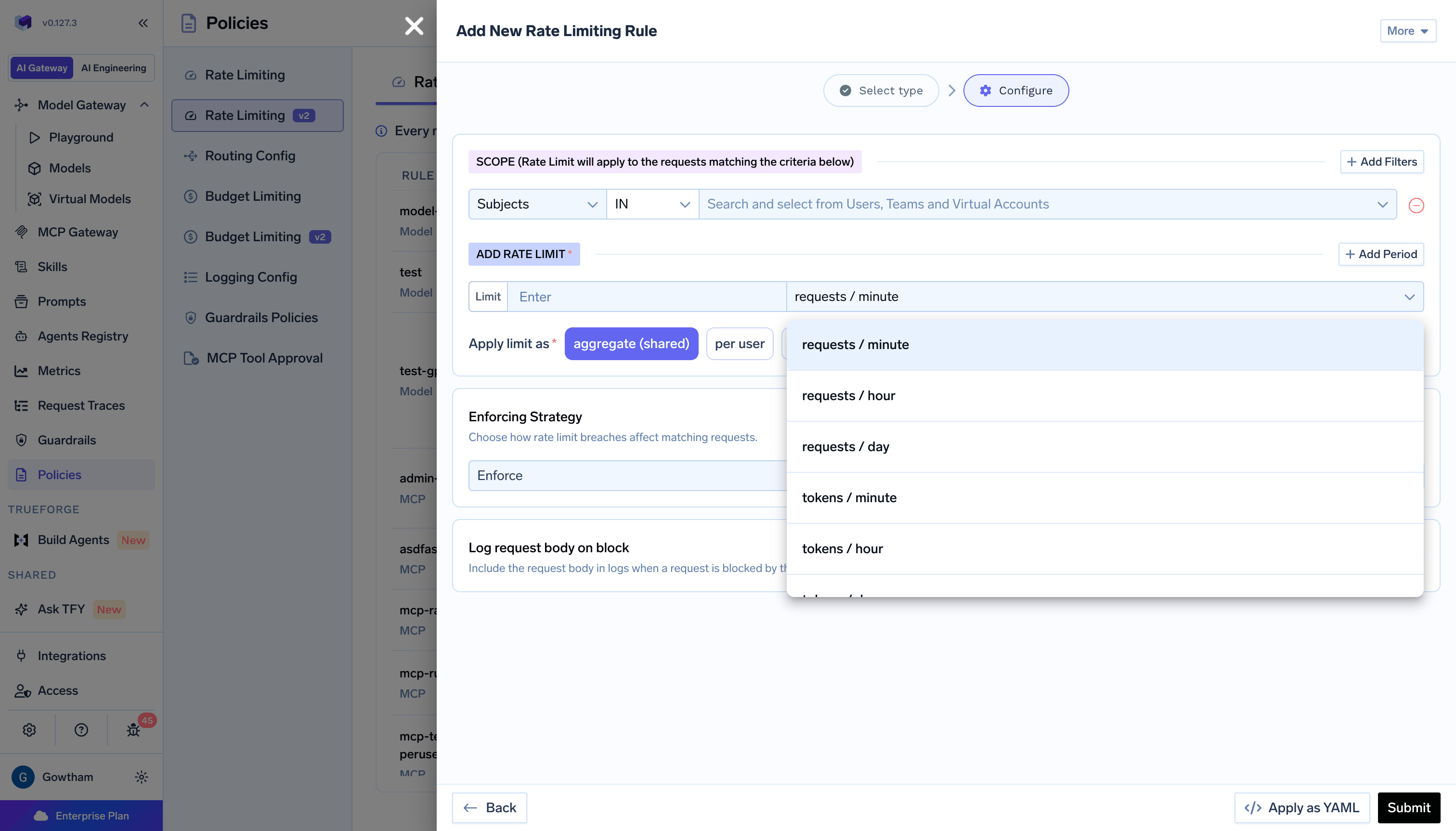
Failed requests still consume request quota, because the request reached the provider. Requests the AI Gateway itself rejected with
429 are not counted, so a blocked caller does not dig their own hole deeper.Apply limit as
Apply limit as controls how the limit is partitioned across matching traffic.
For
per metadata, you also pick the metadata key whose distinct values each get their own limit. A limit partitioned on project_id, for example, gives every project its own allowance.
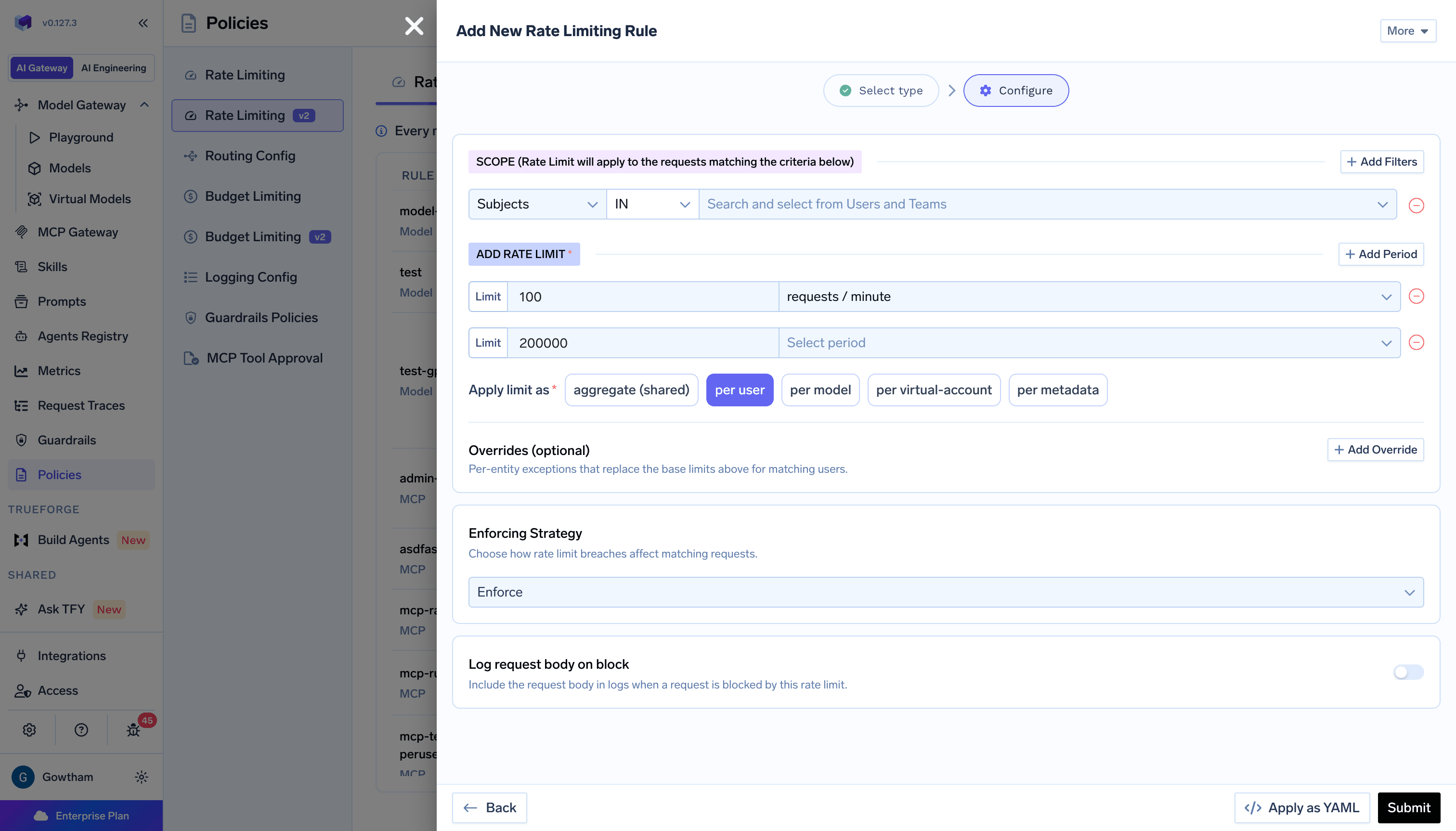
per usercannot be combined with thevirtual_accountsoragentssubject filters.per virtual-accountcannot be combined with theusers,teams, oragentssubject filters.
per user narrows the Subjects picker to users and teams only.
There is no per-agent partition. Agents can be filtered on through
subjects.agents in YAML, but agent traffic caught by a per-user limit produces no counter. Use aggregate, per model, or per metadata to bucket it.Overrides
On any per-entity partition, an Overrides (optional) section appears. Use + Add Override to add per-entity exceptions that replace specific limits for named entities. Every other matching entity keeps the base limits. Overrides merge with the base limits one period at a time. If a limit sets 100 requests per minute and 10,000 requests per day, an override of 500 requests per minute for one user leaves that user’s daily limit at 10,000. Two rules apply:- An override can only replace a period that the base limits already set. You cannot introduce a new period through an override.
- Override target lists cannot overlap. No entity may appear in two overrides on the same rate limit.
Enforcing strategy
Enforcing Strategy controls what happens when a rate limit is breached.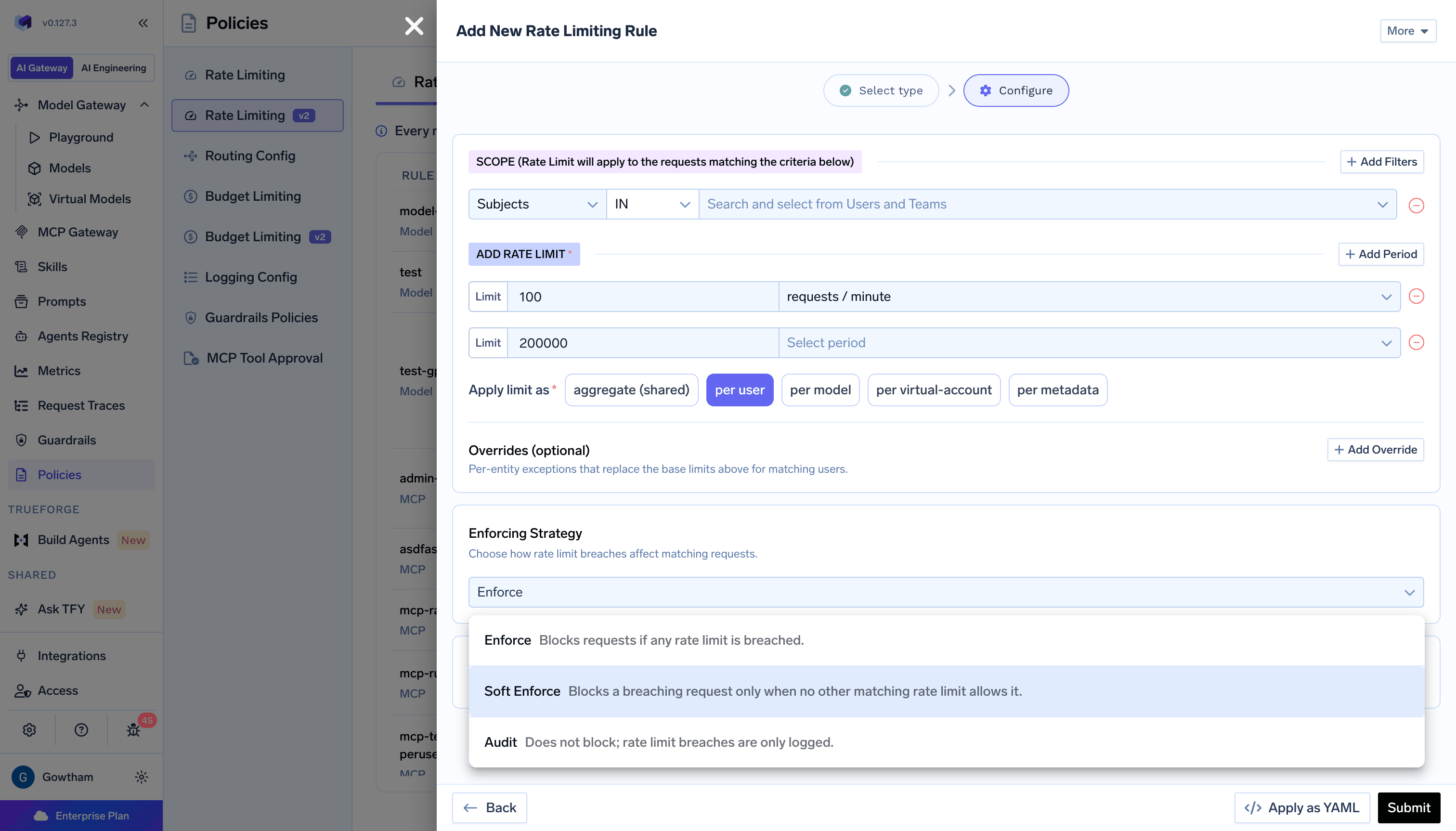
Log request body on block
Log Request Body on Block keeps the request body on the trace for requests this rate limit blocks. It is off by default, and blocked requests normally have their body stripped from the trace. Turn it on when you need to see what a blocked caller was actually sending. The body remains subject to your tenant logging and redaction settings, so a redacted field stays redacted.Virtual models in when.models
You can put a virtual model id in the Models filter the same way as a concrete model.
When a request uses that virtual model:
- The AI Gateway matches the rate limit against the virtual model id and the concrete target it routes to. Either id can satisfy an
INlist, and either id can trigger aNOT INexclusion. - Per Model counters always key on the concrete model that served the request, never on the virtual model id.
MCP rate limits
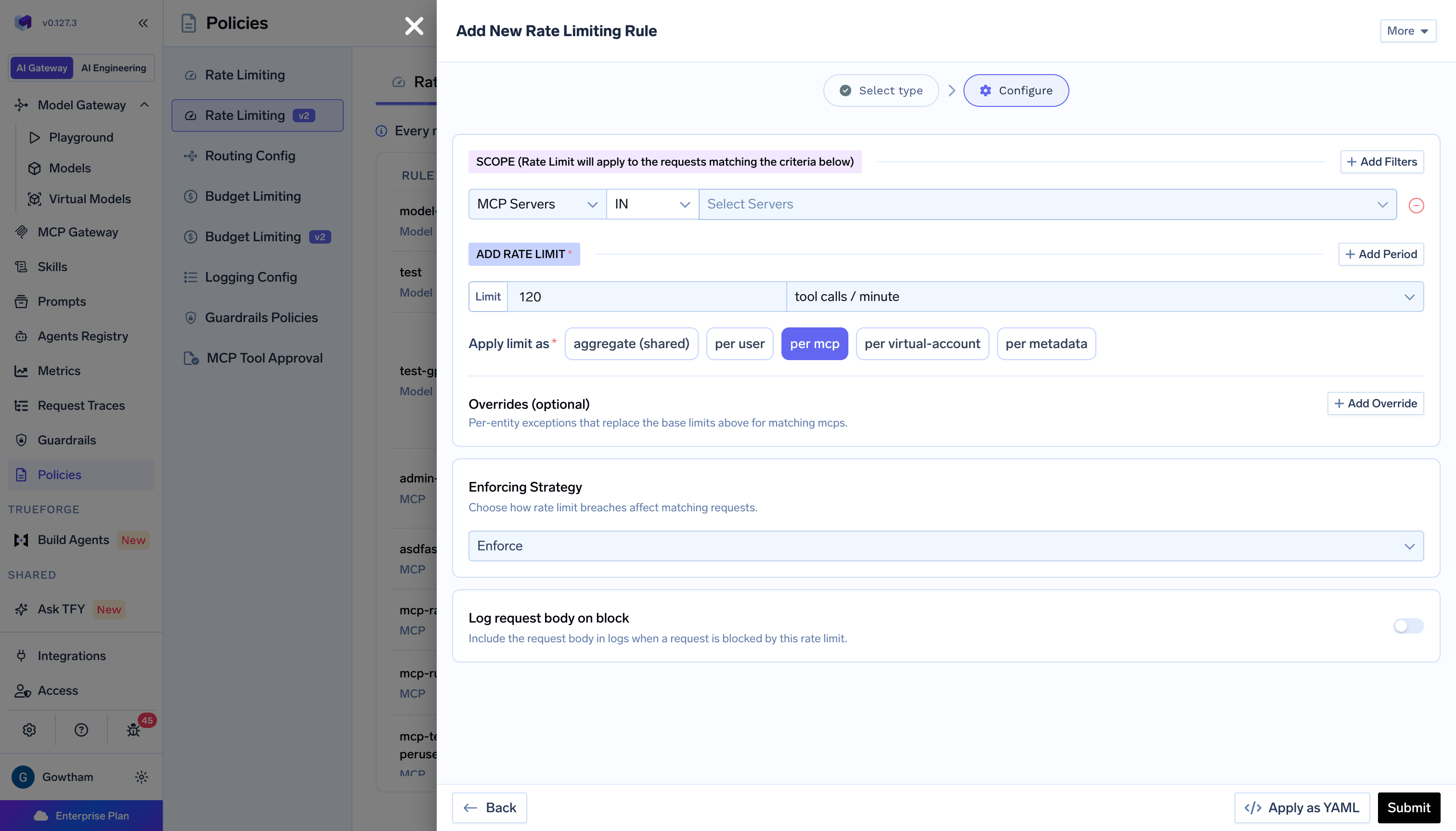
MCP rate limits cap tool calls through the MCP Gateway. They share the concepts above, including subject filters, metadata filters, overrides, and the three enforcement modes. This section covers only what differs.MCP scope filters
MCP rate limits filter on Subjects, MCP Servers, and Metadata. They have no Models or provider account filter. MCP Servers accepts two forms of value:
MCP limits support
tool calls / minute, tool calls / hour, and tool calls / day, on the same rolling windows as the model periods. There is no token or request period, because a tool call is the countable event.
Apply limit as offers per mcp in place of per model. It partitions the limit by server. Listing a server:tool value in an override gives that single tool its own counter, while every other tool on that server continues to share the server counter. This is how you carve out one expensive tool without splitting the whole server.
- Only
tools/callis rate limited.tools/list,resources/*, andprompts/*are never counted. - A tool call that the upstream server refused with
403or429is not counted, because the tool never ran. Any other failure is counted. - For a virtual MCP server, the call is counted once, against the source server it routes to. A rate limit may name either the virtual server or the source server, and both will match.
MCP block response
Retry-After header is returned.
Viewing rate limit usage
The rules list shows a Usage summary per rule:No usage when idle, a shared-counter bar for aggregate rules, or a count of entities in active use and how many are within their limit for per-entity rules. A rule that is currently over its limit is flagged there.
Click View rate limit data on a rule for its Rate Limit Summary, which reports each configured period’s limit alongside the current cycle start and end, and a used-against-limit bar per period:
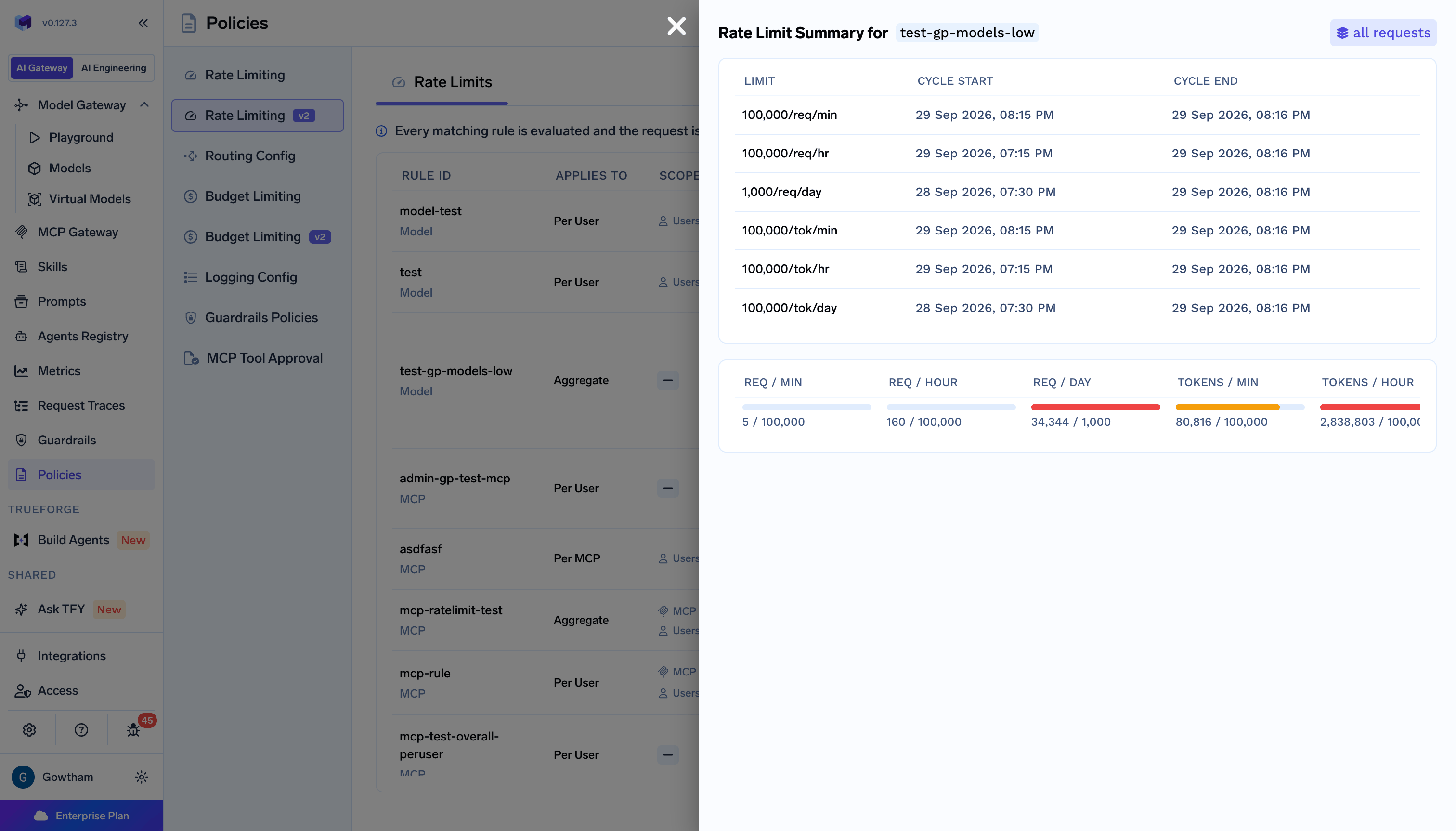
Per-entity breakdowns track up to 500 entities per rate limit by default. Beyond that the breakdown is marked as incomplete, and it should be read as the busiest entities rather than an exact list of every one. Looking up a specific entity’s usage stays exact even when it is absent from the breakdown.
Rate limit exceeded response
When a model rate limit in enforcement mode is breached, the AI Gateway returns HTTP429:
x-tfy-applied-rules header naming the rate limit that was breached:
audit mode reports itself on this header with "audit_mode":true and "violated":false, and the request still goes through. This is how you confirm an audit limit is matching the traffic you expect before switching it to enforce.
The AI Gateway does not return
Retry-After, X-RateLimit-Limit, X-RateLimit-Remaining, or X-RateLimit-Reset headers. Clients should back off on 429 using their own retry policy. To read current usage programmatically, query the rate limit usage APIs rather than parsing response headers.429, distinguished by "type": "BudgetLimitError" and "error_origin_level": "budget_limit". See Budget Limiting.
Relationship to rate limiting V1
V1 and V2 are independent systems that both evaluate on every request. V1 is checked first, and if a V1 rule blocks the request, V2 is not consulted. If V1 allows the request, V2 evaluates its own matching limits. This has three practical consequences:- No migration is required. V1 configurations keep working unchanged, and V1 is not deprecated.
- Counters are not shared. A V2 limit starts counting from zero when you create it, and it never inherits usage from a V1 rule, even one with the same intent.
- Traffic can be covered twice. If a V1 rule and a V2 limit both match the same request, both count it, and either can block it. When you recreate a V1 rule in V2, delete or narrow the V1 rule to avoid enforcing the same cap twice.
Practical examples
Each example shows both the UI configuration and the equivalent YAML. Click Apply as YAML in the rule form to paste or edit YAML directly.Per-user requests and tokens cap
Per-user requests and tokens cap
Give every user their own throughput allowance across both requests and tokens.
- UI
- YAML
How it works: Each user gets an independent 100 requests per minute and 200,000 tokens per hour. A user who exhausts either window is blocked until it rolls forward, and other users are unaffected.
Team-scoped model cap
Team-scoped model cap
Cap how hard one team can hit an expensive model, as a single shared pool.
- UI
- YAML
How it works: All requests from members of the
research team to that model share one 600 requests per hour pool. Requests from the same team to other models do not count against it.Tenant default with an exclusion
Tenant default with an exclusion
Apply a baseline limit to every user except a named service owner.
- UI
- YAML
How it works: Every user except
batch-owner@example.com gets 60 requests per minute. The excluded user does not match this limit at all, so they are governed only by whatever other rate limits match their traffic.Provider account throughput cap
Provider account throughput cap
Protect a self-hosted or quota-limited provider account from being saturated.
- UI
- YAML
How it works: Every request routed to any model on the
selfhosted-vllm account counts against one shared pool, which keeps total load inside what the deployment can serve.Per-project limits from metadata
Per-project limits from metadata
Give every project its own allowance, identified by a metadata header.How it works: Each distinct
- UI
- YAML
Requests must include the header:
project_id gets its own 5,000 requests per day. Only production traffic matches, so non-production requests are not limited by this rule.Per-model limits with one override
Per-model limits with one override
Set a default per-model limit, then raise it for a cheap, high-volume model.
- UI
- YAML
Overrides:
openai-main/gpt-4o-mini → 2,000 requests/minute. Its daily limit stays at the base 50,000, because an override replaces only the units it sets.Audit mode to size a new limit
Audit mode to size a new limit
Watch what a limit would block before you enforce it.
- UI
- YAML
How it works: No request is ever blocked. Usage is tracked per user, and requests that would have been blocked carry
"audit_mode":true on the x-tfy-applied-rules header. Once the usage breakdown shows an acceptable number of users at risk, switch Mode to Enforce.Soft enforce as an overflow cap
Soft enforce as an overflow cap
Add a tenant-wide backstop that bites only when no narrower limit is already holding the traffic.
- UI
- YAML
How it works: A request is checked against both. The per-user limit blocks absolutely when breached. The backstop blocks only when it is breached and no other matching limit has room, so it acts as a ceiling on total tenant throughput without pre-empting the per-user limit’s own error.
MCP tool calls per server, with a tool carve-out
MCP tool calls per server, with a tool carve-out
Limit each MCP server’s tool calls, and give one expensive tool a tighter limit of its own.
- UI
- YAML
Overrides:
github:create_issue → 5 tool calls/minute.How it works: Every server gets 120 tool calls per minute. Because github:create_issue is named in an override, that one tool gets its own counter capped at 5 per minute, while all other github tools continue to share the server’s 120.MCP limit for an automation account
MCP limit for an automation account
Keep a CI virtual account from exhausting a shared MCP server.
- UI
- YAML
How it works: Only
ci-bot calls to tools on the search server match. Both windows are enforced, so the account is capped on bursts and on sustained volume. Human users calling the same server are unaffected.YAML configuration reference
Model rate limit YAML structure
Model rate limit YAML structure
This example uses a
metadata partition so that it can show every subject filter at once. A per-user partition cannot be combined with the virtual_accounts or agents filters, and a per-virtual-account partition cannot be combined with users, teams, or agents. Those combinations are rejected with a 400.MCP rate limits use the same structure, with
mcp_servers in place of models and provider_accounts, tool_calls_* units, and per-mcp in place of per-model: