

What is Google Model Armor?
Google Model Armor is a fully managed Google Cloud service that screens LLM prompts and responses for security and safety risks. It works with any model on any cloud platform, supporting multi-cloud and multi-model scenarios.Key Features of Google Model Armor
- Responsible AI Safety Filters: Screen prompts and responses for harmful content categories including hate speech, harassment, sexually explicit content, and dangerous content. Confidence thresholds (Low, Medium, High) let you control how aggressively content is flagged, giving you fine-grained control over safety enforcement.
- Prompt Injection and Jailbreak Detection: Detect and block prompt injection attacks and jailbreak attempts that try to bypass model safety protocols. Model Armor identifies malicious instructions designed to manipulate model behavior, reveal sensitive information, or generate harmful outputs.
- Sensitive Data Protection: Discover, classify, and de-identify sensitive data using Google Cloud’s Sensitive Data Protection. Supports both basic configuration (API keys, SSNs, credit card numbers) and advanced templates for granular detection and de-identification rules.
- Malicious URL Detection: Scan URLs in prompts and responses to identify phishing links, malware distribution URLs, and other online threats — preventing malicious URLs from reaching downstream systems.
How to Set Up Google Model Armor
1
Enable the Model Armor API
Navigate to the Google Cloud Console and enable the Model Armor API for your project. You can do this from the APIs & Services section or by searching for “Model Armor” in the console search bar.
2
Configure IAM Permissions
Assign the appropriate IAM roles to the service account or user that will interact with Model Armor:
modelarmor.admin— Full management access to templates and settingsmodelarmor.user— Permission to sanitize prompts and responses using templatesmodelarmor.viewer— Read-only access to templates and settings
For the TrueFoundry integration, the service account needs at minimum the
modelarmor.user role to invoke sanitization APIs.3
Create a Model Armor Template
Templates define which filters and confidence thresholds Model Armor applies when screening content.
- In the Google Cloud Console, navigate to Security > Model Armor
- Select Create Template
- Configure the filters you want to enable:
- Responsible AI filters: Set confidence thresholds for hate speech, harassment, sexually explicit, and dangerous content
- Prompt injection detection: Enable jailbreak and prompt injection scanning
- Sensitive Data Protection: Configure PII/sensitive data detection categories or advanced templates
- Malicious URL detection: Enable URL scanning
- Set the enforcement type: Inspect and block (blocks violating requests) or Inspect only (logs violations without blocking)
- Save the template and note the Template ID
4
Note Your Project Details
You will need the following values when configuring the integration in TrueFoundry:
- Project ID: Your Google Cloud project ID
- Location: The region where your Model Armor template is deployed (e.g.,
us-central1) - Template ID: The name of the template you created
Adding Google Model Armor Guardrail Integration
To add Google Model Armor to your TrueFoundry setup, follow these steps: Fill in the Guardrails Group Form- Name: Enter a name for your guardrails group.
- Collaborators: Add collaborators who will have access to this group.
- Google Model Armor Config:
- Name: Enter a name for the guardrail configuration.
- Project ID: The Google Cloud project ID where Model Armor is enabled.
- Location: The Google Cloud region where your Model Armor template is deployed.
- Template ID: The Model Armor template name that defines which filters and confidence thresholds to apply.
- Google Cloud Authentication Data:
You can authenticate with Google Cloud in one of two ways:
- API Key Authentication
- Provide a Google Cloud API key with Model Armor access.
-
Ensure the API key has the necessary permissions to invoke Model Armor sanitization APIs. Restrict the key to only the Model Armor API for security best practices.
- Service Account Key File Authentication
- Provide the JSON content of your Google Cloud service account key file.
- The service account must have the
modelarmor.userrole (or higher) assigned. -
For production use, service account key files are recommended over API keys as they provide more granular permission control and auditability.
- API Key Authentication
Configuration Options
See Guardrails Overview for details on Operation Modes and Enforcing Strategy.
How Google Model Armor Validation Works
When integrated with TrueFoundry, the system sends the user prompt to the Google Model Armor sanitization API along with the configured template. Model Armor screens the content through all filters defined in the template and returns a detailed response indicating which filters were triggered.Response Structure
Example Response: Content Flagged
Example Response: Content Flagged
This is an example response from Google Model Armor when harmful content is detected and blocked.Result: Request will be blocked by the guardrail due to dangerous content detection
Example Response: No Violations
Example Response: No Violations
This is an example response from Google Model Armor when no violations are detected.Result: Request will be allowed by the guardrail
Validation Logic
TrueFoundry relies on the Model Armor response to determine content safety:- If
sanitizationResult.filterMatchStateisMATCH_FOUND, the content is blocked - Individual filter results (RAI, prompt injection, malicious URIs, sensitive data) are each evaluated — a match in any filter triggers a violation
- For RAI filters, the content is flagged only when the detected confidence level meets or exceeds the threshold configured in the template
- The violation message indicates which filter category was triggered, helping you understand what type of content was detected
Using the Mutate Operation
When using Model Armor with themutate operation, the guardrail not only detects sensitive content but also modifies it in-place — for example, redacting PII before the prompt reaches the model. This requires Sensitive Data Protection (SDP) templates to be configured in Google Cloud and linked to your Model Armor template.
Prerequisites
To usemutate, you need both an inspect template and a de-identify template created in Google Cloud’s Sensitive Data Protection service:
1
Create an Inspect Template
Navigate to the Sensitive Data Protection Inspect Templates page in the Google Cloud Console. Replace Create an inspect template that defines which types of sensitive data to detect (e.g., credit card numbers, email addresses, phone numbers).For detailed instructions, refer to the Sensitive Data Protection templates documentation.
<YOUR_PROJECT_ID> in the URL below with your project ID:2
Create a De-identify Template
Navigate to the Sensitive Data Protection De-identify Templates page in the Google Cloud Console. Replace Create a de-identify template that defines how detected sensitive data should be transformed. Under the transformation rule configuration, select Replace with infoType name — this replaces each detected sensitive value with its infoType label (e.g., 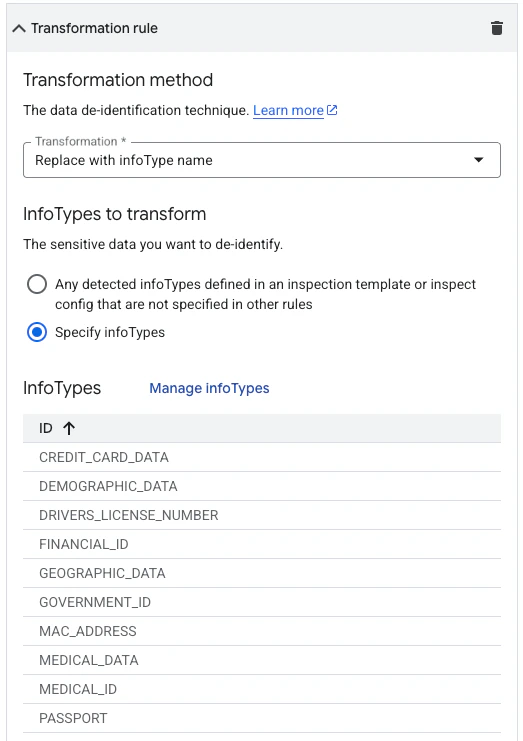
<YOUR_PROJECT_ID> in the URL below with your project ID:[EMAIL_ADDRESS], [PHONE_NUMBER]).3
Link Templates to Your Model Armor Template
In the Google Cloud Console, open your Model Armor template and navigate to the Sensitive Data Protection templates section. Configure the inspect and de-identify templates you created in the previous step.This linkage tells Model Armor which detection rules to apply and how to transform the matched content during mutation.
Without both an inspect and a de-identify template configured, the
mutate operation will not be able to perform content transformation and will fail.