Adding TrueFoundry Hosted Models to the AI Gateway
Follow these steps to add a model you have deployed on TrueFoundry to the AI Gateway.
1
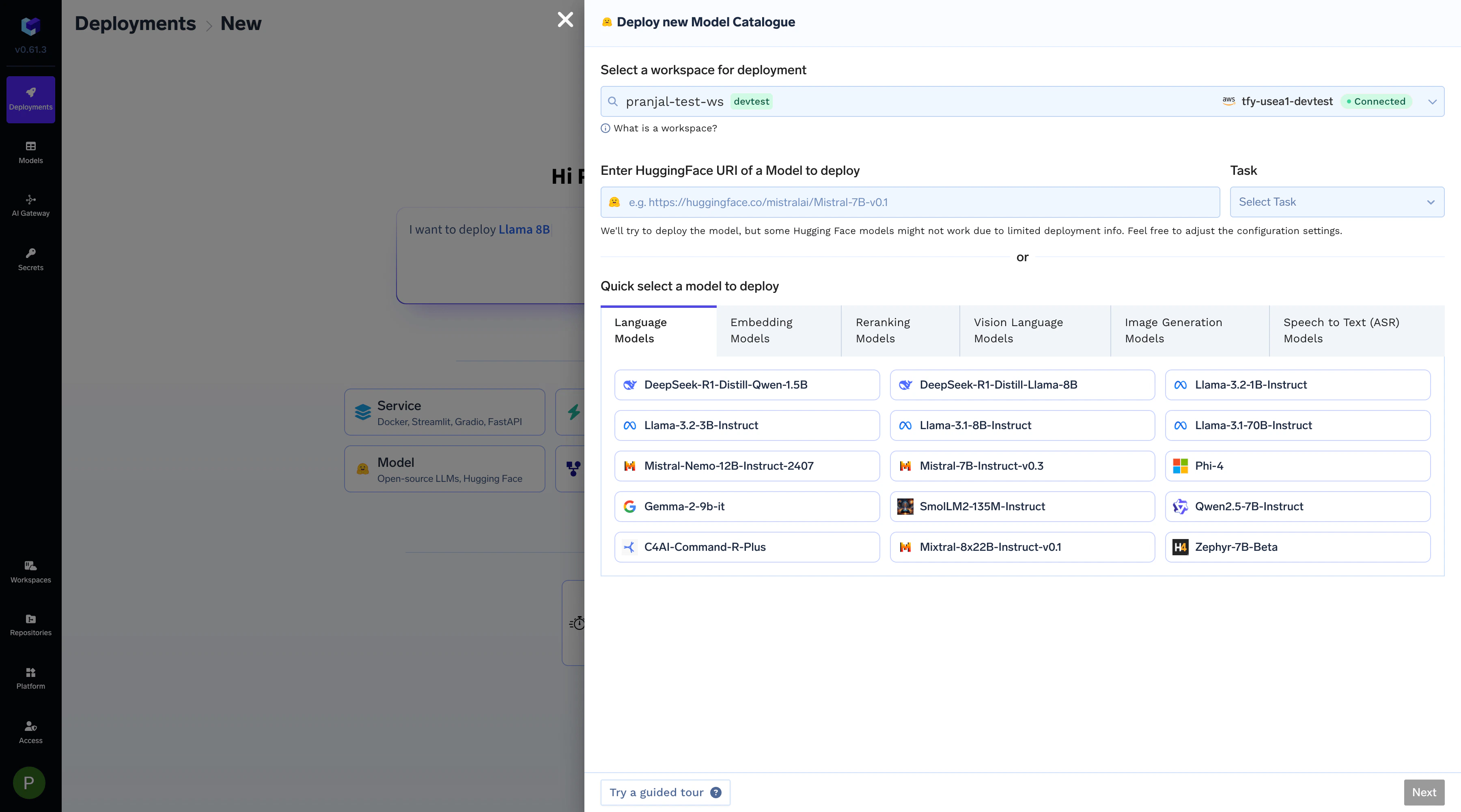
Deploy a Model
First, deploy your open-source or private model as a service. You can refer to our documentation on Deploying LLMs From Model Catalogue for detailed instructions.
Deploy a model from the model catalogue
2
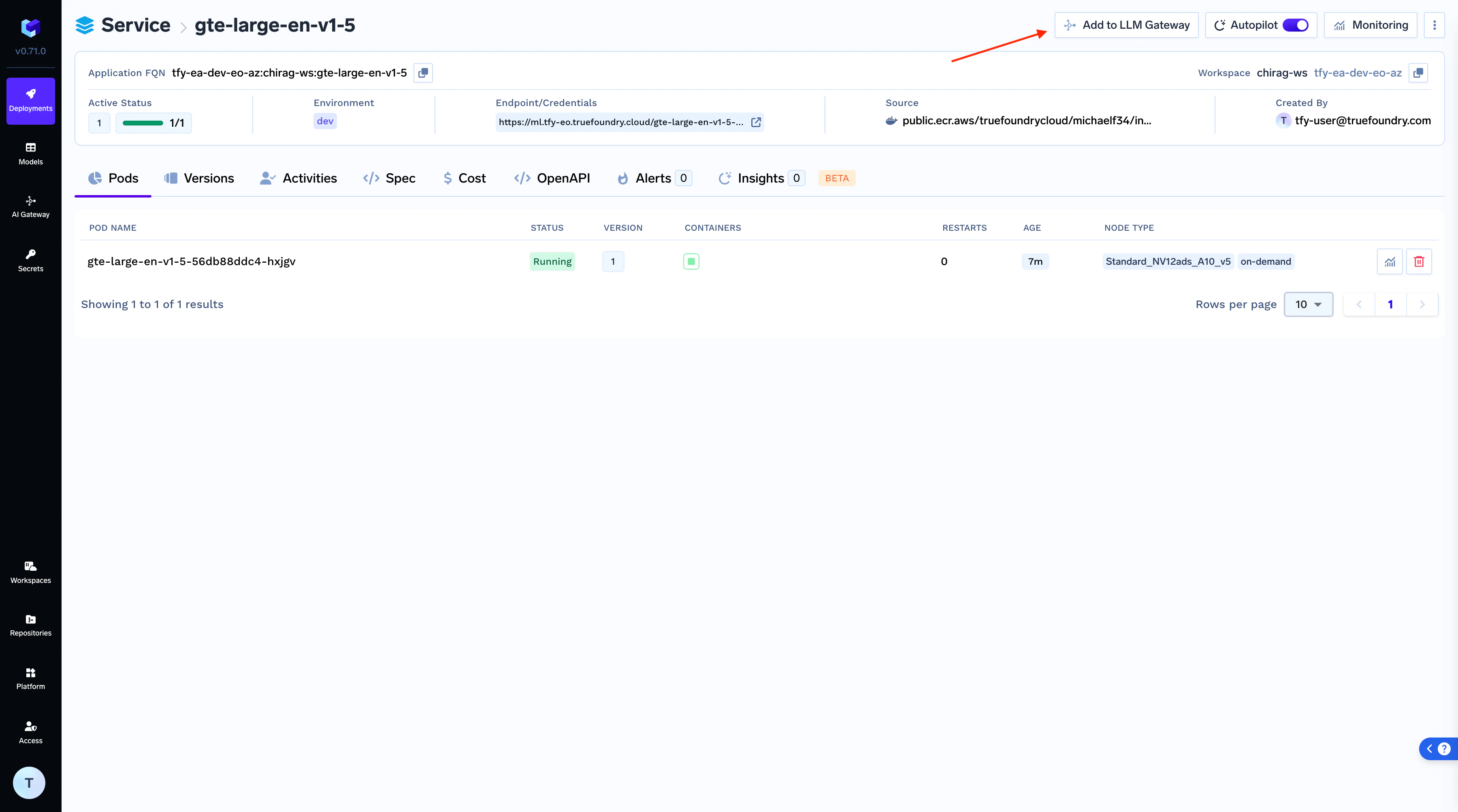
Add Model to AI Gateway
Once your model is successfully deployed, click the “Add to Gateway” button on the deployment page to begin the integration process.
Add model to AI Gateway
3
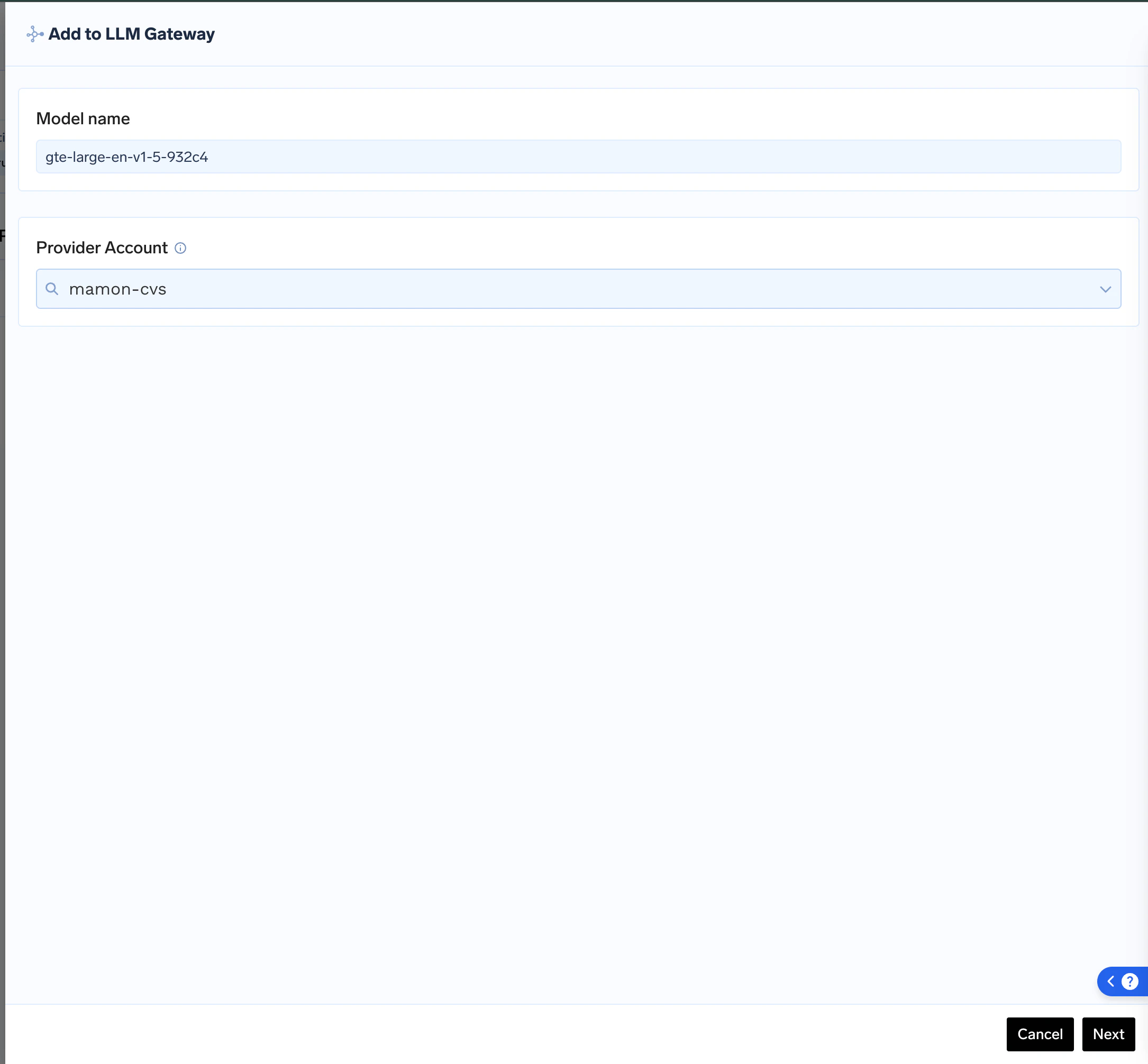
Configure Model Details
Give your model a unique Model Name and choose an existing Model Account to add it to, or create a new one. This helps in grouping and managing your self-hosted models.
Configure model name and model account
4
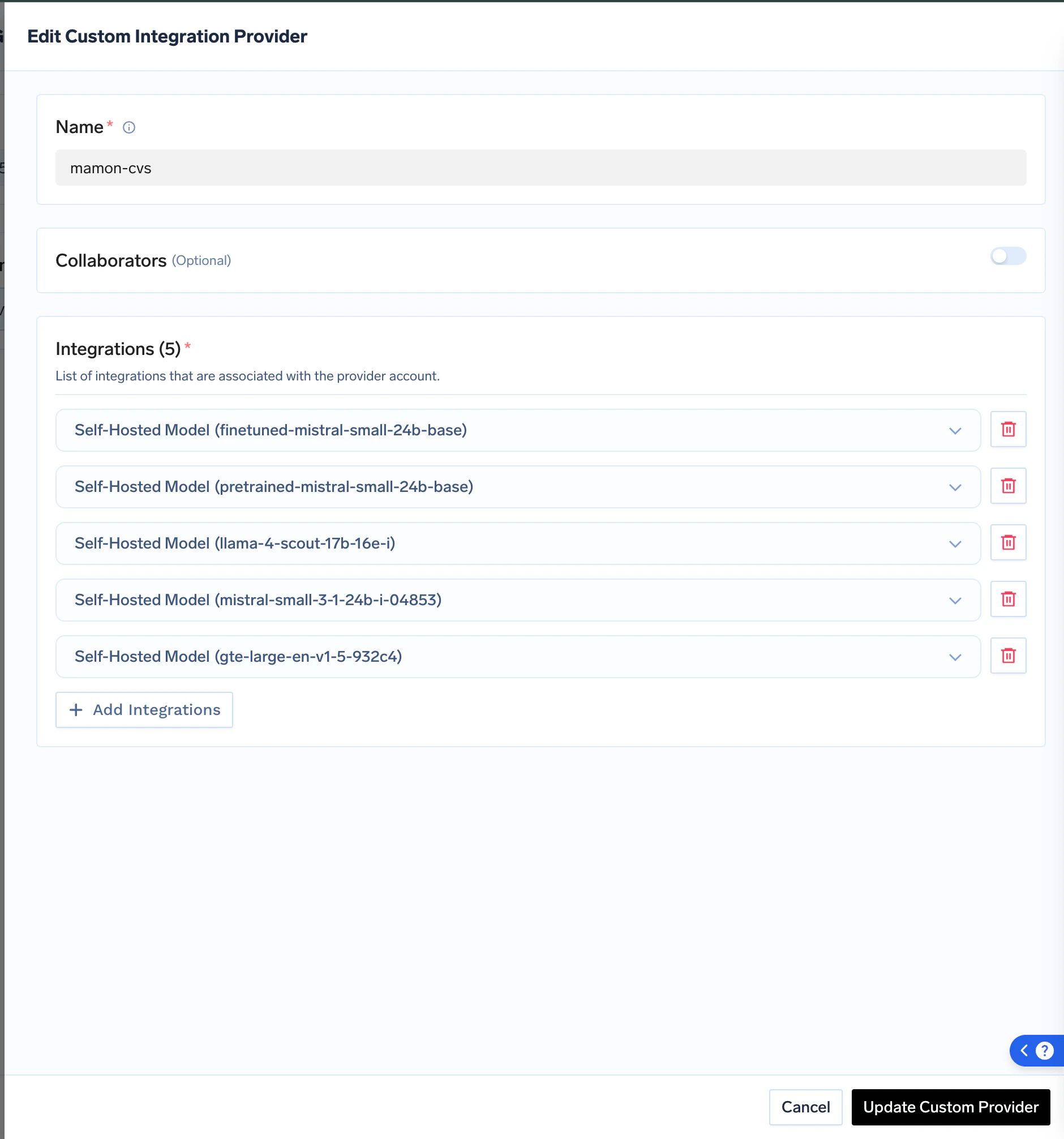
Add Collaborators
Add collaborators to your account, this will give access to the account to other users/teams. Learn more about access control here.
Add collaborators for the model
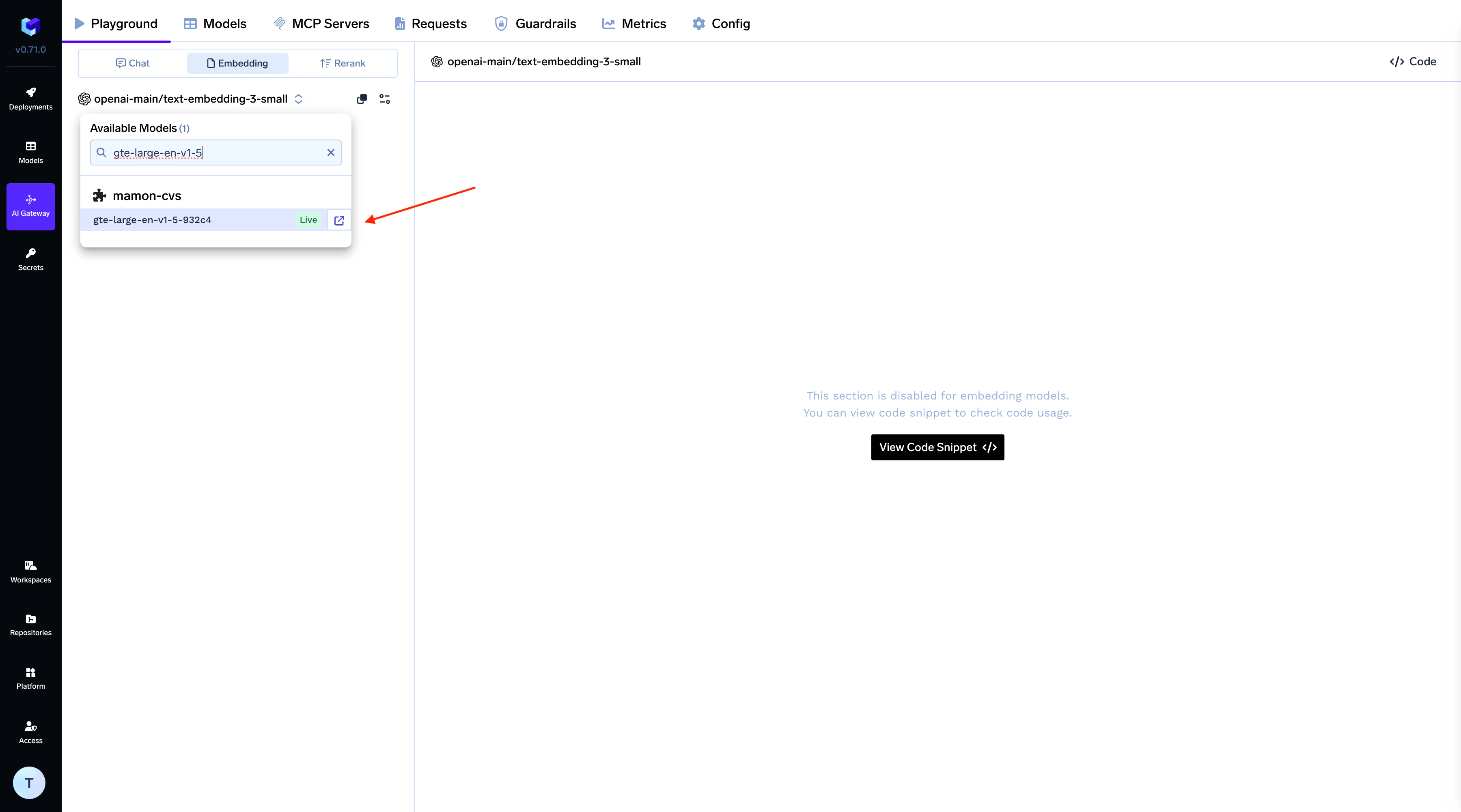
After saving, your model will be live on the AI Gateway and ready for use.
GPUs are costly, and running GPU-powered deployments can quickly drive up expenses. TrueFoundry offers built-in solutions to help reduce deployment costs.You can choose from two cost-saving options:
Auto-shutdown based on inactivity: Set up automatic shutdown of deployment pods if no new requests are received within a specified time frame.
Manual pause/resume: You can manually pause deployments that you anticipate won’t be used for a certain period.
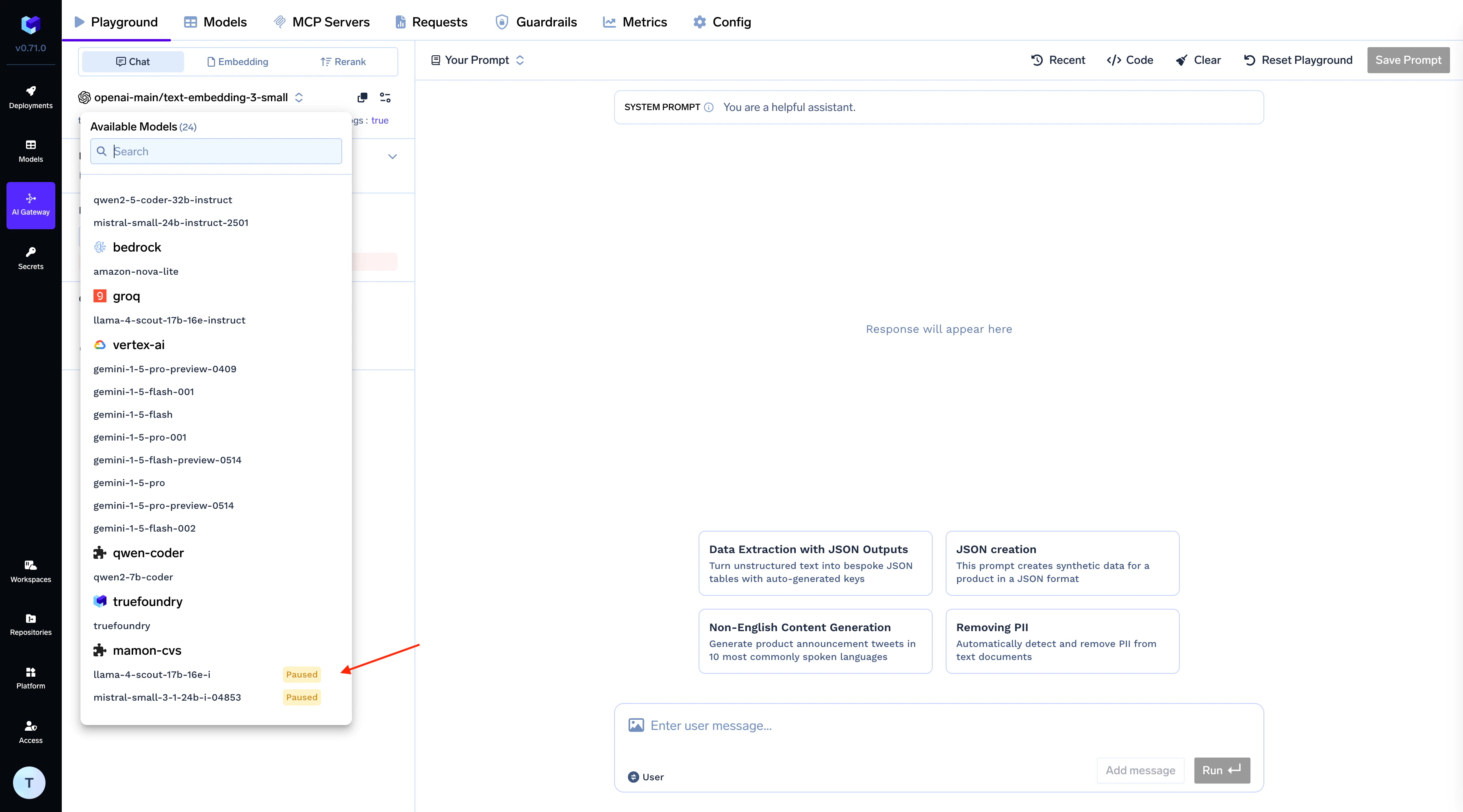
In both scenarios, the model status will be displayed as “paused” on the AI Gateway.
Paused model on AI Gateway
Was this page helpful?
Assistant
Responses are generated using AI and may contain mistakes.