

Route model requests
Point Cursor’s Override Base URL at the gateway’s
/cursor/v1 endpoint and use the models from your own provider accounts.Guardrail what Cursor does
Block or rewrite risky prompts, file reads, shell commands and tool calls using Cursor hooks. This works no matter how Cursor reaches the model.
Route model requests through the gateway
Set Cursor’s Override Base URL to the gateway’s/cursor/v1 endpoint. Every model request from Cursor — chat, agent mode, file edits, tool calls — then goes through the gateway, so it picks up your authentication, budgets, rate limits, logging and guardrails.
Supported providers
- OpenAI
- Azure OpenAI
- AWS Bedrock
- AWS Bedrock Mantle
- Anthropic
Prerequisites
- TrueFoundry account — create one at truefoundry.com and follow the Gateway Quick Start.
- A virtual model with a slug for each model you want in Cursor — see Use virtual models with slug names.
- A TrueFoundry API key (Personal Access Token).
- Cursor installed on your machine.
Connect Cursor to the gateway
1
Open Cursor settings
In Cursor, go to Cursor Settings → Models.
2
Add your key and the base URL
Scroll to API Keys at the bottom and set:
- OpenAI API Key — your TrueFoundry Personal Access Token
- OpenAI Base URL —
{GATEWAY_BASE_URL}/cursor/v1
/cursor/v1.3
Add your models
Add each model as a custom model, using a virtual model slug as the name.
Use virtual models with slug names
Create a virtual model for each model you want in Cursor and give it a slug: a short name, unique in your tenant, that you can send instead of the fullgroup/model path.
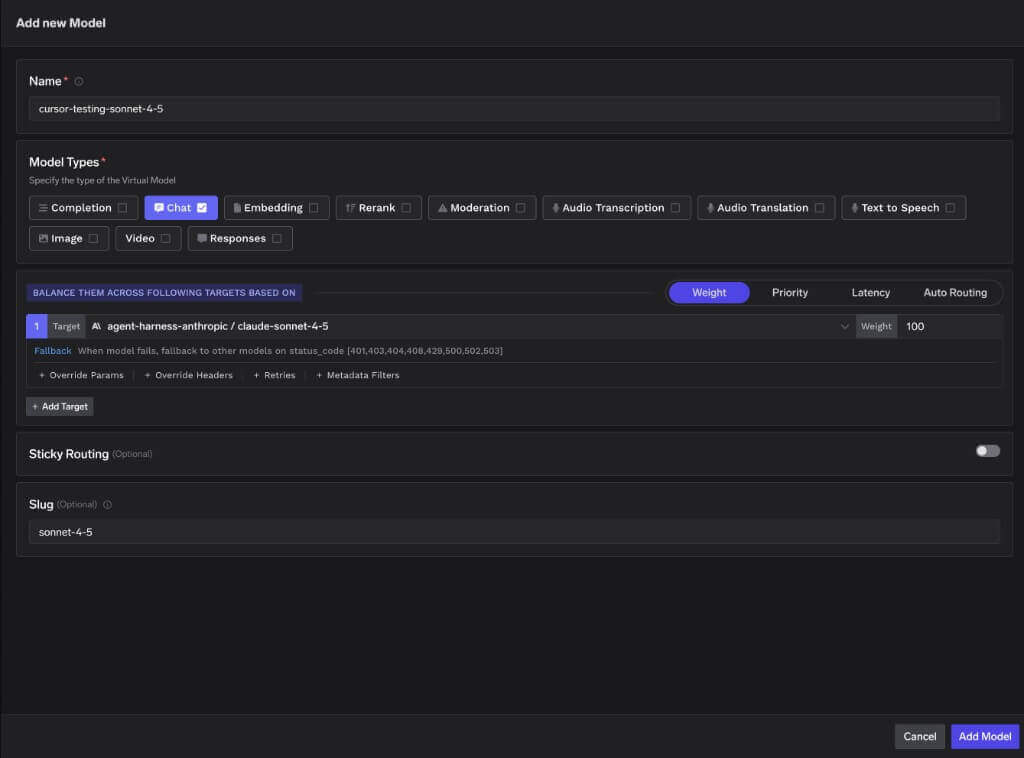
A virtual model with the slug sonnet-4-5, routing to a Claude Sonnet target
sonnet-4-5 then go to the virtual model, so you also get its fallbacks, retries, and load balancing.
Naming rules for the slug
This includes dotted vendor prefixes, which cause the most trouble because they are what cloud providers use in their own model IDs:
Only the slug has to follow these rules. The target it points to keeps its provider ID — in the screenshot above that target is still
claude-sonnet-4-5, and Cursor never sees it.
Guardrails using Cursor hooks
Cursor does most of its work outside the model API — reading files, running shell commands, calling MCP tools, starting subagents. TrueFoundry can check all of that using Cursor hooks. Cursor tells the gateway what it is about to do, the gateway runs your guardrails, and the gateway’s answer either lets the action happen, stops it, or hands back a cleaned-up version.Hooks have nothing to do with how Cursor reaches the model, so they work even if you are not using the base-URL setup described above. Use either or both.
How it works
- Cursor is about to do something (say, read a file). It sends the details of that action, as JSON, to a command you configure.
- That command is a small helper script. It forwards the JSON to the gateway at
POST /hooks/cursor. - The gateway runs the guardrails you picked for that action and replies with JSON.
- The helper script prints the reply back to Cursor, and Cursor does what it says: allow, stop, or use the rewritten content.
Cursor cannot call a URL on its own — unlike Claude Code, it has no HTTP hook type. Hooks are commands that read from standard input and write to standard output, which is why the helper script is needed. The gateway already replies in exactly the format Cursor expects, so the script just passes the reply straight through without changing it.
What a guardrail can do at each action
A guardrail can do one of two things:- Block — stop the prompt, file read, command or tool call before it happens.
- Rewrite — edit the content in place (for example, redact an email address out of a tool’s input) and let the action continue with the cleaned-up version.
In short:
- Blocking works on all eight.
- Rewriting works only on
preToolUse(tool input) andpostToolUse(MCP tool results). Everything else is allow-or-stop. - If a guardrail that rewrites content is used on an action that can’t carry a rewrite, the gateway stops the action instead of letting the original through. The content the guardrail wanted to clean up is never sent. So a redaction guardrail on those actions effectively behaves as a blocker.
Hooks cannot check the model’s answers. Cursor’s
afterAgentResponse hook is notification-only — it has no fields for changing anything — so the assistant’s reply can’t be stopped or edited here. To check model responses, use output guardrails on the model request path instead (see Guardrails).Choosing which guardrails run
You pick the guardrails for each request with thex-tfy-hook-guardrails header. Its value is a plain JSON list of guardrail names, written as group/guardrail-name:
hooks.json can use its own guardrails.
You don’t have to say where a guardrail should run — the Cursor action decides that for you:
A guardrail set up for one of these roles won’t work on an action that needs a different one, and the gateway blocks the action when that happens. Match the table above when choosing names.
Two behaviours worth knowing:
- No header, or an empty one — no guardrails are selected and the action goes through unchecked. The helper script below refuses to run in this case, because the gateway’s reply would look exactly like a clean pass.
- A header that isn’t a valid JSON list of names — the action is blocked.
What you need
- A guardrail group with at least one guardrail in it — see Create a guardrail. Note its full name, e.g.
security/email-regex. - A TrueFoundry API key with access to that guardrail group.
- Cursor installed.
Set up
Three files, all in your home directory, so the guardrails apply to every project you open in Cursor. To limit them to a single repository instead, see Where to put the config — only the paths change.1
Store your credentials
Cursor is launched from the desktop, so it does not see the environment variables you set in your terminal. The hook can’t read an exported variable. Put your key in a small config file that the helper script reads instead.Keeping the key in its own file, rather than inside the script, means the hook files stay safe to commit — to a dotfiles repository for the global setup below, or to a project repository if you scope the hooks to one repo.
- macOS
- Linux
- Windows
TFY_GATEWAY_URL is your gateway host root — the same host you use for model requests but without the /api/llm suffix, because the hook endpoint sits at the root (for example https://your-gateway-host/hooks/cursor).2
Add the helper script
This script forwards each action to the gateway and prints the gateway’s reply back to Cursor.
- macOS
- Linux
- Windows
Save as
~/.cursor/hooks/tfy-guardrails.sh, then run chmod +x ~/.cursor/hooks/tfy-guardrails.sh to make it executable.3
Register the hooks
Save this as Register only the actions you need — each one means another call to the gateway every time it happens. To use different guardrails per action, change the arguments: adding
~/.cursor/hooks.json (%USERPROFILE%\.cursor\hooks.json on Windows). Replace the security/guardrail* placeholders with your own guardrail names — they can differ per action, or all be the same.- macOS
- Linux
- Windows
security/prompt-pii security/secrets runs both on that action only.4
Verify
Test the helper script on its own before involving Cursor. It reads its own credentials, so this works from any terminal:A stopped read prints
- macOS
- Linux
- Windows
{"permission":"deny","user_message":"..."} with exit=0. Run it again with clean content and you should get {"permission":"allow"}. Do both — a setup that is broken and stopping everything looks identical to one that is correctly catching a violation.Then open any project in Cursor normally — from the Dock, Start menu, recent projects, however you like. Cursor watches hooks.json and reloads it automatically; restart Cursor if the hooks don’t appear. The Hooks tab under Customize lists what’s registered, and the Hooks output channel shows error messages and exit codes — that’s where tfy-guardrails: ... messages appear.beforeMCPExecution if you need rules that apply to a specific MCP server — it is the only “before” action that tells you which server a tool belongs to. Otherwise it covers the same ground as preToolUse, so registering both means two gateway calls for every MCP tool call.
Where to put the config
Cursor reads hooks from four places. The setup above uses the user location, which covers every project you open.
When two of these disagree, Cursor takes the answer from the highest one, in the order Enterprise → Team → Project → User. But that only settles disagreements — hooks from every location still run. A
hooks.json in your home directory does not replace one in a repository. If you open a project that ships its own hooks, both fire, which means two calls to the gateway and two guardrail checks for every action. Register a given action in one place only, unless you actually want both.
Hooks in your home directory do not run in Cursor cloud agents — those machines have no access to it. Cloud agents load project, team, and enterprise hooks only, so commit a project-level config if you need cloud agents guarded.
beforeTabFileRead and beforeMCPExecution don’t run in cloud agents at all, and hooks are inactive during a cloud agent’s first read-only turns.What the gateway sends back
The gateway replies with only the fields Cursor understands, and which fields Cursor acts on depends on the action:- Stopped — the reply carries that action’s stop fields, with the guardrail’s message as the reason (or
Request blocked by guardrail.if the guardrail didn’t supply one). - Rewritten — the cleaned-up content comes back in
updated_input(preToolUse) orupdated_mcp_tool_output(postToolUse). On every other action, a rewrite turns into a stop. - Something went wrong — if the gateway hits an internal error, or can’t find a guardrail you named, it sends back the same stop fields. An action it couldn’t check is stopped rather than allowed through.
- A stop is always sent as HTTP 200, because Cursor reads the decision out of the reply body, not the status code. The helper script treats anything other than a 2xx as a failure and stops the action.
Limitations to know about
postToolUsecannot prevent a tool from running. It fires after the tool has run, so its effects — a file written, a command executed, an API called — have already happened. Stopping there only replaces the result the model sees. To actually prevent a dangerous action, use the matching “before” action:preToolUse,beforeShellExecution, orbeforeReadFile.postToolUsecan only clean up MCP tool output. Cursor appliesupdated_mcp_tool_outputto MCP tools only. For built-in tools (Shell,Read,Write, and so on) the replacement is ignored and the original output still reaches the model, with onlyadditional_contextadded. Don’t rely onpostToolUseto redact built-in tool output — check the input at the matching “before” action, or usebeforeReadFilefor file contents.- Only “stop” is reliably enforced. Cursor honours
permission: "deny". Anallowdoes not skip Cursor’s own approval prompts, so a pass means “this guardrail has no objection”, not “run this without asking”. - A stopped Tab read is silent.
beforeTabFileReadhas no message field, so the user sees no explanation. Check the Hooks output channel, or setTFY_HOOK_LOGin the config file, when debugging. - File-read hooks slow down every read.
beforeReadFileandbeforeTabFileReadfire on every file entering context, including Tab’s background reads, and each one costs a call to the gateway. Register them deliberately. - Built-in tools all report the same server name.
preToolUseandpostToolUsedon’t say which MCP server a tool came from, so every tool — built-in or MCP — reaches the guardrail engine under the stand-in server namecursor(with Cursor’sMCP:prefix stripped from the tool name).beforeShellExecutionreports no tool name at all and shows up as servercursor, toolShell. If you write guardrail rules that depend on which MCP server is involved, usebeforeMCPExecution, which reports the real server URL or command. - Hooks can’t check the model’s answers. Cursor’s
afterAgentResponsehook is notification-only, so model output can’t be stopped or edited here. Use output guardrails on the model request path instead (Guardrails). - Guardrails are chosen by the header, not by your tenant’s rules. The endpoint runs exactly the guardrails named in the
x-tfy-hook-guardrailsheader; it does not look at your tenant’s Guardrail Config rules. Each action’s hook config carries its own list. - Hooks aren’t a replacement for gateway-side controls. With
failClosed: trueand the helper script’s exit code 2, a gateway error or an unreachable gateway stops the action. But hooks run on the developer’s own machine and can be edited there unless you distribute them as team or enterprise config, so they shouldn’t be your only control for hard security requirements.
Fleet-wide enforcement
Gateway config: per user. Cursor’s MDM policies and admin dashboard don’t cover the OpenAI base URL, API key, or model list, so each user sets them in Cursor Settings → Models and can change them back. Push the values as part of onboarding and pair the gateway with network policy that blocks direct vendor endpoints from managed devices. What can be pushed fleet-wide ishooks.json (see Guardrails using Cursor hooks), at /Library/Application Support/Cursor/hooks.json (macOS), /etc/cursor/hooks.json (Linux), or C:\ProgramData\Cursor\hooks.json (Windows), or at Team level from the Enterprise dashboard.
MCP servers: enforceable on Enterprise. Cursor reads remote MCP servers (SSE or Streamable HTTP, with headers or OAuth) from ~/.cursor/mcp.json or a project .cursor/mcp.json; point each url at the MCP Gateway, https://<gateway>/<tenant>/mcp/<server>/server. Enterprise admins can then make that the only path: Dashboard → Plugins & MCPs pre-provisions Team MCP Servers, Team Settings → MCP Configuration → MCP Allowlist restricts servers by command or URL pattern (set the gateway host as the only allowed URL pattern), and a toggle stops members configuring servers outside the allowlist. The same allowlist can be shipped by MDM as ~/.cursor/permissions.json (mcpAllowlist); the dashboard setting wins over the file. See Cursor’s MCP and model and integration management docs.