This guide provides instructions for integrating Qwen Code CLI with the TrueFoundry AI Gateway.

What is Qwen Code?

Qwen Code is an open-source, AI-powered terminal coding assistant optimized for the Qwen3-Coder model. It helps you understand large codebases, automate tedious work, and ship faster — all from the command line.

Key Features

  1. Terminal-Native AI Agent: Chat with AI models, edit files, and run commands directly from your terminal without switching contexts
  2. Repository-Scale Understanding: Analyzes codebases beyond traditional AI context limits with intelligent context management
  3. Multi-Protocol Support: Works with OpenAI, Anthropic, and Google GenAI compatible APIs — making it easy to route through TrueFoundry
  4. Agentic Workflow: Built-in Skills and SubAgents for a full agentic coding experience

Prerequisites

Before integrating Qwen Code with TrueFoundry, ensure you have:
  1. TrueFoundry Account: Create a TrueFoundry account with at least one model provider configured and generate a Personal Access Token by following the instructions in Generating Tokens. For a quick setup guide, see our Gateway Quick Start
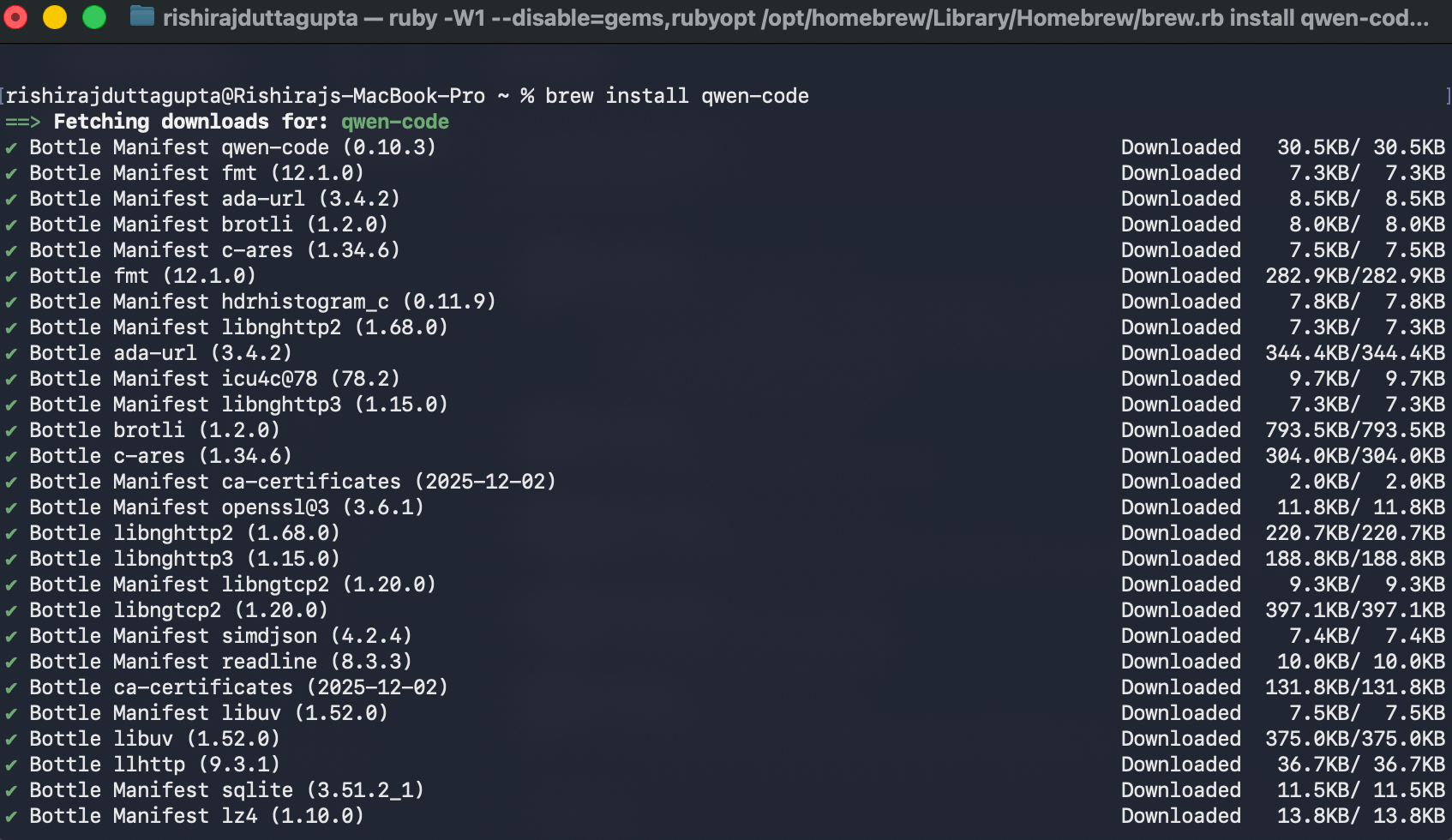
  2. Qwen Code Installation: Install Qwen Code CLI using one of the methods below:
The recommended one-line installer for Linux and macOS:
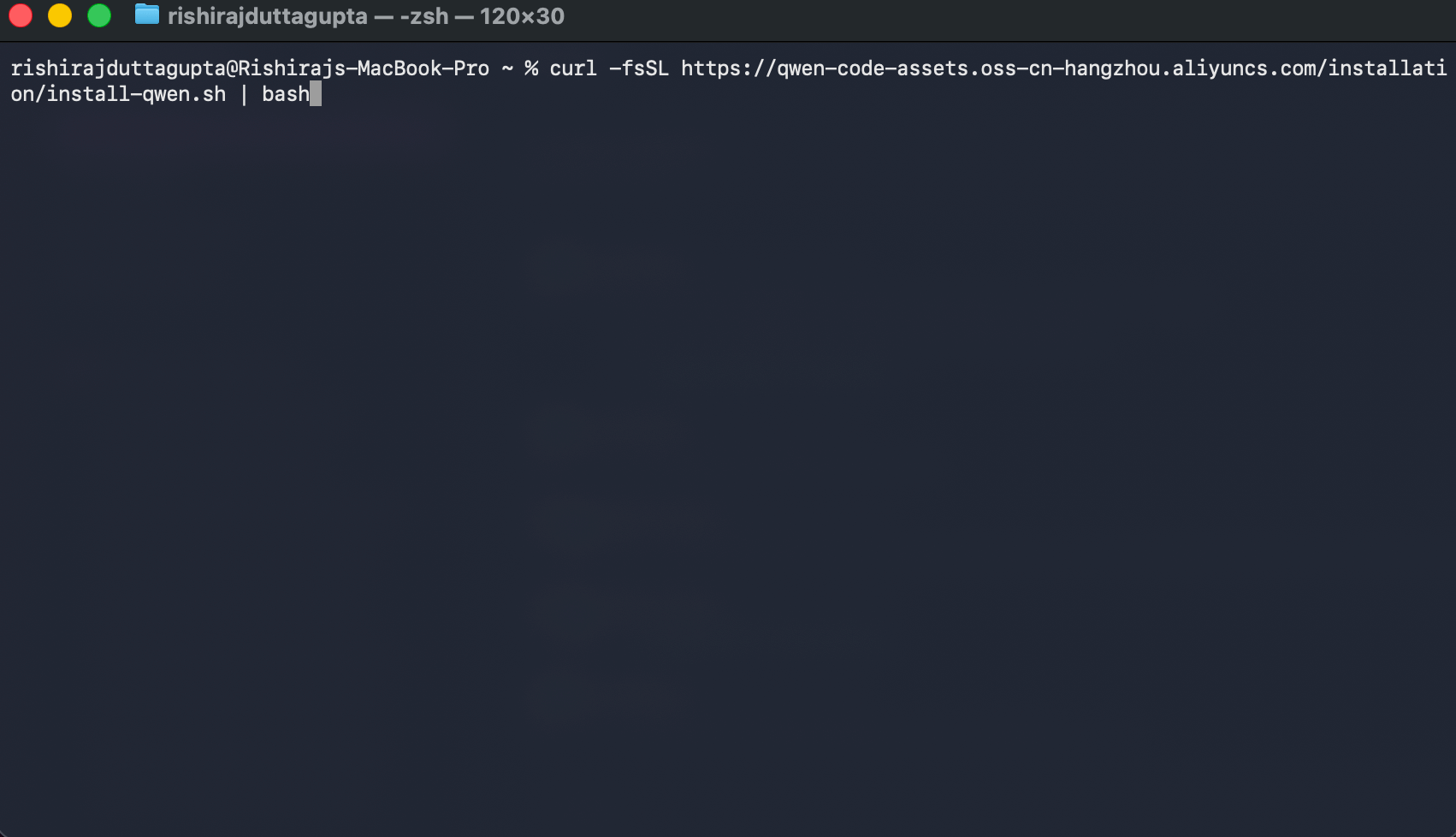
curl -fsSL https://qwen-code-assets.oss-cn-hangzhou.aliyuncs.com/installation/install-qwen.sh | bash
Terminal showing curl command to install Qwen Code CLI
Restart your terminal after installation to ensure environment variables take effect.

Setup Process

1. Get Configuration Details

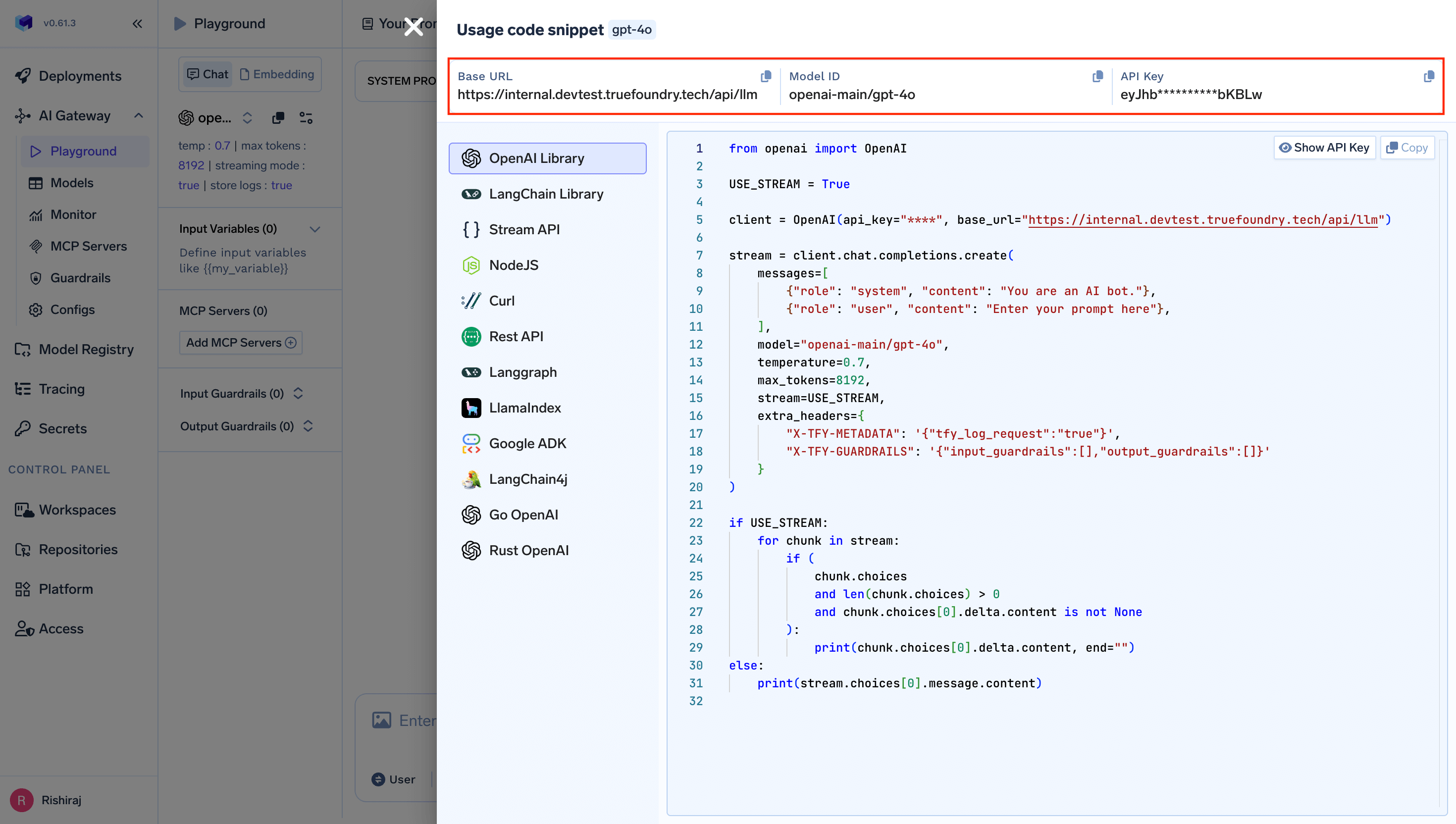
Get the base URL and model name from your TrueFoundry AI Gateway playground using the unified code snippet:
TrueFoundry playground showing unified code snippet with base URL and model name highlighted for Qwen Code CLI integration

2. Configure Qwen Code

Qwen Code uses a settings.json file for configuration. Edit (or create) the file at ~/.qwen/settings.json to route requests through TrueFoundry:
{
  "modelProviders": {
    "openai": [
      {
        "id": "openai-main/gpt-4o",
        "name": "GPT-4o via TrueFoundry",
        "baseUrl": "https://{controlPlaneUrl}/api/llm",
        "description": "GPT-4o routed through TrueFoundry AI Gateway",
        "envKey": "TFY_API_KEY"
      }
    ]
  },
  "env": {
    "TFY_API_KEY": "your-truefoundry-api-key"
  },
  "security": {
    "auth": {
      "selectedType": "openai"
    }
  },
  "model": {
    "name": "openai-main/gpt-4o"
  }
}
Replace the placeholders:
  • {controlPlaneUrl} → Your TrueFoundry Control Plane URL
  • your-truefoundry-api-key → Your TrueFoundry Personal Access Token
  • openai-main/gpt-4o → Your desired model in provider-name/model-name format
The id and model.name fields should use the fully qualified model name from TrueFoundry (e.g., openai-main/gpt-4o, anthropic/claude-4-sonnet). You can find the exact model name in the TrueFoundry AI Gateway playground.

3. Configure Multiple Models (Optional)

You can configure multiple models from different providers to switch between them during a session:
{
  "modelProviders": {
    "openai": [
      {
        "id": "openai-main/gpt-4o",
        "name": "GPT-4o via TrueFoundry",
        "baseUrl": "https://{controlPlaneUrl}/api/llm",
        "description": "GPT-4o routed through TrueFoundry AI Gateway",
        "envKey": "TFY_API_KEY"
      },
      {
        "id": "openai-main/gpt-5",
        "name": "GPT-5 via TrueFoundry",
        "baseUrl": "https://{controlPlaneUrl}/api/llm",
        "description": "GPT-5 routed through TrueFoundry AI Gateway",
        "envKey": "TFY_API_KEY"
      }
    ]
  },
  "env": {
    "TFY_API_KEY": "your-truefoundry-api-key"
  },
  "security": {
    "auth": {
      "selectedType": "openai"
    }
  },
  "model": {
    "name": "openai-main/gpt-4o"
  }
}
Use the /model command inside Qwen Code to switch between all configured models during a session.

Usage Examples

Interactive Mode

Launch the interactive terminal UI in your project directory:
cd your-project/
qwen
Once inside the session, you can ask questions about your codebase, generate code, and run commands using natural language.

Headless Mode

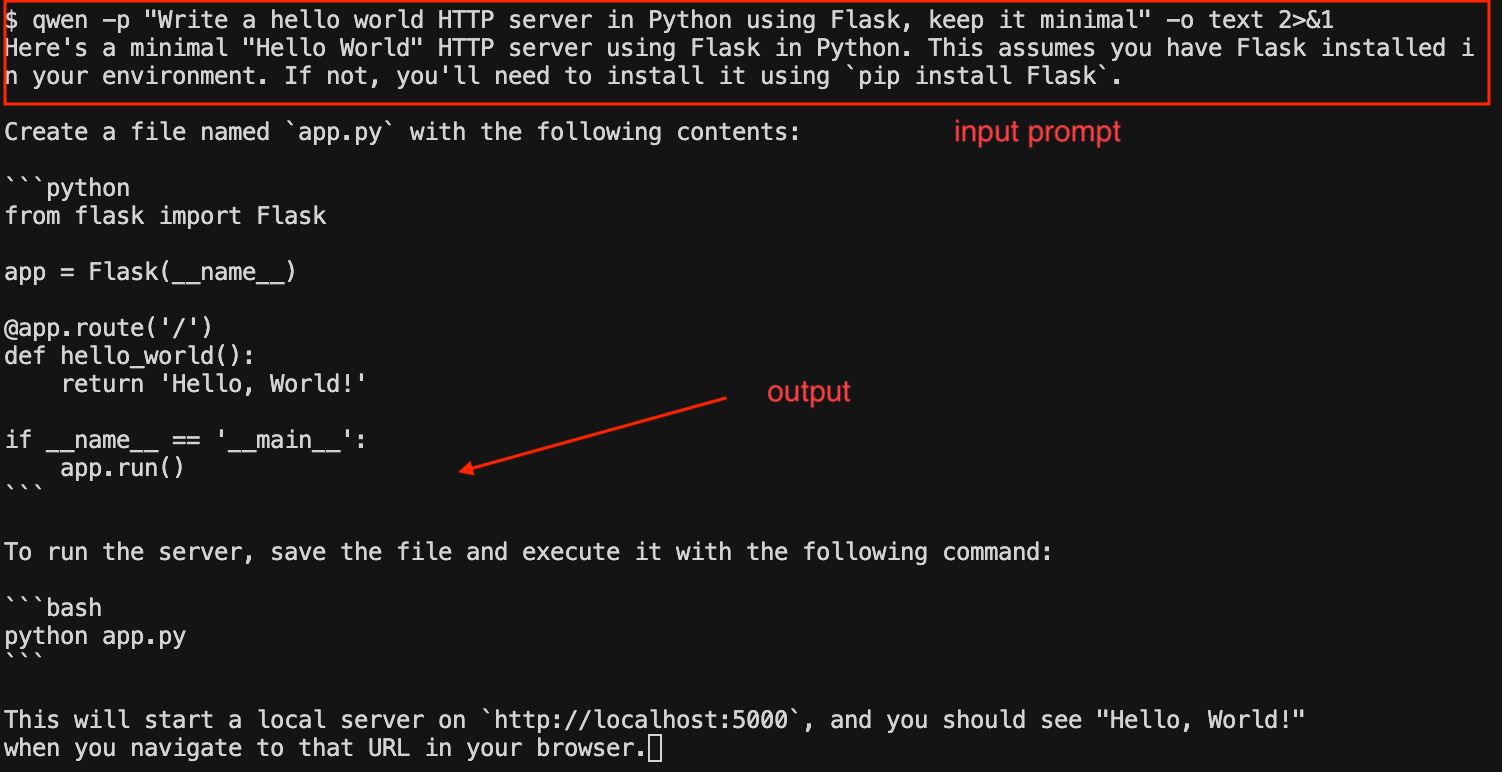
Use the -p flag to run Qwen Code without the interactive UI — ideal for scripts, automation, and CI/CD:
# Generate code with a prompt
qwen -p "Write a hello world HTTP server in Python using Flask, keep it minimal"

# Output as plain text (useful for piping)
qwen -p "Write a hello world HTTP server in Python using Flask, keep it minimal" -o text
Qwen Code CLI terminal output showing a prompt to generate a Flask HTTP server and the resulting code

Common Prompts

# Understand your project
> What does this project do?

# Code generation
> Write unit tests for the auth module

# Refactoring
> Refactor this function to use async/await

# Debugging
> Why is this test failing?

Observability

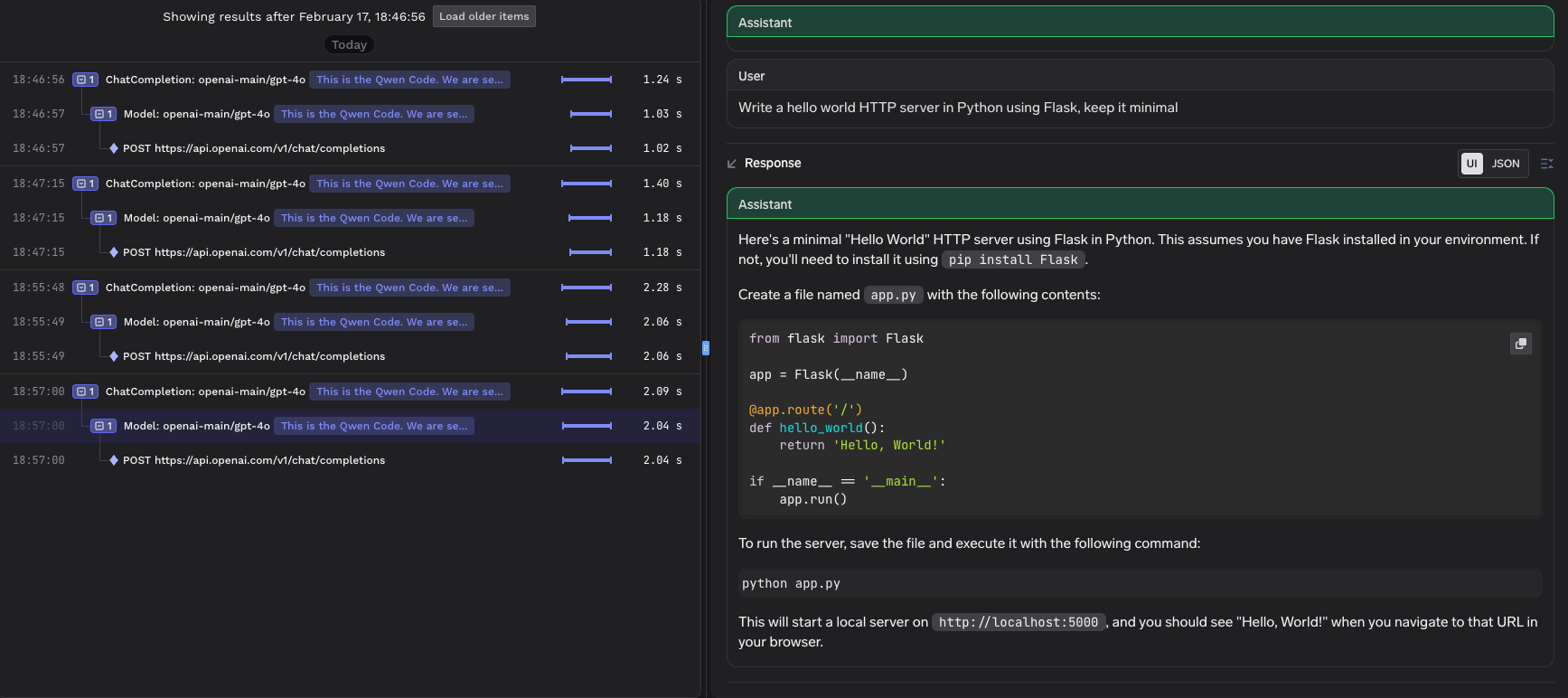
All requests routed through TrueFoundry AI Gateway are automatically logged and available for monitoring. You can view request traces, latencies, token usage, and full request/response details in the TrueFoundry dashboard.
TrueFoundry observability dashboard showing traced requests from Qwen Code CLI with model details, latencies, and response content
This gives you full visibility into:
  • Request traces: See every request made by Qwen Code, including the model used and response times
  • Token usage: Track input and output token consumption across sessions
  • Cost monitoring: Monitor spend across different models and providers
  • Governance: Enforce policies, rate limits, and access controls on all AI requests