

Bring Your Own Model
Skills
SKILL.md instructions from the Skills Registry. The agent loads the right skill at runtime — no prompt bloat.MCP Server Integration
Sandbox Access
Agent Playground
Navigate to Agents > Playground in the sidebar to open the Playground directly — no registry step required. The Playground is where you build, configure, and test your agent interactively.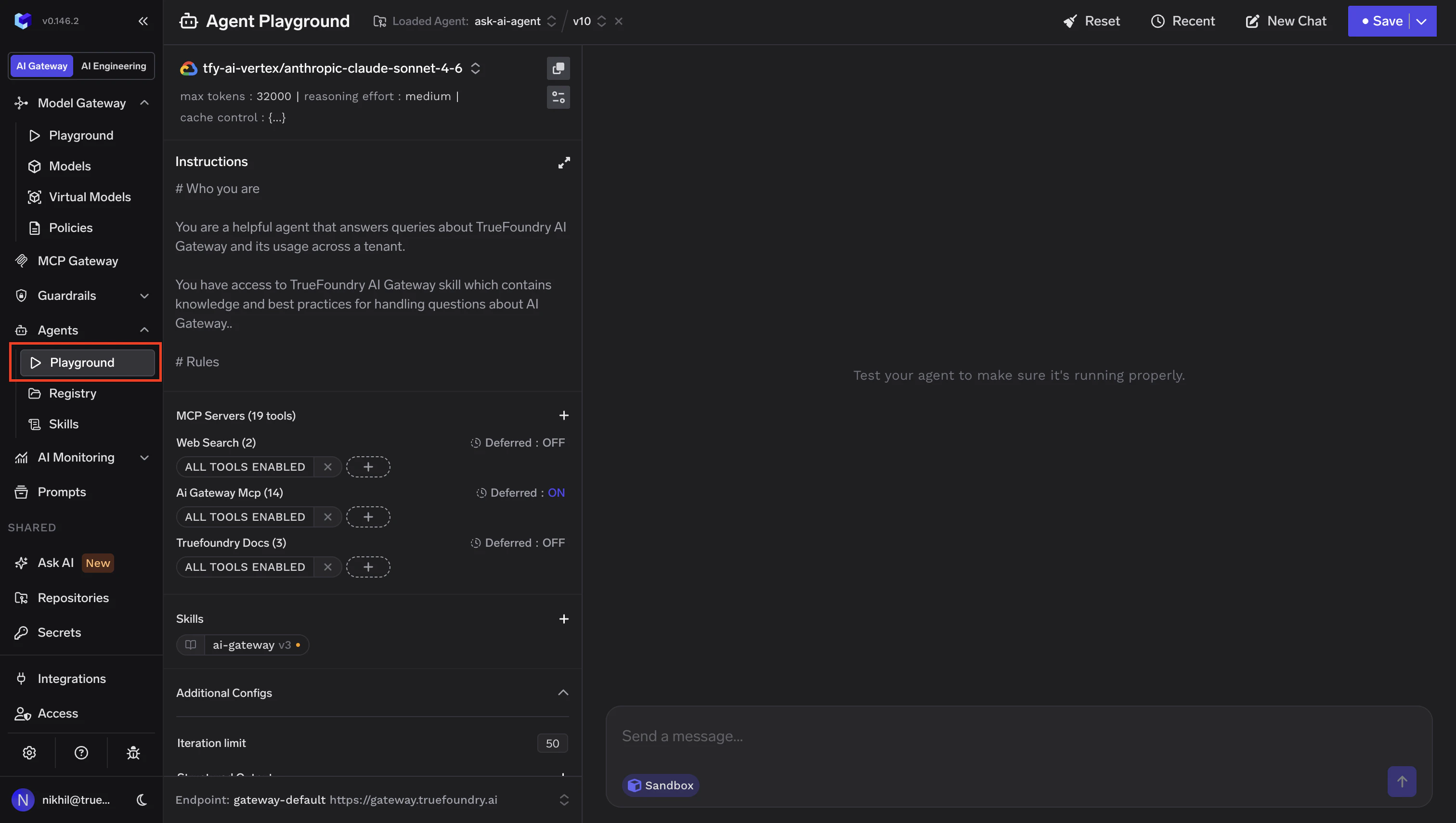
Agent Playground showing model selection, instructions, MCP servers, and skills
Select a model
Write your instructions
Connect MCP Servers
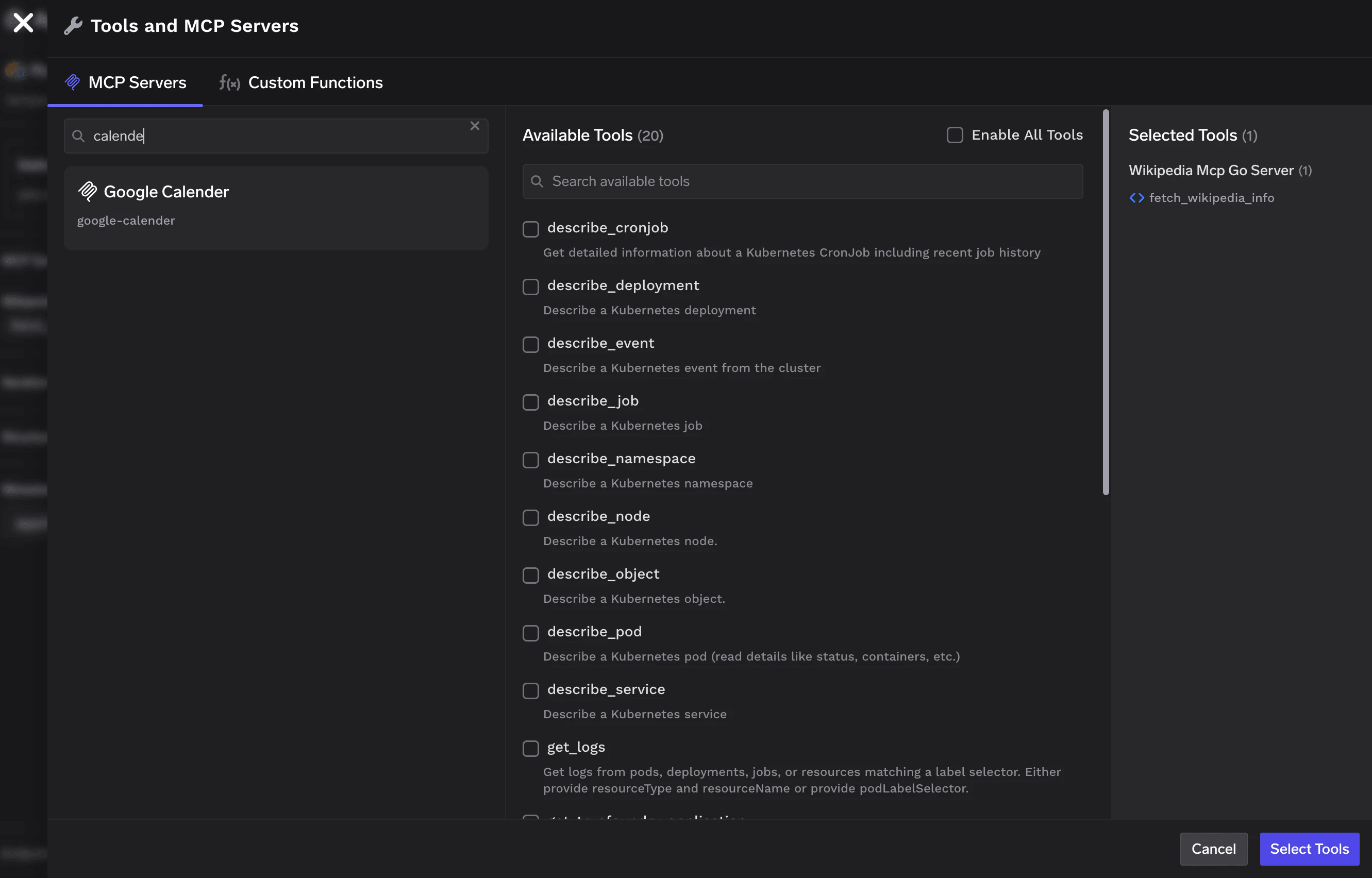
Tools and MCP Servers selection dialog
Add Skills
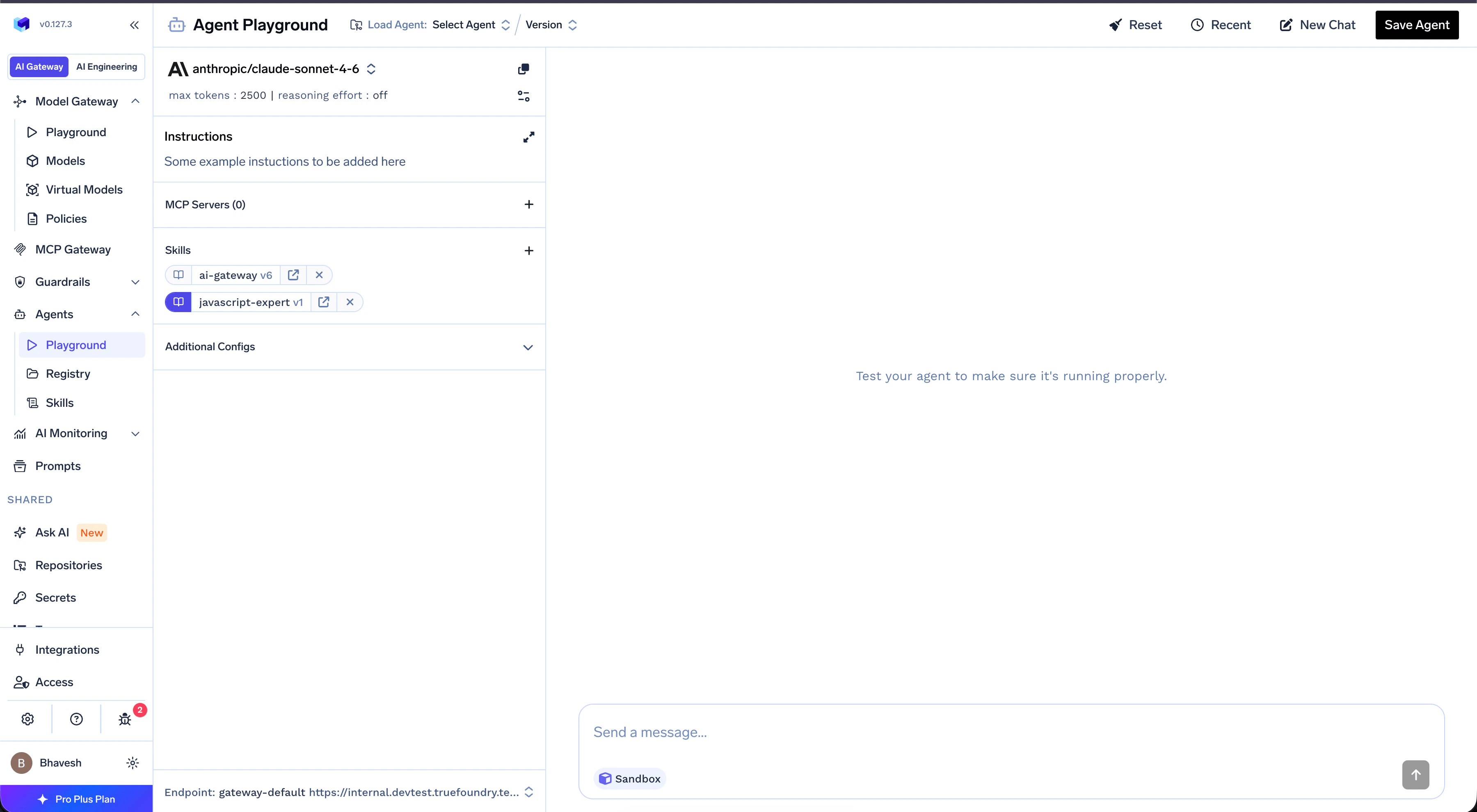
Skills selector showing available skills with per-skill version dropdowns and the SKILL.md preload toggle
name within a single agent, even across different Repositories. The selector greys out conflicting skills and shows a tooltip — pick one or use a differently named copy.Run and iterate
Saving the Agent
Once you’re satisfied with the agent’s behavior, click Save Agent in the top-right corner. The dropdown gives you two options:- Save New Version — Update an existing agent with your changes.
- Save New Agent — Create a brand-new agent from the current configuration.
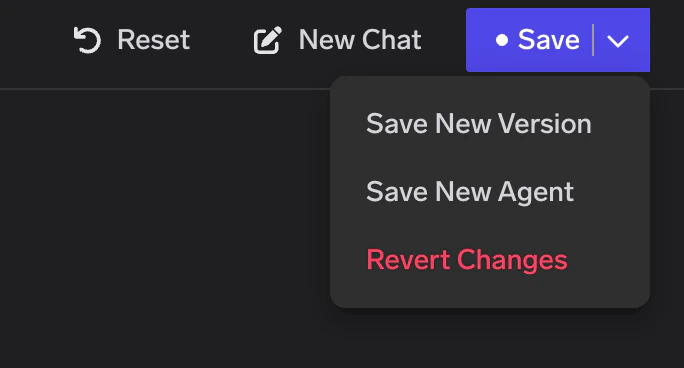
Save dropdown with Save New Version and Save New Agent options
Saved Agent
Once saved, your agent appears in the Agent Registry. Click the agent name to open its detail page.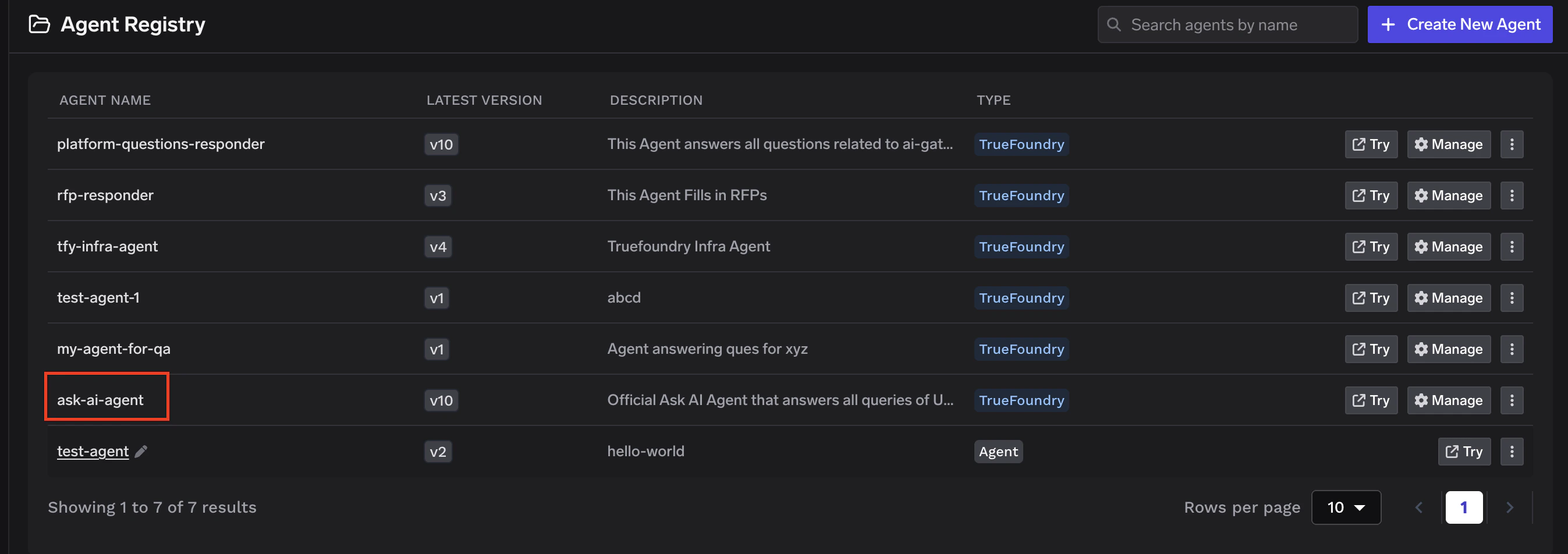
Agent Registry — click the agent name to open its detail page
Overview
The Overview tab shows the full agent configuration at a glance — model, model parameters, execution settings (sandbox, iteration limit, response format), system instructions, connected MCP tools, and attached skills.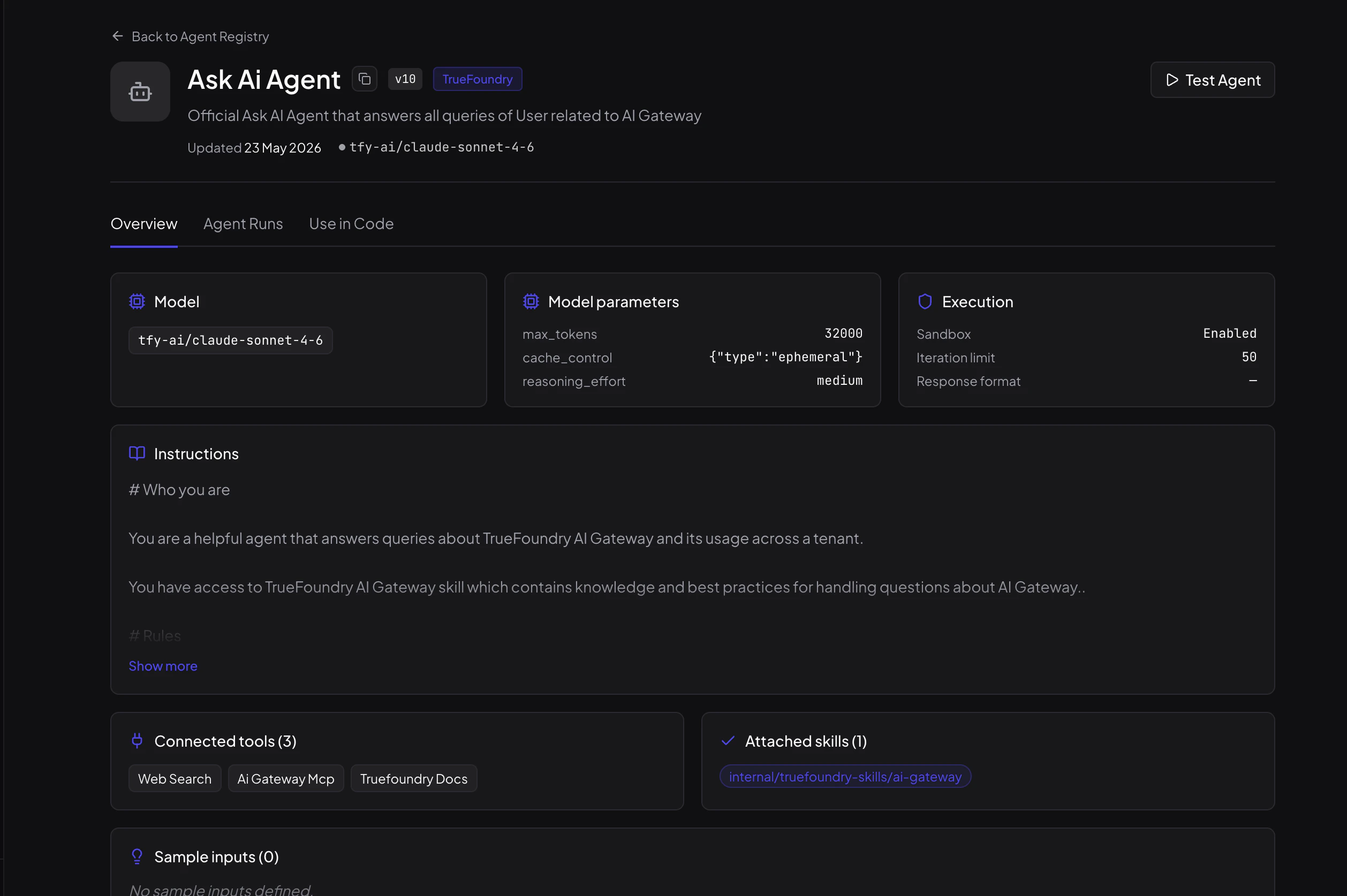
Agent detail page — Overview tab showing model, instructions, connected tools, and attached skills
Agent Runs
The Agent Runs tab gives you a single place to see every execution of this specific agent. Unlike the global AI Monitoring view, this is scoped to the agent — so you can understand exactly how it is being used and by whom.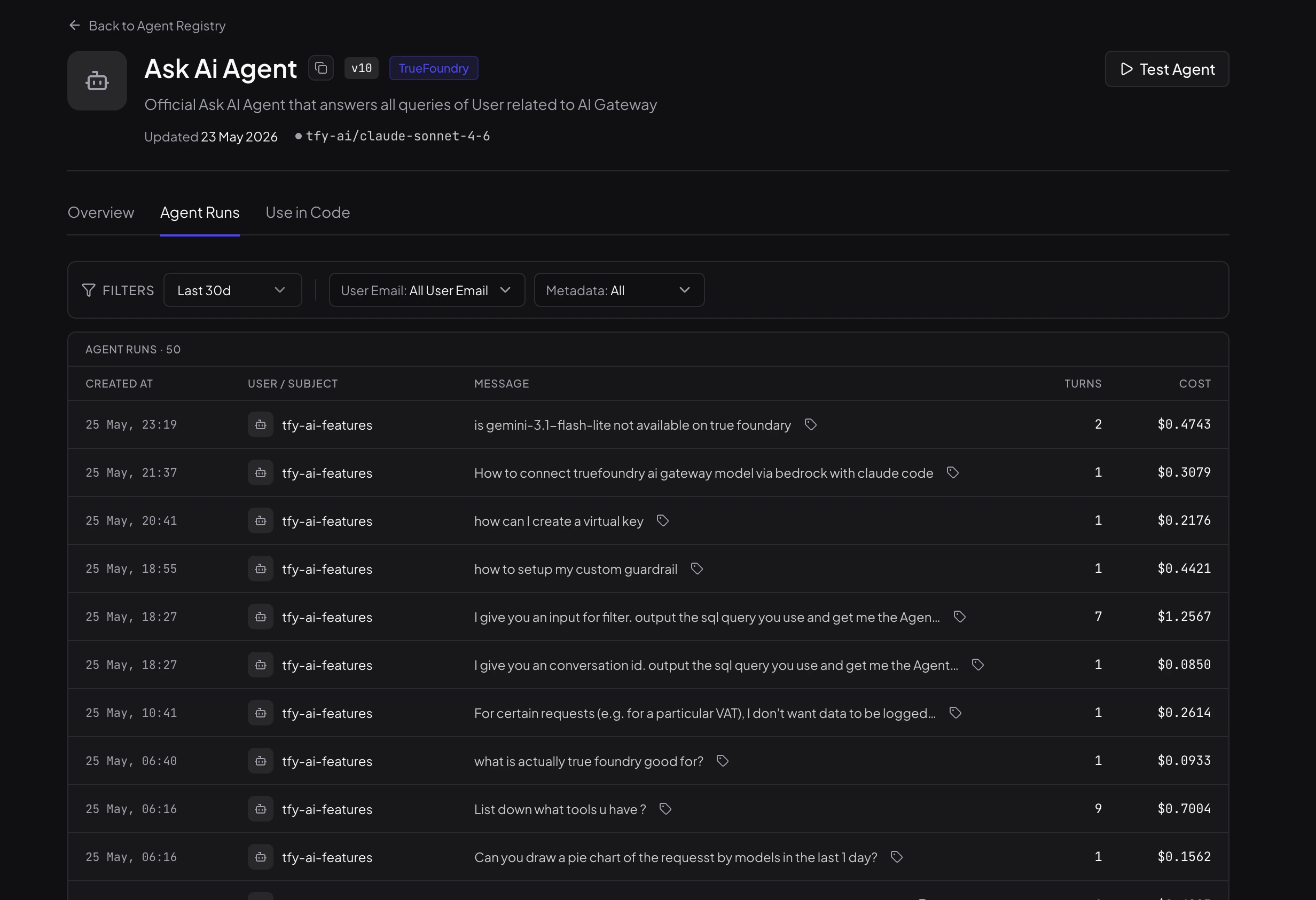
Agent Runs tab showing a filterable list of executions with turn count and cost per run
- See who is using the agent — each run shows the user or virtual account that invoked it.
- Filter runs — narrow down by time range, user email, or any custom metadata passed at invocation time.
- Gauge cost and complexity — turn count and dollar cost are visible per run without opening anything.
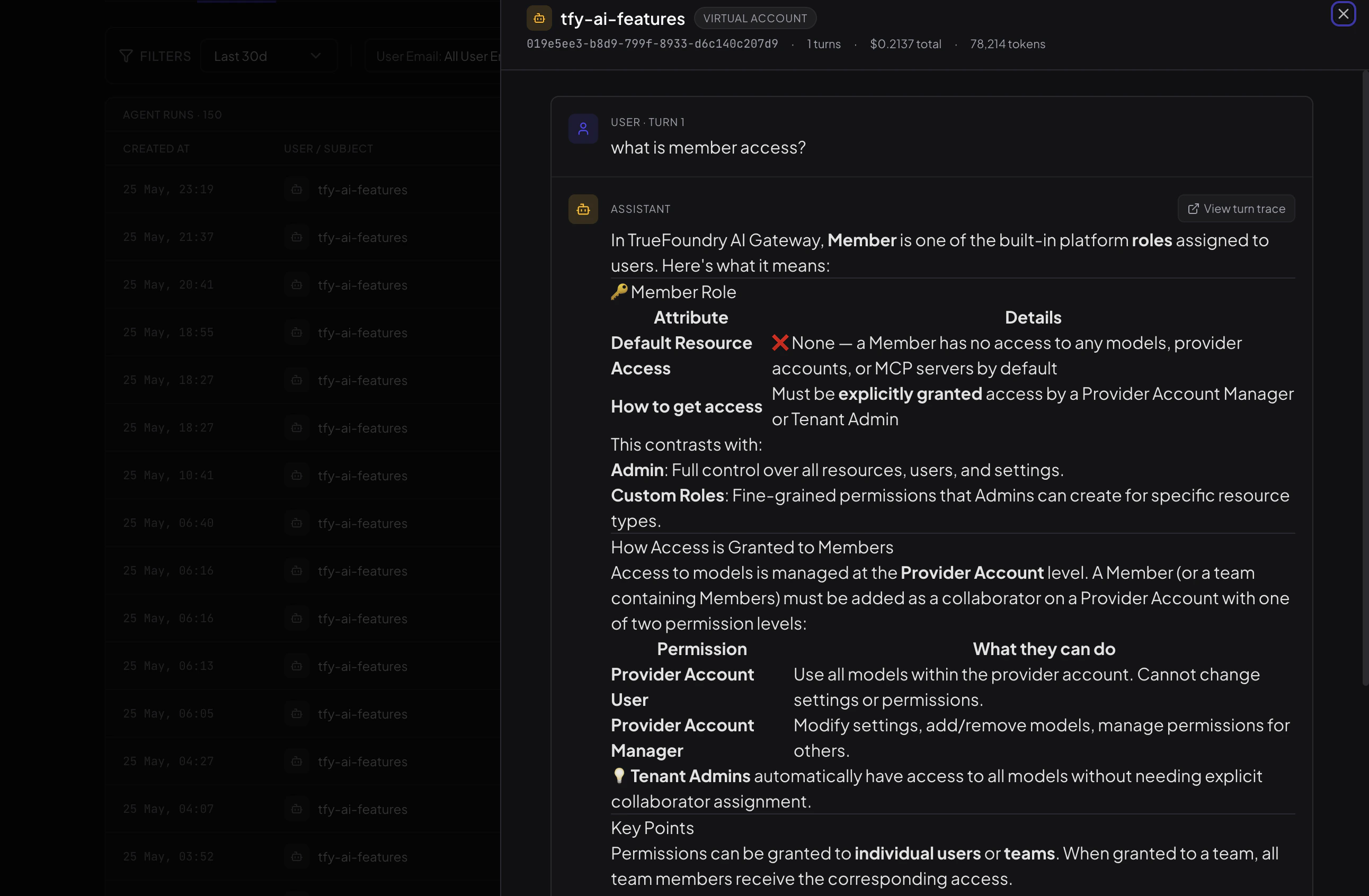
Single run detail showing the full conversation, turn count, cost, and token usage
Use in Code
If you want to integrate this agent into your application or automate it from a pipeline, the Use in Code tab has ready-to-copy Python and TypeScript snippets generated for this specific agent.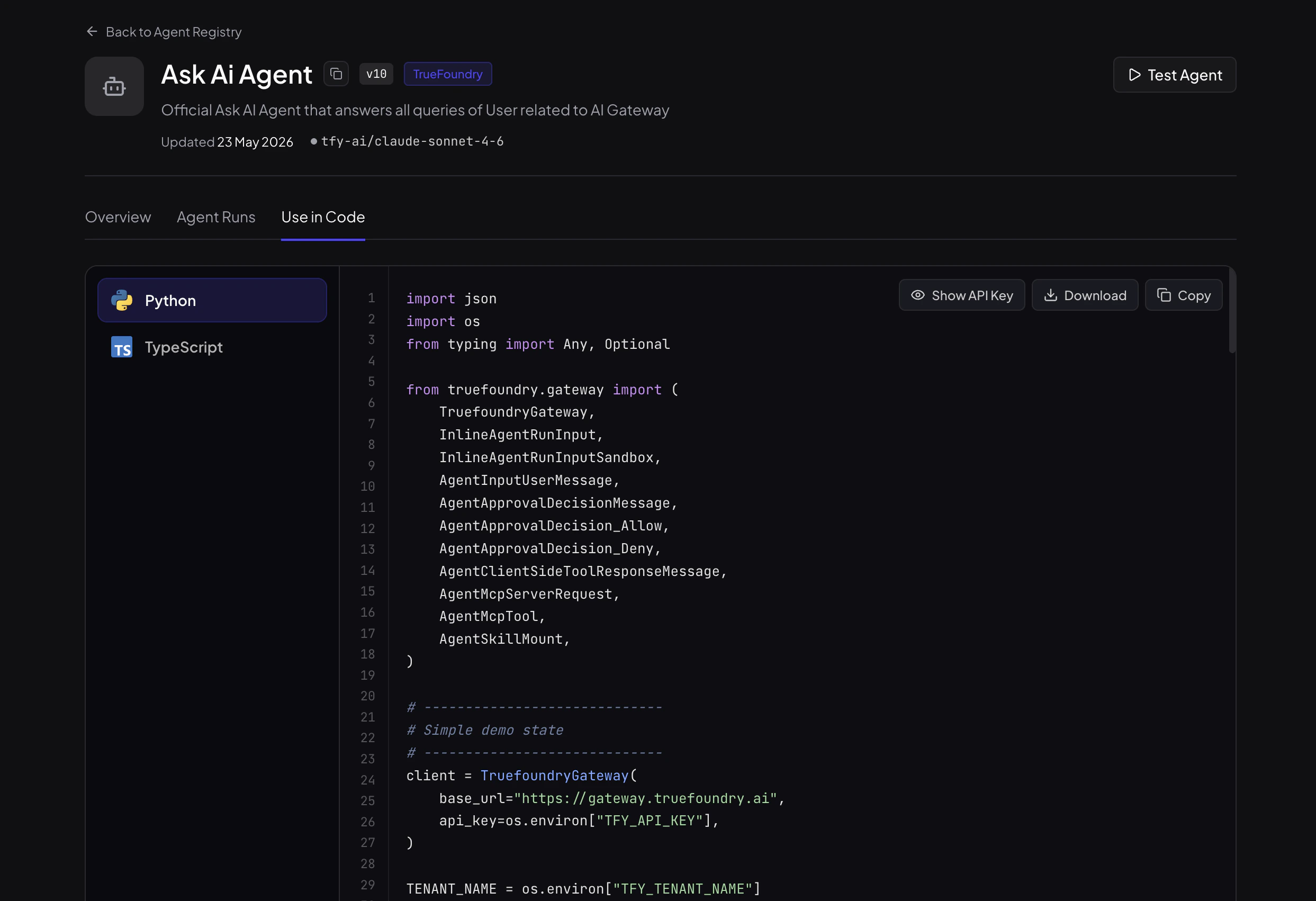
Use in Code tab with auto-generated Python and TypeScript snippets