

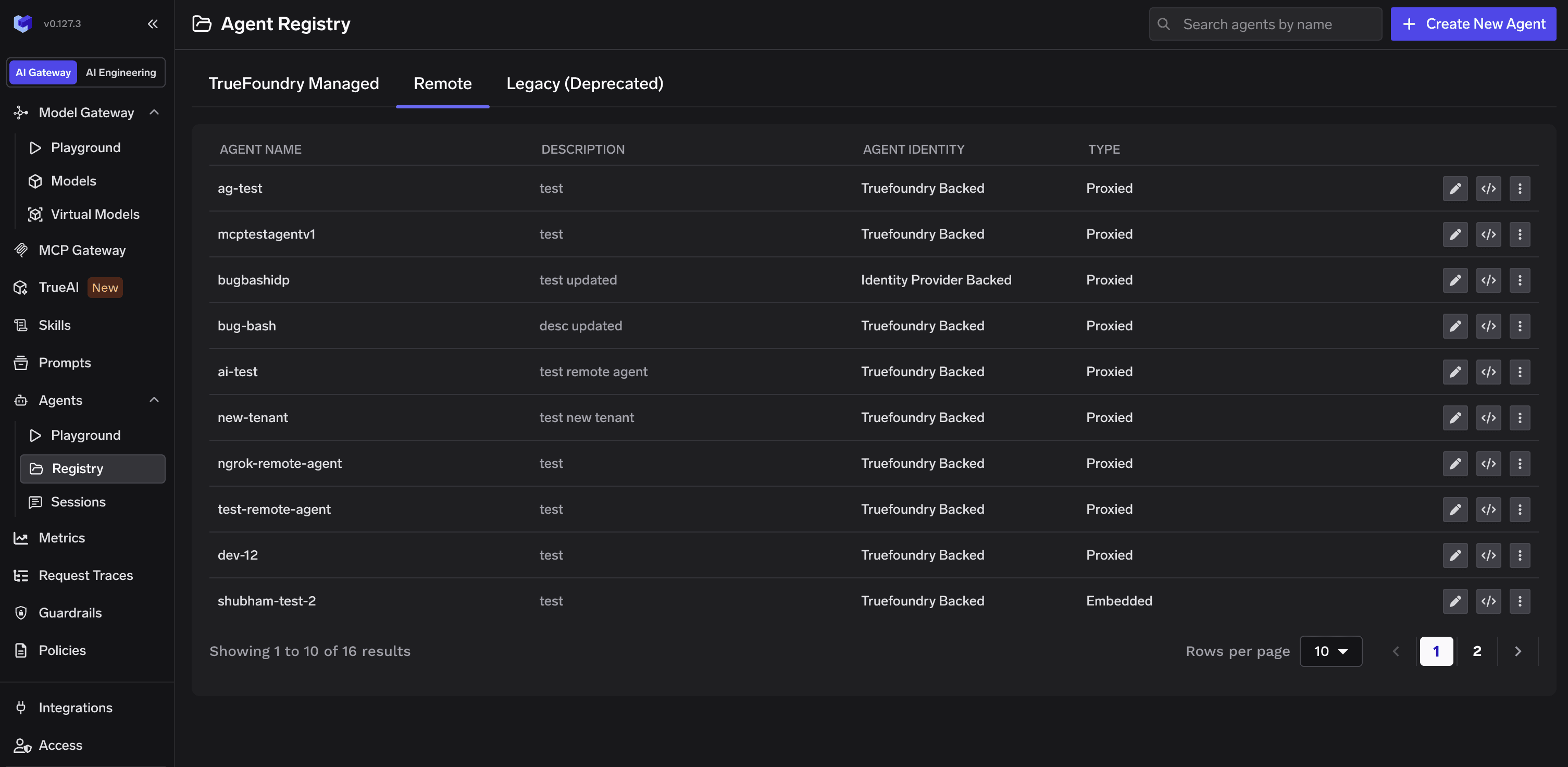
Agent Registry page listing all registered agents
What a registry entry carries
Registration is not documentation — it is what makes the rest of governance enforceable. Each entry gives the agent the attributes the blueprint requires:Concepts
Three ideas the registration flow is built around — the product counterparts of the section’s key concepts.Agent Identity — how an agent proves who it is
Agent Identity — how an agent proves who it is
- TrueFoundry-backed — TrueFoundry issues and signs the agent’s token. Simplest option, and the right default for agents you build and run yourself. See the TrueFoundry as identity broker scenario.
- Identity provider-backed — authenticate with an Identity Provider you register:
- External JWT (Okta, Entra, custom) — map a Subject value and send the IdP JWT as Bearer. Unlocks ID-JAG / OBO (Okta, Entra, SPIFFE).
- Workload Identity (
kubernetes,github,aws,gcp) — map Subject key/value pairs, then exchange the platform JWT for a TrueFoundry access token. See Workload Identity Federation.
Proxy via Gateway vs Embedded — inbound enforcement vs governance-only
Proxy via Gateway vs Embedded — inbound enforcement vs governance-only
- Proxy via Gateway (default) — callers hit a TrueFoundry Gateway URL; the Gateway authenticates the caller, enforces policies and guardrails, then forwards the request to your agent’s real endpoint. You provide that endpoint URL.
- Embedded — no callable URL — the agent is registered for governance only: it appears in the registry, has an identity, and can be granted access to MCP servers, but TrueFoundry does not proxy inbound calls to it. No URL required. This is how copilots embedded in third-party products are governed — their outbound calls still pass through the gateways.
Collaborators — who (and what) can access the agent
Collaborators — who (and what) can access the agent
- Agent Manager — can edit the agent.
- Agent Access — can invoke the agent, and be acted for by it.
Registering an agent
On the Agent Registry page, click Create New Agent and select Integrate a Remote Agent.
Create New Agent button on the Agent Registry page
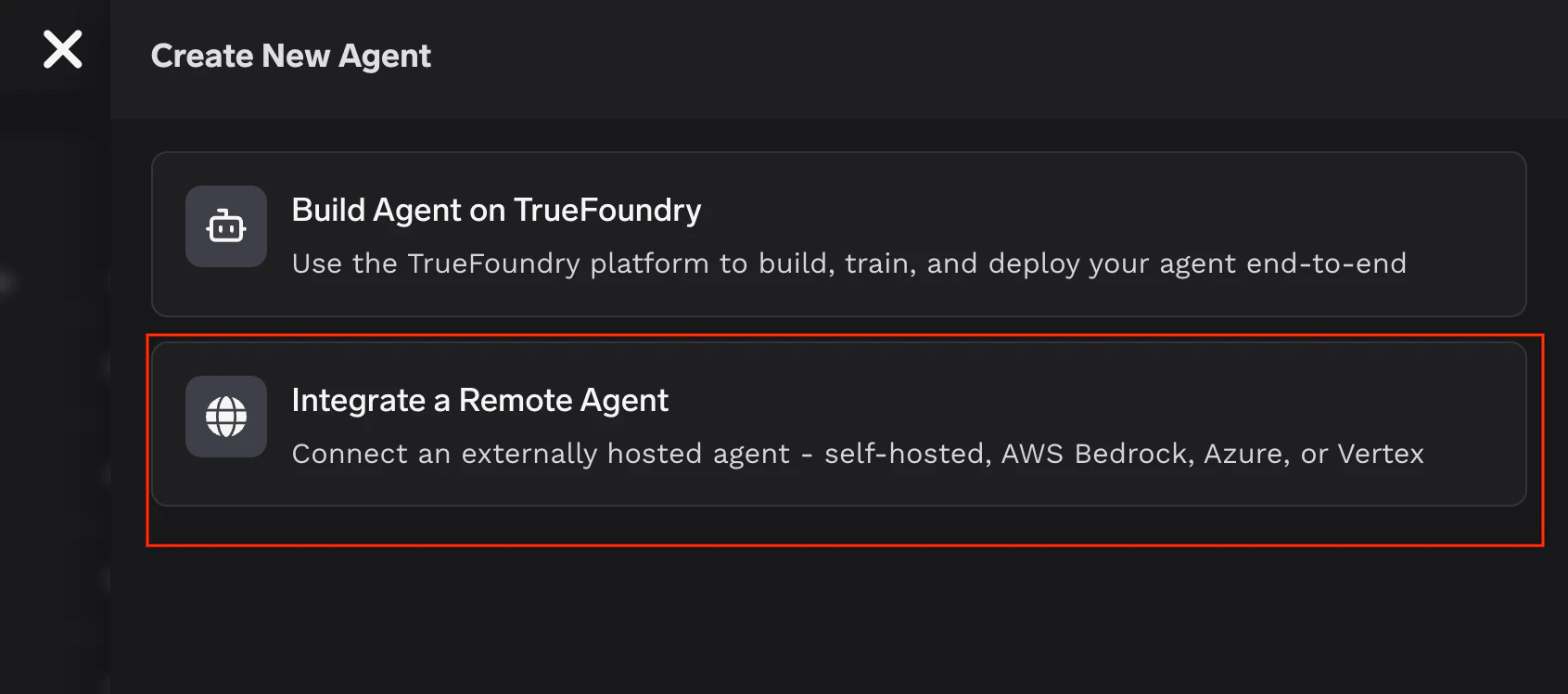
Select Integrate a Remote Agent
Step 1 — Metadata
Basic information about the agent.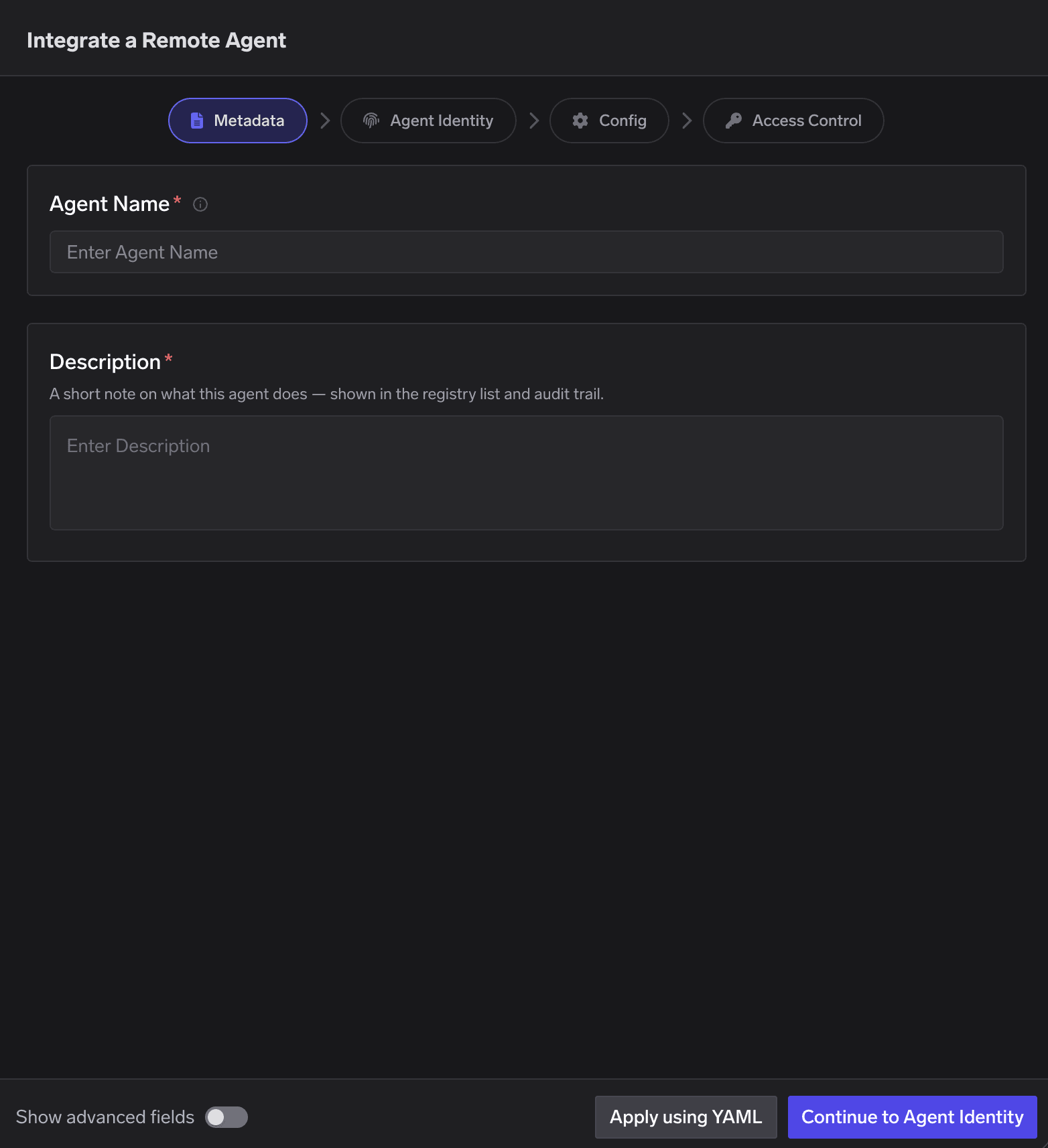
Metadata step: agent name and description
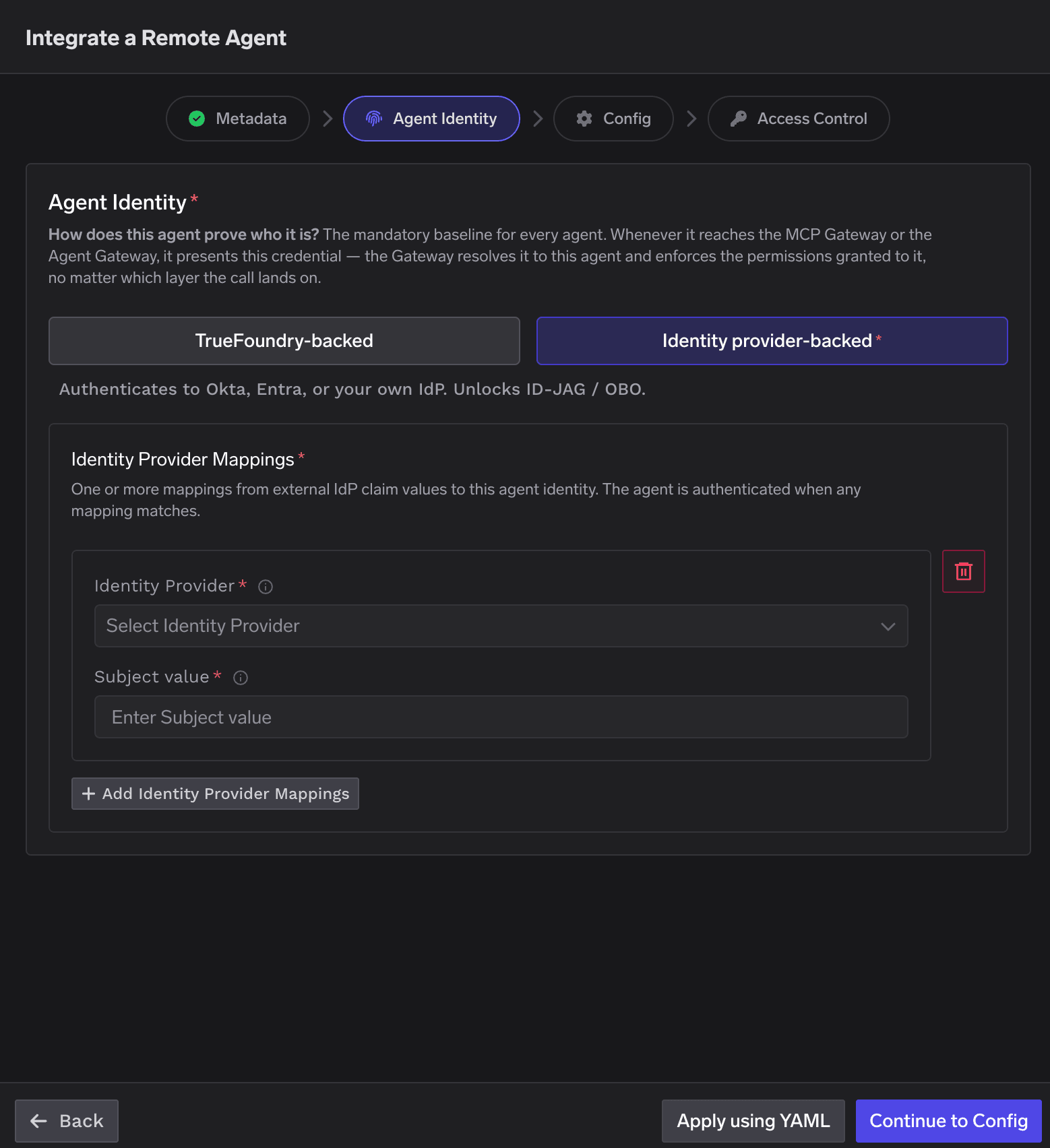
Step 2 — Agent Identity
Choose how the agent proves who it is — the mandatory baseline for every agent. Whenever the agent reaches the MCP Gateway or the Agent Gateway, it presents this credential; the Gateway resolves it to this agent and enforces the permissions granted to it, no matter which layer the call lands on.- TrueFoundry-backed
- Identity provider-backed
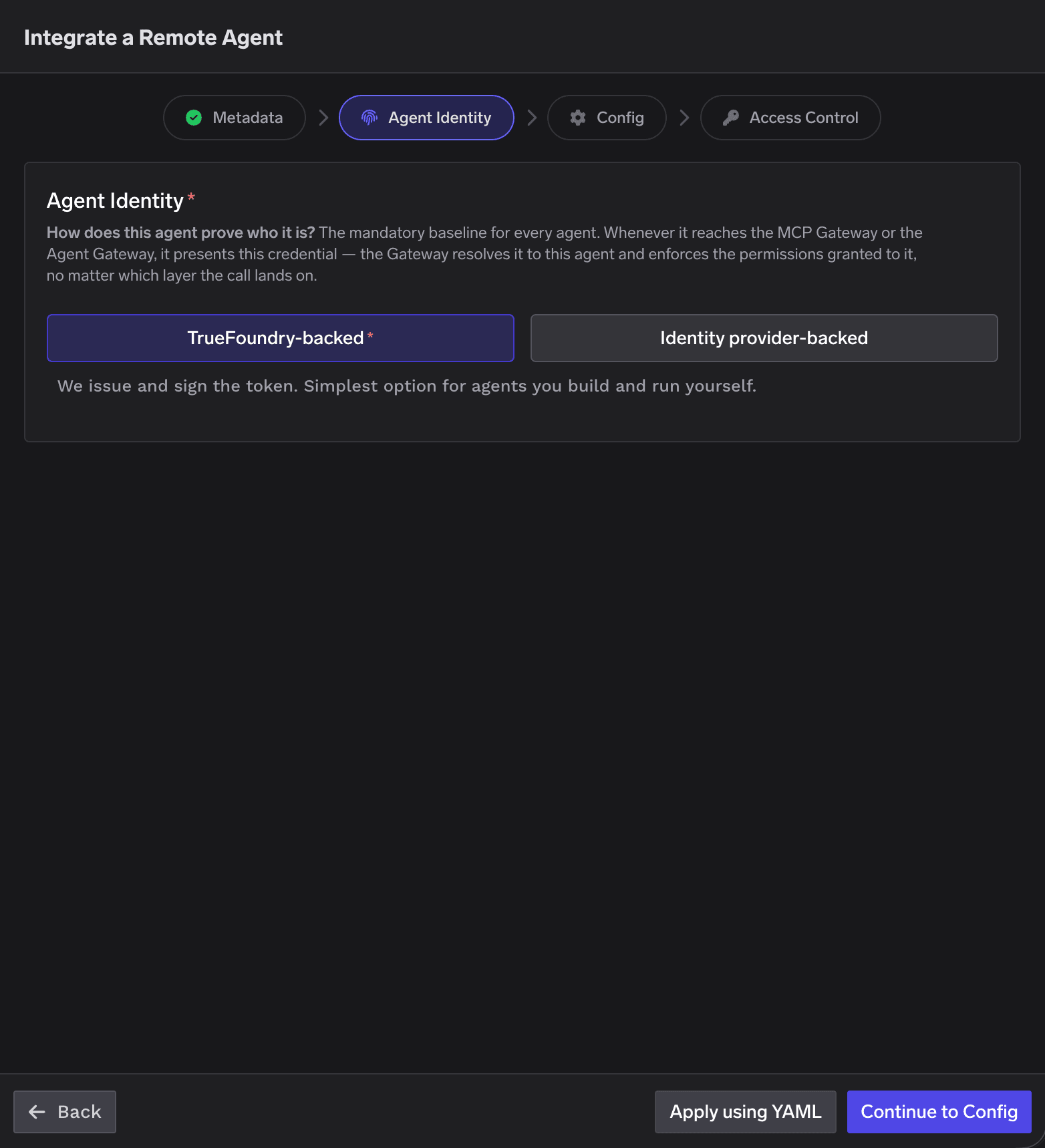
Agent Identity step — TrueFoundry-backed selected
Step 3 — Config
Decides whether the Agent Gateway sits in front of the agent.- Proxy via Gateway
- Embedded — no callable URL
- URL to proxy (required) — the agent’s endpoint; the Gateway forwards inbound requests here.
- Framework — the protocol the agent speaks:
- A2A — the server implements the Agent-to-Agent (A2A) protocol
and exposes a machine-readable agent card. Set the Agent Card Endpoint
(default
/.well-known/agent-card.json). - Custom — any other HTTP-based agent API. TrueFoundry forwards requests as-is, with no protocol-specific handling.
- A2A — the server implements the Agent-to-Agent (A2A) protocol
and exposes a machine-readable agent card. Set the Agent Card Endpoint
(default
- How the Gateway calls this agent (optional) — the credential the Gateway presents when it forwards a request to the agent’s URL. Leave it empty if the agent accepts unauthenticated requests; otherwise pick one of the options below.
Header Auth — static API key or token
Header Auth — static API key or token
Authorization → Bearer <static-token>, or a vendor header like
X-Api-Key → <key>. Values can reference TrueFoundry secrets, so the raw key never sits in
the agent spec.Use this when the agent expects a long-lived shared key. The credential never rotates on its
own — rotating it means editing the agent (or the secret it references).Token Passthrough — forward the caller's credential
Token Passthrough — forward the caller's credential
Authorization: Bearer <token>.
There is nothing to configure.Use this when the agent validates TrueFoundry tokens itself and needs to know who called —
each request arrives under the caller’s identity, not a shared one.OAuth2 — client credentials (machine-to-machine)
OAuth2 — client credentials (machine-to-machine)
Authorization: Bearer <token> on every proxied request. The token is acquired on first use,
cached, refreshed when it expires, and replaced automatically when you change the auth
config — no restarts, no manual rotation.- Credentials never leave the control plane. The Gateway only ever receives the finished access token; the client secret stays on the TrueFoundry server.
- The token is app-to-app, not per-user. Client credentials identify the Gateway as an application, so one token is shared across all callers of the agent.
OAuth2 — JWT Bearer (Microsoft Entra On-Behalf-Of)
OAuth2 — JWT Bearer (Microsoft Entra On-Behalf-Of)
Authorization: Bearer <token>
on the proxied request. The agent is called under the end user’s identity, not a shared
machine identity.This is Entra’s On-Behalf-Of flow:
grant_type=urn:ietf:params:oauth:grant-type:jwt-bearer with requested_token_use=on_behalf_of.
Pick Microsoft Entra as the OAuth provider and JWT Bearer as the grant type.- The caller’s Entra token is required. The Gateway uses the inbound
Authorizationbearer as the OBO assertion. A request with no caller token is rejected (401). - The downstream token is per user, not shared. Two Entra users — including two users on the same identity-provider-backed virtual account — each get their own cached token. The token is acquired on first use, cached, and refreshed when it expires.
OAuth2 — Token Exchange (Okta On-Behalf-Of)
OAuth2 — Token Exchange (Okta On-Behalf-Of)
Authorization: Bearer <token> on the proxied request. The agent is called under the
end user’s identity: in the exchanged token sub stays the original user, while cid
becomes the service app that performed the exchange.Pick Okta as the OAuth provider and Token Exchange as the grant type. The Gateway sets
grant_type=urn:ietf:params:oauth:grant-type:token-exchange and
subject_token_type=urn:ietf:params:oauth:token-type:access_token for you.- The caller’s Okta token is required. The Gateway uses the inbound
Authorizationbearer as thesubject_token. A request with no caller token is rejected (401), and the token must be issued by the same Okta org — the service authorization server has to trust the authorization server that issued it. - The downstream token is per user, not shared. Each Okta user gets their own cached OBO token, acquired on first use and re-exchanged when it expires (Okta does not return a refresh token on a token exchange).
AWS SigV4 — sign requests with AWS IAM credentials
AWS SigV4 — sign requests with AWS IAM credentials
- The signature identifies the Gateway, not the caller. SigV4 authenticates as the AWS principal behind the configured credentials, so — like client credentials — this is app-to-app: every caller reaches the agent under the same IAM identity.
- Regions must line up. The AWS Region you configure here, the region in the agent’s URL, and the region of the resource you are invoking must all match, or the signature is rejected.
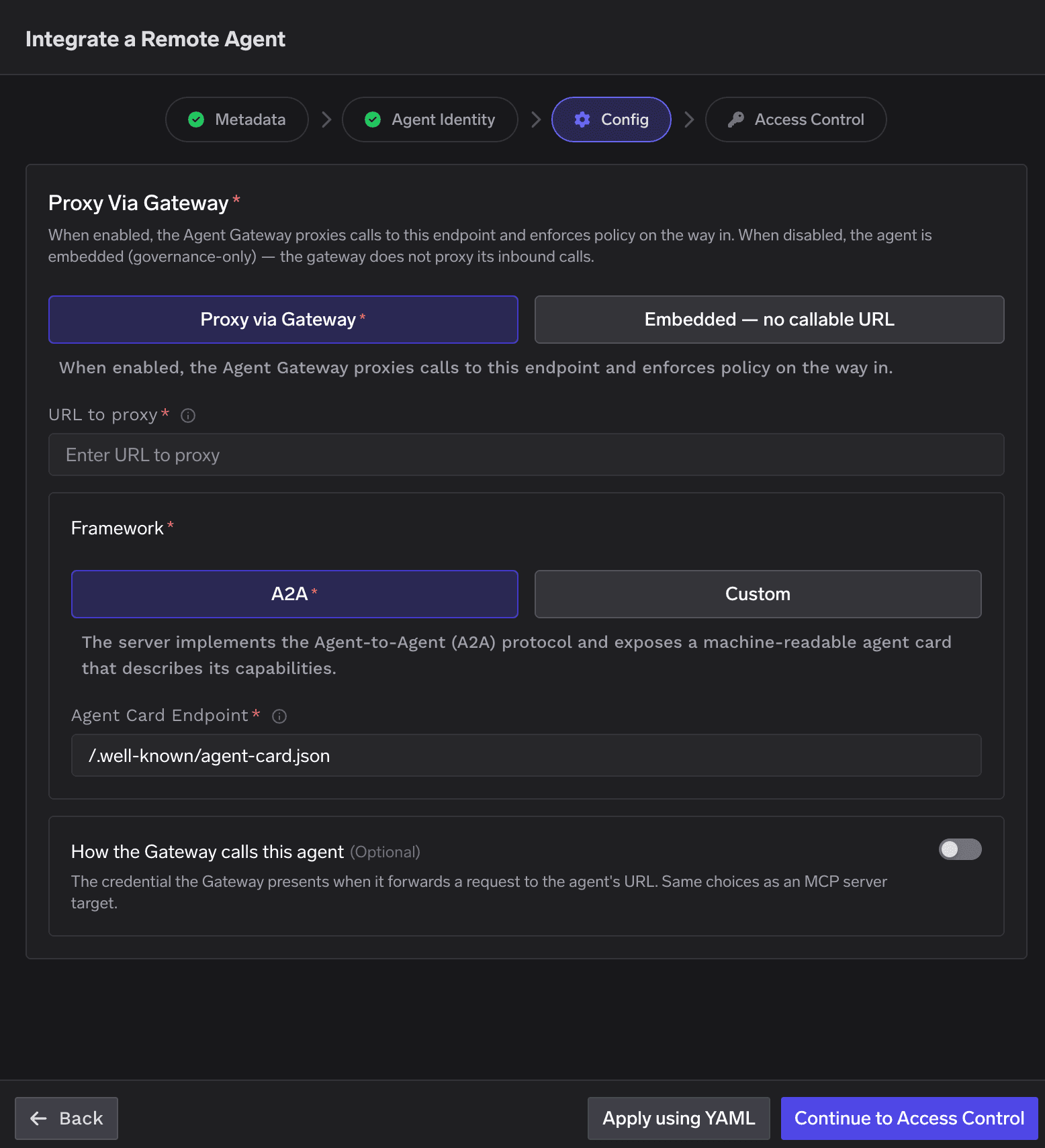
Config step — Proxy via Gateway with A2A framework
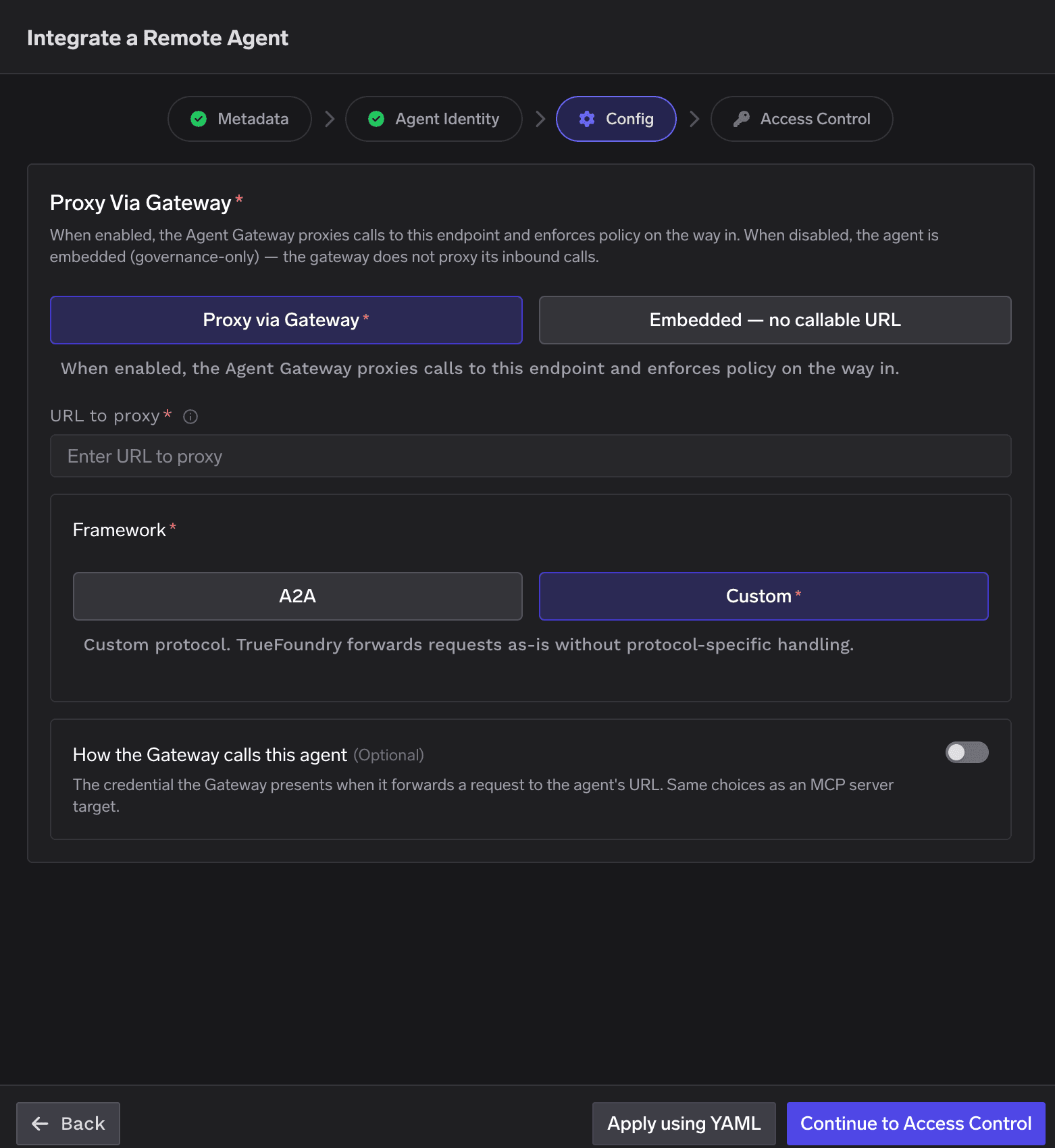
Config step — Proxy via Gateway with Custom framework
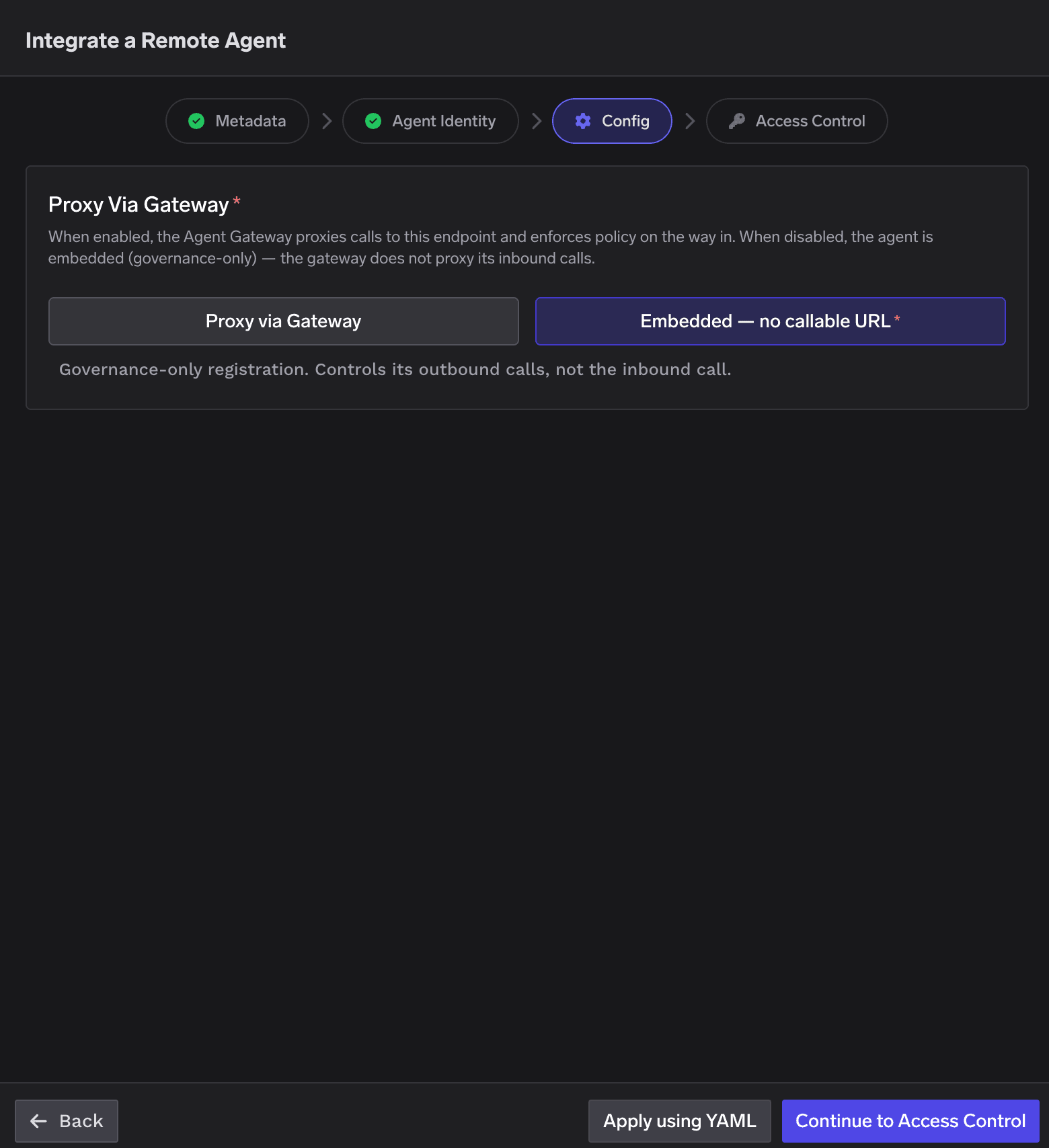
Step 4 — Access Control
Grant access to the agent and, optionally, set an owning team.- Collaborators (required) — the list of subjects that have access to this agent. A collaborator can be a user, a team, or another agent, each with one of two roles.
- Owner (optional) — off by default. When enabled, you must select a team that owns this agent. Ownership is a governance attribute and is separate from the collaborator grants that control who can use the agent — it is the accountability anchor the blueprint requires.
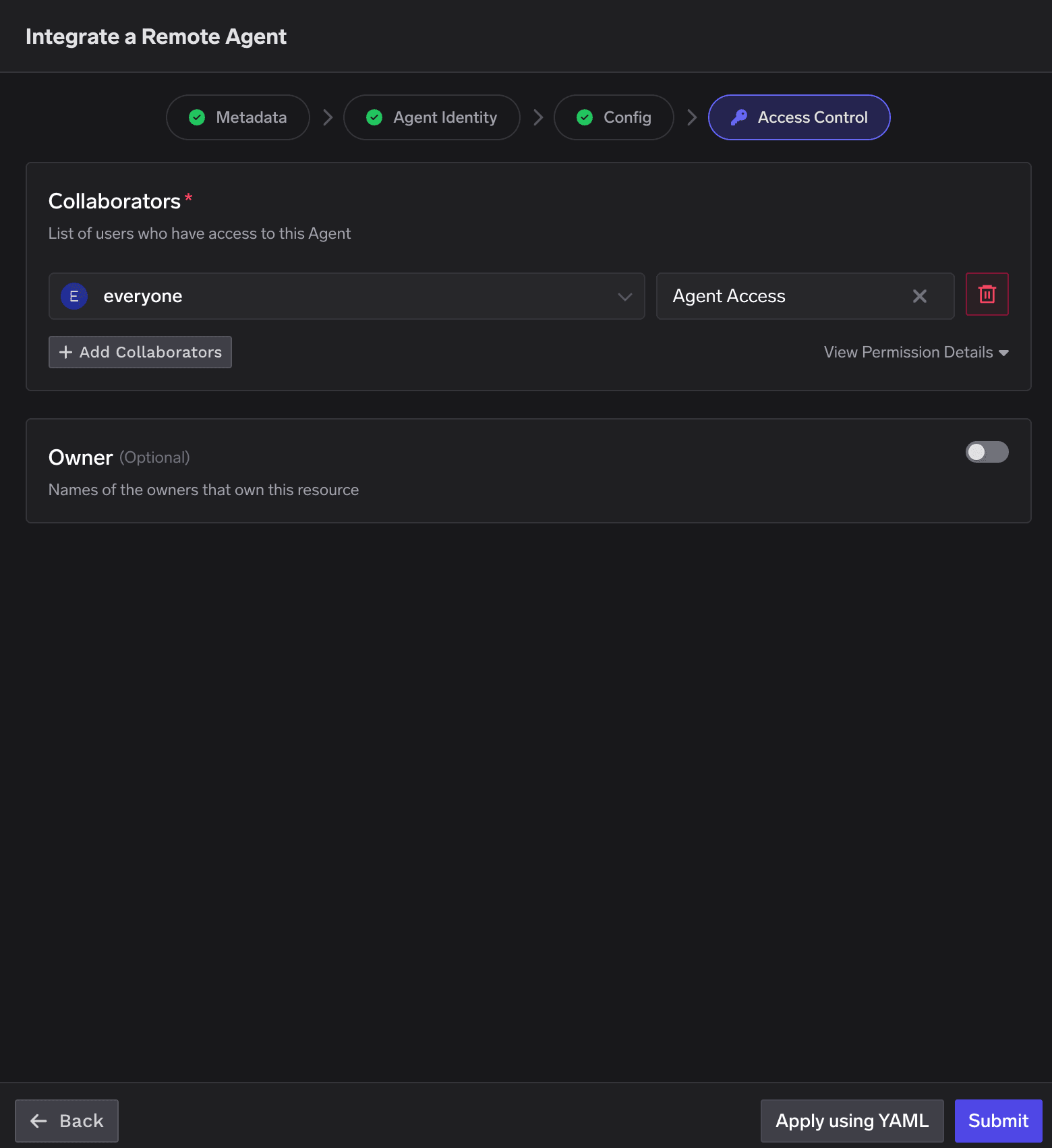
Access Control step — collaborators and optional owner
Collaborator roles
Granting and revoking access
Access is allow-list based — there is no separate “deny” setting. A subject can reach the agent only if it is added as a collaborator; to deny access, don’t add it (or remove it).- Give a user or team access — add them as a collaborator with Agent Access (invoke only) or Agent Manager (invoke + edit).
- Give another agent access — add the agent as a collaborator (subject
agent:<agent-name>). That agent can then call this one through the Gateway under its own identity. - Give everyone in the tenant access — add the built-in everyone team as a collaborator (it appears by default with Agent Access). Remove it to restrict the agent to specific subjects.
- Remove / deny access — delete the collaborator row (the trash icon). Once the grant is gone, the
Gateway returns
403 – not authorizedwhen that subject tries to reach the agent. Not adding a subject in the first place has the same effect.
Registration fields reference
Getting and using the agent’s token
The token is the agent’s identity. Your agent presents it as a bearer credential when it calls resources through TrueFoundry — the MCP servers and models you’ve made it a collaborator on (see Letting the agent use MCP servers and models), or another agent it has access to. On each call the Gateway validates the token, resolves it to this agent, and allows the call only if the agent has been granted access to that specific resource. How the agent obtains that token depends on the identity type you chose in Step 2.- TrueFoundry-backed
- Identity provider-backed
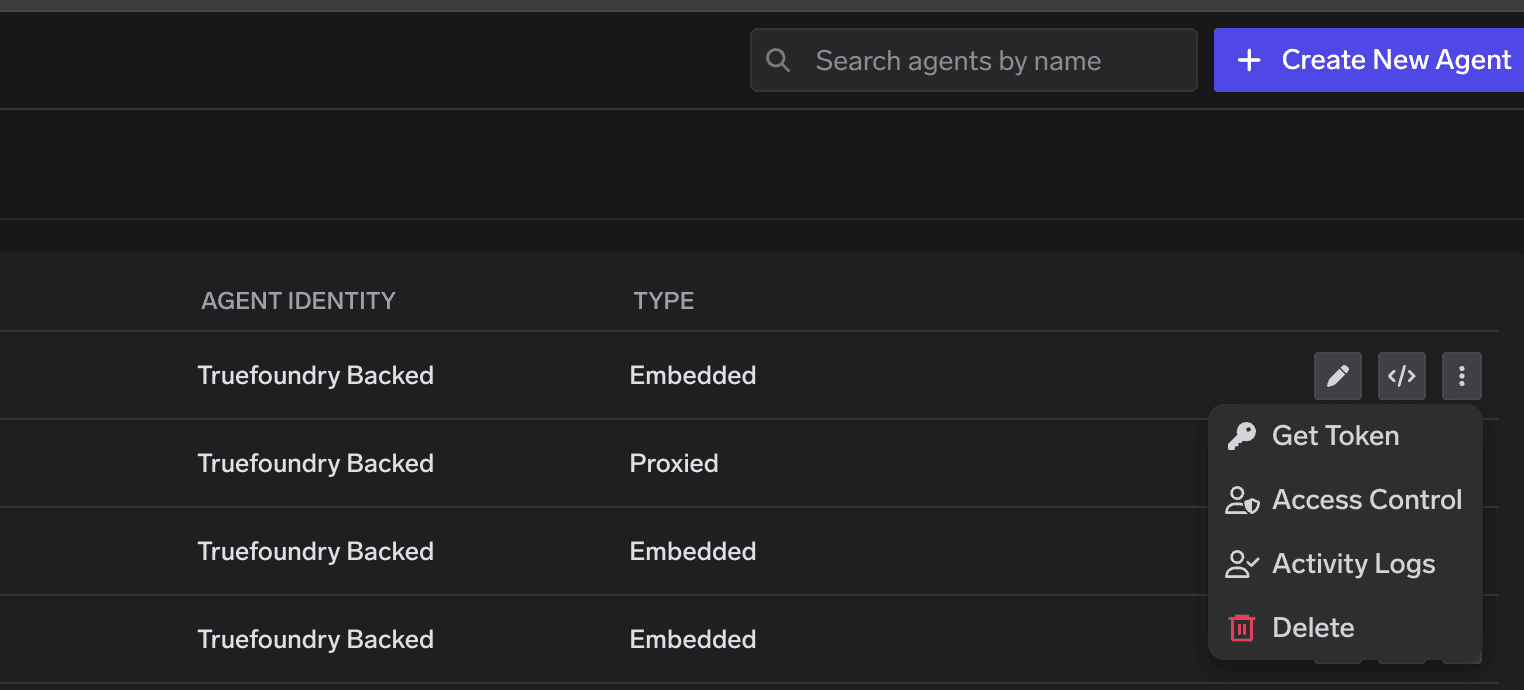
Get Token from the agent's three-dots menu in the Agent Registry
Get Token
Present it to call a resource
Authorization: Bearer <token> when it calls an MCP server
(via the MCP Gateway) or another agent (via the Agent Gateway). The Gateway validates it,
resolves it to this agent, and allows the call if this agent is a collaborator on that
resource — otherwise it returns 403.Refresh when needed
Letting the agent use MCP servers and models
The agent’s identity is not just for invoking the agent — it’s also what lets the agent reach other resources. To allow this agent to call an MCP server or use a model, add it as a collaborator on that resource. This is the same collaborator model used everywhere else; the agent simply appears alongside users and teams in the picker.Open the resource's Access Control
Add the agent as a collaborator
agent:<agent-name>). Choose the role that fits:- On an MCP server — a role that grants use of the server (so the agent can call its tools).
- On a model / provider account — a role that grants use of the integration (so the agent can call the model).
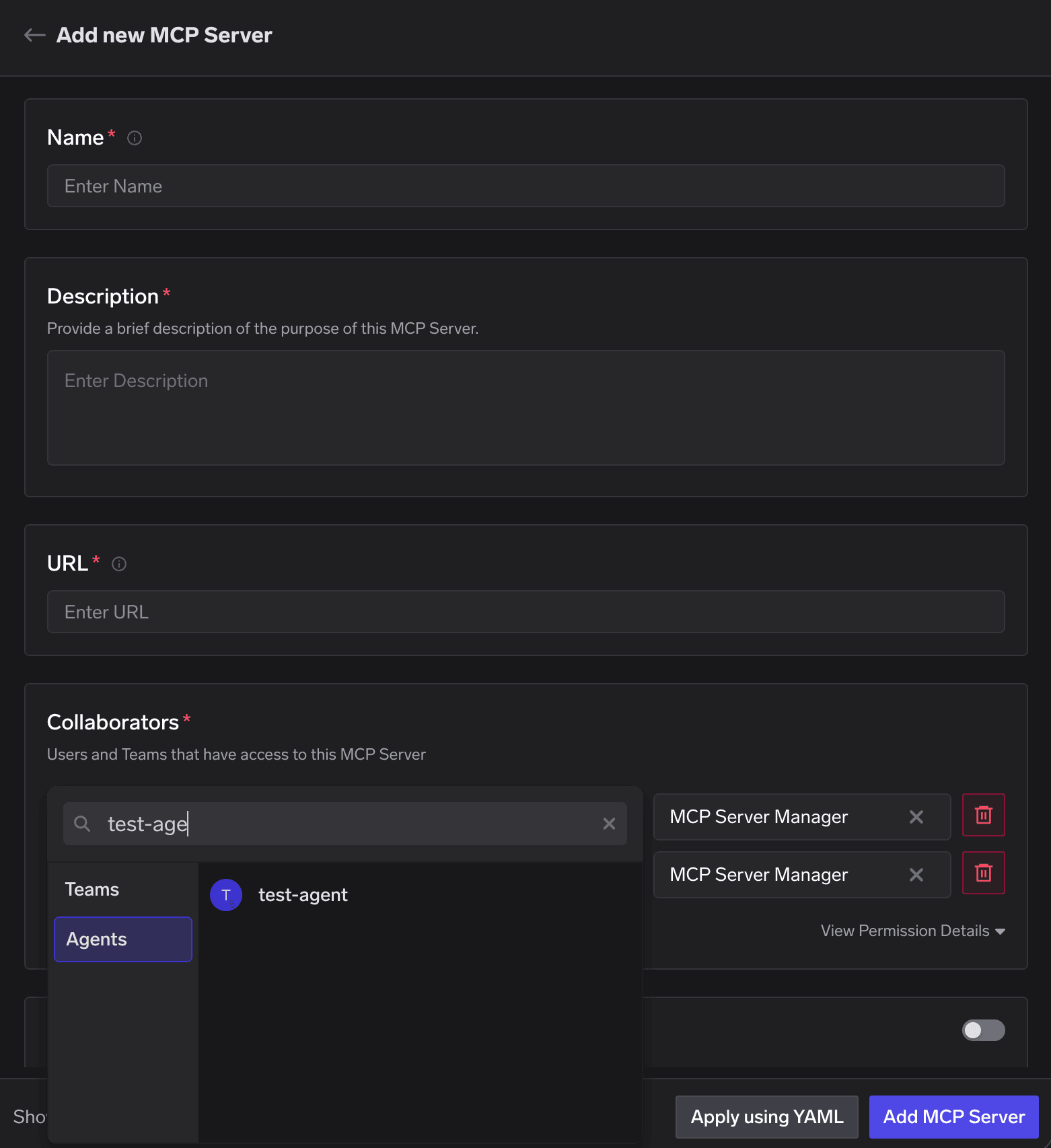
Adding an agent as a collaborator on an MCP server — the Agents tab in the subject picker
Save
403 – not authorized for that agent.Which MCP server auth types an agent can use
Being a collaborator settles authorization — whether the agent is allowed to use the server. It does not by itself provide credentials for the upstream service. Whether an agent can complete the call therefore depends on how the MCP server authenticates:Calling the agent
Once registered and proxied, the agent is reachable through the Agent Gateway. On the Agent Registry page, click the code snippet button on the agent to get a ready-to-use snippet.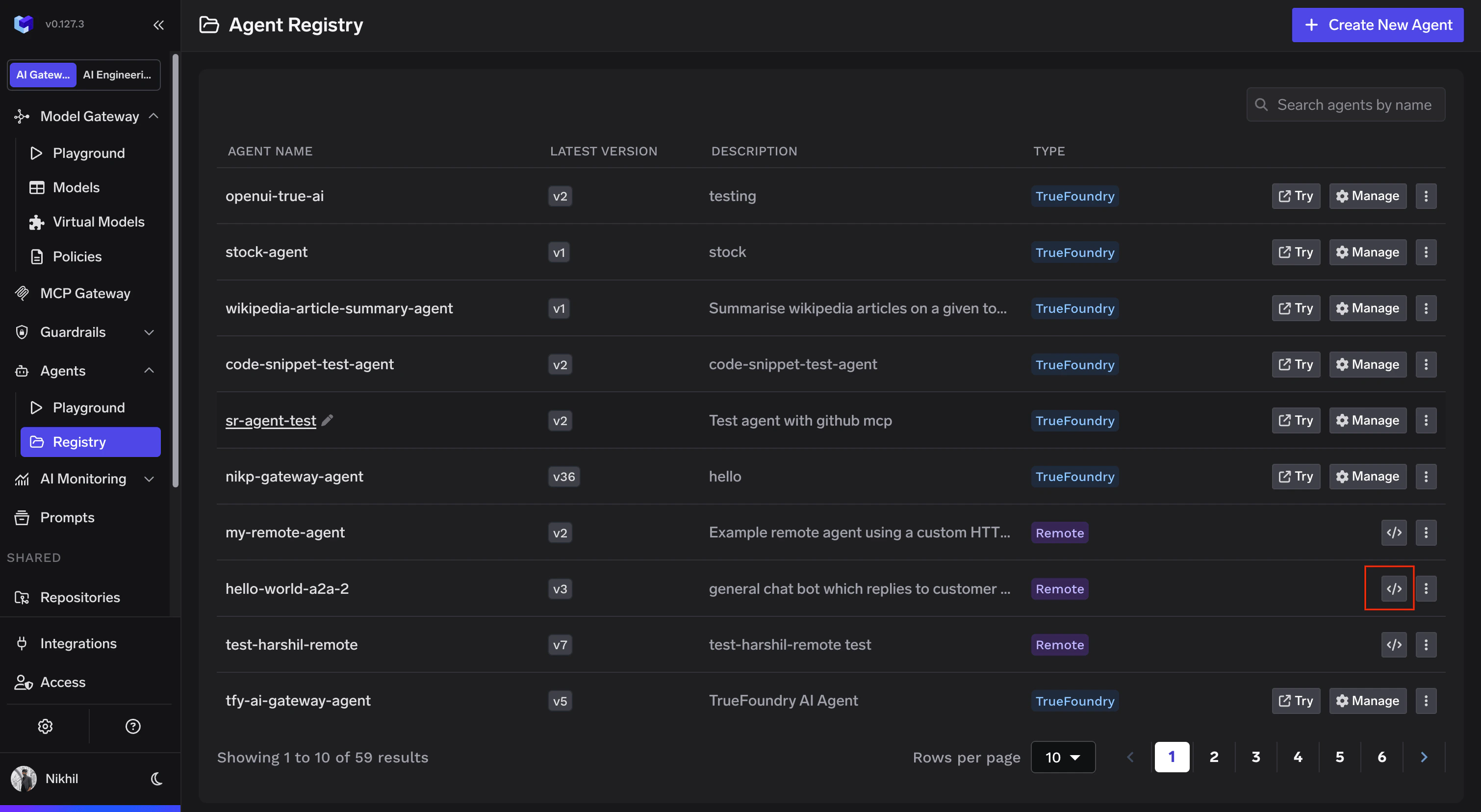
Agent Registry showing the code snippet button on a registered agent
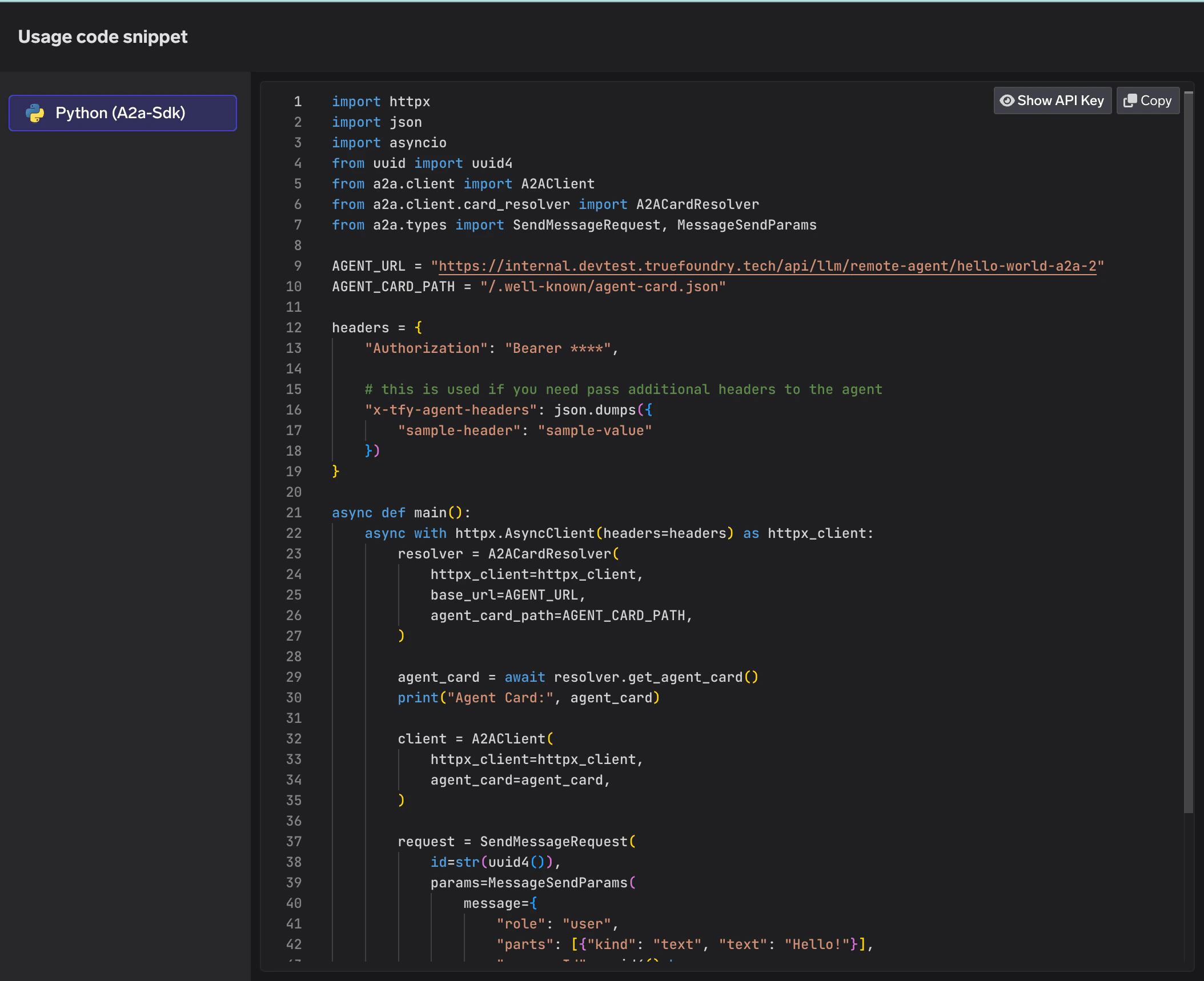
Python code snippet using A2A SDK to invoke a registered agent
Next
- Agent Identity — how the identity works, delegation, and passing it in your code.
- Guardrails for Agents — inspecting what agents send and receive at every hop.
- Agent Observability — metrics, traces, and the audit trail for every registered agent.