MCP servers can no longer be attached to new prompts starting 28th April 2026. Existing prompts with MCP servers will continue to work until 30th May 2026.
Applicable to: Users who save Prompts in TrueFoundry with MCP servers configured within them. If you do not attach MCP servers to your prompts, this change does not affect you.
Prompts will continue to be saved from the Model Playground as before — nothing is changing about how or where you save prompts.What is changing is MCP server support inside prompts:
Starting 28th April 2026, you will no longer be able to add MCP servers to new prompts. The option to attach MCP servers in the prompt editor will be removed.
New prompts: Cannot include MCP servers from 28th April 2026 onward.
Existing prompts: Prompts that already have MCP servers configured will continue to work until 30th May 2026. After that date, support is fully removed and any prompt still referencing mcp_servers will stop working as expected.
This is a breaking change for any workflow that relies on MCP servers attached to prompts.
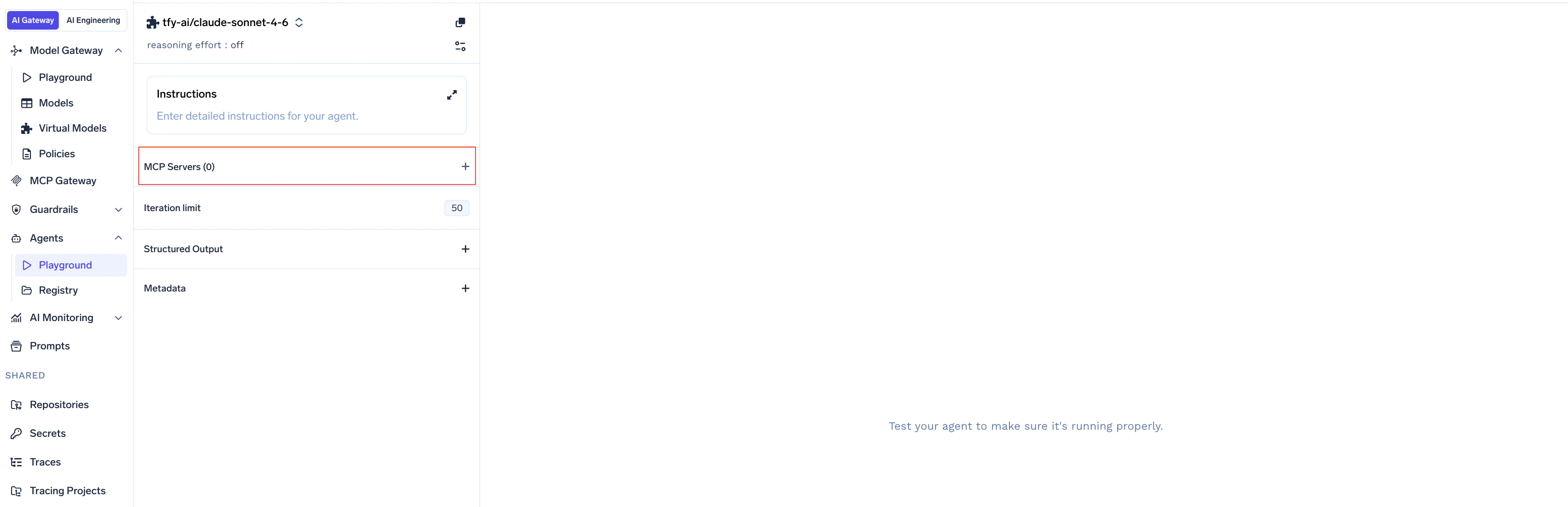
If you still need MCP server functionality, attach MCP servers to an Agent instead of embedding them in a prompt. Navigate to the Agents tab on the left sidebar and attach MCP servers directly to the agent configuration.
1
Go to the Agents tab
Open the Agents tab from the left sidebar and select MCP Servers from the left panel.
Navigate to Agents and select MCP Servers
2
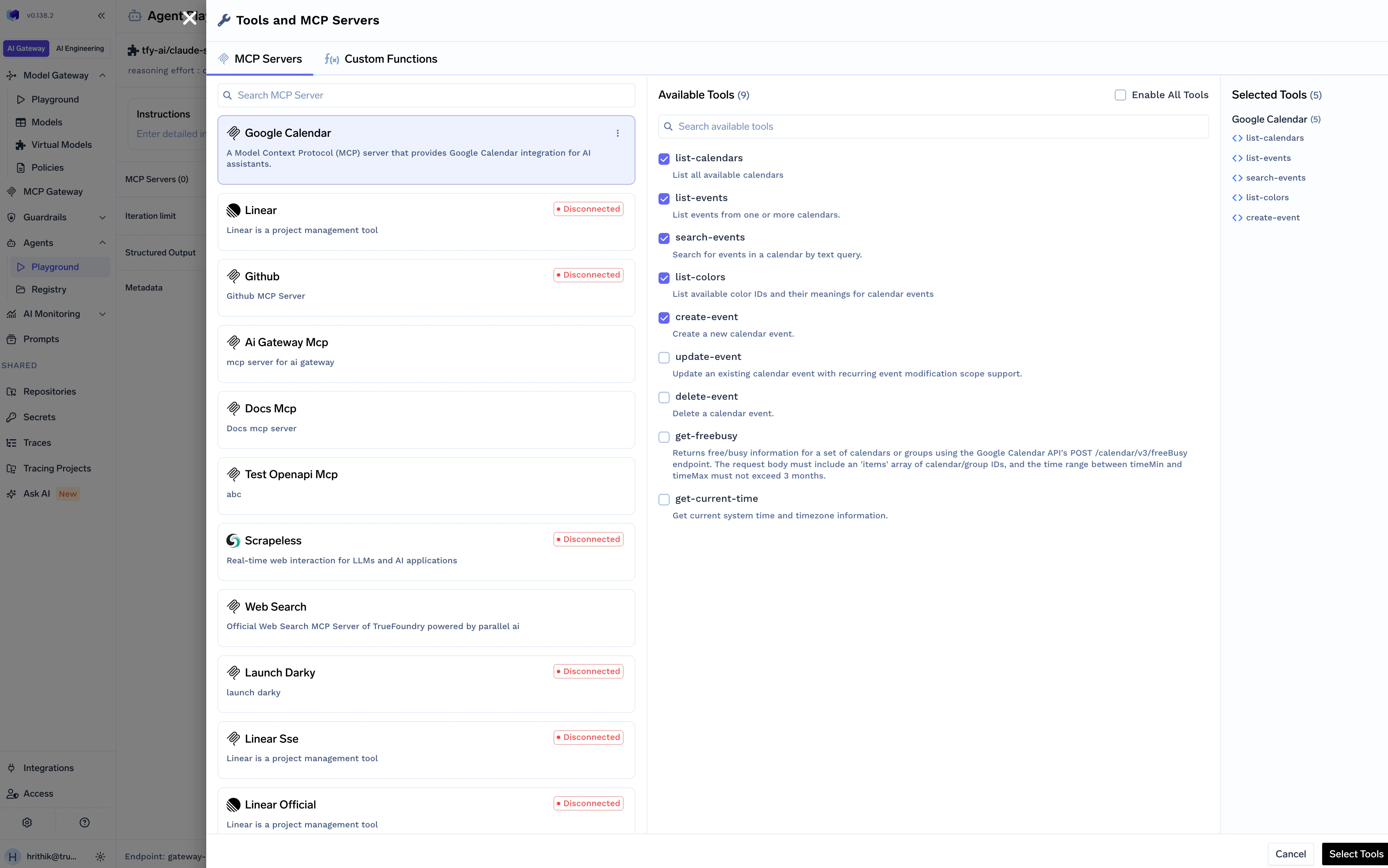
Select MCP servers
Choose the MCP servers you want to attach from the available list.
Select MCP servers from the list
3
Save the agent
Save the agent configuration to apply the MCP server changes.
Removal of support for existing prompts containing MCP servers
30th May, 2026
We strongly encourage migrating MCP server usage out of prompts and into Agents well ahead of 30th May, 2026 to avoid disruptions.
If you have questions or need help migrating prompts that use MCP servers over to Agents, reach out to support@truefoundry.com — we’re happy to assist.
Was this page helpful?
Assistant
Responses are generated using AI and may contain mistakes.