

@task decorator as other workflow tasks, but pass task_config=PySparkTaskConfig(...) so the task is executed as a Spark job. The task gets a SparkSession from the execution context (e.g. flytekit.current_context().spark_session), which you use for all Spark operations.
Install the TrueFoundry workflow SDK with Spark support. This adds the workflow and spark extras so you can use PySparkTaskConfig and run Spark tasks.
truefoundry[workflow,spark] package is only available on Python ≥ 3.10, ≤ 3.12Example
Usetruefoundry[workflow,spark] in all task images in this file (including non-Spark tasks in the example below). When Flyte loads the module for any task, it imports the whole file, so PySparkTaskConfig and Spark tasks must be importable; the [workflow,spark] extra pulls in pyspark. Non-Spark tasks still need it in their image so the module loads correctly.
flytekit.current_context().spark_session.
Set any
execution_configs (schedule) on the @workflow decorator. The schedule inside ExecutionConfig uses standard cron syntax (in UTC). See Creating A Cron Workflow for more on scheduling.For scheduled workflows, you must set service_account on the @workflow decorator. If you are still using the task-level service_account (via PySparkTaskConfig), keep both — additionally add service_account to the @workflow decorator so the scheduled runs pick it up.Viewing Spark UI
From the workflow run you can open the Spark UI to monitor your Spark job. The workflow UI shows a button to open the Spark UI: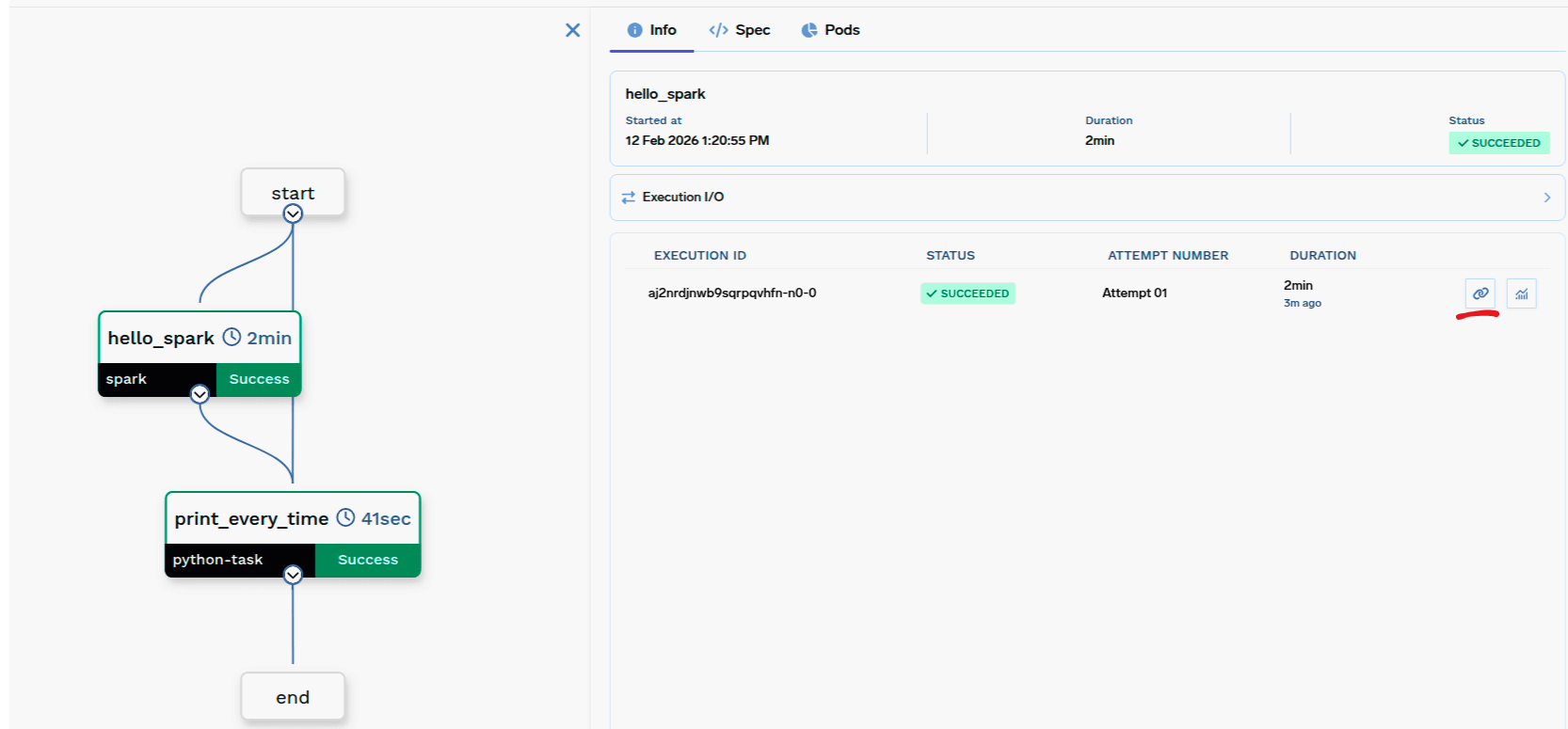
Workflow UI with button to open Spark UI
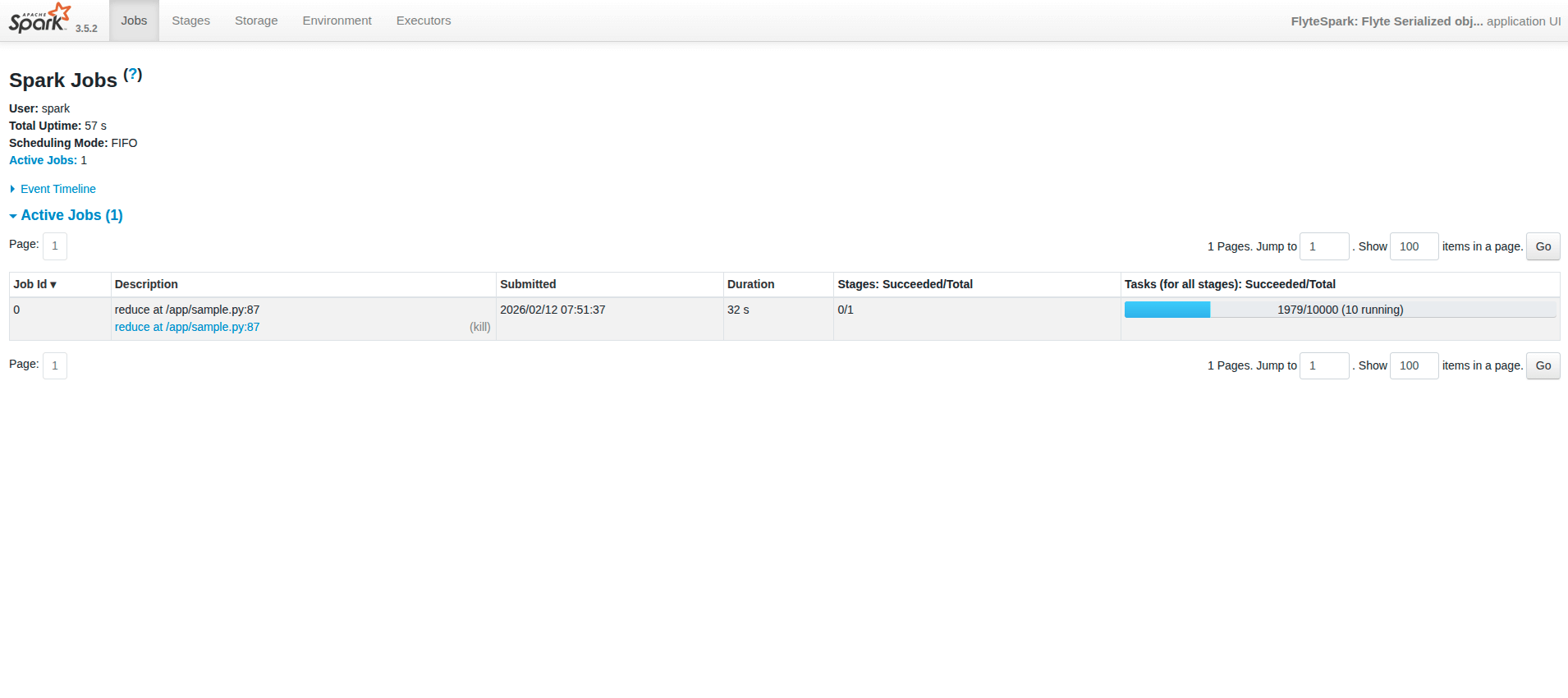
Spark UI
- Spark UI may take up to ~1 minute to become live while the Spark UI page is setting up.
- Once a job is done, the history server is enabled, so you can view past jobs.
- If the UI shows “not found”, try opening it again by clicking the Spark UI button from the workflow UI.
PySparkTaskConfig
TaskPySparkBuild
required
Spark version and optional build options (e.g.
spark_version, pip_packages, requirements_path).SparkDriverConfig
required
Driver resources (e.g.
resources).SparkExecutorConfig
required
Executor config with
instances: SparkExecutorFixedInstances (e.g. count=2) or SparkExecutorDynamicScaling (e.g. min=1, max=10), and optional resources for executors.dict[str, any]
Extra Spark config (e.g.
{"spark.sql.shuffle.partitions": "200"}).dict[str, str]
Environment variables (plain or secret refs).
Volume mounts for the task.
str
required
Kubernetes service account name to use. The service account should have the required permissions (e.g. AWS S3 read/write).
TaskPySparkBuild (for image)
str
Spark version (default
"3.5.2"). Should match the Spark version installed in the image.typing.Optional[str]
Custom container image URI. If provided, this image is used instead of the default Spark base image (
public.ecr.aws/bitnami/spark). The image must be Debian-based and have Python and Spark pre-installed.typing.Optional[str]
FQN of the container registry. If you can’t find your registry here, add it through the Integrations page.
typing.Optional[str]
Path to
requirements.txt relative to the path to build context.typing.Optional[list[str]]
Pip package requirements (e.g.
["fastapi>=0.90,<1.0", "uvicorn"]).typing.Optional[list[str]]
Debian packages to install via
apt-get (e.g. ["git", "ffmpeg", "htop"]).Checklist
- Use
@task(task_config=PySparkTaskConfig(...))withimage,driver_config, andexecutor_config. imageisTaskPySparkBuild(includesspark_version).driver_config=SparkDriverConfig;executor_config=SparkExecutorConfig(withinstances= fixed or dynamic).- Task code gets the SparkSession via
flytekit.current_context().spark_session. - Register the task in a
@workflowand call it like any other task (e.g.hello_spark(partitions=4)).