

Architecture
The diagram below shows the architecture of the TrueFoundry compute plane.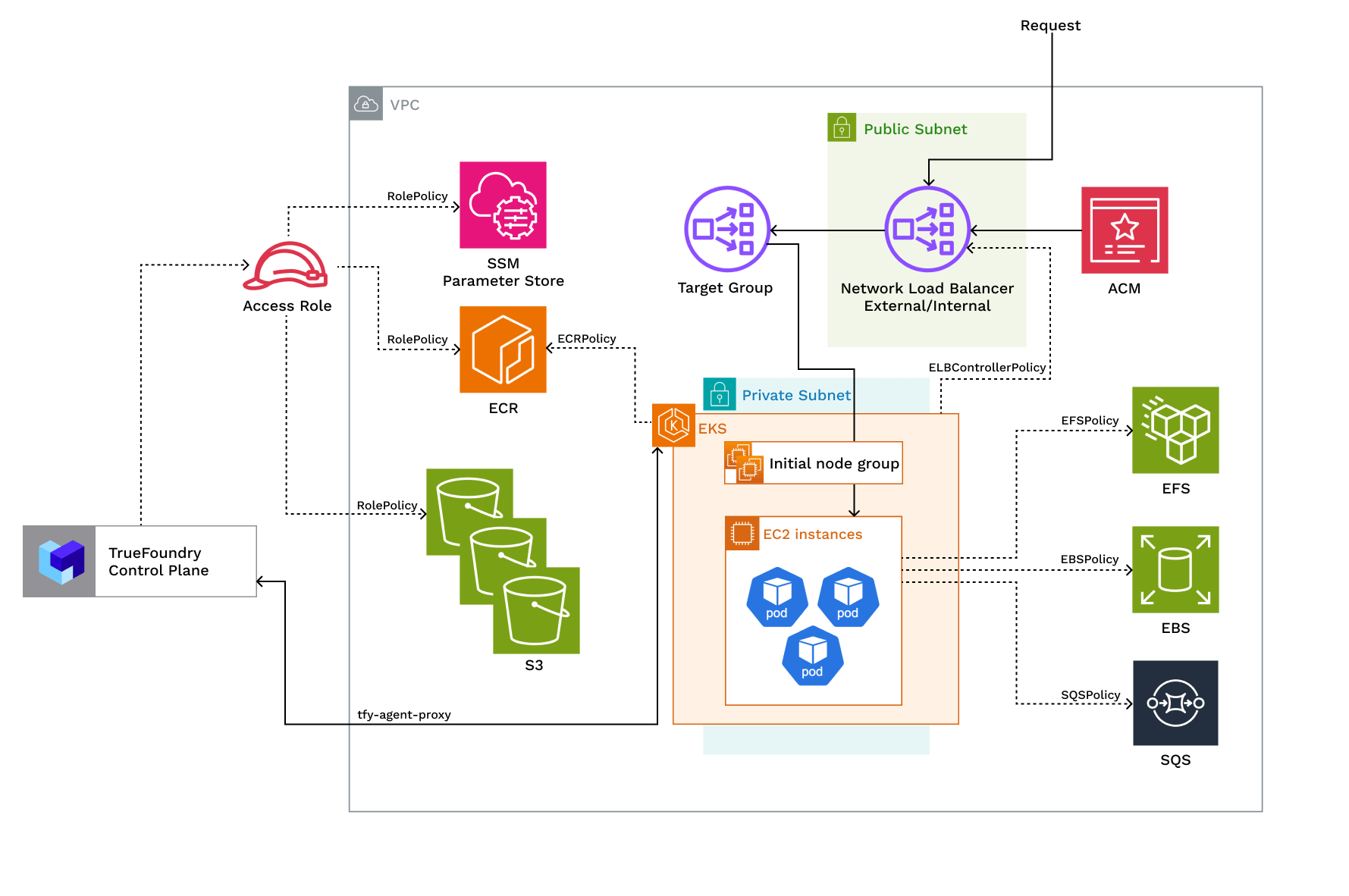
Access Policies
The compute plane requires the following IAM policies to operate. These are created automatically during platform deployment.Required IAM policies
Required IAM policies
Requirements
Common requirements for setting up the compute plane:- Billing and STS must be enabled for the AWS account.
- Egress access to container registries —
public.ecr.aws,quay.io,ghcr.io,tfy.jfrog.io,docker.io/natsio,nvcr.io,registry.k8s.io— to pull images for ArgoCD, NATS, GPU Operator, Argo Rollouts, Argo Workflows, Istio, and Keda. - A domain mapped to the service endpoints, plus a certificate to encrypt traffic. A wildcard domain such as
*.services.example.comis preferred. TrueFoundry supports path-based routing (e.g.services.example.com/tfy/*), but many frontend applications do not. Create the certificate for your domain in AWS Certificate Manager (ACM) and keep the ARN ready (covered in the Get Domain and Certificate ARN step below). - Sufficient CPU/GPU/Inferentia quotas for your use case. Check and increase them at AWS EC2 service quotas.
- Sufficient permissions on the AWS account to create the compute-plane resources. See Permissions required to create the infrastructure for details.
Permissions required to create the infrastructure
Admin permission on the AWS account is the simplest. For the exact least-privilege set, the policy below is the base cluster policy plus the compute-plane (blob storage) delta. Substitute$REGION, $ACCOUNT_ID, and $CLUSTER_NAME with your values before attaching.
- New VPC and New EKS Cluster
- Existing VPC and New EKS Cluster
- Existing EKS Cluster
- The new VPC will have a CIDR range of /20 or larger, at least 2 availability zones, and private subnets with CIDR range of /24 or larger. This ensures capacity for ~250 instances and 4096 pods.
- If you are using custom networking, you need a CGNAT IP address in each AZ. CGNAT space and route tables will be set up in the VPC.
- A NAT gateway will be provisioned to provide internet access to the private subnets.
Setting up compute plane
TrueFoundry compute plane infrastructure is provisioned using OpenTofu/Terraform. You can download the OpenTofu/Terraform code for your exact account by filling up your account details and downloading a script that can be executed on your local machine.Enable Deployment Feature in the Platform (Optional)
- In the left hand navigation, go to
SettingsthenPlatform Feature VisibilityunderPreferences - Click on
Editbutton. Then enable the toggle forEnable Deployment
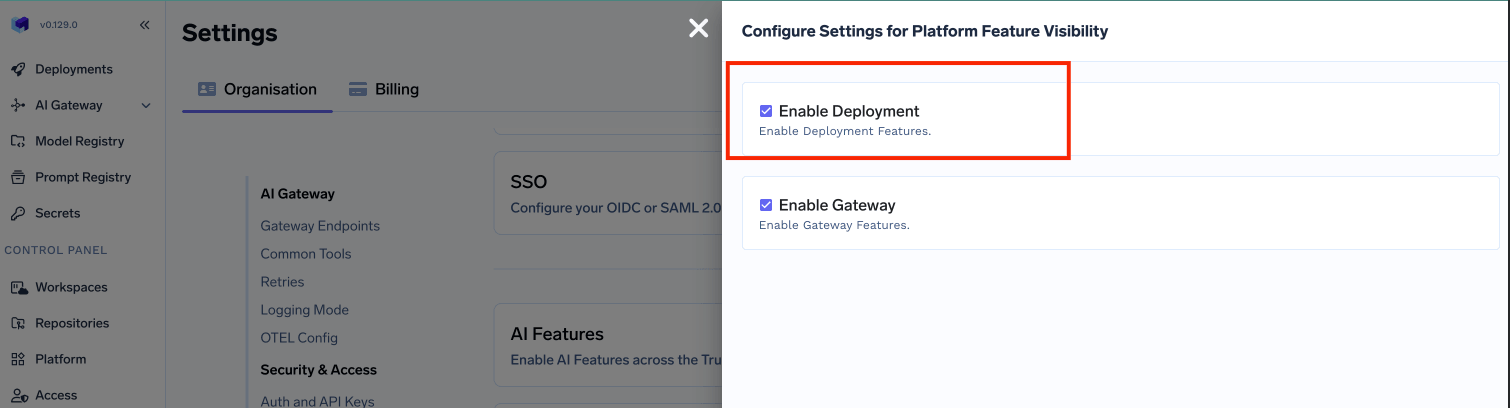
- Click on
Savebutton.
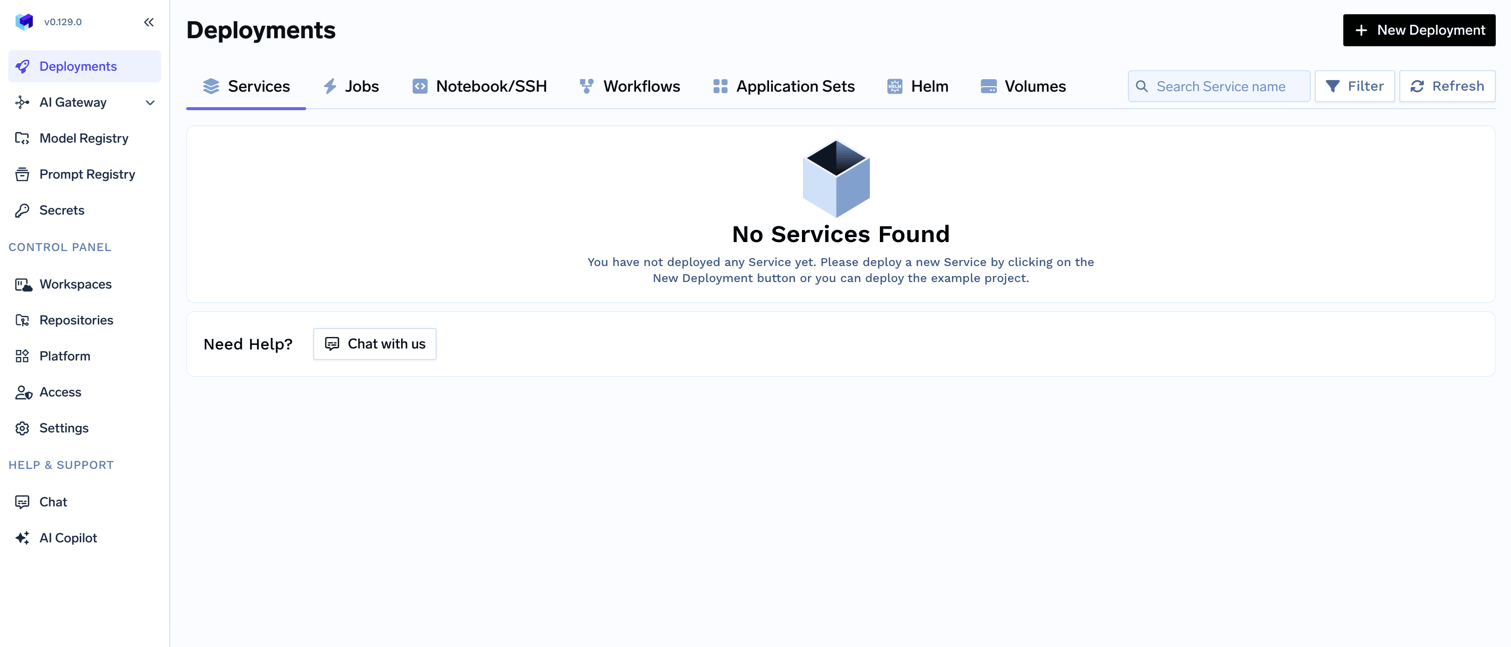
Choose to create a new cluster or attach an existing cluster
Clusters. You can click on Create New Cluster or Attach Existing Cluster depending on your use case. Read the requirements and if everything is satisfied, click on Continue.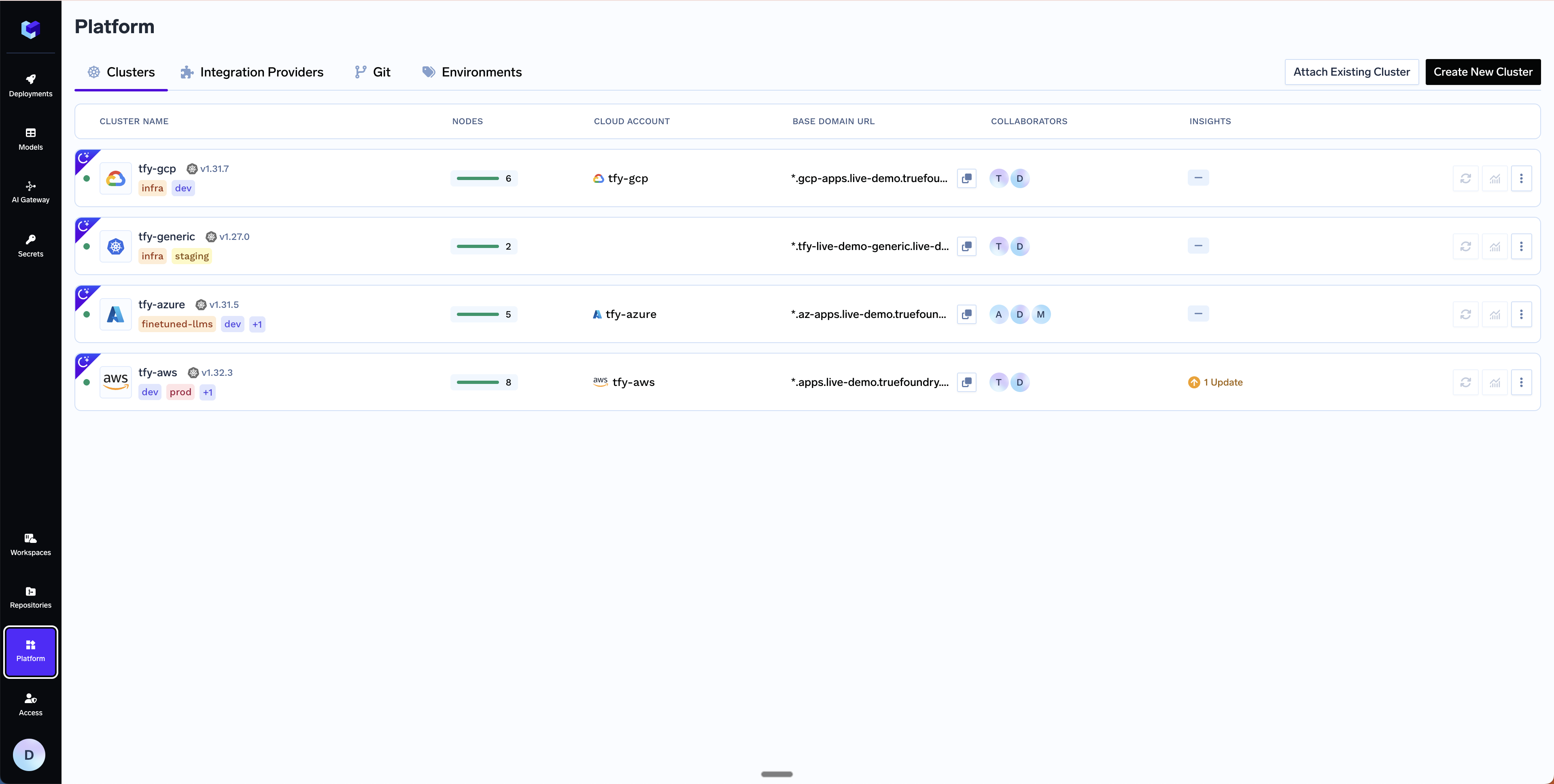
Get Domain and Certificate ARN
*.services.example.com, you will create a DNS record for it later in Step 6. We recommend using AWS Certificate Manager (ACM) to create the certificate, since it manages and renews certificates automatically. To generate a certificate ARN, follow the steps below. If you are not using AWS Certificate Manager, skip this step and continue to the next one.Create the certificate in AWS Certificate Manager
Create the certificate in AWS Certificate Manager
- Navigate to AWS Certificate Manager in the AWS console.
- Request a public certificate.
- Specify your domain (e.g.
*.services.example.com). - Choose DNS validation (recommended).
- Add the CNAME records provided by ACM to your DNS provider. Follow the official AWS guide for DNS validation. For detailed steps on adding CNAME records, see the AWS documentation on DNS validation.
- Wait for the certificate to change to “Active” status (this may take 30 minutes or longer).
- Copy the certificate ARN for the next step (the format will be like
arn:aws:acm:region:account:certificate/certificate-id).
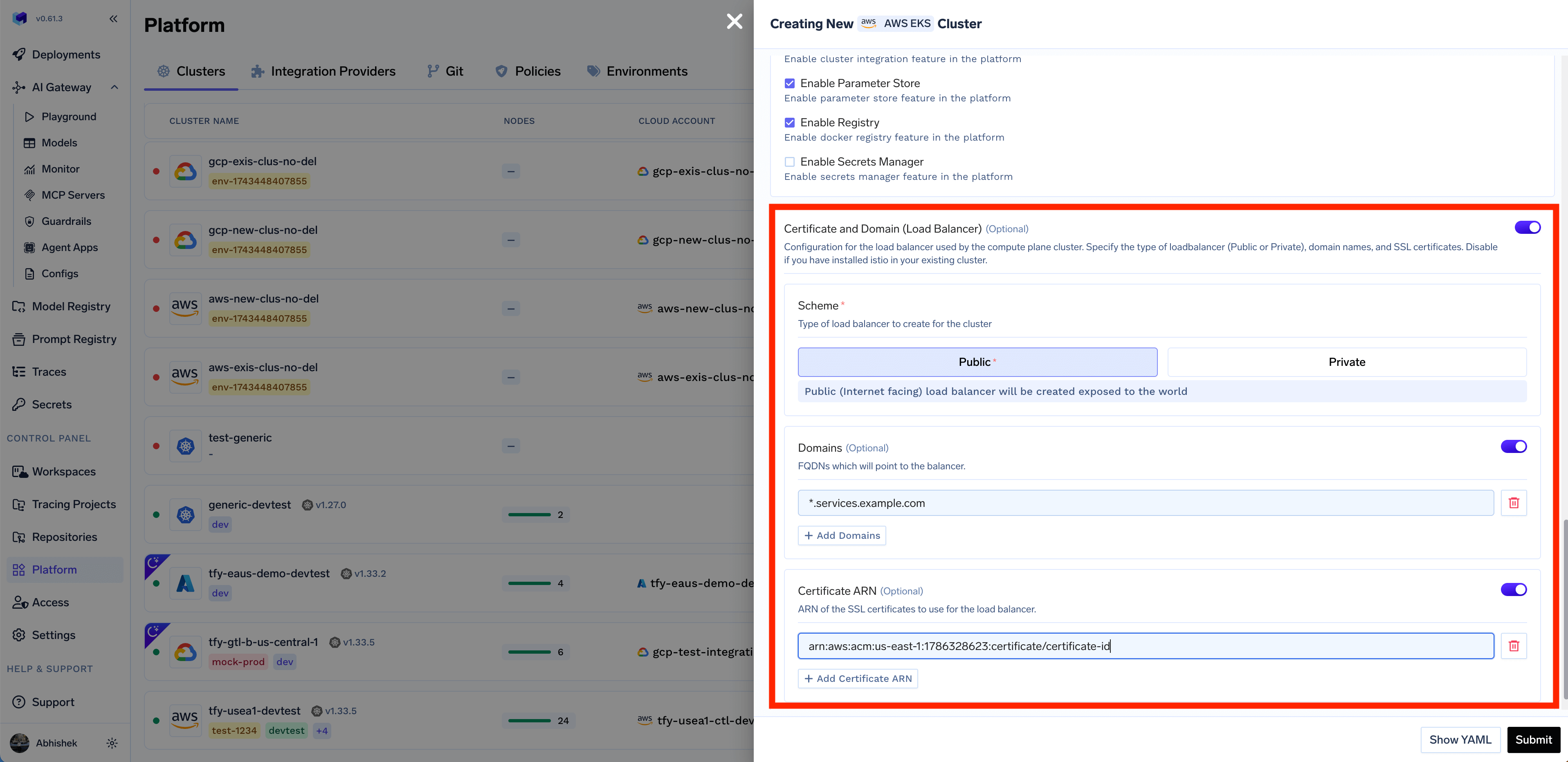
Fill up the form to generate the OpenTofu/Terraform code
Submit when done.- Create New Cluster
- Attach Existing Cluster
Cluster Name- A name for your cluster.Region- The region where you want to create the cluster.Network Configuration- Choose betweenNew VPCorExisting VPCdepending on your use case.Authentication- This is how you are authenticated to AWS on your local machine. It’s used to configure OpenTofu/Terraform to authenticate with AWS.S3 Bucket for OpenTofu/Terraform State- OpenTofu/Terraform state will be stored in this bucket. It can be a preexisting bucket or a new bucket name. The new bucket will automatically be created by our script.Load Balancer Configuration- This is to configure the load balancer for your cluster. You can choose betweenPublicorPrivateLoad Balancer, it defaults toPublic. You can also add certificate ARNs and domain names for the load balancer but these are optional.Platform Features- This is to decide which features like Blob Storage, Cluster Integration, Parameter Store, Docker Registry, and Secrets Manager will be enabled for your cluster. To read more on how these integrations are used in the platform, please refer to the platform features page.
Copy the curl command and execute it on your local machine
curl command to download and execute the script. The script will take care of installing the prerequisites, downloading OpenTofu/Terraform code, and running it on your local machine to create the cluster. This will take around 40-50 minutes to complete.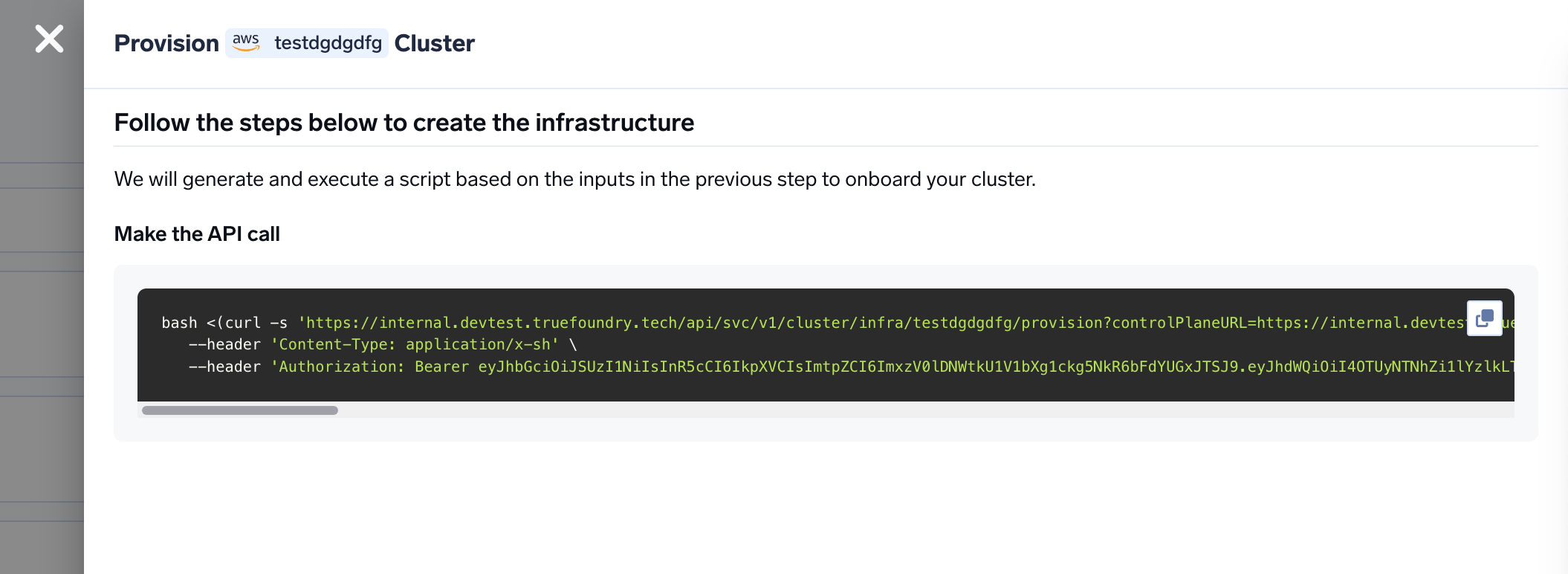
Verify the cluster is showing as connected in the platform
Create DNS Record
Base Domain URL section.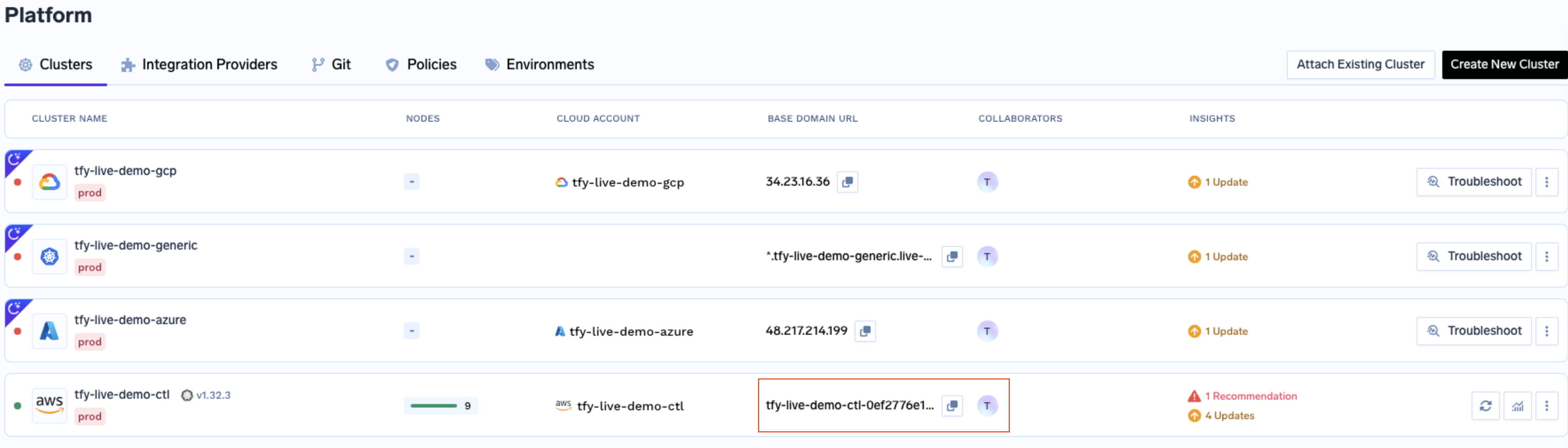
Start deploying workloads to your cluster
FAQ
How do I tag all the AWS resources (cost-center, environment, team, etc.)?
How do I tag all the AWS resources (cost-center, environment, team, etc.)?
tags variable in the generated OpenTofu/Terraform code to a map of your tags:tofu plan (or terraform plan) first and confirm the diff is tag-only before applying.How tagging works across all resources
Tags flow through three layers so every AWS resource — whether managed by Terraform or launched at runtime — gets consistent labels:Suppressing built-in TrueFoundry audit tags
By default, TrueFoundry modules addtruefoundry-managed, truefoundry-cluster-name, and truefoundry-terraform-module tags. To suppress these without affecting your own tags or the provider default_tags, set:Can I use cert-manager to add TLS to the load balancer and not use AWS Certificate Manager?
Can I use cert-manager to add TLS to the load balancer and not use AWS Certificate Manager?
Can I use my own certificate and key files to add TLS to the load balancer?
Can I use my own certificate and key files to add TLS to the load balancer?
-
Create a Kubernetes secret with your certificate and key, or create a self-signed certificate:
-
Once the secret is created, head over to the cluster page and navigate to the
tfy-istio-ingressadd-on. Add the secret name in thetfyGateway.spec.servers[1].tls.credentialNamesection and ensure thattfyGateway.spec.servers[1].port.protocolis set toHTTPS. Here we are usingexample-com-tlsas the secret name, which contains the certificate and key.
How to review the OpenTofu/Terraform code that is generated by the platform?
How to review the OpenTofu/Terraform code that is generated by the platform?
How do I set up custom networking in EKS?
How do I set up custom networking in EKS?
-
Attach a secondary CIDR to the VPC (e.g.
100.64.0.0/16per RFC 6598) and create new subnets with that CIDR in the same AZs as your primary subnets. - Ensure the secondary subnets are added to the route tables of your primary subnets (this typically happens automatically).
- Configure the AWS VPC CNI to use the secondary subnets. If you used TrueFoundry’s OpenTofu/Terraform code, add this to the EKS module:
- Create an
ENIConfigresource for each AZ where your EKS nodes run:
- Restart the nodes one by one to apply the changes. Pods will be rescheduled onto nodes with secondary IP addresses.
How to remove all AWS resources created with Terraform/OpenTofu?
How to remove all AWS resources created with Terraform/OpenTofu?
Connect to the EKS cluster
Delete LoadBalancer services
Delete Karpenter NodePools
From the folder with your generated OpenTofu/Terraform code
How to fix S3 'PutBucketPublicAccessBlock' AccessDenied error while running terraform/tofu apply?
How to fix S3 'PutBucketPublicAccessBlock' AccessDenied error while running terraform/tofu apply?
terraform apply (or tofu apply) fails with an error like:s3:PutBucketPublicAccessBlock, but the TrueFoundry module tries to set it on each bucket — so the call is denied and the apply fails.The fix: Set the variable below to false so the module skips this step. This is safe — your account already blocks public access, so the per-bucket setting is redundant.Control plane — add truefoundry_s3_attach_public_policy = false to the tfy-control-plane module:blob_storage_attach_public_policy = false to the tfy-platform-features module:true, so you must set them explicitly to false. Then re-run terraform apply (or tofu apply).Istio Ingress service stuck in pending state due to missing AWSServiceRoleForElasticLoadBalancing role
Istio Ingress service stuck in pending state due to missing AWSServiceRoleForElasticLoadBalancing role
Pending state and fail to receive an external IP when the AWS account is missing the Elastic Load Balancing service-linked role and the AWS Load Balancer Controller cannot create it.FailedDeployModel warning:Root Cause
The AWS account did not contain the required service-linked role:AWSServiceRoleForElasticLoadBalancing.When AWS Load Balancer Controller attempted to create a Network Load Balancer (NLB) for the Istio ingress Service, AWS tried to automatically create this service-linked role. The controller was running with an IAM role that was restricted by a permissions boundary, which prevented execution of iam:CreateServiceLinkedRole. As a result, AWS rejected the load balancer creation request and the Kubernetes Service remained in the Pending state.Verification
Verify whether the service-linked role exists:NoSuchEntity, the service-linked role is missing.Resolution
Create the AWS service-linked role
iam:CreateServiceLinkedRole permission to provision load balancers.Confirm the Service receives an external endpoint
EXTERNAL-IP column should show the NLB hostname instead of <pending>.How do I enable autoscaling for the CoreDNS addon in EKS?
How do I enable autoscaling for the CoreDNS addon in EKS?
cluster_addons_coredns_additional_configurations block to the EKS module:enabled— turns on CoreDNS autoscaling.minReplicas/maxReplicas— lower and upper bounds for the replica count. Tune these values based on your cluster size and DNS query volume.
terraform apply (or tofu apply) to apply the change.How do I control which instance types Karpenter can provision?
How do I control which instance types Karpenter can provision?
karpenter-config addon. You can restrict or allow specific instance families and sizes by editing the values of the karpenter-config addon from the TrueFoundry platform (via the cluster addon configuration in the UI).Set a notAllowed list under instanceFamilies and instanceSizes to exclude specific types:How do I add a custom EKS managed node group that TrueFoundry can schedule to?
How do I add a custom EKS managed node group that TrueFoundry can schedule to?
additional_eks_managed_node_groups variable. For the node group to be discoverable and schedulable from the TrueFoundry platform, it must have the truefoundry.com/node-pool label — this is how TrueFoundry discovers and targets node pools.For GPU node groups, also add the nvidia.com/gpu label and a matching taint so only GPU workloads land on those nodes.terraform apply (or tofu apply) to apply the change.How do I add new subnets to expand node IP capacity for Karpenter?
How do I add new subnets to expand node IP capacity for Karpenter?
- Identify the existing private node subnets that Karpenter uses in each Availability Zone.
- Create new private subnets in the same VPC, one per AZ, using non-overlapping CIDR ranges with sufficient IP capacity.
- Configure the new subnets with the same route table and network ACL settings as the existing node subnets.
- Apply the same subnet tags as the existing node subnets (for example,
kubernetes.io/cluster/<cluster-name>). Karpenter uses these tags to discover eligible subnets. - No changes to Karpenter configuration (
EC2NodeClass,NodePool) are required — Karpenter’ssubnetSelectorTermsautomatically discovers subnets matching the tags.
status.subnets section — the new subnet IDs should appear.How to Harden the WAFv2 Web ACL using Terraform snippets?
How to Harden the WAFv2 Web ACL using Terraform snippets?
Overview
This section provides ready-to-use Terraform snippets forwaf.tf that remediate the following findings on an AWS WAFv2 Web ACL:waf.tf. Snippets that add a rule { ... } block are meant to be inserted inside the existing aws_wafv2_web_acl.this resource, alongside the other rules; snippets that define a full resource block can be dropped anywhere in the file.variables.tf: waf_app_name, waf_app_environment, waf_team, waf_it_owner_email, waf_geo_allowed_country_codes. See Required variables at the bottom of this page.Optional trusted IP set
Defines a reusable IP set of trusted addresses. It’s only created whenvar.waf_ip_allowlist is non-empty, and is referenced later by the allowlist rule. Skip this snippet if you don’t need an IP allowlist.Web ACL skeleton and default action (WAF-016)
This is the top-levelaws_wafv2_web_acl resource. All rule { ... } snippets below are inserted inside this resource’s body. The default action is kept as allow — non-matching traffic passes through, and the rules that follow block bad traffic explicitly.default_action { block {} }) alternative. Switching to deny-by-default requires an explicit allow rule that covers all trusted traffic first (otherwise you break the app), so it’s intentionally left as allow here. If you want to move to deny-by-default later, add a catch-all allow rule at priority 0 before flipping this.Managed rule: Known Bad Inputs
Blocks requests matching AWS’s curated list of known malicious request patterns (e.g. exploitation of Log4j, credential stuffing patterns). Set at priority0.Managed rule: SQL Injection Rule Set
Applies AWS’s managed SQL injection detection ruleset across the request. Set at priority1.Managed rule: Amazon IP Reputation List
Blocks traffic from IP addresses that AWS’s threat intelligence has flagged as sources of botnets, scanners, or other malicious activity. Set at priority2.Managed rule: Common Rule Set (OWASP baseline)
Applies AWS’s Core Rule Set (broad OWASP-style protections). Two rule-level overrides are included:SizeRestrictions_BODY is set to allow (so large but legitimate request bodies aren’t blocked), and NoUserAgent_HEADER is set to count (monitor requests without a User-Agent header, rather than blocking them). Set at priority 3.Rate limiting on /api/ traffic (Custom-Rule-85)
Remediates the Critical finding by changing the previous count {} action to block {}, and scoping the rate limit to requests whose path starts with /api/ — so UI, health check, and static asset traffic isn’t rate-limited alongside API calls. Set at priority 4.Trusted IP allowlist rule
Allows traffic from the IP set defined earlier to bypass the rules that follow it. Only rendered when the allowlist IP set was created. Set at priority5.Managed rule: Anonymous IP List (WAF-009)
Blocks requests originating from VPNs, Tor exit nodes, proxies, and hosting providers — sources commonly used to mask the true origin of malicious traffic. Set at priority6.Standalone SQL injection block rule (Custom-Rule-85)
A dedicated SQLi detection rule scoped to the request body, independent of the managed SQLi rule set above. Deployed incount {} (monitor-only) mode at priority 7 — check CloudWatch metrics and sampled requests for false positives before switching the action to block {}.Standalone XSS block rule (Custom-Rule-85)
A dedicated cross-site scripting detection rule scoped to all query string arguments. Also deployed incount {} (monitor-only) mode at priority 8 — switch to block {} once validated against real traffic.Geo-location restriction (Custom-Rule-84)
Blocks any request whose source country is not in the approved list, using anot_statement wrapped around a geo_match_statement. Configure the approved countries via var.waf_geo_allowed_country_codes. Set at priority 9.Data protection / field redaction (WAF-021)
Substitutes the values of sensitive request headers —authorization, cookie, x-api-key, x-auth-token — before they’re written to any WAF logging destination (CloudWatch Logs, sampled requests, etc.). This block goes directly inside aws_wafv2_web_acl.this, alongside the default_action and rules.Logging (WAF-013, unchanged)
Creates the CloudWatch log group and logging configuration for the Web ACL. This was already compliant and is included here unchanged for completeness — the log group name must be prefixed withaws-waf-logs-, which AWS enforces.Associating the Web ACL with an ALB
Associates the Web ACL with an Application Load Balancer. Only needed if the ALB was created outside of the AWS Load Balancer Controller — pass its ARN viavar.waf_associate_alb_arn; otherwise leave that variable empty and skip this snippet.Required variables
Add these tovariables.tf if they don’t already exist (used for Custom-Rule-37 mandatory ownership/application tagging, and the geo-block rule):waf_app_namewaf_app_environmentwaf_teamwaf_it_owner_emailwaf_geo_allowed_country_codes
local.waf_required_tags local referenced throughout the snippets above, and applied to every WAF resource.