How to reach the TrueFoundry support team — when to use the shared Slack/Teams channel and when to use the in-product Support Portal.
TrueFoundry tracks every customer issue, bug, and feature request in a single Support Portal so nothing gets lost in chat history. You can also visit truefoundry.com/support for an overview of all support channels and SLAs.There are two ways to open a ticket:
From your shared Slack or Microsoft Teams channel(recommended) — tag @TrueFoundry Team in the thread, and a portal ticket is created automatically.
From the in-product Support Portal — open it directly when Slack/Teams is restricted on your network, when you don’t have a shared channel set up, or when you want to attach long descriptions, screenshots, or logs through a structured form.
Prefer Slack or Teams for everything — even bugs and feature requests. The integration logs the message into the Support Portal automatically, so you keep the conversation in your team’s chat and get the same tracking, SLAs, and history as a portal-raised ticket.
Option 1 — Raise a ticket from Slack or Microsoft Teams (recommended)
If TrueFoundry has set up a shared Slack or Microsoft Teams channel with your organisation, this is the fastest way to reach us — the message stays in the conversation thread your team is already using, and the integration mirrors it into the Support Portal so it gets the same tracking and SLAs.
1
Tag the TrueFoundry team in your shared channel
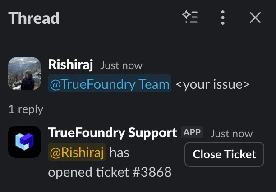
In the shared Slack or Teams channel, start a thread describing your issue and tag @TrueFoundry Team. The bot replies in-thread to confirm a ticket has been opened and shares the ticket ID.
Tag @TrueFoundry Team in Slack to open a ticket
2
Add priority and component details
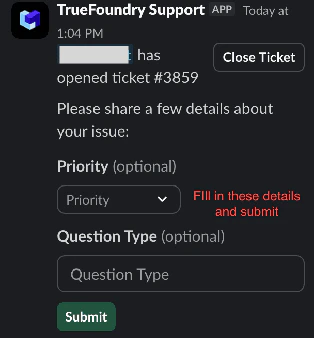
The bot follows up in the same thread with a short form asking for Priority (P0–P3) and Question Type (component affected — gateway, infra, MCP, etc.). Fill them in and click Submit.
Slack/Teams follow-up form for priority and component
3
Track the ticket in the Support Portal
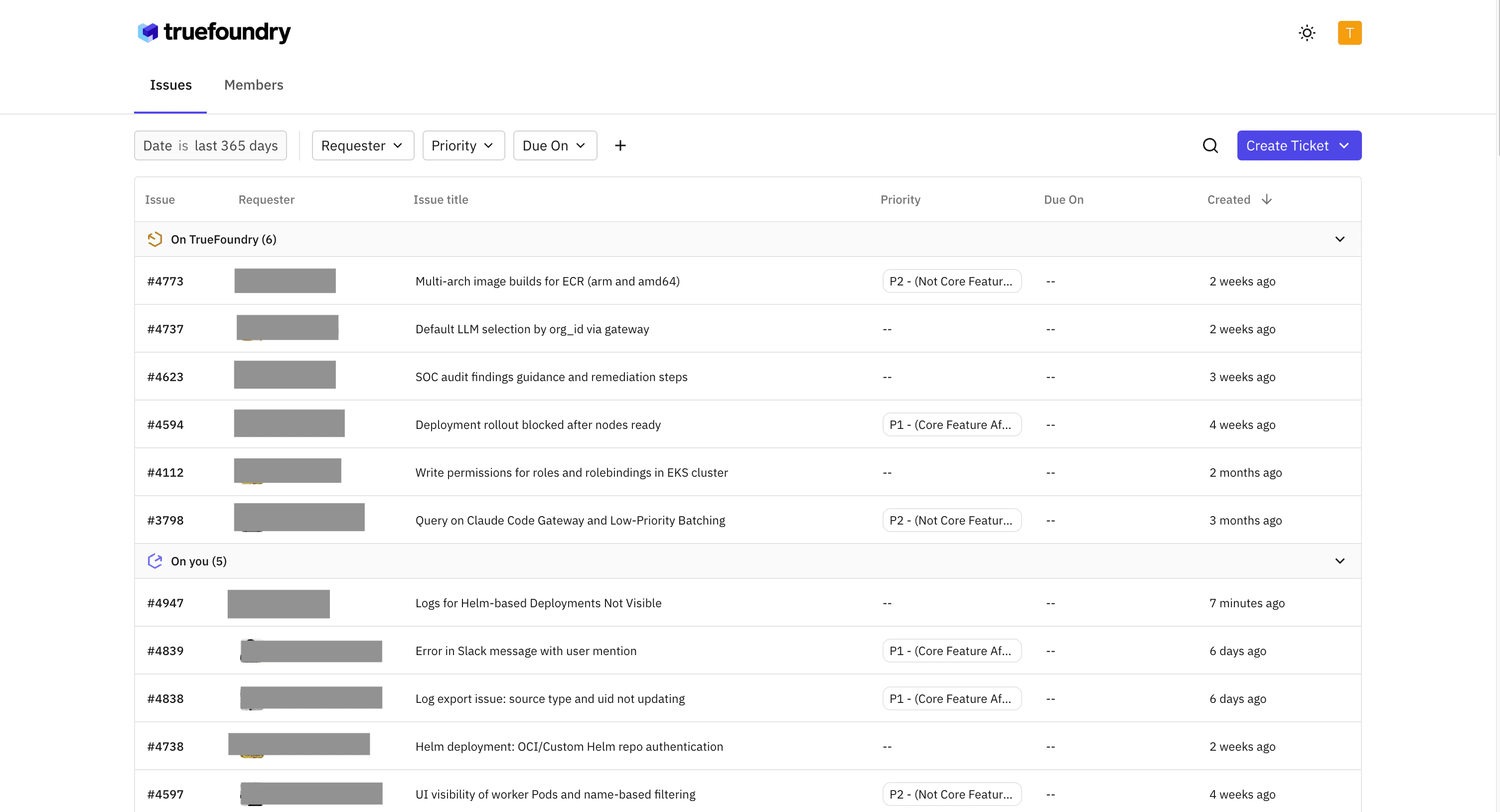
The ticket is now visible in the Support Portal alongside any tickets you raised through the UI. You can keep replying in the Slack/Teams thread — every message is mirrored to the portal automatically.
If you do not see the “Support” button in the left navigation, the portal may not be enabled for your tenant or your control plane could be on an older version. Reach out to your TrueFoundry Customer Success contact to enable it.
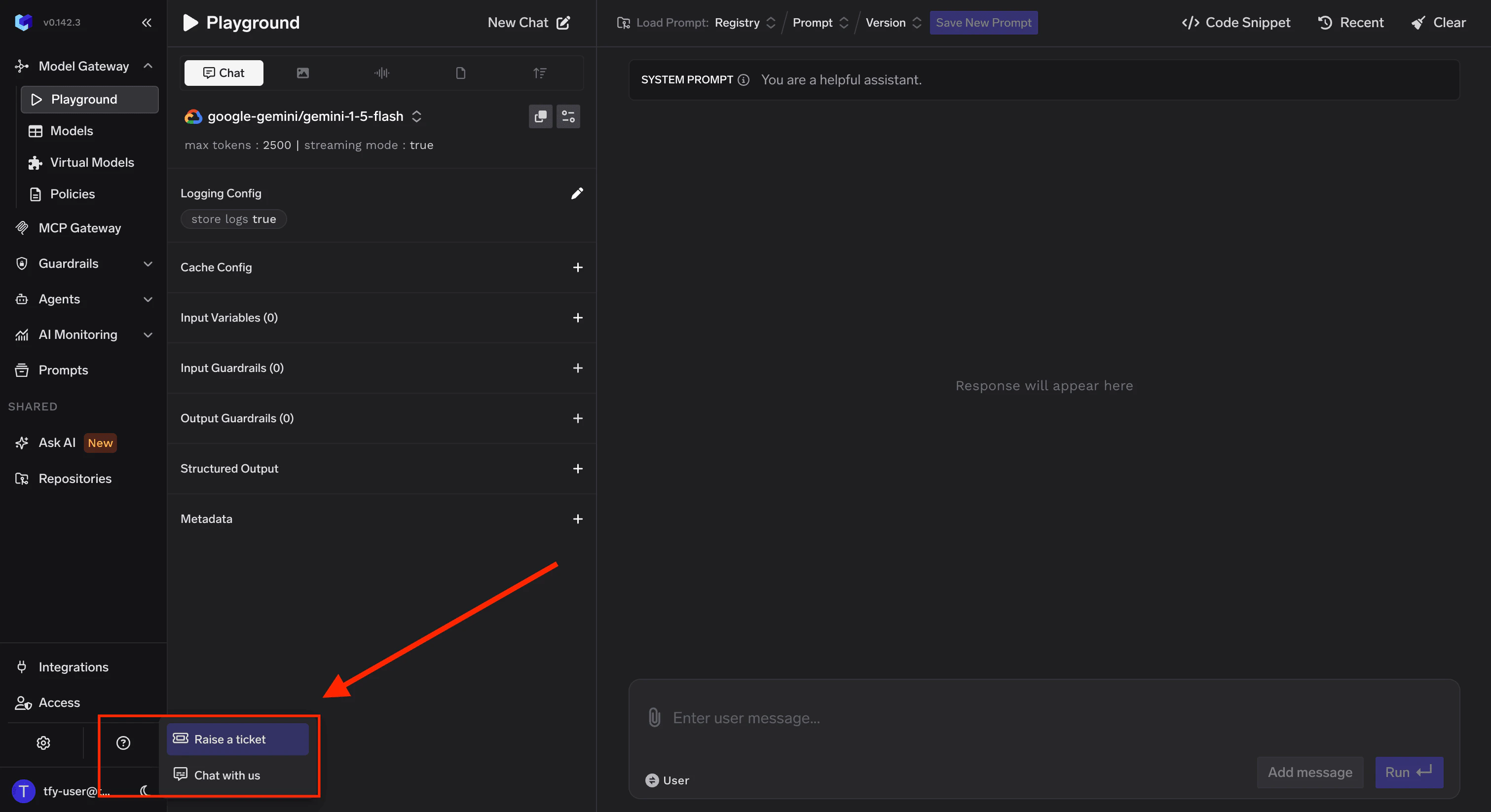
Support entry point in the TrueFoundry sidebar
1
Open the Support Portal
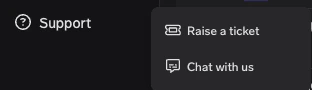
Sign in to TrueFoundry, click Support in the left sidebar (under Help & Support), and choose Raise a ticket. You’ll be redirected to the Support Portal in a new tab.
Support menu expanded from the bottom-left of the TrueFoundry UI
2
Click Create Ticket and pick the ticket type
In the portal, click Create Ticket and choose:
Support Ticket — general help, guidance, or how-to questions.
Bug — something is not working as expected.
3
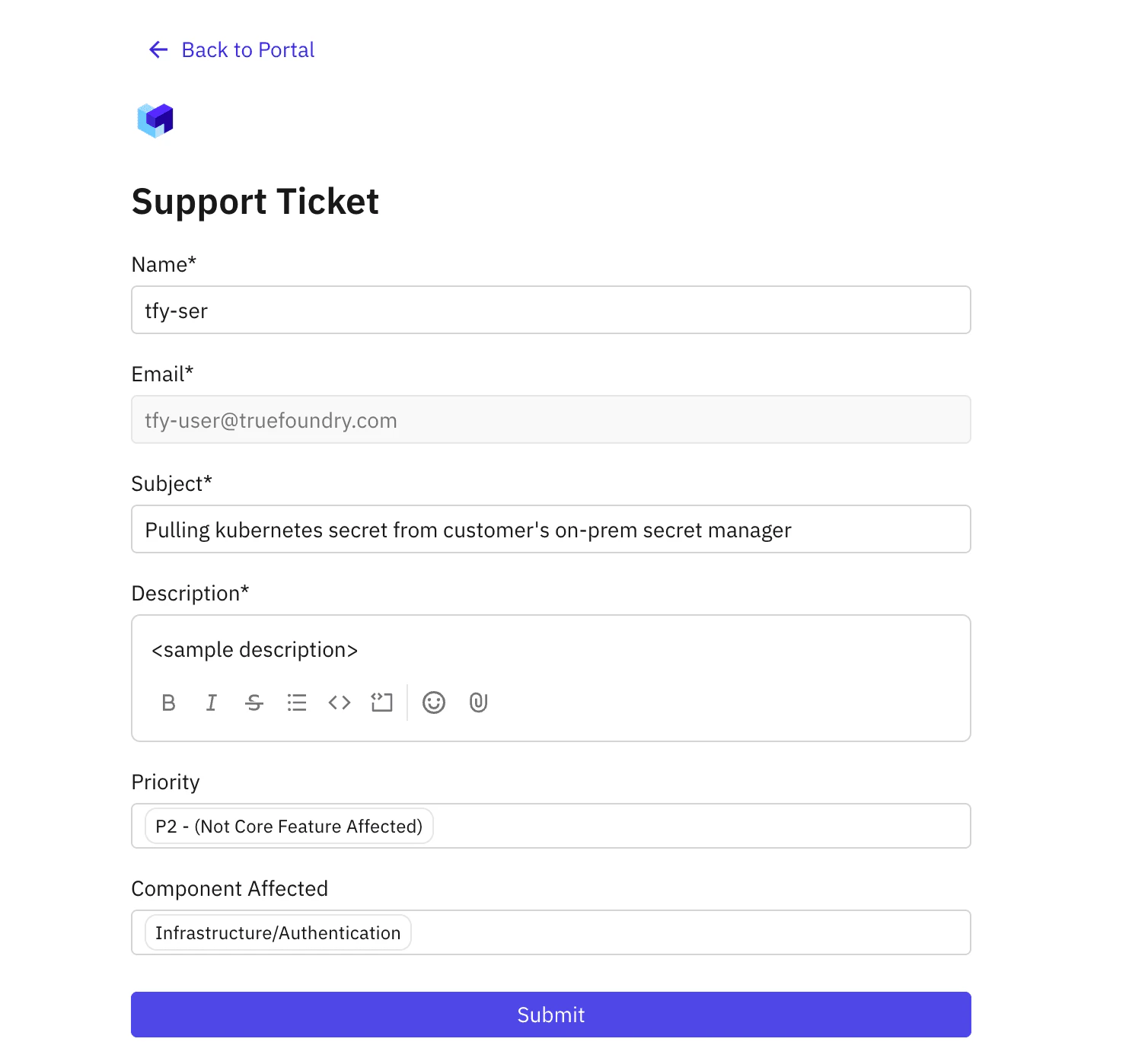
Fill in the ticket details
Field
What to put
Subject
Short, specific title. e.g. “Service deployment failing in prod cluster”
Description
What you expected, what actually happened, reproduction steps (for bugs), relevant timestamps, error messages or log snippets. Links to logs/dashboards help us debug faster.
Priority
P0 blocking production / major outage · P1 core feature broken or major workflow blocked · P2 issue with a workaround, moderate impact · P3 minor issue, cosmetic, small improvement
Component Affected
The product area the issue belongs to (infra, gateway, MCP, deployments, …).
Support Ticket form with Subject, Description, Priority, and Component Affected
Click Submit when you’re done.
4
Track ticket status and history
The ticket appears immediately in the portal. Returning to the portal at any time shows you:
Issue ID
Who raised it
Priority
Created time
Current status and the latest updates from the TrueFoundry team
No — small, quick questions can stay in your shared Slack/Teams channel without tagging @TrueFoundry Team. Open a ticket (either through the channel tag or the portal) when the issue needs tracking, has business impact, or is anything that affects production.
I raised something on Slack/Teams — will it actually be tracked?
Yes, as long as you tag @TrueFoundry Team in the thread. The integration creates a portal ticket and links the conversation to it. If you forgot to tag, just edit the message or post a follow-up that tags us.
Can I switch from Slack/Teams to the portal mid-conversation?
Yes. Every Slack/Teams ticket has a portal ticket ID; you can open that ticket in the Support Portal at any point to attach files, reply with a longer description, or hand off the issue to a teammate.
What if my organisation does not have a shared Slack or Teams channel with TrueFoundry?
Use the in-product Support Portal (Option 2 above) for all tickets. If you’d like a shared channel set up, ask your TrueFoundry Customer Success contact.
Was this page helpful?
Assistant
Responses are generated using AI and may contain mistakes.