

- Resource-level roles — assigned directly on a specific resource (cluster, workspace, model, MCP server, etc.) as collaborators. These roles control what a user, team, or virtual account can do on that particular resource.
- Tenant-level roles — assigned globally to a user or team within the tenant. These roles define what actions the identity can perform across all resources of that type in the tenant.
Resource-level roles (collaborators)
When you add a user, team, or virtual account as a collaborator on a resource, you pick a role that scopes their access to that resource only. Common resource-level roles include:Tenant-level roles
Tenant-level roles apply across the entire tenant and are configured under Access > Roles. They control tenant-wide actions such as creating new resources, managing users, configuring settings, or listing all resources of a type. Tenant-level roles can be assigned to users or teams. When assigned to a team, every member of that team inherits the role’s permissions.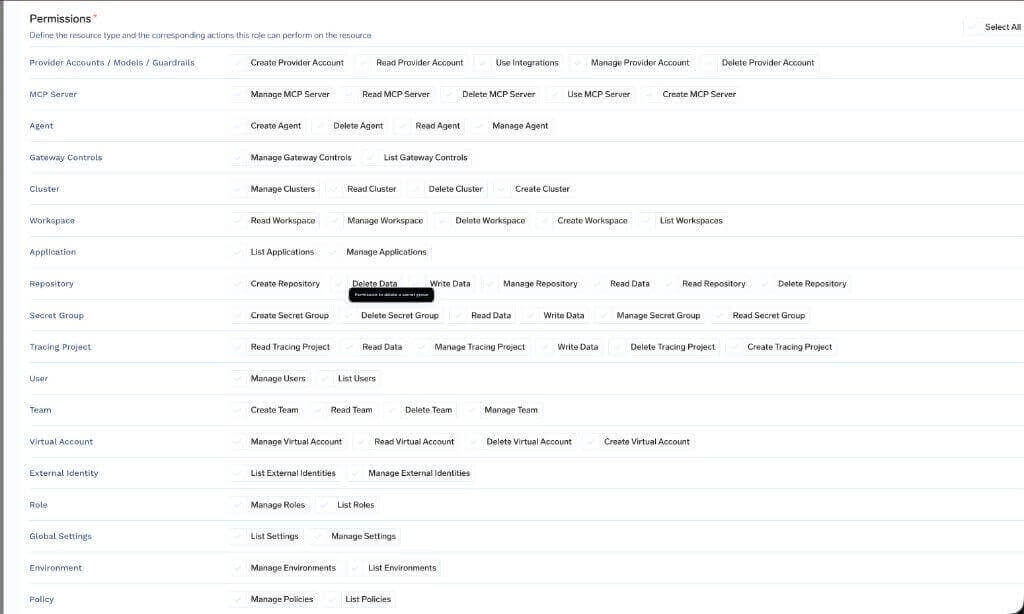
Permissions available when creating a custom tenant-level role
Assign a role to a user
Every user in the tenant has exactly one tenant-level role. By default, TrueFoundry ships with two roles:- Admin — Full control over the tenant, including users, teams, clusters, workspaces, models, MCP servers, and all other resources. Usually only a few admins per organization.
- Member — Every user on the platform has this role by default. It grants a small baseline: reading clusters, listing environments, settings and users, and creating repositories, secret groups and agents. See the permissions it grants. Access to individual workspaces, models, MCP servers and other resources is not included and must be granted through resource collaborators or team membership.
Assign a role from the UI
Navigate to Access > Users, select a user, and pick the role from the Edit User dialog.Assign a role through team membership
If a user is also a member of a team that has a tenant-level role assigned, the user’s effective permissions are the union of their direct role and every role inherited from their teams. This is the recommended way to manage roles for groups of users — assign the role once on the team and add or remove members as needed. For SCIM-managed organizations, IdP groups synced as TrueFoundry teams can be granted tenant-level roles directly inside TrueFoundry. See Provision teams via SCIM.Available platform permissions
The catalog below lists every permission that exists in the TrueFoundry platform. These are the building blocks you compose into a custom tenant-level role.AI Gateway
Provider Account (Provider Account / Model Account / Guardrail Group)
Provider Account (Provider Account / Model Account / Guardrail Group)
MCP/Virtual MCP Server
MCP/Virtual MCP Server
Agent
Agent
Gateway Controls
Gateway Controls
AI Engineering
Cluster
Cluster
Workspace
Workspace
Application
Application
Environment
Environment
Policy
Policy
Common
Role
Role
Tenant
Tenant
User
User
Team
Team
Virtual Account
Virtual Account
Identity Provider
Identity Provider
Integrations
Integrations
Repository
Repository
Secret Group
Secret Group
Global Settings
Global Settings
Managing Default Roles
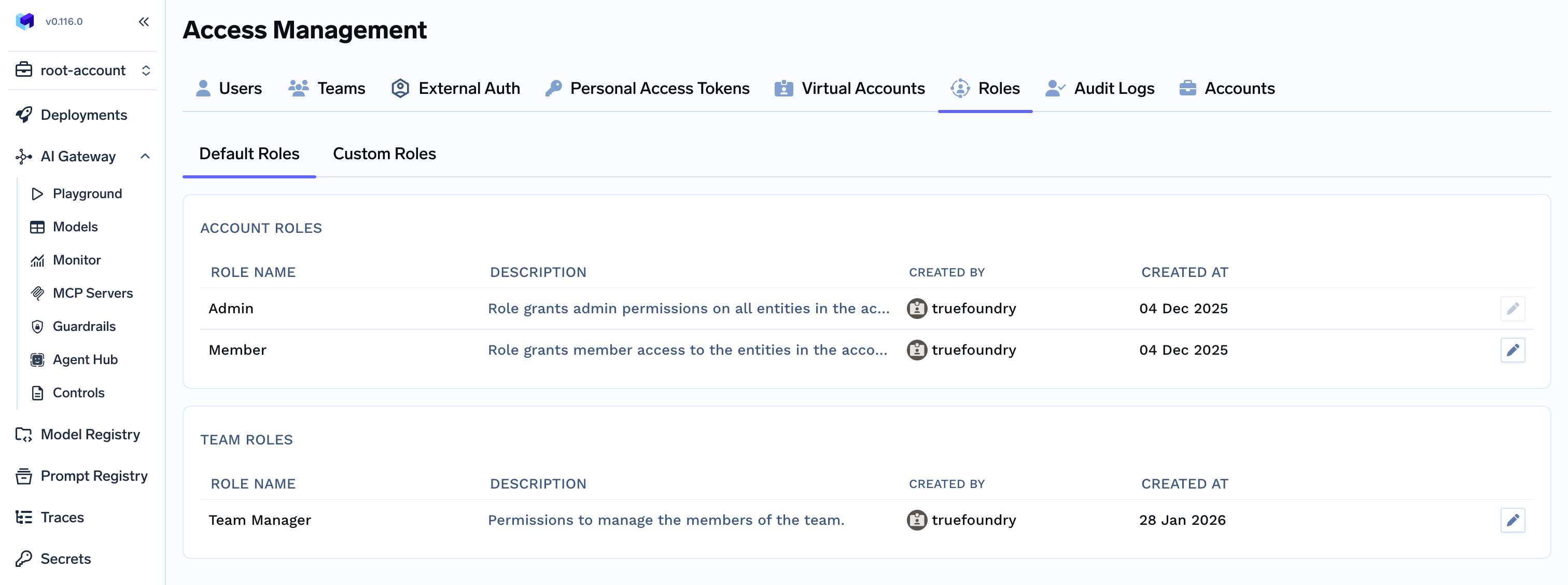
TrueFoundry allows customizing default roles for giving flexibility to Admins to decide. For example, we can update the Default team manager role to allow them manage their virtual accounts on their own. Every tenant ships with the following default roles, which you can review and edit underAccess > Roles > Default Roles:
Team Manager and Team Member are always scoped to the user’s own team, so editing them is the recommended way to delegate Virtual Account access to a team without granting tenant-wide permissions or making anyone an Admin.
Managing Custom Roles
Custom roles let you define a specific set of tenant-level permissions and assign them to users or teams. This is useful when the default Admin and Member roles are too broad or too narrow for a particular group.Create new Custom Role
Access > Roles > Custom Roles. Click on Create Role.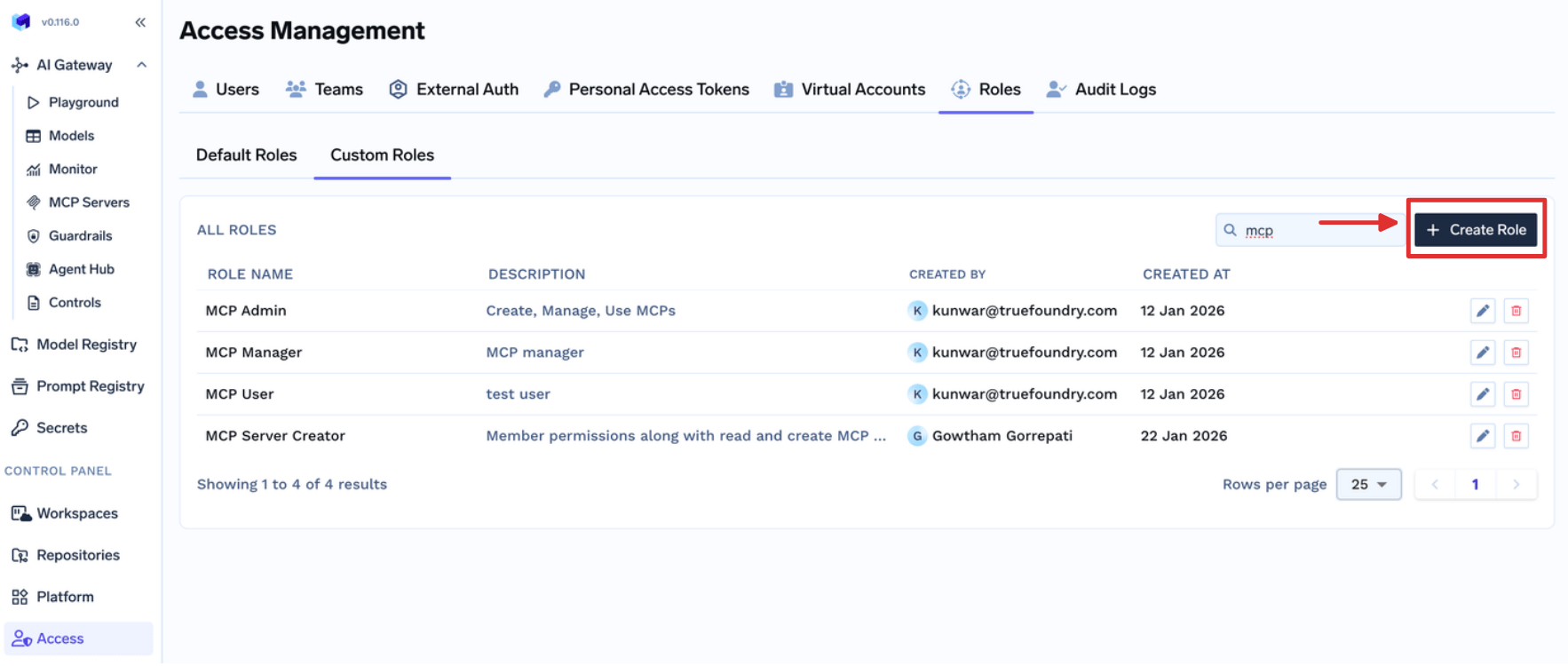
Fill the form
- Permissions are applied to all the resources in the tenant.
- Provider Account should be used to give permissions for Models, Guardrails, and Integrations.
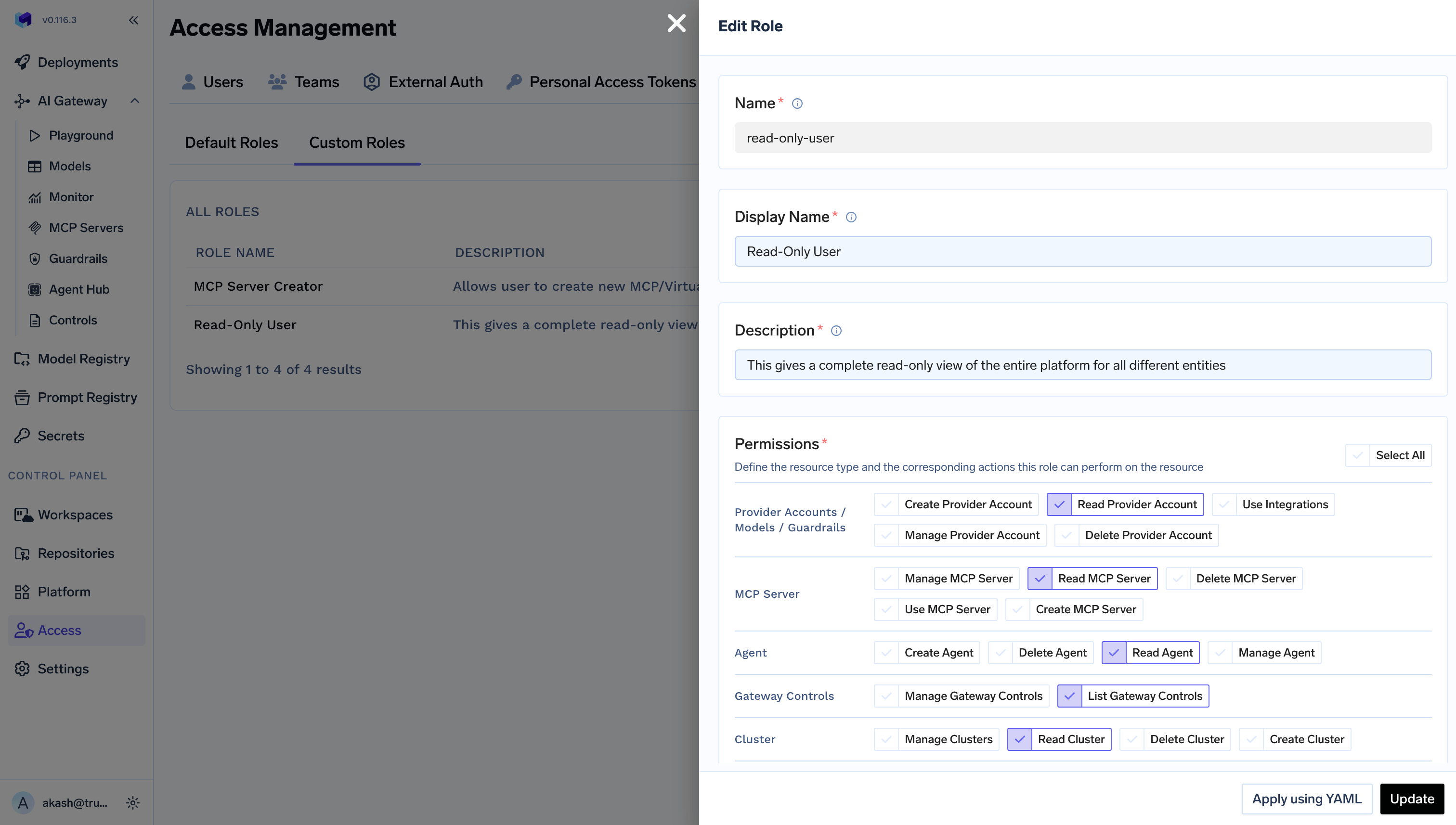
Example for read-only Platform User
Example for read-only Platform User
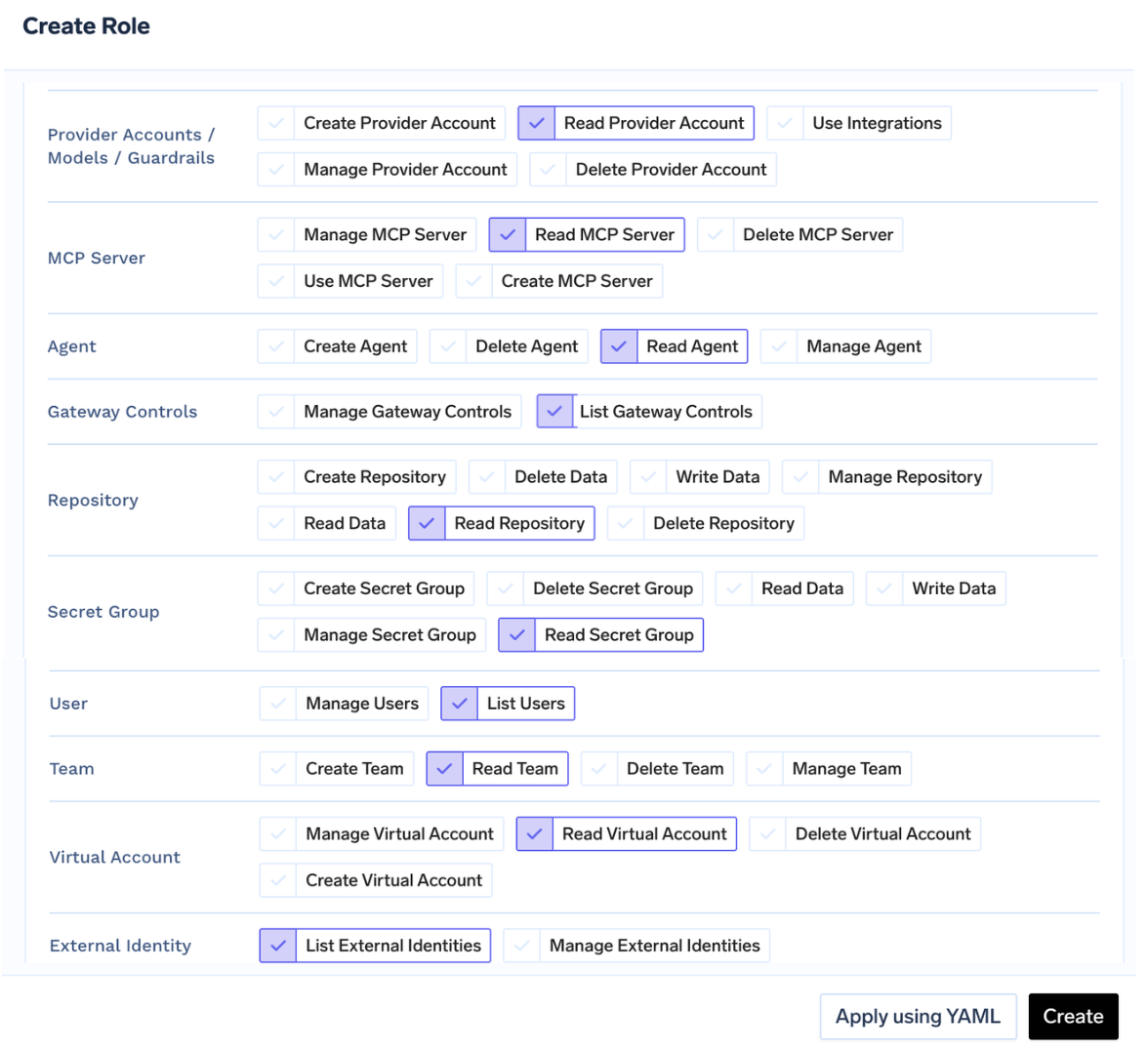
Assign the role to a user or team
Access > Users. Select the user, click Edit User, select the role, and save.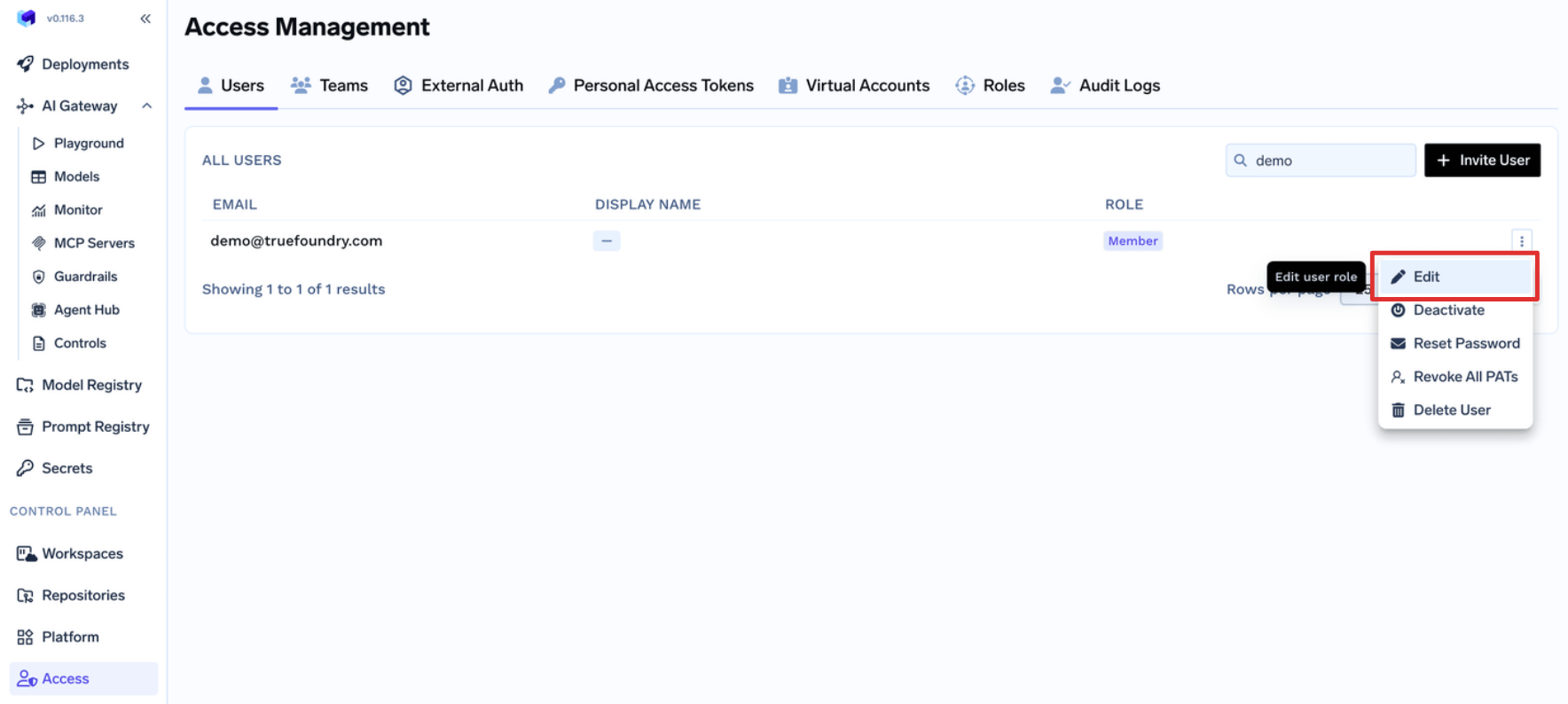
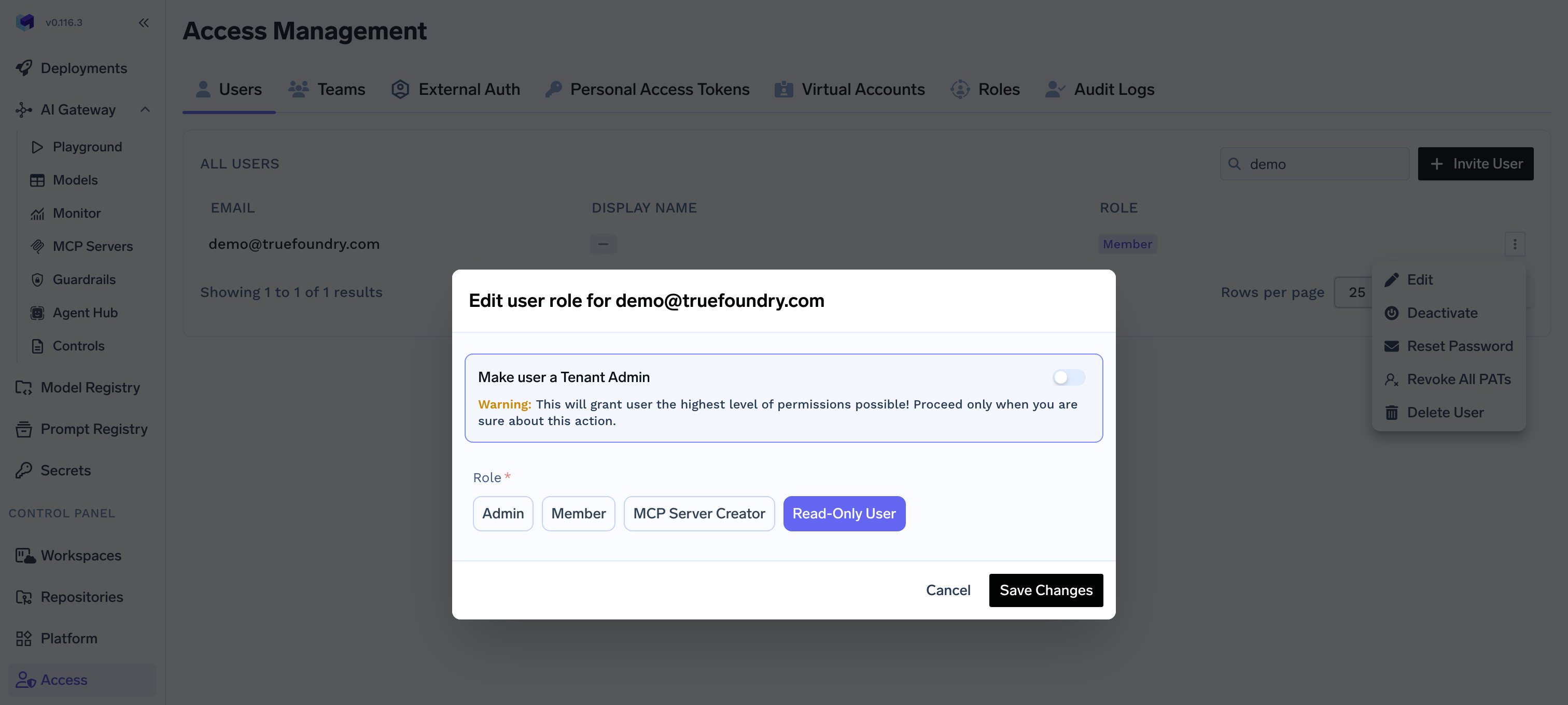
Access > Teams. Select the team, click Edit Team, select the role, and save. Every member of the team inherits the permissions from that role.FAQ
How to allow Teams create and manage their Virtual Accounts without making them Admin?
How to allow Teams create and manage their Virtual Accounts without making them Admin?
Team Manager to allow them to create or manage their Virtual Account.Edit default Team Manager Role
Access > Roles > Default Roles and click on Edit button for the default Team Manager role.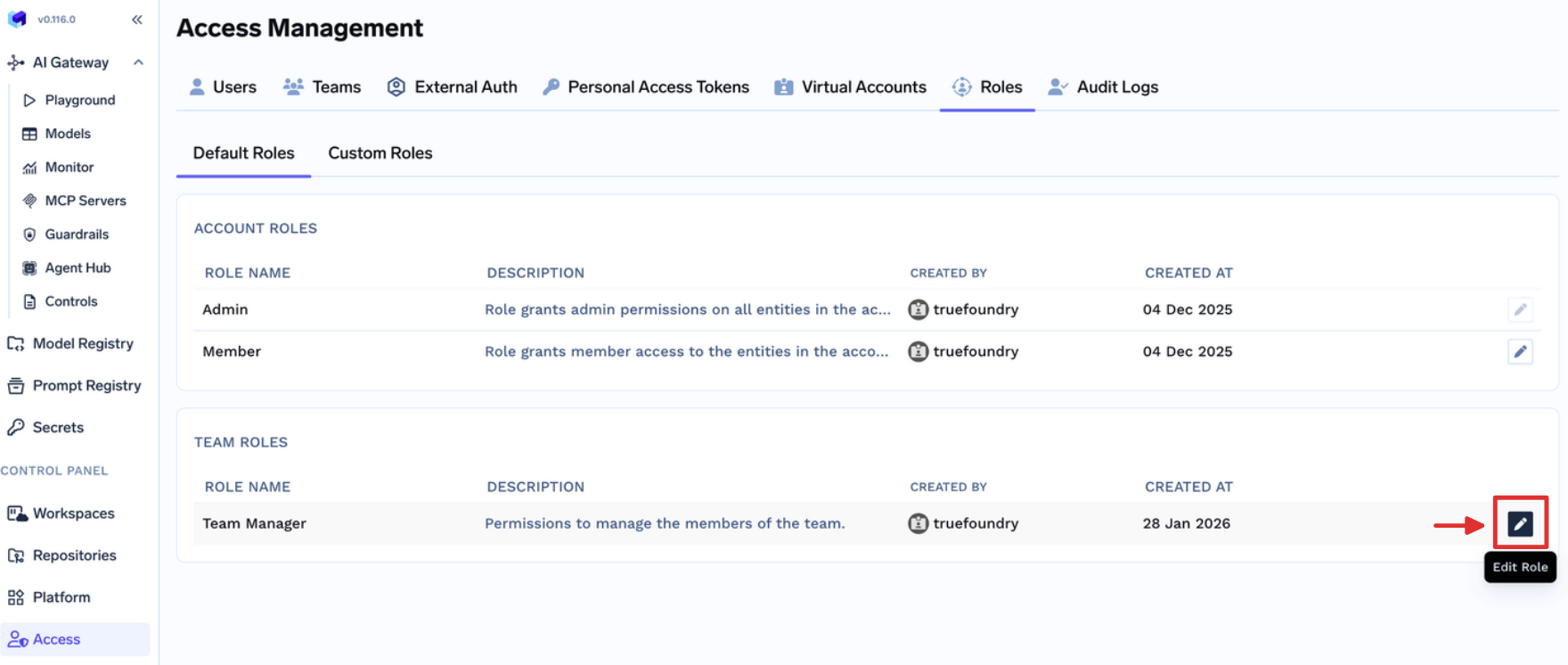
Update Team Manager role
- Read Virtual Account: If you want to allow Team Managers view Virtual Accounts owned by their teams.
- Create Virtual Account: If you want to allow Team Managers create new Virtual Accounts owned by their teams.
- Manage Virtual Account: If you want to allow Team Managers update Virtual Accounts owned by their teams. This also includes permission to get the token.
- Delete Virtual Account: If you want to allow Team Managers delete Virtual Accounts owned by their teams.
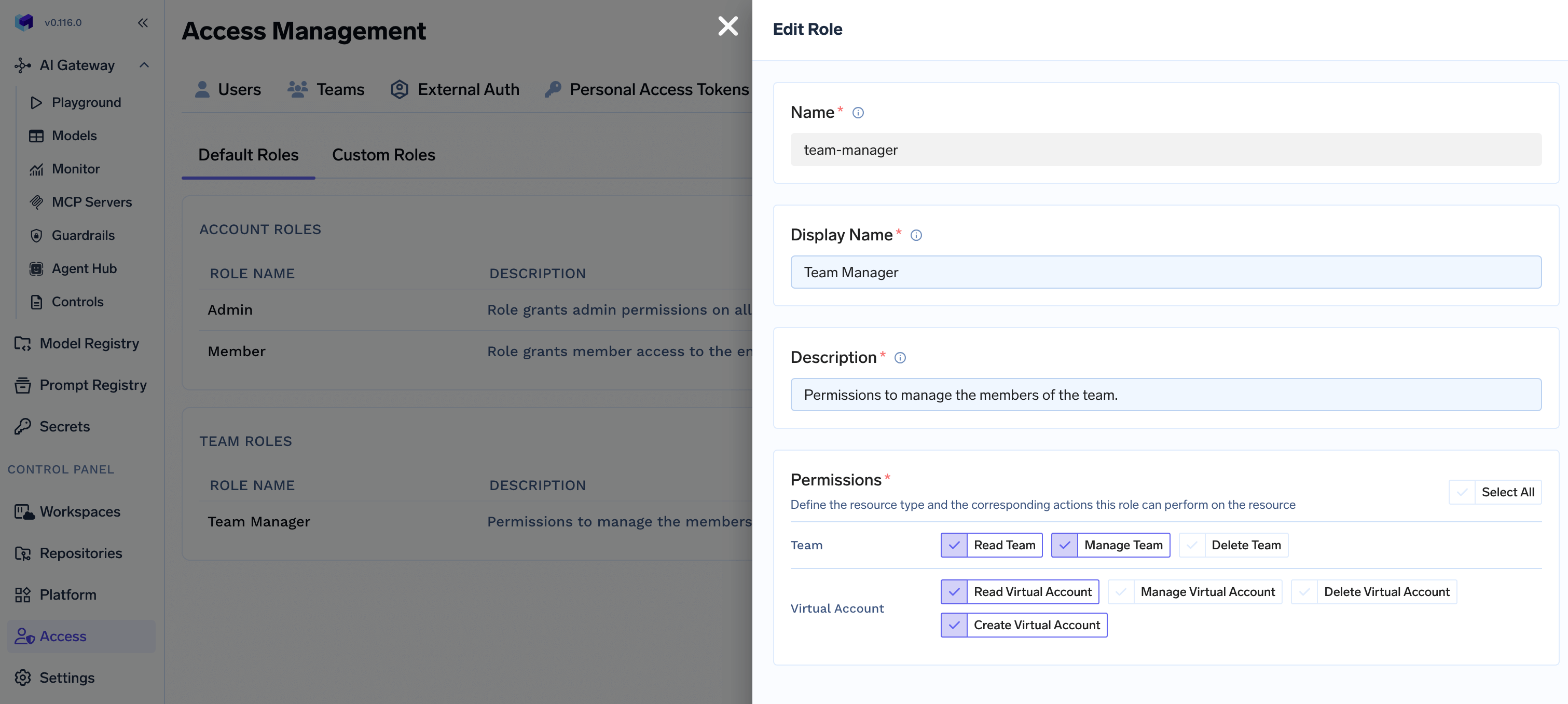
Manage Virtual Accounts
How to allow Team Members view or retrieve tokens of their Virtual Accounts without making them Admin or Team Manager?
How to allow Team Members view or retrieve tokens of their Virtual Accounts without making them Admin or Team Manager?
Team Member role, scoped to the Virtual Accounts owned by that team. Editing this role is the recommended way to let team members work with their team’s Virtual Accounts — they do not need to be made Admins, and they do not need Team Manager access.By default the role comes with Read Virtual Account, so members can view (but not modify) the Virtual Accounts owned by their teams. To let them retrieve the token, add Manage Virtual Account.Edit default Team Member Role
Access > Roles > Default Roles and click on Edit button for the default Team Member role.Update Team Member role
- Read Virtual Account: If you want to allow Team Members view Virtual Accounts owned by their teams. This is enabled by default.
- Manage Virtual Account: If you want to allow Team Members update Virtual Accounts owned by their teams. This also includes permission to get the token, and is the permission to enable if members need to retrieve their team’s Virtual Account tokens themselves.
- Create Virtual Account: If you want to allow Team Members create new Virtual Accounts owned by their teams.
- Delete Virtual Account: If you want to allow Team Members delete Virtual Accounts owned by their teams.
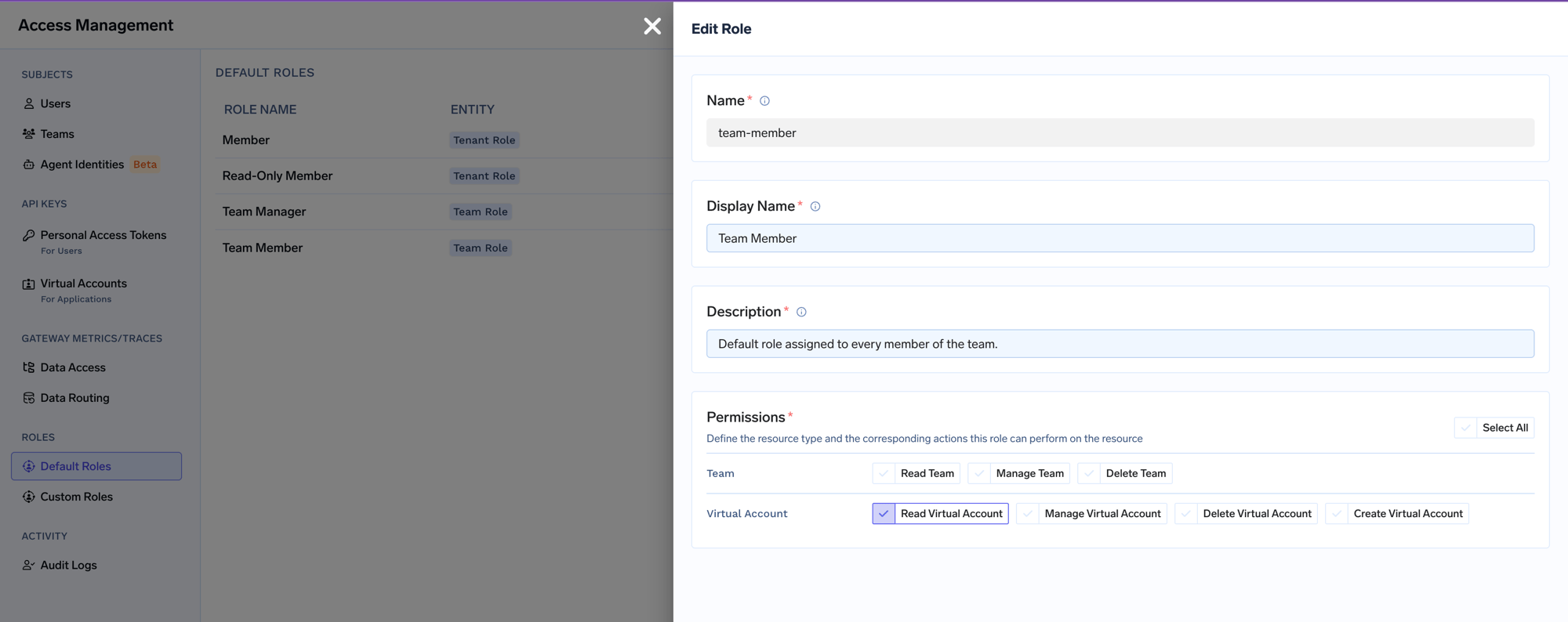
View or retrieve Virtual Account tokens
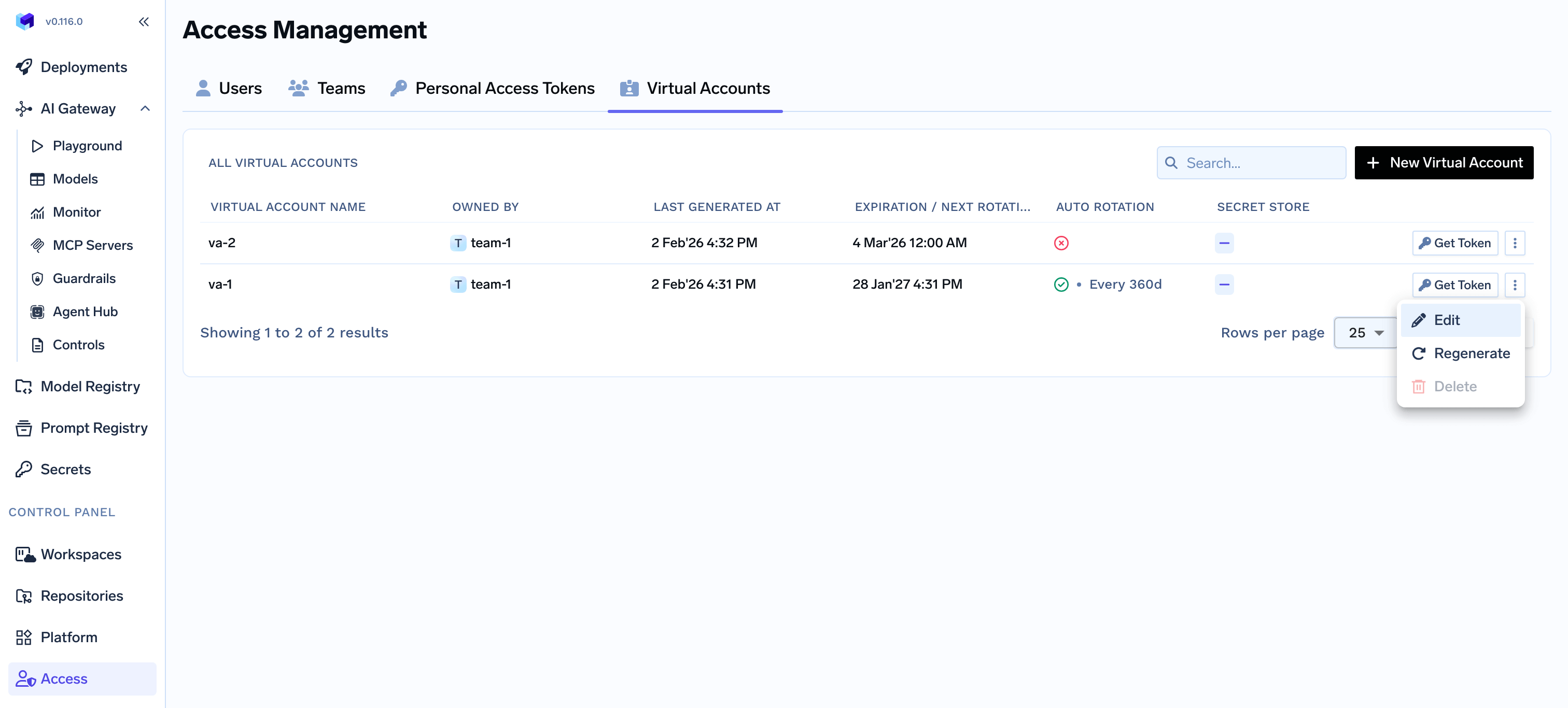
Manage Virtual Account, members can retrieve the token using the Get Token button on the Virtual Account. See Manage Virtual Accounts for details.Owned By field on the Virtual Account.What are the permissions given to a Team Member role by default?
What are the permissions given to a Team Member role by default?
Team Member role comes with following permissions:- virtual-account:ReadVirtualAccount
virtual-account:ManageVirtualAccount.How to allow Users create and manage their Virtual MCP Servers without making them Admin?
How to allow Users create and manage their Virtual MCP Servers without making them Admin?
Users to allow them to create or manage their Virtual MCP Servers.Create a new Custom Role
Access > Roles > Custom Roles and click on Create Role button.Fill the form
Create MCP Server permission to allow just create a new MCP/Virtual MCP Server.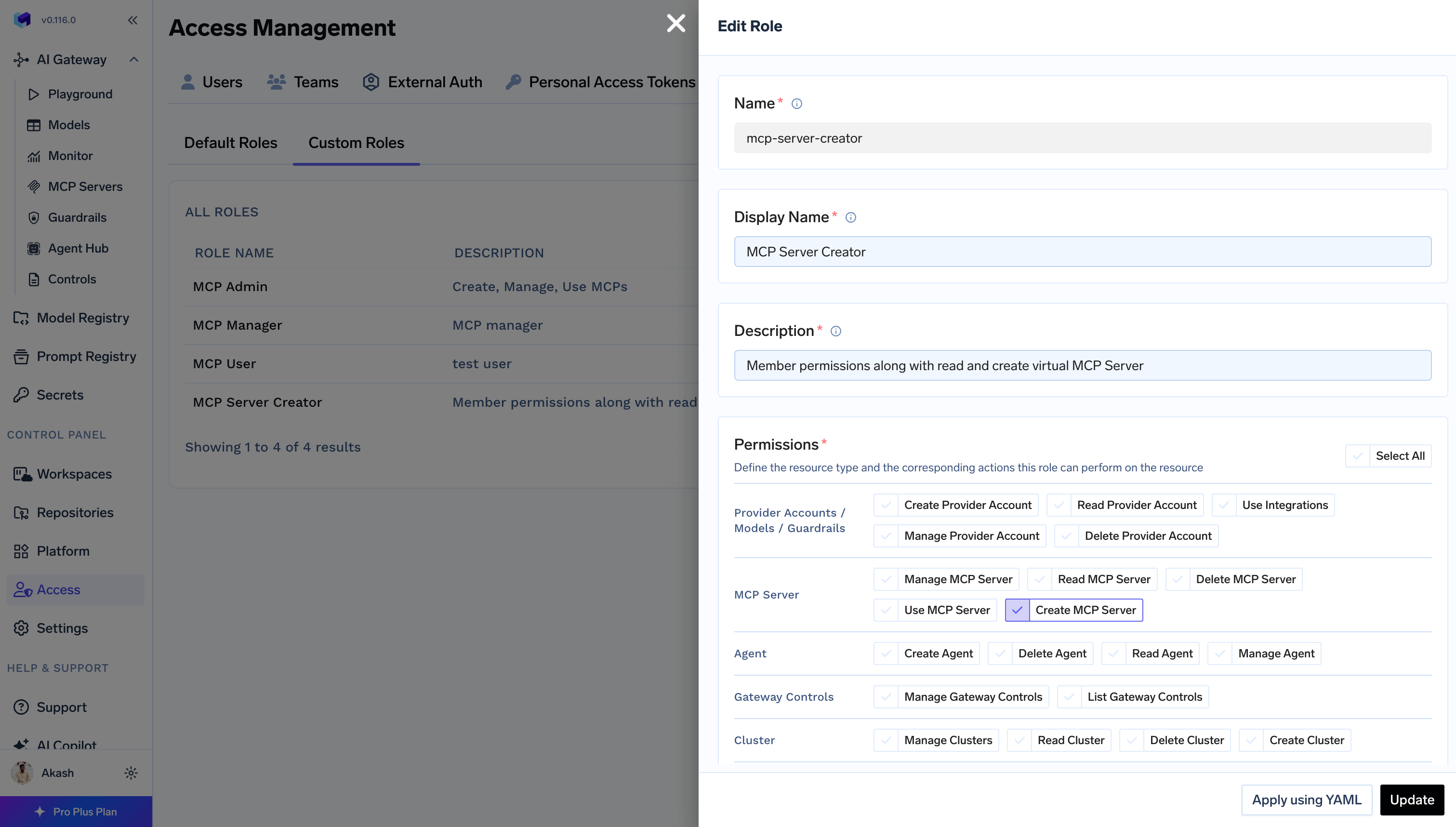
MCP Server Manager using collaborator to update and
access the MCP Server while creating it first time.Assing the Role to User
Access > Users and click Edit for users to allow creating MCP Servers. Assign the created Role.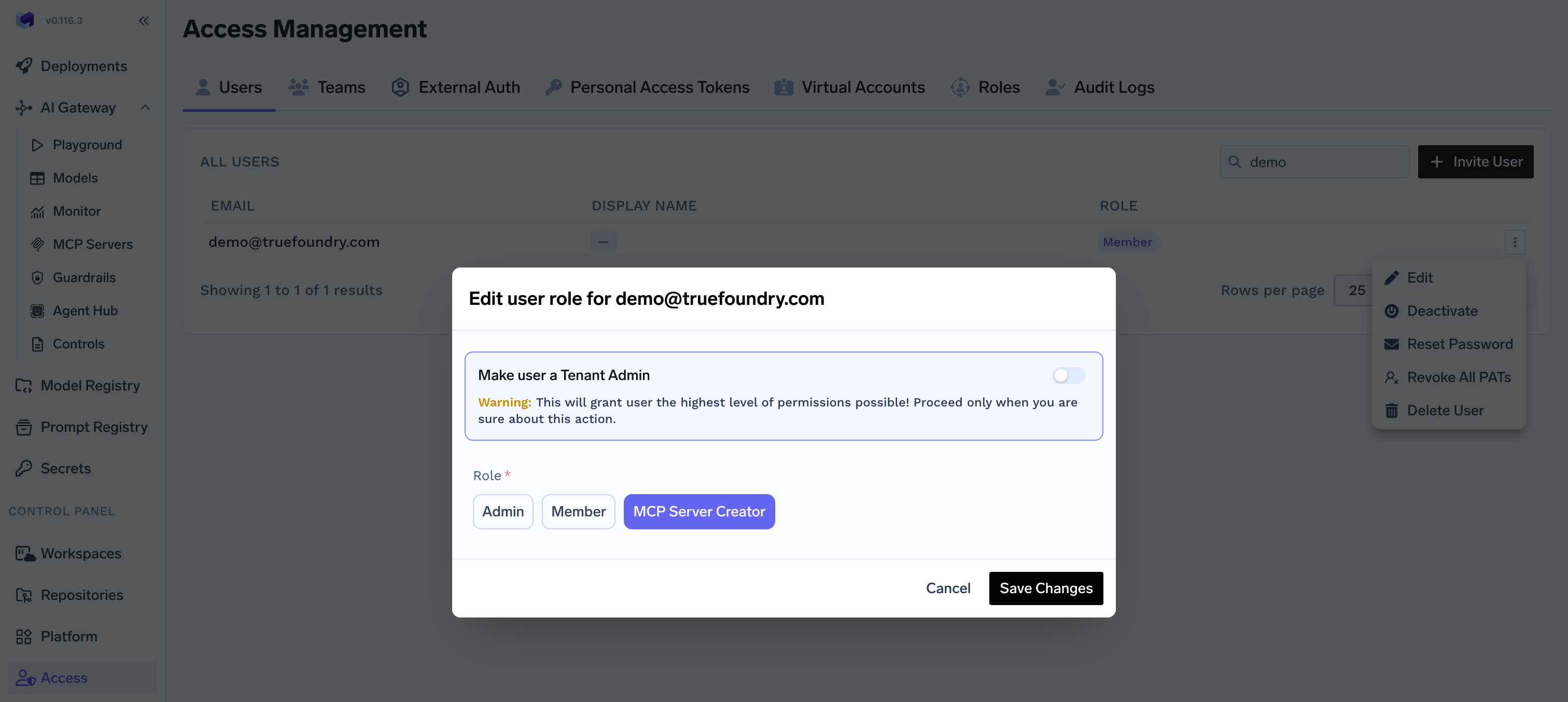
How to allow all Users to view Gateway Controls like Rate limit, Routing config, etc without making them Admin?
How to allow all Users to view Gateway Controls like Rate limit, Routing config, etc without making them Admin?
Member role to allow them to view Gateway Controls.Edit default Team Manager Role
Access > Roles > Default Roles and click on Edit button on Member role.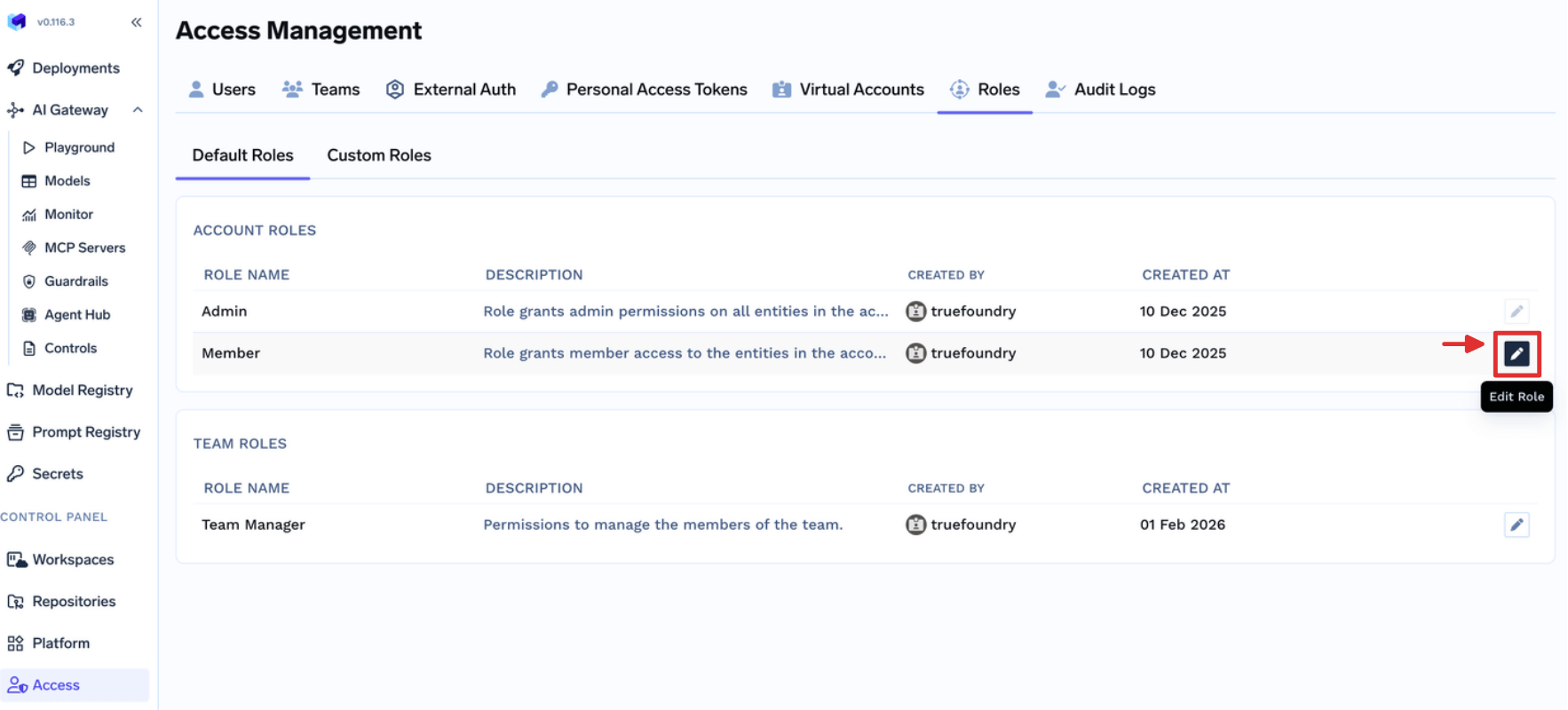
Update Team Manager role
List Gateway Controls and click Update to allow all the Users in the Account view all the AI Gateway Configs.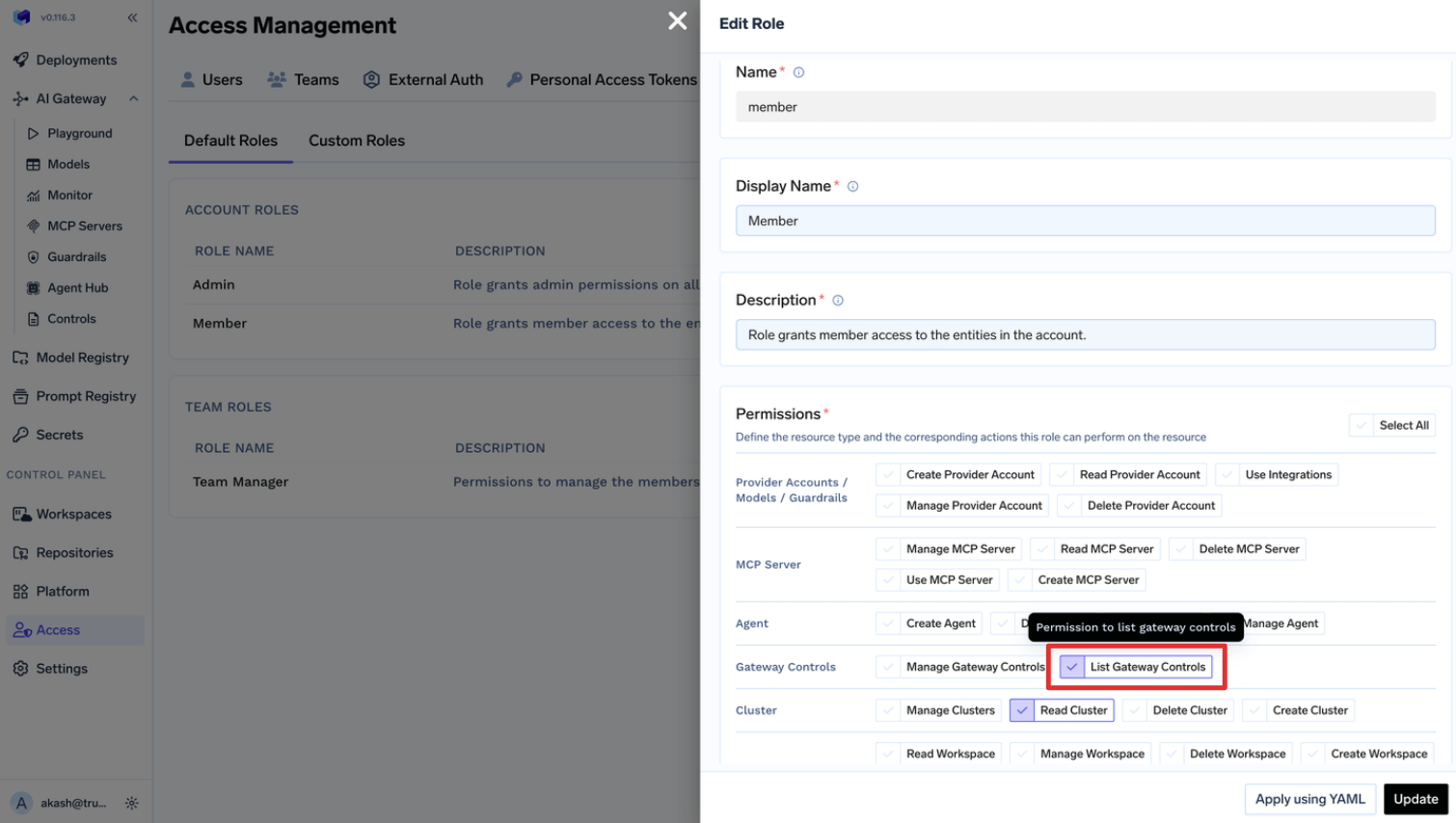
What are the permissions given to a Member role by default?
What are the permissions given to a Member role by default?
Member role comes with following permissions:- cluster:ReadCluster
- environment:ListEnvironments
- settings:ListSettings
- user:ListUsers
- repository:CreateRepository
- secret-group:CreateSecretGroup
- agent:CreateAgent